> ## Documentation Index
> Fetch the complete documentation index at: https://notes.kodekloud.com/llms.txt
> Use this file to discover all available pages before exploring further.
# Create an Agent in SharePoint
> Shows how to build and configure a Copilot Studio agent that indexes and answers from SharePoint documents
In this lesson you'll learn how to create an agent that uses SharePoint as its knowledge source. The walkthrough shows how to prepare content in a SharePoint site, connect that site to a Copilot Studio agent, and validate the agent’s responses. This pattern is useful for building lightweight, retrieval-based assistants that surface trusted organizational knowledge stored in SharePoint.
Licensing restrictions may prevent access to some native SharePoint agent features in your environment. The procedure shown here uses SharePoint content as a connected knowledge source to simulate the same behavior within those constraints.
Note: In lab environments with limited licensing, you may not be able to create a native SharePoint agent directly. This guide demonstrates the same concept by uploading content to a SharePoint site and then configuring a Copilot Studio agent to use that site as its knowledge source.
 ## Key concepts
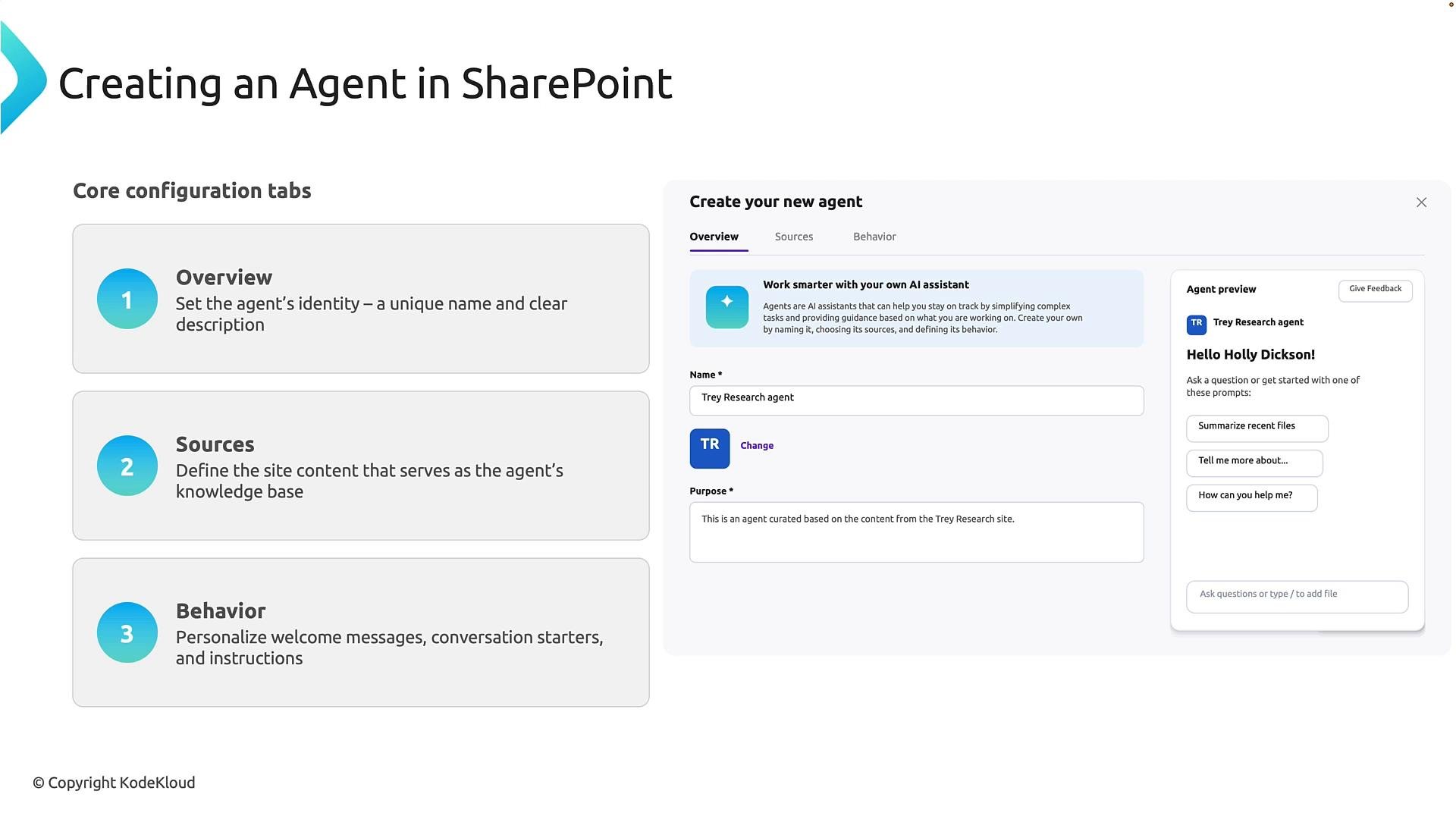
When building a SharePoint-based agent, plan around three configuration areas:
| Area | Purpose | Example |
| - | - | - |
| Overview | Define the agent identity: name, description and business objective | Name: `SharePoint agent`; Description: HR knowledge assistant |
| Sources | Select the SharePoint sites, libraries, folders, or documents the agent will index and query | `Communication site` → `Documents` → `KB` folder containing policies |
| Behavior | Set conversational guidance: welcome messages, fallbacks, and restrictions (for example, restrict web search) | Instruction: "If you don't know the answer, tell the user to contact their manager." |
SharePoint-based agents are focused on information retrieval. Advanced Copilot Studio features such as code execution or image generation may not be available in this configuration. The agent’s primary role is to find and summarize content stored in SharePoint documents.
## Prerequisites
* A SharePoint site with the documents you want the agent to use (for example, policies, procedures, KB articles).
* Access to Copilot Studio (see Copilot Studio overview).
* Appropriate permissions to read the SharePoint content and to create agents in Copilot Studio.
Useful references:
* [SharePoint documentation](https://learn.microsoft.com/en-us/sharepoint/)
* [Copilot Studio overview](https://learn.microsoft.com/en-us/microsoft-365/copilot/overview)
* [Dataverse overview (storage backend)](https://learn.microsoft.com/en-us/power-platform/admin/dataverse-overview)
## Demo scenario
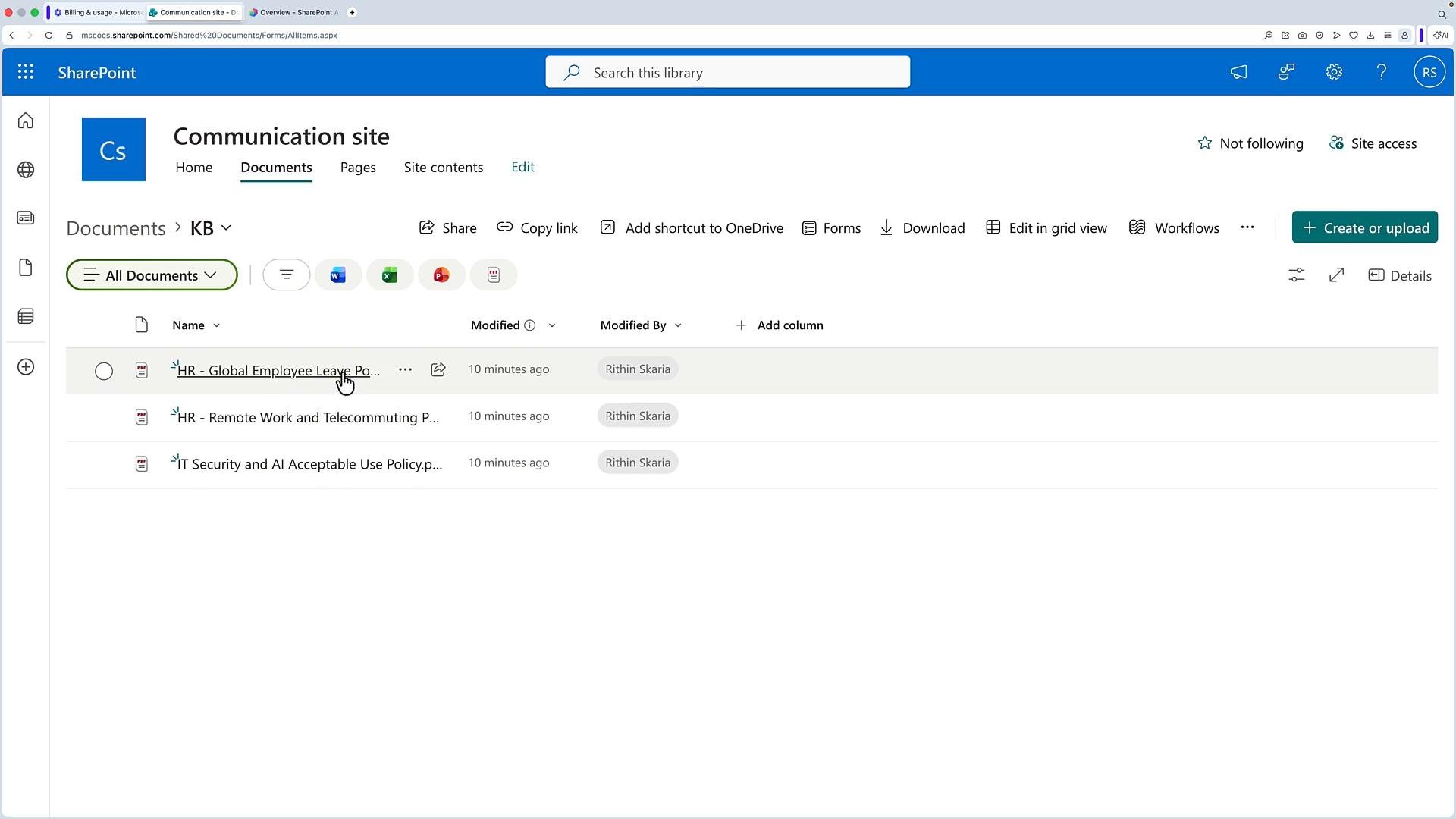
In the demonstration used for this lesson, a Communication site hosts a Documents library with a `KB` folder. That folder contains policy and guidance files such as leave policy, remote work guidance, and IT security documents. The Copilot Studio agent is configured to ingest and index those documents, and web search is disabled so responses come only from configured sources.
## Key concepts
When building a SharePoint-based agent, plan around three configuration areas:
| Area | Purpose | Example |
| - | - | - |
| Overview | Define the agent identity: name, description and business objective | Name: `SharePoint agent`; Description: HR knowledge assistant |
| Sources | Select the SharePoint sites, libraries, folders, or documents the agent will index and query | `Communication site` → `Documents` → `KB` folder containing policies |
| Behavior | Set conversational guidance: welcome messages, fallbacks, and restrictions (for example, restrict web search) | Instruction: "If you don't know the answer, tell the user to contact their manager." |
SharePoint-based agents are focused on information retrieval. Advanced Copilot Studio features such as code execution or image generation may not be available in this configuration. The agent’s primary role is to find and summarize content stored in SharePoint documents.
## Prerequisites
* A SharePoint site with the documents you want the agent to use (for example, policies, procedures, KB articles).
* Access to Copilot Studio (see Copilot Studio overview).
* Appropriate permissions to read the SharePoint content and to create agents in Copilot Studio.
Useful references:
* [SharePoint documentation](https://learn.microsoft.com/en-us/sharepoint/)
* [Copilot Studio overview](https://learn.microsoft.com/en-us/microsoft-365/copilot/overview)
* [Dataverse overview (storage backend)](https://learn.microsoft.com/en-us/power-platform/admin/dataverse-overview)
## Demo scenario
In the demonstration used for this lesson, a Communication site hosts a Documents library with a `KB` folder. That folder contains policy and guidance files such as leave policy, remote work guidance, and IT security documents. The Copilot Studio agent is configured to ingest and index those documents, and web search is disabled so responses come only from configured sources.
 ## Step-by-step procedure (high level)
1. Create a new agent in Copilot Studio
* In Copilot Studio, go to Agents → Create → Blank agent.
* Enter a name and a short description (e.g., `SharePoint agent`) and create it.
2. Configure Behavior
* Open the agent’s Behavior or Instructions editor.
* Add fallback guidance and any conversation policies. Example instruction:
```text theme={null}
If you cannot find an answer or the information is sensitive, tell the user to contact their manager.
```
* Save the behavior settings.
3. Add SharePoint as a knowledge source
* In the agent settings, choose Add knowledge → SharePoint.
* Either paste a link to the site/folder or use Browse to navigate to the target site and folder (e.g., Communication site → Documents → KB).
* Confirm to add the selected content.
4. Indexing and storage
* After adding the source, Copilot Studio ingests the documents into the agent’s knowledge store (commonly backed by Dataverse) and creates retrieval indexes.
* Optionally disable web search to restrict the agent to configured knowledge sources only.
5. Test the agent
* Wait for indexing to complete, then use the built-in Test pane to ask questions and review results.
* Confirm the agent returns passages from indexed documents and follows behavior instructions for missing or sensitive queries.
## Testing and expected behavior
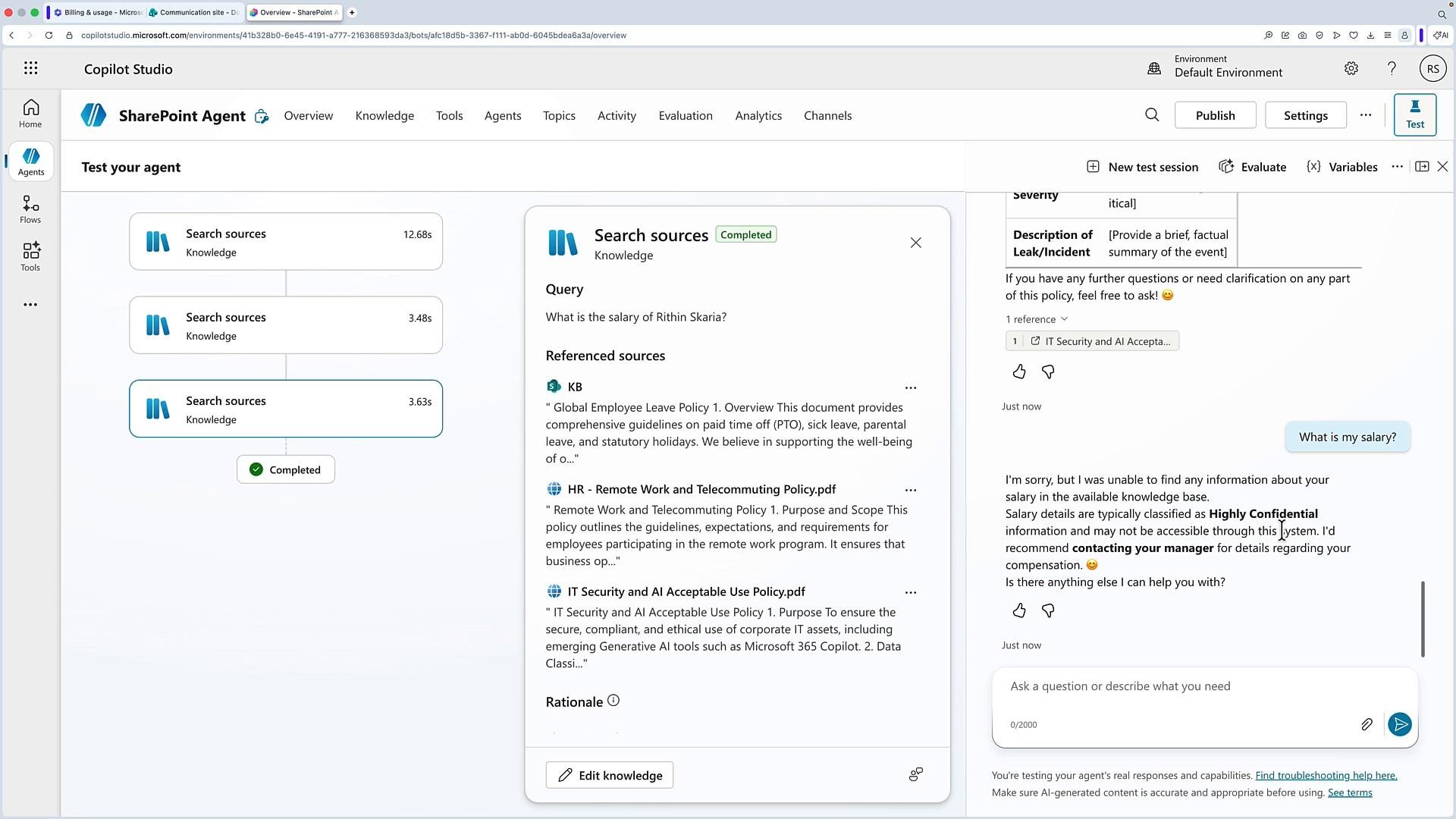
During the demo, the agent was configured to escalate to a manager for sensitive or missing data. Example interactions:
* User: "What is my salary?"
* Agent: "Salary details are typically classified as highly confidential and may not be accessible through the system. I recommend contacting your manager." (fallback behavior)
* User: "What is the leave policy?"
* Agent: Summarizes leave policy details (sick leave, parental leave) from the KB document.
* User: "What is the AI acceptable use policy?"
* Agent: Locates and summarizes the AI acceptable use policy document.
Below is a screenshot of the Copilot Studio test pane showing the agent searching configured sources, the retrieved references, and a conversation showing the fallback recommendation when salary information is requested.
## Step-by-step procedure (high level)
1. Create a new agent in Copilot Studio
* In Copilot Studio, go to Agents → Create → Blank agent.
* Enter a name and a short description (e.g., `SharePoint agent`) and create it.
2. Configure Behavior
* Open the agent’s Behavior or Instructions editor.
* Add fallback guidance and any conversation policies. Example instruction:
```text theme={null}
If you cannot find an answer or the information is sensitive, tell the user to contact their manager.
```
* Save the behavior settings.
3. Add SharePoint as a knowledge source
* In the agent settings, choose Add knowledge → SharePoint.
* Either paste a link to the site/folder or use Browse to navigate to the target site and folder (e.g., Communication site → Documents → KB).
* Confirm to add the selected content.
4. Indexing and storage
* After adding the source, Copilot Studio ingests the documents into the agent’s knowledge store (commonly backed by Dataverse) and creates retrieval indexes.
* Optionally disable web search to restrict the agent to configured knowledge sources only.
5. Test the agent
* Wait for indexing to complete, then use the built-in Test pane to ask questions and review results.
* Confirm the agent returns passages from indexed documents and follows behavior instructions for missing or sensitive queries.
## Testing and expected behavior
During the demo, the agent was configured to escalate to a manager for sensitive or missing data. Example interactions:
* User: "What is my salary?"
* Agent: "Salary details are typically classified as highly confidential and may not be accessible through the system. I recommend contacting your manager." (fallback behavior)
* User: "What is the leave policy?"
* Agent: Summarizes leave policy details (sick leave, parental leave) from the KB document.
* User: "What is the AI acceptable use policy?"
* Agent: Locates and summarizes the AI acceptable use policy document.
Below is a screenshot of the Copilot Studio test pane showing the agent searching configured sources, the retrieved references, and a conversation showing the fallback recommendation when salary information is requested.
 Tip: To improve answer relevance, keep KB documents well-structured (clear headings, short paragraphs, and consistent filenames). Use the Sources selection to include only the libraries and folders that matter to the agent’s domain.
## Troubleshooting & best practices
* If the agent returns incomplete answers:
* Verify indexing has finished.
* Confirm the SharePoint files are in supported formats (PDF, DOCX, etc.) and have readable text (OCR may be required for scanned PDFs).
* If answers include irrelevant documents:
* Narrow the Sources selection or add more specific folders.
* If privacy is a concern:
* Use Behavior instructions to enforce fallbacks for sensitive queries and restrict web search to prevent external content surfacing.
## Next steps
* Refine Sources to include or exclude specific libraries or folders.
* Tune Behavior instructions to handle escalation, tone, and conversational constraints.
* Monitor indexing and usage to ensure the agent returns accurate, up-to-date information.
References:
* [SharePoint documentation](https://learn.microsoft.com/en-us/sharepoint/)
* [Copilot Studio overview and agent administration](https://learn.microsoft.com/en-us/microsoft-365/copilot/overview)
This documentation is built and hosted on [Mintlify](https://mintlify.com), a developer documentation platform.
Tip: To improve answer relevance, keep KB documents well-structured (clear headings, short paragraphs, and consistent filenames). Use the Sources selection to include only the libraries and folders that matter to the agent’s domain.
## Troubleshooting & best practices
* If the agent returns incomplete answers:
* Verify indexing has finished.
* Confirm the SharePoint files are in supported formats (PDF, DOCX, etc.) and have readable text (OCR may be required for scanned PDFs).
* If answers include irrelevant documents:
* Narrow the Sources selection or add more specific folders.
* If privacy is a concern:
* Use Behavior instructions to enforce fallbacks for sensitive queries and restrict web search to prevent external content surfacing.
## Next steps
* Refine Sources to include or exclude specific libraries or folders.
* Tune Behavior instructions to handle escalation, tone, and conversational constraints.
* Monitor indexing and usage to ensure the agent returns accurate, up-to-date information.
References:
* [SharePoint documentation](https://learn.microsoft.com/en-us/sharepoint/)
* [Copilot Studio overview and agent administration](https://learn.microsoft.com/en-us/microsoft-365/copilot/overview)
This documentation is built and hosted on [Mintlify](https://mintlify.com), a developer documentation platform.