> ## Documentation Index
> Fetch the complete documentation index at: https://notes.kodekloud.com/llms.txt
> Use this file to discover all available pages before exploring further.
# Monitor and Adjust Pay As You Go Copilot Usage
> Guidance for monitoring Copilot pay as you go consumption, setting billing policies and budgets, configuring alerts, and converting heavy users to permanent licenses to control costs.
Monitoring Copilot consumption and optimizing costs is an ongoing responsibility for administrators. With pay-as-you-go billing, continuous visibility and active cost management help prevent surprises and keep productivity balanced with budget control.
Use the Microsoft 365 admin center dashboards to track Copilot service consumption across your organization. These dashboards show adoption patterns, usage trends, and high-consumption users or groups so you can make informed licensing and budgeting decisions.
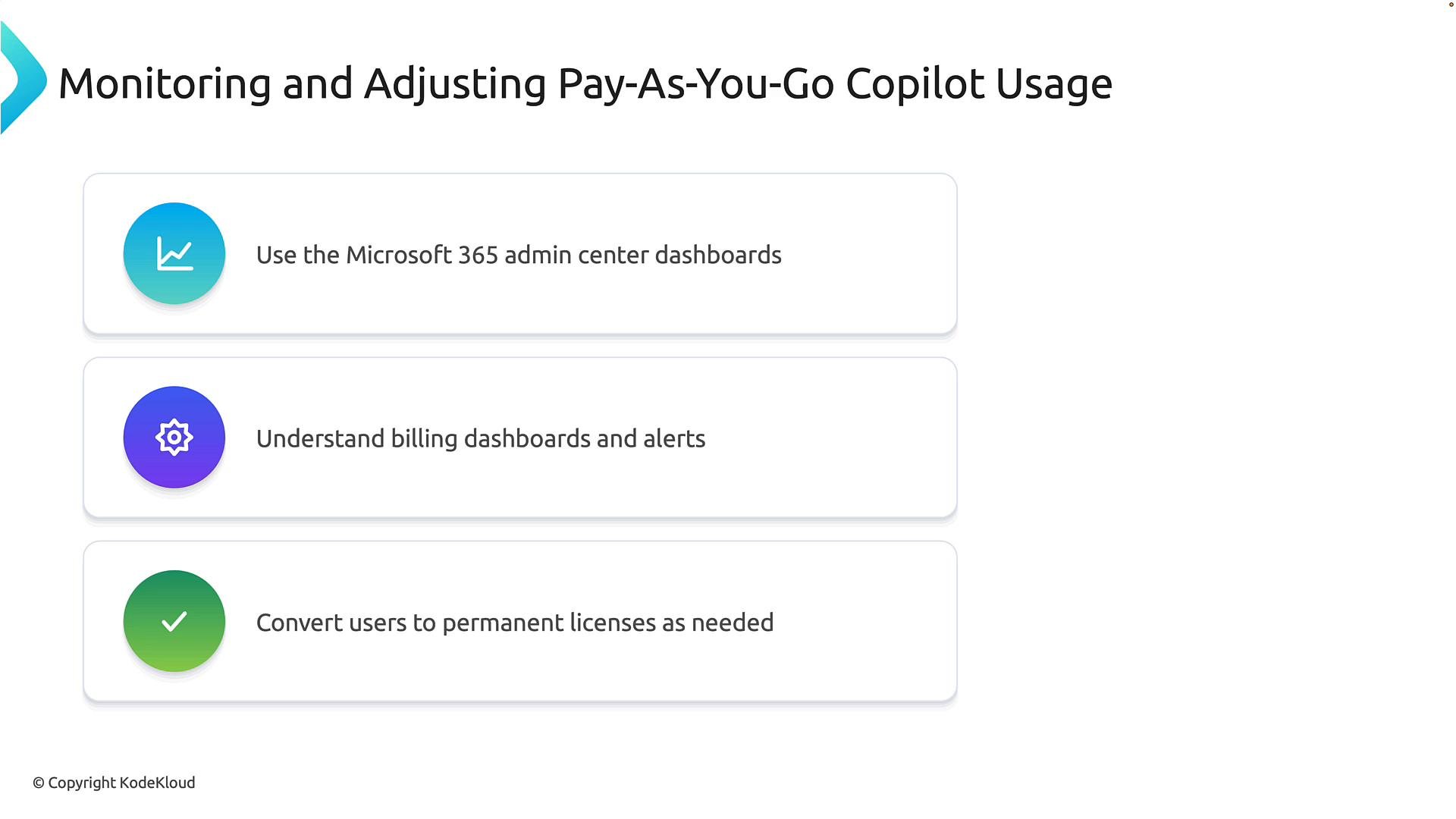 Why monitoring matters
* Detect unexpected consumption spikes and root-cause them quickly.
* Identify teams or roles that are heavy Copilot consumers.
* Decide when to convert high-consumption users from pay-as-you-go credits to permanent per-user licenses for predictable costs.
Monitor usage regularly and configure budget alerts so you can catch unexpected consumption early. When a group or individual consistently consumes many credits, consider moving them to permanent licenses to stabilize long-term costs.
When to convert to permanent licenses
| Indicator | Why it matters | Suggested action |
| - | -: | - |
| High sustained credit consumption (7–30 day trend) | Pay-as-you-go can become more expensive over time | Evaluate per-user licensing cost vs. projected monthly spend |
| Predictable, heavy usage for a team | Predictability reduces budgeting friction | Move the team to permanent per-user licenses |
| Need for simplified billing | Multiple subscriptions or resource groups complicate chargeback | Consolidate licensing and reduce pay-as-you-go scope |
Create a billing policy (step-by-step)
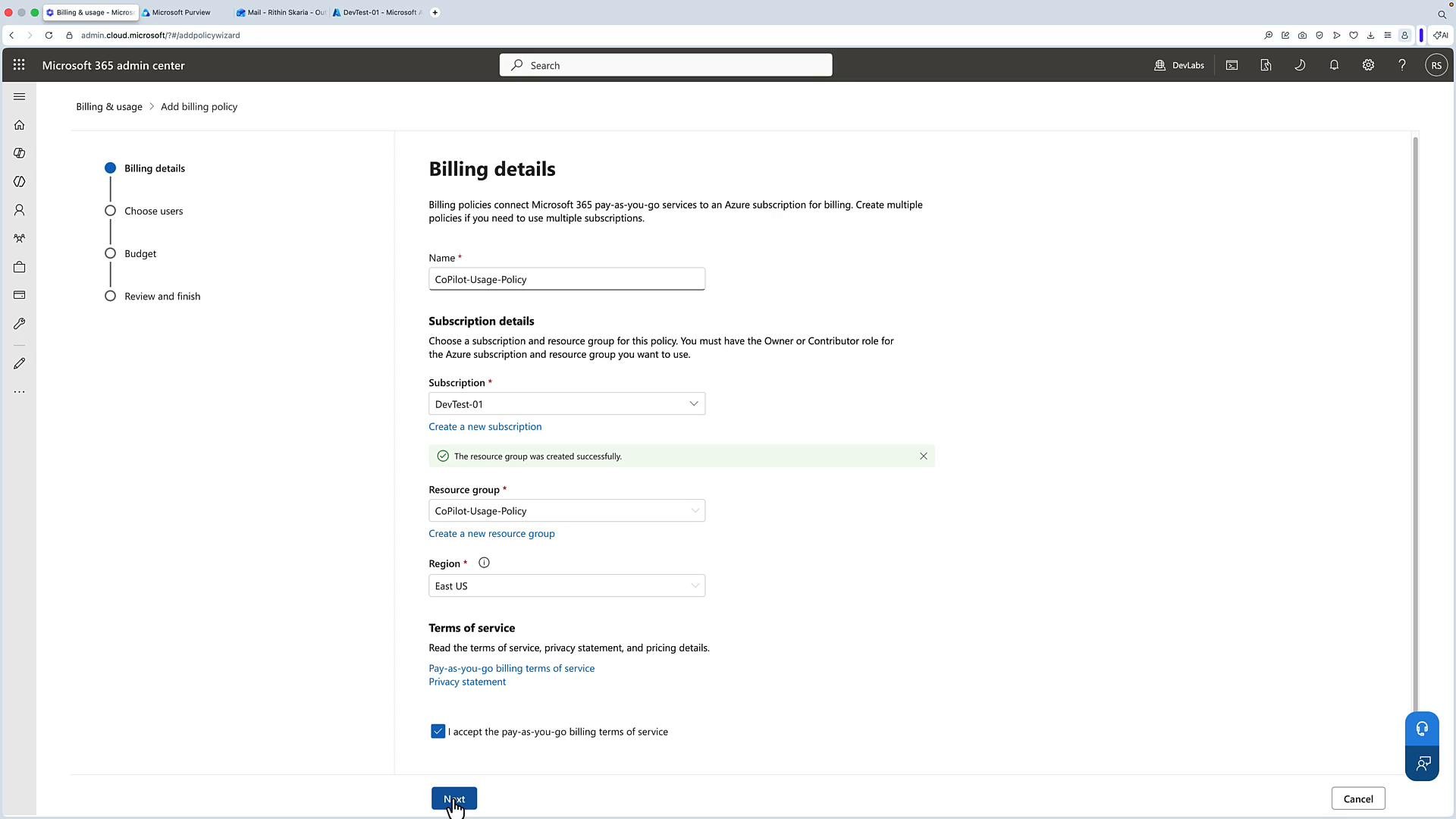
1. Open the Microsoft 365 admin center and select Add a billing policy.
2. Provide a descriptive name, for example `Copilot-Usage-Policy`.
3. Choose the Azure subscription that will be charged for pay-as-you-go consumption (for example, `DevTest-01`).
4. Select or create a resource group — costs will be associated with this group and billed to the selected subscription.
5. Choose the deployment region (for example, East US, Sweden).
6. Accept the pay-as-you-go terms and conditions to continue and complete the billing details.
Why monitoring matters
* Detect unexpected consumption spikes and root-cause them quickly.
* Identify teams or roles that are heavy Copilot consumers.
* Decide when to convert high-consumption users from pay-as-you-go credits to permanent per-user licenses for predictable costs.
Monitor usage regularly and configure budget alerts so you can catch unexpected consumption early. When a group or individual consistently consumes many credits, consider moving them to permanent licenses to stabilize long-term costs.
When to convert to permanent licenses
| Indicator | Why it matters | Suggested action |
| - | -: | - |
| High sustained credit consumption (7–30 day trend) | Pay-as-you-go can become more expensive over time | Evaluate per-user licensing cost vs. projected monthly spend |
| Predictable, heavy usage for a team | Predictability reduces budgeting friction | Move the team to permanent per-user licenses |
| Need for simplified billing | Multiple subscriptions or resource groups complicate chargeback | Consolidate licensing and reduce pay-as-you-go scope |
Create a billing policy (step-by-step)
1. Open the Microsoft 365 admin center and select Add a billing policy.
2. Provide a descriptive name, for example `Copilot-Usage-Policy`.
3. Choose the Azure subscription that will be charged for pay-as-you-go consumption (for example, `DevTest-01`).
4. Select or create a resource group — costs will be associated with this group and billed to the selected subscription.
5. Choose the deployment region (for example, East US, Sweden).
6. Accept the pay-as-you-go terms and conditions to continue and complete the billing details.
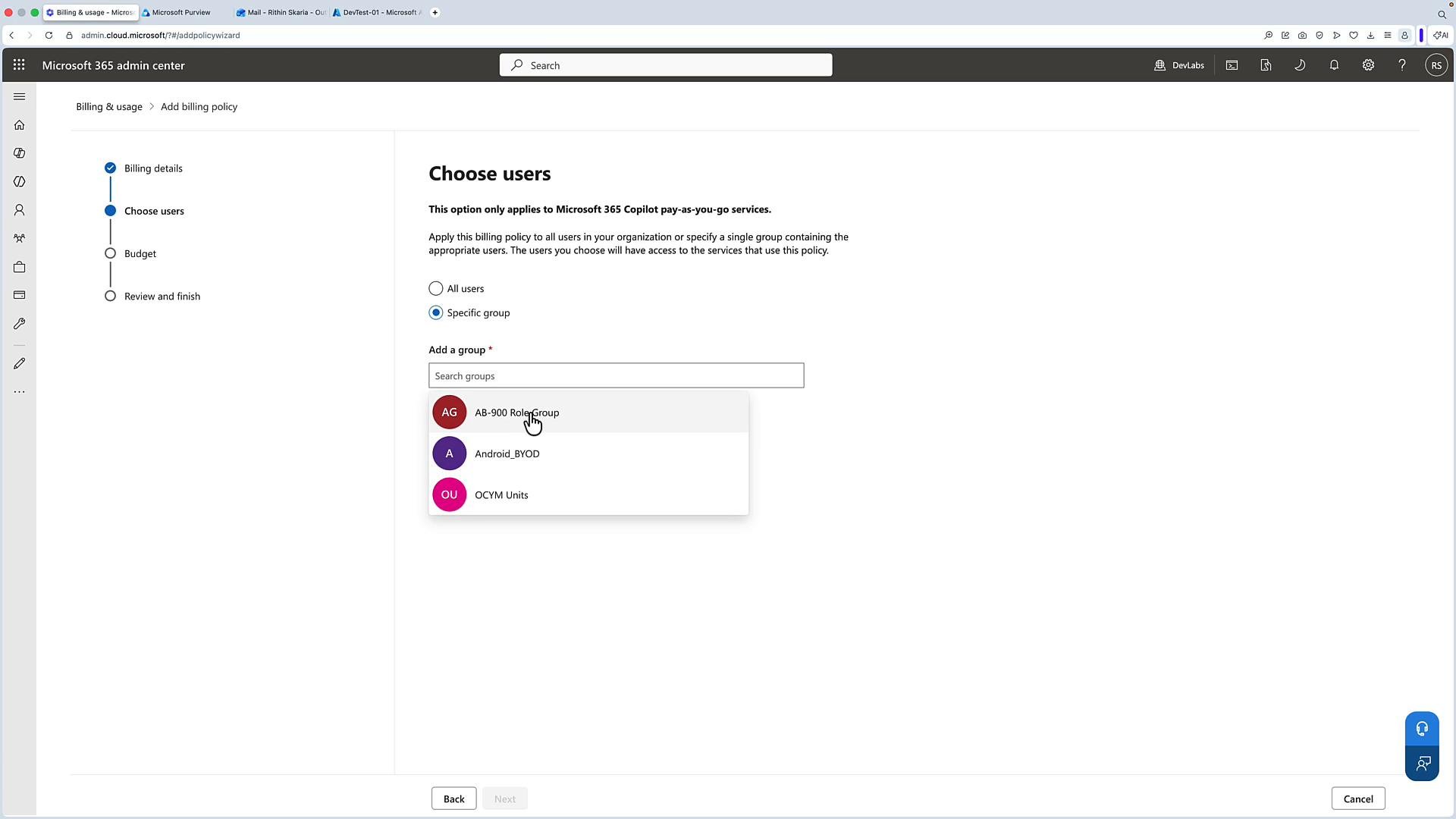
 Scope the policy to users or groups
* You can apply the policy to all users, or limit it to specific groups.
* Targeting groups (teams, departments) lets you control which parts of the organization consume pay-as-you-go credits.
Scope the policy to users or groups
* You can apply the policy to all users, or limit it to specific groups.
* Targeting groups (teams, departments) lets you control which parts of the organization consume pay-as-you-go credits.
 Define a budget and alerts
* Set a monthly budget amount (for example, `100` credits or currency units).
* Choose when the budget resets (commonly the first day of each month).
* Configure recipients for budget notifications (administrators, finance contacts) so responsible parties receive alerts as consumption approaches or exceeds the threshold.
* Complete the setup to create the policy — consumption for covered users/groups will be charged to the selected Azure subscription and resource group.
Best practices for ongoing management
* Create usage policies to limit or define how Copilot services are consumed (for example, per-service credit allocations).
* Monitor usage from the Microsoft 365 admin center to identify high-usage users or teams (e.g., last 7-day or 30-day views).
* Assign credits per service if needed (for example, different allocations for SharePoint-based agents vs. Copilot Chat).
* Use cost management reports in the Azure portal to review billing for the current period.
To view detailed cost and consumption data, click View cost management in the admin center to open the Azure portal and review Copilot-related charges for the subscription.
You can also connect specific Copilot services to the billing policy:
* Enable Copilot Chat or other Copilot products and save the configuration so they use the billing policy you created.
* The admin center will display which billing policy is assigned and which users/groups can access the service.
Configure budget alerts and review chargeback reports regularly. Without alerts, pay-as-you-go can produce unexpected costs that are harder to recover.
Where to monitor and manage costs
| Tool | Purpose | Link |
| - | - | - |
| Microsoft 365 admin center | Usage dashboards, billing policy creation, service assignments | [https://admin.microsoft.com](https://admin.microsoft.com) |
| Azure portal (Cost Management) | Detailed billing, subscription-level charges and reports | [https://portal.azure.com](https://portal.azure.com) |
Recommended actions based on usage data
* Convert frequent consumers to permanent per-user licenses for cost predictability.
* Adjust budgets and notification recipients to reduce risk of overruns.
* Re-scope billing policies to better align costs with business needs and departmental chargebacks.
References and further reading
* Microsoft 365 admin center: [https://admin.microsoft.com](https://admin.microsoft.com)
* Azure portal (Cost Management): [https://portal.azure.com](https://portal.azure.com)
By continuously monitoring consumption, configuring alerts, and using targeted billing policies, you’ll keep Copilot costs under control while maintaining user productivity and flexibility.
This documentation is built and hosted on [Mintlify](https://mintlify.com), a developer documentation platform.
Define a budget and alerts
* Set a monthly budget amount (for example, `100` credits or currency units).
* Choose when the budget resets (commonly the first day of each month).
* Configure recipients for budget notifications (administrators, finance contacts) so responsible parties receive alerts as consumption approaches or exceeds the threshold.
* Complete the setup to create the policy — consumption for covered users/groups will be charged to the selected Azure subscription and resource group.
Best practices for ongoing management
* Create usage policies to limit or define how Copilot services are consumed (for example, per-service credit allocations).
* Monitor usage from the Microsoft 365 admin center to identify high-usage users or teams (e.g., last 7-day or 30-day views).
* Assign credits per service if needed (for example, different allocations for SharePoint-based agents vs. Copilot Chat).
* Use cost management reports in the Azure portal to review billing for the current period.
To view detailed cost and consumption data, click View cost management in the admin center to open the Azure portal and review Copilot-related charges for the subscription.
You can also connect specific Copilot services to the billing policy:
* Enable Copilot Chat or other Copilot products and save the configuration so they use the billing policy you created.
* The admin center will display which billing policy is assigned and which users/groups can access the service.
Configure budget alerts and review chargeback reports regularly. Without alerts, pay-as-you-go can produce unexpected costs that are harder to recover.
Where to monitor and manage costs
| Tool | Purpose | Link |
| - | - | - |
| Microsoft 365 admin center | Usage dashboards, billing policy creation, service assignments | [https://admin.microsoft.com](https://admin.microsoft.com) |
| Azure portal (Cost Management) | Detailed billing, subscription-level charges and reports | [https://portal.azure.com](https://portal.azure.com) |
Recommended actions based on usage data
* Convert frequent consumers to permanent per-user licenses for cost predictability.
* Adjust budgets and notification recipients to reduce risk of overruns.
* Re-scope billing policies to better align costs with business needs and departmental chargebacks.
References and further reading
* Microsoft 365 admin center: [https://admin.microsoft.com](https://admin.microsoft.com)
* Azure portal (Cost Management): [https://portal.azure.com](https://portal.azure.com)
By continuously monitoring consumption, configuring alerts, and using targeted billing policies, you’ll keep Copilot costs under control while maintaining user productivity and flexibility.
This documentation is built and hosted on [Mintlify](https://mintlify.com), a developer documentation platform.