> ## Documentation Index
> Fetch the complete documentation index at: https://notes.kodekloud.com/llms.txt
> Use this file to discover all available pages before exploring further.
# Introduction to Microsoft 365 Copilot
> Overview of Microsoft 365 Copilot, its tenant-aware security, Graph and LLM architecture, and how embedded AI enhances drafting, summarizing, analysis, and meeting recaps in M365 apps.
Welcome to the Microsoft 365 Copilot module. This article explains what Microsoft 365 Copilot is, how it works, and why it’s becoming a transformative AI assistant across the modern workplace.
Copilot is not a standalone chatbot. It’s an embedded productivity layer inside the Microsoft 365 apps people use every day — delivering contextual, permission-aware assistance directly where work happens.
## Copilot across Microsoft 365 apps
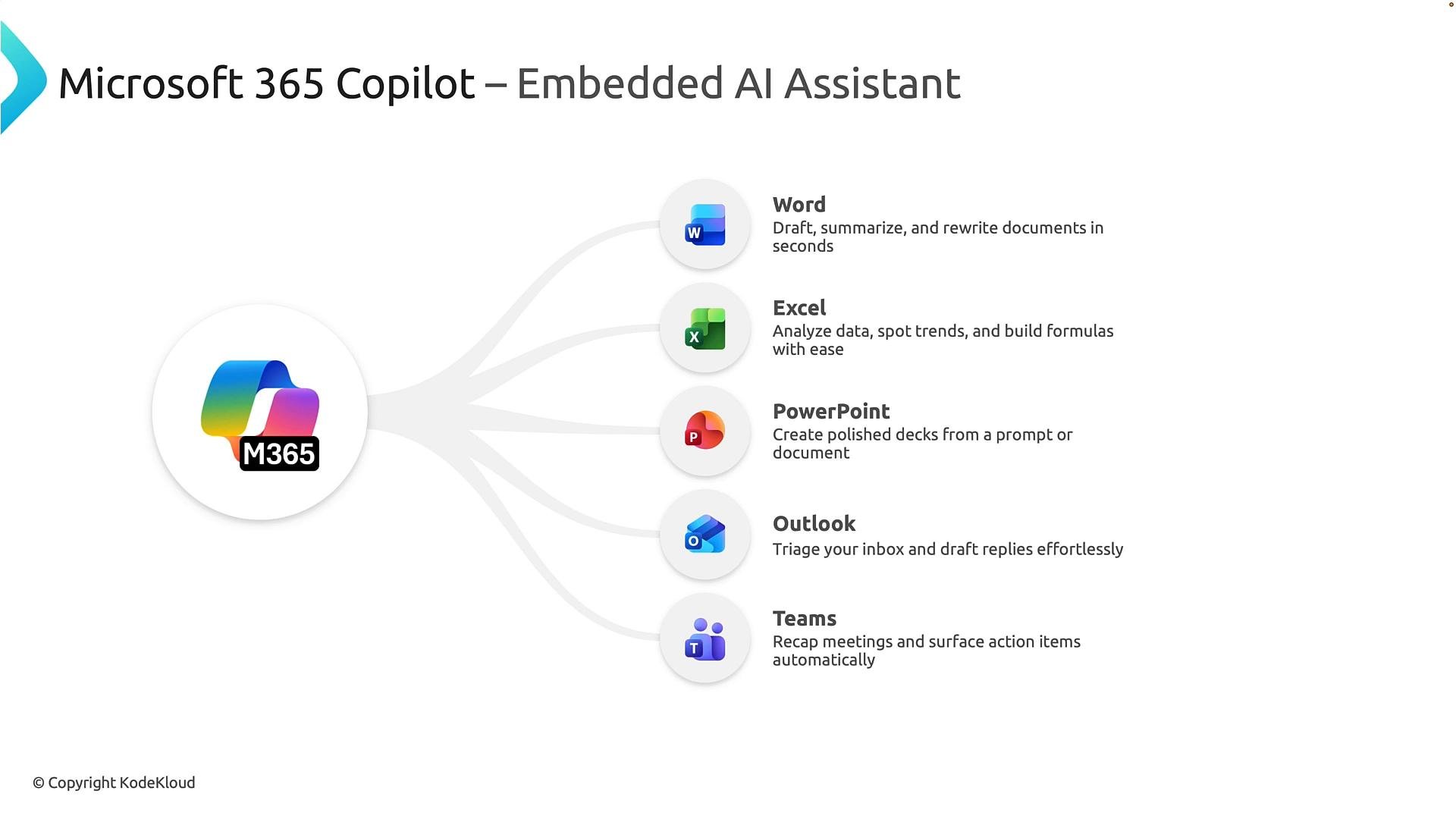
Copilot is integrated into Word, Excel, PowerPoint, Outlook, and Teams. It helps with drafting, summarizing, data analysis, slide creation, email triage, and meeting recaps — cutting repetitive work and enabling higher-value tasks.
| App | Primary capabilities | Typical example |
| - | - | - |
| Word | Drafting, rewriting, tone adjustment | "Create a project proposal from meeting notes." |
| Excel | Data analysis, trend detection, formula generation | "Show me trends in last quarter's sales and generate formulas." |
| PowerPoint | Generate slide decks from prompts or documents | "Build a presentation from this brief." |
| Outlook | Summarize threads, draft replies, prioritize mail | "Summarize this thread and suggest a reply." |
| Teams | Meeting summaries, action items, decisions | "Recap yesterday's stand-up and list action items." |
 ## How Copilot accesses data — tenant-aware and permission-trimmed
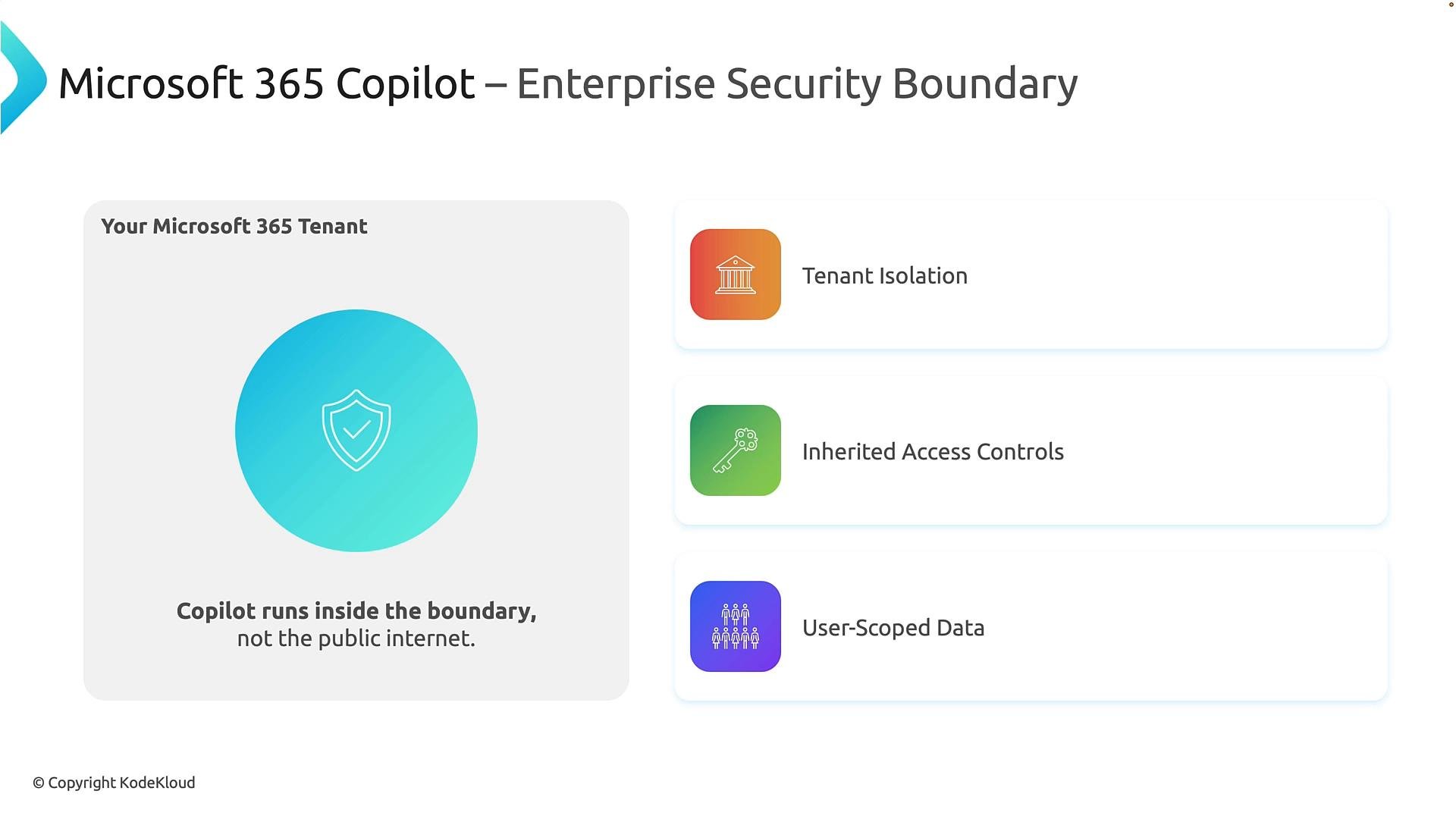
A key organizational question is: how does Copilot access enterprise data while keeping it secure? Copilot runs inside your Microsoft 365 tenant and honors the same access controls users already have. It does not grant new access or expose content to users who are not authorized.
Three core security properties define this model:
* Tenant isolation — Data remains separated between organizations.
* Inherited access controls — Copilot enforces the user’s existing permissions.
* User-scoped data — Outputs are generated based on the requesting user’s access.
Copilot does not bypass existing security controls. It surfaces and synthesizes only the content a user is already authorized to access.
## How Copilot accesses data — tenant-aware and permission-trimmed
A key organizational question is: how does Copilot access enterprise data while keeping it secure? Copilot runs inside your Microsoft 365 tenant and honors the same access controls users already have. It does not grant new access or expose content to users who are not authorized.
Three core security properties define this model:
* Tenant isolation — Data remains separated between organizations.
* Inherited access controls — Copilot enforces the user’s existing permissions.
* User-scoped data — Outputs are generated based on the requesting user’s access.
Copilot does not bypass existing security controls. It surfaces and synthesizes only the content a user is already authorized to access.
 ## Core architecture: how Copilot produces grounded, compliant responses
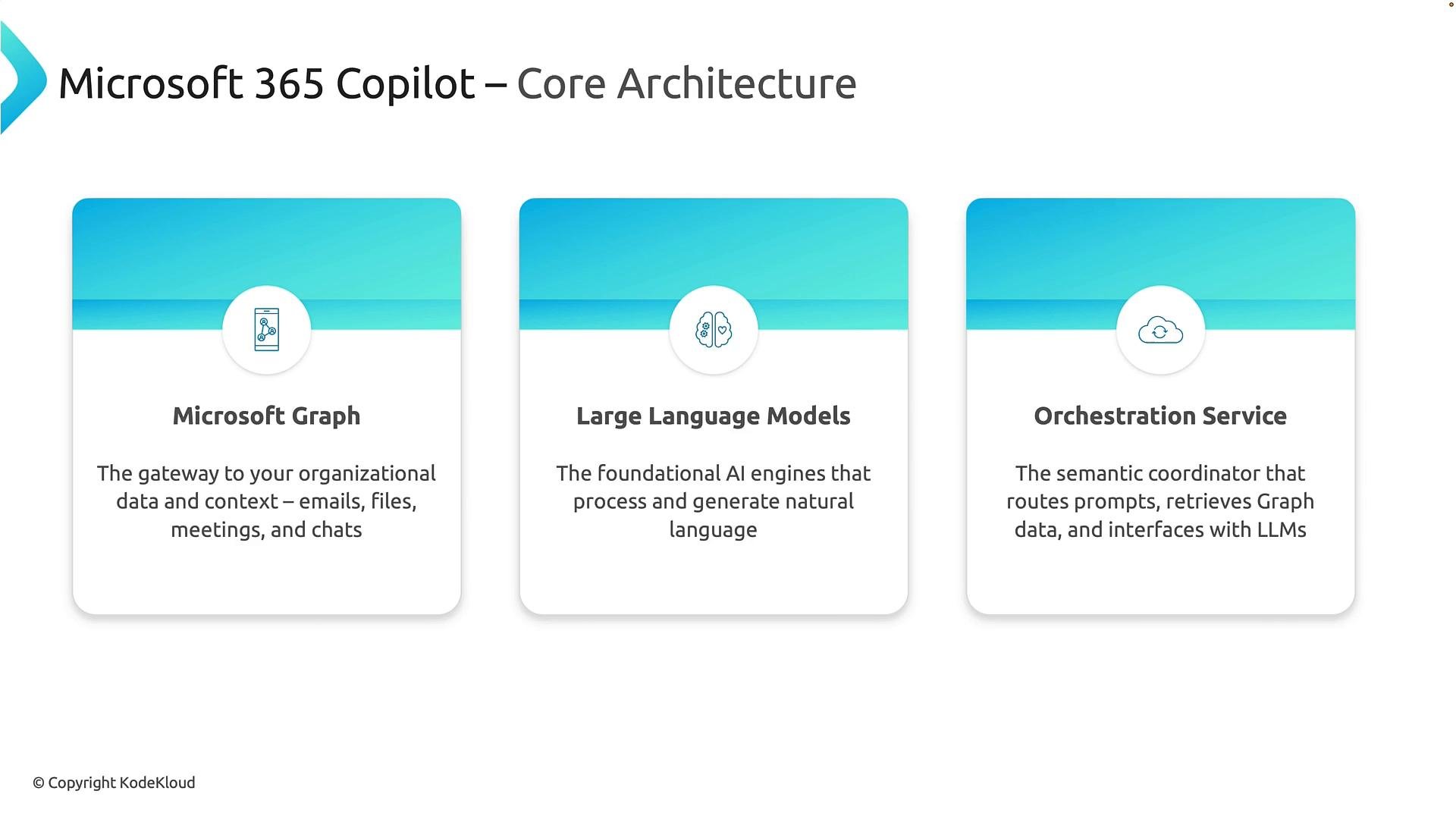
Copilot is built from three collaborating layers:
1. Microsoft Graph — the knowledge layer and permission-aware gateway to Microsoft 365 content (Exchange, SharePoint, OneDrive, Teams, Viva, etc.).
2. Large Language Models (LLMs) — the reasoning and language engines that interpret prompts and generate responses.
3. Orchestration service (semantic coordinator) — the component that determines required context, retrieves permission-trimmed data from Microsoft Graph, applies policies and compliance checks, and constructs the enriched prompt sent to the LLM.
## Core architecture: how Copilot produces grounded, compliant responses
Copilot is built from three collaborating layers:
1. Microsoft Graph — the knowledge layer and permission-aware gateway to Microsoft 365 content (Exchange, SharePoint, OneDrive, Teams, Viva, etc.).
2. Large Language Models (LLMs) — the reasoning and language engines that interpret prompts and generate responses.
3. Orchestration service (semantic coordinator) — the component that determines required context, retrieves permission-trimmed data from Microsoft Graph, applies policies and compliance checks, and constructs the enriched prompt sent to the LLM.
 Example flow for a real request:
* The user submits a prompt (for example, "Summarize all customer issues discussed last month").
* The orchestration service identifies necessary content and retrieves permission-trimmed context from Microsoft Graph.
* The enriched prompt and context are sent to the LLM for grounding and reasoning.
* Enterprise guardrails, compliance, and policy checks are applied to the generated output before returning it to the user.
## Microsoft Graph — the organizational memory
Microsoft Graph provides a unified, permission-aware view of enterprise content and relationships: people, teams, files, meetings, chats, calendars, and tasks. Instead of searching multiple endpoints, the orchestration layer queries Graph for relevant, permission-trimmed data to ground LLM responses in real business context.
Example flow for a real request:
* The user submits a prompt (for example, "Summarize all customer issues discussed last month").
* The orchestration service identifies necessary content and retrieves permission-trimmed context from Microsoft Graph.
* The enriched prompt and context are sent to the LLM for grounding and reasoning.
* Enterprise guardrails, compliance, and policy checks are applied to the generated output before returning it to the user.
## Microsoft Graph — the organizational memory
Microsoft Graph provides a unified, permission-aware view of enterprise content and relationships: people, teams, files, meetings, chats, calendars, and tasks. Instead of searching multiple endpoints, the orchestration layer queries Graph for relevant, permission-trimmed data to ground LLM responses in real business context.
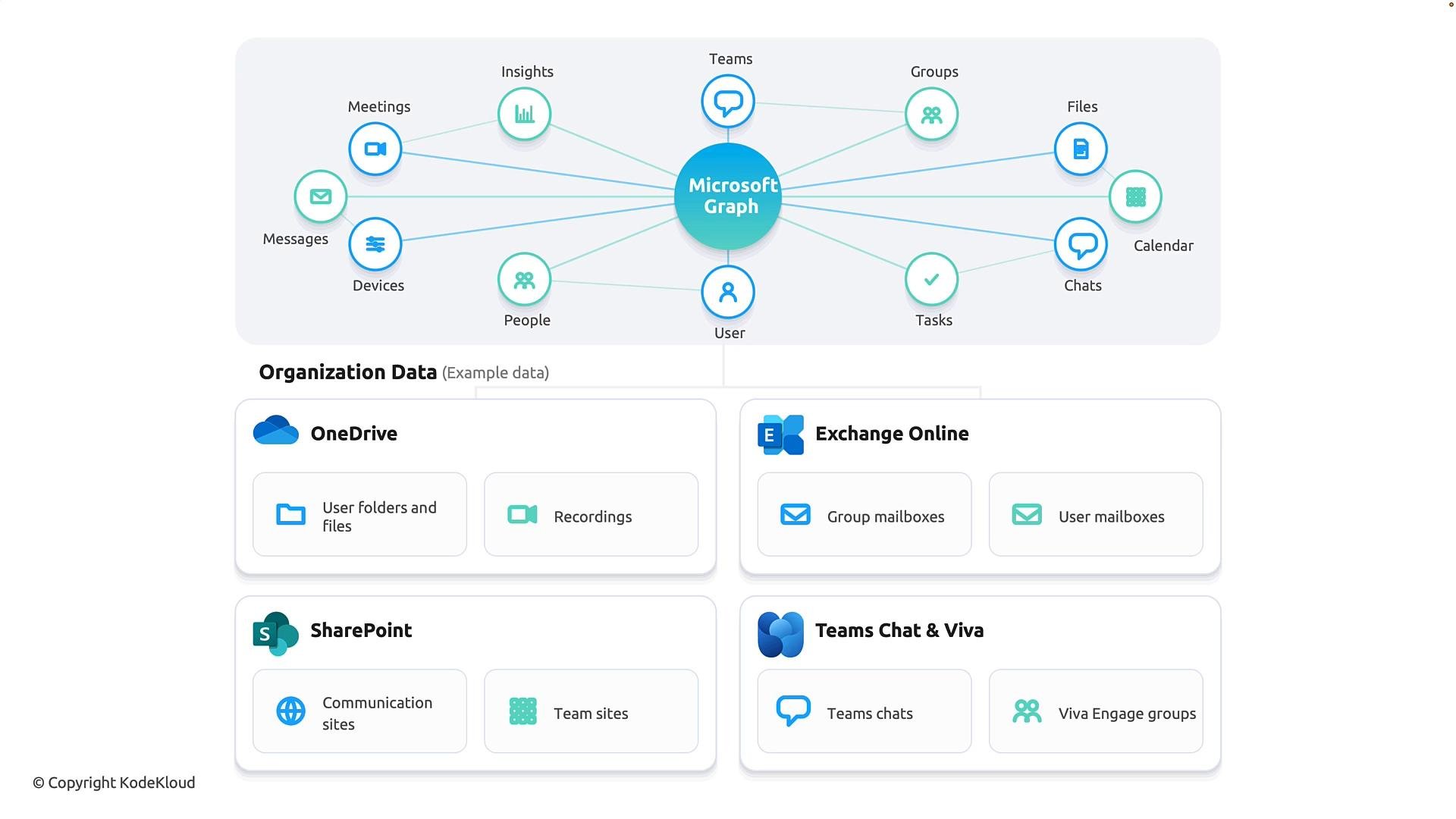 Because Graph returns permission‑aware content, Copilot’s answers are personalized and appropriate for the requesting user — ensuring relevance and compliance.
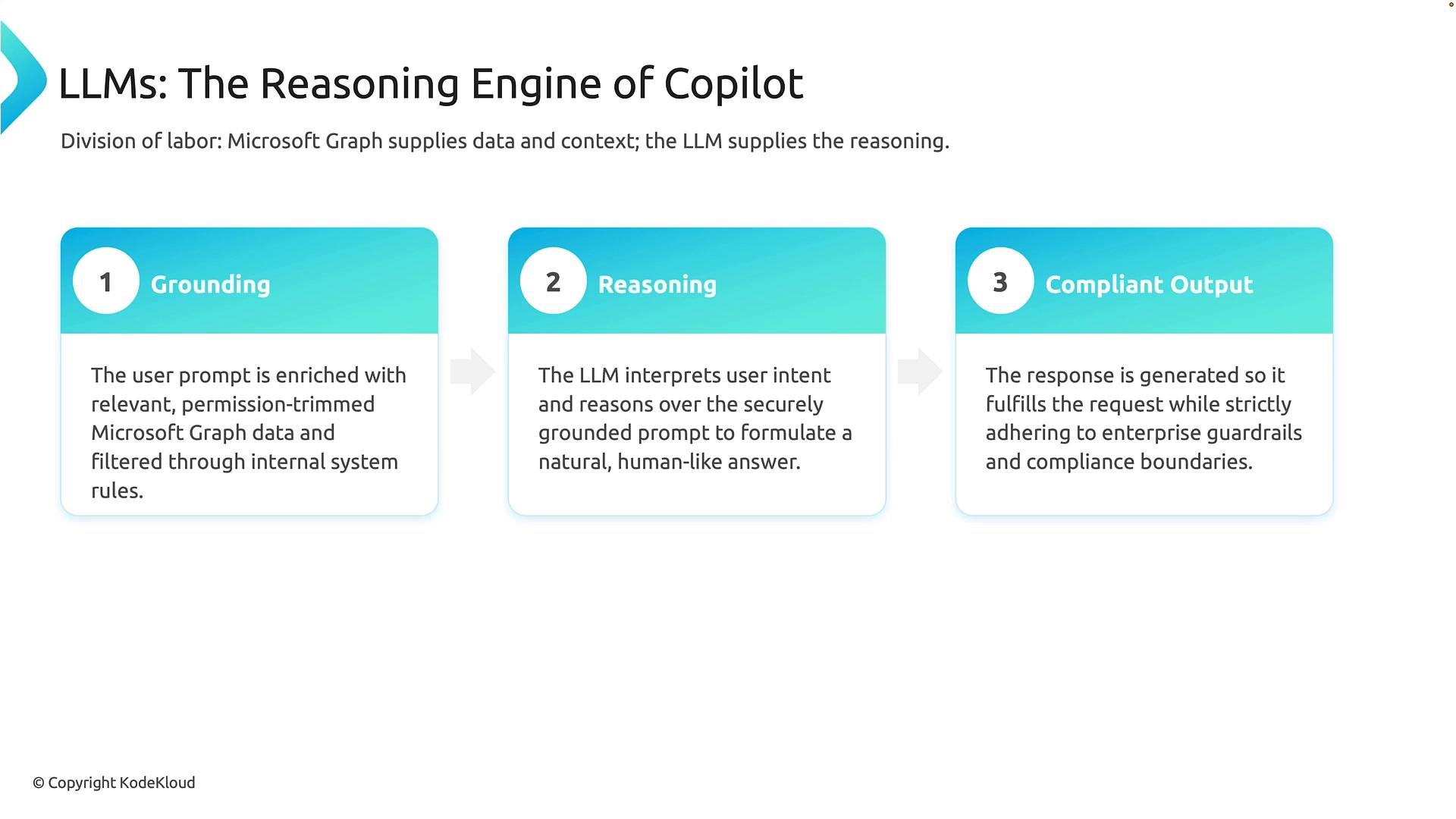
## LLMs — the reasoning and language layer
Think of Microsoft Graph as providing business knowledge and the LLM as the reasoning engine. The end-to-end interaction unfolds in three stages:
* Grounding — The orchestration service enriches the user prompt with permission-trimmed Graph content.
* Reasoning — The LLM interprets intent, synthesizes information, and performs analysis.
* Compliant output — Organizational safeguards and compliance checks are applied before delivering the response.
Because Graph returns permission‑aware content, Copilot’s answers are personalized and appropriate for the requesting user — ensuring relevance and compliance.
## LLMs — the reasoning and language layer
Think of Microsoft Graph as providing business knowledge and the LLM as the reasoning engine. The end-to-end interaction unfolds in three stages:
* Grounding — The orchestration service enriches the user prompt with permission-trimmed Graph content.
* Reasoning — The LLM interprets intent, synthesizes information, and performs analysis.
* Compliant output — Organizational safeguards and compliance checks are applied before delivering the response.
 ## Request flow summary
* User submits a prompt.
* Orchestration retrieves permission-trimmed context from Microsoft Graph and applies system policies.
* The LLM performs grounding and reasoning on the enriched prompt.
* Guardrails and compliance checks vet the output before it is returned.
This combination of enterprise data, enforced security, and advanced language models is what differentiates Microsoft 365 Copilot from generic AI assistants.
## Copilot in the Microsoft 365 user experience
Here are practical examples of how Copilot appears in the apps.
Inside Outlook on the web you can open Copilot to draft or edit emails. For example:
* "Send an email to admin saying that I’ll be delayed for the board meeting." Copilot can draft the email for review even if "admin" isn’t in your contacts.
* "Summarize this thread" yields a concise summary: key points, whether it’s a security or compliance alert, who performed actions, and potential follow-ups. Copilot can draft suggested replies or follow-up tasks.
## Request flow summary
* User submits a prompt.
* Orchestration retrieves permission-trimmed context from Microsoft Graph and applies system policies.
* The LLM performs grounding and reasoning on the enriched prompt.
* Guardrails and compliance checks vet the output before it is returned.
This combination of enterprise data, enforced security, and advanced language models is what differentiates Microsoft 365 Copilot from generic AI assistants.
## Copilot in the Microsoft 365 user experience
Here are practical examples of how Copilot appears in the apps.
Inside Outlook on the web you can open Copilot to draft or edit emails. For example:
* "Send an email to admin saying that I’ll be delayed for the board meeting." Copilot can draft the email for review even if "admin" isn’t in your contacts.
* "Summarize this thread" yields a concise summary: key points, whether it’s a security or compliance alert, who performed actions, and potential follow-ups. Copilot can draft suggested replies or follow-up tasks.
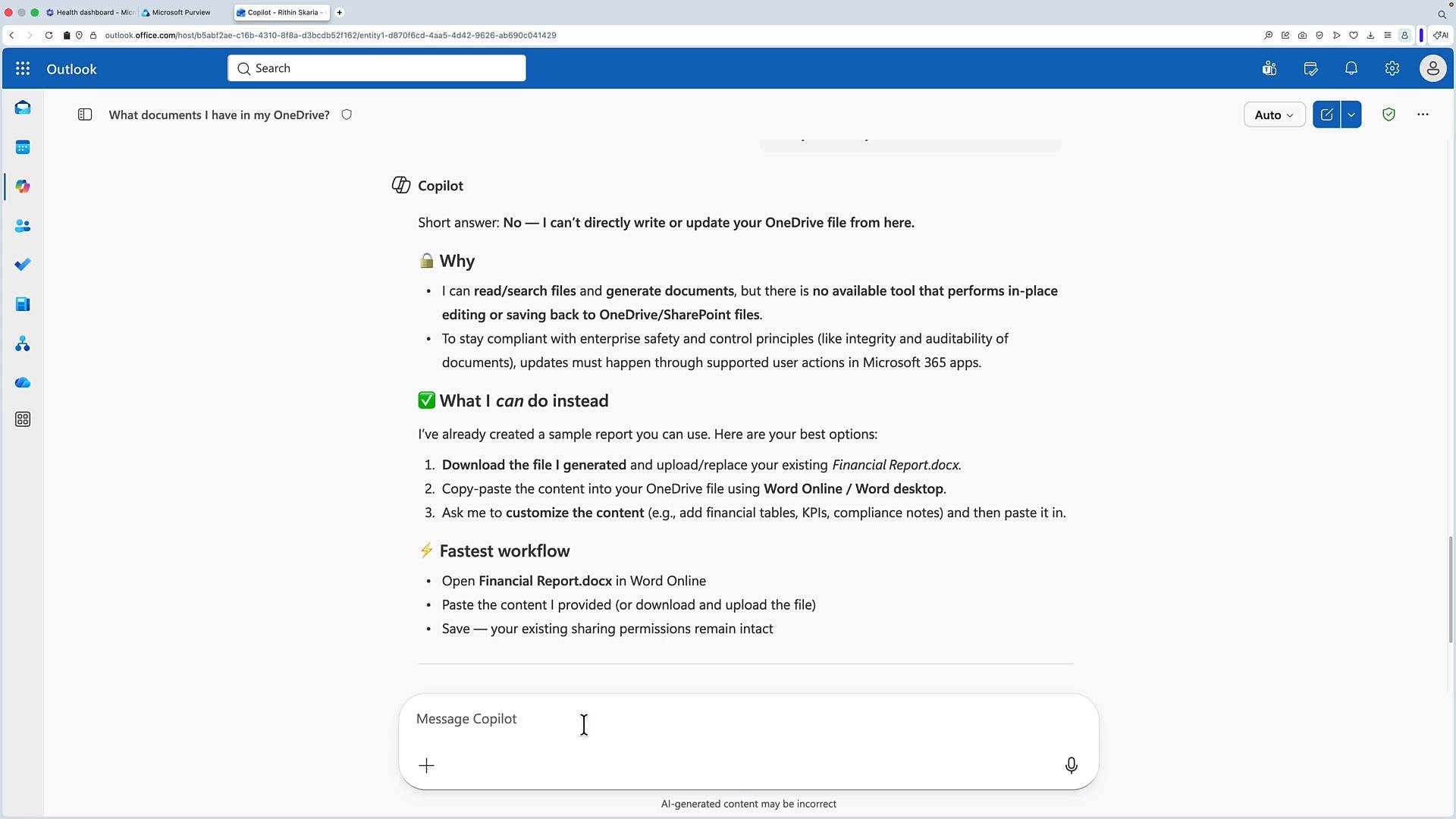
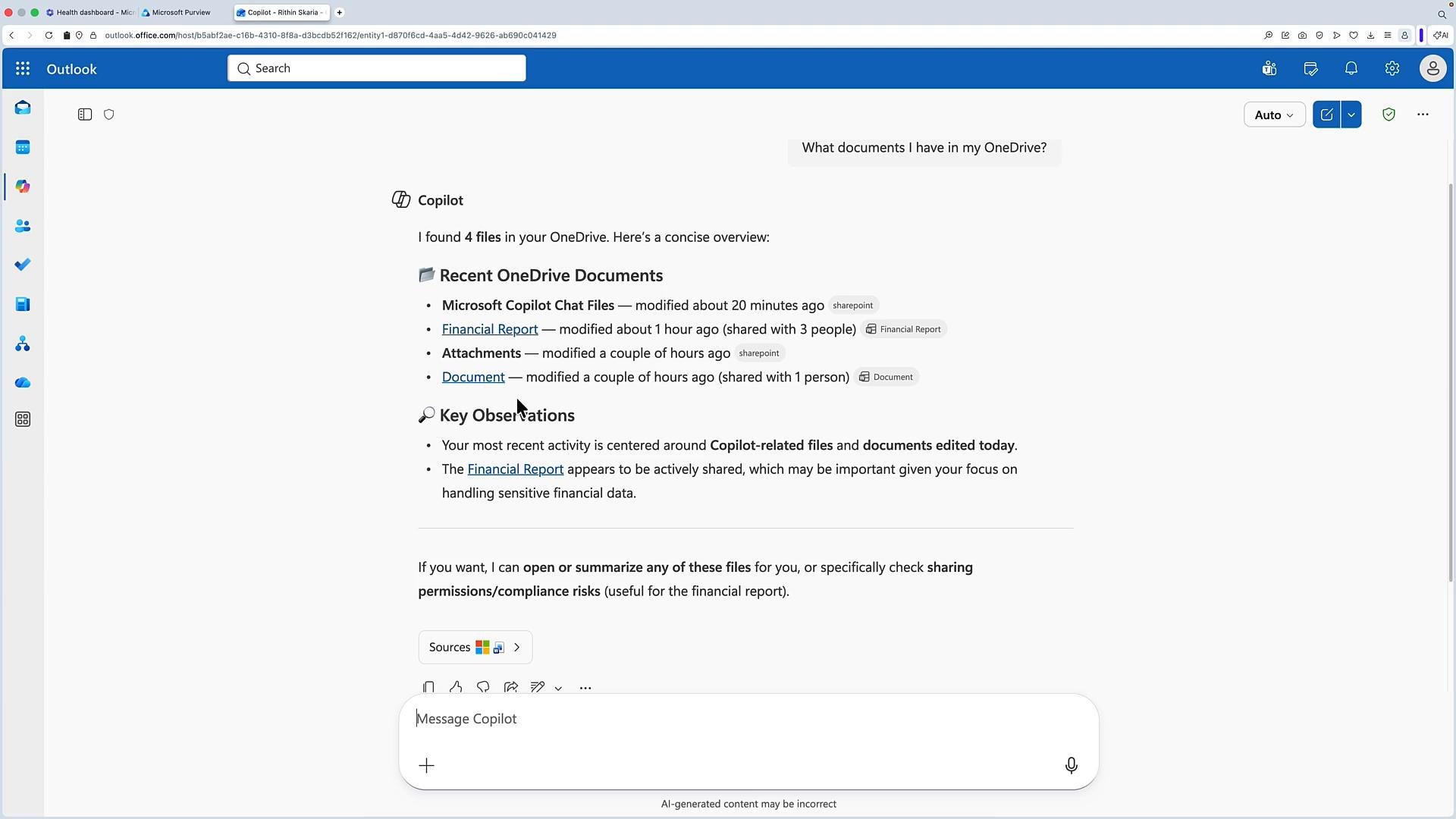 Copilot can surface files from OneDrive and provide summaries or previews. When a file’s contents are blocked from preview (for example, due to permissions or preview restrictions), Copilot will indicate it found the file but could not retrieve content. In many cases, Copilot can generate sample content or a draft that you can download and add to the original file manually.
 Administrative and user controls:
* Data protection and retention settings applied to chats and prompts are respected.
* Administrators can configure available models and set response policies.
* Users can select response styles (quick answers vs. deeper reasoning).
## Key takeaways
* Copilot is an embedded AI assistant across Microsoft 365 apps that accelerates drafting, summarization, analysis, and meeting recaps.
* It runs inside your tenant boundary and enforces existing permissions — Copilot cannot access content a user isn’t authorized to view.
* The architecture combines Microsoft Graph (knowledge), orchestration (permission-trimmed context and policy enforcement), and LLMs (reasoning and language) to deliver grounded, compliant outputs.
For more information and references:
* Microsoft Graph overview: [https://learn.microsoft.com/graph/overview](https://learn.microsoft.com/graph/overview)
* Microsoft 365 documentation: [https://learn.microsoft.com/microsoft-365](https://learn.microsoft.com/microsoft-365)
* Microsoft Copilot information: [https://learn.microsoft.com/microsoft-365/copilot](https://learn.microsoft.com/microsoft-365/copilot)
In this lesson we covered Copilot’s embedded capabilities, tenant-aware security model, and the three-part architecture (Microsoft Graph, orchestration, and LLM) that powers grounded, compliant assistance inside the tools people use every day.
This documentation is built and hosted on [Mintlify](https://mintlify.com), a developer documentation platform.
Administrative and user controls:
* Data protection and retention settings applied to chats and prompts are respected.
* Administrators can configure available models and set response policies.
* Users can select response styles (quick answers vs. deeper reasoning).
## Key takeaways
* Copilot is an embedded AI assistant across Microsoft 365 apps that accelerates drafting, summarization, analysis, and meeting recaps.
* It runs inside your tenant boundary and enforces existing permissions — Copilot cannot access content a user isn’t authorized to view.
* The architecture combines Microsoft Graph (knowledge), orchestration (permission-trimmed context and policy enforcement), and LLMs (reasoning and language) to deliver grounded, compliant outputs.
For more information and references:
* Microsoft Graph overview: [https://learn.microsoft.com/graph/overview](https://learn.microsoft.com/graph/overview)
* Microsoft 365 documentation: [https://learn.microsoft.com/microsoft-365](https://learn.microsoft.com/microsoft-365)
* Microsoft Copilot information: [https://learn.microsoft.com/microsoft-365/copilot](https://learn.microsoft.com/microsoft-365/copilot)
In this lesson we covered Copilot’s embedded capabilities, tenant-aware security model, and the three-part architecture (Microsoft Graph, orchestration, and LLM) that powers grounded, compliant assistance inside the tools people use every day.
This documentation is built and hosted on [Mintlify](https://mintlify.com), a developer documentation platform.