> ## Documentation Index
> Fetch the complete documentation index at: https://notes.kodekloud.com/llms.txt
> Use this file to discover all available pages before exploring further.
# Troubleshoot and Monitor Identity Security
> Guidance on troubleshooting and monitoring Microsoft Entra identity security, using logs, Conditional Access, Intune, Defender, app governance, and incident investigation
So far we’ve covered how Microsoft Entra helps organizations manage identities, control access, and protect against security threats. Even in well-architected environments, users can encounter sign-in problems, denied access, or security incidents. Effective troubleshooting and monitoring are therefore essential parts of identity security operations.
This lesson covers common identity-related issues, the investigative tools available, and how administrators monitor identity activity across Microsoft 365.
## Common support scenario: signed in but cannot access a resource
A frequent support case is a user who successfully signs in but cannot access a resource. This can appear confusing because authentication succeeded — the user’s identity was verified — yet authorization fails.
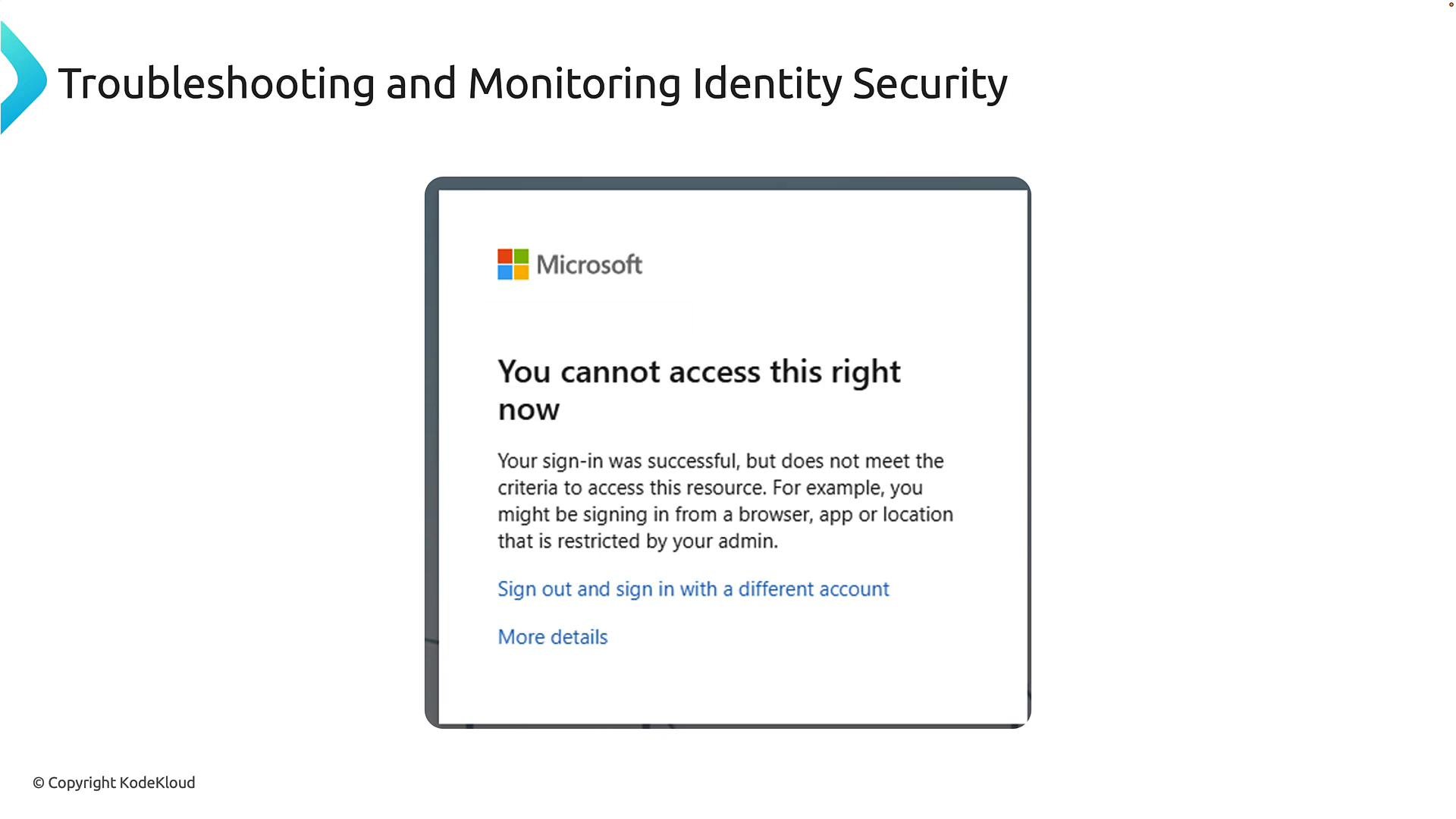 Common causes for this scenario include Conditional Access policies, device compliance state, network or location restrictions, risk-based controls, or application-level permissions. For example, a user signing in from a personal device may complete authentication but be denied authorization because the organization requires a managed corporate device.
Authentication vs. authorization — start here
* Authentication = verifies who the user is.
* Authorization = determines what the authenticated identity is allowed to access.
Authentication confirms who the user is. Authorization checks what the user is allowed to do. When sign-in succeeds but access fails, investigate authorization controls first (Conditional Access, device compliance, application permissions).
## Two pillars of effective troubleshooting
1. Technical knowledge — Know how identities, authentication flows, Conditional Access, device management, and application permissions interact.
2. Active investigation — Use evidence from logs, policy configurations, and telemetry to find the root cause.
Think of troubleshooting like a clinician diagnosing a patient: deep domain knowledge is important, but diagnosis relies on observing symptoms and collecting evidence.
## Tools for troubleshooting and monitoring identity security
Microsoft provides several complementary tools for investigation and continuous monitoring. Use them together to determine whether an access problem stems from identity configuration, device posture, application permissions, or a security incident.
| Tool | Primary use | What to check |
| - | - | - |
| Microsoft Entra ID (Azure AD) | Identity logs and policy insights | Sign-in logs, audit logs, Conditional Access evaluation, risk signals |
| Microsoft Intune | Device management and compliance | Device compliance state, enrollment status, configuration profiles |
| Microsoft Defender for Endpoint | Endpoint telemetry and detections | Compromise indicators, malware alerts, device health |
| Unified audit logs / Microsoft 365 activity logs | Cross-service activity | User and admin activity across Exchange, SharePoint, Teams, etc. |
| Microsoft Sentinel (SIEM) | Centralized detection and correlation | Ingests logs from Entra, Intune, Defender for Endpoint; enables hunting and automation |
Where possible, correlate signals across these tools (for example, a blocked sign-in in Entra ID with a device risk alert from Defender for Endpoint) to rapidly identify root causes.
## Third-party applications and governance
External apps connected to Microsoft 365 increase productivity but also introduce risk if they’re unmanaged or over-permissioned. Uncontrolled apps may request excessive scopes, store credentials insecurely, or access sensitive data without oversight.
Common causes for this scenario include Conditional Access policies, device compliance state, network or location restrictions, risk-based controls, or application-level permissions. For example, a user signing in from a personal device may complete authentication but be denied authorization because the organization requires a managed corporate device.
Authentication vs. authorization — start here
* Authentication = verifies who the user is.
* Authorization = determines what the authenticated identity is allowed to access.
Authentication confirms who the user is. Authorization checks what the user is allowed to do. When sign-in succeeds but access fails, investigate authorization controls first (Conditional Access, device compliance, application permissions).
## Two pillars of effective troubleshooting
1. Technical knowledge — Know how identities, authentication flows, Conditional Access, device management, and application permissions interact.
2. Active investigation — Use evidence from logs, policy configurations, and telemetry to find the root cause.
Think of troubleshooting like a clinician diagnosing a patient: deep domain knowledge is important, but diagnosis relies on observing symptoms and collecting evidence.
## Tools for troubleshooting and monitoring identity security
Microsoft provides several complementary tools for investigation and continuous monitoring. Use them together to determine whether an access problem stems from identity configuration, device posture, application permissions, or a security incident.
| Tool | Primary use | What to check |
| - | - | - |
| Microsoft Entra ID (Azure AD) | Identity logs and policy insights | Sign-in logs, audit logs, Conditional Access evaluation, risk signals |
| Microsoft Intune | Device management and compliance | Device compliance state, enrollment status, configuration profiles |
| Microsoft Defender for Endpoint | Endpoint telemetry and detections | Compromise indicators, malware alerts, device health |
| Unified audit logs / Microsoft 365 activity logs | Cross-service activity | User and admin activity across Exchange, SharePoint, Teams, etc. |
| Microsoft Sentinel (SIEM) | Centralized detection and correlation | Ingests logs from Entra, Intune, Defender for Endpoint; enables hunting and automation |
Where possible, correlate signals across these tools (for example, a blocked sign-in in Entra ID with a device risk alert from Defender for Endpoint) to rapidly identify root causes.
## Third-party applications and governance
External apps connected to Microsoft 365 increase productivity but also introduce risk if they’re unmanaged or over-permissioned. Uncontrolled apps may request excessive scopes, store credentials insecurely, or access sensitive data without oversight.
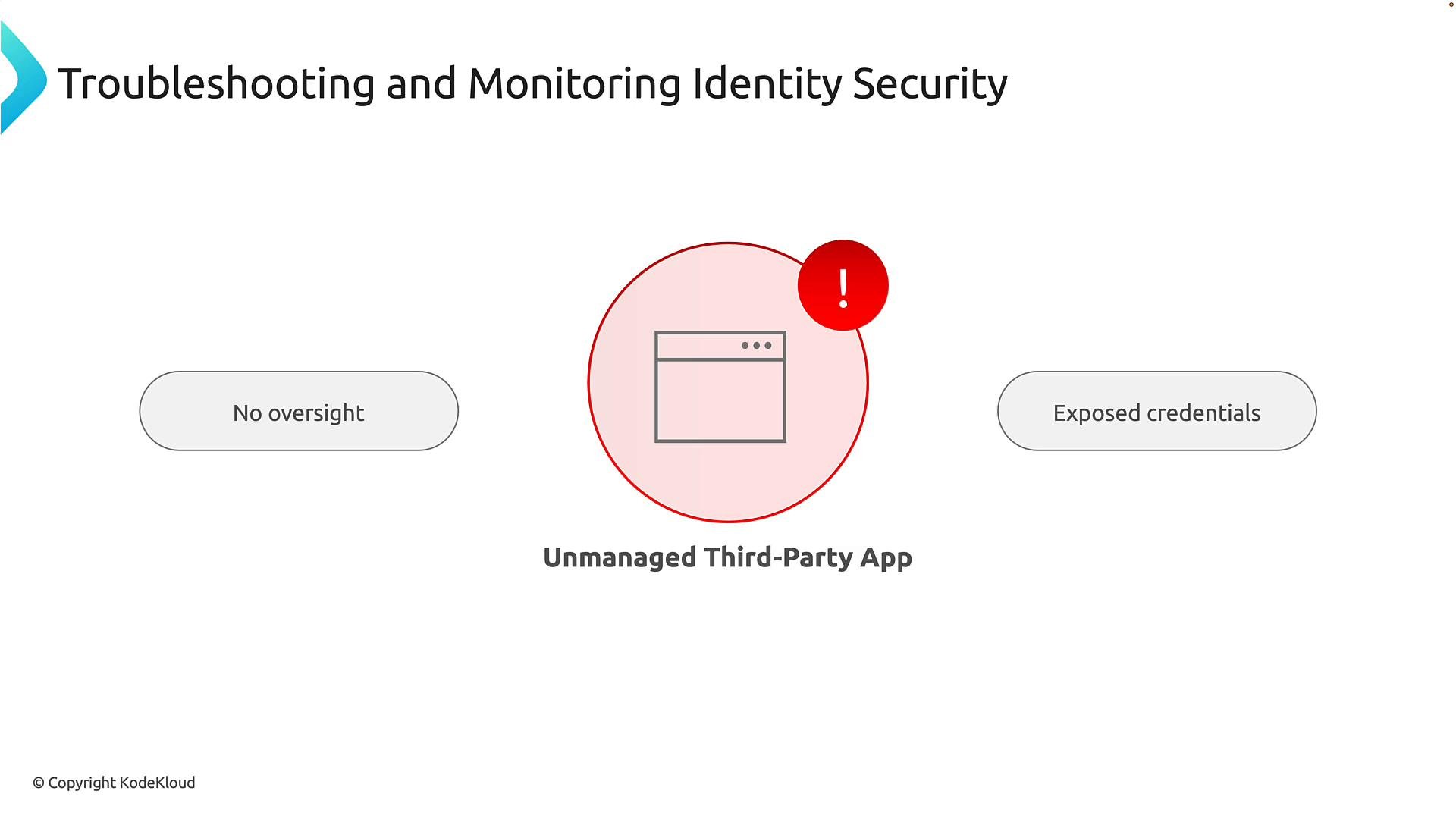 To reduce risk, register and govern applications in Microsoft Entra ID. Registration enables administrators to:
* Control authentication methods and redirect URIs
* Define and restrict permissions (apply least privilege)
* Manage consent settings and require admin consent where appropriate
* Apply Conditional Access or access reviews to application access
Unmanaged or poorly configured third-party apps are a common attack vector. Enforce app registration, review permissions regularly, and use app consent policies to limit exposure.
## Application registration and secure integration flow
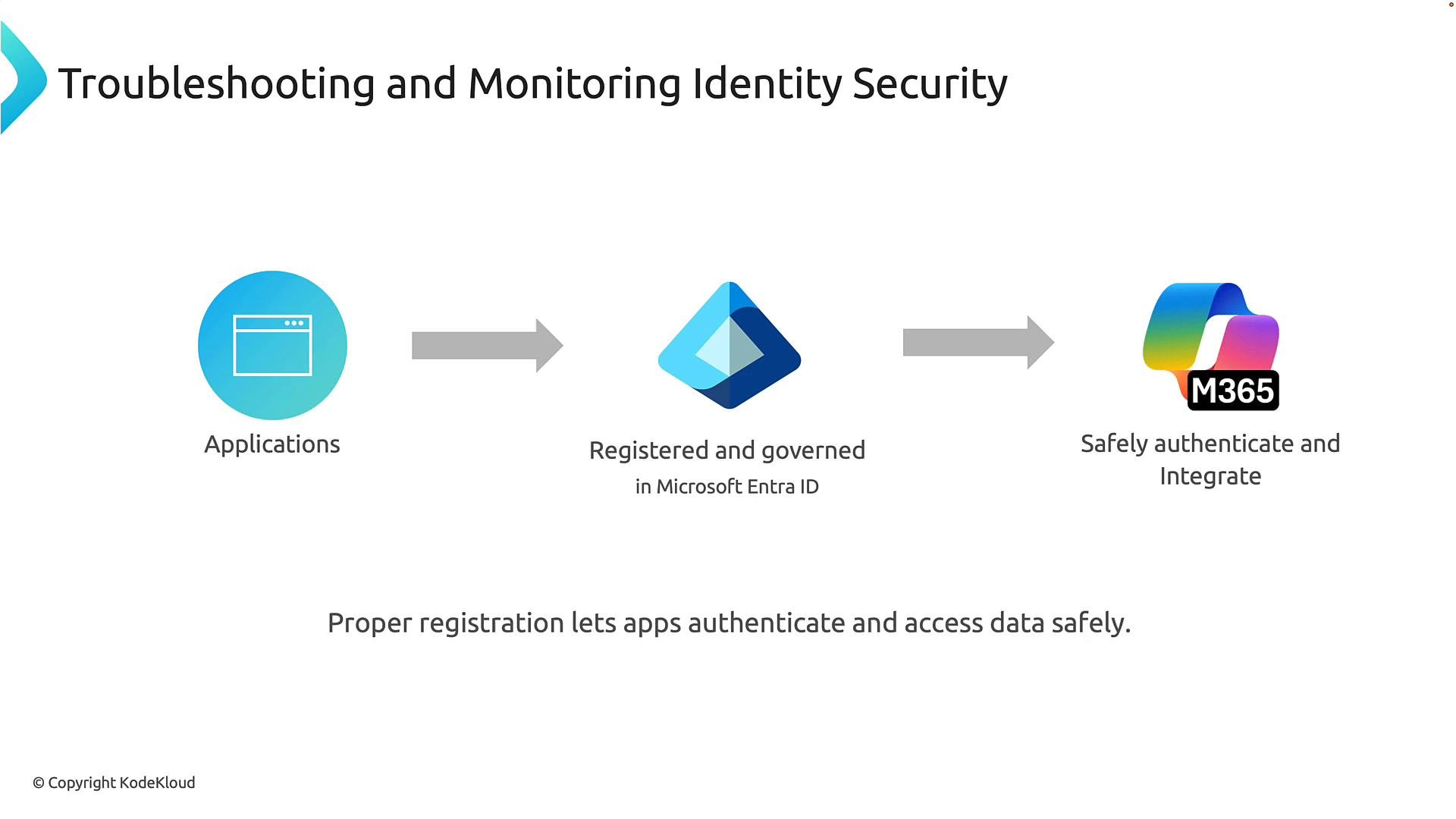
Registering applications in Entra ID ensures they follow organizational policies and apply governance from the start. Registered apps can be restricted to the minimum required permissions, authenticated securely, and included in Conditional Access rules or access reviews.
To reduce risk, register and govern applications in Microsoft Entra ID. Registration enables administrators to:
* Control authentication methods and redirect URIs
* Define and restrict permissions (apply least privilege)
* Manage consent settings and require admin consent where appropriate
* Apply Conditional Access or access reviews to application access
Unmanaged or poorly configured third-party apps are a common attack vector. Enforce app registration, review permissions regularly, and use app consent policies to limit exposure.
## Application registration and secure integration flow
Registering applications in Entra ID ensures they follow organizational policies and apply governance from the start. Registered apps can be restricted to the minimum required permissions, authenticated securely, and included in Conditional Access rules or access reviews.
 Best practices:
* Register every production app in Entra ID.
* Apply least privilege to scopes and API permissions.
* Use managed identities or certificate-based authentication where possible.
* Periodically review app permissions and consent history.
## Summary — what to focus on for the exam and in practice
Identity security is more than signing users in. Administrators should:
* Monitor and collect logs: sign-ins, audit events, provisioning logs, and device reports.
* Investigate incidents using logs and telemetry from Entra ID, Intune, and Defender for Endpoint.
* Secure device posture and verify compliance state.
* Govern and periodically review third-party application access.
* Continuously evaluate risk signals and Conditional Access outcomes.
For certification, emphasize understanding the role of each monitoring capability and how they work together to protect a Microsoft 365 environment.
## Where to find relevant logs in the Entra portal
In the Microsoft Entra admin center you can access the primary logs and insights needed for troubleshooting:
* Monitoring section: sign-in logs, audit logs, provisioning logs, and Conditional Access insights.
* Sign-in logs: show who signed in, which application was used, IP address, resource, device information, and which Conditional Access policies were applied. Open a sign-in record to view location, device, authentication details, and policy evaluation results.
* Audit logs: record administrative operations such as user or group changes and configuration updates.
Best practices:
* Register every production app in Entra ID.
* Apply least privilege to scopes and API permissions.
* Use managed identities or certificate-based authentication where possible.
* Periodically review app permissions and consent history.
## Summary — what to focus on for the exam and in practice
Identity security is more than signing users in. Administrators should:
* Monitor and collect logs: sign-ins, audit events, provisioning logs, and device reports.
* Investigate incidents using logs and telemetry from Entra ID, Intune, and Defender for Endpoint.
* Secure device posture and verify compliance state.
* Govern and periodically review third-party application access.
* Continuously evaluate risk signals and Conditional Access outcomes.
For certification, emphasize understanding the role of each monitoring capability and how they work together to protect a Microsoft 365 environment.
## Where to find relevant logs in the Entra portal
In the Microsoft Entra admin center you can access the primary logs and insights needed for troubleshooting:
* Monitoring section: sign-in logs, audit logs, provisioning logs, and Conditional Access insights.
* Sign-in logs: show who signed in, which application was used, IP address, resource, device information, and which Conditional Access policies were applied. Open a sign-in record to view location, device, authentication details, and policy evaluation results.
* Audit logs: record administrative operations such as user or group changes and configuration updates.
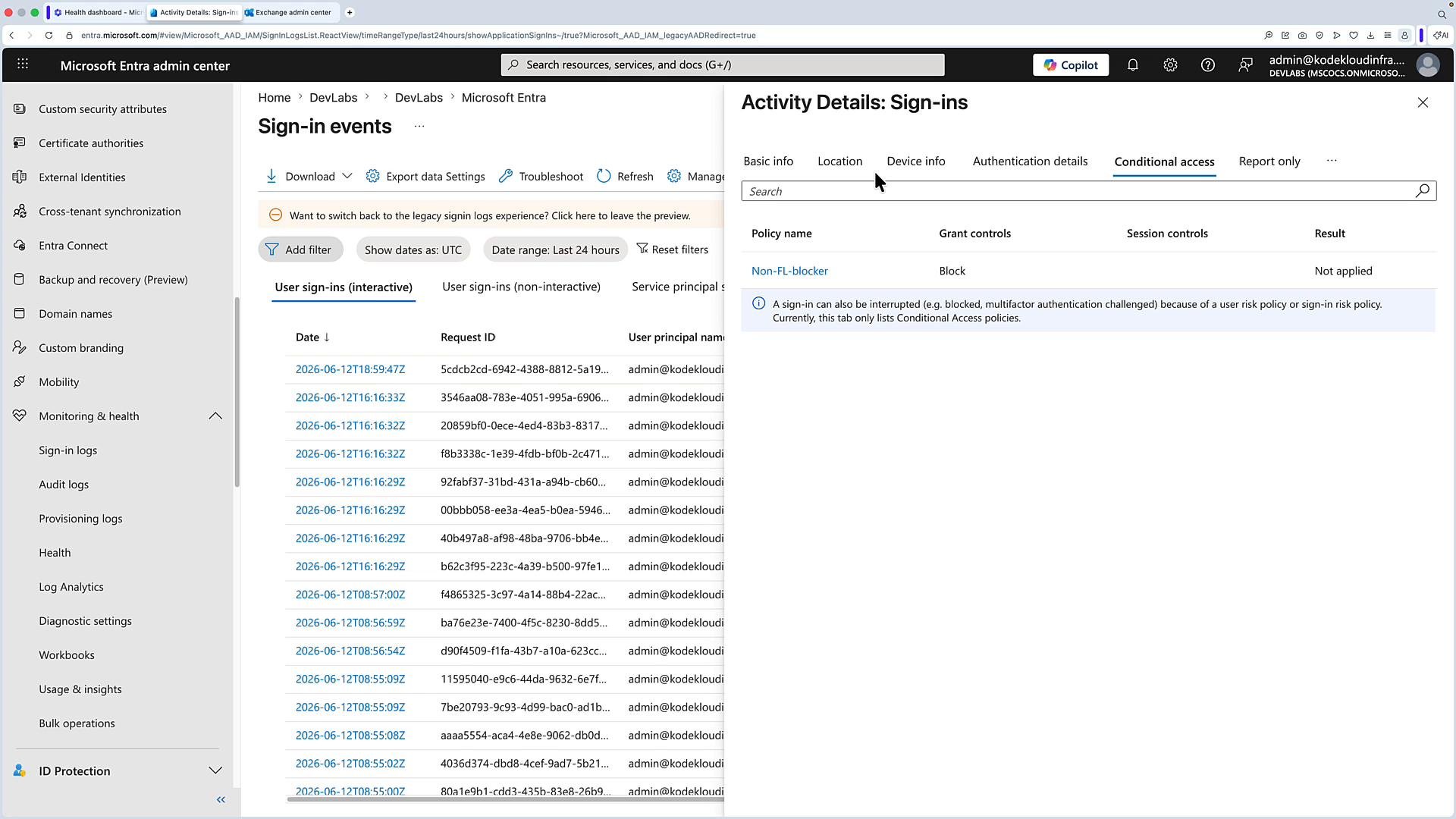 Use these logs to determine why a sign-in or access attempt was blocked and which policy or condition caused the denial. When needed, correlate Entra logs with Intune device reports and Defender for Endpoint telemetry to complete the investigation.
## Quick reference and links
* Microsoft Entra ID (Azure AD) sign-in and audit logs — [https://learn.microsoft.com/azure/active-directory/](https://learn.microsoft.com/azure/active-directory/)
* Conditional Access overview — [https://learn.microsoft.com/azure/active-directory/conditional-access/](https://learn.microsoft.com/azure/active-directory/conditional-access/)
* Microsoft Intune documentation — [https://learn.microsoft.com/mem/](https://learn.microsoft.com/mem/)
* Microsoft Defender for Endpoint docs — [https://learn.microsoft.com/microsoft-365/security/defender-endpoint/](https://learn.microsoft.com/microsoft-365/security/defender-endpoint/)
* Microsoft Sentinel (SIEM) overview — [https://learn.microsoft.com/azure/sentinel/](https://learn.microsoft.com/azure/sentinel/)
These resources provide detailed guidance and step-by-step instructions for locating logs, configuring Conditional Access, and integrating device and endpoint telemetry into your investigations.
This documentation is built and hosted on [Mintlify](https://mintlify.com), a developer documentation platform.
Use these logs to determine why a sign-in or access attempt was blocked and which policy or condition caused the denial. When needed, correlate Entra logs with Intune device reports and Defender for Endpoint telemetry to complete the investigation.
## Quick reference and links
* Microsoft Entra ID (Azure AD) sign-in and audit logs — [https://learn.microsoft.com/azure/active-directory/](https://learn.microsoft.com/azure/active-directory/)
* Conditional Access overview — [https://learn.microsoft.com/azure/active-directory/conditional-access/](https://learn.microsoft.com/azure/active-directory/conditional-access/)
* Microsoft Intune documentation — [https://learn.microsoft.com/mem/](https://learn.microsoft.com/mem/)
* Microsoft Defender for Endpoint docs — [https://learn.microsoft.com/microsoft-365/security/defender-endpoint/](https://learn.microsoft.com/microsoft-365/security/defender-endpoint/)
* Microsoft Sentinel (SIEM) overview — [https://learn.microsoft.com/azure/sentinel/](https://learn.microsoft.com/azure/sentinel/)
These resources provide detailed guidance and step-by-step instructions for locating logs, configuring Conditional Access, and integrating device and endpoint telemetry into your investigations.
This documentation is built and hosted on [Mintlify](https://mintlify.com), a developer documentation platform.