> ## Documentation Index
> Fetch the complete documentation index at: https://notes.kodekloud.com/llms.txt
> Use this file to discover all available pages before exploring further.
# Working with Image Analysis
> Guide to using Azure AI Vision to analyze images via REST and SDKs, configure analysis options, and parse structured results like captions, objects, OCR, and smart crops.
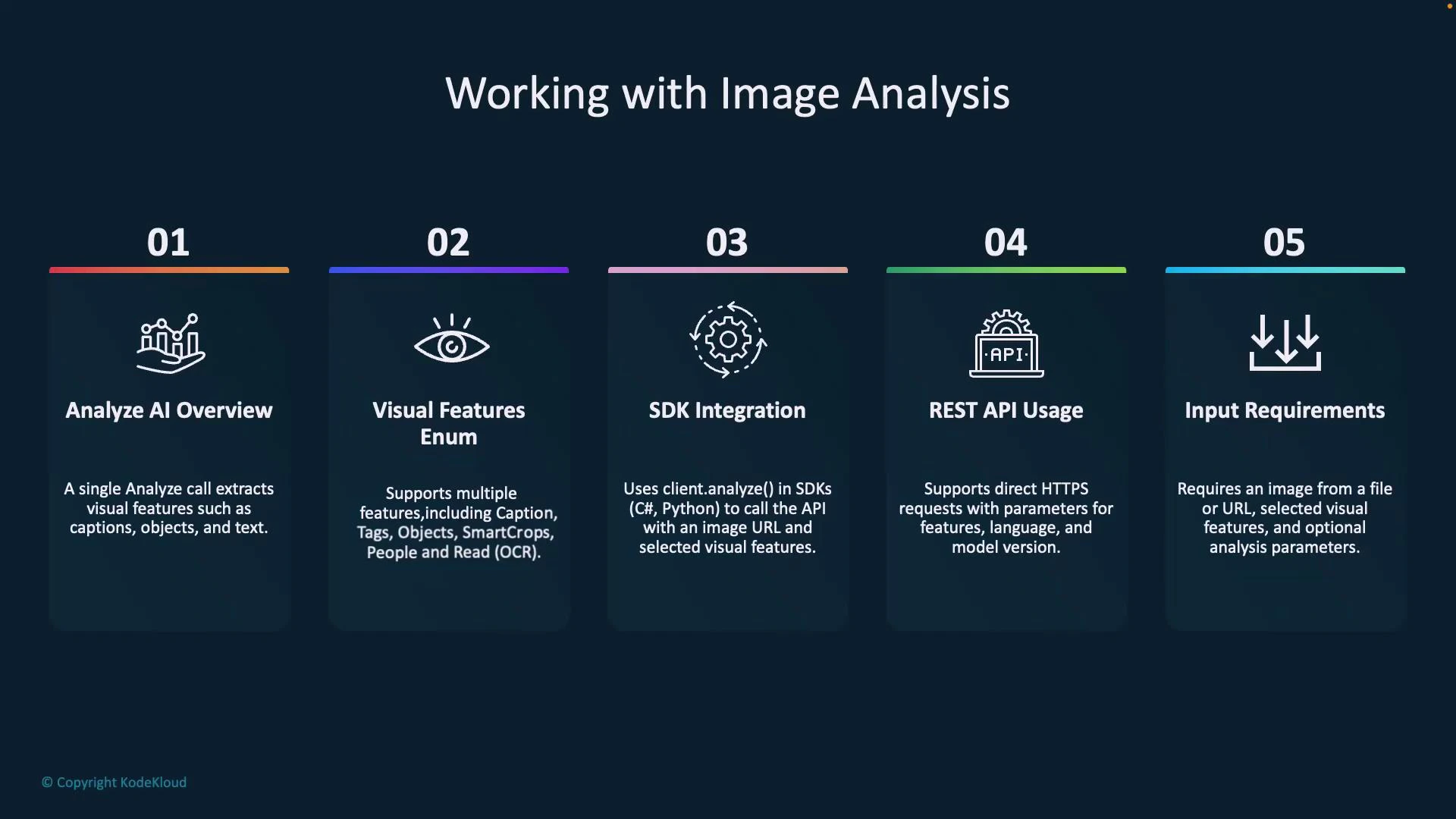
In this lesson we'll explore how to analyze images with Azure AI Vision. You'll learn what goes into image analysis, how to call the service via the REST API and SDKs (C# and Python), how to configure analysis options, and how to parse the structured responses the service returns.
We cover:
* What the Analyze API returns (captions, detected objects and people, OCR/read, smart crops, etc.)
* How to select Visual Features to limit and focus the response
* SDK usage patterns and a full Python example to parse results
* REST usage patterns and a sample query string for the Analyze endpoint
* Practical options (smart crops, language, gender-neutral captions, model versioning)
Key aspects of image analysis are summarized in the table below.
| Resource | Purpose | Typical Use Case |
| -------------------- | --------------------------------------------- | -------------------------------------------------------------- |
| Analyze API | Single call to extract visual insights | Generate captions, detect objects/people, OCR, suggest crops |
| Visual Features enum | Select which features to return | Reduce latency and payload by choosing only needed outputs |
| SDKs (C#, Python) | Wrap the REST calls and provide typed results | Faster integration in apps and fewer manual request steps |
| REST API | Direct HTTPS calls to the analyze endpoint | Flexibility for non-.NET/Python environments or custom clients |
| Input formats | Image URL or raw bytes | Use blob/storage URLs or upload binary bytes in request body |
 ## REST API example
A typical REST Analyze request is performed against the Image Analysis endpoint. Example URL (replace \ and {version}):
```text theme={null}
https:///computervision/imageanalysis:analyze?
features=caption,people&model-name=latest&
language=en&api-version={version}
```
* Query parameters:
* features — comma-separated visual features to return (example: caption, people, objects, read, smartCrops).
* model-name — model to use (e.g., latest or a specific version).
* language — language for captions / OCR results.
* api-version — service API version.
You include the image either as:
* an image URL in the JSON request body, or
* raw image bytes in the request body (binary upload).
The service responds with structured JSON containing captionResult, objectsResult, peopleResult, smartCropsResult, tagsResult/read results, metadata, and modelVersion.
## SDK usage (C# and Python — conceptual)
SDKs simplify calls and return typed objects. Below are conceptual method signatures to illustrate common patterns.
C# (conceptual):
```csharp theme={null}
// C# (conceptual)
ImageAnalysisResult result = client.Analyze(
new Uri(""),
VisualFeatures.Caption | VisualFeatures.People,
analysisOptions // Optional ImageAnalysisOptions
);
```
Python (conceptual):
```python theme={null}
# Python (conceptual)
result = client.analyze(
image_url="",
visual_features=[
VisualFeatures.CAPTION,
VisualFeatures.PEOPLE,
],
# Optional analysis options (e.g., language, gender_neutral_caption)
)
```
### Visual features (examples)
| Visual Feature | What it returns |
| -------------- | --------------------------------------------------------- |
| Caption | Short descriptive caption and confidence |
| Objects | Detected objects with bounding boxes and confidence |
| People | Detected people with bounding boxes and confidence |
| Read / OCR | Text regions and recognized text |
| Tags | Labels/tags with confidence scores |
| Smart Crops | Suggested crop bounding boxes for specified aspect ratios |
| Dense Captions | Multiple region captions with context |
## Analysis options
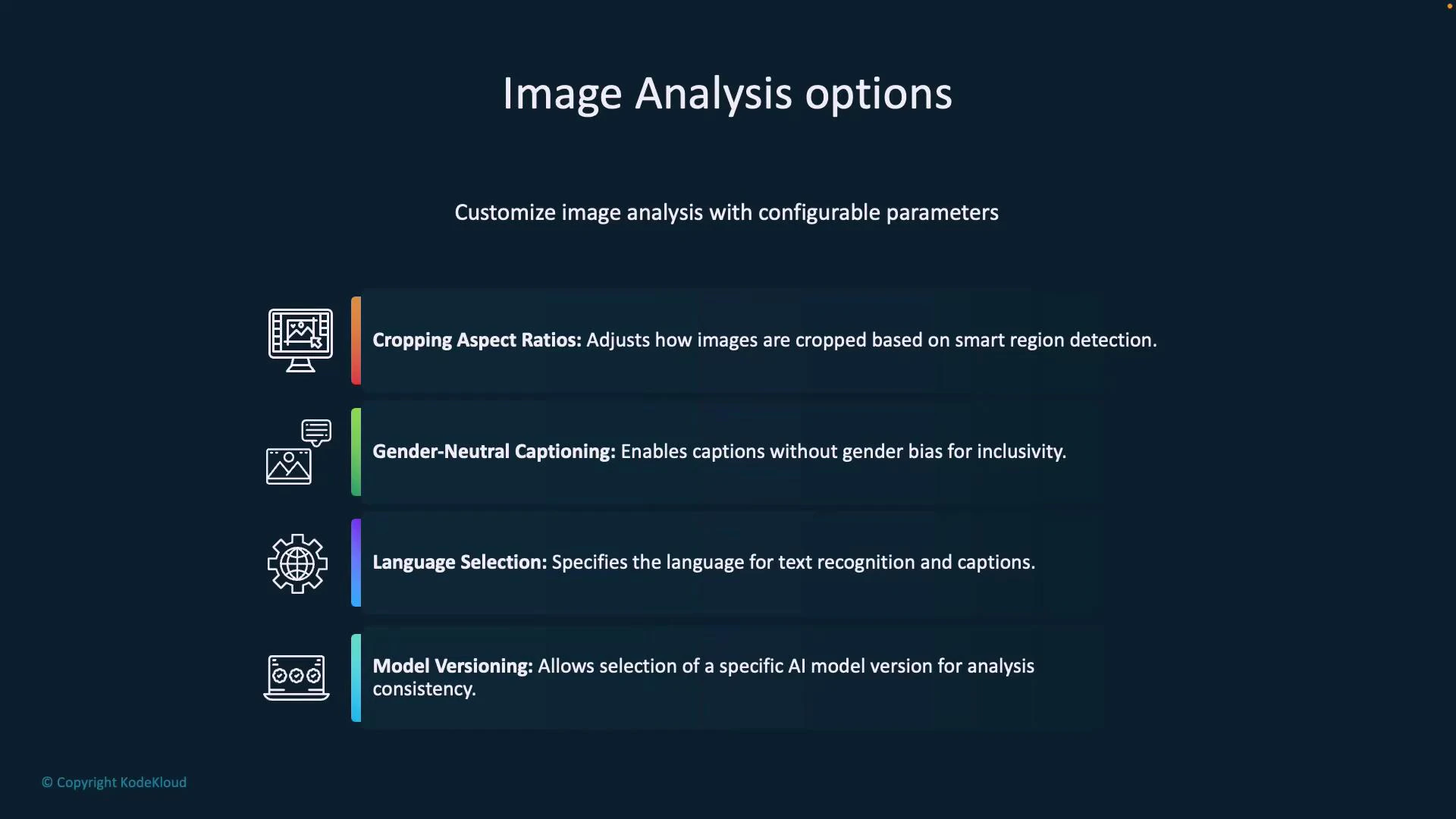
You can tune the behavior of the analysis call with these options:
* Cropping aspect ratios — request smart-crop suggestions for thumbnail generation or fixed aspect ratios.
* Gender-neutral captioning — enable gender-neutral language for generated captions.
* Language selection — specify language for OCR and captions.
* Model versioning — pin to a specific model for reproducible results.
* Additional flags — options vary between SDKs and REST; consult the model-name and API docs.
## REST API example
A typical REST Analyze request is performed against the Image Analysis endpoint. Example URL (replace \ and {version}):
```text theme={null}
https:///computervision/imageanalysis:analyze?
features=caption,people&model-name=latest&
language=en&api-version={version}
```
* Query parameters:
* features — comma-separated visual features to return (example: caption, people, objects, read, smartCrops).
* model-name — model to use (e.g., latest or a specific version).
* language — language for captions / OCR results.
* api-version — service API version.
You include the image either as:
* an image URL in the JSON request body, or
* raw image bytes in the request body (binary upload).
The service responds with structured JSON containing captionResult, objectsResult, peopleResult, smartCropsResult, tagsResult/read results, metadata, and modelVersion.
## SDK usage (C# and Python — conceptual)
SDKs simplify calls and return typed objects. Below are conceptual method signatures to illustrate common patterns.
C# (conceptual):
```csharp theme={null}
// C# (conceptual)
ImageAnalysisResult result = client.Analyze(
new Uri(""),
VisualFeatures.Caption | VisualFeatures.People,
analysisOptions // Optional ImageAnalysisOptions
);
```
Python (conceptual):
```python theme={null}
# Python (conceptual)
result = client.analyze(
image_url="",
visual_features=[
VisualFeatures.CAPTION,
VisualFeatures.PEOPLE,
],
# Optional analysis options (e.g., language, gender_neutral_caption)
)
```
### Visual features (examples)
| Visual Feature | What it returns |
| -------------- | --------------------------------------------------------- |
| Caption | Short descriptive caption and confidence |
| Objects | Detected objects with bounding boxes and confidence |
| People | Detected people with bounding boxes and confidence |
| Read / OCR | Text regions and recognized text |
| Tags | Labels/tags with confidence scores |
| Smart Crops | Suggested crop bounding boxes for specified aspect ratios |
| Dense Captions | Multiple region captions with context |
## Analysis options
You can tune the behavior of the analysis call with these options:
* Cropping aspect ratios — request smart-crop suggestions for thumbnail generation or fixed aspect ratios.
* Gender-neutral captioning — enable gender-neutral language for generated captions.
* Language selection — specify language for OCR and captions.
* Model versioning — pin to a specific model for reproducible results.
* Additional flags — options vary between SDKs and REST; consult the model-name and API docs.
 ### Example: setting analysis options
C# (conceptual):
```csharp theme={null}
ImageAnalysisOptions options = new ImageAnalysisOptions {
GenderNeutralCaption = true,
Language = "en"
};
ImageAnalysisResult result = client.Analyze(
imageURL,
visualFeatures,
options
);
```
Python (conceptual):
```python theme={null}
result = client.analyze(
image_url=image_url,
visual_features=visual_features,
gender_neutral_caption=True,
language="en"
)
```
## Image analysis results
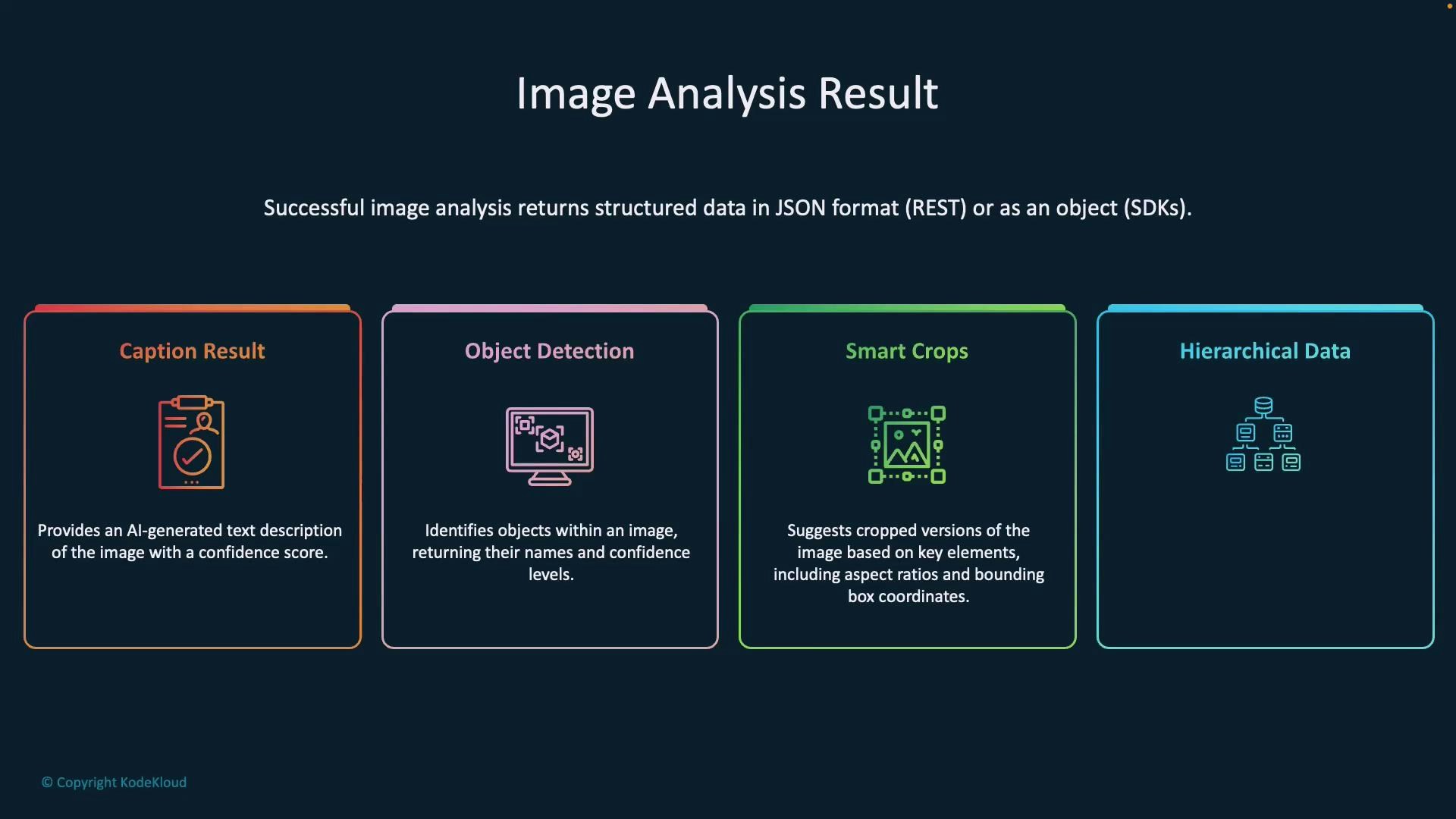
Responses from the service are structured and predictable so you can parse them reliably. Typical top-level sections:
* captionResult — best caption and confidence
* objectsResult — array of detected objects with bounding boxes and confidence
* peopleResult — array of people detections with bounding boxes and confidence
* smartCropsResult — suggested crop boxes for requested aspect ratios
* tagsResult / tags — label/tag information and confidence
* read / ocr results — recognized text blocks/lines
* metadata — image dimensions and format
* modelVersion — the model used for inference
### Example: setting analysis options
C# (conceptual):
```csharp theme={null}
ImageAnalysisOptions options = new ImageAnalysisOptions {
GenderNeutralCaption = true,
Language = "en"
};
ImageAnalysisResult result = client.Analyze(
imageURL,
visualFeatures,
options
);
```
Python (conceptual):
```python theme={null}
result = client.analyze(
image_url=image_url,
visual_features=visual_features,
gender_neutral_caption=True,
language="en"
)
```
## Image analysis results
Responses from the service are structured and predictable so you can parse them reliably. Typical top-level sections:
* captionResult — best caption and confidence
* objectsResult — array of detected objects with bounding boxes and confidence
* peopleResult — array of people detections with bounding boxes and confidence
* smartCropsResult — suggested crop boxes for requested aspect ratios
* tagsResult / tags — label/tag information and confidence
* read / ocr results — recognized text blocks/lines
* metadata — image dimensions and format
* modelVersion — the model used for inference
 Example JSON structure (illustrative):
```json theme={null}
{
"captionResult": {
"text": "a man pointing at a screen",
"confidence": 0.4891590476036072
},
"objectsResult": {
"values": [
{
"name": "laptop",
"confidence": 0.95
}
]
},
"smartCropsResult": {
"values": [
{
"aspectRatio": 1.33,
"boundingBox": {
"x": 0,
"y": 0,
"w": 0,
"h": 0
}
}
]
},
"peopleResult": {
"values": [
{
"boundingBox": { "x": 164, "y": 21, "w": 329, "h": 378 },
"confidence": 0.9396107197
}
]
},
"metadata": {
"width": 600,
"height": 400
},
"modelVersion": "latest"
}
```
Use these fields to:
* render captions for accessibility,
* draw bounding boxes for objects and people,
* select recommended crops for thumbnails, and
* display detected tags and OCR text in the UI.
## Hands-on: Python SDK example
Install the Azure AI Vision package for Python:
```bash theme={null}
pip install azure-ai-vision
```
Replace endpoint and key values below with the endpoint and key from your Azure AI service (Keys and Endpoint in the Azure portal). Never commit production keys into source control.
A consolidated, practical Python example demonstrating initialization, choosing visual features, calling analysis, and parsing results safely:
```python theme={null}
# python
import json
from azure.ai.vision.imageanalysis import ImageAnalysisClient
from azure.ai.vision.imageanalysis.models import VisualFeatures
from azure.core.credentials import AzureKeyCredential
# Replace with your service values
endpoint = "https://.cognitiveservices.azure.com/"
key = ""
# Example image URL (replace as needed)
image_url = "https://azai102imagestore.blob.core.windows.net/images/young-smiling-happy-cheerful-owner-600nw-2397244269.webp"
# Initialize client
client = ImageAnalysisClient(
endpoint=endpoint,
credential=AzureKeyCredential(key)
)
# Select features
visual_features = [
VisualFeatures.TAGS,
VisualFeatures.OBJECTS,
VisualFeatures.CAPTION,
VisualFeatures.DENSE_CAPTIONS,
VisualFeatures.READ,
VisualFeatures.SMART_CROPS,
VisualFeatures.PEOPLE,
]
# Request analysis
result = client.analyze_from_url(
image_url=image_url,
visual_features=visual_features,
smart_crops_aspect_ratios=[0.9, 1.33],
gender_neutral_caption=True,
language="en"
)
# Format SDK response into a dict for flexible parsing
try:
result_dict = result.as_dict() if hasattr(result, "as_dict") else dict(result)
print("Raw response as formatted JSON:")
print(json.dumps(result_dict, indent=2))
print("\n")
except Exception as e:
print(f"Could not format result as JSON: {str(e)}")
print(f"Raw response: \n {result} \n\n")
result_dict = {}
# Helper: safe nested getter
def safe_get(d, *keys, default=None):
for key in keys:
if isinstance(d, dict) and key in d:
d = d[key]
else:
return default
return d
# Parse people
people = safe_get(result_dict, "peopleResult", "values", default=[])
if people:
print("People detected:")
for person in people:
bbox = person.get("boundingBox", {})
confidence = person.get("confidence", 0)
print(f" Bounding Box: x={bbox.get('x')}, y={bbox.get('y')}, width={bbox.get('w')}, height={bbox.get('h')}")
print(f" Confidence: {confidence:.2f}")
else:
print("No people detected.")
# Parse caption
caption = safe_get(result_dict, "captionResult")
if caption:
text = caption.get("text", "")
conf = caption.get("confidence", 0)
print(f"\nCaption: {text} (Confidence: {conf:.2f})")
# Parse tags (some responses use tagsResult.values or tags)
tags = safe_get(result_dict, "tagsResult", "values", default=None)
if tags is None:
tags = safe_get(result_dict, "tags", default=None)
if tags:
print("\nTags:")
for t in tags:
name = t.get("name") or (t.get("tag", {}) or {}).get("name")
confidence = t.get("confidence", 0)
print(f" {name}: {confidence:.2f}")
# Parse objects
objects = safe_get(result_dict, "objectsResult", "values", default=[])
if objects:
print("\nObjects:")
for obj in objects:
name = obj.get("name") or "object"
confidence = obj.get("confidence", 0)
bbox = obj.get("boundingBox", {})
print(f" {name}: bbox={bbox}, confidence={confidence:.2f}")
# Metadata & model version
metadata = safe_get(result_dict, "metadata", default={})
if metadata:
print(f"\nImage width: {metadata.get('width')}, height: {metadata.get('height')}")
print(f"Model version: {result_dict.get('modelVersion')}")
```
This script:
* Initializes ImageAnalysisClient with your endpoint and key.
* Chooses the visual features to analyze.
* Calls analyze\_from\_url with optional analysis options.
* Prints the raw JSON response and demonstrates robust parsing of common result sections (people, caption, tags, objects).
Protect your API keys: rotate keys regularly, store secrets in a secure vault (e.g., Azure Key Vault), and avoid hard-coding secrets in source control.
## Live demonstration notes and best practices
* Provision an [Azure AI service](https://learn.microsoft.com/azure/ai-services/overview) in the [Azure portal](https://portal.azure.com). Use the Keys and Endpoint values from the portal for your client.
* Use blob storage URLs or public URLs for images. For private images, upload binary image bytes in the request body.
* Gender-neutral captions help avoid gender assumptions in generated text (e.g., "a person hugging a dog").
* Smart crops return bounding boxes for the aspect ratios you specify—use these to create thumbnails that preserve important content.
* Pin model versions for reproducible results; use "latest" for new features and model improvements.
* Always validate and sanitize service outputs before surface-level display in production applications.
Example parsed output (illustrative):
```text theme={null}
People detected!
Bounding Box: x=164, y=21, width=329, height=378
Confidence: 0.94
Caption: a person hugging a dog (Confidence: 0.89)
Tags:
pet: 0.90
golden retriever: 0.89
Model version: latest
```
## Links and references
* [Azure AI Vision overview](https://learn.microsoft.com/azure/cognitive-services/vision/ai-vision/overview)
* [Analyze concept: Image Analysis](https://learn.microsoft.com/azure/cognitive-services/vision/ai-vision/concept-analyze)
* [Azure AI services: overview](https://learn.microsoft.com/azure/ai-services/overview)
* [Azure portal](https://portal.azure.com)
* [azure-ai-vision PyPI package](https://pypi.org/project/azure-ai-vision/)
This guide demonstrates how to call Azure AI Vision to obtain captions, detect objects and people, extract OCR text, and request smart crops. Use these structured outputs to annotate images, drive UI decisions (smart cropping), and provide accessible descriptions for your applications.
Example JSON structure (illustrative):
```json theme={null}
{
"captionResult": {
"text": "a man pointing at a screen",
"confidence": 0.4891590476036072
},
"objectsResult": {
"values": [
{
"name": "laptop",
"confidence": 0.95
}
]
},
"smartCropsResult": {
"values": [
{
"aspectRatio": 1.33,
"boundingBox": {
"x": 0,
"y": 0,
"w": 0,
"h": 0
}
}
]
},
"peopleResult": {
"values": [
{
"boundingBox": { "x": 164, "y": 21, "w": 329, "h": 378 },
"confidence": 0.9396107197
}
]
},
"metadata": {
"width": 600,
"height": 400
},
"modelVersion": "latest"
}
```
Use these fields to:
* render captions for accessibility,
* draw bounding boxes for objects and people,
* select recommended crops for thumbnails, and
* display detected tags and OCR text in the UI.
## Hands-on: Python SDK example
Install the Azure AI Vision package for Python:
```bash theme={null}
pip install azure-ai-vision
```
Replace endpoint and key values below with the endpoint and key from your Azure AI service (Keys and Endpoint in the Azure portal). Never commit production keys into source control.
A consolidated, practical Python example demonstrating initialization, choosing visual features, calling analysis, and parsing results safely:
```python theme={null}
# python
import json
from azure.ai.vision.imageanalysis import ImageAnalysisClient
from azure.ai.vision.imageanalysis.models import VisualFeatures
from azure.core.credentials import AzureKeyCredential
# Replace with your service values
endpoint = "https://.cognitiveservices.azure.com/"
key = ""
# Example image URL (replace as needed)
image_url = "https://azai102imagestore.blob.core.windows.net/images/young-smiling-happy-cheerful-owner-600nw-2397244269.webp"
# Initialize client
client = ImageAnalysisClient(
endpoint=endpoint,
credential=AzureKeyCredential(key)
)
# Select features
visual_features = [
VisualFeatures.TAGS,
VisualFeatures.OBJECTS,
VisualFeatures.CAPTION,
VisualFeatures.DENSE_CAPTIONS,
VisualFeatures.READ,
VisualFeatures.SMART_CROPS,
VisualFeatures.PEOPLE,
]
# Request analysis
result = client.analyze_from_url(
image_url=image_url,
visual_features=visual_features,
smart_crops_aspect_ratios=[0.9, 1.33],
gender_neutral_caption=True,
language="en"
)
# Format SDK response into a dict for flexible parsing
try:
result_dict = result.as_dict() if hasattr(result, "as_dict") else dict(result)
print("Raw response as formatted JSON:")
print(json.dumps(result_dict, indent=2))
print("\n")
except Exception as e:
print(f"Could not format result as JSON: {str(e)}")
print(f"Raw response: \n {result} \n\n")
result_dict = {}
# Helper: safe nested getter
def safe_get(d, *keys, default=None):
for key in keys:
if isinstance(d, dict) and key in d:
d = d[key]
else:
return default
return d
# Parse people
people = safe_get(result_dict, "peopleResult", "values", default=[])
if people:
print("People detected:")
for person in people:
bbox = person.get("boundingBox", {})
confidence = person.get("confidence", 0)
print(f" Bounding Box: x={bbox.get('x')}, y={bbox.get('y')}, width={bbox.get('w')}, height={bbox.get('h')}")
print(f" Confidence: {confidence:.2f}")
else:
print("No people detected.")
# Parse caption
caption = safe_get(result_dict, "captionResult")
if caption:
text = caption.get("text", "")
conf = caption.get("confidence", 0)
print(f"\nCaption: {text} (Confidence: {conf:.2f})")
# Parse tags (some responses use tagsResult.values or tags)
tags = safe_get(result_dict, "tagsResult", "values", default=None)
if tags is None:
tags = safe_get(result_dict, "tags", default=None)
if tags:
print("\nTags:")
for t in tags:
name = t.get("name") or (t.get("tag", {}) or {}).get("name")
confidence = t.get("confidence", 0)
print(f" {name}: {confidence:.2f}")
# Parse objects
objects = safe_get(result_dict, "objectsResult", "values", default=[])
if objects:
print("\nObjects:")
for obj in objects:
name = obj.get("name") or "object"
confidence = obj.get("confidence", 0)
bbox = obj.get("boundingBox", {})
print(f" {name}: bbox={bbox}, confidence={confidence:.2f}")
# Metadata & model version
metadata = safe_get(result_dict, "metadata", default={})
if metadata:
print(f"\nImage width: {metadata.get('width')}, height: {metadata.get('height')}")
print(f"Model version: {result_dict.get('modelVersion')}")
```
This script:
* Initializes ImageAnalysisClient with your endpoint and key.
* Chooses the visual features to analyze.
* Calls analyze\_from\_url with optional analysis options.
* Prints the raw JSON response and demonstrates robust parsing of common result sections (people, caption, tags, objects).
Protect your API keys: rotate keys regularly, store secrets in a secure vault (e.g., Azure Key Vault), and avoid hard-coding secrets in source control.
## Live demonstration notes and best practices
* Provision an [Azure AI service](https://learn.microsoft.com/azure/ai-services/overview) in the [Azure portal](https://portal.azure.com). Use the Keys and Endpoint values from the portal for your client.
* Use blob storage URLs or public URLs for images. For private images, upload binary image bytes in the request body.
* Gender-neutral captions help avoid gender assumptions in generated text (e.g., "a person hugging a dog").
* Smart crops return bounding boxes for the aspect ratios you specify—use these to create thumbnails that preserve important content.
* Pin model versions for reproducible results; use "latest" for new features and model improvements.
* Always validate and sanitize service outputs before surface-level display in production applications.
Example parsed output (illustrative):
```text theme={null}
People detected!
Bounding Box: x=164, y=21, width=329, height=378
Confidence: 0.94
Caption: a person hugging a dog (Confidence: 0.89)
Tags:
pet: 0.90
golden retriever: 0.89
Model version: latest
```
## Links and references
* [Azure AI Vision overview](https://learn.microsoft.com/azure/cognitive-services/vision/ai-vision/overview)
* [Analyze concept: Image Analysis](https://learn.microsoft.com/azure/cognitive-services/vision/ai-vision/concept-analyze)
* [Azure AI services: overview](https://learn.microsoft.com/azure/ai-services/overview)
* [Azure portal](https://portal.azure.com)
* [azure-ai-vision PyPI package](https://pypi.org/project/azure-ai-vision/)
This guide demonstrates how to call Azure AI Vision to obtain captions, detect objects and people, extract OCR text, and request smart crops. Use these structured outputs to annotate images, drive UI decisions (smart cropping), and provide accessible descriptions for your applications.