> ## Documentation Index
> Fetch the complete documentation index at: https://notes.kodekloud.com/llms.txt
> Use this file to discover all available pages before exploring further.
# Azure AI Language Capabilities
> Overview of Azure AI Language Services features and a Language Studio walkthrough to build, train, deploy, and consume a conversational language understanding project with intents, entities, and Python SDK
[Azure AI Language Services](https://learn.microsoft.com/azure/cognitive-services/language-service/overview) provides pre-built and customizable natural language features you can use out of the box or adapt to your domain. This guide walks through the core capabilities and then shows how to build a simple conversational language-understanding project (pizza-order example) in Language Studio, including training, deployment, and consumption via the Python SDK.
## Overview: prebuilt vs. customizable features
| Feature Type | When to use | Typical outputs |
| --------------------- | -------------------------------------------------------------------------------------- | ------------------------------------------------------------------------ |
| Prebuilt features | Quick integration when default behaviors suffice (no training) | Named entities, PII detection, key phrases, sentiment, detected language |
| Customizable features | Domain-specific scenarios where you need intents, custom entities, or a knowledge base | Custom intents, learned entities, document-based QA (knowledge base) |
Prebuilt capabilities are great for rapid adoption; customizable features allow you to tailor the model to your business needs.
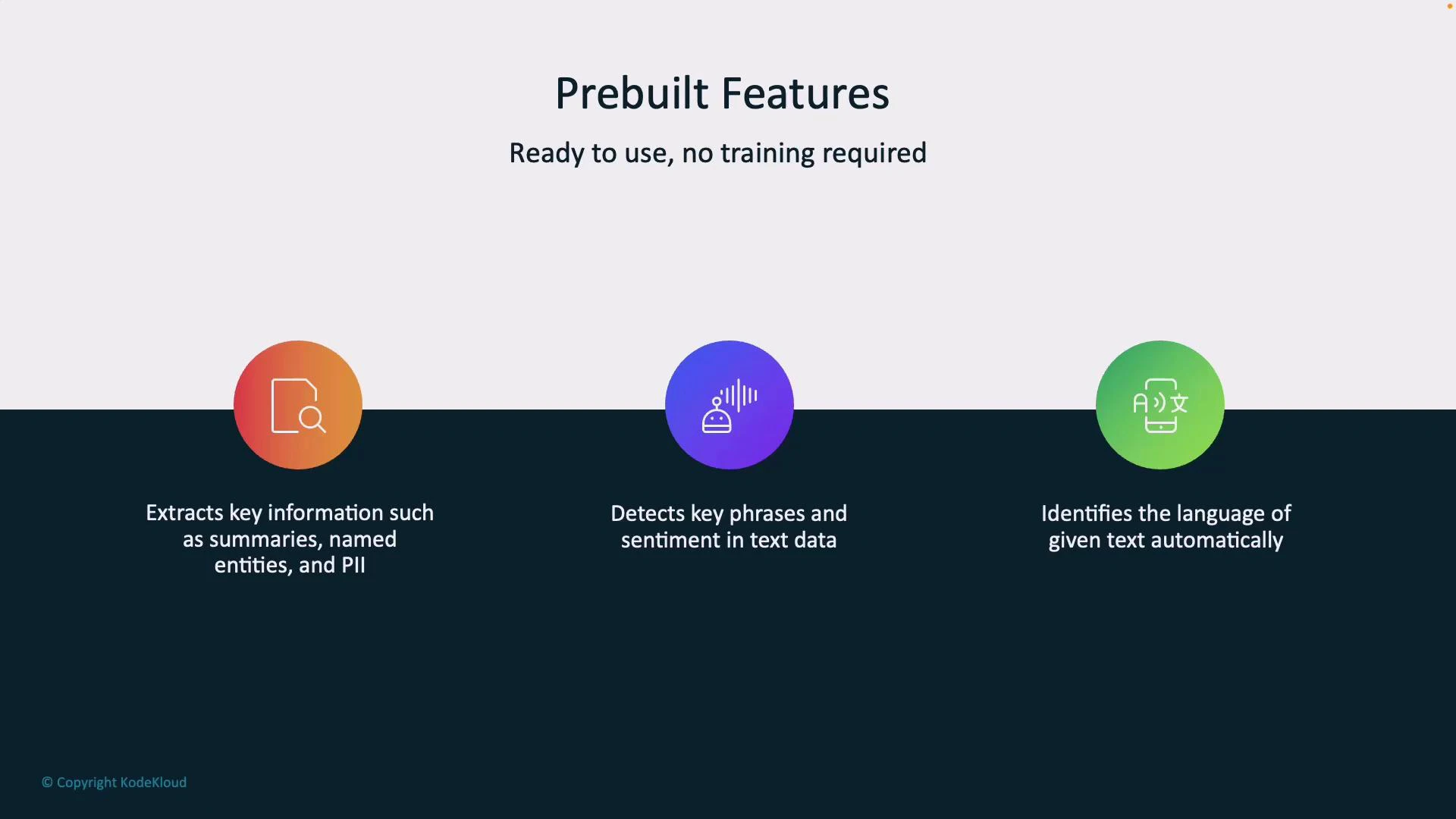
## Prebuilt features (no training required)
* Information Extraction: summaries, named entities (people, places, organizations), and PII detection.
* Key Phrase & Sentiment Detection: highlights important phrases and classifies sentiment (positive/negative/neutral).
* Language Detection: auto-detects input language and routes processing accordingly.
 Example: If a user types in Spanish, language detection runs first and then routes the text to the appropriate models for subsequent analysis.
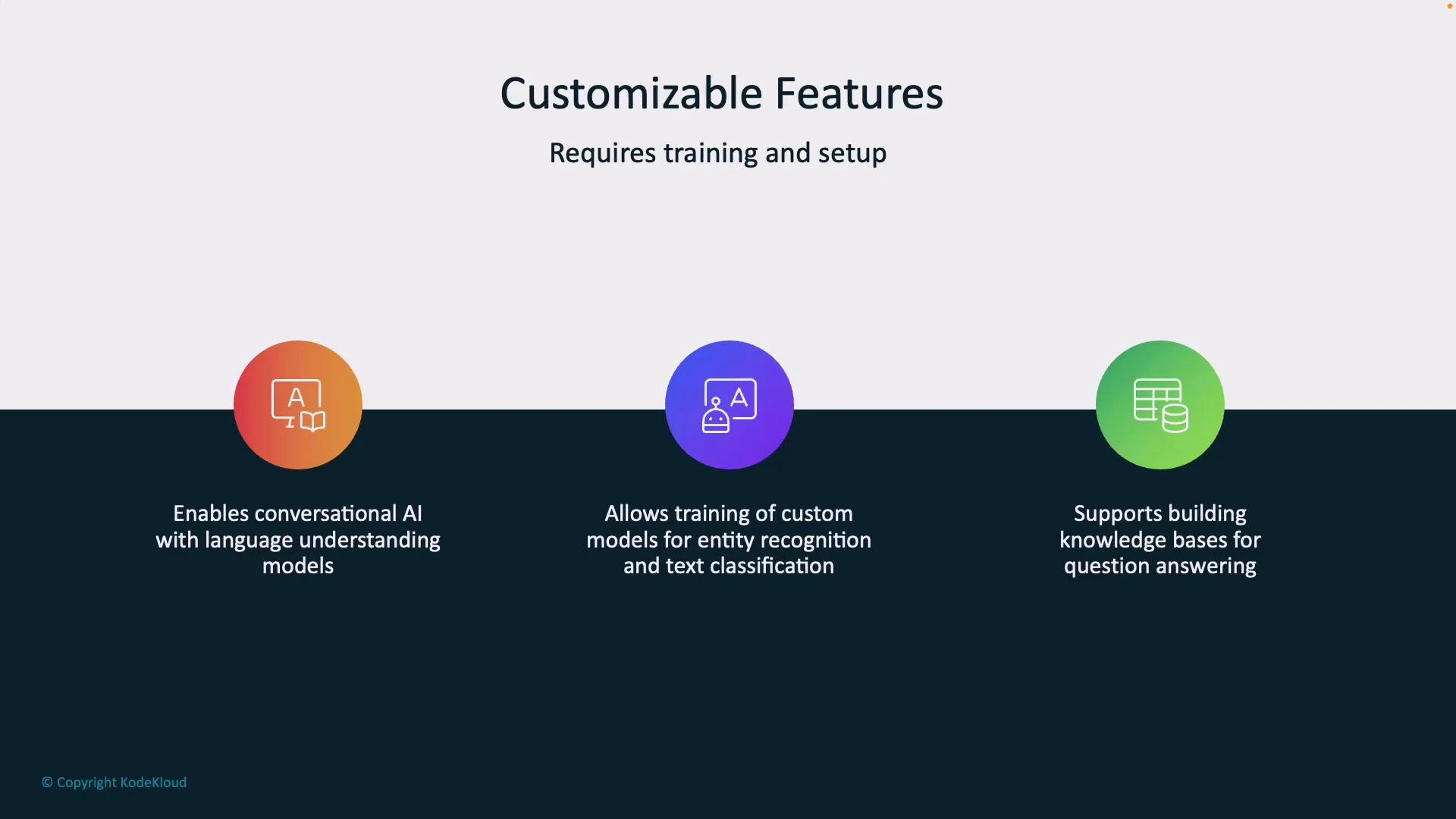
## Customizable features (require training)
* Conversational AI / Language Understanding: define intents and utterances to build chatbots or virtual agents.
* Custom entity recognition & text classification: train the model to extract domain-specific terms or classify documents.
* Knowledge bases / Question Answering: ingest documents or FAQs to create searchable, automated Q\&A systems.
Example: If a user types in Spanish, language detection runs first and then routes the text to the appropriate models for subsequent analysis.
## Customizable features (require training)
* Conversational AI / Language Understanding: define intents and utterances to build chatbots or virtual agents.
* Custom entity recognition & text classification: train the model to extract domain-specific terms or classify documents.
* Knowledge bases / Question Answering: ingest documents or FAQs to create searchable, automated Q\&A systems.
 ## What you send to a deployed model
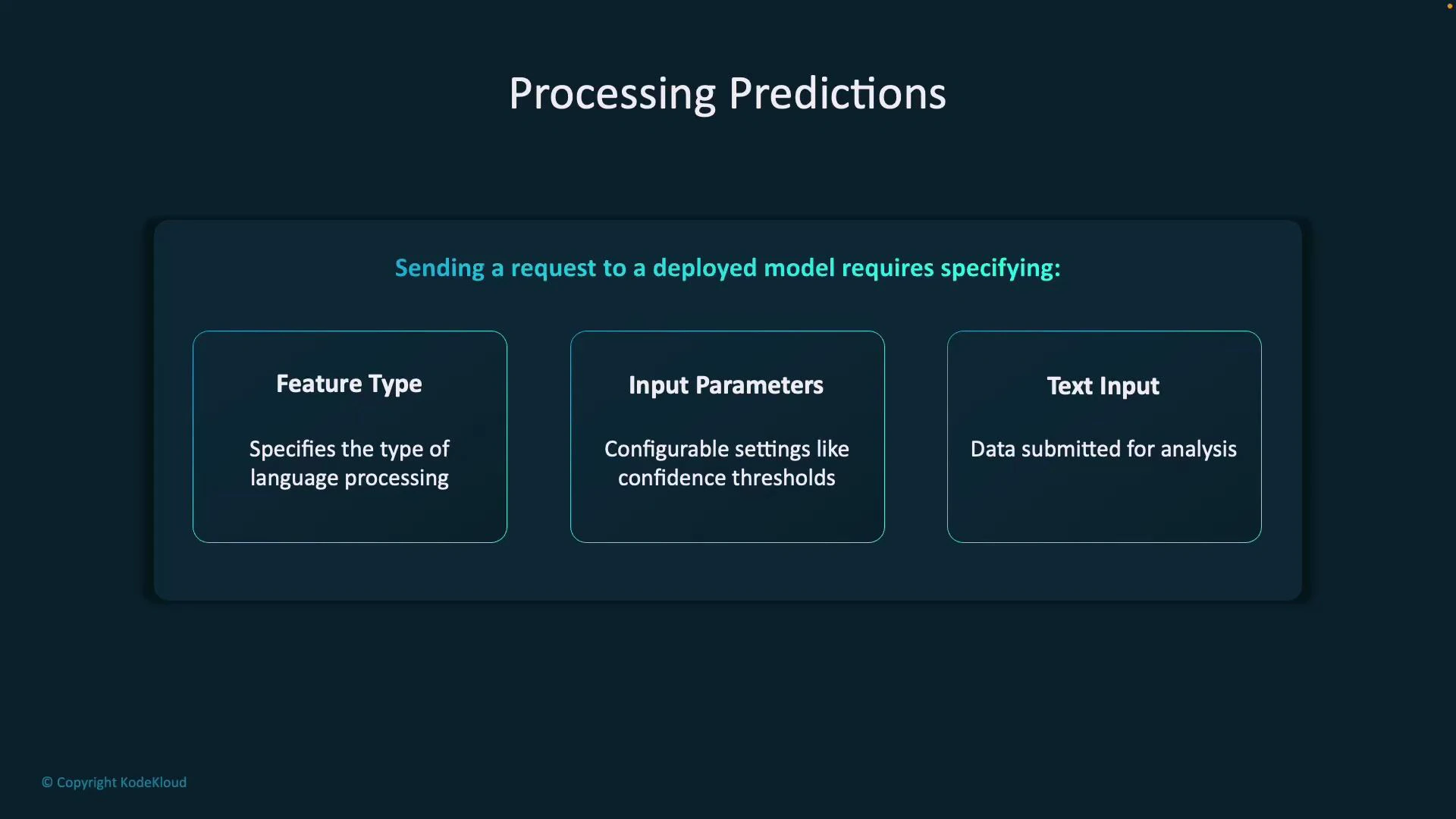
A prediction request typically includes:
* Feature Type: which analysis to perform (intent detection, entity recognition, sentiment).
* Input Parameters: configuration such as confidence thresholds, verbosity, and project/deployment identifiers.
* Text Input: the user's query or utterance.
## What you send to a deployed model
A prediction request typically includes:
* Feature Type: which analysis to perform (intent detection, entity recognition, sentiment).
* Input Parameters: configuration such as confidence thresholds, verbosity, and project/deployment identifiers.
* Text Input: the user's query or utterance.
 ### Sample structured response
When a model analyzes input, Azure returns structured JSON containing the original query, the top intent, a ranked list of intents with confidence scores, and any extracted entities (with offsets and lengths). Example response (actual fields may differ by API version/SDK):
```json theme={null}
{
"query": "What's the time in Paris?",
"prediction": {
"topIntent": "GetTime",
"projectKind": "Conversation",
"intents": [
{
"category": "GetTime",
"confidenceScore": 0.90
},
{
"category": "None",
"confidenceScore": 0.05
}
],
"entities": [
{
"text": "Paris",
"category": "location",
"offset": 18,
"length": 5,
"confidenceScore": 0.99
}
]
}
}
```
In this example, the top intent is GetTime (0.90) and the model extracted the location entity "Paris".
## Language Studio walkthrough — conversational language understanding
This walkthrough shows the typical end-to-end flow in Language Studio: create a project, define intents and entities, label training data, train, deploy, and then call the model.
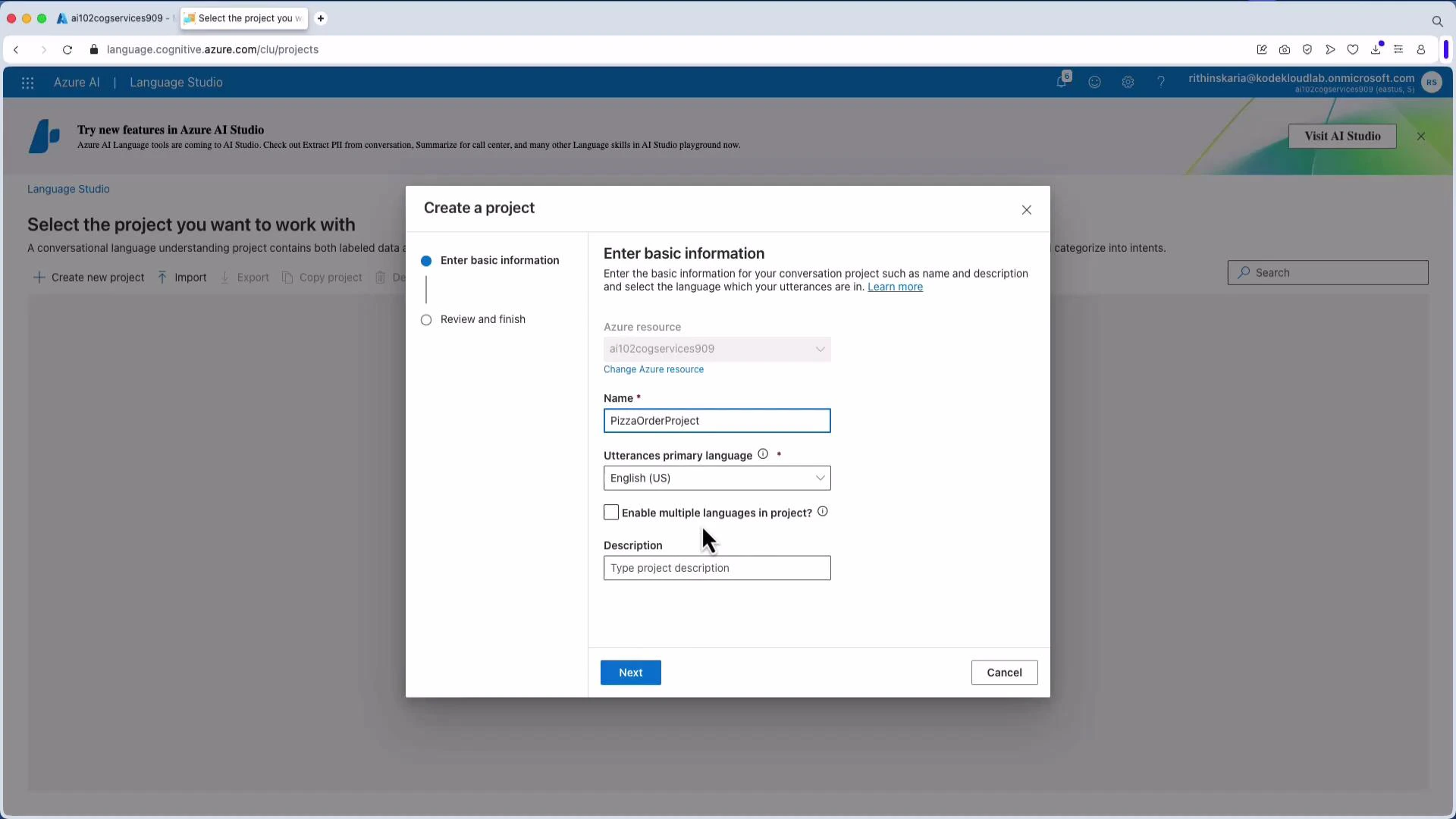
### 1. Create a project
Open Language Studio and create a new conversational language understanding project. For this lesson we use the project name "PizzaOrderProject" with English (US) as the primary language.
### Sample structured response
When a model analyzes input, Azure returns structured JSON containing the original query, the top intent, a ranked list of intents with confidence scores, and any extracted entities (with offsets and lengths). Example response (actual fields may differ by API version/SDK):
```json theme={null}
{
"query": "What's the time in Paris?",
"prediction": {
"topIntent": "GetTime",
"projectKind": "Conversation",
"intents": [
{
"category": "GetTime",
"confidenceScore": 0.90
},
{
"category": "None",
"confidenceScore": 0.05
}
],
"entities": [
{
"text": "Paris",
"category": "location",
"offset": 18,
"length": 5,
"confidenceScore": 0.99
}
]
}
}
```
In this example, the top intent is GetTime (0.90) and the model extracted the location entity "Paris".
## Language Studio walkthrough — conversational language understanding
This walkthrough shows the typical end-to-end flow in Language Studio: create a project, define intents and entities, label training data, train, deploy, and then call the model.
### 1. Create a project
Open Language Studio and create a new conversational language understanding project. For this lesson we use the project name "PizzaOrderProject" with English (US) as the primary language.
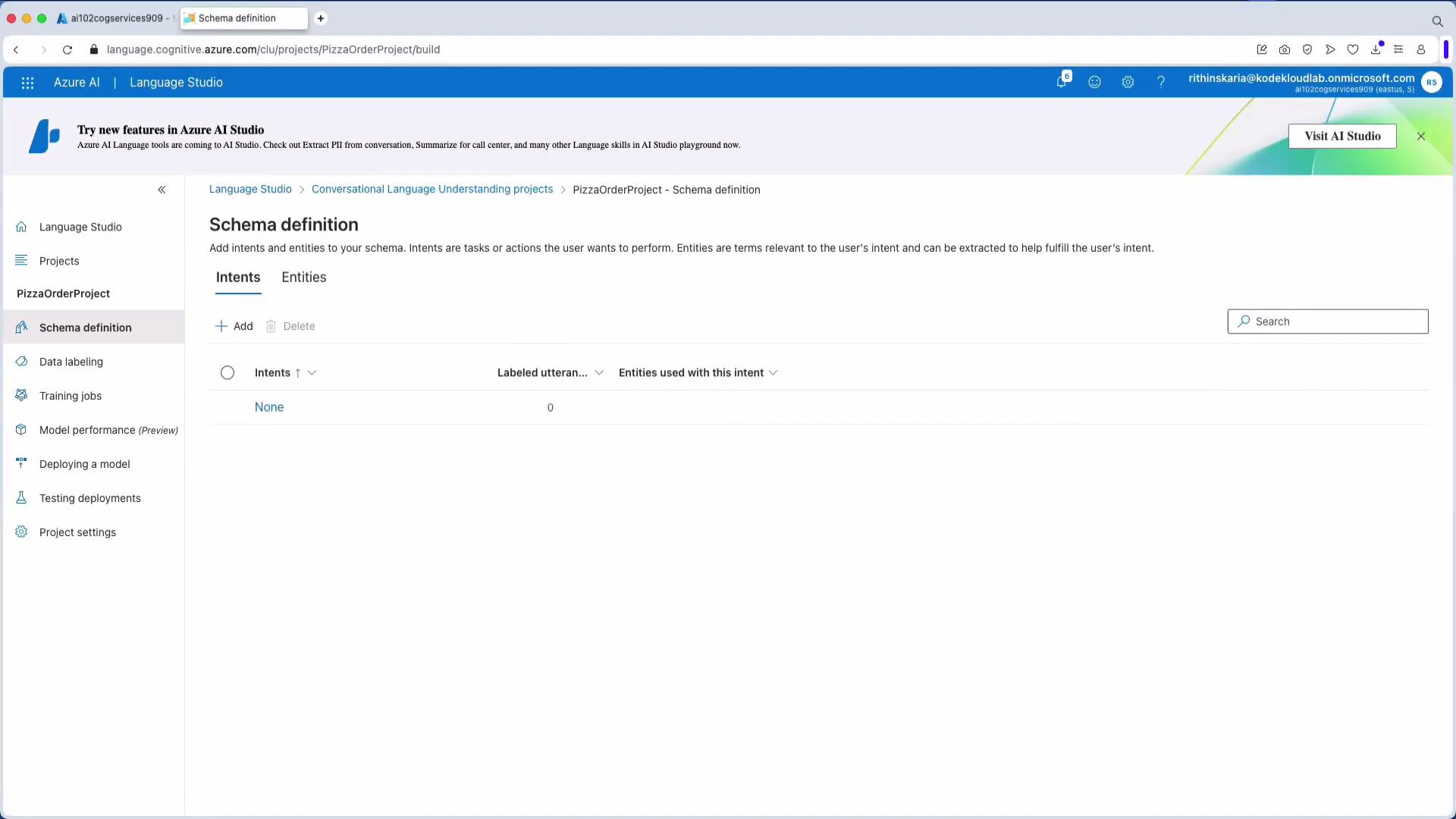
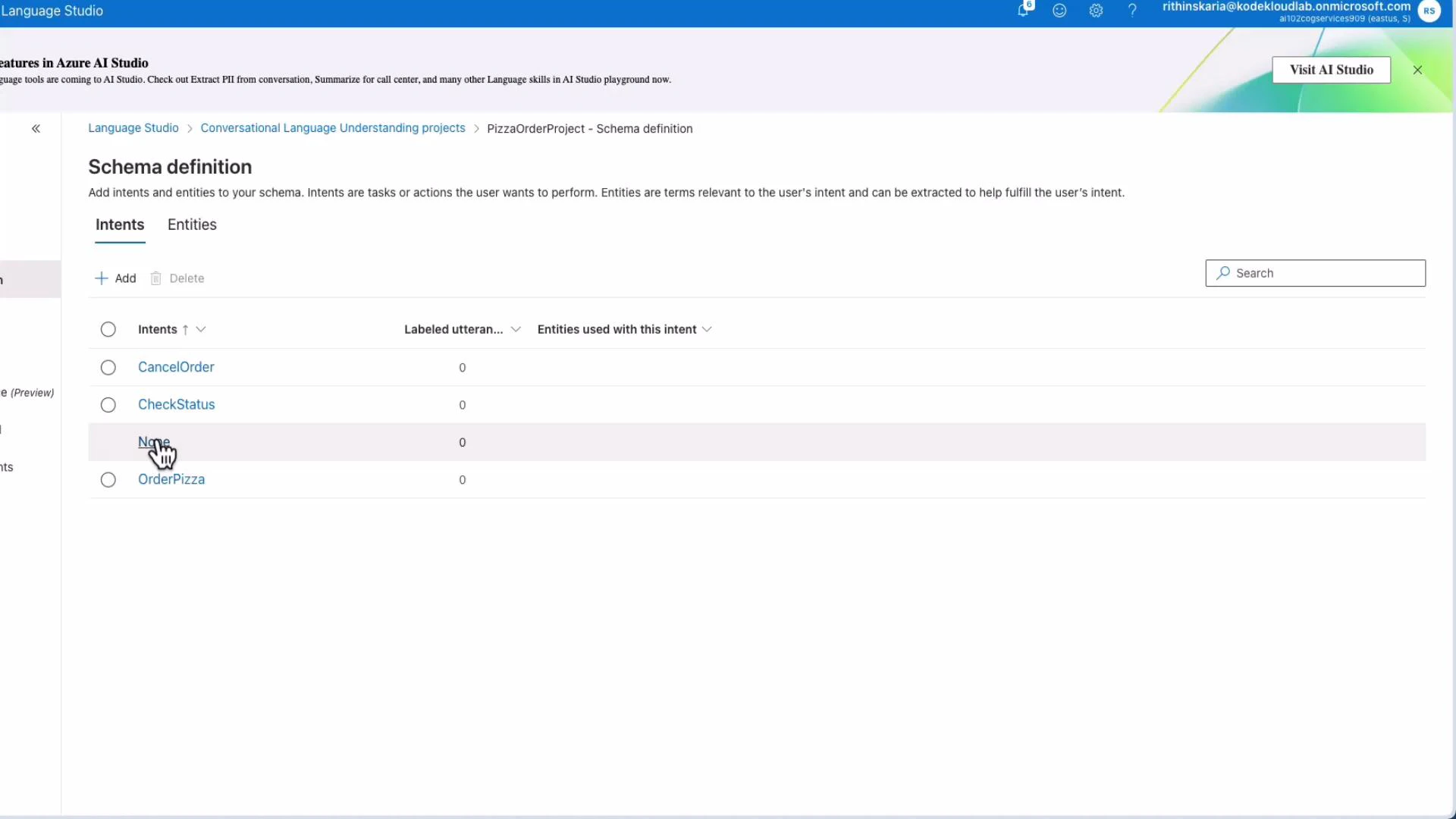
 ### 2. Define intents
Add intents that represent user goals. For pizza ordering, typical intents include:
* OrderPizza
* CancelOrder
* CheckStatus (or CheckOrderStatus)
* None (out-of-scope)
### 2. Define intents
Add intents that represent user goals. For pizza ordering, typical intents include:
* OrderPizza
* CancelOrder
* CheckStatus (or CheckOrderStatus)
* None (out-of-scope)
 ### 3. Define entities
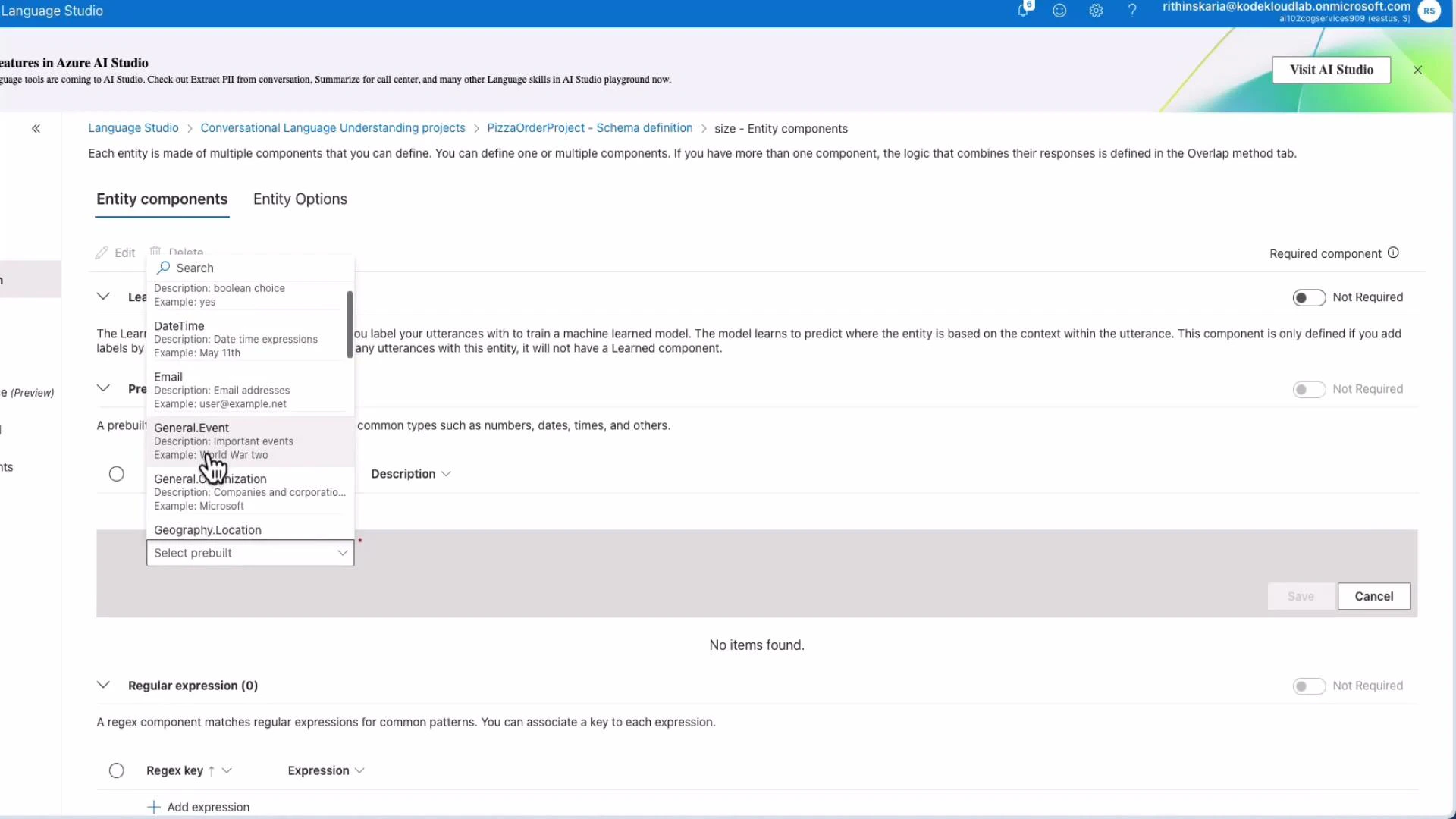
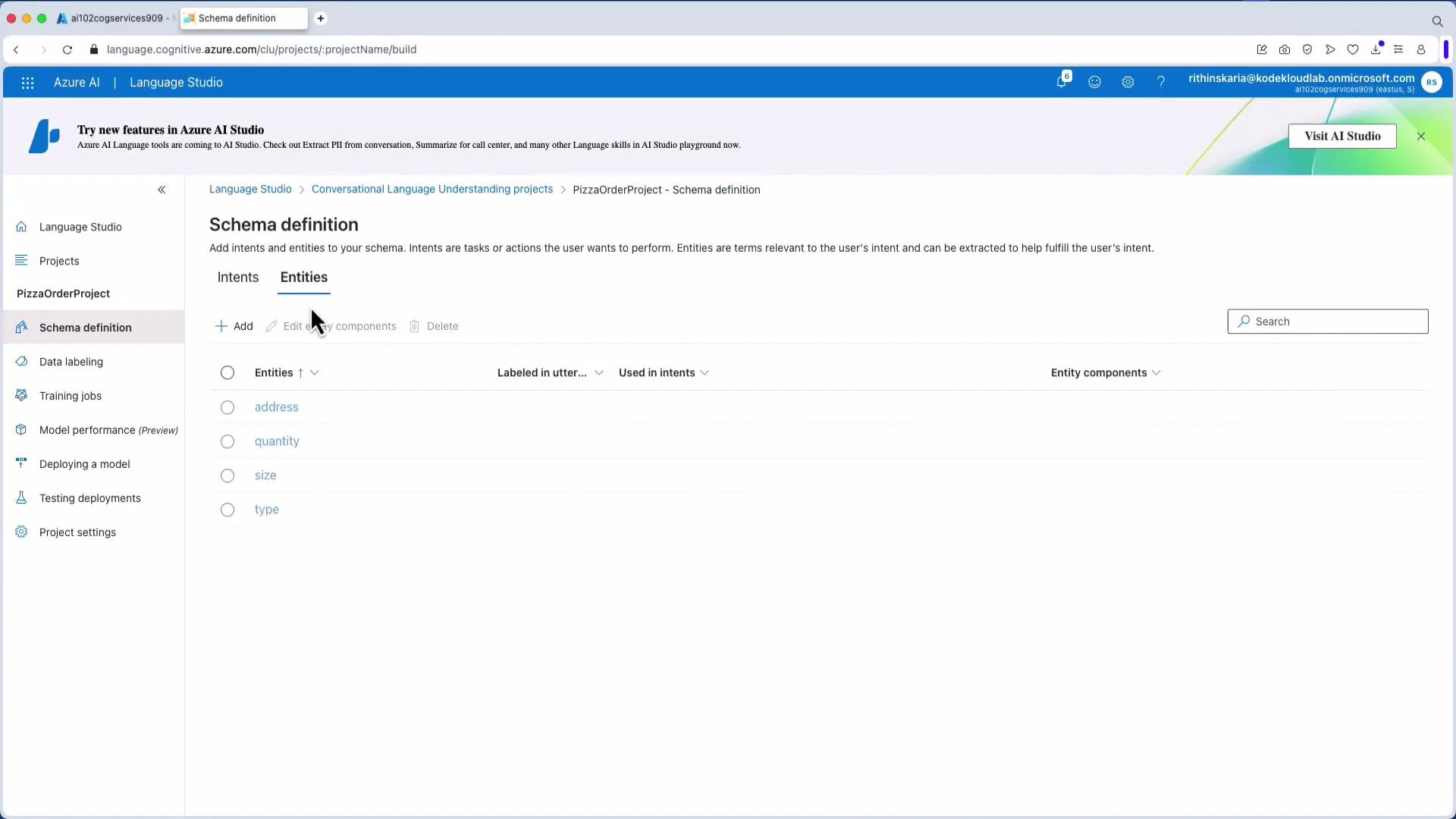
Entities provide contextual detail for intents (size, type, address, quantity). You can use:
* Learned components (model learns from labeled examples).
* Prebuilt components (Boolean, DateTime, Email, Geography.Location).
* Regex or list-based components.
For this example, add learned entities: size, type, address, quantity.
### 3. Define entities
Entities provide contextual detail for intents (size, type, address, quantity). You can use:
* Learned components (model learns from labeled examples).
* Prebuilt components (Boolean, DateTime, Email, Geography.Location).
* Regex or list-based components.
For this example, add learned entities: size, type, address, quantity.
 ### 4. Data labeling (utterances)
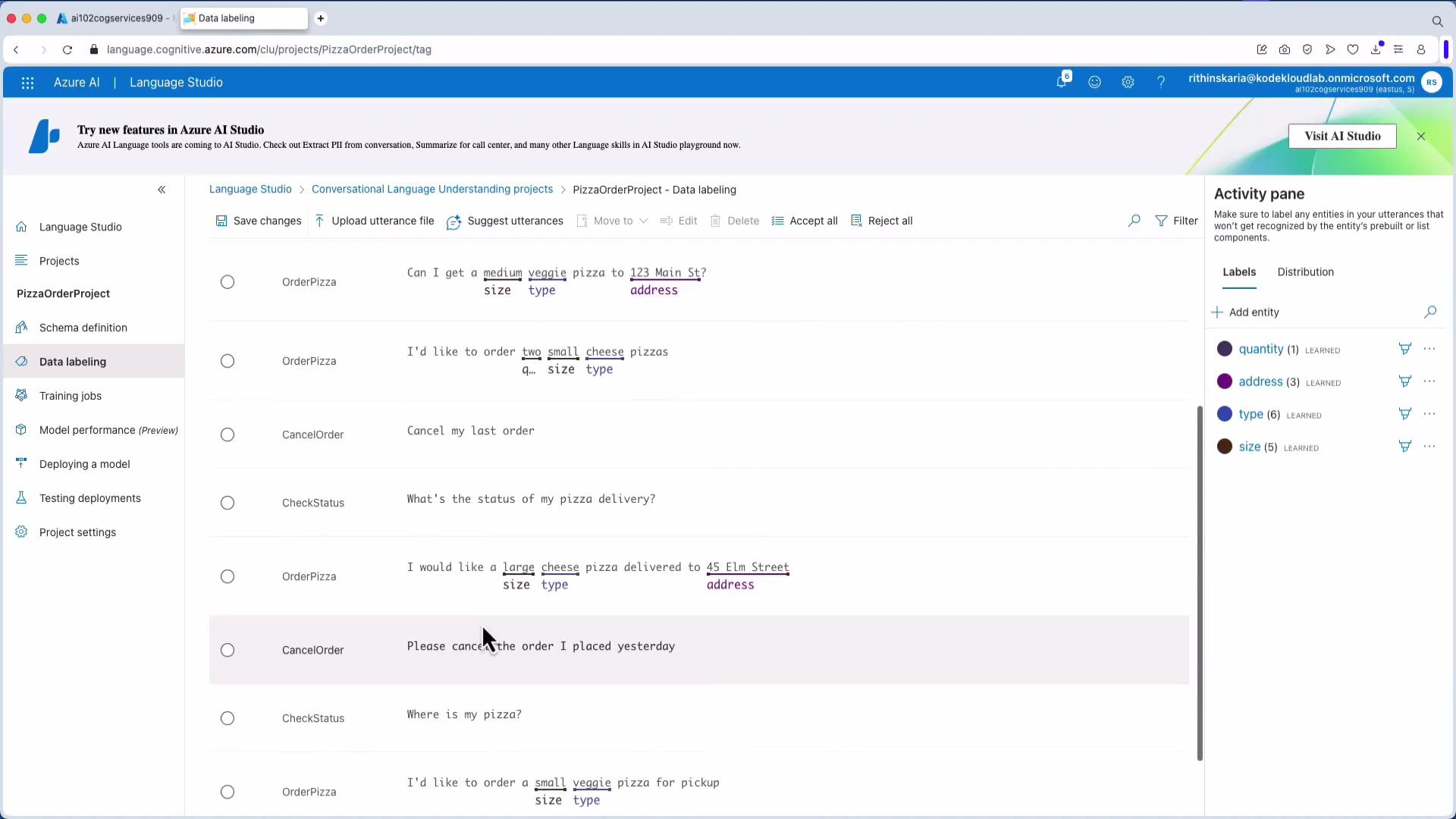
Label utterances by mapping text to intents and marking entity spans. You can upload a JSON file for bulk import, or create and edit examples directly in the UI.
Example JSON upload format:
```json theme={null}
[
{
"text": "I want to order a large pepperoni pizza",
"intent": "OrderPizza",
"entities": [
{ "category": "size", "offset": 18, "length": 5 },
{ "category": "type", "offset": 24, "length": 9 }
]
},
{
"text": "Can I get a medium veggie pizza to 123 Main St?",
"intent": "OrderPizza",
"entities": [
{ "category": "size", "offset": 12, "length": 6 },
{ "category": "type", "offset": 19, "length": 6 },
{ "category": "address", "offset": 35, "length": 11 }
]
},
{
"text": "I'd like to order two small cheese pizzas",
"intent": "OrderPizza",
"entities": [
{ "category": "quantity", "offset": 18, "length": 3 },
{ "category": "size", "offset": 22, "length": 5 },
{ "category": "type", "offset": 28, "length": 6 }
]
}
]
```
Upload and save labeled utterances. The Data labeling UI visualizes annotated spans and learned labels.
### 4. Data labeling (utterances)
Label utterances by mapping text to intents and marking entity spans. You can upload a JSON file for bulk import, or create and edit examples directly in the UI.
Example JSON upload format:
```json theme={null}
[
{
"text": "I want to order a large pepperoni pizza",
"intent": "OrderPizza",
"entities": [
{ "category": "size", "offset": 18, "length": 5 },
{ "category": "type", "offset": 24, "length": 9 }
]
},
{
"text": "Can I get a medium veggie pizza to 123 Main St?",
"intent": "OrderPizza",
"entities": [
{ "category": "size", "offset": 12, "length": 6 },
{ "category": "type", "offset": 19, "length": 6 },
{ "category": "address", "offset": 35, "length": 11 }
]
},
{
"text": "I'd like to order two small cheese pizzas",
"intent": "OrderPizza",
"entities": [
{ "category": "quantity", "offset": 18, "length": 3 },
{ "category": "size", "offset": 22, "length": 5 },
{ "category": "type", "offset": 28, "length": 6 }
]
}
]
```
Upload and save labeled utterances. The Data labeling UI visualizes annotated spans and learned labels.
 ### 5. Train the model
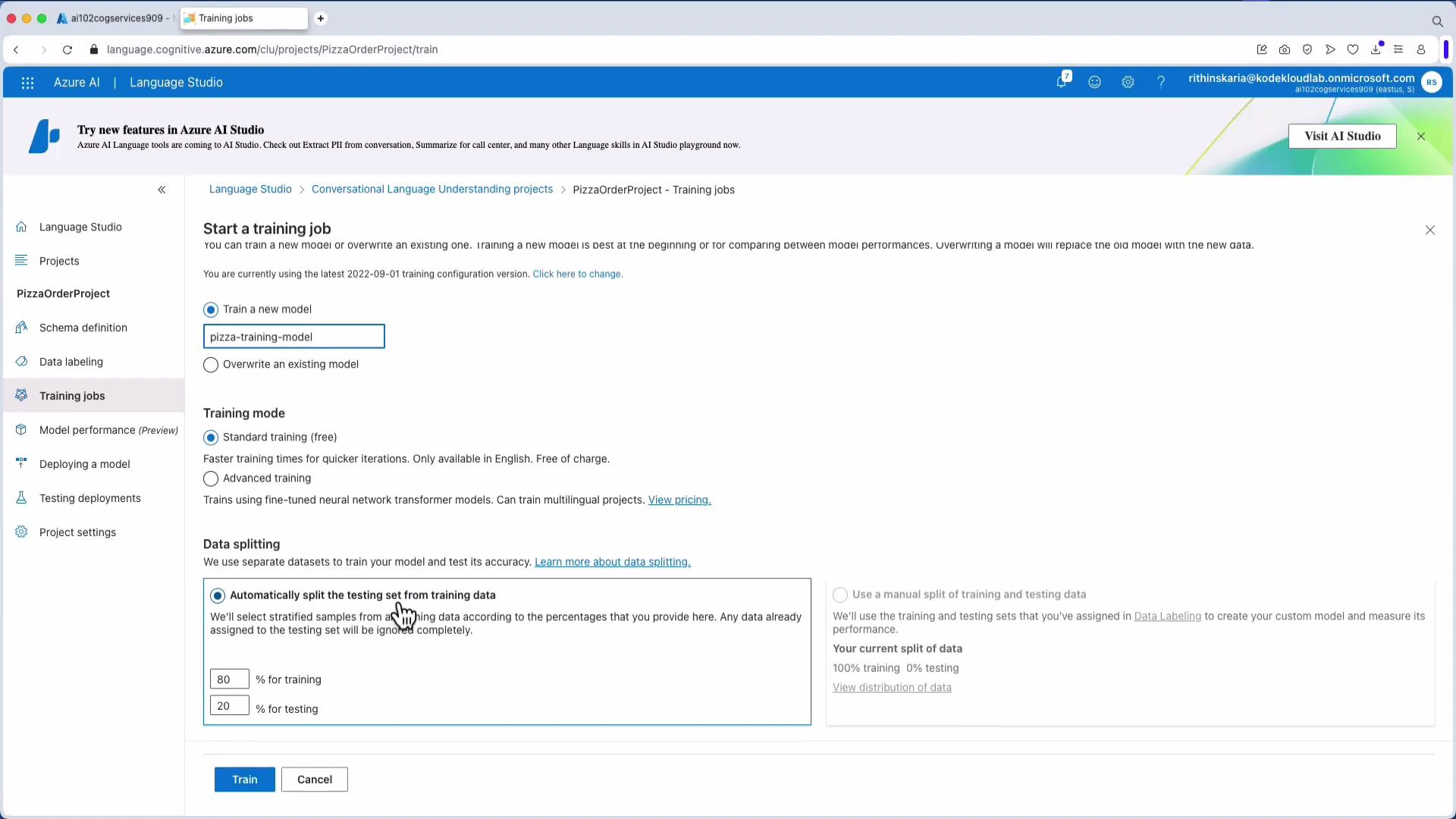
Start a training job after labeling. Choose a model name, training mode, and data split (commonly 80% train / 20% test). Monitor the job and review evaluation metrics when training finishes.
### 5. Train the model
Start a training job after labeling. Choose a model name, training mode, and data split (commonly 80% train / 20% test). Monitor the job and review evaluation metrics when training finishes.
 ### 6. Deploy a model
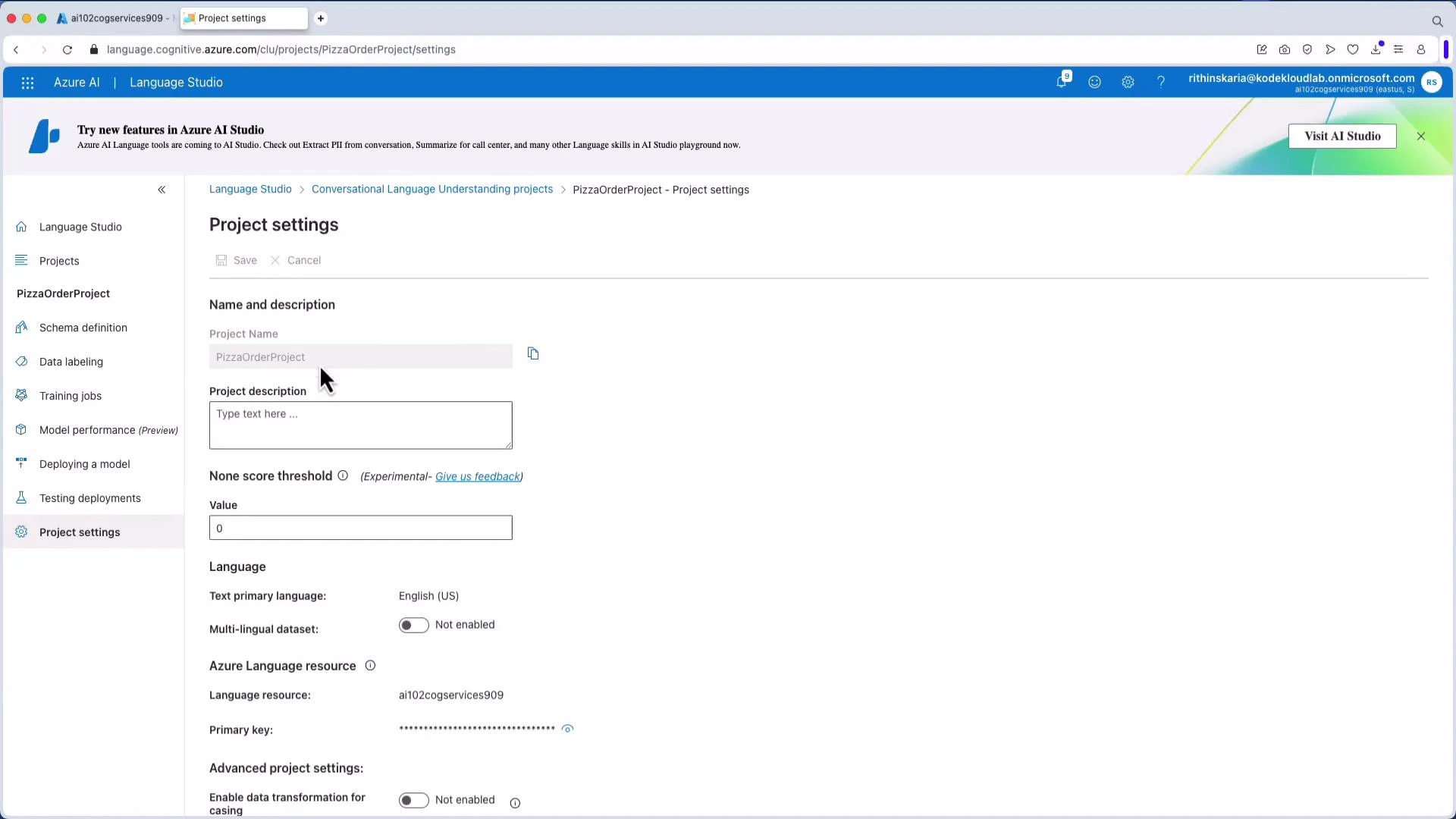
Create a deployment from the trained model. After deployment you receive a prediction URL and sample request snippets. Note the resource endpoint, project name, and deployment name — you’ll need them when calling the model.
Tip: Record your resource endpoint, project name, and deployment name from Project Settings — these values are required by SDK/REST calls and sample snippets in Language Studio.
### 6. Deploy a model
Create a deployment from the trained model. After deployment you receive a prediction URL and sample request snippets. Note the resource endpoint, project name, and deployment name — you’ll need them when calling the model.
Tip: Record your resource endpoint, project name, and deployment name from Project Settings — these values are required by SDK/REST calls and sample snippets in Language Studio.
 [LUIS](https://learn.microsoft.com/azure/cognitive-services/luis/) (Language Understanding Intelligent Service) is deprecated. Microsoft recommends migrating to [Conversational Language Understanding (CLU)](https://learn.microsoft.com/azure/cognitive-services/language-service/conversational-language-understanding/overview) to keep solutions up-to-date.
## Consume the model using the Python SDK
Install the SDK and supporting packages:
```bash theme={null}
pip install azure-ai-language-conversations azure-core
```
Use the ConversationAnalysisClient to analyze an utterance. Replace placeholders with your endpoint, key, project name, and deployment name.
```python theme={null}
from azure.ai.language.conversations import ConversationAnalysisClient
from azure.core.credentials import AzureKeyCredential
endpoint = "https://.cognitiveservices.azure.com/"
api_key = "YOUR_API_KEY"
project_name = "PizzaOrderProject"
deployment_name = "pizza-model-deployment"
client = ConversationAnalysisClient(endpoint=endpoint, credential=AzureKeyCredential(api_key))
user_input = "Order me a large pepperoni pizza with extra cheese and a side of garlic bread to 453 Main St, Springfield."
with client:
response = client.analyze_conversation(
task={
"kind": "Conversation",
"analysisInput": {
"conversationItems": [
{
"participantId": "user1",
"id": "1",
"modality": "text",
"language": "en",
"text": user_input
}
]
},
"parameters": {
"projectName": project_name,
"deploymentName": deployment_name,
"verbose": True
}
}
)
response_dict = response.as_dict()
prediction = response_dict.get("result", {}).get("prediction", {})
top_intent = prediction.get("topIntent", "None")
entities = prediction.get("entities", [])
print(f"Top Intent: {top_intent}")
print("Entities:")
for entity in entities:
category = entity.get("category") or entity.get("type") or "unknown"
text = entity.get("text", "")
confidence = entity.get("confidenceScore", 0.0)
print(f" - {category}: {text} (Confidence: {confidence:.2f})")
```
Expected console output (example):
```text theme={null}
Top Intent: OrderPizza
Entities:
- size: large (Confidence: 1.00)
- type: pepperoni (Confidence: 1.00)
- address: 453 Main St (Confidence: 1.00)
```
Try different inputs:
* "Cancel my pizza order" → Top intent: CancelOrder (likely no entities)
* "Where is my order?" → Top intent: CheckStatus
## Integrating language understanding into real systems
Extracted intents and entities drive automation and workflows:
| Integration | Example use |
| ------------------ | ----------------------------------------------------------------------------------- |
| Customer routing | Determine which team or SLA should handle the request |
| Order management | Extract order details and call backend APIs to place/update/cancel orders |
| Virtual assistants | Connect with voice/chat layers, and use generative models for context-aware replies |
| Automation | Trigger Logic Apps, Power Automate flows, Azure Functions, or microservices |
You can also combine CLU outputs with [Azure OpenAI](https://learn.microsoft.com/azure/cognitive-services/openai/overview) or other generative models to produce personalized conversational responses.
## Next steps
* Expand training data with more utterances and edge cases.
* Add prebuilt entity components (address, phone, DateTime) to reduce labeling effort.
* Evaluate model performance on a test set and iterate to improve accuracy.
* Deploy and monitor models in production, and automate retraining as needed.
This completes the conversational language understanding lesson. You can now design intents/entities, label training examples, train and deploy CLU models, and integrate them into production systems.
## Links and references
* [Azure AI Language Service overview](https://learn.microsoft.com/azure/cognitive-services/language-service/overview)
* [Language Studio overview](https://learn.microsoft.com/azure/cognitive-services/language-service/language-studio/overview)
* [Conversational Language Understanding (CLU)](https://learn.microsoft.com/azure/cognitive-services/language-service/conversational-language-understanding/overview)
* [Azure OpenAI service overview](https://learn.microsoft.com/azure/cognitive-services/openai/overview)
[LUIS](https://learn.microsoft.com/azure/cognitive-services/luis/) (Language Understanding Intelligent Service) is deprecated. Microsoft recommends migrating to [Conversational Language Understanding (CLU)](https://learn.microsoft.com/azure/cognitive-services/language-service/conversational-language-understanding/overview) to keep solutions up-to-date.
## Consume the model using the Python SDK
Install the SDK and supporting packages:
```bash theme={null}
pip install azure-ai-language-conversations azure-core
```
Use the ConversationAnalysisClient to analyze an utterance. Replace placeholders with your endpoint, key, project name, and deployment name.
```python theme={null}
from azure.ai.language.conversations import ConversationAnalysisClient
from azure.core.credentials import AzureKeyCredential
endpoint = "https://.cognitiveservices.azure.com/"
api_key = "YOUR_API_KEY"
project_name = "PizzaOrderProject"
deployment_name = "pizza-model-deployment"
client = ConversationAnalysisClient(endpoint=endpoint, credential=AzureKeyCredential(api_key))
user_input = "Order me a large pepperoni pizza with extra cheese and a side of garlic bread to 453 Main St, Springfield."
with client:
response = client.analyze_conversation(
task={
"kind": "Conversation",
"analysisInput": {
"conversationItems": [
{
"participantId": "user1",
"id": "1",
"modality": "text",
"language": "en",
"text": user_input
}
]
},
"parameters": {
"projectName": project_name,
"deploymentName": deployment_name,
"verbose": True
}
}
)
response_dict = response.as_dict()
prediction = response_dict.get("result", {}).get("prediction", {})
top_intent = prediction.get("topIntent", "None")
entities = prediction.get("entities", [])
print(f"Top Intent: {top_intent}")
print("Entities:")
for entity in entities:
category = entity.get("category") or entity.get("type") or "unknown"
text = entity.get("text", "")
confidence = entity.get("confidenceScore", 0.0)
print(f" - {category}: {text} (Confidence: {confidence:.2f})")
```
Expected console output (example):
```text theme={null}
Top Intent: OrderPizza
Entities:
- size: large (Confidence: 1.00)
- type: pepperoni (Confidence: 1.00)
- address: 453 Main St (Confidence: 1.00)
```
Try different inputs:
* "Cancel my pizza order" → Top intent: CancelOrder (likely no entities)
* "Where is my order?" → Top intent: CheckStatus
## Integrating language understanding into real systems
Extracted intents and entities drive automation and workflows:
| Integration | Example use |
| ------------------ | ----------------------------------------------------------------------------------- |
| Customer routing | Determine which team or SLA should handle the request |
| Order management | Extract order details and call backend APIs to place/update/cancel orders |
| Virtual assistants | Connect with voice/chat layers, and use generative models for context-aware replies |
| Automation | Trigger Logic Apps, Power Automate flows, Azure Functions, or microservices |
You can also combine CLU outputs with [Azure OpenAI](https://learn.microsoft.com/azure/cognitive-services/openai/overview) or other generative models to produce personalized conversational responses.
## Next steps
* Expand training data with more utterances and edge cases.
* Add prebuilt entity components (address, phone, DateTime) to reduce labeling effort.
* Evaluate model performance on a test set and iterate to improve accuracy.
* Deploy and monitor models in production, and automate retraining as needed.
This completes the conversational language understanding lesson. You can now design intents/entities, label training examples, train and deploy CLU models, and integrate them into production systems.
## Links and references
* [Azure AI Language Service overview](https://learn.microsoft.com/azure/cognitive-services/language-service/overview)
* [Language Studio overview](https://learn.microsoft.com/azure/cognitive-services/language-service/language-studio/overview)
* [Conversational Language Understanding (CLU)](https://learn.microsoft.com/azure/cognitive-services/language-service/conversational-language-understanding/overview)
* [Azure OpenAI service overview](https://learn.microsoft.com/azure/cognitive-services/openai/overview)