> ## Documentation Index
> Fetch the complete documentation index at: https://notes.kodekloud.com/llms.txt
> Use this file to discover all available pages before exploring further.
# Translating Speech to Text
> Guide to using Azure Speech Service to transcribe spoken audio, translate into multiple languages, and optionally synthesize translated text, with pipeline explanation and Python examples.
Translating speech to text with Azure Speech Service lets you transcribe spoken audio and produce real-time translations into one or more target languages. This guide explains the end-to-end translation pipeline, how results are structured, and sample code to get you started.
## How the translation pipeline works
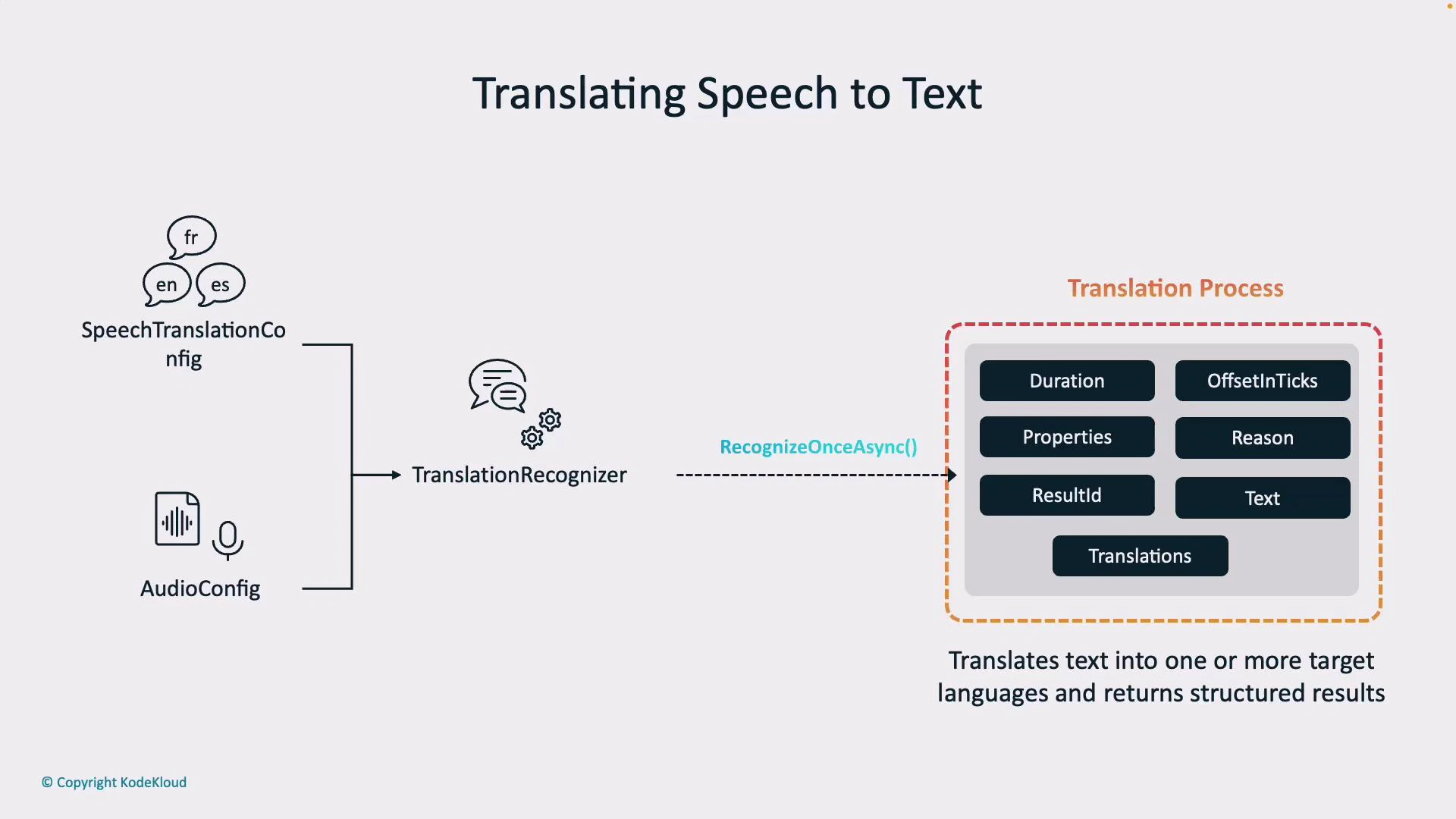
The typical flow for speech translation is:
1. Configure the Speech Translation Config: set your service region, subscription key, the spoken (recognition) language (for example, `en-US`), and one or more target languages (for example, `es`, `fr`).
2. Define the Audio Config: specify the audio input source — microphone, audio file, or a custom stream.
3. Create the Translation Recognizer: combine the translation configuration and audio input in a `TranslationRecognizer`. This component performs speech recognition and forwards the transcribed text to the translation model.
4. Invoke recognition: call `recognize_once_async()` (or use streaming/event-based handlers) to perform recognition and receive translated output.
Below is a diagram showing the flow from configuration to a translated result.
 ## Recognition result structure
When a translation operation completes, the recognizer returns a structured result. Key attributes help you interpret, log, and debug outputs.
| Attribute | Description | Example |
| --------------- | ----------------------------------------------------------------------------- | -------------------------------- |
| `text` | Original recognized transcription (source language) | `Hello, how are you?` |
| `translations` | Mapping of target language codes to translated text | `{ "es": "Hola, ¿cómo estás?" }` |
| `duration` | Length of the recognized audio segment | `00:00:02.500` |
| `offsetInTicks` | Timestamp (ticks) when recognition started | `637...` |
| `properties` | Metadata and diagnostic properties | e.g., engine or model info |
| `reason` | Why the result was returned (e.g., `TranslatedSpeech`, `NoMatch`, `Canceled`) | `TranslatedSpeech` |
| `resultId` | Unique identifier for the recognition result | `3a9f...` |
Most importantly, `translations` contains a translated string for each target language you configured. The recognition → translation two-step pipeline lets you obtain both the original transcript and multilingual outputs for downstream workflows (display, storage, or synthesis).
## Benefits of Azure Speech translation
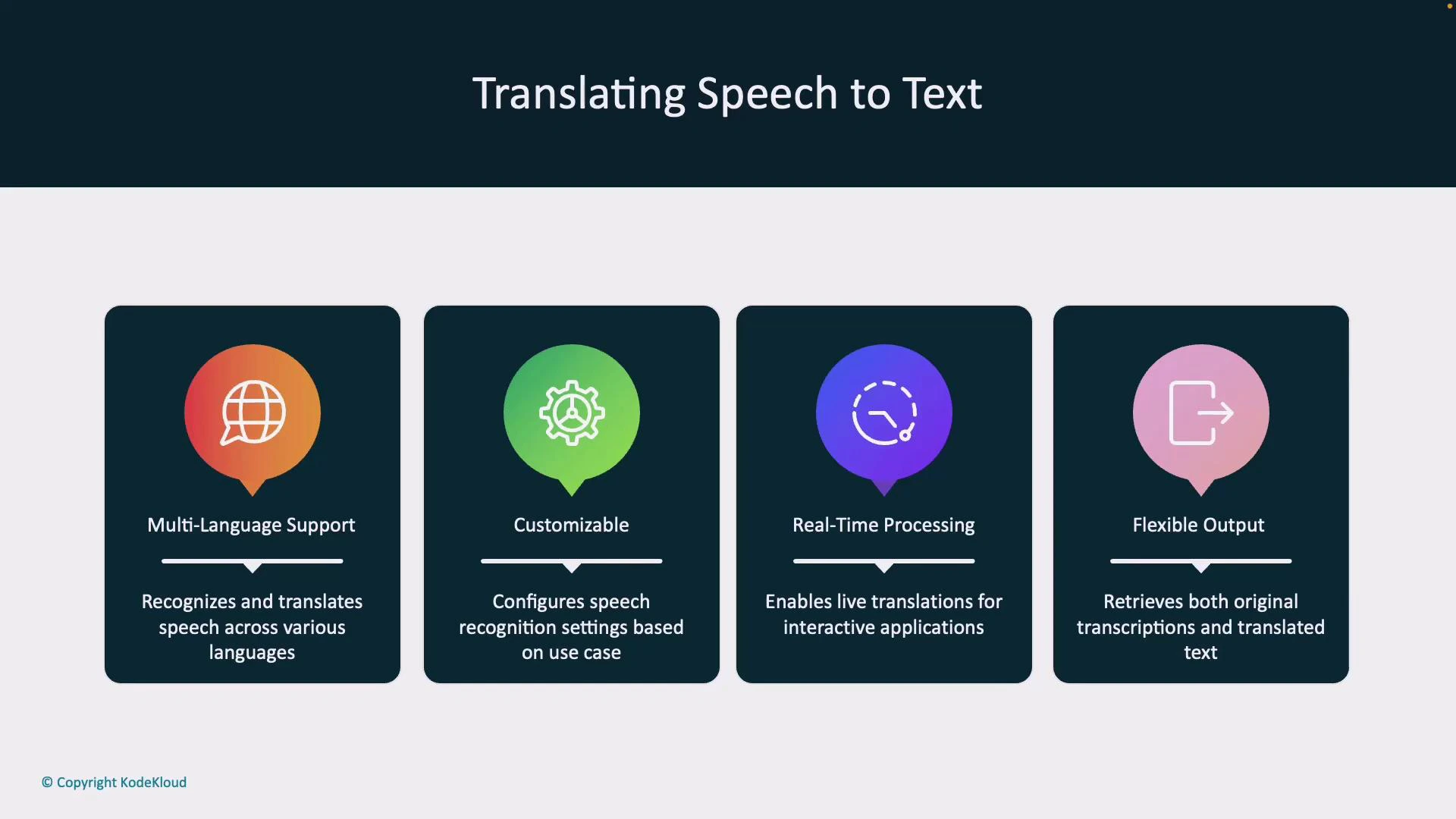
* Multi-language support: real-time recognition and translation across many languages.
* Customizable: adjust recognition or translation settings for domain-specific vocabularies.
* Real-time processing: low-latency translations for interactive scenarios (meetings, support).
* Flexible output: get original transcription and translations (text and optional synthesized audio).
## Recognition result structure
When a translation operation completes, the recognizer returns a structured result. Key attributes help you interpret, log, and debug outputs.
| Attribute | Description | Example |
| --------------- | ----------------------------------------------------------------------------- | -------------------------------- |
| `text` | Original recognized transcription (source language) | `Hello, how are you?` |
| `translations` | Mapping of target language codes to translated text | `{ "es": "Hola, ¿cómo estás?" }` |
| `duration` | Length of the recognized audio segment | `00:00:02.500` |
| `offsetInTicks` | Timestamp (ticks) when recognition started | `637...` |
| `properties` | Metadata and diagnostic properties | e.g., engine or model info |
| `reason` | Why the result was returned (e.g., `TranslatedSpeech`, `NoMatch`, `Canceled`) | `TranslatedSpeech` |
| `resultId` | Unique identifier for the recognition result | `3a9f...` |
Most importantly, `translations` contains a translated string for each target language you configured. The recognition → translation two-step pipeline lets you obtain both the original transcript and multilingual outputs for downstream workflows (display, storage, or synthesis).
## Benefits of Azure Speech translation
* Multi-language support: real-time recognition and translation across many languages.
* Customizable: adjust recognition or translation settings for domain-specific vocabularies.
* Real-time processing: low-latency translations for interactive scenarios (meetings, support).
* Flexible output: get original transcription and translations (text and optional synthesized audio).
 ## Example JSON response
A typical JSON-like structure returned by translation workflows:
```json theme={null}
{
"sourceLanguage": "en-US",
"targetLanguages": ["es", "fr", "de"],
"recognitionResults": {
"transcription": "Hello, how are you?",
"translations": {
"es": "Hola, ¿cómo estás?",
"fr": "Bonjour, comment ça va?",
"de": "Hallo, wie geht es dir?"
}
}
}
```
This structure is straightforward to parse and integrate into multilingual applications or downstream systems (subtitles, chat, notification messages, etc.).
## Working in Speech Studio (Azure Portal)
Use Speech Studio at [https://speech.microsoft.com/](https://speech.microsoft.com/) to quickly try speech translation and video translation scenarios without writing code. In Speech Studio you can:
* Select the spoken language (e.g., English (United States)).
* Pick one or more target languages (e.g., French).
* Choose the voice for synthesized translated audio (e.g., `Dennis`).
* Record or upload audio, view the transcription, and listen to or download translated audio.
Speech Studio follows the same pipeline: Speech-to-Text → Translation → Text-to-Speech (if synthesis is requested).
## Calling the Translation service from code (Python)
Install the Speech SDK:
```bash theme={null}
pip install azure-cognitiveservices-speech
```
Ensure your Speech resource key and region are set correctly. For safety, store them as environment variables rather than embedding secrets in code.
Below is a concise Python example that:
1. Configures the translation recognizer,
2. Recognizes and translates speech from a WAV file to Spanish, and
3. Synthesizes the translated Spanish text to the default audio output.
```python theme={null}
import azure.cognitiveservices.speech as speechsdk
# Replace with your subscription info and audio file path
speech_key = "YOUR_SPEECH_KEY"
service_region = "YOUR_SERVICE_REGION"
audio_file = "path/to/your/audio.wav"
# Configure translation
translation_config = speechsdk.SpeechTranslationConfig(
subscription=speech_key,
region=service_region
)
translation_config.speech_recognition_language = "en-US"
translation_config.add_target_language("es") # Spanish
# Audio config for input WAV file
audio_input = speechsdk.audio.AudioConfig(filename=audio_file)
# Create the translation recognizer
translator = speechsdk.translation.TranslationRecognizer(
translation_config=translation_config,
audio_config=audio_input
)
print("Translating speech from file...")
result = translator.recognize_once_async().get()
if result.reason == speechsdk.ResultReason.TranslatedSpeech:
translated_text_es = result.translations.get("es", "")
print("Recognized (EN):", result.text)
print("Translated (ES):", translated_text_es)
else:
print("Recognition/Translation failed. Reason:", result.reason)
# Synthesize the Spanish translation to the default speaker
if translated_text_es:
speech_config = speechsdk.SpeechConfig(subscription=speech_key, region=service_region)
synthesizer = speechsdk.SpeechSynthesizer(speech_config=speech_config)
synthesis_result = synthesizer.speak_text_async(translated_text_es).get()
if synthesis_result.reason == speechsdk.ResultReason.SynthesizingAudioCompleted:
print("Synthesized translated speech to speaker successfully.")
else:
print("Speech synthesis failed. Reason:", synthesis_result.reason)
```
This example demonstrates the manual pipeline: Speech-to-Text → Translation → Text-to-Speech.
## Event-based vs Manual speech synthesis
Choose the synthesis approach that matches your scenario:
* Event-based speech synthesis:
* Translates and synthesizes in a streaming fashion.
* Returns audio chunks in real time (low latency).
* Best for live translator apps, calls, or scenarios where a single output language is streamed as audio.
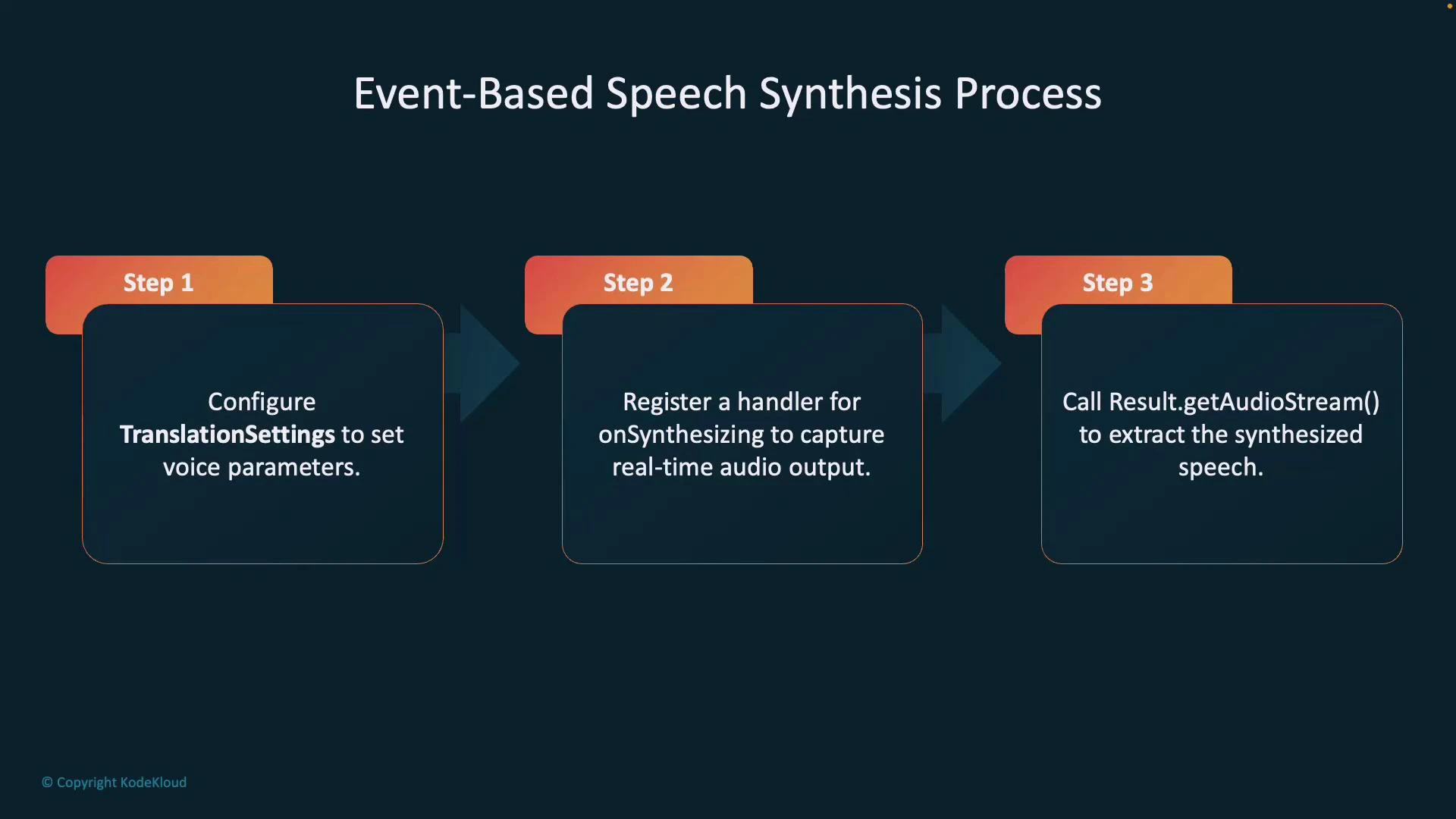
Event-based synthesis steps:
1. Configure translation settings (including voice selection).
2. Register an `onSynthesizing` handler to capture audio as it is produced.
3. Call `getAudioStream()` or handle audio events to retrieve synthesized audio in real-time.
## Example JSON response
A typical JSON-like structure returned by translation workflows:
```json theme={null}
{
"sourceLanguage": "en-US",
"targetLanguages": ["es", "fr", "de"],
"recognitionResults": {
"transcription": "Hello, how are you?",
"translations": {
"es": "Hola, ¿cómo estás?",
"fr": "Bonjour, comment ça va?",
"de": "Hallo, wie geht es dir?"
}
}
}
```
This structure is straightforward to parse and integrate into multilingual applications or downstream systems (subtitles, chat, notification messages, etc.).
## Working in Speech Studio (Azure Portal)
Use Speech Studio at [https://speech.microsoft.com/](https://speech.microsoft.com/) to quickly try speech translation and video translation scenarios without writing code. In Speech Studio you can:
* Select the spoken language (e.g., English (United States)).
* Pick one or more target languages (e.g., French).
* Choose the voice for synthesized translated audio (e.g., `Dennis`).
* Record or upload audio, view the transcription, and listen to or download translated audio.
Speech Studio follows the same pipeline: Speech-to-Text → Translation → Text-to-Speech (if synthesis is requested).
## Calling the Translation service from code (Python)
Install the Speech SDK:
```bash theme={null}
pip install azure-cognitiveservices-speech
```
Ensure your Speech resource key and region are set correctly. For safety, store them as environment variables rather than embedding secrets in code.
Below is a concise Python example that:
1. Configures the translation recognizer,
2. Recognizes and translates speech from a WAV file to Spanish, and
3. Synthesizes the translated Spanish text to the default audio output.
```python theme={null}
import azure.cognitiveservices.speech as speechsdk
# Replace with your subscription info and audio file path
speech_key = "YOUR_SPEECH_KEY"
service_region = "YOUR_SERVICE_REGION"
audio_file = "path/to/your/audio.wav"
# Configure translation
translation_config = speechsdk.SpeechTranslationConfig(
subscription=speech_key,
region=service_region
)
translation_config.speech_recognition_language = "en-US"
translation_config.add_target_language("es") # Spanish
# Audio config for input WAV file
audio_input = speechsdk.audio.AudioConfig(filename=audio_file)
# Create the translation recognizer
translator = speechsdk.translation.TranslationRecognizer(
translation_config=translation_config,
audio_config=audio_input
)
print("Translating speech from file...")
result = translator.recognize_once_async().get()
if result.reason == speechsdk.ResultReason.TranslatedSpeech:
translated_text_es = result.translations.get("es", "")
print("Recognized (EN):", result.text)
print("Translated (ES):", translated_text_es)
else:
print("Recognition/Translation failed. Reason:", result.reason)
# Synthesize the Spanish translation to the default speaker
if translated_text_es:
speech_config = speechsdk.SpeechConfig(subscription=speech_key, region=service_region)
synthesizer = speechsdk.SpeechSynthesizer(speech_config=speech_config)
synthesis_result = synthesizer.speak_text_async(translated_text_es).get()
if synthesis_result.reason == speechsdk.ResultReason.SynthesizingAudioCompleted:
print("Synthesized translated speech to speaker successfully.")
else:
print("Speech synthesis failed. Reason:", synthesis_result.reason)
```
This example demonstrates the manual pipeline: Speech-to-Text → Translation → Text-to-Speech.
## Event-based vs Manual speech synthesis
Choose the synthesis approach that matches your scenario:
* Event-based speech synthesis:
* Translates and synthesizes in a streaming fashion.
* Returns audio chunks in real time (low latency).
* Best for live translator apps, calls, or scenarios where a single output language is streamed as audio.
Event-based synthesis steps:
1. Configure translation settings (including voice selection).
2. Register an `onSynthesizing` handler to capture audio as it is produced.
3. Call `getAudioStream()` or handle audio events to retrieve synthesized audio in real-time.
 * Manual speech synthesis:
* First translate into one or more target languages.
* For each translation, call the Text-to-Speech API to generate audio.
* Ideal for multilingual outputs, batch processing, or when you need per-language synthesis control.
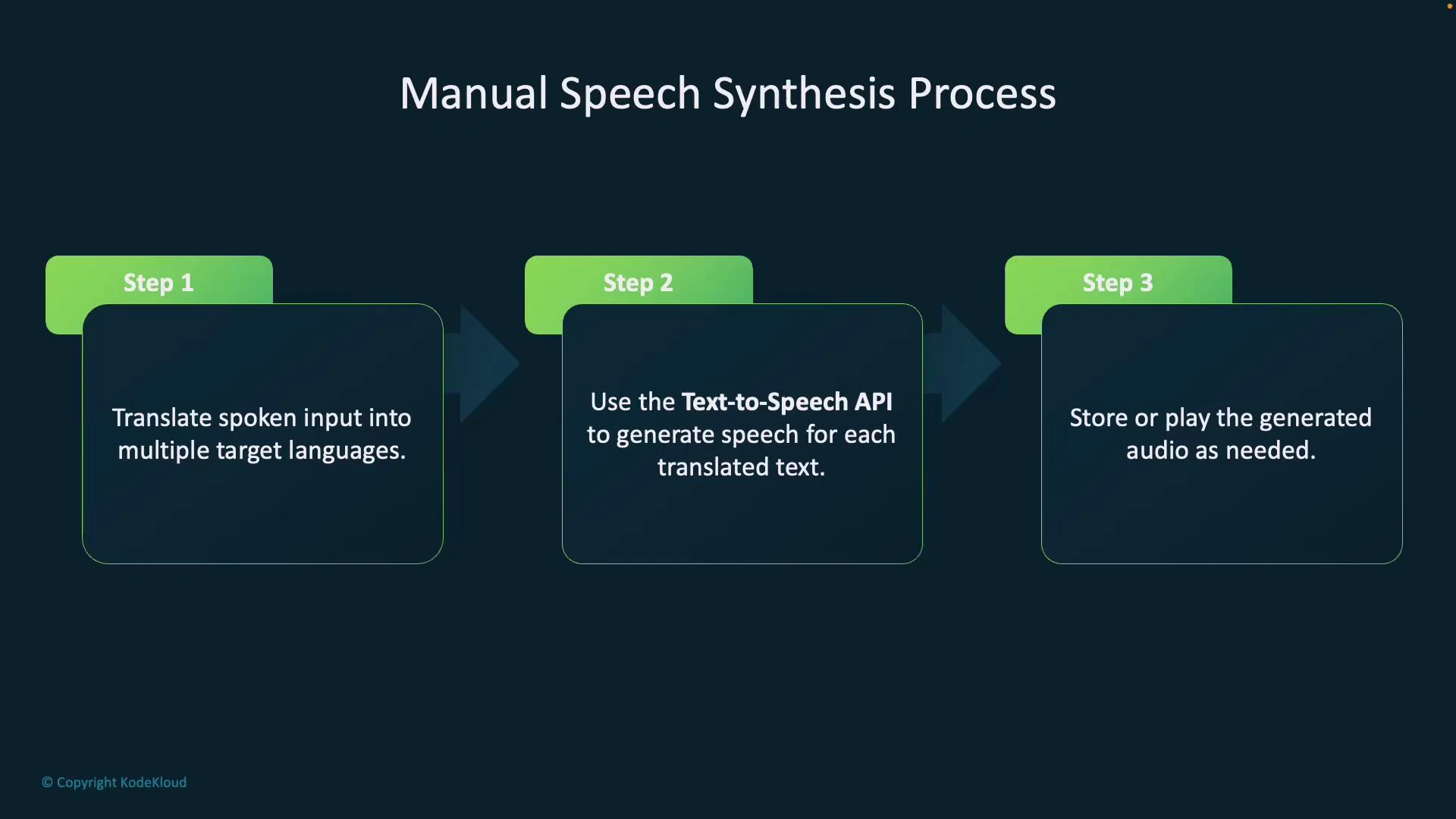
Manual synthesis steps:
1. Translate the spoken input into each target language.
2. For each translation, call the Text-to-Speech API to generate audio.
3. Store or play each generated audio file as required.
* Manual speech synthesis:
* First translate into one or more target languages.
* For each translation, call the Text-to-Speech API to generate audio.
* Ideal for multilingual outputs, batch processing, or when you need per-language synthesis control.
Manual synthesis steps:
1. Translate the spoken input into each target language.
2. For each translation, call the Text-to-Speech API to generate audio.
3. Store or play each generated audio file as required.
 The sample Python script above uses the manual approach (translate then synthesize). For truly live scenarios, prefer the event-based streaming approach to reduce end-to-end latency.
## Links and references
* Speech Studio: [https://speech.microsoft.com/](https://speech.microsoft.com/)
* Azure Speech SDK (Python): [https://pypi.org/project/azure-cognitiveservices-speech/](https://pypi.org/project/azure-cognitiveservices-speech/)
* Azure Speech documentation: [https://learn.microsoft.com/azure/cognitive-services/speech-service/](https://learn.microsoft.com/azure/cognitive-services/speech-service/)
With this overview and the sample code, you can integrate Azure Speech translation into apps to transcribe, translate, and optionally synthesize multilingual speech outputs for real-time and batch workflows.
The sample Python script above uses the manual approach (translate then synthesize). For truly live scenarios, prefer the event-based streaming approach to reduce end-to-end latency.
## Links and references
* Speech Studio: [https://speech.microsoft.com/](https://speech.microsoft.com/)
* Azure Speech SDK (Python): [https://pypi.org/project/azure-cognitiveservices-speech/](https://pypi.org/project/azure-cognitiveservices-speech/)
* Azure Speech documentation: [https://learn.microsoft.com/azure/cognitive-services/speech-service/](https://learn.microsoft.com/azure/cognitive-services/speech-service/)
With this overview and the sample code, you can integrate Azure Speech translation into apps to transcribe, translate, and optionally synthesize multilingual speech outputs for real-time and batch workflows.