> ## Documentation Index
> Fetch the complete documentation index at: https://notes.kodekloud.com/llms.txt
> Use this file to discover all available pages before exploring further.
# Containerizing Azure AI Services
> Guide to deploying and running Azure AI services in containers, covering deployment options, data control, scaling, and a hands-on Text Analytics Sentiment container example
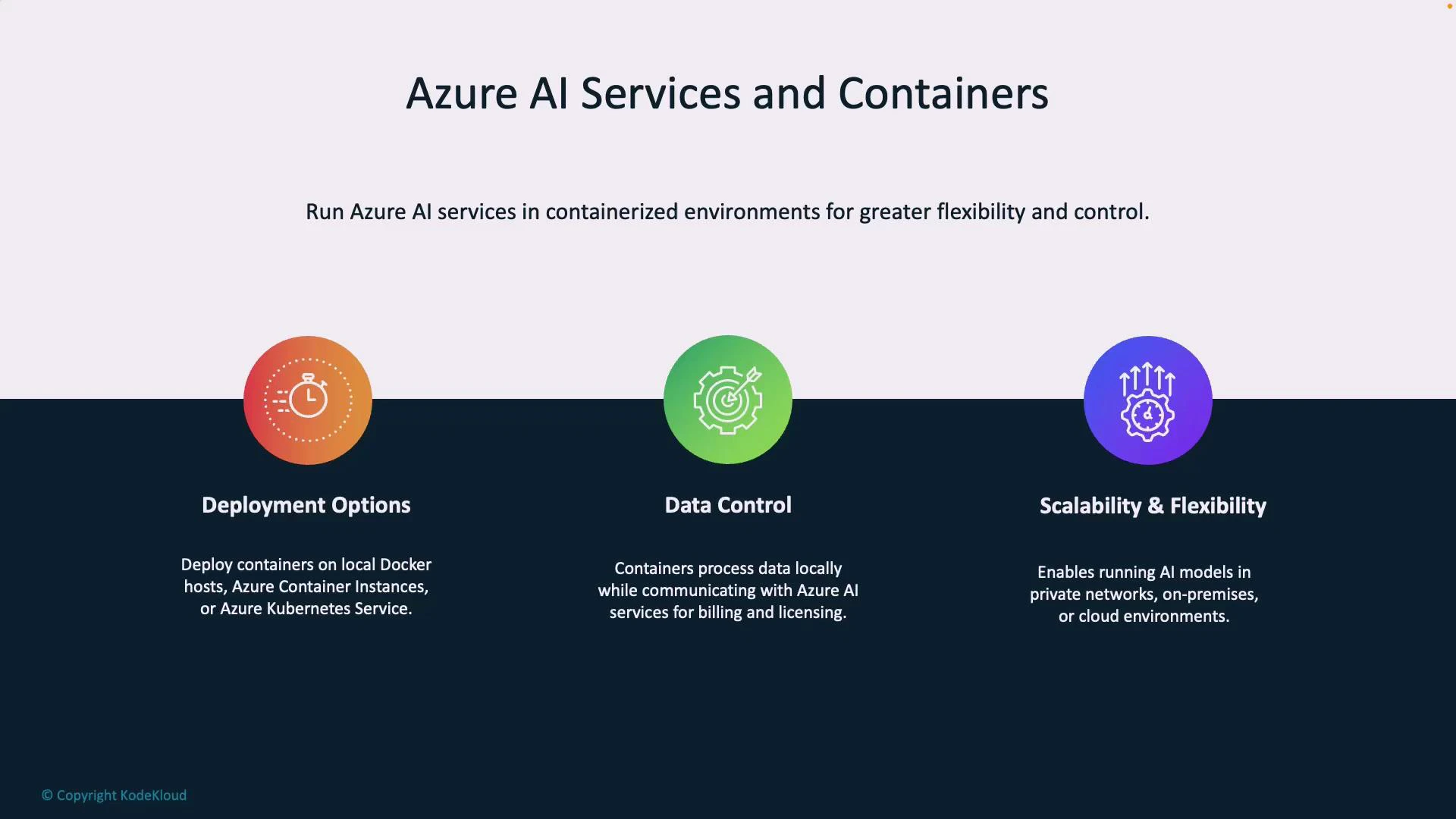
Containerizing Azure AI services gives organizations greater flexibility and control over where and how AI workloads run. This guide walks through deployment options, data control, and scaling considerations when running Azure AI in containers — with a hands-on example using the Text Analytics / Sentiment container.
* Deployment options: Run containers locally (developer laptop or edge), in Azure Container Instances (ACI), on Azure Kubernetes Service (AKS), or on other container platforms and clouds.
* Data control: Applications send data to the container for local processing. The container reports only usage telemetry to Azure for billing/licensing; customer data remains on-premises.
* Scalability and flexibility: Run models on-premises, in the cloud, or as a hybrid. Standard orchestration tools like Kubernetes (AKS, EKS) enable scaling and high availability.
 ## Key deployment options
| Deployment type | Use case | Example |
| ---------------------------------- | ----------------------------------------------------------------------- | -------------------------------------- |
| Local / Edge | Development, testing, or on-device inference | Docker Desktop on a dev machine |
| ACI / Single-node cloud containers | Lightweight cloud hosting without orchestration | Azure Container Instances (ACI) |
| Kubernetes (AKS, EKS, GKE) | Production-grade scaling, rolling updates, and multi-node orchestration | AKS with Horizontal Pod Autoscaler |
| Other clouds / on-prem | Hybrid or multi-cloud deployments | EKS/GKE or private Kubernetes clusters |
## Architecture overview
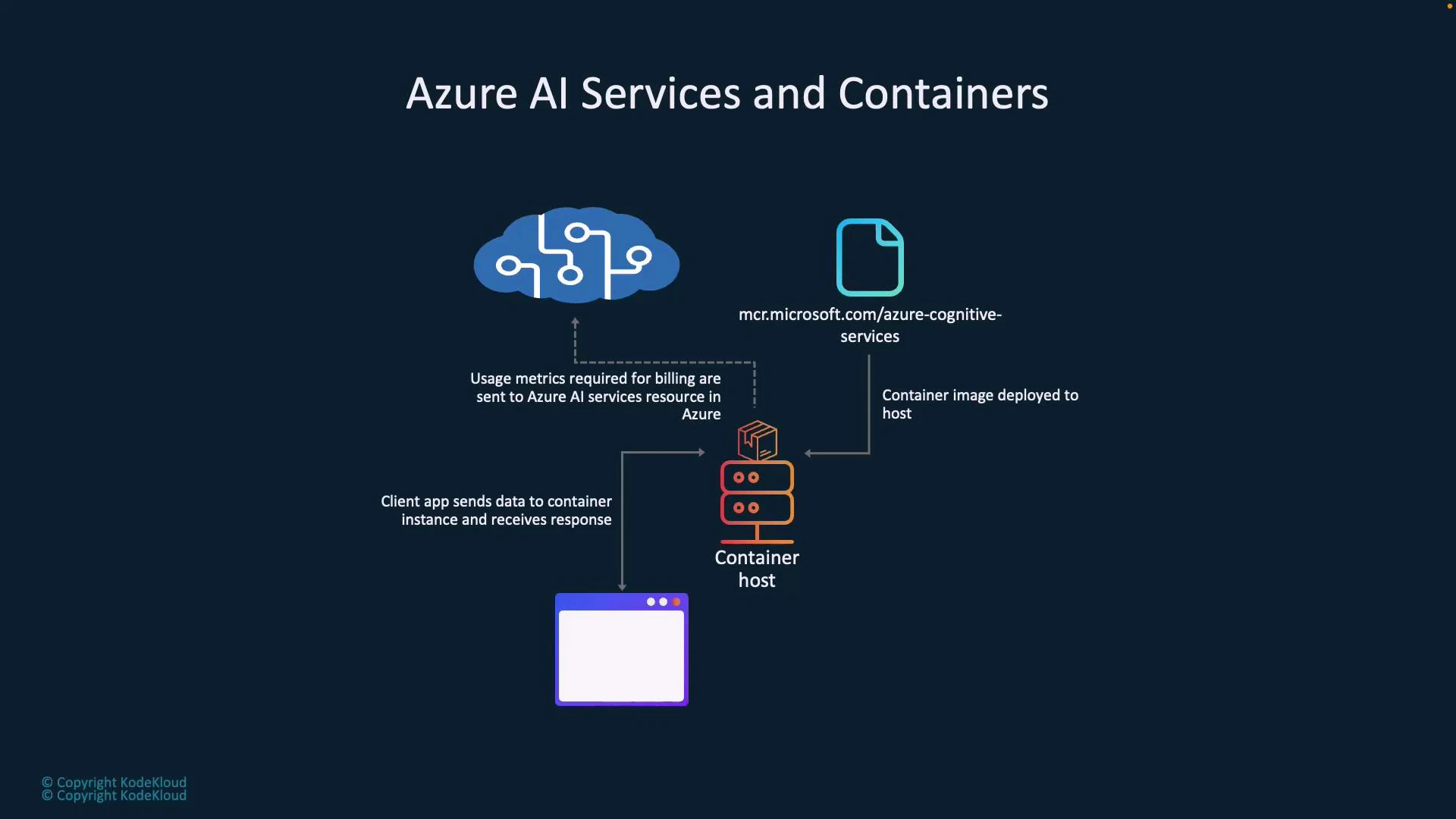
Typical flow when running Azure AI in containers:
* Pull an AI container image from Microsoft Container Registry (MCR).
* Deploy the image to a container host (local Docker, ACI, AKS, another cloud, etc.).
* Client applications send requests (e.g., text for sentiment analysis) to the container's local REST API.
* The container processes inputs locally and returns responses to the client.
* Periodically, the container emits telemetry (usage metrics) to Azure for billing and licensing — it does not send customer data.
## Key deployment options
| Deployment type | Use case | Example |
| ---------------------------------- | ----------------------------------------------------------------------- | -------------------------------------- |
| Local / Edge | Development, testing, or on-device inference | Docker Desktop on a dev machine |
| ACI / Single-node cloud containers | Lightweight cloud hosting without orchestration | Azure Container Instances (ACI) |
| Kubernetes (AKS, EKS, GKE) | Production-grade scaling, rolling updates, and multi-node orchestration | AKS with Horizontal Pod Autoscaler |
| Other clouds / on-prem | Hybrid or multi-cloud deployments | EKS/GKE or private Kubernetes clusters |
## Architecture overview
Typical flow when running Azure AI in containers:
* Pull an AI container image from Microsoft Container Registry (MCR).
* Deploy the image to a container host (local Docker, ACI, AKS, another cloud, etc.).
* Client applications send requests (e.g., text for sentiment analysis) to the container's local REST API.
* The container processes inputs locally and returns responses to the client.
* Periodically, the container emits telemetry (usage metrics) to Azure for billing and licensing — it does not send customer data.
 ## Running a container locally (example)
For a simple demo, run a Cognitive Services container on Docker Desktop. In production, you would typically use AKS, ACI, EKS, or another orchestrator. This section shows the local workflow for the Text Analytics (Sentiment) container.
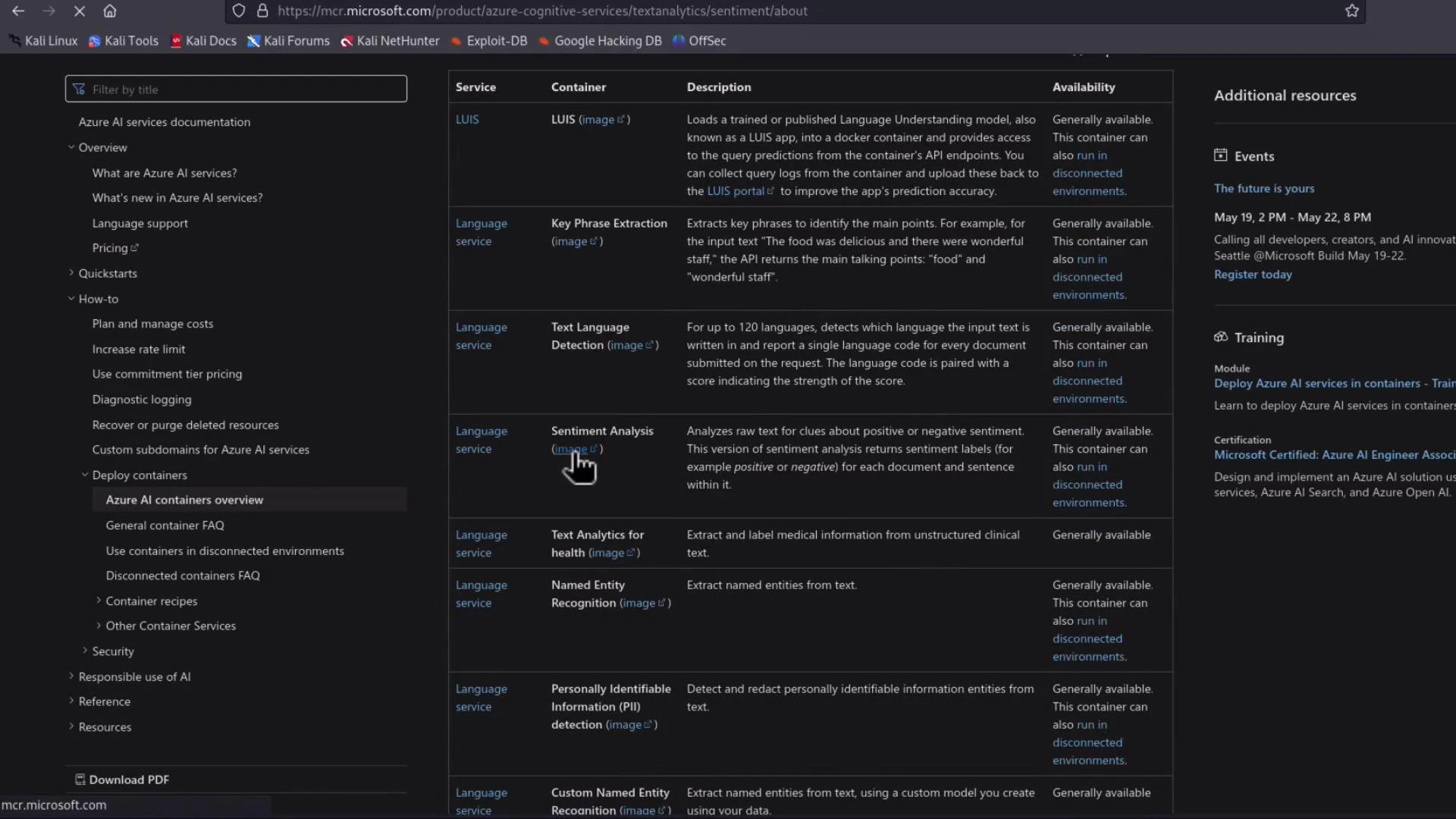
1. Find the container image and instructions in Microsoft Docs. See the Language service containers overview and the Sentiment container page:
* [https://learn.microsoft.com/azure/ai-services/language/language-service-containers-overview](https://learn.microsoft.com/azure/ai-services/language/language-service-containers-overview)
2. The MCR image name for sentiment looks like:
```text theme={null}
mcr.microsoft.com/azure-cognitive-services/textanalytics/sentiment
```
## Running a container locally (example)
For a simple demo, run a Cognitive Services container on Docker Desktop. In production, you would typically use AKS, ACI, EKS, or another orchestrator. This section shows the local workflow for the Text Analytics (Sentiment) container.
1. Find the container image and instructions in Microsoft Docs. See the Language service containers overview and the Sentiment container page:
* [https://learn.microsoft.com/azure/ai-services/language/language-service-containers-overview](https://learn.microsoft.com/azure/ai-services/language/language-service-containers-overview)
2. The MCR image name for sentiment looks like:
```text theme={null}
mcr.microsoft.com/azure-cognitive-services/textanalytics/sentiment
```
 Pull the image from MCR:
```bash theme={null}
docker pull mcr.microsoft.com/azure-cognitive-services/textanalytics/sentiment:latest
```
Sample trimmed output (success):
```bash theme={null}
latest: Pulling from azure-cognitive-services/textanalytics/sentiment
...
Digest: sha256:2588b79b18513da0917ff6cc53ef6d8292985d8b1bf83d4f98739f08bb94207f
Status: Downloaded newer image for mcr.microsoft.com/azure-cognitive-services/textanalytics/sentiment:latest
```
If you're using Apple Silicon (ARM) and the container image targets x86\_64 (AMD64), the image may pull successfully but fail to run. Either use an x86\_64 host, an emulator layer (e.g., Docker Desktop Rosetta/QEMU), or check the container docs for a supported ARM build.
## Run the container
The docs include an example docker run command. Replace placeholders with your values:
* {IMAGE_TAG} — e.g., latest
* {ENDPOINT_URI} — your Cognitive Services endpoint (used for billing/licensing)
* {API_KEY} — your Cognitive Services API key
Example command:
```bash theme={null}
docker run --rm -it -p 5000:5000 --memory 8g --cpus 1 \
mcr.microsoft.com/azure-cognitive-services/textanalytics/sentiment:latest \
Eula=accept \
Billing="https://.cognitiveservices.azure.com/" \
ApiKey=""
```
Flags and environment variables explained:
* \--rm: remove the container after exit
* -it: interactive terminal so logs are visible
* -p 5000:5000: map container port 5000 to host port 5000
* \--memory / --cpus: resource limits for the container
* Eula=accept: acknowledge license terms
* Billing: the Cognitive Services endpoint URL for licensing/usage reporting
* ApiKey: your service key for authentication to the container
After the container starts, it listens on localhost:5000. Inspect logs to verify successful startup and that the service is serving requests.
Check running containers:
```bash theme={null}
docker ps
```
## Accessing the API and built-in documentation
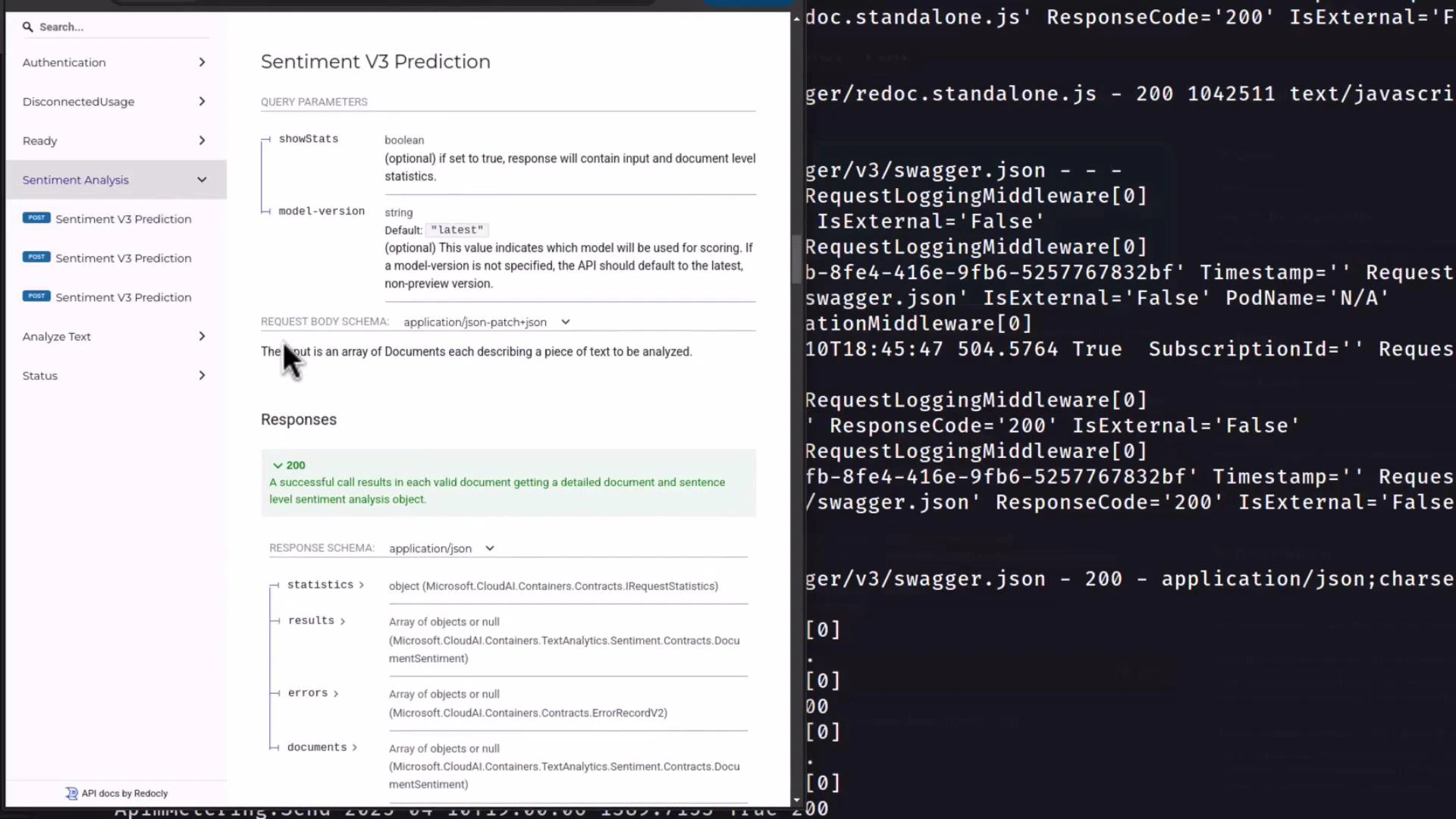
Open [http://localhost:5000](http://localhost:5000) in your browser. The container exposes Swagger/Redoc API documentation and health endpoints. Typical endpoints include:
* /authentication/renew — renew tokens used by the container
* /records/usage-logs/{month}/{year} — retrieve usage reporting logs
* /sentiment (prediction endpoint)
* /swagger/v3/swagger.json and Swagger UI pages for interactive testing
* /health or other status endpoints
Pull the image from MCR:
```bash theme={null}
docker pull mcr.microsoft.com/azure-cognitive-services/textanalytics/sentiment:latest
```
Sample trimmed output (success):
```bash theme={null}
latest: Pulling from azure-cognitive-services/textanalytics/sentiment
...
Digest: sha256:2588b79b18513da0917ff6cc53ef6d8292985d8b1bf83d4f98739f08bb94207f
Status: Downloaded newer image for mcr.microsoft.com/azure-cognitive-services/textanalytics/sentiment:latest
```
If you're using Apple Silicon (ARM) and the container image targets x86\_64 (AMD64), the image may pull successfully but fail to run. Either use an x86\_64 host, an emulator layer (e.g., Docker Desktop Rosetta/QEMU), or check the container docs for a supported ARM build.
## Run the container
The docs include an example docker run command. Replace placeholders with your values:
* {IMAGE_TAG} — e.g., latest
* {ENDPOINT_URI} — your Cognitive Services endpoint (used for billing/licensing)
* {API_KEY} — your Cognitive Services API key
Example command:
```bash theme={null}
docker run --rm -it -p 5000:5000 --memory 8g --cpus 1 \
mcr.microsoft.com/azure-cognitive-services/textanalytics/sentiment:latest \
Eula=accept \
Billing="https://.cognitiveservices.azure.com/" \
ApiKey=""
```
Flags and environment variables explained:
* \--rm: remove the container after exit
* -it: interactive terminal so logs are visible
* -p 5000:5000: map container port 5000 to host port 5000
* \--memory / --cpus: resource limits for the container
* Eula=accept: acknowledge license terms
* Billing: the Cognitive Services endpoint URL for licensing/usage reporting
* ApiKey: your service key for authentication to the container
After the container starts, it listens on localhost:5000. Inspect logs to verify successful startup and that the service is serving requests.
Check running containers:
```bash theme={null}
docker ps
```
## Accessing the API and built-in documentation
Open [http://localhost:5000](http://localhost:5000) in your browser. The container exposes Swagger/Redoc API documentation and health endpoints. Typical endpoints include:
* /authentication/renew — renew tokens used by the container
* /records/usage-logs/{month}/{year} — retrieve usage reporting logs
* /sentiment (prediction endpoint)
* /swagger/v3/swagger.json and Swagger UI pages for interactive testing
* /health or other status endpoints
 ## Sentiment API example
The Sentiment container uses the same REST shape as the cloud Text Analytics API. Send a JSON body with documents and receive sentiment classifications with confidence scores.
Example request body:
```json theme={null}
{
"documents": [
{ "id": "1", "text": "I love this product!" },
{ "id": "2", "text": "This is the worst experience." }
],
"modelVersion": "latest"
}
```
Example response (trimmed):
```json theme={null}
{
"documents": [
{
"id": "1",
"sentiment": "positive",
"confidenceScores": { "positive": 0.99, "neutral": 0.01, "negative": 0.0 },
"sentences": [ /* ... */ ],
"warnings": []
},
{
"id": "2",
"sentiment": "negative",
"confidenceScores": { "positive": 0.0, "neutral": 0.02, "negative": 0.98 },
"sentences": [ /* ... */ ],
"warnings": []
}
],
"modelVersion": "latest"
}
```
## Container status and health
Use the container's status and health endpoints to confirm:
* The API key is valid
* Telemetry/usage reporting is functioning
* Service processes are healthy
A typical status payload might look like:
```json theme={null}
{"service":"sentimentonnx","apiStatus":"Valid","apiStatusMessage":"Api Key is valid, no action needed."}
```
## Summary
Workflow recap:
1. Obtain the MCR image for the desired Azure AI container.
2. Pull and run the container on a host (local Docker, ACI, AKS, etc.).
3. Configure the container with your Billing endpoint and ApiKey.
4. Call the local REST endpoints for inference; the container emits only usage telemetry to Azure for billing/licensing.
## Links and references
* Azure Language service containers docs: [https://learn.microsoft.com/azure/ai-services/language/language-service-containers-overview](https://learn.microsoft.com/azure/ai-services/language/language-service-containers-overview)
* Azure Cognitive Services containers overview: [https://learn.microsoft.com/azure/cognitive-services/](https://learn.microsoft.com/azure/cognitive-services/)
* Kubernetes documentation: [https://kubernetes.io/docs/](https://kubernetes.io/docs/)
## Sentiment API example
The Sentiment container uses the same REST shape as the cloud Text Analytics API. Send a JSON body with documents and receive sentiment classifications with confidence scores.
Example request body:
```json theme={null}
{
"documents": [
{ "id": "1", "text": "I love this product!" },
{ "id": "2", "text": "This is the worst experience." }
],
"modelVersion": "latest"
}
```
Example response (trimmed):
```json theme={null}
{
"documents": [
{
"id": "1",
"sentiment": "positive",
"confidenceScores": { "positive": 0.99, "neutral": 0.01, "negative": 0.0 },
"sentences": [ /* ... */ ],
"warnings": []
},
{
"id": "2",
"sentiment": "negative",
"confidenceScores": { "positive": 0.0, "neutral": 0.02, "negative": 0.98 },
"sentences": [ /* ... */ ],
"warnings": []
}
],
"modelVersion": "latest"
}
```
## Container status and health
Use the container's status and health endpoints to confirm:
* The API key is valid
* Telemetry/usage reporting is functioning
* Service processes are healthy
A typical status payload might look like:
```json theme={null}
{"service":"sentimentonnx","apiStatus":"Valid","apiStatusMessage":"Api Key is valid, no action needed."}
```
## Summary
Workflow recap:
1. Obtain the MCR image for the desired Azure AI container.
2. Pull and run the container on a host (local Docker, ACI, AKS, etc.).
3. Configure the container with your Billing endpoint and ApiKey.
4. Call the local REST endpoints for inference; the container emits only usage telemetry to Azure for billing/licensing.
## Links and references
* Azure Language service containers docs: [https://learn.microsoft.com/azure/ai-services/language/language-service-containers-overview](https://learn.microsoft.com/azure/ai-services/language/language-service-containers-overview)
* Azure Cognitive Services containers overview: [https://learn.microsoft.com/azure/cognitive-services/](https://learn.microsoft.com/azure/cognitive-services/)
* Kubernetes documentation: [https://kubernetes.io/docs/](https://kubernetes.io/docs/)