> ## Documentation Index
> Fetch the complete documentation index at: https://notes.kodekloud.com/llms.txt
> Use this file to discover all available pages before exploring further.
# Demo Getting Started With Microsoft Foundry
> Guide to creating and using Microsoft Foundry in Azure, deploying models, testing in the playground, integrating tools, and calling models with API key or Azure AD authentication.
This walkthrough demonstrates how to create a Microsoft Foundry resource in the Azure portal, open the Foundry console, deploy a model, and call that model from the portal or programmatically. The steps below keep the logical sequence from resource creation → provisioning → Foundry portal → model deployment → calling the model.
1. Sign in to the Azure portal and search for "Microsoft Foundry". Open the Microsoft Foundry service page and choose to create a new Foundry resource.
2. When creating a resource, keep Azure's resource hierarchy in mind: subscription → resource group → resources. Below we create a resource group named `RGAI901Foundry` and a Foundry resource named `AI Foundry, AI90101`. Region is set to East US and project name to `AI90101`. The create form exposes configuration tabs including Basics, Storage, Networking, and Content review policy.
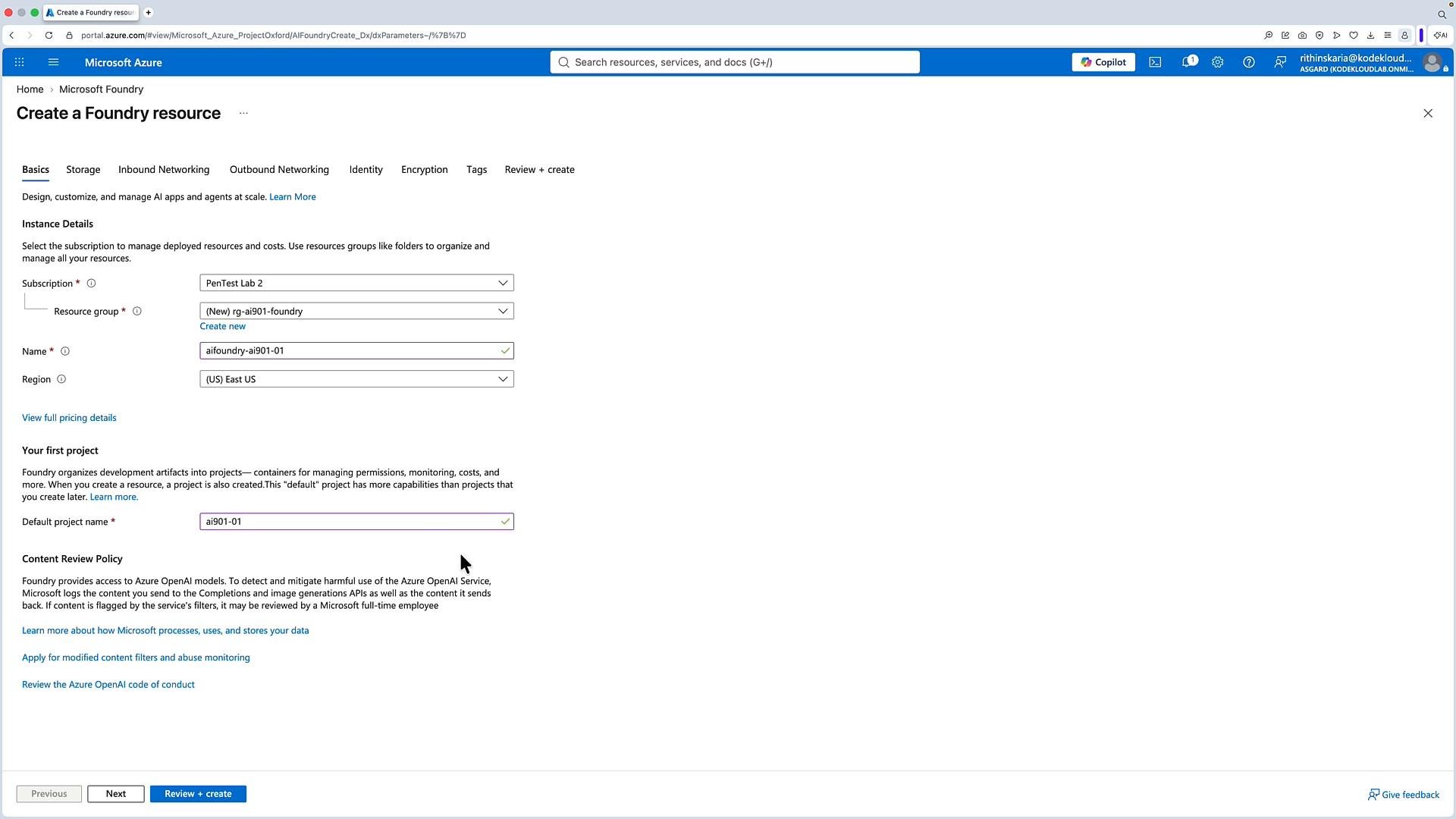 When entering values, use consistent naming and verify the target region matches the models and endpoints you plan to use. Azure regions determine availability of specific model families and integrations.
3. Click Review + create. After the final validation completes, the Foundry resource will be provisioned. From the Foundry resource overview you can:
* See contained projects
* View keys and endpoints used to access Foundry capabilities
* Open the Microsoft Foundry portal via the "Microsoft Foundry portal" link
Below are typical endpoints surfaced by a Foundry deployment:
| Endpoint type | Example endpoint |
| - | - |
| Foundry base | `https://aifoundry-ai901-01.services.ai.azure.com/` |
| Speech-to-text | `https://eastus.stt.speech.microsoft.com` |
| Text-to-speech | `https://eastus.tts.speech.microsoft.com` |
| Translator | `https://api.cognitive.microsofttranslator.com/` |
These endpoints demonstrate that Foundry aggregates multiple AI services: model endpoints, speech-to-text, text-to-speech, translation, and more. You can authenticate to these endpoints using an API key or Microsoft Entra ID (Azure AD). After creating the resource, assign appropriate roles (for example, `Foundry User`) to users or applications via Access Control (IAM) so they can use the service.
Ensure the principal (user, service principal, or managed identity) you plan to use has the correct Foundry role via Access Control (IAM). Without proper role assignment, API calls will be rejected even if the endpoint and API key appear valid.
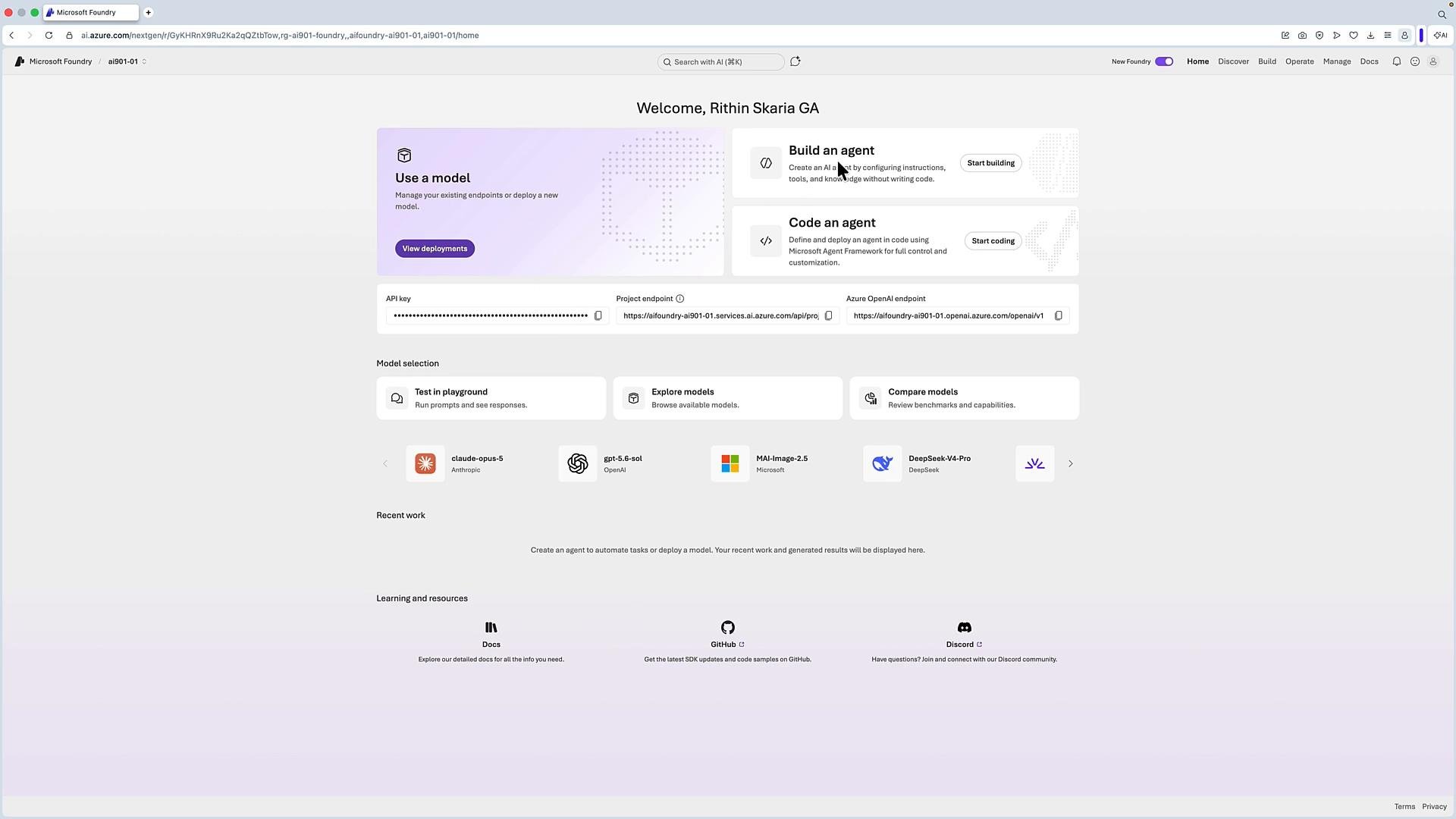
Once the resource is ready, open the Foundry console using the portal link. The Foundry portal exposes tools to use models, build agents, and manage API keys and connectors.
When entering values, use consistent naming and verify the target region matches the models and endpoints you plan to use. Azure regions determine availability of specific model families and integrations.
3. Click Review + create. After the final validation completes, the Foundry resource will be provisioned. From the Foundry resource overview you can:
* See contained projects
* View keys and endpoints used to access Foundry capabilities
* Open the Microsoft Foundry portal via the "Microsoft Foundry portal" link
Below are typical endpoints surfaced by a Foundry deployment:
| Endpoint type | Example endpoint |
| - | - |
| Foundry base | `https://aifoundry-ai901-01.services.ai.azure.com/` |
| Speech-to-text | `https://eastus.stt.speech.microsoft.com` |
| Text-to-speech | `https://eastus.tts.speech.microsoft.com` |
| Translator | `https://api.cognitive.microsofttranslator.com/` |
These endpoints demonstrate that Foundry aggregates multiple AI services: model endpoints, speech-to-text, text-to-speech, translation, and more. You can authenticate to these endpoints using an API key or Microsoft Entra ID (Azure AD). After creating the resource, assign appropriate roles (for example, `Foundry User`) to users or applications via Access Control (IAM) so they can use the service.
Ensure the principal (user, service principal, or managed identity) you plan to use has the correct Foundry role via Access Control (IAM). Without proper role assignment, API calls will be rejected even if the endpoint and API key appear valid.
Once the resource is ready, open the Foundry console using the portal link. The Foundry portal exposes tools to use models, build agents, and manage API keys and connectors.
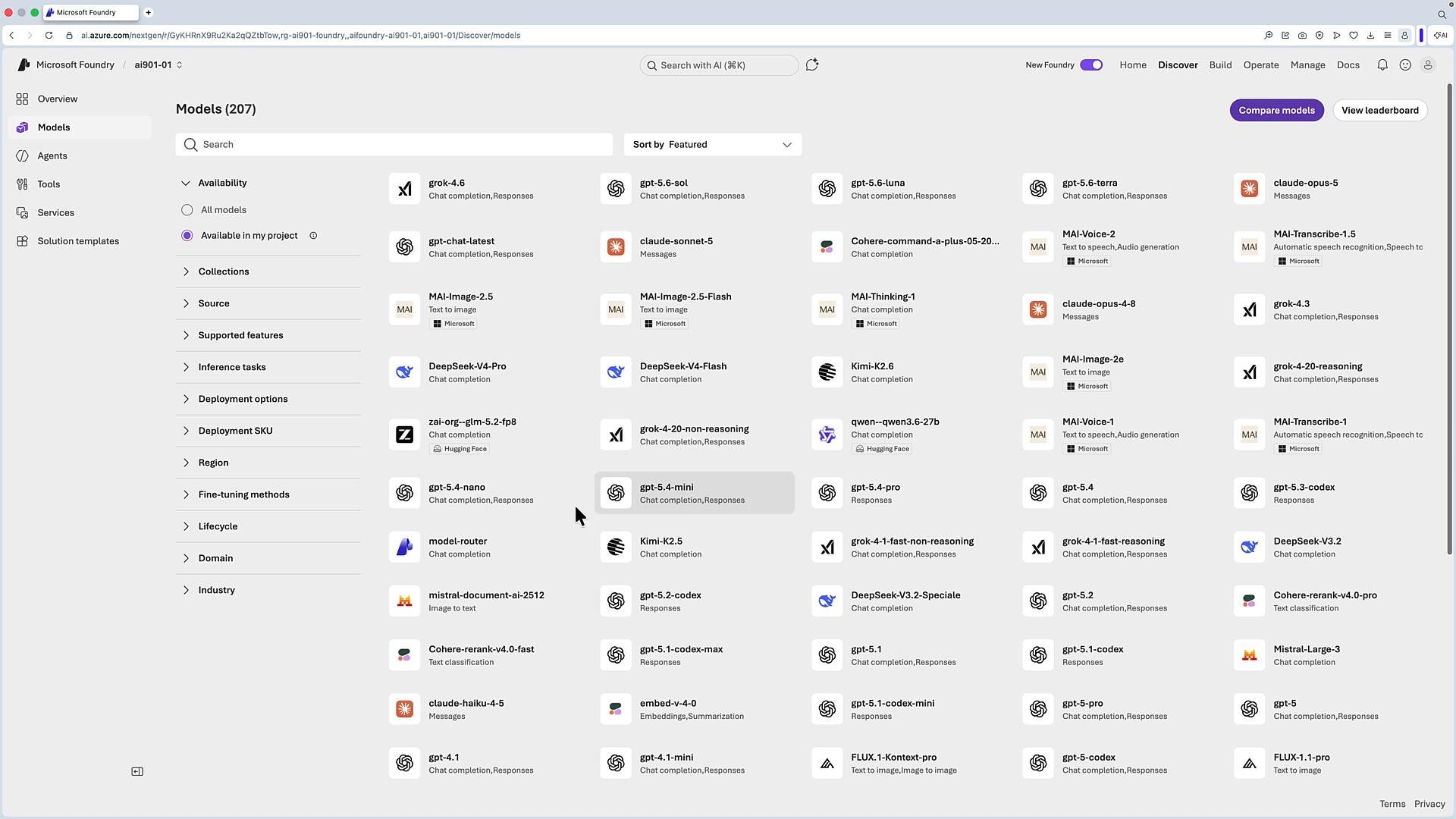
 From the Models page you can browse the regional catalog and deploy models that are available in your region. The catalog typically includes GPT-family models, Claude, Grok, MAI, and other providers. Select a model tile and click “Deploy” to create a deployment (for example, `gpt-5.4-mini`).
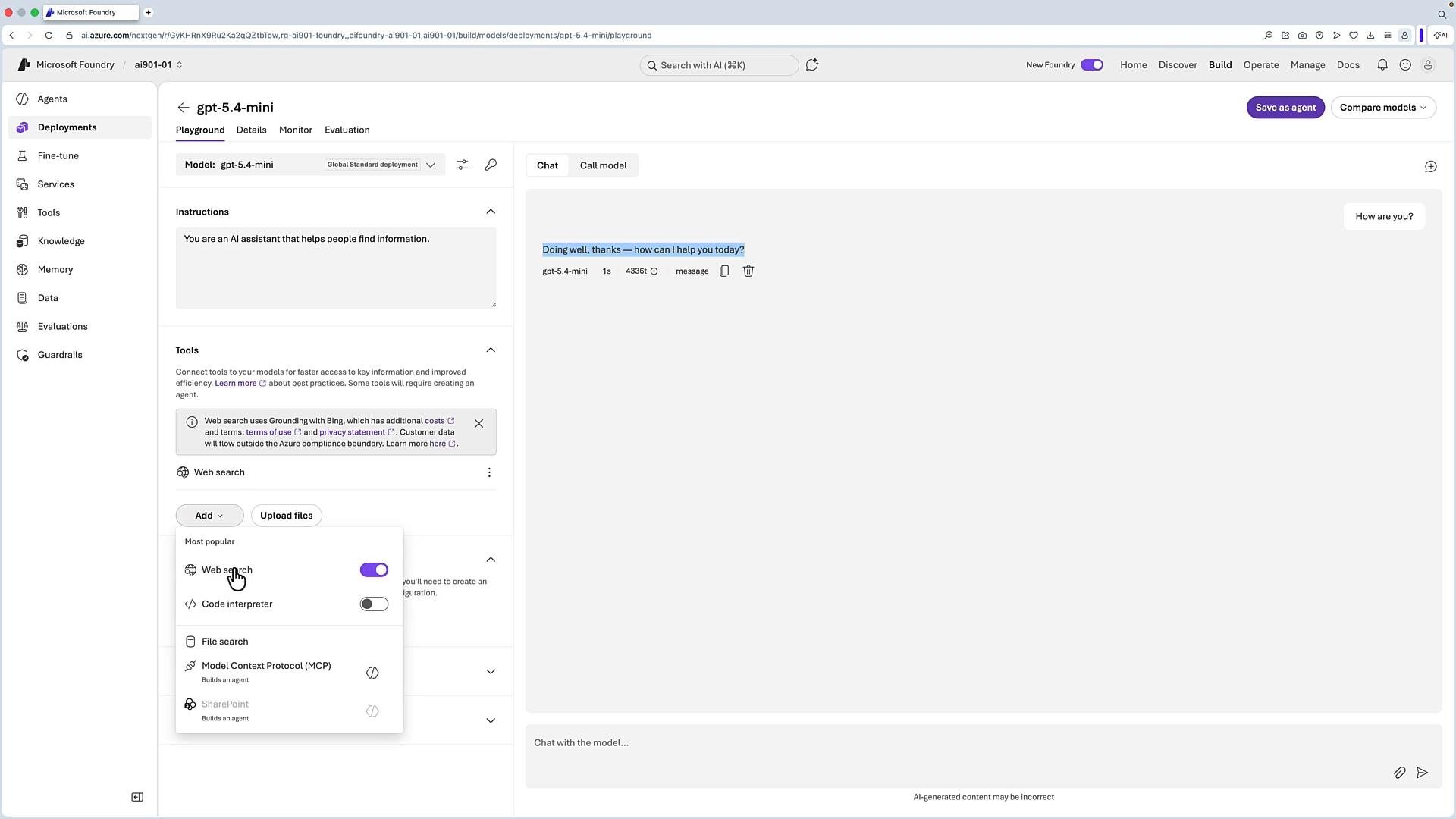
 After deploying a model (for example, `gpt-5.4-mini`), open the Foundry playground for that deployment. In the playground you can:
* Chat with the model
* Add knowledge files (context/knowledge bases)
* Attach tools and connectors (e.g., Web search, Outlook, or third-party integrations)
The playground shows the Tools panel (which lists enabled tools like Web search) and a chat pane for user prompts and assistant replies.
After deploying a model (for example, `gpt-5.4-mini`), open the Foundry playground for that deployment. In the playground you can:
* Chat with the model
* Add knowledge files (context/knowledge bases)
* Attach tools and connectors (e.g., Web search, Outlook, or third-party integrations)
The playground shows the Tools panel (which lists enabled tools like Web search) and a chat pane for user prompts and assistant replies.
 Foundry provides a "Call model" helper in the portal that generates example SDK and REST code for your deployment and lets you choose authentication (API key or Microsoft Entra ID). Here are a few common starting examples you can use directly or adapt:
Foundry supports both API keys and Microsoft Entra ID (Azure AD) authentication. Use API keys for quick testing and Entra ID (managed identities) for production scenarios that require fine-grained access control.
1. Example: REST / cURL call to a model (chat completions endpoint)
```bash theme={null}
curl -X POST "https://aifoundry-ai901-01.services.ai.azure.com/openai/v1/chat/completions" \
-H "Content-Type: application/json" \
-H "api-key: $AZURE_API_KEY" \
-d '{
"model": "gpt-5.4-mini",
"messages": [
{ "role": "user", "content": "I am going to Paris, what should I see?" },
{ "role": "assistant", "content": "Paris, the capital of France, is known for its stunning architecture, art museums, historical landmarks, and romantic atmosphere. Here are some suggestions:" },
{ "role": "user", "content": "What is so great about #1?" }
],
"max_tokens": 4096
}'
```
2. Example: Python using API key authentication
```python theme={null}
from openai import OpenAI
endpoint = "https://aifoundry-ai901-01.services.ai.azure.com/openai/v1"
deployment_name = "gpt-5.4-mini"
api_key = ""
client = OpenAI(
base_url=endpoint,
api_key=api_key
)
response = client.responses.create(
model=deployment_name,
input="What is the capital of France?"
)
print(f"answer: {response.output[0]}")
```
3. Example: Python using Microsoft Entra ID (Azure AD) token provider
```python theme={null}
from openai import OpenAI
from azure.identity import DefaultAzureCredential, get_bearer_token_provider
endpoint = "https://aifoundry-ai901-01.services.ai.azure.com/openai/v1"
deployment_name = "gpt-5.4-mini"
# Use DefaultAzureCredential (will use environment/managed identity/VS auth, etc.)
token_provider = get_bearer_token_provider(DefaultAzureCredential())
client = OpenAI(
base_url=endpoint,
api_key=token_provider
)
response = client.responses.create(
model=deployment_name,
input="What is the capital of France?"
)
print(f"answer: {response.output[0]}")
```
4. Example: C# (illustrative; consult the SDK docs for exact types and initialization in your SDK version)
```csharp theme={null}
using OpenAI;
using OpenAI.Responses;
using System;
#pragma warning disable OPENAI001
const string deploymentName = "gpt-5.4-mini";
const string endpoint = "https://aifoundry-ai901-01.services.ai.azure.com/openai/v1";
const string apiKey = "";
ResponsesClient client = new(
model: deploymentName,
credential: new ApiKeyCredential(apiKey),
options: new OpenAIClientOptions()
{
Endpoint = new Uri(endpoint),
});
CreateResponseOptions options = new()
{
InputItems =
{
ResponseItem.CreateUserMessageItem("What's the weather like today for my current location?"),
}
};
ResponseResult response = client.CreateResponse(options);
Console.WriteLine($"[ASSISTANT]: {response.GetOutputText()}");
```
SDKs (Python, JavaScript, C#, etc.) simplify interacting with Foundry and the underlying model endpoints by handling HTTP construction, authentication, retries, and response parsing.
Summary
* Microsoft Foundry centralizes multiple AI endpoints and model catalogs in Azure.
* Use the portal to deploy models, test in the playground, attach tools, and generate example SDK/REST calls.
* For production, prefer Microsoft Entra ID (Azure AD) authentication and grant the appropriate Foundry roles via IAM.
Links and references
* Microsoft Azure documentation: [https://learn.microsoft.com/azure/](https://learn.microsoft.com/azure/)
* Azure Active Directory developer docs: [https://learn.microsoft.com/azure/active-directory/develop/](https://learn.microsoft.com/azure/active-directory/develop/)
* Azure SDKs and tools: [https://learn.microsoft.com/azure/developer](https://learn.microsoft.com/azure/developer)
This concludes the first module on Introduction to AI concepts and a brief hands-on with Microsoft Foundry.
This documentation is built and hosted on [Mintlify](https://mintlify.com), a developer documentation platform.
Foundry provides a "Call model" helper in the portal that generates example SDK and REST code for your deployment and lets you choose authentication (API key or Microsoft Entra ID). Here are a few common starting examples you can use directly or adapt:
Foundry supports both API keys and Microsoft Entra ID (Azure AD) authentication. Use API keys for quick testing and Entra ID (managed identities) for production scenarios that require fine-grained access control.
1. Example: REST / cURL call to a model (chat completions endpoint)
```bash theme={null}
curl -X POST "https://aifoundry-ai901-01.services.ai.azure.com/openai/v1/chat/completions" \
-H "Content-Type: application/json" \
-H "api-key: $AZURE_API_KEY" \
-d '{
"model": "gpt-5.4-mini",
"messages": [
{ "role": "user", "content": "I am going to Paris, what should I see?" },
{ "role": "assistant", "content": "Paris, the capital of France, is known for its stunning architecture, art museums, historical landmarks, and romantic atmosphere. Here are some suggestions:" },
{ "role": "user", "content": "What is so great about #1?" }
],
"max_tokens": 4096
}'
```
2. Example: Python using API key authentication
```python theme={null}
from openai import OpenAI
endpoint = "https://aifoundry-ai901-01.services.ai.azure.com/openai/v1"
deployment_name = "gpt-5.4-mini"
api_key = ""
client = OpenAI(
base_url=endpoint,
api_key=api_key
)
response = client.responses.create(
model=deployment_name,
input="What is the capital of France?"
)
print(f"answer: {response.output[0]}")
```
3. Example: Python using Microsoft Entra ID (Azure AD) token provider
```python theme={null}
from openai import OpenAI
from azure.identity import DefaultAzureCredential, get_bearer_token_provider
endpoint = "https://aifoundry-ai901-01.services.ai.azure.com/openai/v1"
deployment_name = "gpt-5.4-mini"
# Use DefaultAzureCredential (will use environment/managed identity/VS auth, etc.)
token_provider = get_bearer_token_provider(DefaultAzureCredential())
client = OpenAI(
base_url=endpoint,
api_key=token_provider
)
response = client.responses.create(
model=deployment_name,
input="What is the capital of France?"
)
print(f"answer: {response.output[0]}")
```
4. Example: C# (illustrative; consult the SDK docs for exact types and initialization in your SDK version)
```csharp theme={null}
using OpenAI;
using OpenAI.Responses;
using System;
#pragma warning disable OPENAI001
const string deploymentName = "gpt-5.4-mini";
const string endpoint = "https://aifoundry-ai901-01.services.ai.azure.com/openai/v1";
const string apiKey = "";
ResponsesClient client = new(
model: deploymentName,
credential: new ApiKeyCredential(apiKey),
options: new OpenAIClientOptions()
{
Endpoint = new Uri(endpoint),
});
CreateResponseOptions options = new()
{
InputItems =
{
ResponseItem.CreateUserMessageItem("What's the weather like today for my current location?"),
}
};
ResponseResult response = client.CreateResponse(options);
Console.WriteLine($"[ASSISTANT]: {response.GetOutputText()}");
```
SDKs (Python, JavaScript, C#, etc.) simplify interacting with Foundry and the underlying model endpoints by handling HTTP construction, authentication, retries, and response parsing.
Summary
* Microsoft Foundry centralizes multiple AI endpoints and model catalogs in Azure.
* Use the portal to deploy models, test in the playground, attach tools, and generate example SDK/REST calls.
* For production, prefer Microsoft Entra ID (Azure AD) authentication and grant the appropriate Foundry roles via IAM.
Links and references
* Microsoft Azure documentation: [https://learn.microsoft.com/azure/](https://learn.microsoft.com/azure/)
* Azure Active Directory developer docs: [https://learn.microsoft.com/azure/active-directory/develop/](https://learn.microsoft.com/azure/active-directory/develop/)
* Azure SDKs and tools: [https://learn.microsoft.com/azure/developer](https://learn.microsoft.com/azure/developer)
This concludes the first module on Introduction to AI concepts and a brief hands-on with Microsoft Foundry.
This documentation is built and hosted on [Mintlify](https://mintlify.com), a developer documentation platform.