> ## Documentation Index
> Fetch the complete documentation index at: https://notes.kodekloud.com/llms.txt
> Use this file to discover all available pages before exploring further.
# Demo How to Use Claude API
> Tutorial for building a minimal Claude chat agent in Jupyter using the Anthropic Python SDK with installation, API key setup, code example, and troubleshooting tips.
Welcome back! In this lesson you'll learn how to create a minimal Claude-based chat agent in a Jupyter notebook using the official Anthropic Python package. Claude is a capable assistant for text and code tasks — it produces natural writing, has strong coding abilities, supports artifacts for visualization, and offers thoughtful analysis. That makes it a good fit for developers, writers, and analysts building interactive demos, research tools, or content assistants.
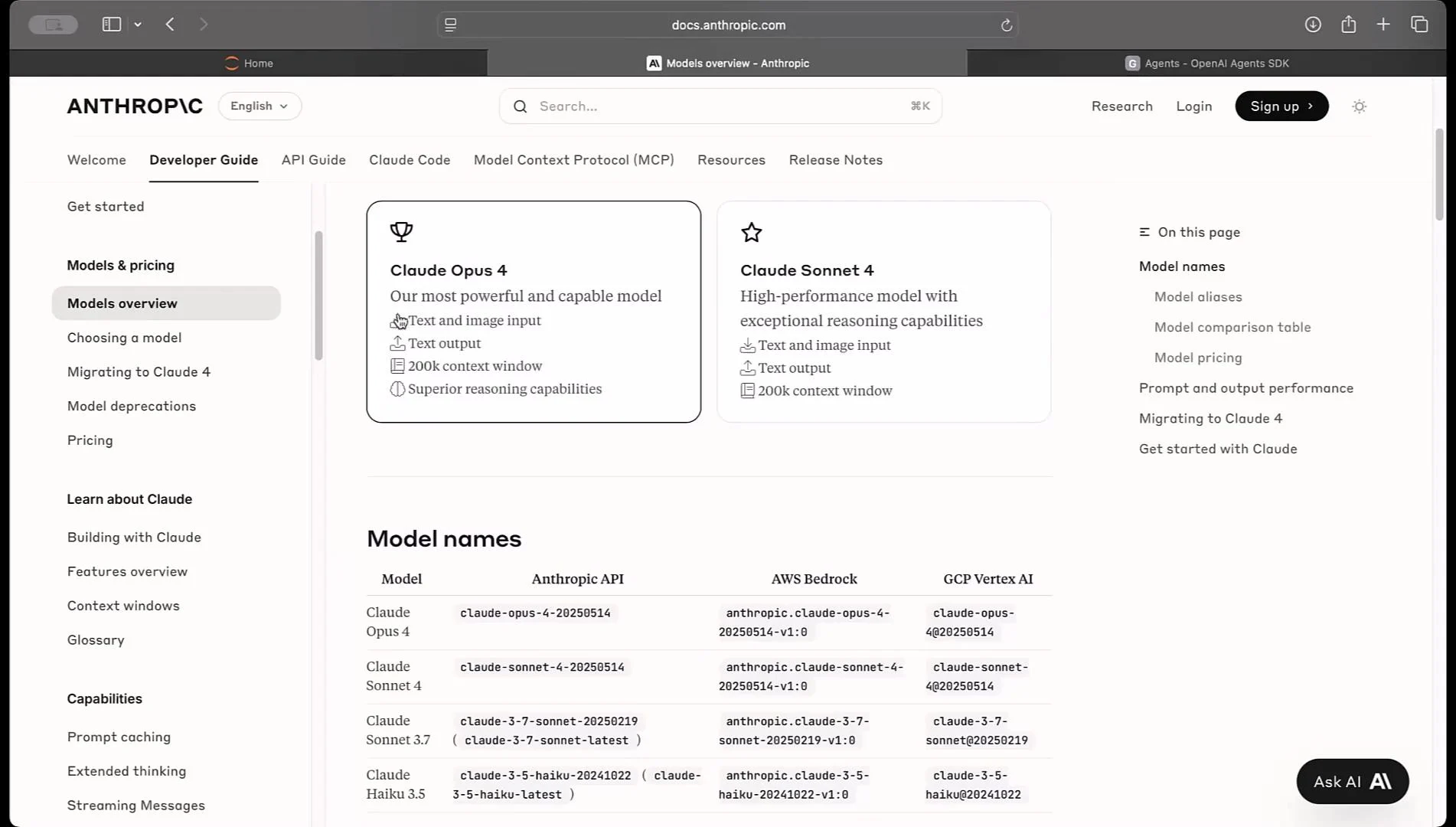
Before you begin, review the official docs at [docs.anthropic.com](https://docs.anthropic.com) to see available models, capabilities, and up-to-date API patterns and examples. The documentation lists models such as Claude Opus and Claude Sonnet and provides versioned guidance for SDK usage.
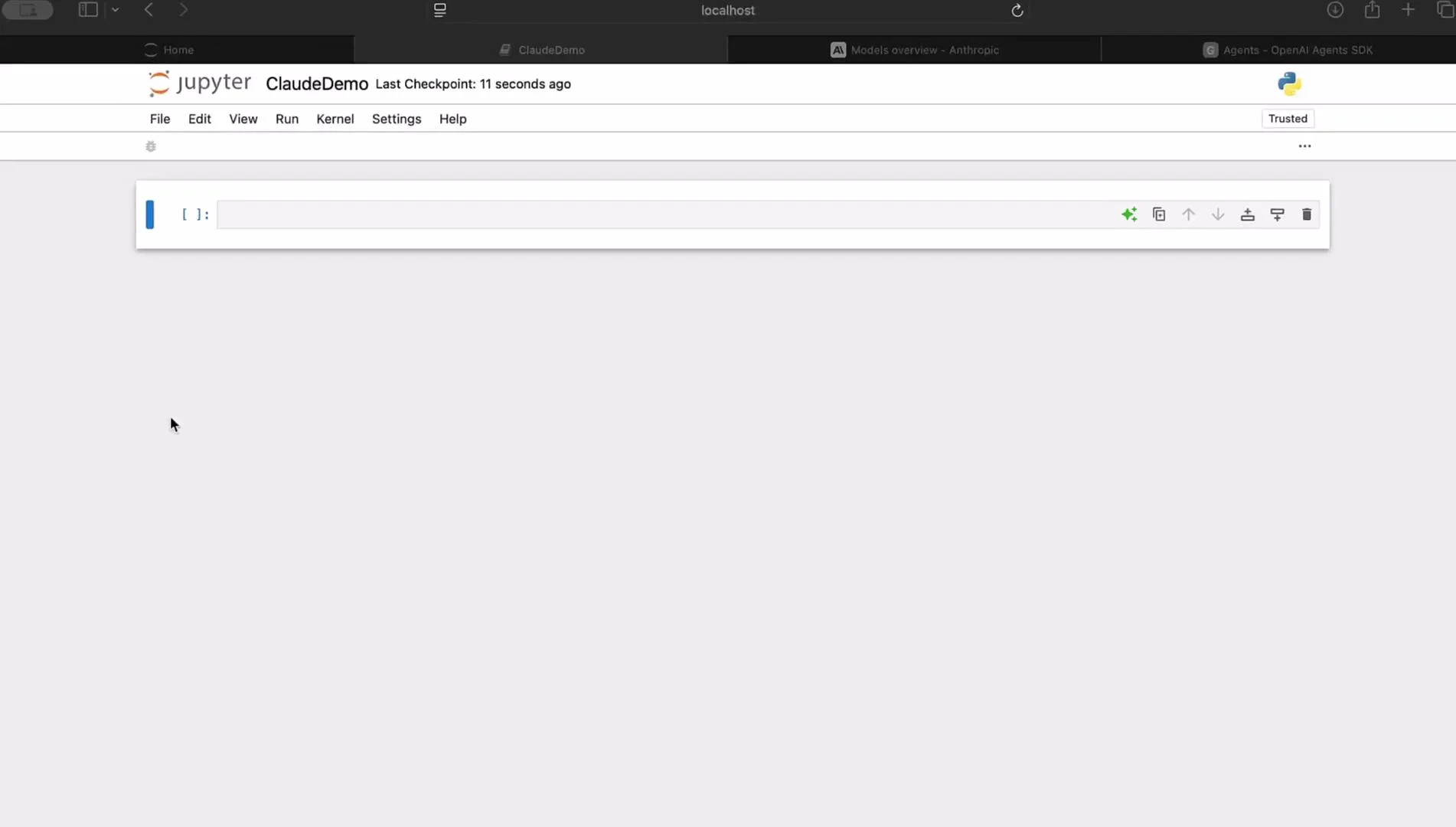
 Get started by opening a new notebook (for example, name it "ClaudeDemo") and follow the steps below.
 ## Prerequisites
* Python 3.8+ (or a supported version for your `anthropic` SDK)
* A Claude API key from Anthropic
* Basic familiarity with Jupyter notebooks
## Installation
Install the official Anthropic package from PyPI:
```bash theme={null}
!pip install anthropic
```
## Setting the API Key
Store your Claude API key securely — the recommended approach is an environment variable such as `CLAUDE_API_KEY`. For quick demos you can use a placeholder or local config, but never commit real keys.
Never commit API keys or other secrets to public repositories. Use environment variables, a secrets manager, or platform-provided secret stores in production.
Be aware of usage limits and billing. Running long conversations or repeated calls can incur cost—monitor your Anthropic account and set safeguards where appropriate.
## Minimal Claude Chat Agent (single Python cell)
The example below demonstrates a compact pattern for a Jupyter cell that:
* Initializes the Anthropic client,
* Sends a system-level prompt to define the assistant behavior,
* Maintains short-term message history,
* Runs an interactive loop for chatting.
Copy the whole block into a single notebook cell and run it.
```python theme={null}
# python
import os
import anthropic
# Prefer environment variable; replace with a secure source in real projects.
CLAUDE_API_KEY = os.environ.get("CLAUDE_API_KEY", "")
# Initialize client
# Depending on the SDK version this may be `anthropic.Client(...)` or `anthropic.Anthropic(...)`.
client = anthropic.Anthropic(api_key=CLAUDE_API_KEY)
# System prompt defines the assistant's role/personality.
system_prompt = "You are a helpful research assistant. Answer clearly and concisely."
# Short-term chat history (list of {"role": "user" | "assistant", "content": str})
message_history = []
def run_claude_agent(message_history, user_input):
"""
Append the user input to the message history, send the conversation
(with system prompt) to Claude, append the assistant reply to history,
and return the assistant reply.
"""
# Add user message to history
message_history.append({"role": "user", "content": user_input})
# Send request to Claude
response = client.messages.create(
model="claude-3-opus-20240229",
max_tokens=500,
temperature=0.7,
system=system_prompt, # Some SDKs take system separately; follow your SDK docs
messages=message_history # messages should use "user" and "assistant" roles
)
# Extract assistant text from response.
# SDK response formats vary between versions; try common patterns.
assistant_reply = ""
if hasattr(response, "content") and len(response.content) > 0:
first = response.content[0]
# Some SDKs return objects with a 'text' attribute or dicts with 'text'
assistant_reply = getattr(first, "text", None) or (first.get("text", "") if isinstance(first, dict) else str(first))
else:
# Fallback: represent the raw response
assistant_reply = str(response)
# Add assistant reply to history and return
message_history.append({"role": "assistant", "content": assistant_reply})
return assistant_reply
# Interactive chat loop
if __name__ == "__main__":
print("Start chatting with the Claude agent. Type 'exit' or 'quit' to end.")
while True:
user_input = input("You: ").strip()
if user_input.lower() in ["exit", "quit"]:
print("Exiting Claude agent, goodbye!")
break
reply = run_claude_agent(message_history, user_input)
print("\nClaude:", reply, "\n")
```
## Key implementation notes
* Many Anthropic SDKs accept a separate `system` parameter instead of a message with `"role": "system"`. If you include a `"system"` role inside `messages` when the SDK expects a `system` parameter, you may see errors. Always consult the documentation for the SDK version you're using.
* Use `"user"` and `"assistant"` roles in the `messages` list to preserve conversation state and allow Claude to reference earlier turns.
* Tune `max_tokens` to control the maximum reply length and `temperature` to adjust randomness.
* SDK class and method names may change between versions — e.g., `anthropic.Client` vs `anthropic.Anthropic`. If you encounter import errors or an unexpected response structure, check [docs.anthropic.com](https://docs.anthropic.com) for version-specific examples.
## Quick reference: common troubleshooting
| Symptom | Likely cause | Quick fix |
| -------------------------- | ------------------------------------------ | ----------------------------------------------------------------------------------------------------- |
| ImportError on `anthropic` | Package not installed or wrong environment | Run `!pip install anthropic` in the notebook kernel and restart kernel |
| Authentication error | Missing or invalid API key | Ensure `CLAUDE_API_KEY` env var is set; avoid committing credentials |
| Unexpected response format | SDK version differences | Print `response` to inspect structure and adapt parsing; consult SDK docs |
| SDK method not found | Version mismatch | Check release notes or use the version documented on [docs.anthropic.com](https://docs.anthropic.com) |
## Try it out
After starting the interactive loop, try asking Claude a question such as:
* "Give me a recipe for banana bread."
* "Summarize the key points from this paragraph."
* "Draft a short email asking for a meeting."
The notebook will display the assistant's reply and preserve the chat history so Claude can use earlier context. Type `exit` or `quit` to end the session.
## Extending the agent
From this minimal example you can extend your agent in many ways:
* Persist chat history to disk or a database for longer-term context.
* Add tools or retrieval layers (e.g., vector DB + semantic search) to ground responses in external data.
* Implement streaming responses (if supported by your SDK) for real-time UI updates.
* Post-process model outputs to extract structured data, generate artifacts (tables, charts), or call downstream APIs.
## Wrapping up
This guide demonstrated a minimal Claude chat agent in a Jupyter notebook:
* Define a system role to shape behavior.
* Maintain a message history to give Claude conversational context.
* Send the system prompt and messages via `client.messages.create`.
* Append assistant replies to history.
* Use an interactive loop to simulate chat sessions.
Next steps: explore the model and SDK options in the Anthropic docs, experiment with different system prompts for specialized behavior, and add retrieval or post-processing layers to build more capable assistants.
## Links and references
* Anthropic documentation: [https://docs.anthropic.com](https://docs.anthropic.com)
* Anthropics Python package on PyPI: [https://pypi.org/project/anthropic/](https://pypi.org/project/anthropic/)
## Prerequisites
* Python 3.8+ (or a supported version for your `anthropic` SDK)
* A Claude API key from Anthropic
* Basic familiarity with Jupyter notebooks
## Installation
Install the official Anthropic package from PyPI:
```bash theme={null}
!pip install anthropic
```
## Setting the API Key
Store your Claude API key securely — the recommended approach is an environment variable such as `CLAUDE_API_KEY`. For quick demos you can use a placeholder or local config, but never commit real keys.
Never commit API keys or other secrets to public repositories. Use environment variables, a secrets manager, or platform-provided secret stores in production.
Be aware of usage limits and billing. Running long conversations or repeated calls can incur cost—monitor your Anthropic account and set safeguards where appropriate.
## Minimal Claude Chat Agent (single Python cell)
The example below demonstrates a compact pattern for a Jupyter cell that:
* Initializes the Anthropic client,
* Sends a system-level prompt to define the assistant behavior,
* Maintains short-term message history,
* Runs an interactive loop for chatting.
Copy the whole block into a single notebook cell and run it.
```python theme={null}
# python
import os
import anthropic
# Prefer environment variable; replace with a secure source in real projects.
CLAUDE_API_KEY = os.environ.get("CLAUDE_API_KEY", "")
# Initialize client
# Depending on the SDK version this may be `anthropic.Client(...)` or `anthropic.Anthropic(...)`.
client = anthropic.Anthropic(api_key=CLAUDE_API_KEY)
# System prompt defines the assistant's role/personality.
system_prompt = "You are a helpful research assistant. Answer clearly and concisely."
# Short-term chat history (list of {"role": "user" | "assistant", "content": str})
message_history = []
def run_claude_agent(message_history, user_input):
"""
Append the user input to the message history, send the conversation
(with system prompt) to Claude, append the assistant reply to history,
and return the assistant reply.
"""
# Add user message to history
message_history.append({"role": "user", "content": user_input})
# Send request to Claude
response = client.messages.create(
model="claude-3-opus-20240229",
max_tokens=500,
temperature=0.7,
system=system_prompt, # Some SDKs take system separately; follow your SDK docs
messages=message_history # messages should use "user" and "assistant" roles
)
# Extract assistant text from response.
# SDK response formats vary between versions; try common patterns.
assistant_reply = ""
if hasattr(response, "content") and len(response.content) > 0:
first = response.content[0]
# Some SDKs return objects with a 'text' attribute or dicts with 'text'
assistant_reply = getattr(first, "text", None) or (first.get("text", "") if isinstance(first, dict) else str(first))
else:
# Fallback: represent the raw response
assistant_reply = str(response)
# Add assistant reply to history and return
message_history.append({"role": "assistant", "content": assistant_reply})
return assistant_reply
# Interactive chat loop
if __name__ == "__main__":
print("Start chatting with the Claude agent. Type 'exit' or 'quit' to end.")
while True:
user_input = input("You: ").strip()
if user_input.lower() in ["exit", "quit"]:
print("Exiting Claude agent, goodbye!")
break
reply = run_claude_agent(message_history, user_input)
print("\nClaude:", reply, "\n")
```
## Key implementation notes
* Many Anthropic SDKs accept a separate `system` parameter instead of a message with `"role": "system"`. If you include a `"system"` role inside `messages` when the SDK expects a `system` parameter, you may see errors. Always consult the documentation for the SDK version you're using.
* Use `"user"` and `"assistant"` roles in the `messages` list to preserve conversation state and allow Claude to reference earlier turns.
* Tune `max_tokens` to control the maximum reply length and `temperature` to adjust randomness.
* SDK class and method names may change between versions — e.g., `anthropic.Client` vs `anthropic.Anthropic`. If you encounter import errors or an unexpected response structure, check [docs.anthropic.com](https://docs.anthropic.com) for version-specific examples.
## Quick reference: common troubleshooting
| Symptom | Likely cause | Quick fix |
| -------------------------- | ------------------------------------------ | ----------------------------------------------------------------------------------------------------- |
| ImportError on `anthropic` | Package not installed or wrong environment | Run `!pip install anthropic` in the notebook kernel and restart kernel |
| Authentication error | Missing or invalid API key | Ensure `CLAUDE_API_KEY` env var is set; avoid committing credentials |
| Unexpected response format | SDK version differences | Print `response` to inspect structure and adapt parsing; consult SDK docs |
| SDK method not found | Version mismatch | Check release notes or use the version documented on [docs.anthropic.com](https://docs.anthropic.com) |
## Try it out
After starting the interactive loop, try asking Claude a question such as:
* "Give me a recipe for banana bread."
* "Summarize the key points from this paragraph."
* "Draft a short email asking for a meeting."
The notebook will display the assistant's reply and preserve the chat history so Claude can use earlier context. Type `exit` or `quit` to end the session.
## Extending the agent
From this minimal example you can extend your agent in many ways:
* Persist chat history to disk or a database for longer-term context.
* Add tools or retrieval layers (e.g., vector DB + semantic search) to ground responses in external data.
* Implement streaming responses (if supported by your SDK) for real-time UI updates.
* Post-process model outputs to extract structured data, generate artifacts (tables, charts), or call downstream APIs.
## Wrapping up
This guide demonstrated a minimal Claude chat agent in a Jupyter notebook:
* Define a system role to shape behavior.
* Maintain a message history to give Claude conversational context.
* Send the system prompt and messages via `client.messages.create`.
* Append assistant replies to history.
* Use an interactive loop to simulate chat sessions.
Next steps: explore the model and SDK options in the Anthropic docs, experiment with different system prompts for specialized behavior, and add retrieval or post-processing layers to build more capable assistants.
## Links and references
* Anthropic documentation: [https://docs.anthropic.com](https://docs.anthropic.com)
* Anthropics Python package on PyPI: [https://pypi.org/project/anthropic/](https://pypi.org/project/anthropic/)