> ## Documentation Index
> Fetch the complete documentation index at: https://notes.kodekloud.com/llms.txt
> Use this file to discover all available pages before exploring further.
# Demo Integrating Claude Code CLI
> Demo guiding DevOps engineers to install and authenticate Claude Code CLI, generate and validate Ansible ad-hoc commands and playbooks from the terminal.
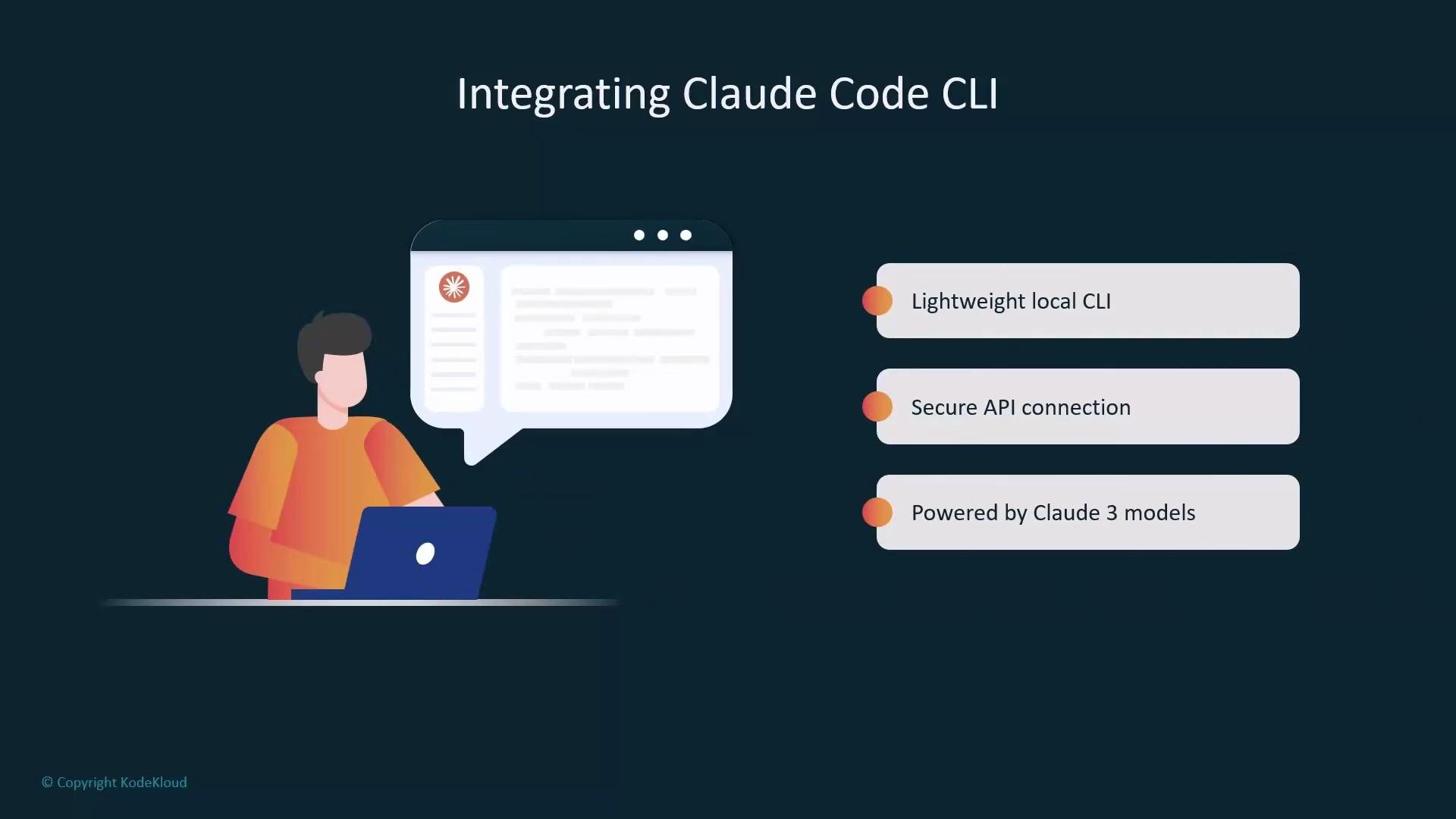
In this lesson you'll add Claude Code to an Ansible workflow so you can generate ad-hoc commands and playbooks directly from the terminal. Claude Code is a lightweight CLI client for Anthropic's Claude models that connects to the Claude API and helps developers author scripts, playbooks, and commands without leaving their shell.
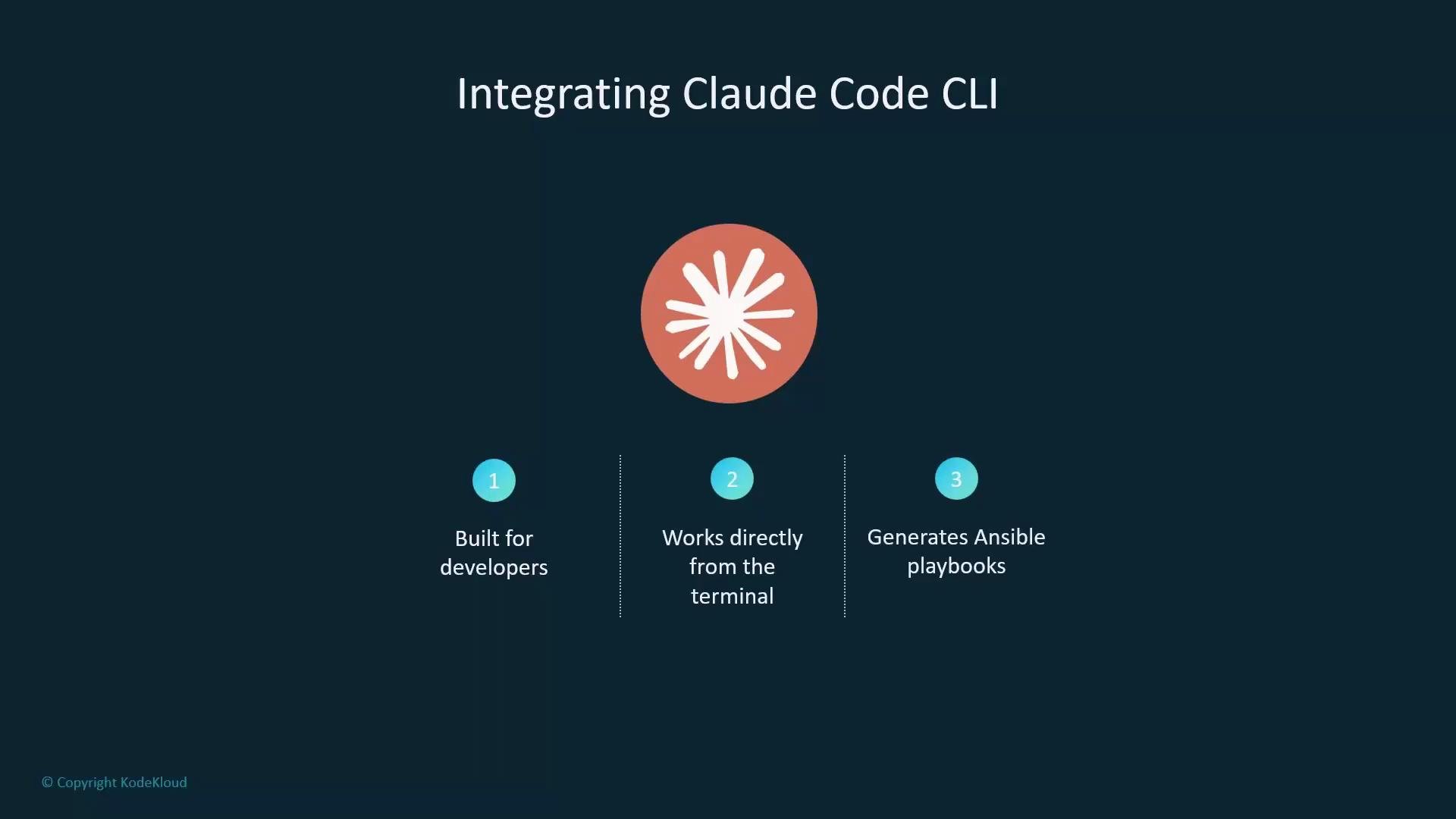 Target audience: systems engineers and DevOps practitioners managing Linux servers across multiple environments who want to pilot AI-assisted automation to speed up routine tasks.
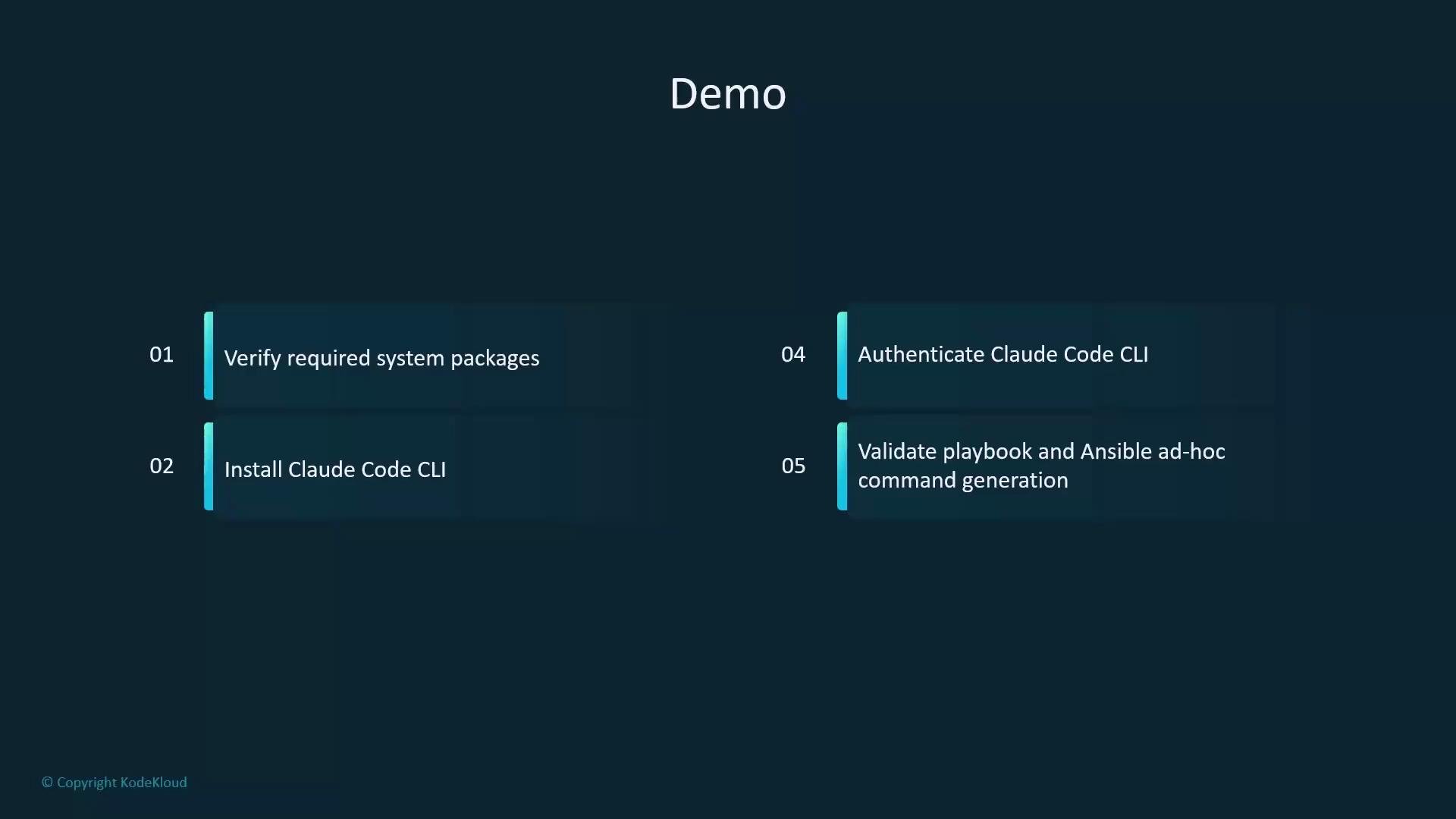
 What you will do in this demo:
* Verify required system packages and environment
* Install the Claude Code CLI
* Authenticate the CLI (interactive browser flow)
* Validate Claude-generated Ansible ad-hoc commands and playbooks
What you will do in this demo:
* Verify required system packages and environment
* Install the Claude Code CLI
* Authenticate the CLI (interactive browser flow)
* Validate Claude-generated Ansible ad-hoc commands and playbooks
 ## 1. Prepare the VM and shell
Switch to the student virtual machine and ensure you are in the home directory:
```bash theme={null}
student@control:~/claude$ cd ~
student@control:~$ clear
```
## 2. Install Claude Code CLI
Install the CLI using the official installer script (curl piped to bash):
```bash theme={null}
student@control:~$ curl -fsSL https://claude.ai/install.sh | bash
```
Sample installer output:
```output theme={null}
Setting up Claude Code...
✔ Claude Code successfully installed!
Version: 2.0.37
Location: ~/.local/bin/claude
Next: Run claude --help to get started
✅ Installation complete!
student@control:~$
```
## 3. Authenticate the CLI
Start the interactive login flow:
```bash theme={null}
student@control:~$ claude login
```
The CLI presents the login options:
```output theme={null}
Claude Code can be used with your Claude subscription or billed based on API usage through your Console account.
Select login method:
› 1. Claude account with subscription · Pro, Max, Team, or Enterprise
2. Anthropic Console account · API usage billing
```
Choose the appropriate method. In this demo the user selects a Claude account and authenticates via Google; a browser window opens for the OAuth flow.
## 1. Prepare the VM and shell
Switch to the student virtual machine and ensure you are in the home directory:
```bash theme={null}
student@control:~/claude$ cd ~
student@control:~$ clear
```
## 2. Install Claude Code CLI
Install the CLI using the official installer script (curl piped to bash):
```bash theme={null}
student@control:~$ curl -fsSL https://claude.ai/install.sh | bash
```
Sample installer output:
```output theme={null}
Setting up Claude Code...
✔ Claude Code successfully installed!
Version: 2.0.37
Location: ~/.local/bin/claude
Next: Run claude --help to get started
✅ Installation complete!
student@control:~$
```
## 3. Authenticate the CLI
Start the interactive login flow:
```bash theme={null}
student@control:~$ claude login
```
The CLI presents the login options:
```output theme={null}
Claude Code can be used with your Claude subscription or billed based on API usage through your Console account.
Select login method:
› 1. Claude account with subscription · Pro, Max, Team, or Enterprise
2. Anthropic Console account · API usage billing
```
Choose the appropriate method. In this demo the user selects a Claude account and authenticates via Google; a browser window opens for the OAuth flow.
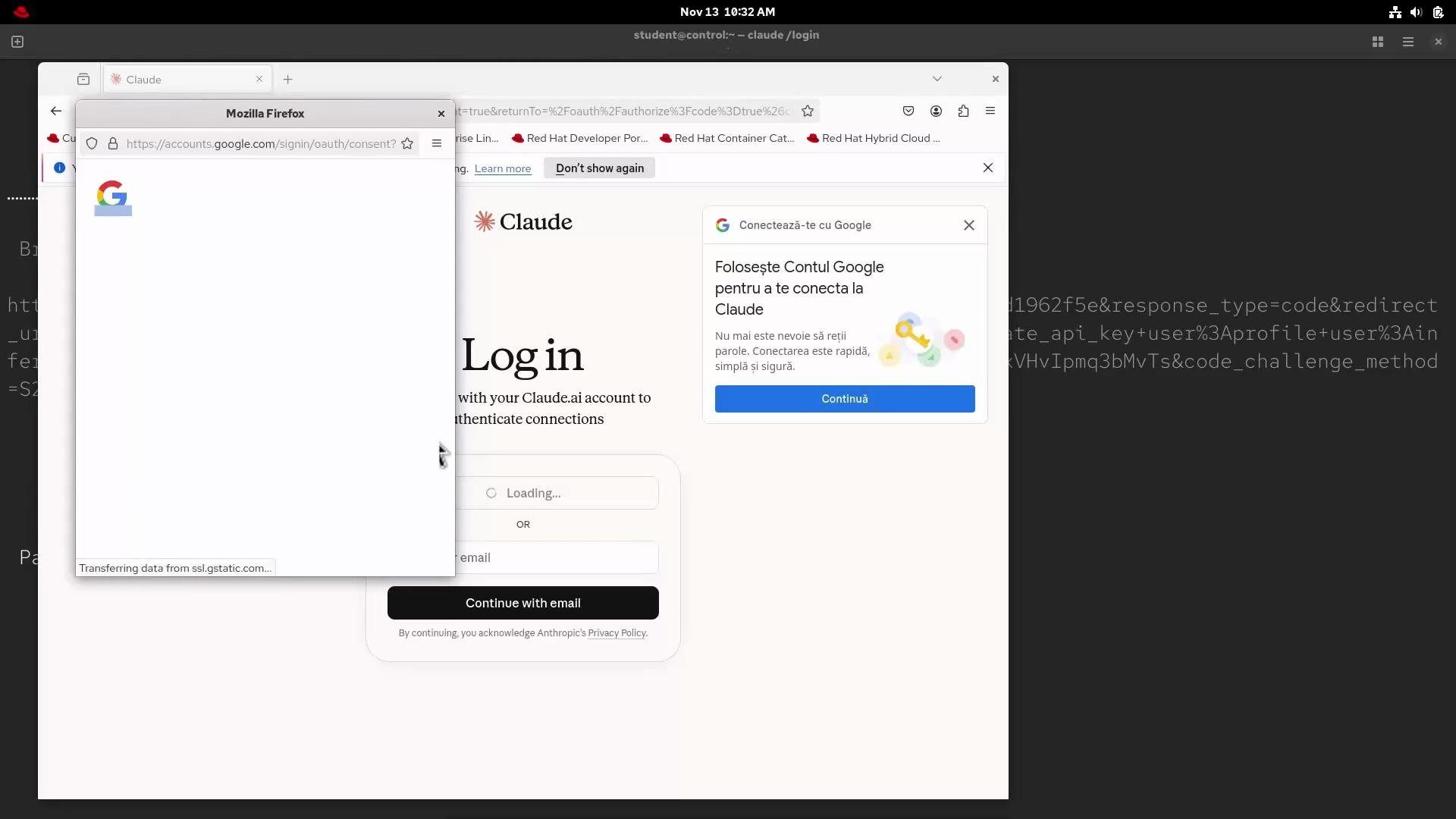 After completing the browser-based login, the CLI displays security notes describing model limitations and guidance.
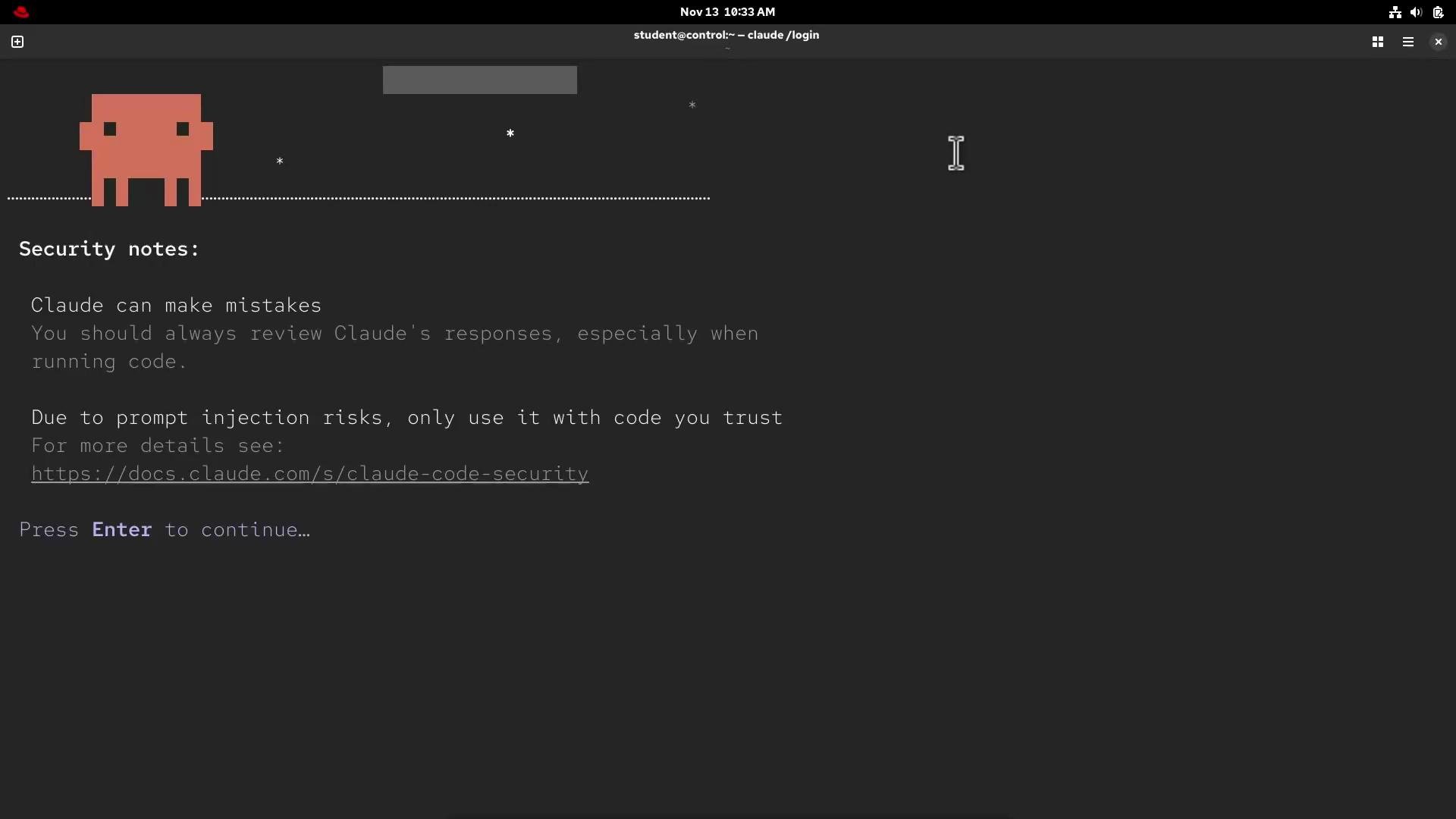 Claude models can make mistakes and prompts might include unsafe instructions. Be cautious when executing generated code or granting filesystem access.
Allow the CLI the requested workspace permissions, complete the flow, and return to the shell. If the process is interrupted you may see:
```text theme={null}
> /login
└ Login interrupted
student@control:~$
```
Re-run `claude login` to retry if needed.
## 4. Quick verification: ask Claude for Ansible ad-hoc commands
Try a simple prompt to generate an Ansible ad-hoc ping command for your inventory:
```bash theme={null}
student@control:~$ claude -p "Ansible ad-hoc command to ping all hosts within inventory"
```
Claude typically returns several valid variations. Common examples include:
| Use case | Command |
| ---------------------------------: | ---------------------------------------------- |
| Ping all hosts (default inventory) | ansible all -m ping |
| Ping all hosts using become (sudo) | ansible all -m ping --become |
| Ping a specific group (webservers) | ansible webservers -m ping |
| Ping as a specific user | ansible all -m ping -u username |
| Ping with verbose output | ansible all -m ping -v |
| Prompt for SSH password | ansible all -m ping --ask-pass |
| Prompt for become password | ansible all -m ping --become --ask-become-pass |
Note on the Ansible ping module:
* The `ping` module does not send ICMP packets; it executes a small Python task on the remote and returns "pong" on success. It verifies:
* SSH connectivity
* SSH authentication
* Python availability on the remote host
If your inventory doesn't match Claude's suggested pattern, Ansible will warn that the host pattern couldn't be matched:
```bash theme={null}
student@control:~$ ansible webservers -m ping
[WARNING]: provided hosts list is empty, only localhost is available. Note that the implicit localhost does not match 'all'
[WARNING]: Could not match supplied host pattern, ignoring: webservers
```
Inspect your workspace inventory to confirm host groups:
```bash theme={null}
student@control:~$ cd claude/
student@control:~/claude$ ls
ansible.cfg inventory site.yml
student@control:~/claude$ ansible webservers -m ping
# (runs against hosts defined in inventory)
```
## 5. Interactive mode: compose playbooks with natural language
Run `claude` without flags to enter interactive mode. Use plain language or slash commands to control behavior and persist prompts:
```text theme={null}
Claude Code v2.0.37
Welcome back andrei!
Sonnet 4.5 · Claude Pro
/home/student/claude
Tips for getting started
Run /init to create a CLAUDE.md file with instructions for Claude
Run /install-github-app to tag @claude right from your Github issues and PRs
Recent activity
No recent activity
> Try "fix lint errors"
? for shortcuts Thinking on (tab to toggle)
```
Ask Claude to generate a small Ansible playbook. Example prompt:
```text theme={null}
> As a DevOps engineer, generate a small Ansible playbook which creates the user test within the group webservers
```
Claude may produce a draft like this:
```yaml theme={null}
- name: Create test user in webservers group
hosts: all
become: yes
tasks:
- name: Ensure webservers group exists
ansible.builtin.group:
name: webservers
state: present
- name: Create test user and add to webservers group
ansible.builtin.user:
name: test
group: webservers
state: present
create_home: yes
shell: /bin/bash
```
If you intended to target the `webservers` host group (not create a system group), update the playbook to set `hosts: webservers` and remove the group-creation task. Corrected example:
```yaml theme={null}
- name: Create test user on webservers
hosts: webservers
become: yes
tasks:
- name: Create test user and add to webservers group
ansible.builtin.user:
name: test
group: webservers
state: present
create_home: yes
shell: /bin/bash
```
Save the playbook (for example, `create_user.yml`) and run it against your inventory:
```bash theme={null}
student@control:~$ ansible-playbook -i inventory create_user.yml
```
This demonstrates how Claude Code can draft useful Ansible content that you then review and refine before applying to your environment.
## Troubleshooting tips
* If `claude` is not found after installation, ensure `~/.local/bin` is in your PATH:
```bash theme={null}
echo $PATH
export PATH=$HOME/.local/bin:$PATH
```
* If browser login fails, try the alternate login method (Anthropic Console) or re-run `claude login`.
* Always review generated code for security, prompt injection, and correctness before executing.
## Helpful commands summary
| Action | Command |
| ----------------------- | ------------------------------------------------------------------------------- |
| Install Claude Code | curl -fsSL [https://claude.ai/install.sh](https://claude.ai/install.sh) \| bash |
| Authenticate CLI | claude login |
| Quick prompt from shell | claude -p "your prompt here" |
| Interactive mode | claude |
| Run playbook | ansible-playbook -i inventory create\_user.yml |
## Links and references
* [Anthropic Claude](https://claude.ai/)
* [Claude Code docs (install/login)](https://claude.ai/docs)
* [Ansible Documentation — ad-hoc commands](https://docs.ansible.com/ansible/latest/cli/ansible.html)
* [Ansible Documentation — playbooks](https://docs.ansible.com/ansible/latest/user_guide/playbooks.html)
This concludes the demo. You have installed and authenticated the Claude Code CLI, used it to generate Ansible ad-hoc commands and a playbook, and learned how to refine and run the output in your environment.
Congratulations!
Claude models can make mistakes and prompts might include unsafe instructions. Be cautious when executing generated code or granting filesystem access.
Allow the CLI the requested workspace permissions, complete the flow, and return to the shell. If the process is interrupted you may see:
```text theme={null}
> /login
└ Login interrupted
student@control:~$
```
Re-run `claude login` to retry if needed.
## 4. Quick verification: ask Claude for Ansible ad-hoc commands
Try a simple prompt to generate an Ansible ad-hoc ping command for your inventory:
```bash theme={null}
student@control:~$ claude -p "Ansible ad-hoc command to ping all hosts within inventory"
```
Claude typically returns several valid variations. Common examples include:
| Use case | Command |
| ---------------------------------: | ---------------------------------------------- |
| Ping all hosts (default inventory) | ansible all -m ping |
| Ping all hosts using become (sudo) | ansible all -m ping --become |
| Ping a specific group (webservers) | ansible webservers -m ping |
| Ping as a specific user | ansible all -m ping -u username |
| Ping with verbose output | ansible all -m ping -v |
| Prompt for SSH password | ansible all -m ping --ask-pass |
| Prompt for become password | ansible all -m ping --become --ask-become-pass |
Note on the Ansible ping module:
* The `ping` module does not send ICMP packets; it executes a small Python task on the remote and returns "pong" on success. It verifies:
* SSH connectivity
* SSH authentication
* Python availability on the remote host
If your inventory doesn't match Claude's suggested pattern, Ansible will warn that the host pattern couldn't be matched:
```bash theme={null}
student@control:~$ ansible webservers -m ping
[WARNING]: provided hosts list is empty, only localhost is available. Note that the implicit localhost does not match 'all'
[WARNING]: Could not match supplied host pattern, ignoring: webservers
```
Inspect your workspace inventory to confirm host groups:
```bash theme={null}
student@control:~$ cd claude/
student@control:~/claude$ ls
ansible.cfg inventory site.yml
student@control:~/claude$ ansible webservers -m ping
# (runs against hosts defined in inventory)
```
## 5. Interactive mode: compose playbooks with natural language
Run `claude` without flags to enter interactive mode. Use plain language or slash commands to control behavior and persist prompts:
```text theme={null}
Claude Code v2.0.37
Welcome back andrei!
Sonnet 4.5 · Claude Pro
/home/student/claude
Tips for getting started
Run /init to create a CLAUDE.md file with instructions for Claude
Run /install-github-app to tag @claude right from your Github issues and PRs
Recent activity
No recent activity
> Try "fix lint errors"
? for shortcuts Thinking on (tab to toggle)
```
Ask Claude to generate a small Ansible playbook. Example prompt:
```text theme={null}
> As a DevOps engineer, generate a small Ansible playbook which creates the user test within the group webservers
```
Claude may produce a draft like this:
```yaml theme={null}
- name: Create test user in webservers group
hosts: all
become: yes
tasks:
- name: Ensure webservers group exists
ansible.builtin.group:
name: webservers
state: present
- name: Create test user and add to webservers group
ansible.builtin.user:
name: test
group: webservers
state: present
create_home: yes
shell: /bin/bash
```
If you intended to target the `webservers` host group (not create a system group), update the playbook to set `hosts: webservers` and remove the group-creation task. Corrected example:
```yaml theme={null}
- name: Create test user on webservers
hosts: webservers
become: yes
tasks:
- name: Create test user and add to webservers group
ansible.builtin.user:
name: test
group: webservers
state: present
create_home: yes
shell: /bin/bash
```
Save the playbook (for example, `create_user.yml`) and run it against your inventory:
```bash theme={null}
student@control:~$ ansible-playbook -i inventory create_user.yml
```
This demonstrates how Claude Code can draft useful Ansible content that you then review and refine before applying to your environment.
## Troubleshooting tips
* If `claude` is not found after installation, ensure `~/.local/bin` is in your PATH:
```bash theme={null}
echo $PATH
export PATH=$HOME/.local/bin:$PATH
```
* If browser login fails, try the alternate login method (Anthropic Console) or re-run `claude login`.
* Always review generated code for security, prompt injection, and correctness before executing.
## Helpful commands summary
| Action | Command |
| ----------------------- | ------------------------------------------------------------------------------- |
| Install Claude Code | curl -fsSL [https://claude.ai/install.sh](https://claude.ai/install.sh) \| bash |
| Authenticate CLI | claude login |
| Quick prompt from shell | claude -p "your prompt here" |
| Interactive mode | claude |
| Run playbook | ansible-playbook -i inventory create\_user.yml |
## Links and references
* [Anthropic Claude](https://claude.ai/)
* [Claude Code docs (install/login)](https://claude.ai/docs)
* [Ansible Documentation — ad-hoc commands](https://docs.ansible.com/ansible/latest/cli/ansible.html)
* [Ansible Documentation — playbooks](https://docs.ansible.com/ansible/latest/user_guide/playbooks.html)
This concludes the demo. You have installed and authenticated the Claude Code CLI, used it to generate Ansible ad-hoc commands and a playbook, and learned how to refine and run the output in your environment.
Congratulations!