> ## Documentation Index
> Fetch the complete documentation index at: https://notes.kodekloud.com/llms.txt
> Use this file to discover all available pages before exploring further.
# Demo Setting Up Lightspeed
> Guide to configuring and using Red Hat Ansible Lightspeed in VS Code to generate and autocomplete Ansible playbooks, authenticate, and validate suggestions
In this lesson we'll configure Red Hat Ansible Lightspeed — the AI assistant embedded in the [Red Hat Ansible extension for Visual Studio Code](https://marketplace.visualstudio.com/items?itemName=redhat.ansible). Lightspeed is purpose-built for Ansible: it understands Ansible modules, playbook syntax, and (optionally) your Automation Controller context so suggestions align with enterprise automation best practices.
Unlike general-purpose assistants such as [ChatGPT](https://chat.openai.com/) or [GitHub Copilot](https://github.com/features/copilot), Lightspeed is tightly coupled with the Ansible ecosystem and helps reduce YAML errors, accelerate development, and enforce consistent playbook patterns.
This demo will:
* Prepare your environment and prerequisites.
* Open the Lightspeed setup panel and authenticate to Red Hat if prompted.
* Generate a simple playbook using Lightspeed and validate autocomplete suggestions.
Ensure you have the [Red Hat Ansible extension for VS Code](https://marketplace.visualstudio.com/items?itemName=redhat.ansible) installed and that you're signed in with your Red Hat account (if prompted). Some Lightspeed features may require an active subscription or access to your Automation Controller context.
Quick demo flow
| Step | Action | Expected result |
| ------------------- | ------------------------------------------------------- | --------------------------------------------------------------- |
| Prepare environment | Install the Ansible extension and open VS Code | Lightspeed UI available in the Ansible side panel |
| Generate playbook | Enter a natural language prompt in the Lightspeed panel | Lightspeed analyzes and creates a proposed playbook |
| Test autocomplete | Type natural-language task descriptions in the editor | Lightspeed suggests Ansible tasks that can be accepted with Tab |
Now we'll generate a playbook. In the Lightspeed panel I type a natural-language prompt such as:
Create a playbook which installs Apache on [RHEL](https://www.redhat.com/en/technologies/linux-platforms/enterprise-linux) servers.
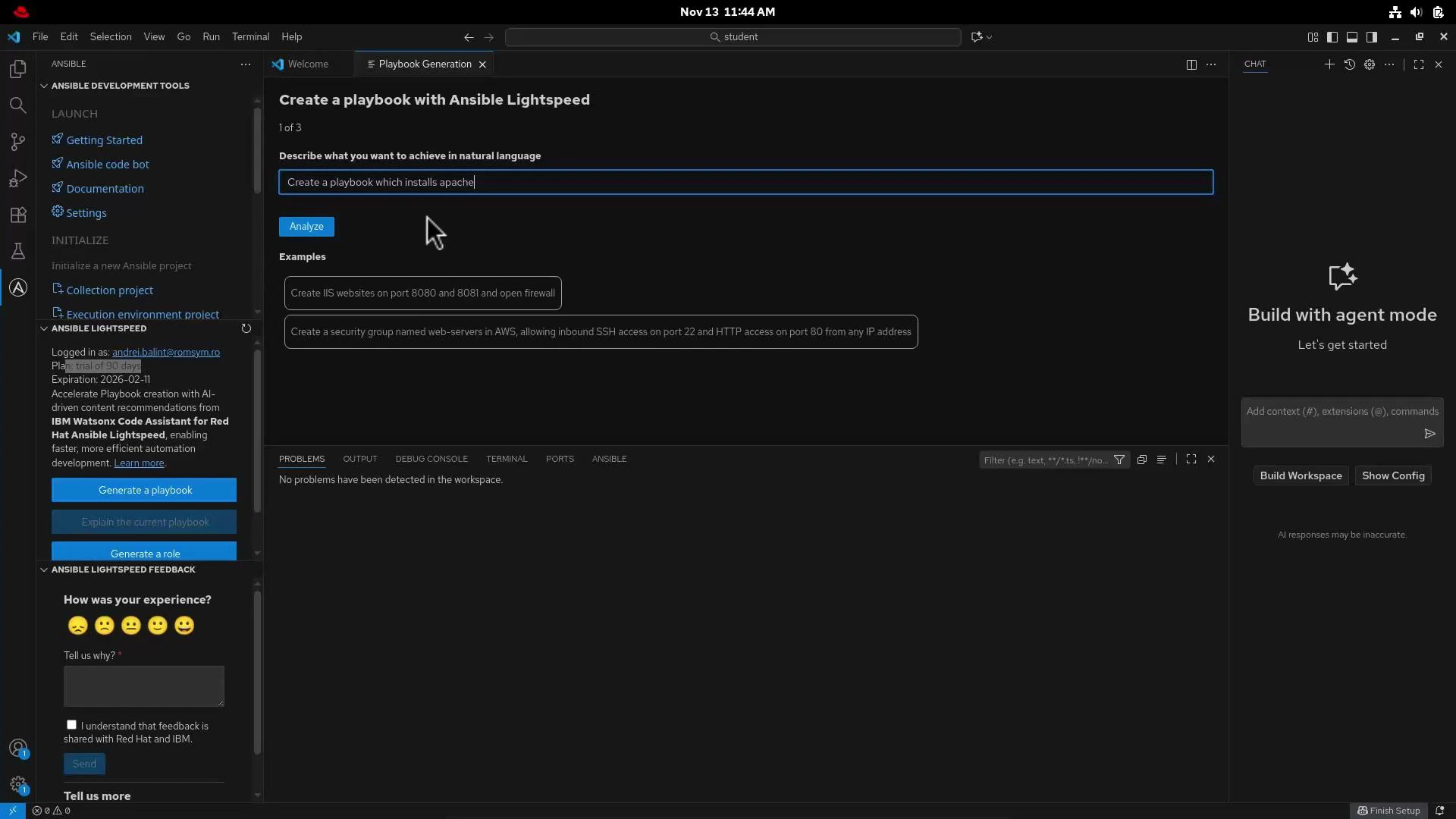 I click Analyze. Lightspeed parses the request and summarizes the intended tasks. For this example the analysis shows:
```text theme={null}
1. Install apache
No problems have been detected in the workspace.
```
Click Continue to let Lightspeed create a new playbook file. The generated YAML appears in the editor. To test Lightspeed’s autocomplete, add another task by typing a natural description in the editor (for example: "Create a user called test") and press Enter. Lightspeed will present a suggestion for the corresponding Ansible task — accept it with Tab to insert the task into your playbook.
Resulting playbook (with become set to escalate privileges where needed):
```yaml theme={null}
---
- name: Install apache on rhel
hosts: rhel
become: true
tasks:
- name: Install apache
ansible.builtin.package:
name: httpd
state: present
- name: Create a user called test
ansible.builtin.user:
name: test
state: present
```
What to expect
* Generated suggestions appear inline in the editor and can be accepted or edited.
* You can refine prompts, add variables, or extend tasks to match your organization's requirements.
* If you provide Automation Controller context or inventories, Lightspeed can generate suggestions that better match your environment.
If Lightspeed does not produce suggestions, verify you are signed in to the Red Hat Ansible extension, your extension is up to date, and any required subscription or Automation Controller access is available.
Links and references
* [Red Hat Ansible extension for VS Code](https://marketplace.visualstudio.com/items?itemName=redhat.ansible)
* [Ansible documentation — modules and playbooks](https://docs.ansible.com/ansible/latest/)
* [Automation Controller (Ansible Tower) documentation](https://docs.ansible.com/automation-controller/latest/)
* [Red Hat Enterprise Linux (RHEL)](https://www.redhat.com/en/technologies/linux-platforms/enterprise-linux)
Troubleshooting tips
* Ensure VS Code and the Ansible extension are updated.
* Restart VS Code if the Lightspeed panel does not load.
* Check extension logs (View → Output → Ansible) for authentication or connectivity issues.
I click Analyze. Lightspeed parses the request and summarizes the intended tasks. For this example the analysis shows:
```text theme={null}
1. Install apache
No problems have been detected in the workspace.
```
Click Continue to let Lightspeed create a new playbook file. The generated YAML appears in the editor. To test Lightspeed’s autocomplete, add another task by typing a natural description in the editor (for example: "Create a user called test") and press Enter. Lightspeed will present a suggestion for the corresponding Ansible task — accept it with Tab to insert the task into your playbook.
Resulting playbook (with become set to escalate privileges where needed):
```yaml theme={null}
---
- name: Install apache on rhel
hosts: rhel
become: true
tasks:
- name: Install apache
ansible.builtin.package:
name: httpd
state: present
- name: Create a user called test
ansible.builtin.user:
name: test
state: present
```
What to expect
* Generated suggestions appear inline in the editor and can be accepted or edited.
* You can refine prompts, add variables, or extend tasks to match your organization's requirements.
* If you provide Automation Controller context or inventories, Lightspeed can generate suggestions that better match your environment.
If Lightspeed does not produce suggestions, verify you are signed in to the Red Hat Ansible extension, your extension is up to date, and any required subscription or Automation Controller access is available.
Links and references
* [Red Hat Ansible extension for VS Code](https://marketplace.visualstudio.com/items?itemName=redhat.ansible)
* [Ansible documentation — modules and playbooks](https://docs.ansible.com/ansible/latest/)
* [Automation Controller (Ansible Tower) documentation](https://docs.ansible.com/automation-controller/latest/)
* [Red Hat Enterprise Linux (RHEL)](https://www.redhat.com/en/technologies/linux-platforms/enterprise-linux)
Troubleshooting tips
* Ensure VS Code and the Ansible extension are updated.
* Restart VS Code if the Lightspeed panel does not load.
* Check extension logs (View → Output → Ansible) for authentication or connectivity issues.