> ## Documentation Index
> Fetch the complete documentation index at: https://notes.kodekloud.com/llms.txt
> Use this file to discover all available pages before exploring further.
# Demo Integrating Cursor
> Guide showing how to integrate Cursor AI into an Ansible workflow to generate, refine, lint, and run playbooks and templates, plus validate and verify changes on managed hosts.
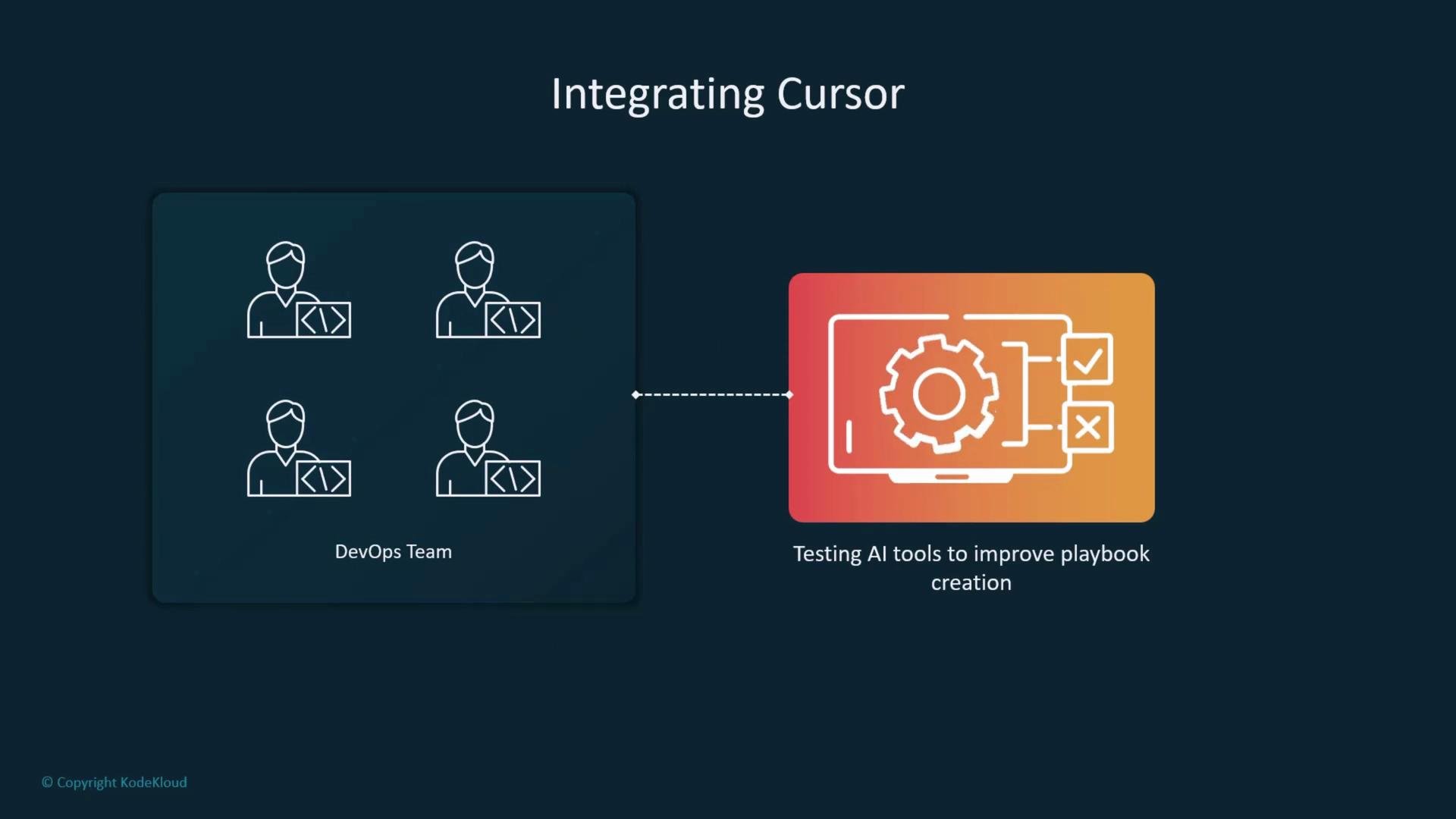
In this guide you'll learn how to integrate Cursor (an AI-assisted editor) into an Ansible-driven workflow to speed up playbook creation, generate templates, and validate changes before applying them to managed hosts.
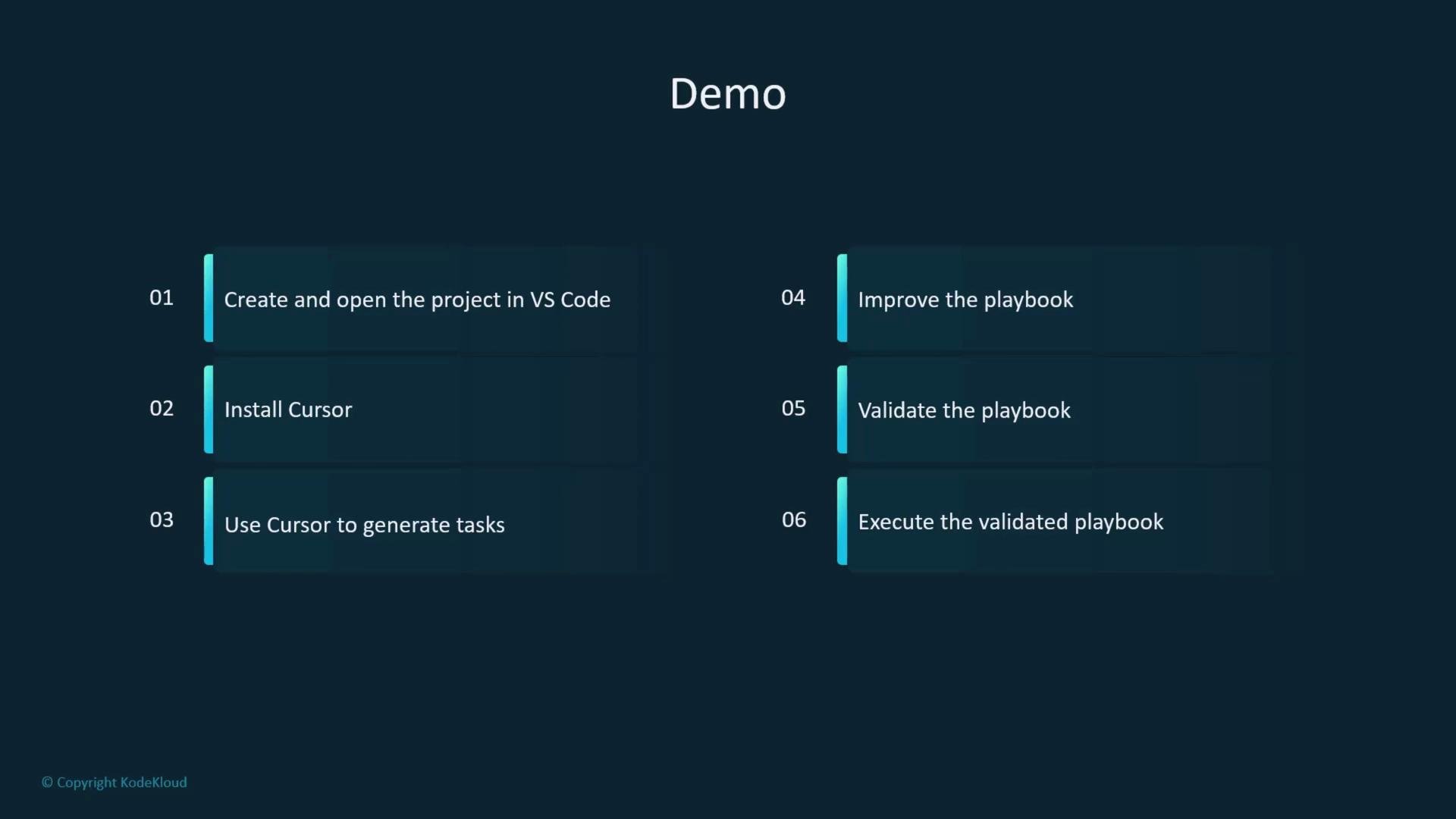
This walkthrough covers:
* creating a local workspace and basic Ansible configuration,
* installing and authenticating Cursor Desktop,
* using Cursor to generate and refine an Ansible playbook,
* adding a Jinja2 template and an idempotent `lineinfile` change,
* linting and executing the playbook, and
* verifying the result on the managed host.
 High-level workflow
| Step | Purpose |
| ---- | ----------------------------------------------- |
| 1 | create/open a project workspace |
| 2 | install and sign in to Cursor Desktop |
| 3 | use Cursor to generate tasks and templates |
| 4 | refine the playbook and add a handler |
| 5 | validate with Ansible Lint and run the playbook |
| 6 | verify the deployed content on the managed host |
High-level workflow
| Step | Purpose |
| ---- | ----------------------------------------------- |
| 1 | create/open a project workspace |
| 2 | install and sign in to Cursor Desktop |
| 3 | use Cursor to generate tasks and templates |
| 4 | refine the playbook and add a handler |
| 5 | validate with Ansible Lint and run the playbook |
| 6 | verify the deployed content on the managed host |
 Before you begin: ensure passwordless SSH or configured credentials from the control host to managed hosts, and that you have privileges to install and manage services (become/sudo). If you plan to run this on remote systems, test in a safe environment.
Workspace setup (control host)
Create a working directory and add a minimal inventory and `ansible.cfg` so Ansible targets your local inventory and uses privilege escalation.
Commands:
```bash theme={null}
student@control:~$ mkdir cursor
student@control:~$ cd cursor
```
Create a simple inventory file named `inventory`:
```ini theme={null}
[webservers]
servera
```
Create an `ansible.cfg` file that points Ansible to the local inventory and enables privilege escalation by default:
```ini theme={null}
[defaults]
inventory = inventory
[privilege_escalation]
become = True
become_method = sudo
become_user = root
become_ask_pass = False
```
Now your workspace prompt should look like:
```bash theme={null}
student@control:~/cursor$
```
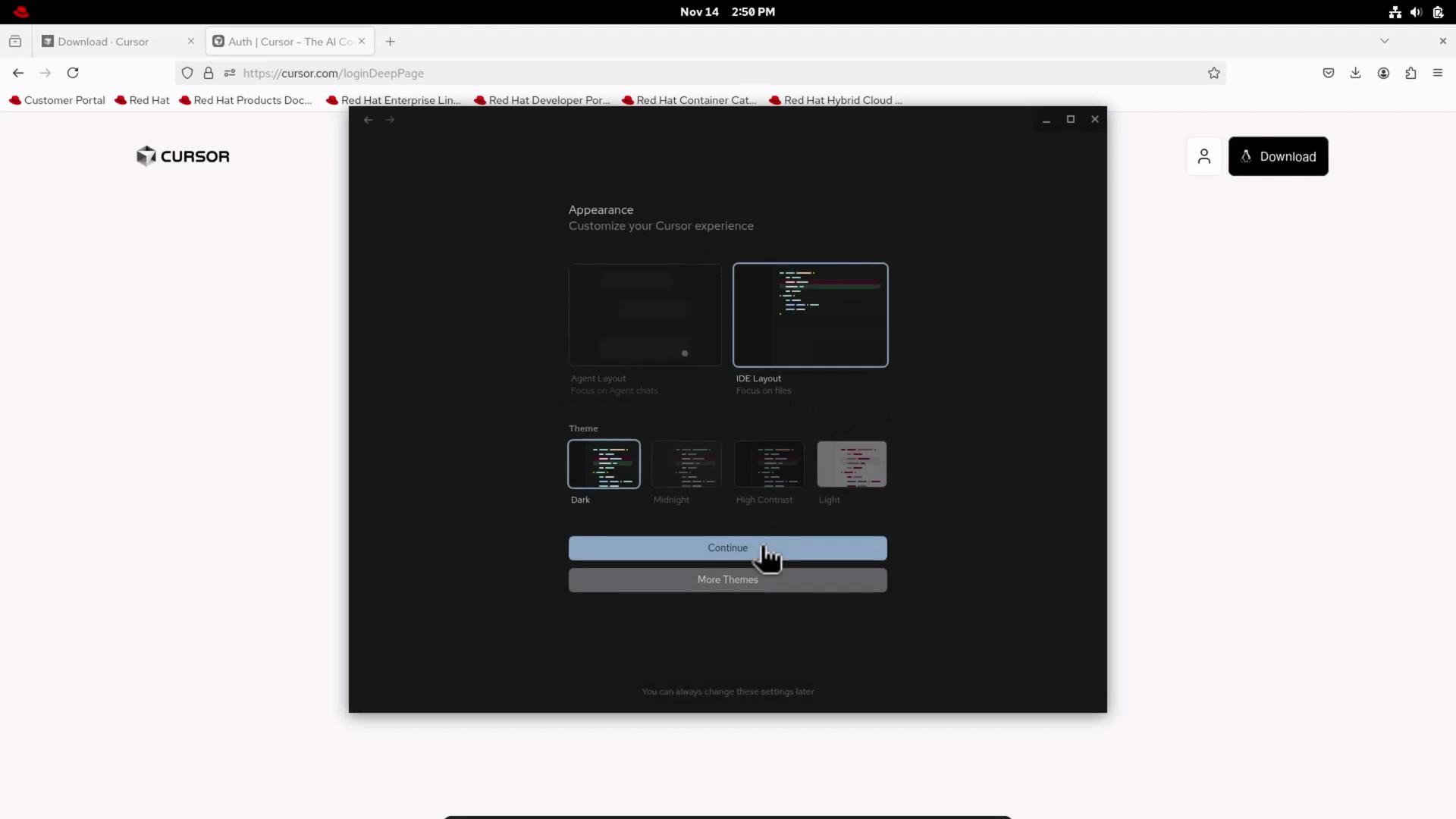
Install and sign in to Cursor Desktop
1. Open a browser and download Cursor for your platform: [https://www.cursor.com/download](https://www.cursor.com/download)
2. Install the Cursor Desktop app, then sign in (e.g., via Google) to your Cursor account.
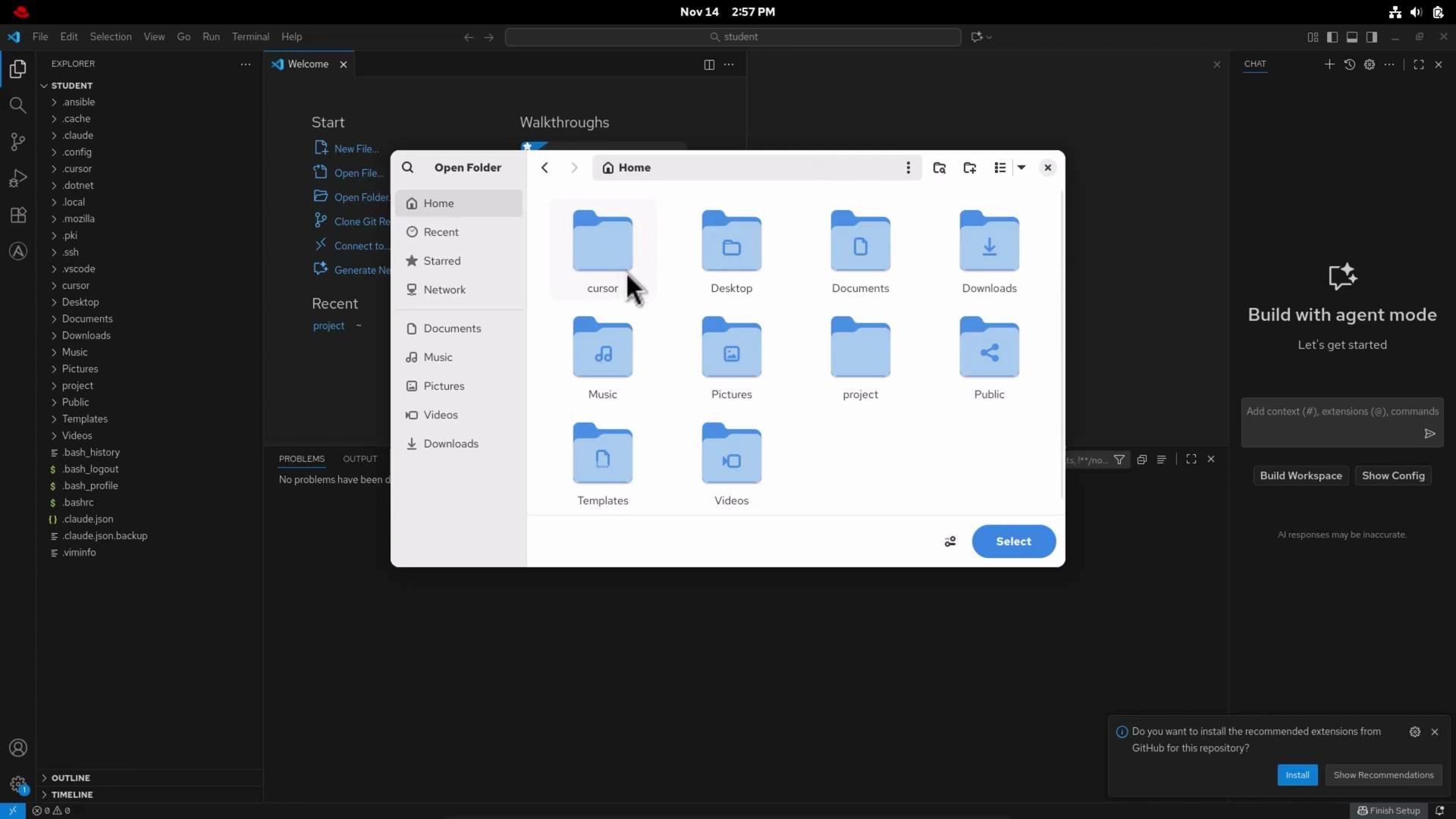
3. Configure appearance/IDE layout if desired, then open the project directory (the `cursor` folder you created).
Before you begin: ensure passwordless SSH or configured credentials from the control host to managed hosts, and that you have privileges to install and manage services (become/sudo). If you plan to run this on remote systems, test in a safe environment.
Workspace setup (control host)
Create a working directory and add a minimal inventory and `ansible.cfg` so Ansible targets your local inventory and uses privilege escalation.
Commands:
```bash theme={null}
student@control:~$ mkdir cursor
student@control:~$ cd cursor
```
Create a simple inventory file named `inventory`:
```ini theme={null}
[webservers]
servera
```
Create an `ansible.cfg` file that points Ansible to the local inventory and enables privilege escalation by default:
```ini theme={null}
[defaults]
inventory = inventory
[privilege_escalation]
become = True
become_method = sudo
become_user = root
become_ask_pass = False
```
Now your workspace prompt should look like:
```bash theme={null}
student@control:~/cursor$
```
Install and sign in to Cursor Desktop
1. Open a browser and download Cursor for your platform: [https://www.cursor.com/download](https://www.cursor.com/download)
2. Install the Cursor Desktop app, then sign in (e.g., via Google) to your Cursor account.
3. Configure appearance/IDE layout if desired, then open the project directory (the `cursor` folder you created).
 Create the initial playbook with Cursor
Open the `cursor` project directory in Cursor or your IDE and create `site.yaml` (or `site.yml`). Ask Cursor to generate an Ansible playbook to deploy httpd on RHEL-based servers in the `webservers` group. Cursor often suggests tasks such as installing the package, enabling and starting the service, managing firewall rules, and adding templates.
A concise Cursor-generated starting playbook:
```yaml theme={null}
---
- name: Deploy httpd on RHEL-based servers
hosts: webservers
become: yes
tasks:
- name: Install httpd package
package:
name: httpd
state: present
- name: Start and enable httpd service
systemd:
name: httpd
state: started
enabled: yes
```
Refine the playbook — add a Jinja2 template
We want to deploy an `index.html.j2` template that renders the managed host's hostname (using `ansible_hostname`). Create `index.html.j2` with the HTML content below. This template will be rendered on each managed host.
```html theme={null}
Hostname Information
Create the initial playbook with Cursor
Open the `cursor` project directory in Cursor or your IDE and create `site.yaml` (or `site.yml`). Ask Cursor to generate an Ansible playbook to deploy httpd on RHEL-based servers in the `webservers` group. Cursor often suggests tasks such as installing the package, enabling and starting the service, managing firewall rules, and adding templates.
A concise Cursor-generated starting playbook:
```yaml theme={null}
---
- name: Deploy httpd on RHEL-based servers
hosts: webservers
become: yes
tasks:
- name: Install httpd package
package:
name: httpd
state: present
- name: Start and enable httpd service
systemd:
name: httpd
state: started
enabled: yes
```
Refine the playbook — add a Jinja2 template
We want to deploy an `index.html.j2` template that renders the managed host's hostname (using `ansible_hostname`). Create `index.html.j2` with the HTML content below. This template will be rendered on each managed host.
```html theme={null}
Hostname Information
Managed Host Information
Hostname:
{{ ansible_hostname }}
```
Update the playbook to deploy the template and notify a handler that restarts httpd on changes.
Add an idempotent line insertion
To append a consistent line to the rendered page, add a `lineinfile` task that inserts the paragraph only if it does not already exist. Notify the `restart httpd` handler when the file changes.
Final consolidated `site.yaml` (refined playbook):
```yaml theme={null}
---
- name: Deploy httpd on RHEL-based servers
hosts: webservers
become: yes
tasks:
- name: Install httpd package
package:
name: httpd
state: present
- name: Start and enable httpd service
systemd:
name: httpd
state: started
enabled: yes
- name: Deploy index.html template
template:
src: index.html.j2
dest: /var/www/html/index.html
mode: '0644'
notify: restart httpd
- name: Add "Created by ansible and cursor" line to index.html
lineinfile:
path: /var/www/html/index.html
line: 'Created by ansible and cursor
'
insertafter: ''
regexp: 'Created by ansible and cursor'
notify: restart httpd
handlers:
- name: restart httpd
systemd:
name: httpd
state: restarted
```
Best practice: review Cursor suggestions and remove duplicate or unnecessary tasks (for example, multiple service tasks or firewall rules if not required).
Useful Ansible modules used
| Module | Purpose | Example usage |
| ---------- | -------------------------- | ---------------------------------------------------------------- |
| package | Install or ensure packages | `package: name=httpd state=present` |
| systemd | Manage services | `systemd: name=httpd state=started enabled=yes` |
| template | Deploy Jinja2 templates | `template: src=index.html.j2 dest=/var/www/html/index.html` |
| lineinfile | Idempotent text insertion | `lineinfile: path=/var/www/html/index.html line='Created...'` |
Open and lint the playbook in VS Code
Open the `cursor` directory in VS Code to inspect files. Run Ansible Lint to catch style and potential issues: [https://ansible-lint.readthedocs.io/](https://ansible-lint.readthedocs.io/)
VS Code and Cursor extensions may flag warnings; these are often informational but should be reviewed.
 Run the playbook
Execute the playbook from the control host:
```bash theme={null}
student@control:~/cursor$ ansible-playbook /home/student/cursor/site.yaml
```
Sample (trimmed) output showing successful tasks:
```Ansible theme={null}
PLAY [Deploy httpd on RHEL-based servers] *************************************
TASK [Gathering Facts] *********************************************************
ok: [servera]
TASK [Install httpd package] ***************************************************
ok: [servera]
TASK [Start and enable httpd service] ******************************************
ok: [servera]
TASK [Deploy index.html template] **********************************************
changed: [servera]
TASK [Add "Created by ansible and cursor" line to index.html] ******************
changed: [servera]
RUNNING HANDLER [restart httpd] ************************************************
changed: [servera]
PLAY RECAP *********************************************************************
servera : ok=5 changed=3 unreachable=0 failed=0
```
Verify on the managed host
SSH into the managed host and retrieve the rendered page:
```bash theme={null}
student@control:~/cursor$ ssh servera
# After login, check HTTP locally:
servera$ curl -s http://localhost | sed -n '1,120p'
```
Expected output includes the rendered hostname and the added paragraph:
```html theme={null}
Run the playbook
Execute the playbook from the control host:
```bash theme={null}
student@control:~/cursor$ ansible-playbook /home/student/cursor/site.yaml
```
Sample (trimmed) output showing successful tasks:
```Ansible theme={null}
PLAY [Deploy httpd on RHEL-based servers] *************************************
TASK [Gathering Facts] *********************************************************
ok: [servera]
TASK [Install httpd package] ***************************************************
ok: [servera]
TASK [Start and enable httpd service] ******************************************
ok: [servera]
TASK [Deploy index.html template] **********************************************
changed: [servera]
TASK [Add "Created by ansible and cursor" line to index.html] ******************
changed: [servera]
RUNNING HANDLER [restart httpd] ************************************************
changed: [servera]
PLAY RECAP *********************************************************************
servera : ok=5 changed=3 unreachable=0 failed=0
```
Verify on the managed host
SSH into the managed host and retrieve the rendered page:
```bash theme={null}
student@control:~/cursor$ ssh servera
# After login, check HTTP locally:
servera$ curl -s http://localhost | sed -n '1,120p'
```
Expected output includes the rendered hostname and the added paragraph:
```html theme={null}
servera
Created by ansible and cursor
```
When testing playbooks that install or restart services, be mindful of production impact. Run first in a staging or lab environment. Confirm proper privilege escalation and inventory targeting to avoid unintended changes.
Summary and recommendations
* Cursor can accelerate playbook authoring by suggesting task skeletons, templates, and small refinements. Always review generated content.
* Use handlers and idempotent modules (`template`, `lineinfile`, `systemd`) to produce safe, repeatable runs.
* Validate generated playbooks with Ansible Lint and test in a controlled environment before applying to production hosts.
* Combine Cursor suggestions with human review to maintain correct security posture and operational intent.
Links and references
* [Cursor — download](https://www.cursor.com/download)
* [Ansible Documentation](https://docs.ansible.com/)
* [Ansible Lint](https://ansible-lint.readthedocs.io/en/latest/)
* [Visual Studio Code](https://code.visualstudio.com/)