> ## Documentation Index
> Fetch the complete documentation index at: https://notes.kodekloud.com/llms.txt
> Use this file to discover all available pages before exploring further.
# Demo Using Linting and Validation
> Demonstrates using the VS Code Ansible extension and ansible-lint to lint, validate, and fix playbooks for consistency and reliability before execution.
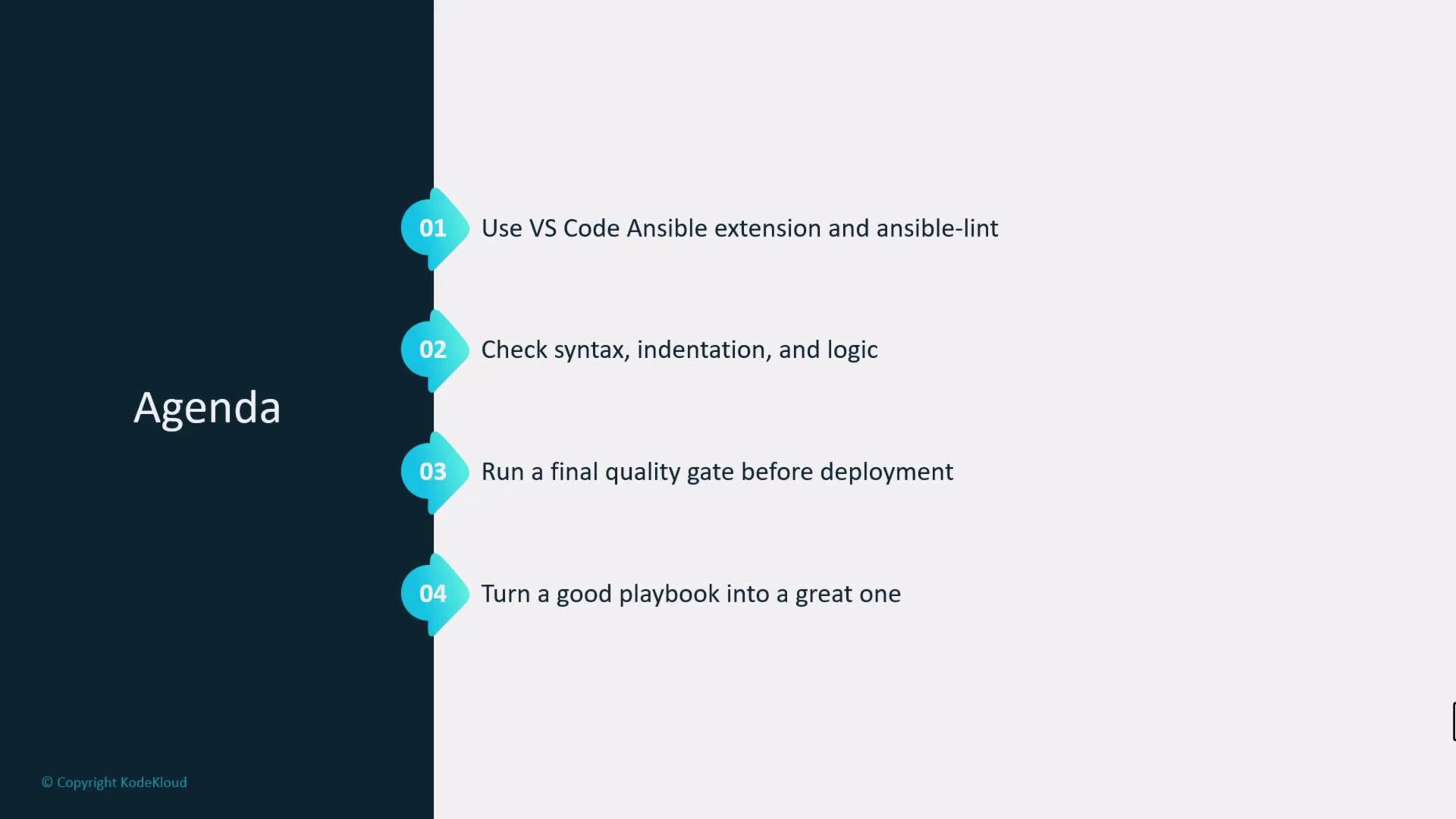
In this lesson we'll demonstrate how to use the VS Code Ansible extension together with ansible-lint to validate syntax, indentation, and common logic issues before running playbooks. Treat this workflow as a final quality gate that improves reliability and maintainability of automation code.
What you'll learn:
* How the VS Code Ansible extension provides real-time diagnostics and autocompletion.
* How ansible-lint enforces best practices (FQCNs, naming, etc.).
* A typical edit → lint → fix → run cycle for a small playbook.
 Scenario
Imagine joining a DevOps automation team that has accumulated many playbooks written by different engineers. Your objective is to restore consistency, avoid regressions, and make playbooks easier to review. The combination of the [Red Hat Ansible extension for VS Code](https://marketplace.visualstudio.com/items?itemName=redhat.ansible) and [ansible-lint](https://ansible-lint.readthedocs.io/en/stable/) helps enforce those standards with minimal friction.
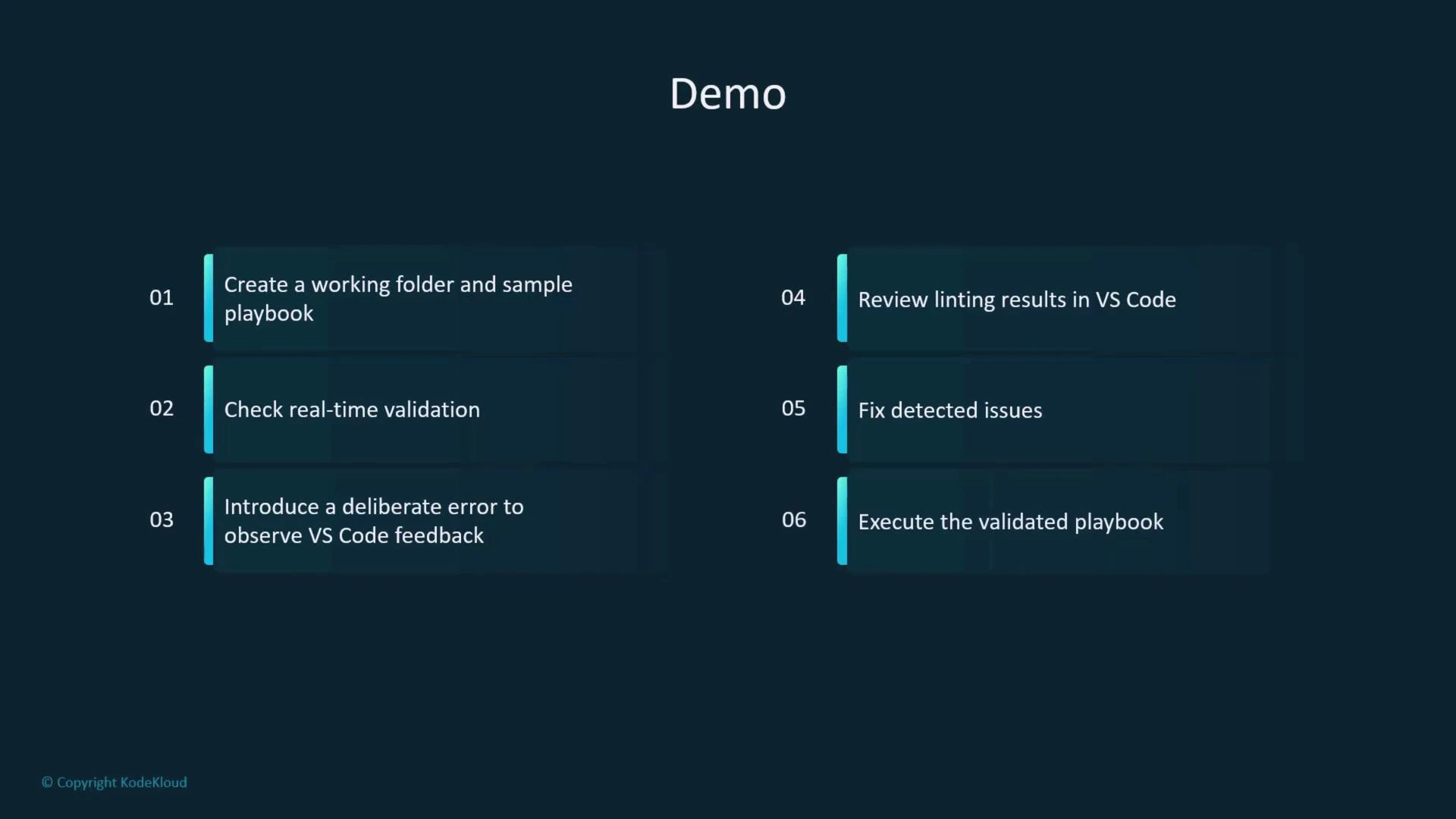
This demo follows a straightforward workflow:
1. Create a working folder and a sample inventory/playbook.
2. Observe real-time validation in VS Code.
3. Introduce an intentional error to see diagnostic feedback.
4. Run ansible-lint and apply its suggestions.
5. Execute the validated playbook.
Scenario
Imagine joining a DevOps automation team that has accumulated many playbooks written by different engineers. Your objective is to restore consistency, avoid regressions, and make playbooks easier to review. The combination of the [Red Hat Ansible extension for VS Code](https://marketplace.visualstudio.com/items?itemName=redhat.ansible) and [ansible-lint](https://ansible-lint.readthedocs.io/en/stable/) helps enforce those standards with minimal friction.
This demo follows a straightforward workflow:
1. Create a working folder and a sample inventory/playbook.
2. Observe real-time validation in VS Code.
3. Introduce an intentional error to see diagnostic feedback.
4. Run ansible-lint and apply its suggestions.
5. Execute the validated playbook.
 Getting started — create the project folder and files
```bash theme={null}
student@control:~$ mkdir validation
student@control:~$ cd validation/
student@control:~/validation$ vim inventory
student@control:~/validation$ vim ansible.cfg
```
Example minimal inventory (one host named `servera`):
```ini theme={null}
servera
```
Minimal `ansible.cfg` to use the local inventory and enable privilege escalation:
```ini theme={null}
[defaults]
inventory = inventory
[privilege_escalation]
become = True
become_method = sudo
become_user = root
become_ask_pass = False
```
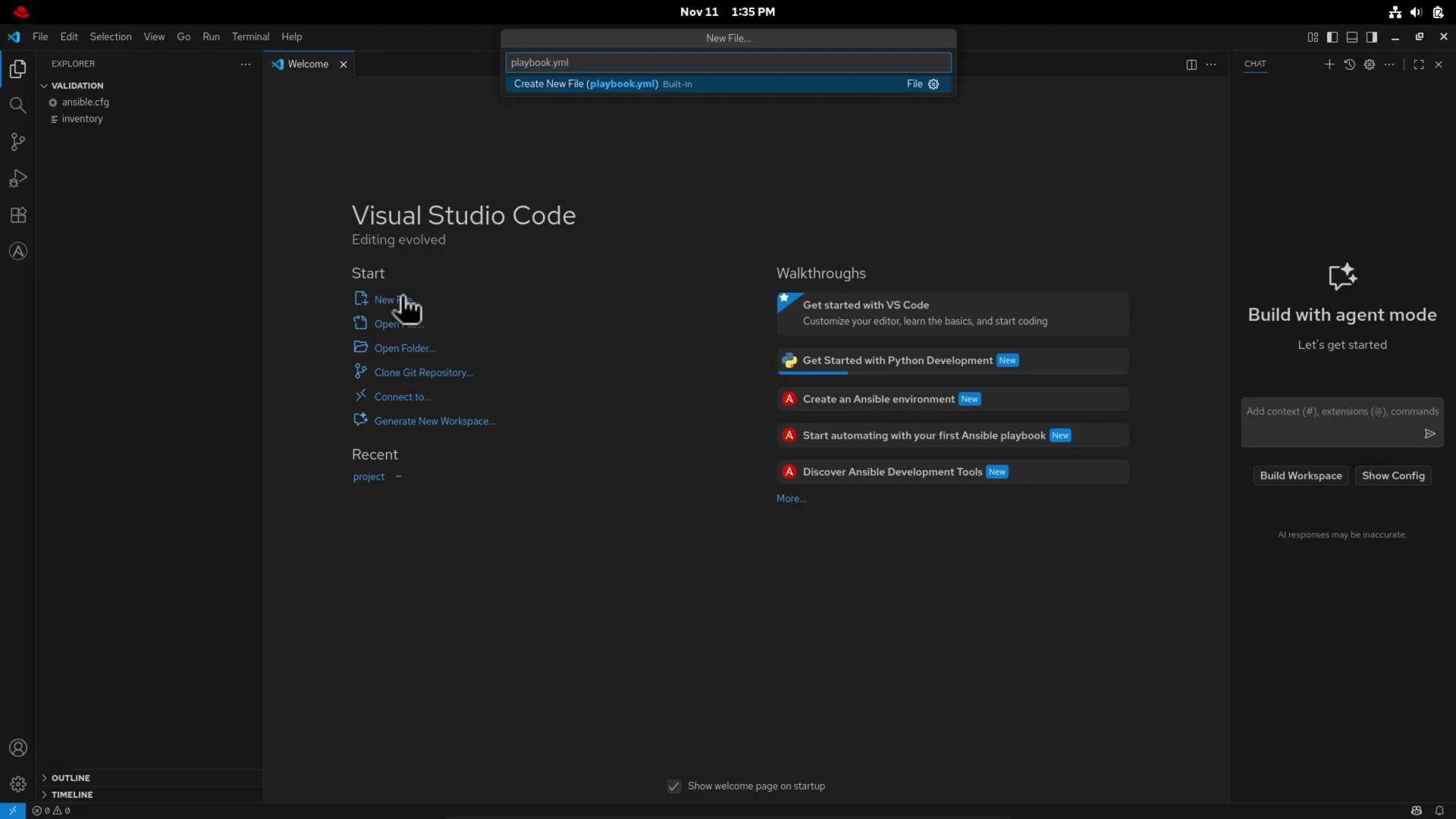
Open the `validation` folder in VS Code and create `playbook.yml`.
Getting started — create the project folder and files
```bash theme={null}
student@control:~$ mkdir validation
student@control:~$ cd validation/
student@control:~/validation$ vim inventory
student@control:~/validation$ vim ansible.cfg
```
Example minimal inventory (one host named `servera`):
```ini theme={null}
servera
```
Minimal `ansible.cfg` to use the local inventory and enable privilege escalation:
```ini theme={null}
[defaults]
inventory = inventory
[privilege_escalation]
become = True
become_method = sudo
become_user = root
become_ask_pass = False
```
Open the `validation` folder in VS Code and create `playbook.yml`.
 Authoring the initial playbook
The Ansible extension in VS Code will provide autocompletion for hosts (from your inventory), modules, and module parameters. Below is a small playbook with a deliberate mistake in the `debug` task to trigger diagnostics.
```yaml theme={null}
---
- name: validation
hosts: servera
tasks:
- name: install httpd
dnf:
name: httpd
state: latest
- name: start httpd
ansible.builtin.service:
name: httpd
state: started
- name: show message
debug: dsada
msg: "itsworked"
```
What VS Code/extension reports
* The editor will highlight the incorrect `debug: dsada` usage and show a diagnostic explaining that the module call and parameter structure are invalid.
* Hovering the module name or using Peek Definition shows inline module docs and expected parameters.
Fix the debug task to use the module properly:
```yaml theme={null}
---
- name: validation
hosts: servera
tasks:
- name: install httpd
dnf:
name: httpd
state: latest
- name: start httpd
ansible.builtin.service:
name: httpd
state: started
- name: show message
debug:
msg: "it worked"
```
Running ansible-lint from the editor
If you configure ansible-lint integration in VS Code (or run it from the terminal), linting will recommend best practices that don’t necessarily stop execution but improve consistency and readability—e.g., using fully qualified collection names (FQCNs) and consistent task naming.
Apply simple lint feedback: use FQCNs and consistent task naming
```yaml theme={null}
---
- name: validation
hosts: servera
tasks:
- name: install_httpd
ansible.builtin.dnf:
name: httpd
state: latest
- name: start_httpd
ansible.builtin.service:
name: httpd
state: started
- name: show_message
ansible.builtin.debug:
msg: "it worked"
```
Detecting misspelled modules
Introduce an intentional module-name typo to see how the extension reports unknown modules:
```yaml theme={null}
---
- name: validation
hosts: servera
tasks:
- name: install_httpd
dnff:
name: httpd
state: latest
- name: start_httpd
ansible.builtin.service:
name: httpd
state: started
- name: show_message
ansible.builtin.debug:
msg: "it worked"
```
The extension and ansible-lint will warn that `dnff` is not a known module—this usually indicates a misspelling or a missing collection. Correct it back to `ansible.builtin.dnf`.
Final lint-clean playbook
After applying corrections and following lint suggestions (task names, FQCNs, newline at EOF), your playbook should be clean and readable:
```yaml theme={null}
---
- name: Validation
hosts: servera
tasks:
- name: Install httpd
ansible.builtin.dnf:
name: httpd
state: latest
- name: Start httpd
ansible.builtin.service:
name: httpd
state: started
- name: Show message
ansible.builtin.debug:
msg: "it worked"
```
Run the playbook from the terminal:
```bash theme={null}
student@control:~/validation$ ansible-playbook /home/student/validation/playbook.yml
```
Example successful output (trimmed):
```console theme={null}
TASK [Show message] ****************************************************************
ok: [servera] => {
"msg": "it worked"
}
PLAY RECAP ************************************************************************
servera : ok=4 changed=2 unreachable=0 failed=0
```
Common ansible-lint suggestions and example fixes
| Lint Recommendation | Why it matters | Example fix |
| ---------------------------------------- | ---------------------------------------------------------- | -------------------------------------------------- |
| Use FQCN (ansible.builtin.module) | Avoids ambiguity when multiple collections provide modules | Change `dnf:` to `ansible.builtin.dnf:` |
| Consistent task naming | Improves readability in logs and reports | Use `Install httpd` instead of mixed styles |
| Avoid unused vars or misleading messages | Prevents confusion and accidental errors | Ensure `debug:` uses `msg:` correctly |
| Ensure YAML structure is correct | Prevents runtime errors and invalid playbooks | Use proper indentation and module parameter blocks |
Use the extension to jump to [module documentation](https://docs.ansible.com/ansible/latest/collections/ansible/builtin/index.html) or use "Peek Definition" in VS Code—this gives immediate access to module options and examples without leaving the editor.
Tips and references
* Click module names in VS Code to open module docs or press Peek Definition for inline summaries.
* Hover over parameters to read short descriptions and expected types.
* If you run ansible-lint locally, ensure it's installed in the environment that VS Code uses (e.g., same Python interpreter or virtualenv).
Further reading
* [VS Code — Ansible extension (Marketplace)](https://marketplace.visualstudio.com/items?itemName=redhat.ansible)
* [ansible-lint documentation](https://ansible-lint.readthedocs.io/en/stable/)
* [Ansible collections & builtin modules](https://docs.ansible.com/ansible/latest/collections/ansible/builtin/index.html)
This concludes the demo showing how real-time diagnostics in VS Code and ansible-lint together raise playbook quality and reduce deployment risk.
Authoring the initial playbook
The Ansible extension in VS Code will provide autocompletion for hosts (from your inventory), modules, and module parameters. Below is a small playbook with a deliberate mistake in the `debug` task to trigger diagnostics.
```yaml theme={null}
---
- name: validation
hosts: servera
tasks:
- name: install httpd
dnf:
name: httpd
state: latest
- name: start httpd
ansible.builtin.service:
name: httpd
state: started
- name: show message
debug: dsada
msg: "itsworked"
```
What VS Code/extension reports
* The editor will highlight the incorrect `debug: dsada` usage and show a diagnostic explaining that the module call and parameter structure are invalid.
* Hovering the module name or using Peek Definition shows inline module docs and expected parameters.
Fix the debug task to use the module properly:
```yaml theme={null}
---
- name: validation
hosts: servera
tasks:
- name: install httpd
dnf:
name: httpd
state: latest
- name: start httpd
ansible.builtin.service:
name: httpd
state: started
- name: show message
debug:
msg: "it worked"
```
Running ansible-lint from the editor
If you configure ansible-lint integration in VS Code (or run it from the terminal), linting will recommend best practices that don’t necessarily stop execution but improve consistency and readability—e.g., using fully qualified collection names (FQCNs) and consistent task naming.
Apply simple lint feedback: use FQCNs and consistent task naming
```yaml theme={null}
---
- name: validation
hosts: servera
tasks:
- name: install_httpd
ansible.builtin.dnf:
name: httpd
state: latest
- name: start_httpd
ansible.builtin.service:
name: httpd
state: started
- name: show_message
ansible.builtin.debug:
msg: "it worked"
```
Detecting misspelled modules
Introduce an intentional module-name typo to see how the extension reports unknown modules:
```yaml theme={null}
---
- name: validation
hosts: servera
tasks:
- name: install_httpd
dnff:
name: httpd
state: latest
- name: start_httpd
ansible.builtin.service:
name: httpd
state: started
- name: show_message
ansible.builtin.debug:
msg: "it worked"
```
The extension and ansible-lint will warn that `dnff` is not a known module—this usually indicates a misspelling or a missing collection. Correct it back to `ansible.builtin.dnf`.
Final lint-clean playbook
After applying corrections and following lint suggestions (task names, FQCNs, newline at EOF), your playbook should be clean and readable:
```yaml theme={null}
---
- name: Validation
hosts: servera
tasks:
- name: Install httpd
ansible.builtin.dnf:
name: httpd
state: latest
- name: Start httpd
ansible.builtin.service:
name: httpd
state: started
- name: Show message
ansible.builtin.debug:
msg: "it worked"
```
Run the playbook from the terminal:
```bash theme={null}
student@control:~/validation$ ansible-playbook /home/student/validation/playbook.yml
```
Example successful output (trimmed):
```console theme={null}
TASK [Show message] ****************************************************************
ok: [servera] => {
"msg": "it worked"
}
PLAY RECAP ************************************************************************
servera : ok=4 changed=2 unreachable=0 failed=0
```
Common ansible-lint suggestions and example fixes
| Lint Recommendation | Why it matters | Example fix |
| ---------------------------------------- | ---------------------------------------------------------- | -------------------------------------------------- |
| Use FQCN (ansible.builtin.module) | Avoids ambiguity when multiple collections provide modules | Change `dnf:` to `ansible.builtin.dnf:` |
| Consistent task naming | Improves readability in logs and reports | Use `Install httpd` instead of mixed styles |
| Avoid unused vars or misleading messages | Prevents confusion and accidental errors | Ensure `debug:` uses `msg:` correctly |
| Ensure YAML structure is correct | Prevents runtime errors and invalid playbooks | Use proper indentation and module parameter blocks |
Use the extension to jump to [module documentation](https://docs.ansible.com/ansible/latest/collections/ansible/builtin/index.html) or use "Peek Definition" in VS Code—this gives immediate access to module options and examples without leaving the editor.
Tips and references
* Click module names in VS Code to open module docs or press Peek Definition for inline summaries.
* Hover over parameters to read short descriptions and expected types.
* If you run ansible-lint locally, ensure it's installed in the environment that VS Code uses (e.g., same Python interpreter or virtualenv).
Further reading
* [VS Code — Ansible extension (Marketplace)](https://marketplace.visualstudio.com/items?itemName=redhat.ansible)
* [ansible-lint documentation](https://ansible-lint.readthedocs.io/en/stable/)
* [Ansible collections & builtin modules](https://docs.ansible.com/ansible/latest/collections/ansible/builtin/index.html)
This concludes the demo showing how real-time diagnostics in VS Code and ansible-lint together raise playbook quality and reduce deployment risk.