> ## Documentation Index
> Fetch the complete documentation index at: https://notes.kodekloud.com/llms.txt
> Use this file to discover all available pages before exploring further.
# Section Introduction
> This lesson focuses on developing a backend application using Flask, OpenCV, and Generative AI tools for image processing and API creation.
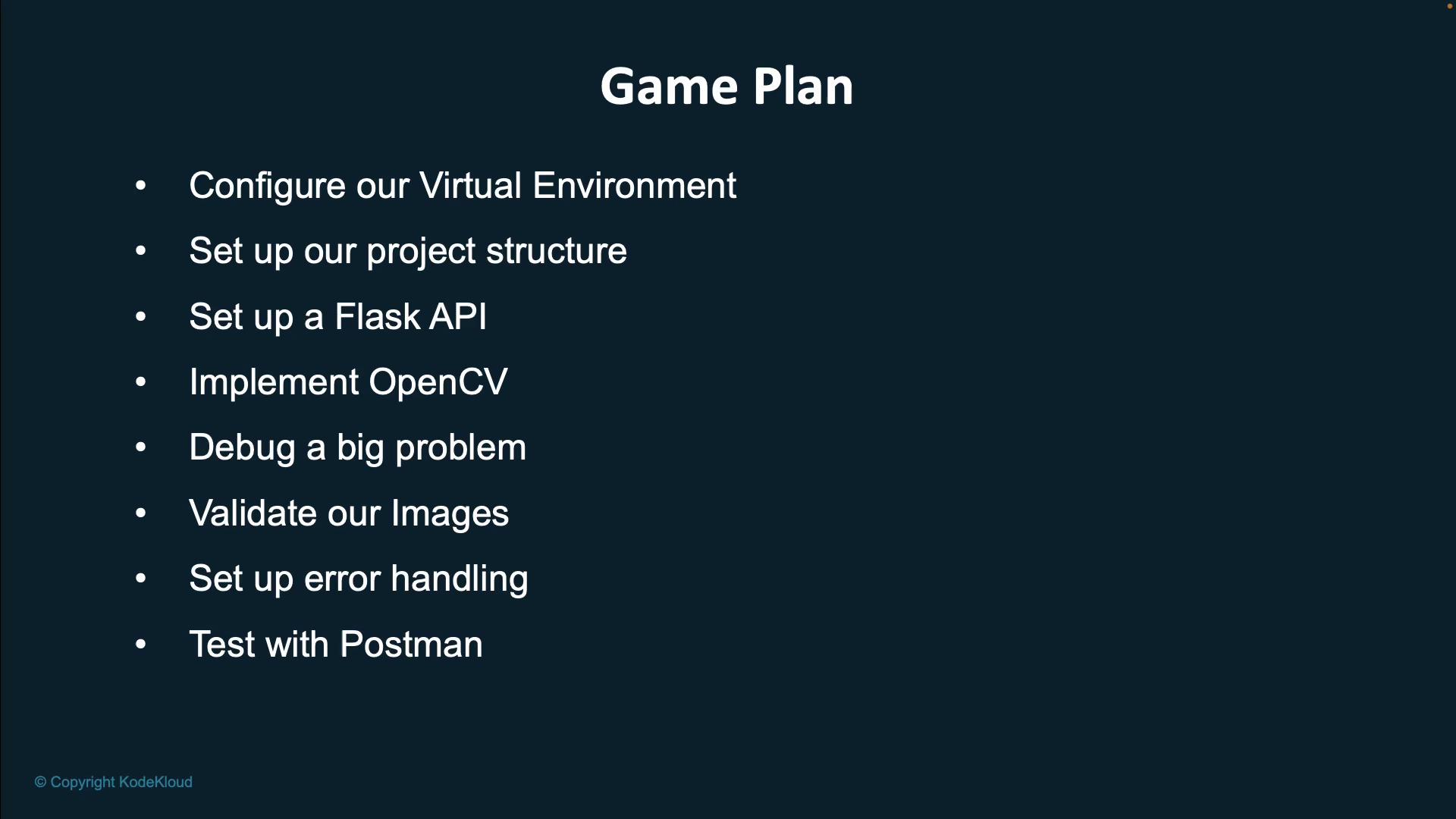
In this lesson, we will develop the backend of our application step by step. Our objectives include:
* Configuring a virtual environment.
* Setting up the project structure.
* Creating a Flask API.
* Implementing OpenCV to modify images.
* Debugging an identified issue.
* Validating images.
* Implementing error handling.
* Testing the endpoint with Postman.
We will achieve these tasks with the assistance of Generative AI and leverage cutting-edge tools such as:
* **Tabnine** – Explore more at [www.tabnine.com](https://www.tabnine.com)
* **BlackboxAI** – Learn more at [www.blackbox.ai](https://www.blackbox.ai)
* **GitHub Copilot** – Get started at [github.com/features/copilot](https://github.com/features/copilot)
We are using the paid versions of these applications to benefit from enhanced capabilities.
## Sample Python Function to Parse Expenses
Below is an example Python function that demonstrates how to parse a string of expenses into a list of tuples containing the date, amount, and currency:
```python theme={null}
def parse_expenses(expenses_string):
# Parse the list of expenses and return a list of triples (date, amount, currency)
return [tuple(line.split()) for line in expenses_string.splitlines() if line]
```
By the end of this lesson, you'll have built a fully functioning API endpoint that accepts an image, reduces its quality through compression, and displays the output. The complete project code is available on GitHub at:
[Kode Repository - Super Image Optimizer](https://github.com/JeremyMorgan/super-image-optimizer)
## Uploading an Image Using the API Endpoint
Below is an example demonstrating how to upload an image using our API endpoint. Replace `` and `` with your actual API key and file path respectively. Additionally, adjust the `quality` parameter to control the compression level.
```http theme={null}
POST http://172.0.1:5000/upload
key:
image:
quality:
# Example using a file:
File: cockpit.jpeg
Text: 100
# Expected Response:
200 OK
```
Let's dive in and start building a robust backend solution!