> ## Documentation Index
> Fetch the complete documentation index at: https://notes.kodekloud.com/llms.txt
> Use this file to discover all available pages before exploring further.
# CodeCommit Demo part 2
> Learn to use Git with AWS CodeCommit by cloning a repository and pushing local code changes using HTTPS Git credentials in this step-by-step tutorial.
In this guide, you'll learn how to use Git with AWS CodeCommit by cloning a repository and pushing local code changes using HTTPS Git credentials. This step-by-step tutorial is ideal for developers looking for a seamless integration between local development environments and AWS CodeCommit.
Before you begin, ensure Git is installed on your machine. You can download it from the [official Git website](https://git-scm.com/downloads). After installation, confirm by running:
git --version
If a version number appears, Git is installed correctly.
For instance, running:
```bash theme={null}
git clone https://github.com/git/git
```
and then checking the version might output:
```plaintext theme={null}
12 packages are looking for funding
run `npm fund` for details
found 0 vulnerabilities
C:\Users\sanjee\OneDrive\Documents\courses-sanjeev-desktop\aws-developer-associate\codeCommit
>git --version
git version 2.43.0.windows.1
C:\Users\sanjee\OneDrive\Documents\courses-sanjeev-desktop\aws-developer-associate\codeCommit
```
## Setting Up Authentication
Since CodeCommit repositories are private, you must configure authentication to access them. Follow these steps to set up HTTPS Git credentials:
1. Sign in to the AWS IAM console and select your user account (e.g., "user").
2. Navigate to the Security Credentials tab.
3. You will see two options for authentication:
* **SSH Public Keys:** Upload your SSH public key to AWS.
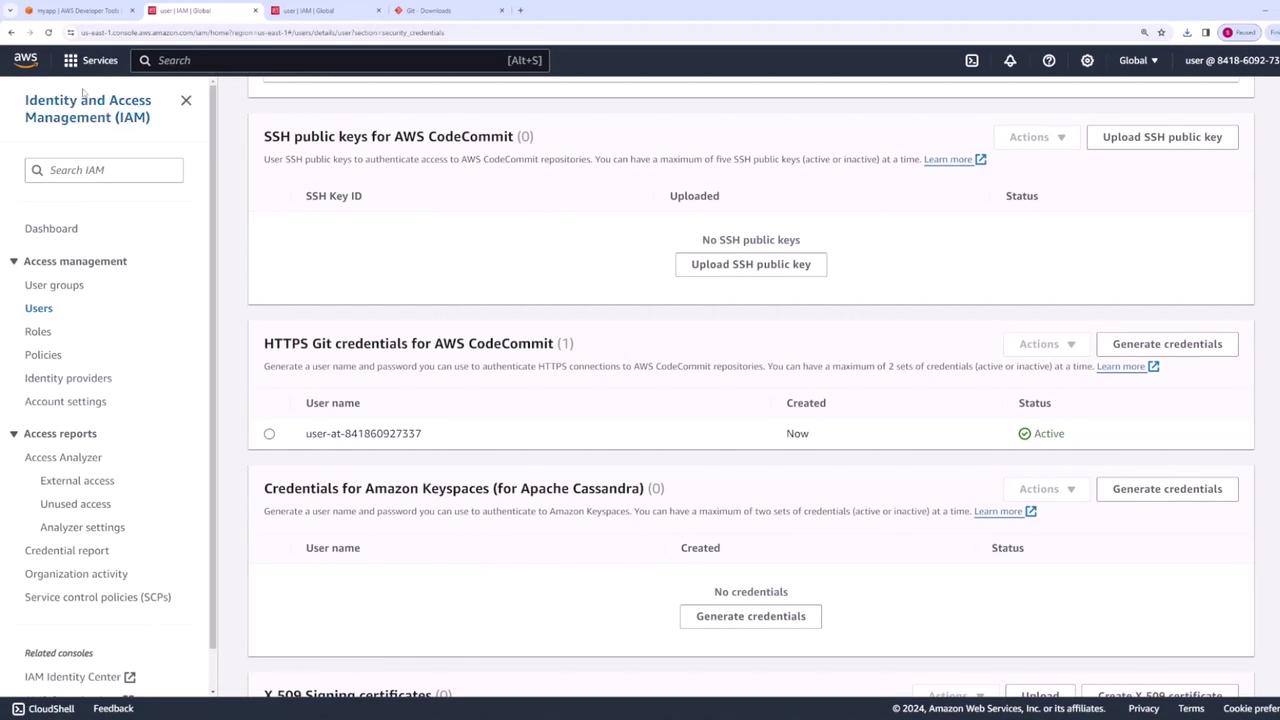
* **HTTPS Git Credentials:** Generate a username and password specific for CodeCommit.
The image below shows the IAM console with details for a user’s security credentials, including SSH public keys and HTTPS Git credentials:
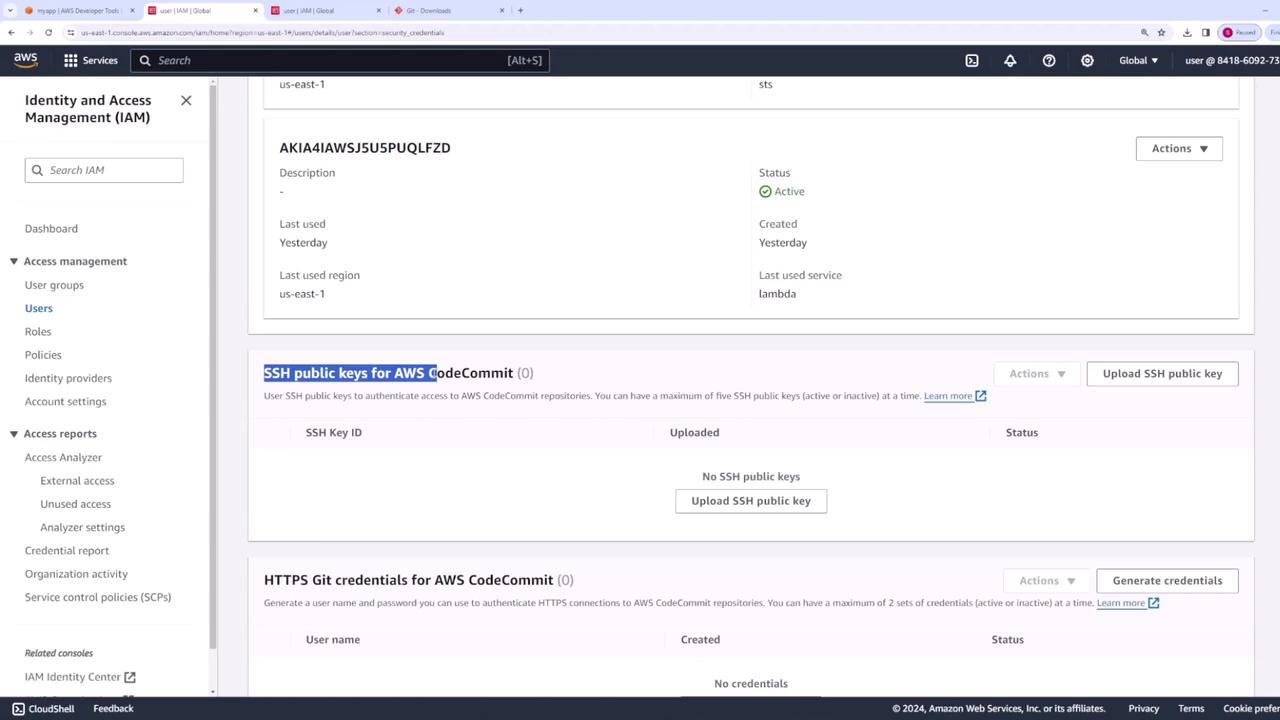
Select HTTPS Git credentials by clicking on "Generate Credentials" to obtain your username and password. Make sure to keep them handy for later use.
Next, navigate to your CodeCommit repository page and locate the clone URL section. Choose the HTTPS option to copy the correct URL:
## Cloning the Repository
Open your terminal and, if necessary, clear it before proceeding. Use the HTTPS clone URL to clone your repository:
```bash theme={null}
git clone https://git-codecommit.us-east-1.amazonaws.com/v1/repos/myapp
```
Depending on your Git configuration and system settings, you might be prompted for your HTTPS Git credentials. For example, if authentication fails, you could see an error like:
```plaintext theme={null}
fatal: unable to access 'https://git-codecommit.us-east-1.amazonaws.com/v1/repos/myapp/': The requested URL returned error: 403
C:\Users\sanje\OneDrive\Documents\courses-sanjeev-desktop\aws-developer-associate\codeCommit
>git clone https://git-codecommit.us-east-1.amazonaws.com/v1/repos/myapp
Cloning into 'myapp'...
fatal: User cancelled dialog.
fatal: Authentication failed for 'https://git-codecommit.us-east-1.amazonaws.com/v1/repos/myapp/'
```
When prompted, open the file containing your downloaded credentials (for example, in Notepad), copy the provided username and password, and paste them at the terminal prompt.
Once authenticated, the repository will be cloned into a folder named "myapp", which contains at least an `index.js` file with pre-configured authentication code. Below is an example of an Express.js application contained in the repository:
```javascript theme={null}
const express = require("express");
const app = express();
const port = 3000;
app.get("/", (req, res) => {
res.send("Hello World!");
});
console.log("added authentication");
app.listen(port, () => {
console.log(`Example app listening at http://localhost:${port}`);
});
```
A successful clone should output something similar to:
```plaintext theme={null}
C:\Users\sanjee\OneDrive\Documents\courses-sanjeev-desktop\aws-developer-associate\codeCommit
>git clone https://git-codecommit.us-east-1.amazonaws.com/v1/repos/myapp
Cloning into 'myapp'...
remote: Counting objects: 6, done.
Unpacking objects: 100% (6/6), 726 bytes | 40.00 KiB/s, done.
C:\Users\sanjee\OneDrive\Documents\courses-sanjeev-desktop\aws-developer-associate\codeCommit
```
## Adding Local Files and Committing Changes
After cloning the repository, add any additional files (like `package.json`, `package-lock.json`, and `index.html`) to the "myapp" folder. Then, follow these steps in your terminal:
1. Navigate to the repository folder:
```bash theme={null}
cd myapp
```
2. Stage the new files:
```bash theme={null}
git add .
```
You might receive warnings regarding line endings (e.g., in `package.json` and `package-lock.json`). These warnings can typically be ignored, but ensure your commit message is clear and descriptive.
3. Commit the changes with a meaningful message:
```bash theme={null}
git commit -m "added index.html and package.json"
```
If Git prompts you to set your username and email, follow the provided instructions to update your configuration. A successful commit will display output similar to:
```plaintext theme={null}
[main 2edc0d7] added index.html and package.json
3 files changed, 725 insertions(+)
create mode 100644 index.html
create mode 100644 package-lock.json
create mode 100644 package.json
```
## Pushing Changes to AWS CodeCommit
Once your changes are committed locally, push the updates back to your CodeCommit repository using:
```bash theme={null}
git push
```
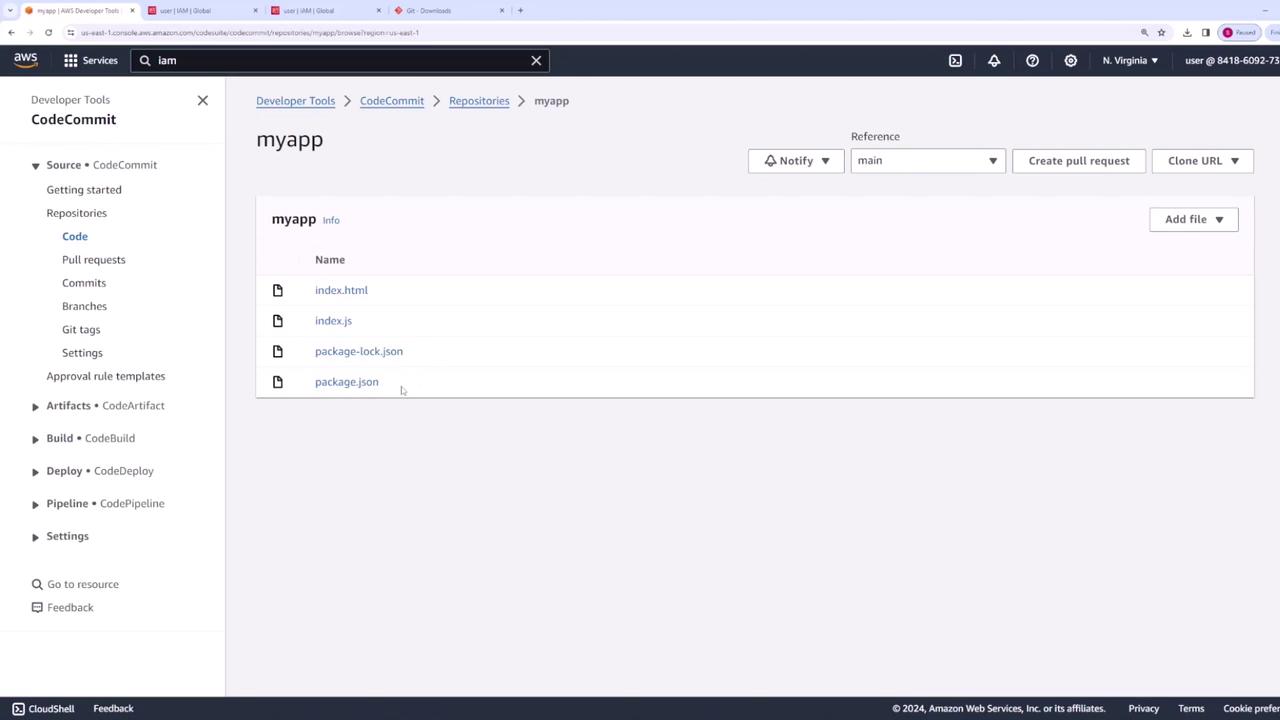
After a few moments, your changes will be live in the CodeCommit repository. When you revisit the AWS CodeCommit interface, you should see the following files:
* index.js
* index.html
* package.json
* package-lock.json
The updated repository interface is illustrated below:
## Conclusion
This tutorial demonstrated how to effectively clone a CodeCommit repository using HTTPS credentials, add new files, commit changes locally, and finally push those changes back to AWS CodeCommit. Utilizing these steps, you can integrate your local development workflow with AWS CodeCommit in a manner similar to other Git-hosted platforms like GitHub and GitLab.
For further details, consider exploring the following resources:
* [AWS CodeCommit Documentation](https://docs.aws.amazon.com/codecommit/)
* [Git Documentation](https://git-scm.com/doc)
* [AWS IAM User Guide](https://docs.aws.amazon.com/IAM/latest/UserGuide/introduction.html)