> ## Documentation Index
> Fetch the complete documentation index at: https://notes.kodekloud.com/llms.txt
> Use this file to discover all available pages before exploring further.
# AWS CLI Demo
> This article explores managing AWS resources using the AWS Command Line Interface instead of the web-based AWS Console.
In this article, we explore how to manage AWS resources using the AWS Command Line Interface (CLI) instead of the web-based AWS Console. Although the AWS Console provides a user-friendly graphical interface, many engineers prefer the CLI for its speed, automation capabilities, and ease of scripting.
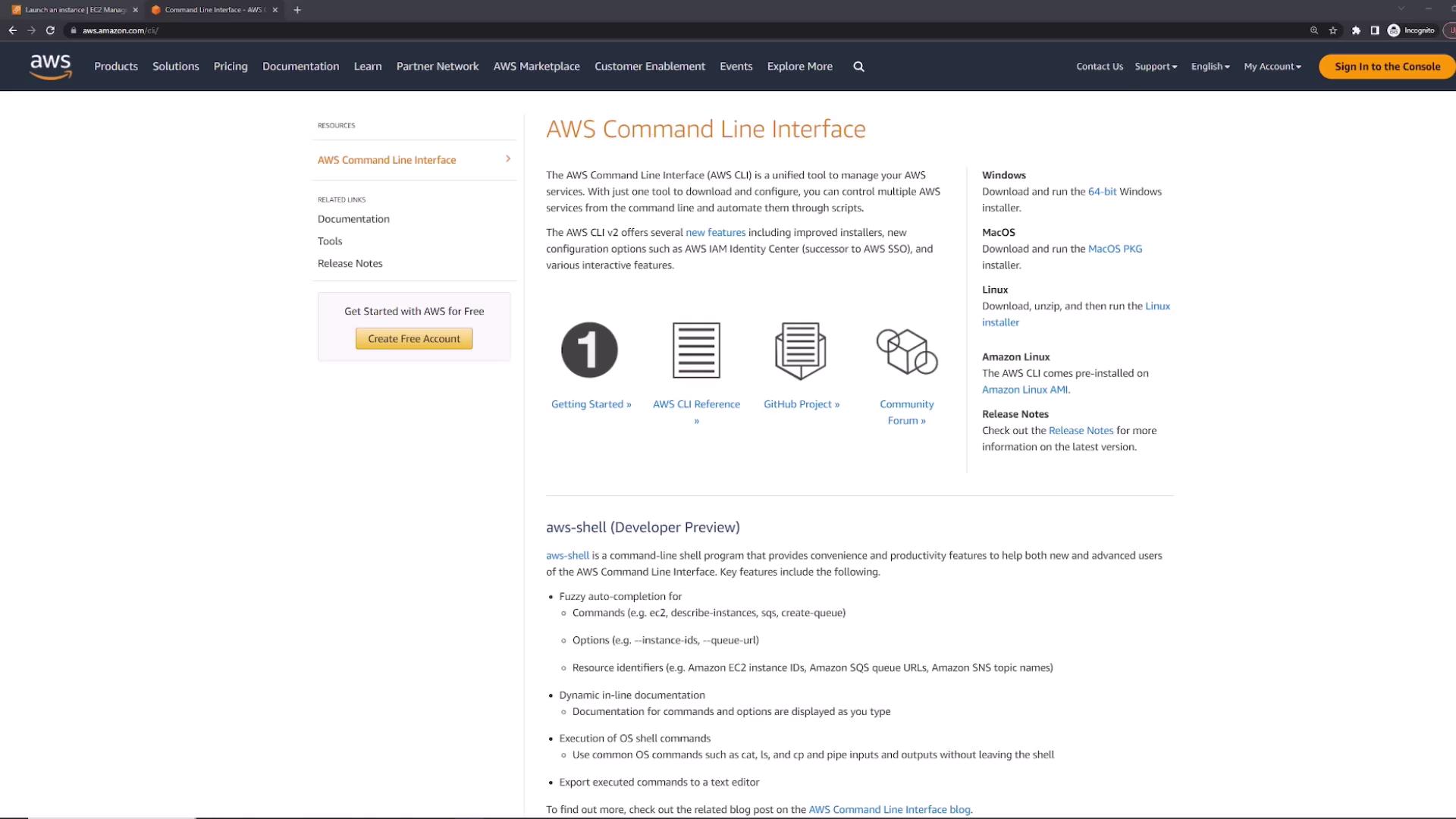
To get started, visit [aws.amazon.com/CLI](https://aws.amazon.com/cli/) for detailed installation instructions tailored to your operating system. Generally, the installation process is straightforward, involving just a few terminal commands as detailed in the official documentation.
Once the CLI is installed, you can access AWS services directly from your terminal. One of its powerful features is the built-in help option. If you need guidance on any command, simply append "help" to your command. For example:
```bash theme={null}
aws help
```
This command displays a summary of the AWS CLI’s syntax, global options, and available commands.
The general structure of an AWS CLI command is as follows:
1. aws
2. \[global options, such as --region]
3. \[primary command, e.g., s3]
4. \[subcommand, e.g., ls or mb]
5. \[additional parameters or flags]
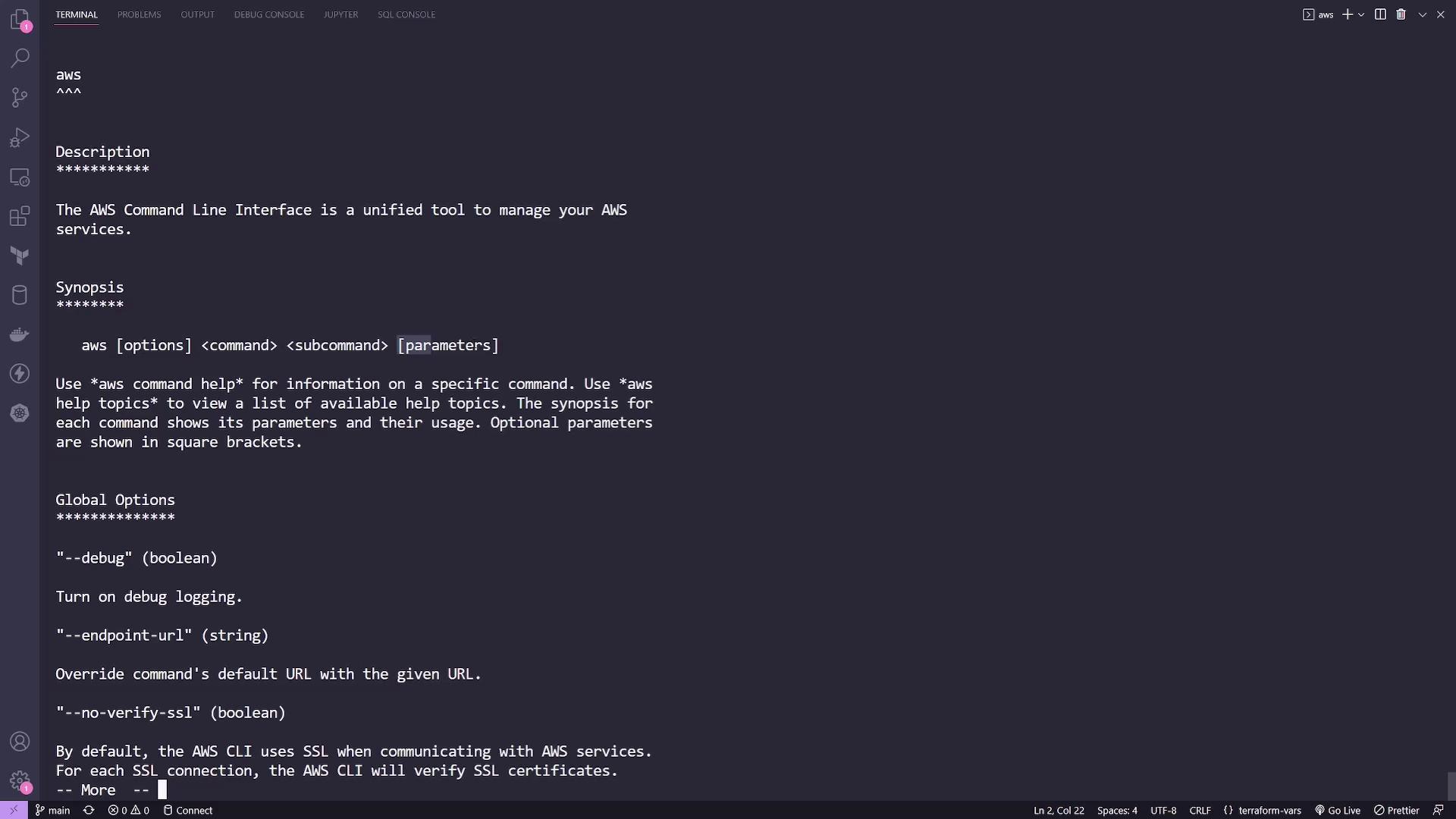
For instance, to specify a region, include the --region flag followed by your target region. This is analogous to selecting a region in the AWS Console.
For a comprehensive list of regions supported by AWS CLI, refer to the [AWS Regions and Endpoints Documentation](https://docs.aws.amazon.com/general/latest/gr/rande.html).
## Managing AWS S3 with the CLI
AWS S3 is a popular service for storing and retrieving data, similar to Dropbox or Google Drive. You can explore S3 commands by executing:
```bash theme={null}
aws s3 help
```
This command provides detailed options, arguments, and explanations for various notations, including those for specifying local paths and S3 URIs.

One commonly used command is to create a new S3 bucket using the "aws s3 mb" command (short for "make bucket"). For more information on this command, you can view its help section:
```bash theme={null}
aws s3 mb help
```
Under the example usage section, you might see snippets like:
```bash theme={null}
aws s3 mb s3://mybucket
Output:
make_bucket: s3://mybucket
aws s3 mb s3://mybucket --region us-west-1
Output:
make_bucket: s3://mybucket
```
Now, let’s create a bucket named "kodekloud-cli-demo." Run the following command in your terminal:
```bash theme={null}
aws s3 mb s3://kodekloud-cli-demo
```
If the bucket is created successfully, you will see:
```bash theme={null}
make_bucket: s3://kodekloud-cli-demo
```
To verify the bucket creation, use the `ls` command to list all your S3 buckets:
```bash theme={null}
aws s3 ls
```
A typical output might be:
```bash theme={null}
2023-04-07 03:39:04 kk-access-point
2023-05-01 21:00:20 kodekloud-cli-demo
```
The `ls` command functions similarly to the Linux `ls` command by listing available resources. Almost every action available in the AWS Console can be performed by the CLI.
In addition to creating buckets, the AWS CLI offers numerous commands and options for managing AWS resources. For example, you might encounter command patterns such as:
```bash theme={null}
--exclude "*" --include "*.txt"
--include "*.txt" --exclude "*"
```
These options allow you to filter files during operations, providing greater control over your interactions with AWS services.
Overall, the AWS CLI offers a powerful, scriptable alternative to the AWS Console, making it ideal for automation and quick command execution. Choose the method that best fits your workflow, whether it’s the graphical interface of the console or the efficiency of the CLI.
For more information on AWS CLI usage and best practices, explore the [AWS CLI Documentation](https://docs.aws.amazon.com/cli/latest/userguide/cli-configure-files.html).