> ## Documentation Index
> Fetch the complete documentation index at: https://notes.kodekloud.com/llms.txt
> Use this file to discover all available pages before exploring further.
# DynamoDB CLI Demo
> Learn to interact with Amazon DynamoDB using the AWS CLI, covering table creation, item management, scanning, querying, and updates.
In this lesson, you'll learn how to interact with Amazon DynamoDB using the AWS CLI. This tutorial covers creating tables, inserting and querying items, scanning tables with various options, and performing updates and deletes. In a future lesson, similar operations will be demonstrated using the AWS SDK, further expanding your understanding of DynamoDB operations.
***
## Creating a Table
In this section, you'll create a DynamoDB table called `review` to store product reviews. The table features a simple key schema:
* **Partition Key:** `product` (String)
* **Sort Key:** `user` (String)
We define these keys using the `--attribute-definitions` flag to specify data types and the `--key-schema` flag to denote each key's role (`HASH` for partition key and `RANGE` for sort key). The `--provisioned-throughput` flag sets the table's read and write capacity units as shown below.
Run the following command to create the table:
```bash theme={null}
aws dynamodb create-table \
--table-name review \
--attribute-definitions \
AttributeName=product,AttributeType=S \
AttributeName=user,AttributeType=S \
--key-schema \
AttributeName=product,KeyType=HASH \
AttributeName=user,KeyType=RANGE \
--provisioned-throughput \
ReadCapacityUnits=2,WriteCapacityUnits=2
```
You can verify the table's creation with a scan command:
```bash theme={null}
aws dynamodb scan --table-name products
```
To delete an item from another table (e.g., `products`), run:
```bash theme={null}
aws dynamodb delete-item \
--table-name products \
--key '{ "id": {"S": "9999"} }'
```
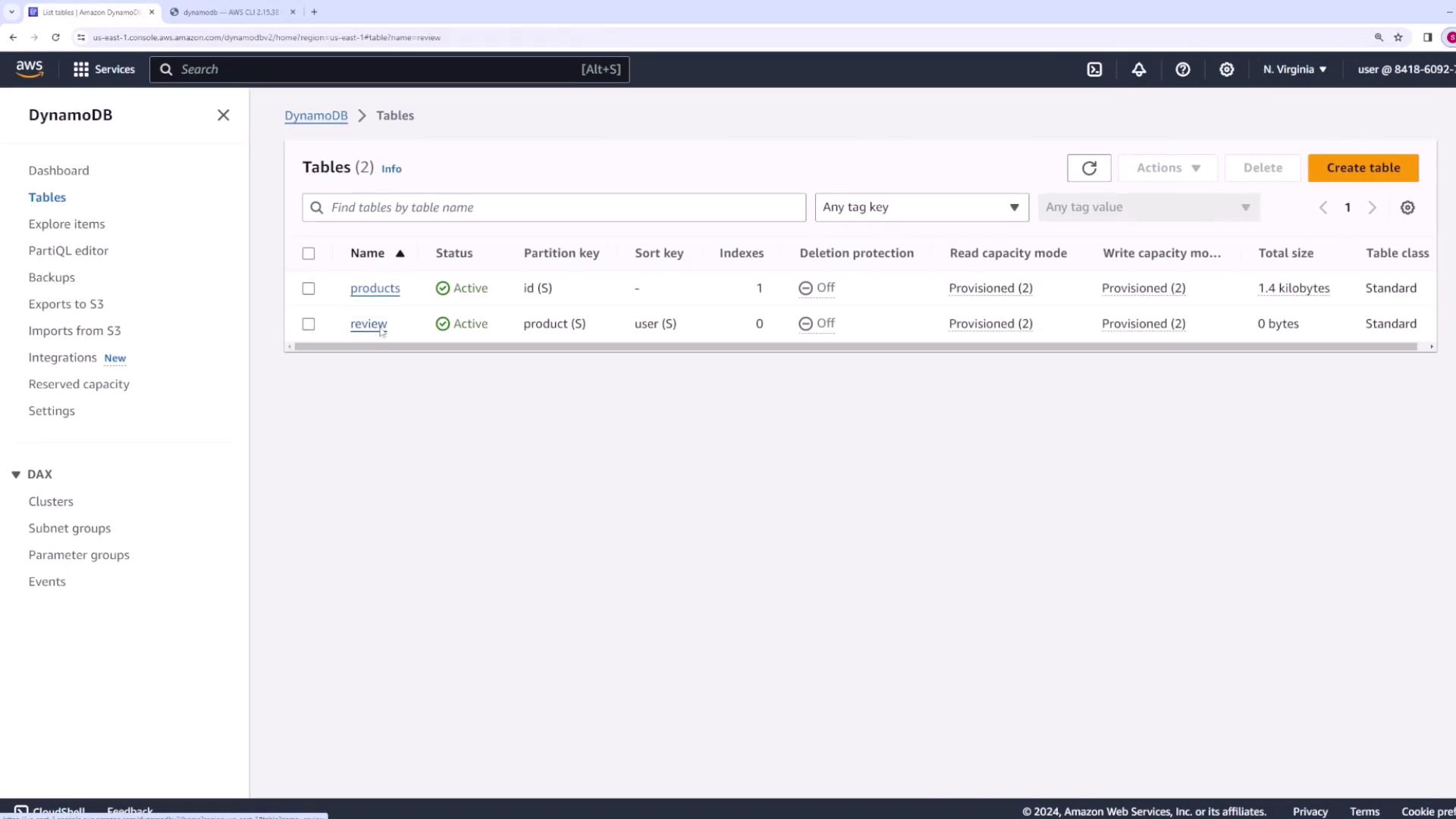
After executing the create table command, refresh the DynamoDB console. Confirm that the new `review` table is listed with a partition key defined as `product` (String) and a sort key as `user` (String).
***
## Exploring the Products Table
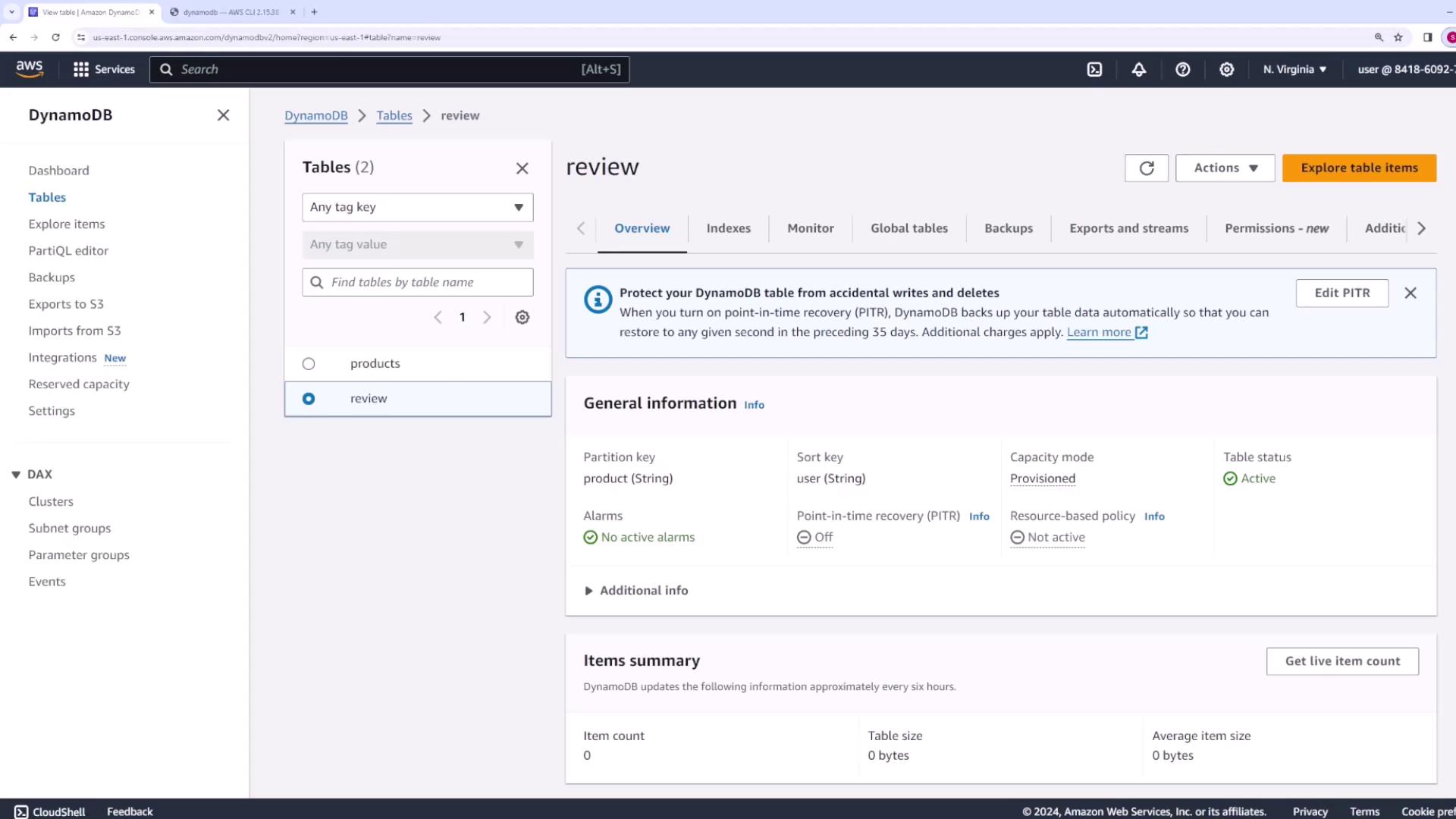
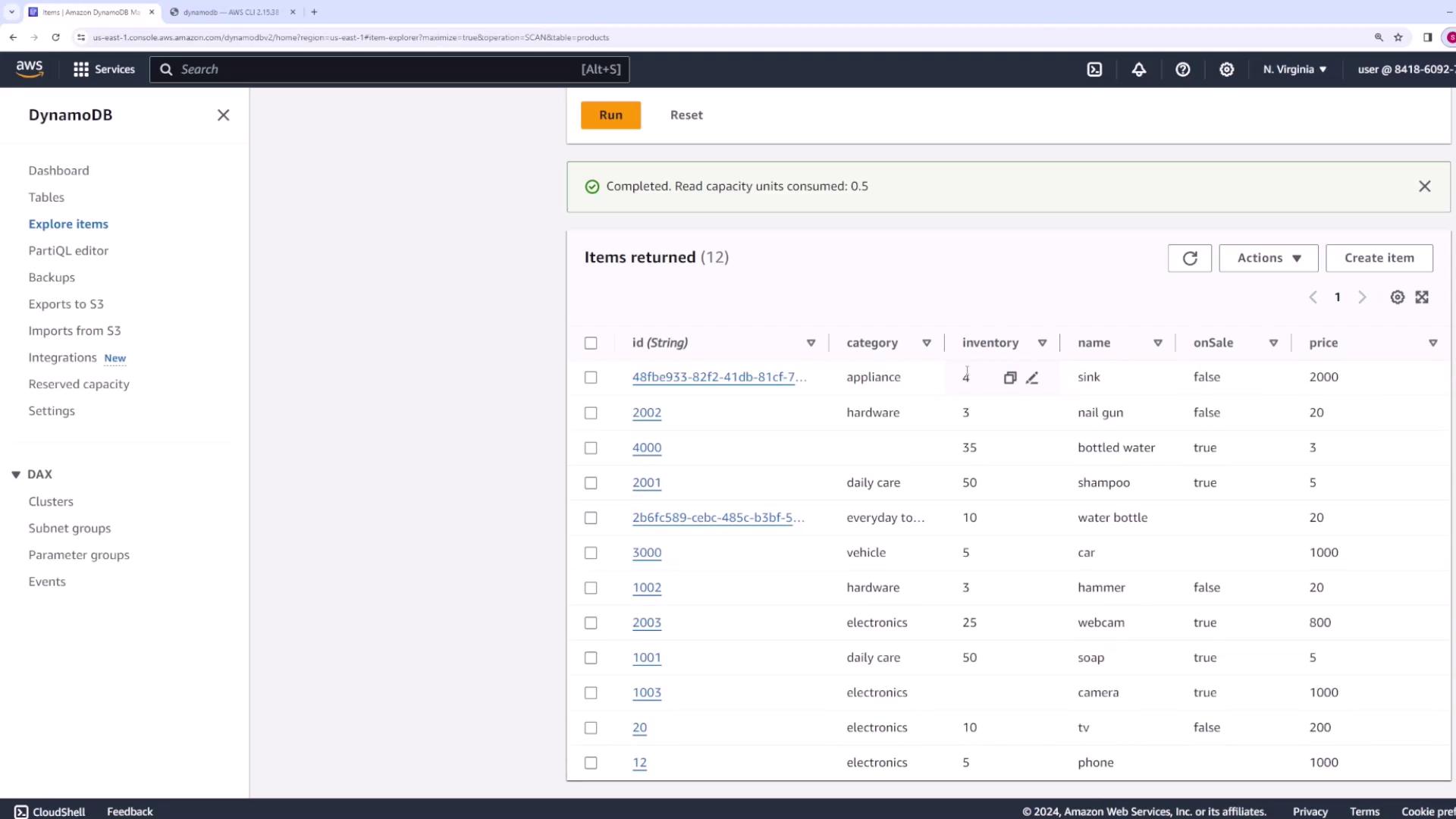
For this demo, we will work with an existing table called `products`. This table uses a single partition key and includes additional attributes:
* `id` – Unique identifier (String)
* `name` – Product name
* `category` – Type of product (e.g., electronics, appliance, hardware)
* `price` – Product price (Number)
* `onSale` – Boolean indicating if the product is on sale
* `inventory` – Stock quantity (Number)
The following image shows a representation of the table in the DynamoDB console:
And the items in the table appear similar to this:
***
## Scanning a Table
Scanning is the simplest operation to retrieve all items from a table. Although scanning can be resource-intensive for large datasets, it is perfect for demonstrations or small datasets.
### Basic Scan
Run a basic scan to retrieve items:
```bash theme={null}
aws dynamodb scan --table-name products
```
You can limit the number of returned items by using the `--max-items` flag:
```bash theme={null}
aws dynamodb scan --table-name products --max-items 2
```
This command returns a JSON structure with details such as `Items`, `Count`, and `ScannedCount`.
Example JSON output:
```json theme={null}
{
"TableSizeBytes": 0,
"ItemCount": 0,
"TableArn": "arn:aws:dynamodb:us-east-1:841869027337:table/review",
"TableId": "89e7d77d-fd06-4c5e-9b77-1e151e3081b3",
"DeletionProtectionEnabled": false
}
```
After executing the scan, you'll see an array of items with attributes such as `id`, `name`, `price`, `inventory`, and `onSale`.
A sample command output might resemble:
```bash theme={null}
databases\dynamodb\cli on ☁ (us-east-1) took 4s
```
indicating that the command executed successfully.
### Pagination with Scan
For larger datasets, pagination retrieves items in batches. DynamoDB provides a `NextToken` when additional results are available. Retrieve the next batch with:
```bash theme={null}
aws dynamodb scan --table-name products --max-items 2 --starting-token
```
Replace `` with the token returned in the previous scan. Continue paginating until no token is returned.
### Using Projection Expressions
To minimize data transfer, you can retrieve only specific attributes. For example, to fetch only the `id`, `price`, and `category` attributes:
```bash theme={null}
aws dynamodb scan --table-name products --projection-expression "id, price, category"
```
You can combine projection expressions with pagination as needed.
***
## Filtering Items with Scan
DynamoDB supports client-side filtering. For instance, to retrieve only products belonging to the `electronics` category, use a filter expression. Although filtering reads all items, it returns only those that match the specified condition.
Run the following command:
```bash theme={null}
aws dynamodb scan --table-name products \
--filter-expression "category = :category" \
--expression-attribute-values '{":category":{"S":"electronics"}}'
```
This command uses the placeholder `:category` with its value defined in the `--expression-attribute-values` flag. You can also combine this with projection expressions:
```bash theme={null}
aws dynamodb scan --table-name products --projection-expression "id, price, category"
aws dynamodb scan --table-name products \
--filter-expression "category = :category" \
--expression-attribute-values '{":category":{"S":"electronics"}}'
```
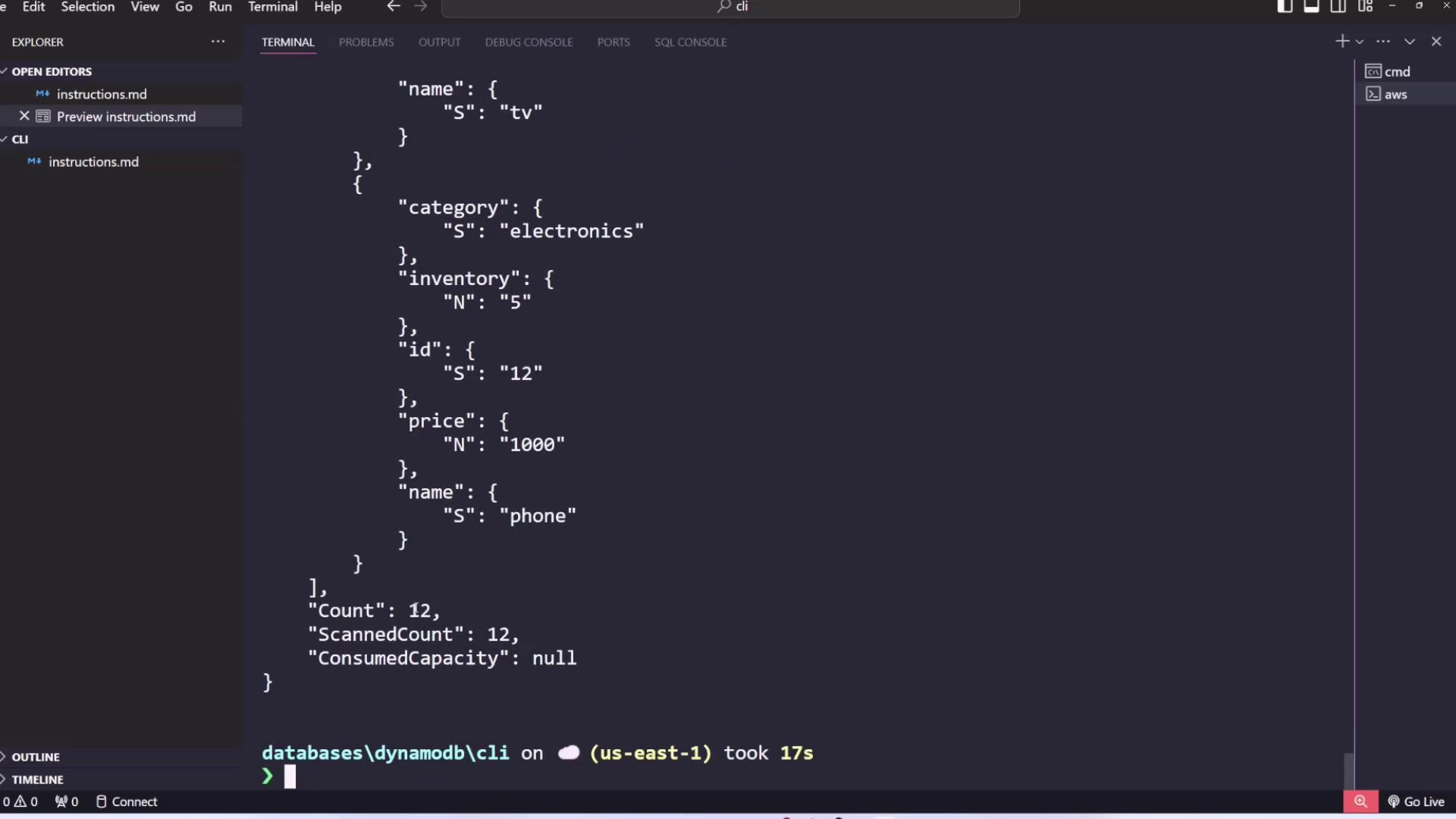
After executing the command, only items where the `category` equals `electronics` will be displayed.
***
## Querying a Table
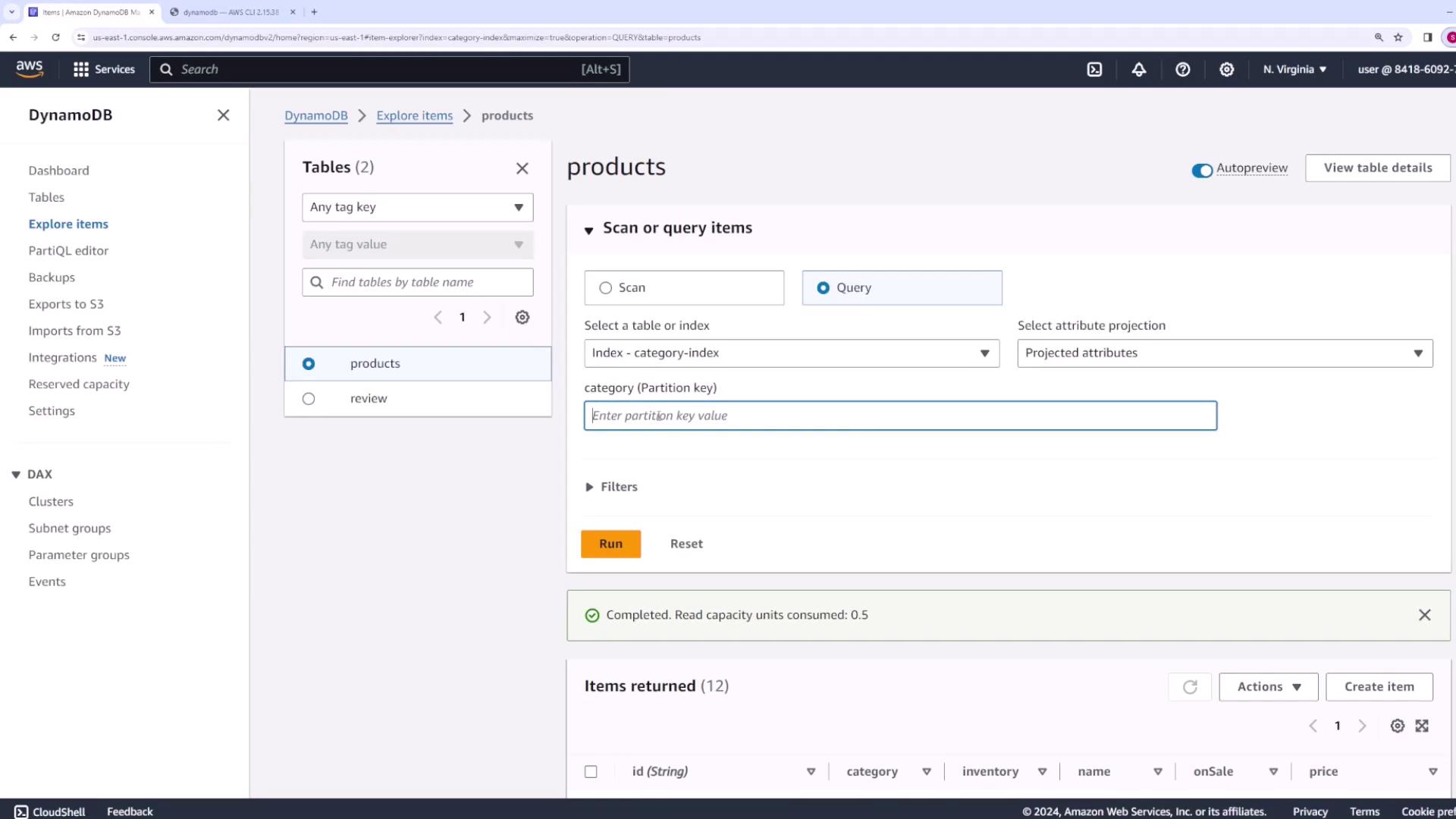
For efficient data retrieval when key values are known, use the **query** operation. In this demo, an index is configured with the partition key `category` to allow efficient queries by product category.
Query the `products` table for all `electronics` items using the following command:
```bash theme={null}
aws dynamodb query \
--table-name products \
--index-name category-index \
--key-condition-expression "category = :category" \
--expression-attribute-values '{":category":{"S":"electronics"}}'
```
This query retrieves only the items that match the partition key condition. For retrieving a specific item, use the **get-item** command:
```bash theme={null}
aws dynamodb get-item --table-name products --key '{"id": {"S": "20"}}'
```
This command returns detailed information about the item with an `id` of "20". If your table uses both a partition and sort key, include both in the command.
Example output:
```json theme={null}
{
"id": {
"S": "12"
},
"name": {
"S": "phone"
}
}
```
***
## Creating, Updating, and Deleting Items
### Put Item
To insert a new item into the `products` table, use the **put-item** command. For example, to add a new product:
```bash theme={null}
aws dynamodb put-item --table-name products --item '{
"id": {"S": "9999"},
"name": {"S": "keyboard"},
"price": {"N": "500"},
"category": {"S": "electronics"}
}'
```
If you rerun the **put-item** command to update an existing item (for example, adjusting the `price`), you must include all attributes to avoid unintentionally deleting any attribute. In the example below, the entire item is replaced with the updated attributes:
```bash theme={null}
aws dynamodb put-item --table-name products --item '{
"id": {"S": "9999"},
"name": {"S": "keyboard"},
"price": {"N": "400"},
"category": {"S": "electronics"}
}'
```
Omitting an attribute during the update will result in that attribute being removed from the item.
### Delete Item
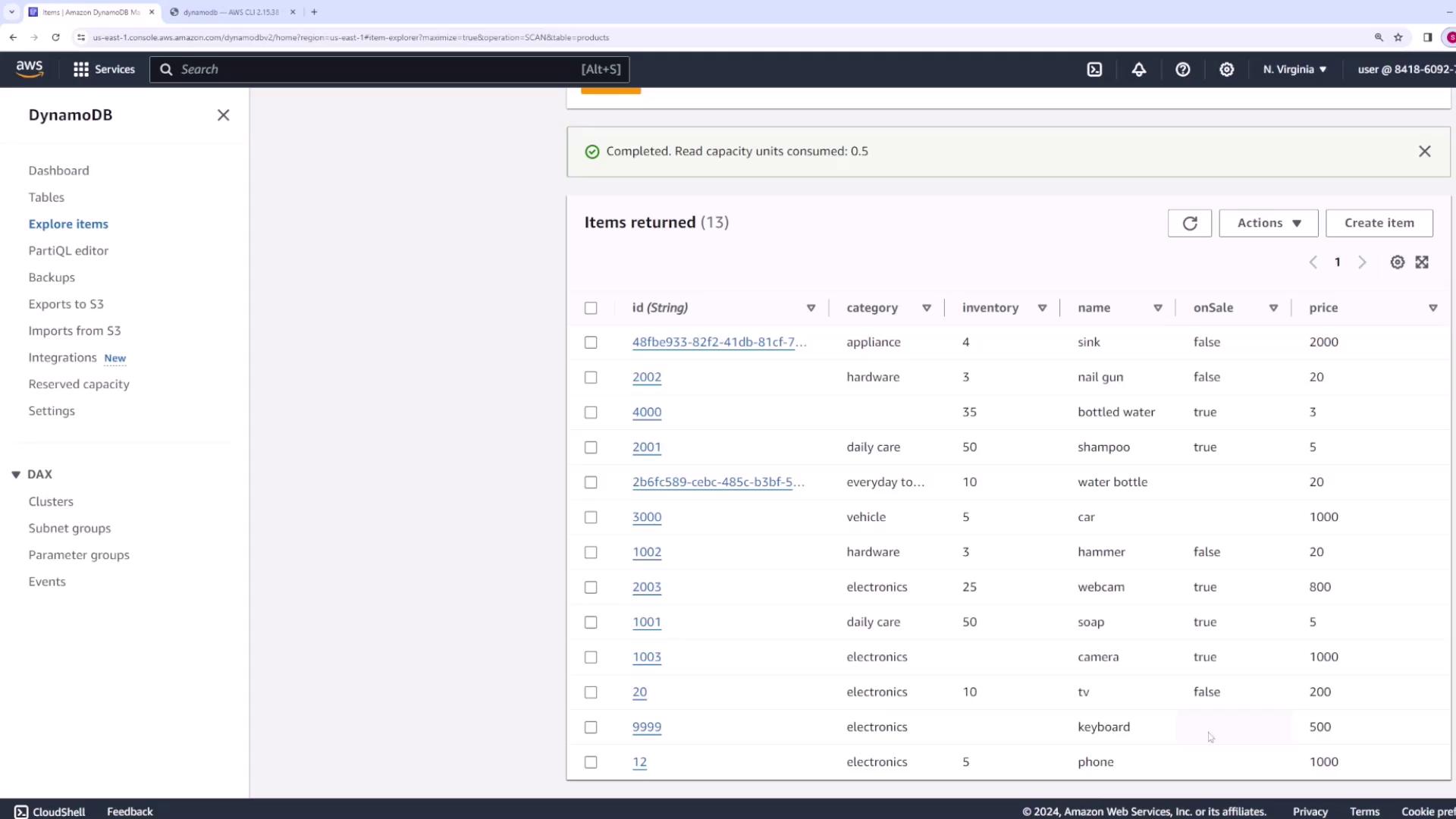
To remove an item from the table, use the **delete-item** command and specify the primary key. For example:
```bash theme={null}
aws dynamodb delete-item \
--table-name products \
--key '{ "id": {"S": "9999"} }'
```
After executing this command, refresh the table to confirm that the item with an `id` of "9999" has been removed.
***
## Summary
In this lesson, you learned how to:
* Create a DynamoDB table using the AWS CLI with a specified key schema and provisioned throughput.
* Scan a table to retrieve all items, implement pagination, utilize projection expressions, and apply client-side filtering.
* Use the query command for efficient data retrieval when indexes are available.
* Retrieve specific items with the **get-item** command.
* Insert new items using **put-item**, update existing items by replacing them, and remove items using **delete-item**.
These commands form the foundation of interacting with DynamoDB via the CLI. As you progress in your development, consider exploring additional options such as condition expressions and update commands to handle more complex business logic.
Happy coding, and see you in the next lesson!