> ## Documentation Index
> Fetch the complete documentation index at: https://notes.kodekloud.com/llms.txt
> Use this file to discover all available pages before exploring further.
# DynamoDB SDK Part1 Demo
> This article demonstrates using the AWS SDK with Node.js to interact with DynamoDB for CRUD operations.
In this lesson, we will demonstrate how to use the AWS SDK (version 3) with Node.js to interact with DynamoDB. You will learn how to create, update, delete, and retrieve entries from a DynamoDB table. Although this demo uses Node.js, these techniques are applicable to other programming languages such as Python.
***
## Installing the AWS SDK for DynamoDB
The first step is to install the DynamoDB client library. For Node.js, use npm:
```bash theme={null}
npm install @aws-sdk/client-dynamodb
```
After installation, you should see an output similar to this:
```plaintext theme={null}
C:\...>npm install @aws-sdk/client-dynamodb
added 83 packages, and audited 84 packages in 2s
2 packages are looking for funding
run `npm fund` for details
found 0 vulnerabilities
```
***
## Initializing the DynamoDB Client
Once the library is installed, import the necessary modules and create an instance of the DynamoDB client. Remember to provide your AWS region and credentials.
Never hardcode your credentials in production applications. Use environment variables or secure secrets management instead.
```javascript theme={null}
import { DynamoDBClient } from "@aws-sdk/client-dynamodb";
const client = new DynamoDBClient({
region: "us-east-1",
credentials: {
accessKeyId: "AKIA4IAWSJ5UZT3W7PEN",
secretAccessKey: "GDJYKyQifTDaaA8SRm7gXyQ2CYXkgz/DJBRje0dJ",
},
});
```
When you run your Node.js application, the npm installation output should resemble:
```plaintext theme={null}
C:\...>npm install @aws-sdk/client-dynamodb
added 83 packages, and audited 84 packages in 2s
2 packages are looking for funding
run `npm fund` for details
found 0 vulnerabilities
```
***
## Retrieving an Item from the DynamoDB Table
Assume you have a DynamoDB table named `products` that stores items with attributes such as ID (string), category (string), inventory (number), name (string), price (number), and onSale (Boolean). To retrieve an item—for example, an item with an ID of "80"—use the GetItem command.
```javascript theme={null}
import { DynamoDBClient, GetItemCommand } from "@aws-sdk/client-dynamodb";
const client = new DynamoDBClient({
region: "us-east-1",
credentials: {
accessKeyId: "YOUR_ACCESS_KEY_ID",
secretAccessKey: "YOUR_SECRET_ACCESS_KEY",
},
});
const command = new GetItemCommand({
TableName: "products",
Key: {
id: { S: "80" }
}
});
const response = await client.send(command);
console.log(response);
```
The console output will be similar to:
```plaintext theme={null}
Node.js v20.12.1
{
$metadata: {
httpStatusCode: 200,
requestId: 'Q46HIT95LVKPO8HB708JFS47VV4KQNSO5AEMVJF66Q9ASUAAJG',
extendedRequestId: undefined,
cfId: undefined,
attempts: 1,
totalRetryDelay: 0
},
Item: {
onSale: { BOOL: false },
inventory: { N: '4' },
category: { S: 'electronics' },
id: { S: '80' },
price: { N: '2000' },
name: { S: 'laptop' }
}
}
```
This output shows the retrieved item along with metadata such as the HTTP status code.
***
## Adding an Item with the PutItem Command
To add an item to your DynamoDB table, import the `PutItemCommand` and define an object representing the new item. The following example demonstrates how to add a new product with an ID of "3000".
```javascript theme={null}
import { DynamoDBClient, GetItemCommand, PutItemCommand } from "@aws-sdk/client-dynamodb";
const client = new DynamoDBClient({
region: "us-east-1",
credentials: {
accessKeyId: "AKIAI4AWSJ5UZT3W7PEN",
secretAccessKey: "GDJYKyQifTDaaA8SRm7gXyQ2CYXkgz/DJBRje0dJ",
},
});
// Example for retrieving an item (currently commented out)
// const getCommand = new GetItemCommand({
// TableName: "products",
// Key: { id: { S: "80" } }
// });
// const getResponse = await client.send(getCommand);
// console.log(getResponse);
const itemToPut = {
TableName: "products",
Item: {
id: { S: "3000" },
name: { S: "car" },
inventory: { N: "5" },
price: { N: "1000" },
category: { S: "vehicle" },
},
};
const putCommand = new PutItemCommand(itemToPut);
const putResponse = await client.send(putCommand);
console.log(putResponse);
```
A successful response from DynamoDB will include an HTTP status code of 200. Note that by default, DynamoDB does not return the newly created item unless additional parameters are provided.
***
## Introducing the DynamoDB Document Client
The DynamoDB Document Client offers a higher-level abstraction, allowing you to work with native JavaScript types without explicitly specifying data types (such as `{ S: "value" }` or `{ N: "value" }`). First, install the additional library:
```bash theme={null}
npm install @aws-sdk/lib-dynamodb
```
Then, initialize the Document Client alongside the standard DynamoDB client:
```javascript theme={null}
import { DynamoDBClient } from "@aws-sdk/client-dynamodb";
import { DynamoDBDocumentClient } from "@aws-sdk/lib-dynamodb";
const client = new DynamoDBClient({
region: "us-east-1",
credentials: {
accessKeyId: "AKIA4IAWSJ5UZT3W7PEN",
secretAccessKey: "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",
},
});
const docClient = new DynamoDBDocumentClient(client);
```
### Retrieving an Item Using the Document Client
For a more streamlined retrieval process, use the `GetCommand` from the Document Client library. This method allows you to avoid manual type conversion:
```javascript theme={null}
import { GetCommand } from "@aws-sdk/lib-dynamodb";
const getCommand = new GetCommand({
TableName: "products",
Key: {
id: "3000",
},
});
const docResponse = await docClient.send(getCommand);
console.log(docResponse);
```
If you encounter errors due to issues like missing the `new` keyword, ensure that your instantiation of the Document Client is correct.
***
### Adding an Item Using the Document Client
To insert an item using native JavaScript data types, import the `PutCommand` and format your item accordingly:
```javascript theme={null}
import { PutCommand } from "@aws-sdk/lib-dynamodb";
const putDocCommand = new PutCommand({
TableName: "products",
Item: {
id: "4000",
name: "bottled water",
price: 3,
inventory: 35,
onSale: true,
},
});
const putDocResponse = await docClient.send(putDocCommand);
console.log(putDocResponse);
```
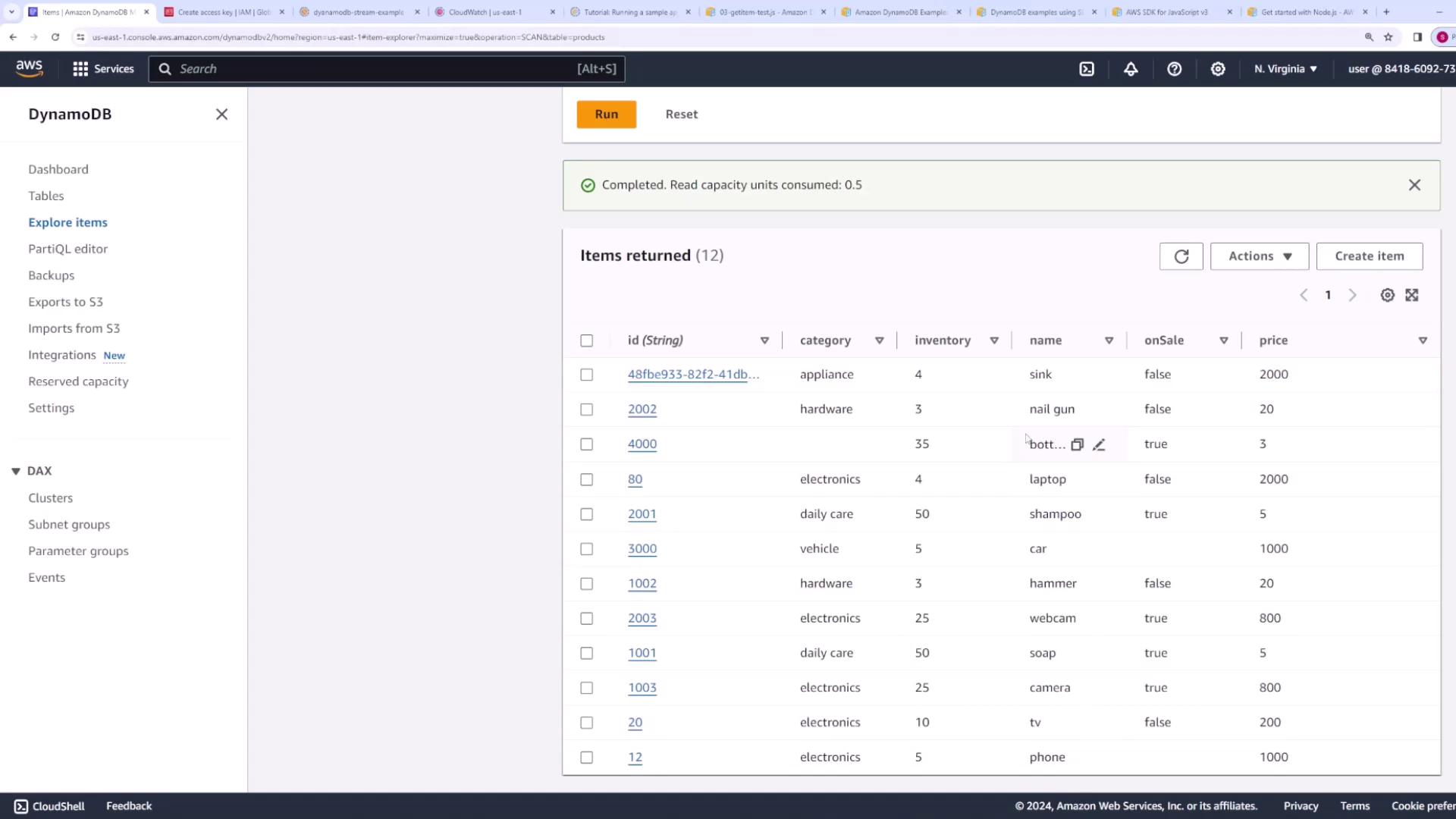
After running this code, verify that your DynamoDB table now contains an entry with ID "4000" featuring the correct attributes.
***
## Bulk Operations with the Batch Write Command
When you need to handle multiple items simultaneously, the Batch Write command is a convenient option.
### Preparing Items for a Batch Write
Begin by defining an array of JavaScript objects that represent the items to insert. Then, convert each object into the required format by mapping it to an object with a `PutRequest` property:
```javascript theme={null}
const itemsToInsert = [
{
id: "2001",
name: "shampoo",
price: 5,
inventory: 50,
category: "daily care",
onSale: true,
},
{
id: "2002",
name: "nail gun",
price: 20,
inventory: 3,
category: "hardware",
onSale: false,
},
{
id: "2003",
name: "webcam",
price: 800,
inventory: 25,
category: "electronics",
onSale: true,
},
];
const Items = itemsToInsert.map((item) => ({
PutRequest: { Item: item },
}));
console.log(Items);
```
The output will be an array similar to:
```plaintext theme={null}
[
{ PutRequest: { Item: [Object] } },
{ PutRequest: { Item: [Object] } },
{ PutRequest: { Item: [Object] } }
]
```
### Executing the Batch Write
With your items prepared, import the `BatchWriteCommand` from the Document Client library and execute the command:
```javascript theme={null}
import { BatchWriteCommand } from "@aws-sdk/lib-dynamodb";
const batchCommand = new BatchWriteCommand({
RequestItems: {
"products": Items,
},
});
const batchResponse = await docClient.send(batchCommand);
console.log(batchResponse);
```
A successful response will include a metadata object with an HTTP status code of 200 and an empty `UnprocessedItems` object:
```plaintext theme={null}
{
'$metadata': {
httpStatusCode: 200,
requestId: '...',
extendedRequestId: undefined,
cfId: undefined,
attempts: 1,
totalRetryDelay: 0
},
UnprocessedItems: {}
}
```
If everything executes correctly, check your DynamoDB table to confirm that the new items (shampoo, nail gun, and webcam) have been added.
***
***
## Conclusion
In this article, we demonstrated how to:
* Install and set up the AWS SDK for DynamoDB.
* Retrieve items using the low-level `GetItemCommand`.
* Insert new items using the `PutItemCommand`.
* Leverage the higher-level DynamoDB Document Client to work with native JavaScript types.
* Perform bulk write operations using the `BatchWriteCommand`.
These techniques form the foundation for building applications that perform basic CRUD operations via an API, and future lessons will explore these concepts further.