> ## Documentation Index
> Fetch the complete documentation index at: https://notes.kodekloud.com/llms.txt
> Use this file to discover all available pages before exploring further.
# DynamoDB SDK Part2 Demo
> This article demonstrates building a CRUD application using Express and DynamoDB, showcasing various operations like creating, retrieving, updating, and deleting products.
In this lesson, we demonstrate how to build a real-world CRUD application using Express, DynamoDB, and the DynamoDB SDK. Although we use Express to build Node.js APIs, you do not need an in-depth mastery of Express for the exam. This project serves as a practical example that integrates various DynamoDB operations.
The application provides endpoints to:
* Retrieve all products
* Create a new product
* Retrieve a single product by its ID
* Delete a product
* Update a product
Each endpoint in the Express application corresponds to one of these operations. For instance, a GET request to `/products` returns all products stored in the DynamoDB table, while a POST request to `/products` creates a new product. Other endpoints handle retrieval by ID, deletion, and updates.
Below is an initial Express setup with placeholders for each operation:
```javascript theme={null}
import express from "express";
import { v4 as uuidv4 } from "uuid";
const app = express();
app.use(express.json());
app.get("/products", async (req, res) => {});
app.post("/products", async (req, res) => {});
app.get("/products/:id", async (req, res) => {});
app.delete("/products/:id", async (req, res) => {});
app.put("/products/:id", async (req, res) => {});
const PORT = 3000;
app.listen(PORT, () => console.log(`app is listening on port ${PORT}`));
```
These five endpoints will eventually handle listing, creating, retrieving, deleting, and updating products in your DynamoDB table. Note that the table uses "id" as the partition key, so retrieving items using a scan is required since a query necessitates a specific partition key.
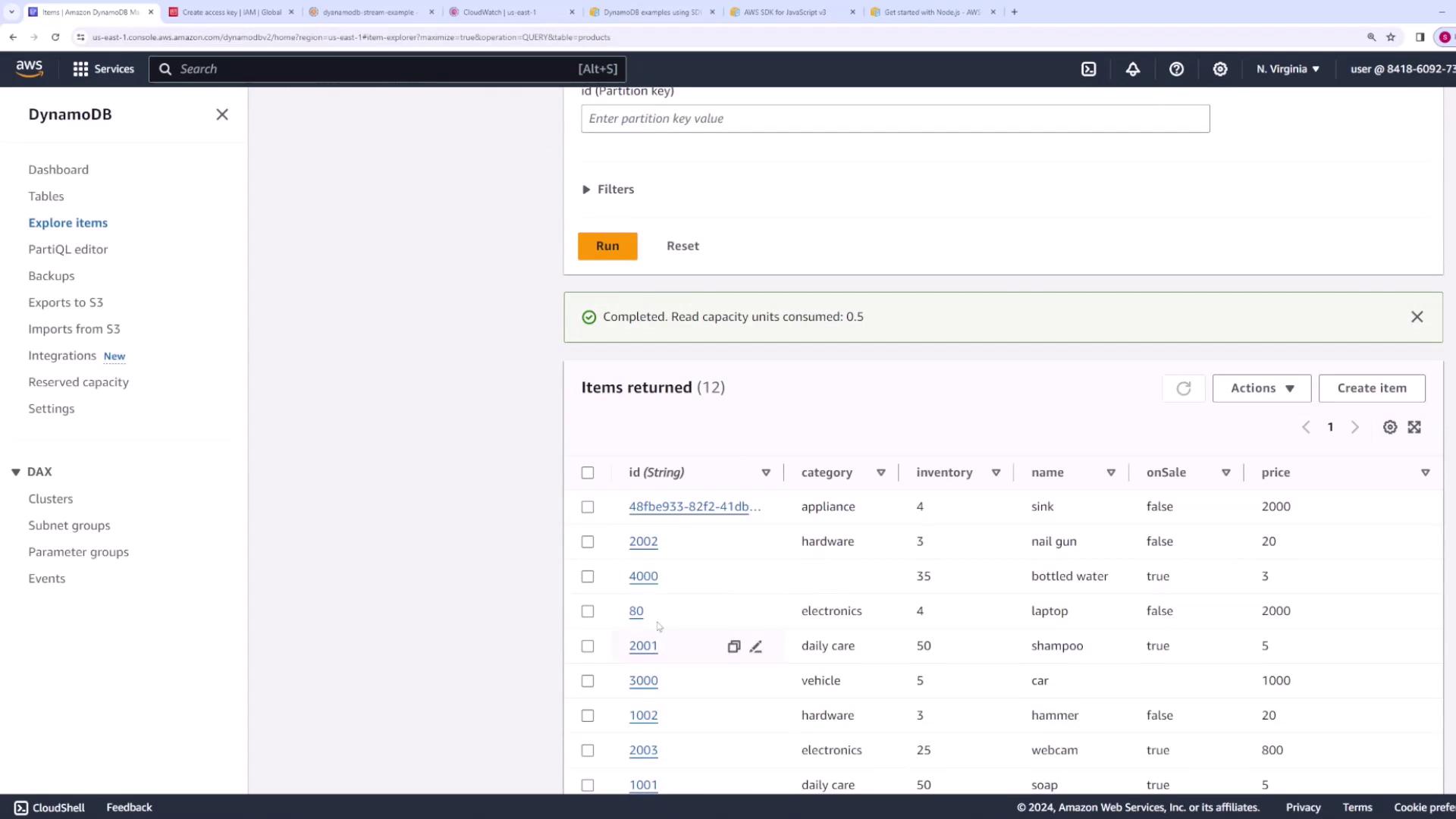
A scan operation retrieves all items from the table. However, it is less efficient than a query and consumes more read capacity.
Let's integrate a DynamoDB scan into our GET `/products` endpoint. In the snippet below, we import the necessary DynamoDB classes and demonstrate a simple scan operation:
```javascript theme={null}
import { DynamoDBClient } from "@aws-sdk/client-dynamodb";
import { DynamoDBDocumentClient, ScanCommand } from "@aws-sdk/lib-dynamodb";
const client = new DynamoDBClient({});
const docClient = DynamoDBDocumentClient.from(client);
export const main = async () => {
const command = new ScanCommand({
ProjectionExpression: "#Name, Color, AvgLifeSpan",
ExpressionAttributeNames: { "#Name": "Name" },
TableName: "Birds",
});
const response = await docClient.send(command);
for (const bird of response.Items) {
console.log(`${bird.Name} - ${bird.Color}, ${bird.AvgLifeSpan}`);
}
return response;
};
```
Notice that we import and initialize the DynamoDB client along with the document client. In our Express application, we wire up all required libraries as shown below:
```javascript theme={null}
import express from "express";
import { v4 as uuidv4 } from "uuid";
import { DynamoDBClient } from "@aws-sdk/client-dynamodb";
import { DynamoDBDocumentClient, ScanCommand } from "@aws-sdk/lib-dynamodb";
const client = new DynamoDBClient({/* optionally include region or credentials */});
const docClient = DynamoDBDocumentClient.from(client);
const app = express();
app.use(express.json());
app.get("/products", async (req, res) => {});
app.post("/products", async (req, res) => {});
app.get("/products/:id", async (req, res) => {});
app.delete("/products/:id", async (req, res) => {});
app.put("/products/:id", async (req, res) => {});
const PORT = 3000;
app.listen(PORT, () => console.log(`app is listening on port ${PORT}`));
```
***
## Retrieving All Products
Now, let’s add logic to the GET `/products` endpoint. We perform a scan on the "products" table and then return the resulting items as JSON:
```javascript theme={null}
const client = new DynamoDBClient({
credentials: {
// your credentials here
},
});
const docClient = DynamoDBDocumentClient.from(client);
app.get("/products", async (req, res) => {
const command = new ScanCommand({ TableName: "products" });
const response = await docClient.send(command);
console.log(response);
res.json({ items: response.Items });
});
```
After starting your application (e.g., via `npm start` with nodemon), testing this endpoint with an API tester (like Postman) will return all products stored in your DynamoDB table. The response from DynamoDB includes metadata and primarily lists items under the property `Items`.
An example output might look like:
```json theme={null}
[
{
"id": 1,
"price": 5,
"name": "soap"
},
{
"onSale": true,
"inventory": 25,
"category": "electronics",
"id": "1003",
"price": 800,
"name": "camera"
},
{
"onSale": false,
"inventory": 10,
"category": "electronics",
"id": "20",
"price": 200,
"name": "tv"
},
{
"category": "electronics",
"inventory": 5,
"id": "12",
"price": 1000,
"name": "phone"
}
]
```
***
## Creating a New Product
To allow users to create a product, we handle a POST request to `/products`. The application extracts product data from the request body, generates a unique ID using UUID, and uses DynamoDB’s `PutCommand` to add the new item.
Ensure you import `PutCommand` from `@aws-sdk/lib-dynamodb` before using it.
```javascript theme={null}
import { PutCommand } from "@aws-sdk/lib-dynamodb";
app.post("/products", async (req, res) => {
const { body } = req;
const command = new PutCommand({
TableName: "products",
Item: {
...body,
id: uuidv4(),
},
});
const response = await docClient.send(command);
res.status(201).json({ message: "Product created successfully" });
});
```
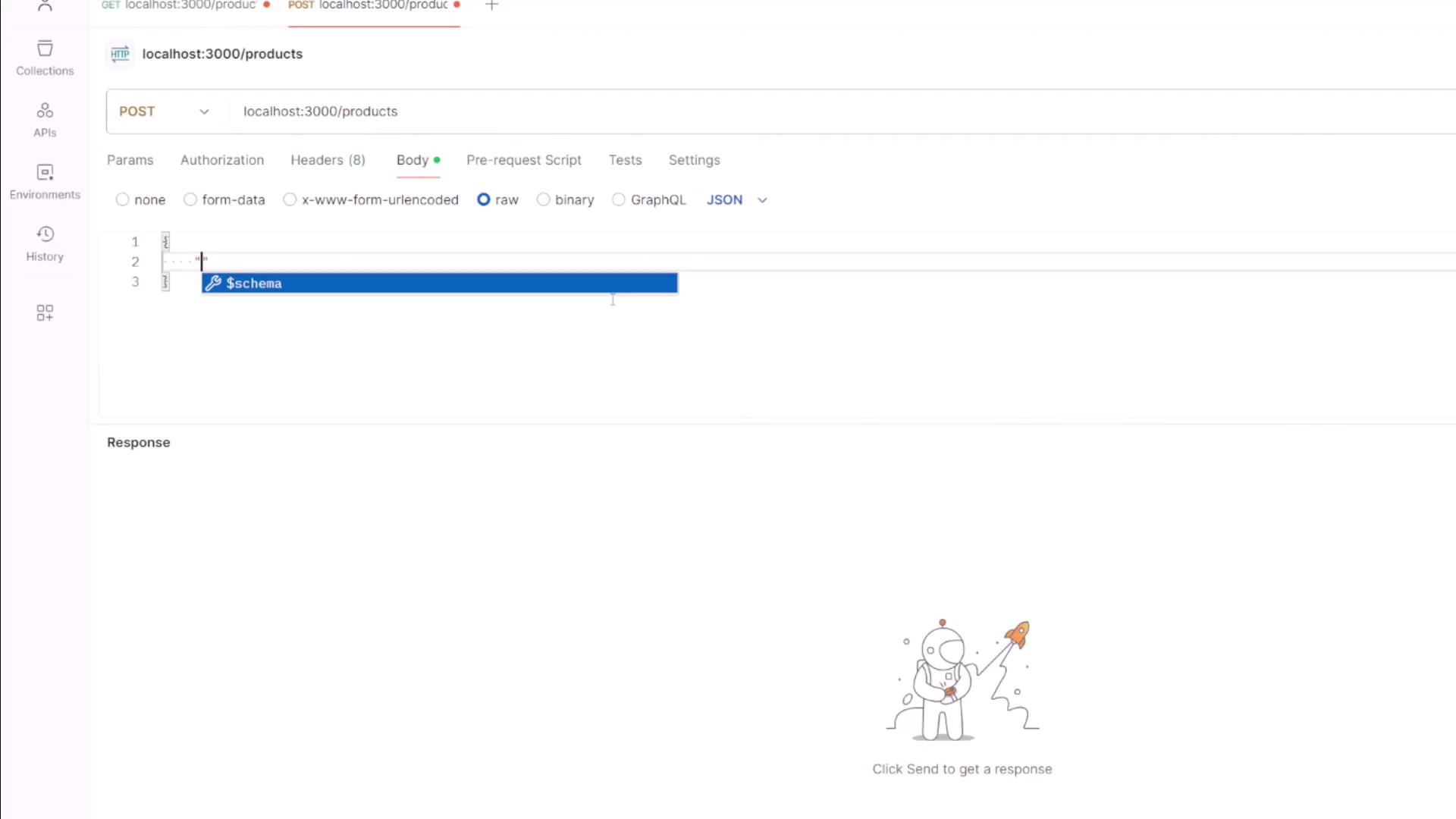
You can test this endpoint using Postman or another API testing tool by sending a POST request to `http://localhost:3000/products` with a JSON body like:
```json theme={null}
{
"name": "water bottle",
"price": 20,
"inventory": 10,
"category": "everyday"
}
```
A successful request returns a 201 status code and adds the new product to your DynamoDB table.
***
## Retrieving a Single Product
To fetch a product by its ID, we use the GET `/products/:id` endpoint. The following code extracts the `id` from the URL, then utilizes the `GetCommand` to retrieve the product from DynamoDB:
```javascript theme={null}
import { GetCommand } from "@aws-sdk/lib-dynamodb";
app.get("/products/:id", async (req, res) => {
const { id } = req.params;
const command = new GetCommand({
TableName: "products",
Key: { id: id },
});
const response = await docClient.send(command);
res.json({ item: response.Item });
});
```
When you test this endpoint with a valid product ID, it returns the product details. An example response could be:
```json theme={null}
{
"item": {
"onSale": false,
"inventory": 4,
"category": "electronics",
"id": "80",
"price": 2000,
"name": "laptop"
}
}
```
***
## Deleting a Product
The DELETE `/products/:id` endpoint handles product deletion. It extracts the product ID from the request URL and uses the `DeleteCommand` to remove the corresponding item from the table:
```javascript theme={null}
import { DeleteCommand } from "@aws-sdk/lib-dynamodb";
app.delete("/products/:id", async (req, res) => {
const { id } = req.params;
const command = new DeleteCommand({
TableName: "products",
Key: { id: id },
});
const response = await docClient.send(command);
console.log(response);
res.status(204).json({ message: "Product deleted successfully" });
});
```
Sending a DELETE request with a product ID (for example, "80") returns a 204 status code, indicating that the deletion was successful.
***
## Updating a Product
To update an existing product, use the PUT `/products/:id` endpoint. In this example, we overwrite the existing item using the `PutCommand` with new values provided in the request body. (Alternatively, you could use DynamoDB’s `UpdateCommand` for partial updates.)
```javascript theme={null}
app.put("/products/:id", async (req, res) => {
const { id } = req.params;
const body = req.body;
console.log(body);
const command = new PutCommand({
TableName: "products",
Item: {
...body,
id: id,
},
});
const response = await docClient.send(command);
console.log(response);
res.status(200).json({ message: "Product updated successfully" });
});
```
For example, to update a product with the ID "1003" (a camera) by changing its price from 800 to 1000, you would send a PUT request with the following JSON body:
```json theme={null}
{
"name": "camera",
"price": 1000,
"onSale": true,
"category": "electronics"
}
```
After a successful update, retrieving the product from DynamoDB will show the updated price.
***
## Querying Products by Category
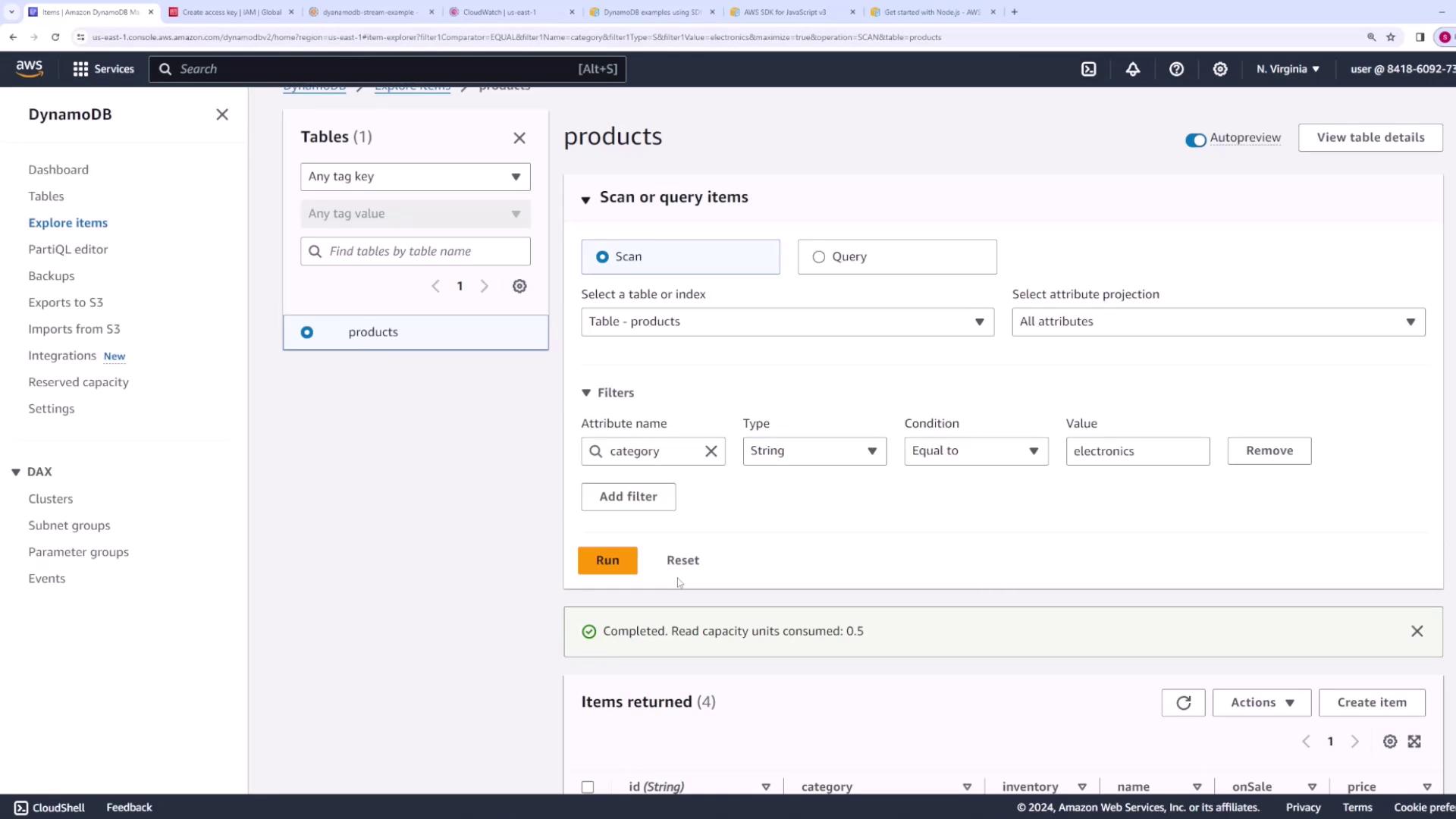
If users want to filter products by category, you have two primary options. Although scanning with client-side filtering is feasible, using a Global Secondary Index (GSI) is more efficient. In this example, we assume that a GSI named "category-index" exists with "category" as the partition key.
Modify the GET `/products` endpoint to check for a query parameter and execute a query if a category is provided:
```javascript theme={null}
import { QueryCommand } from "@aws-sdk/lib-dynamodb";
app.get("/products", async (req, res) => {
const { category } = req.query;
let command;
if (category) {
command = new QueryCommand({
TableName: "products",
IndexName: "category-index",
KeyConditionExpression: "category = :category",
ExpressionAttributeValues: {
":category": category,
},
});
} else {
command = new ScanCommand({ TableName: "products" });
}
const response = await docClient.send(command);
console.log(response);
res.json({ items: response.Items });
});
```
When called without a query parameter, the endpoint returns all products. With a query parameter (e.g., `?category=electronics`), it efficiently returns only the products within that category using the GSI.
***
This demonstration illustrates how to integrate various DynamoDB operations—scans, queries with a Global Secondary Index, and basic CRUD operations—within a Node.js Express application. By following these examples, you can seamlessly work with DynamoDB operations in your own projects.
For more information, consider exploring additional resources:
* [AWS DynamoDB Documentation](https://docs.aws.amazon.com/amazondynamodb/)
* [Express.js Guide](https://expressjs.com/)
* [AWS SDK for JavaScript v3](https://github.com/aws/aws-sdk-js-v3)