> ## Documentation Index
> Fetch the complete documentation index at: https://notes.kodekloud.com/llms.txt
> Use this file to discover all available pages before exploring further.
# Parameter Store Demo
> This guide demonstrates using AWS Systems Manager Parameter Store to manage configuration data and secrets securely.
In this guide, we demonstrate how to use AWS Systems Manager Parameter Store to securely manage configuration data and secrets. We will walk through creating parameters for different environments and retrieving them using both the AWS CLI and AWS SDK.
Parameter Store is part of AWS Systems Manager. To begin, log in to the AWS console, search for "Parameter Store" (it’s located under Systems Manager), and navigate to the Parameter Store section. You might see some pre-existing parameters; for this demo, we will create new ones.
## Creating Parameters
Parameters in the Parameter Store are organized using a tree-like structure, similar to directories or URLs. This structure allows you to group related settings by service or environment. For example, parameters for the back-end team in a development environment can use the path `/backend/dev`. For database credentials, consider using paths like `/backend/dev/db/username` and `/backend/dev/db/password`.
### Creating the Username Parameter
To create a username parameter:
1. In the Parameter Store section, click on **Create parameter**.
2. Enter the parameter path, e.g., `/backend/dev/db/username`.
3. Optionally, add a description.
4. Select the tier (choose **Standard** for this demo).
5. Choose the parameter type. Select **String**.
6. Provide the value (for example, `user123`).
7. Optionally, add tags.
8. Click **Create parameter**.
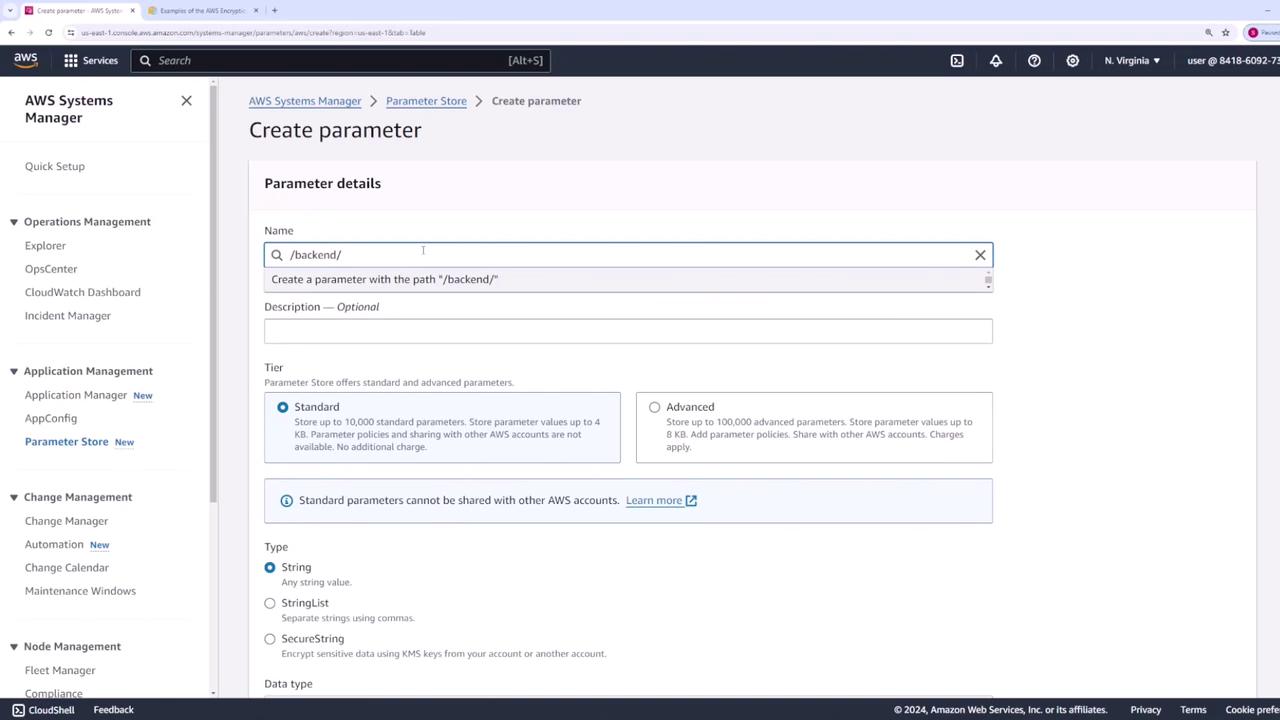
After creation, you can view the parameter details, including its type and value.
### Creating the Password Parameter
To securely store a password:
1. Click **Create parameter** again.
2. Use the same base path and change the final segment to `password` (e.g., `/backend/dev/db/password`).
3. Since this parameter contains sensitive data, select the **SecureString** type. Choose the AWS managed KMS key for encryption.
4. Set the value (for example, `password123-dev`).
5. Click **Create parameter**.

By clicking on the new parameter, you can view its details. For **SecureString** parameters, the value remains hidden by default unless you select "Show decrypted values" (provided you have the appropriate permissions).
### Creating Additional Parameters for the Prod Environment
For production, create similar parameters:
1. Create a parameter for the production username (e.g., `/backend/prod/db/username`) using the **String** type.
2. Create a parameter for the production password (e.g., `/backend/prod/db/password`) as a **SecureString** using the AWS managed key.
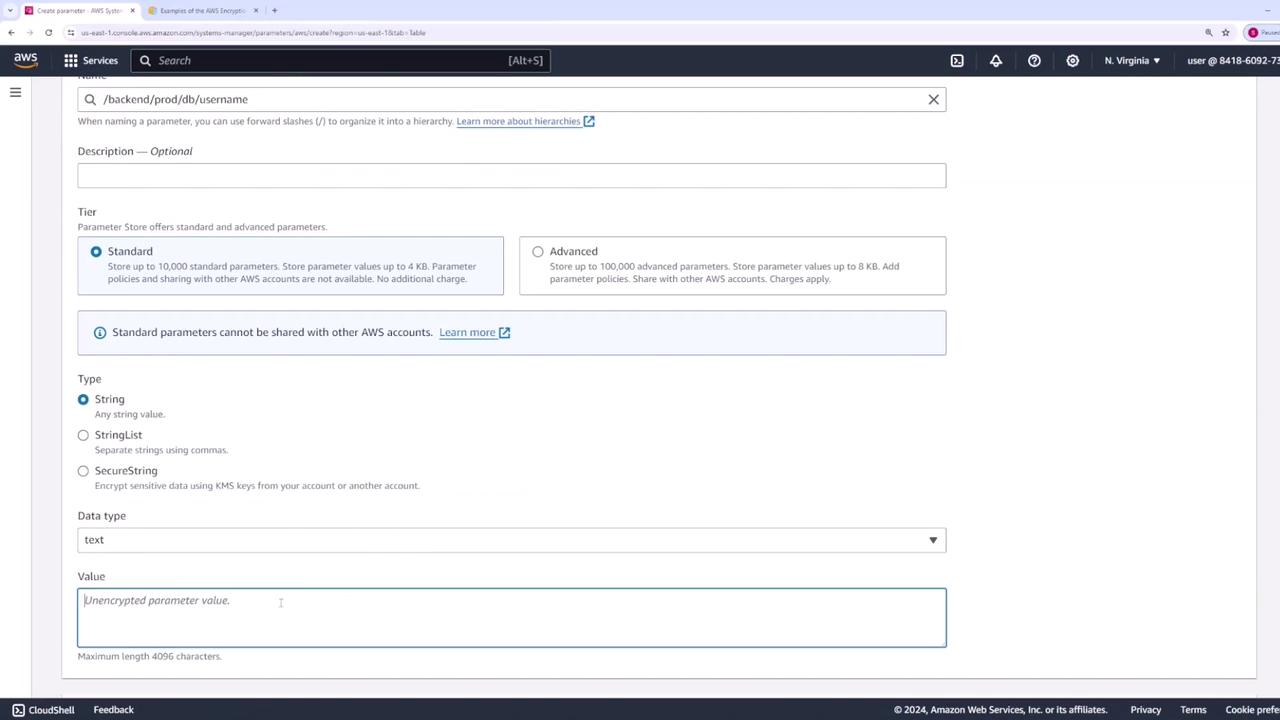
After setting up the production parameters, you can use AWS Identity and Access Management (IAM) policies to control access. For example, you can grant the back-end team access to paths starting with `/backend` and restrict development and production teams to `/backend/dev` and `/backend/prod` respectively.
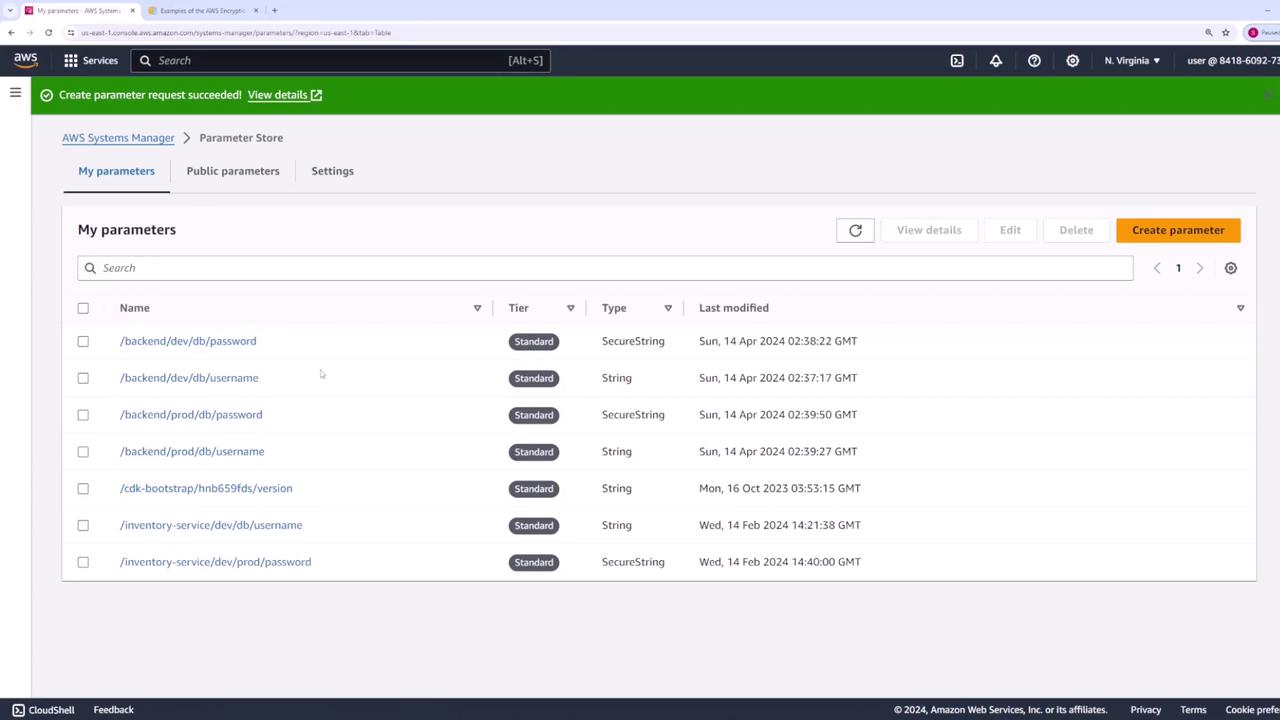
## Retrieving Parameters Using the AWS CLI
After creating your parameters, you can retrieve them via the AWS CLI.
### Retrieve Specific Parameters
To fetch specific parameters (e.g., the username and password for development), run:
```bash theme={null}
aws ssm get-parameters --names /backend/dev/db/password /backend/dev/db/username
```
The output will be similar to:
```json theme={null}
{
"Parameters": [
{
"Name": "/backend/dev/db/password",
"Type": "SecureString",
"Value": "AQICAHhH/gWQoHeUigMnSIqcs+2nIv6fFCZ4g7Faeb8fjlKsgGlKgZ08RyMINYvZXIwhQSAAAAAbTBrBgkqhkiG9w0BBwa gXjBcAgEAMFcGCSqGSIb3DQEHATAeBglhgkBzQMEAS4wEQQMj1sLWI5sxB+hIB3uAgEgoCos6djLFYsI6D901zq1nGCKuaDdHE4uIaRGs/duVI1YmnU jJMu2tJDMmI=",
"Version": 1,
"LastModifiedDate": "2024-04-13T20:38:22.994000-06:00",
"ARN": "arn:aws:ssm:us-east-1:841860927337:parameter/backend/dev/db/password",
"DataType": "text"
},
{
"Name": "/backend/dev/db/username",
"Type": "String",
"Value": "user123",
"Version": 1,
"LastModifiedDate": "2024-04-13T20:37:17.542000-06:00",
"ARN": "arn:aws:ssm:us-east-1:841860927337:parameter/backend/dev/db/username",
"DataType": "text"
}
],
"InvalidParameters": []
}
```
The **username** is returned as plain text, while the **password** remains encrypted.
To retrieve decrypted values, use the `--with-decryption` flag:
```bash theme={null}
aws ssm get-parameters --names /backend/dev/db/password /backend/dev/db/username --with-decryption
```
This will output decrypted values (provided that you have the necessary KMS permissions):
```json theme={null}
{
"Parameters": [
{
"Name": "/backend/dev/db/password",
"Type": "SecureString",
"Value": "password123-dev",
"Version": 1,
"LastModifiedDate": "2024-04-13T20:38:22.994000-06:00",
"ARN": "arn:aws:ssm:us-east-1:841860927373:parameter/backend/dev/db/password",
"DataType": "text"
},
{
"Name": "/backend/dev/db/username",
"Type": "String",
"Value": "user123",
"Version": 1,
"LastModifiedDate": "2024-04-13T20:37:17.542000-06:00",
"ARN": "arn:aws:ssm:us-east-1:841860927373:parameter/backend/dev/db/username",
"DataType": "text"
}
],
"InvalidParameters": []
}
```
### Retrieve Parameters Recursively by Path
To retrieve all parameters under a common path (e.g., `/backend`), you can use:
```bash theme={null}
aws ssm get-parameters-by-path --path /backend
```
This command, by default, retrieves only parameters immediately under the specified path. To fetch all nested parameters, add the `--recursive` flag:
```bash theme={null}
aws ssm get-parameters-by-path --path /backend --recursive
```
Example output:
```json theme={null}
{
"Parameters": [
{
"Name": "/backend/dev/db/password",
"Type": "SecureString",
"Value": "AQICAhHh/gWQOHeUigMnSIqcs+2nIv6fFCZ4g7Faeb8fjlKsgGlkGZ08RyMINYxZIwQSQAAAbTBrBgkqhkI9w0BBwagXjBcAgEAMfcGCSqGSI3BQEQMjl1SWI5sxB+hIB3uAgEqCos6djLFYSi6D901zq1nGCKuaDdHE4uIaRGs/duVI1YmnhUjMu2tJDMmI=",
"Version": 1,
"LastModifiedDate": "2024-04-13T20:38:22.994000-06:00",
"ARN": "arn:aws:ssm:us-east-1:841860927373:parameter/backend/dev/db/password",
"DataType": "text"
},
{
"Name": "/backend/dev/db/username",
"Type": "String",
"Value": "user123",
"Version": 1,
"LastModifiedDate": "2024-04-13T20:37:17.542000-06:00",
"ARN": "arn:aws:ssm:us-east-1:841860927373:parameter/backend/dev/db/username"
}
]
}
```
You can combine the recursive flag with `--with-decryption` if you require decrypted secure strings:
```bash theme={null}
aws ssm get-parameters-by-path --path /backend/dev --recursive --with-decryption
```
Example output:
```json theme={null}
{
"Parameters": [
{
"Name": "/backend/dev/db/password",
"Type": "SecureString",
"Value": "password123-dev",
"Version": 1,
"LastModifiedDate": "2024-04-13T20:38:22.994000-06:00",
"ARN": "arn:aws:ssm:us-east-1:841860927337:parameter/backend/dev/db/password",
"DataType": "text"
},
{
"Name": "/backend/dev/db/username",
"Type": "String",
"Value": "user123",
"Version": 1,
"LastModifiedDate": "2024-04-13T20:37:17.542000-06:00",
"ARN": "arn:aws:ssm:us-east-1:841860927337:parameter/backend/dev/db/username",
"DataType": "text"
}
]
}
```
## Retrieving Parameters Using the AWS SDK
Using the AWS SDK enables you to programmatically retrieve parameters from your applications. Below is an example using Node.js.
### Setup with Node.js
1. Install the AWS SDK SSM client library:
```bash theme={null}
npm install @aws-sdk/client-ssm
```
2. Import the required modules and configure the client:
```javascript theme={null}
import {
SSMClient,
GetParameterCommand,
GetParametersByPathCommand,
} from "@aws-sdk/client-ssm";
// Initialize the AWS SDK client
const client = new SSMClient({ region: "us-east-1" });
```
### Retrieving a Specific Parameter
To fetch a specific parameter (such as `/backend/dev/db/username`), use the following code:
```javascript theme={null}
const parameterName = "/backend/dev/db/username";
const command = new GetParameterCommand({ Name: parameterName });
const response = await client.send(command);
console.log(response);
```
A successful response might look like:
```json theme={null}
{
"$metadata": {
"httpStatusCode": 200,
"requestId": "f20d1b11-8f0f-4f7b-a500-bc30ca162b46"
},
"Parameter": {
"ARN": "arn:aws:ssm:us-east-1:8418609297337:parameter/backend/dev/db/username",
"DataType": "text",
"LastModifiedDate": "2024-04-14T02:37:17.542Z",
"Name": "/backend/dev/db/username",
"Type": "String",
"Value": "user123",
"Version": 1
}
}
```
### Retrieving Parameters by Path Using the SDK
To fetch all parameters under a given path recursively with decryption enabled:
```javascript theme={null}
const command = new GetParametersByPathCommand({
Path: "/backend/dev",
Recursive: true,
WithDecryption: true
});
const response = await client.send(command);
console.log(response);
```
This method allows your applications to dynamically retrieve configuration values and secrets from Parameter Store without hardcoding them or relying on environment variables.
Always ensure that you enforce the principle of least privilege when configuring IAM policies for Parameter Store access.
***
By following this guide, you can efficiently group, store, and retrieve configuration parameters using both the AWS CLI and SDK, ensuring secure and centralized management of your application secrets and settings.
For more details, refer to the official [AWS Systems Manager Documentation](https://docs.aws.amazon.com/systems-manager/latest/userguide/parameter-store.html).