> ## Documentation Index
> Fetch the complete documentation index at: https://notes.kodekloud.com/llms.txt
> Use this file to discover all available pages before exploring further.
# Environment Variables Demo
> This article demonstrates how to configure and access environment variables in an AWS Lambda function.
In this article, we demonstrate how to configure environment variables for an [AWS Lambda](https://learn.kodekloud.com/user/courses/aws-lambda) function. Environment variables are typically used to store configuration details—such as database credentials—that may vary between environments.
## Creating the AWS Lambda Function
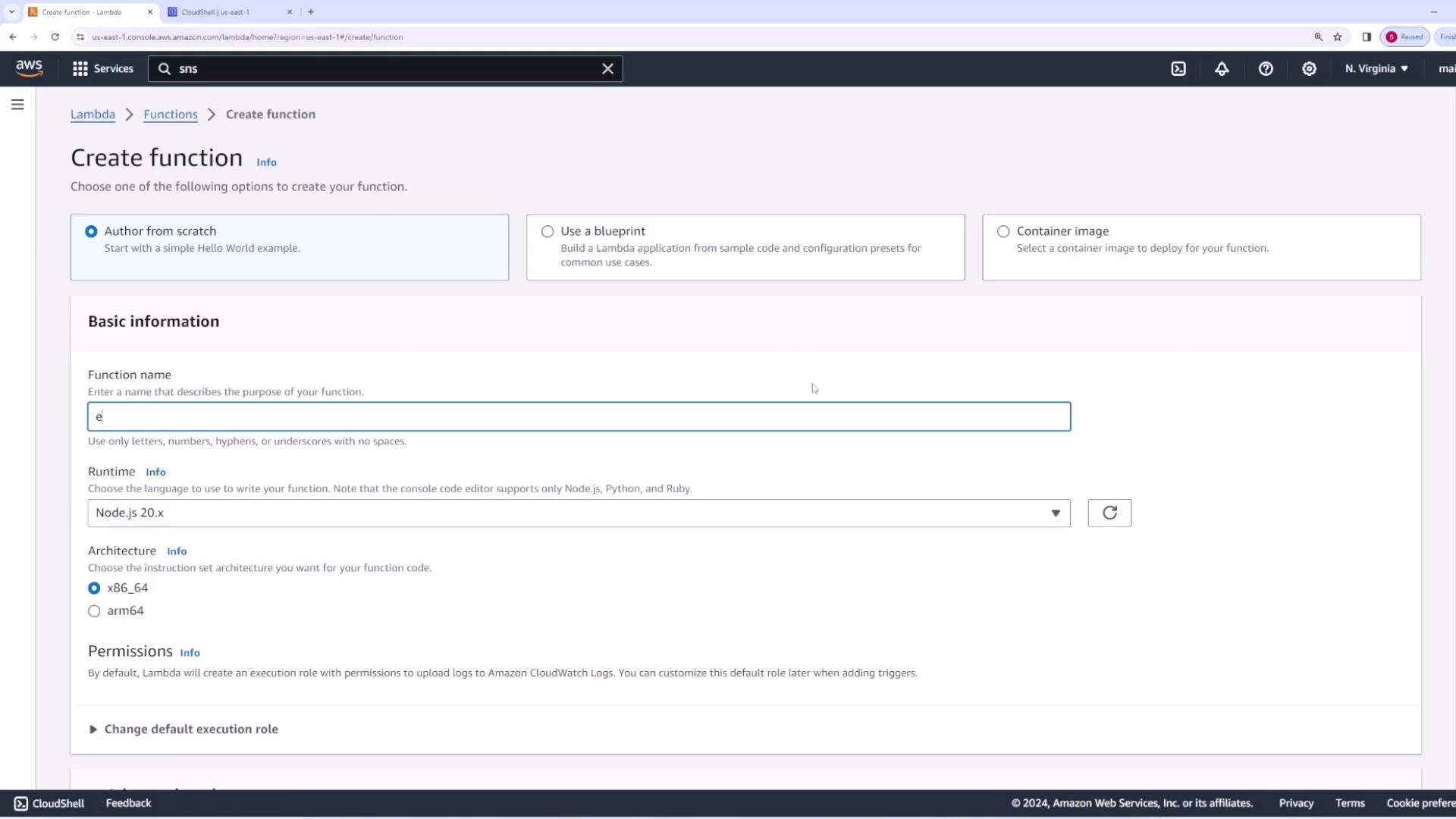
Begin by creating a new [AWS Lambda](https://learn.kodekloud.com/user/courses/aws-lambda) function named "env demo". During the setup process, you will configure essential settings including the function name, runtime, and permissions.
## Accessing Environment Variables in Code
Within your Node.js [AWS Lambda](https://learn.kodekloud.com/user/courses/aws-lambda) function, you can access environment variables using `process.env`. In the example below, the code retrieves an environment variable named `PASSWORD` and returns its value as part of the response.
```javascript theme={null}
export const handler = async (event) => {
const password = process.env.PASSWORD;
const response = {
statusCode: 200,
body: JSON.stringify("Password is: " + password),
};
return response;
};
```
When the function is first invoked without the environment variable set, the output will confirm that the variable is `undefined`:
```json theme={null}
{
"statusCode": 200,
"body": "\"Password is:undefined\""
}
```
## Configuring Environment Variables
To configure the environment variable, follow these steps in the [AWS Lambda](https://learn.kodekloud.com/user/courses/aws-lambda) console:
1. Navigate to the "Environment variables" tab.
2. Click the Edit button.
3. Add a new environment variable with the key `PASSWORD` and the value `password123`.
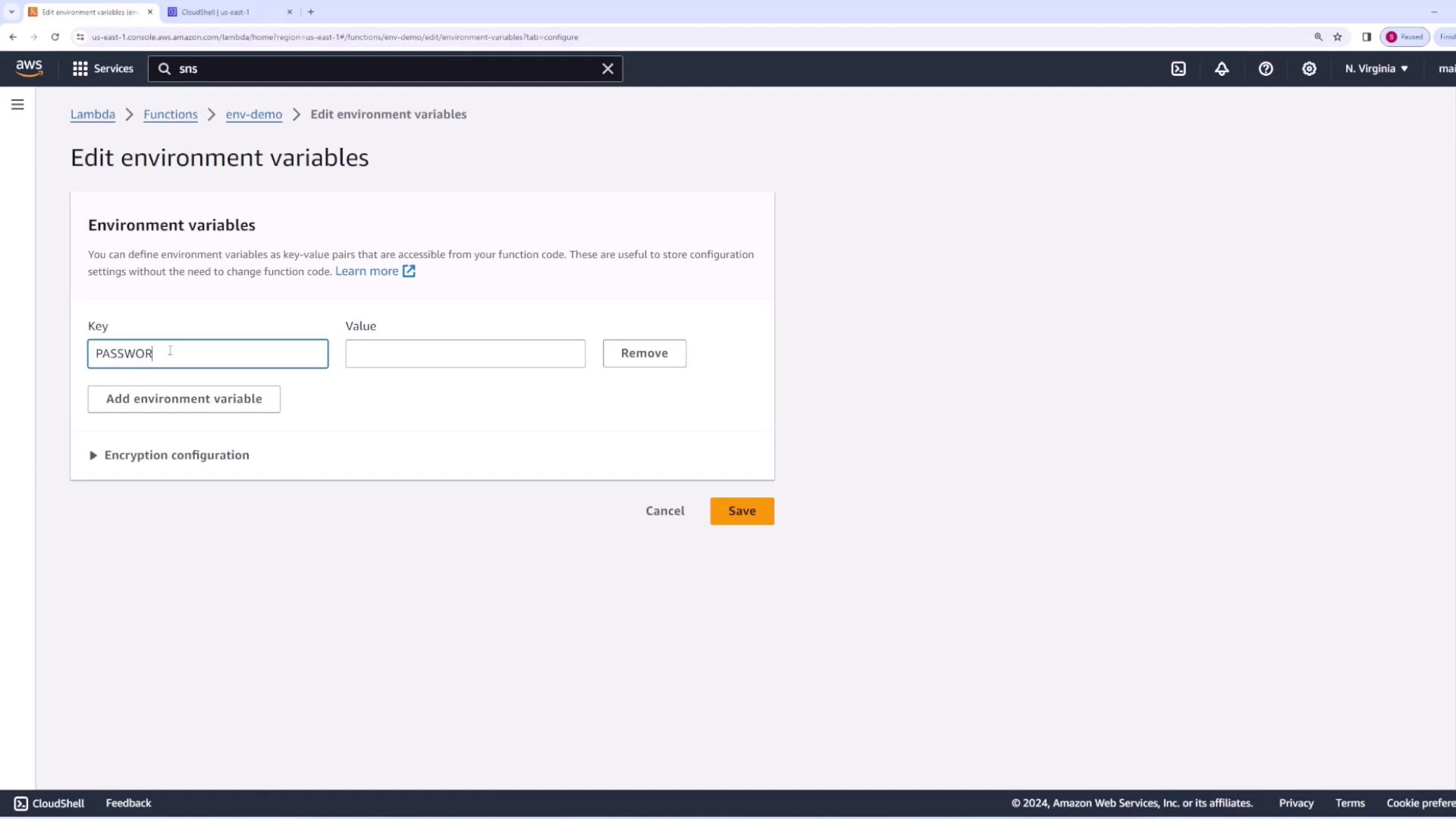
After saving and deploying the changes, invoke the function again. The updated configuration will now provide the set password as part of the function's output.
The revised invocation returns:
```json theme={null}
{
"statusCode": 200,
"body": "\"Password is: password123\""
}
```
Make sure to update and deploy your function after changing environment variables to ensure the new configuration is applied.
## Sample Function Logs
Below are sample logs generated from a successful function invocation, confirming that the environment variable is being correctly utilized:
```plaintext theme={null}
Function Logs
START RequestId: c305e2f7-f5c5-423a-a6c6-d862563c454f Version: $LATEST
END RequestId: c305e2f7-f5c5-423a-a6c6-d862563c454f
REPORT RequestId: c305e2f7-f5c5-423a-a6c6-d862563c454f Duration: 12.69 ms Billed Duration: 13 ms Memory Size: 128 MB Max Memory Used: 64 MB Init Duration: 150.02 ms
```
This confirms that your [AWS Lambda](https://learn.kodekloud.com/user/courses/aws-lambda) function is successfully retrieving and utilizing the environment variable.
## Additional Resources
For further details on AWS Lambda and environment variable configuration, refer to the following resources:
* [AWS Lambda Documentation](https://docs.aws.amazon.com/lambda/)
* [AWS Environment Variables Guide](https://docs.aws.amazon.com/lambda/latest/dg/configuration-envvars.html)