> ## Documentation Index
> Fetch the complete documentation index at: https://notes.kodekloud.com/llms.txt
> Use this file to discover all available pages before exploring further.
# S3 Access Points Demo
> Explore how to work with Amazon S3 access points by creating a demo bucket, uploading files, and configuring access controls for different user groups.
In this guide, explore how to work with Amazon S3 access points by creating a demo bucket, uploading files, simulating multiple users, and configuring granular access controls. We'll cover creating access points for different user groups such as developers and finance, and demonstrate how access point policies work alongside bucket policies.
***
## Creating the Demo Bucket
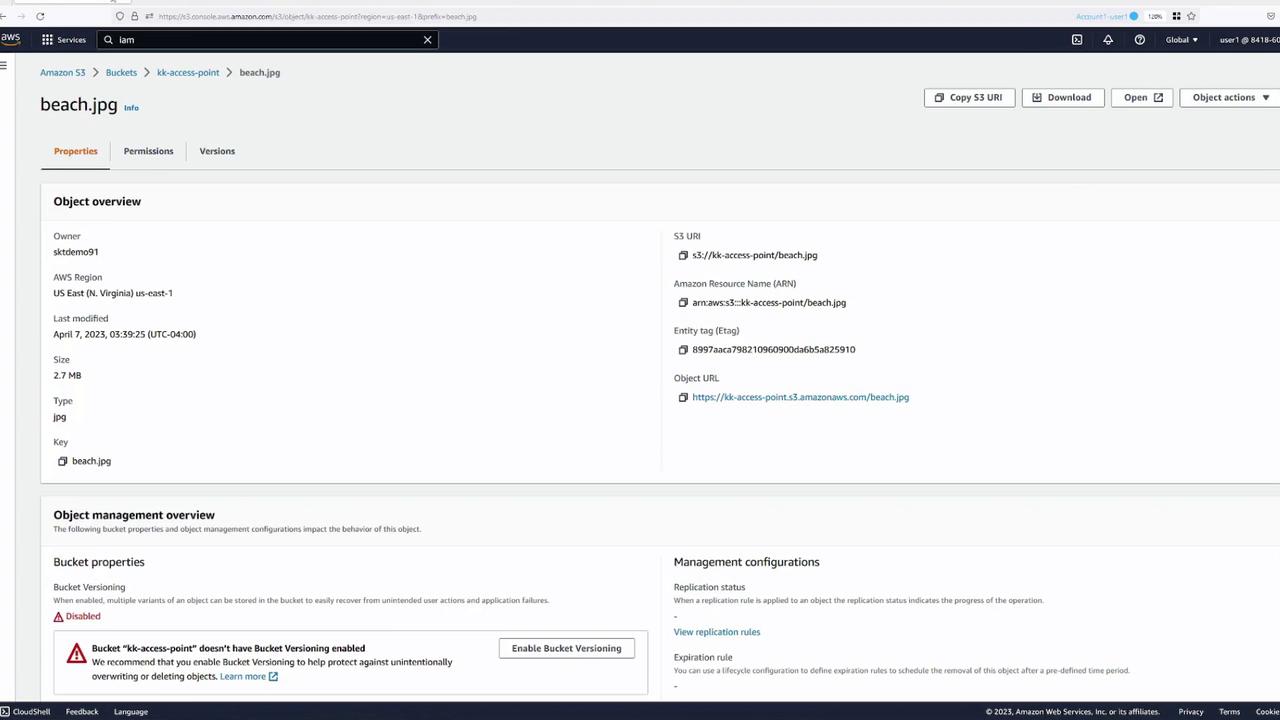
Begin by creating a demo S3 bucket named **KK-AccessPoint** with default settings. Once the bucket is created, upload a demo file (for example, *beach.jpg*) to test file accessibility.
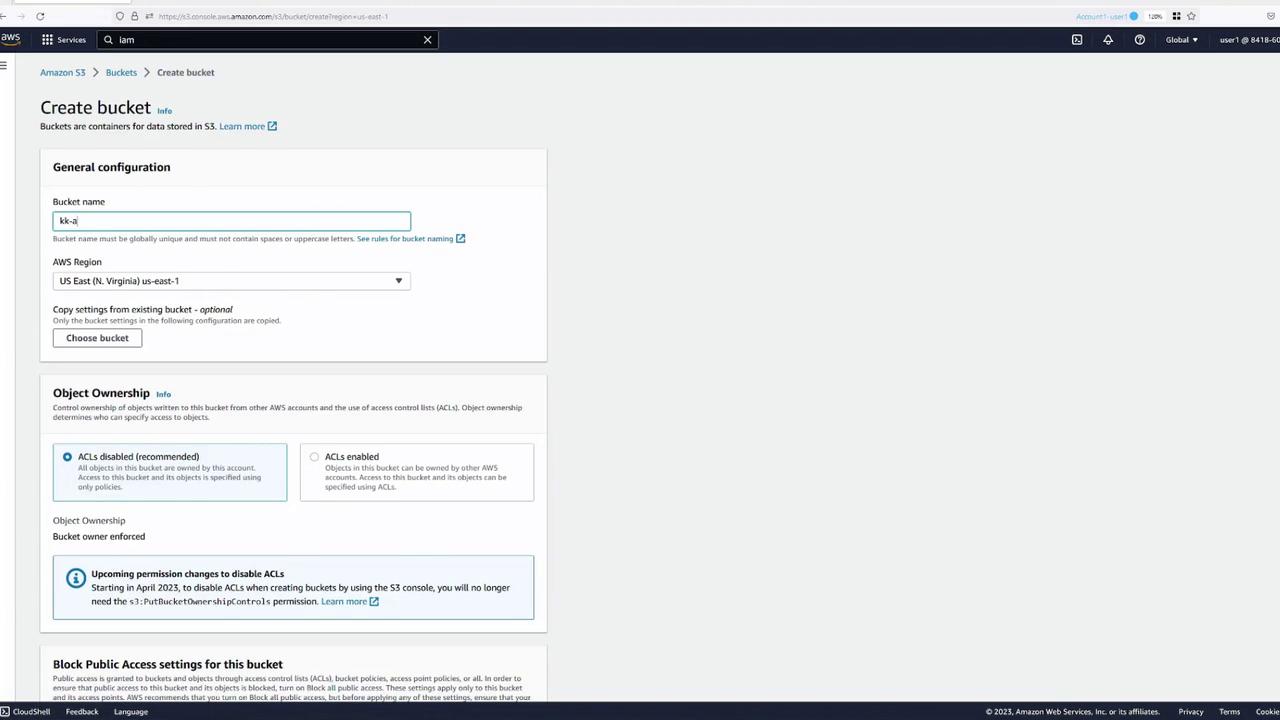
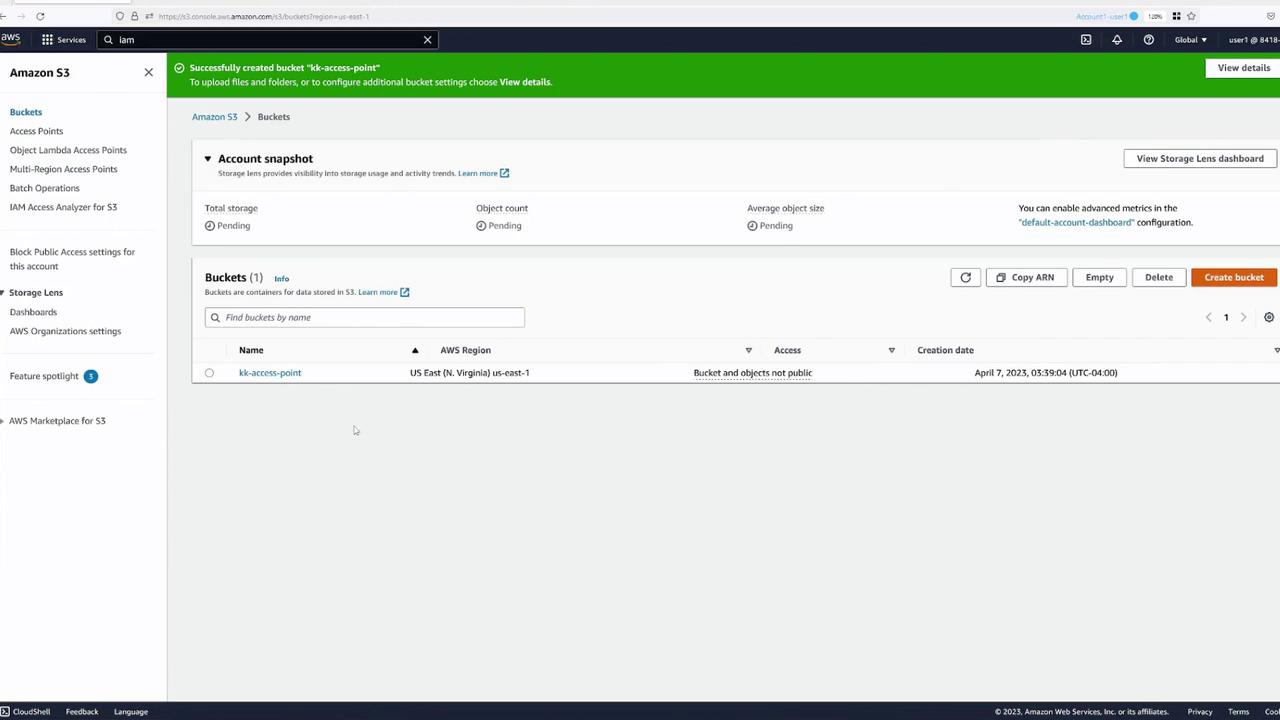
As the bucket owner, click the Open button after uploading to verify access to the file.
***
## Simulating Multiple Users
To simulate different users accessing the S3 bucket, open separate browser tabs. For instance, use:
• Blue tab – User One (bucket owner)\
• Green tab – User Two\
• Yellow tab – User Three
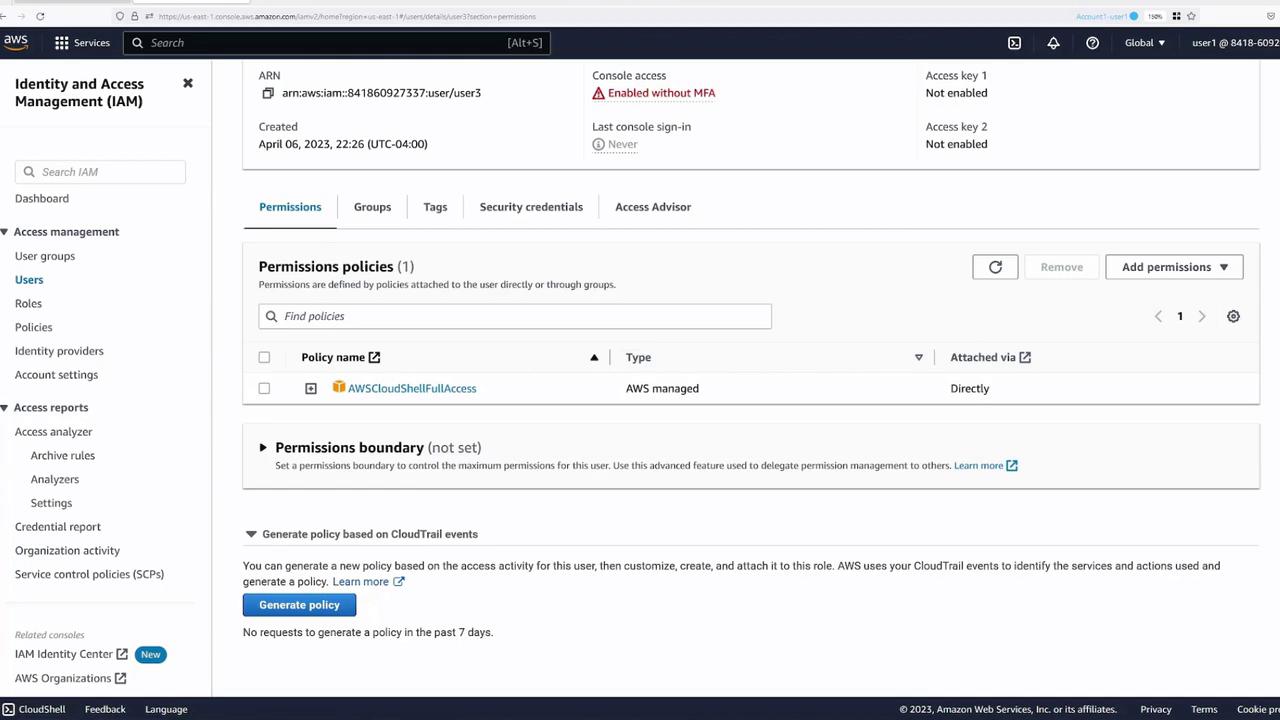
Next, validate the user permissions in the IAM Management Console. In this demo, User Three has CloudShell access only and no permissions to interact with S3 buckets.
***
## Testing File Access Via CloudShell
AWS CloudShell, with the AWS CLI pre-installed, allows you to run commands without setting up a local CLI environment. While testing, you might observe that although the bucket owner can list bucket contents, Users Two and Three receive a "403 Forbidden" error when trying to copy the file.
For example, in a CloudShell session as the bucket owner:
```bash theme={null}
[cloudshell-user@ip-10-2-30-244 ~]$ aws s3 ls
2023-04-07 02:36:13 kk-access-point
[cloudshell-user@ip-10-2-30-244 ~]$ aws s3 ls s3://kk-access-point/
2023-04-07 02:27:37 2897941 beach.jpg
[cloudshell-user@ip-10-2-30-244 ~]$ aws s3 cp s3://kk-access-point/beach.jpg .
fatal error: An error occurred (403) when calling the HeadObject operation: Forbidden
[cloudshell-user@ip-10-2-30-244 ~]$
```
Attempting the same command under User Two or User Three’s session will produce a similar forbidden error, confirming that initially only the bucket owner has access.
When re-testing as the main user, the same error persists:
```plaintext theme={null}
[cloudshell-user@ip-10-2-30-244 ~]$ aws s3 ls
2023-04-07 07:26:13 kk-access-point
[cloudshell-user@ip-10-2-30-244 ~]$ aws s3 cp s3://kk-access-point/beach.jpg .
fatal error: An error occurred (403) when calling the HeadObject operation: Forbidden
```
***
## Creating Access Points
Access points allow you to delegate access control to specific groups. In this demo, we’ll create two access points — one for developers and one for finance.
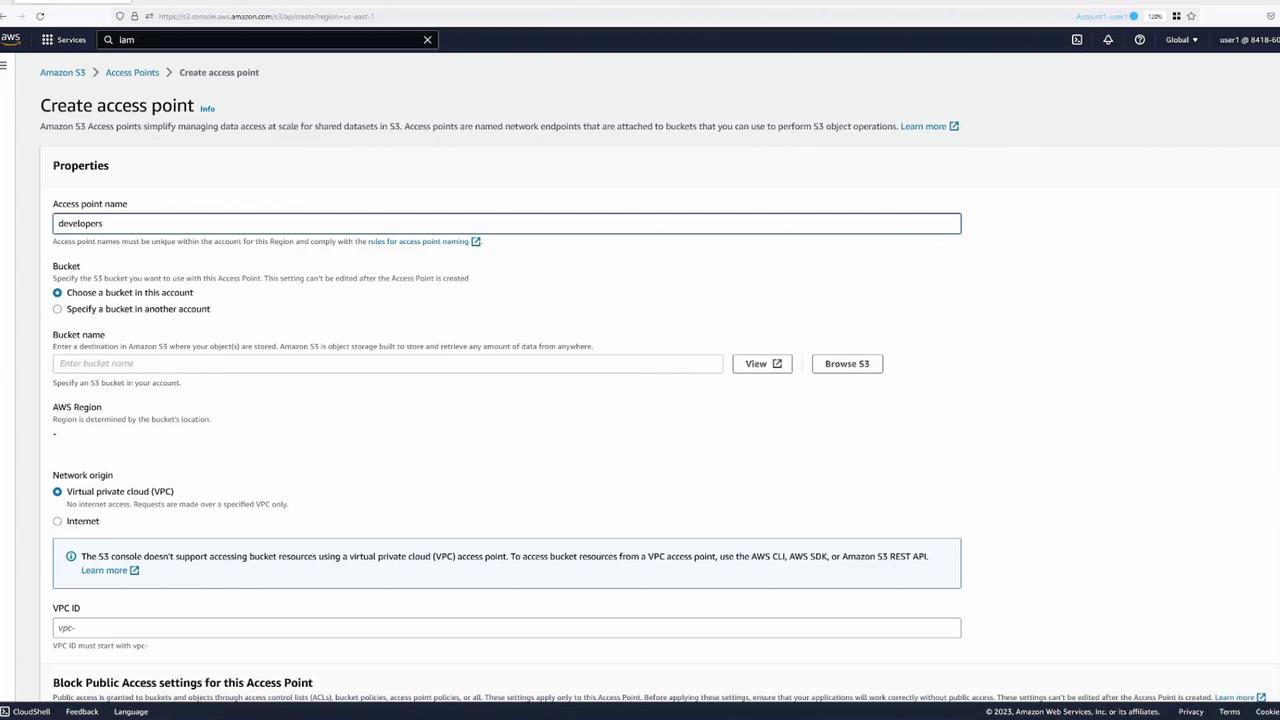
### Step 1: Create the Developer Access Point
1. In the S3 console, select your bucket and navigate to “Access Points.”
2. Click **Create Access Point**.
3. Enter a name (e.g., `developers`) and select the **KK-AccessPoint** bucket.
4. For network origin, choose "open up to the Internet" (unless you require a specific VPC).
5. Skip the initial access point policy configuration and click **Create**.
### Step 2: Create the Finance Access Point
Repeat the process to create another access point for the finance team (e.g., named `finance`):
1. Follow the same steps as above.
2. Name the access point (e.g., `finance`) and select **KK-AccessPoint**.
3. Leave the policy default for now.
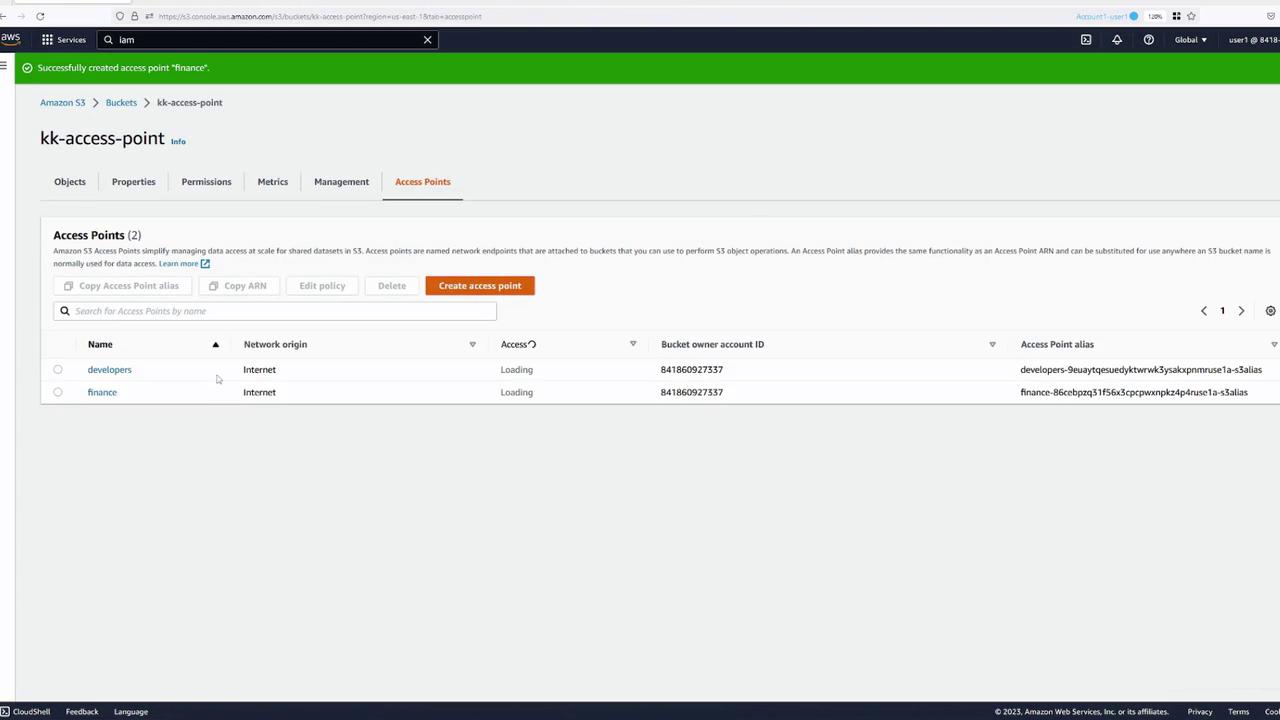
Later, you will update the access point policies to define who can access the underlying bucket.
***
## Understanding Access Point Policies
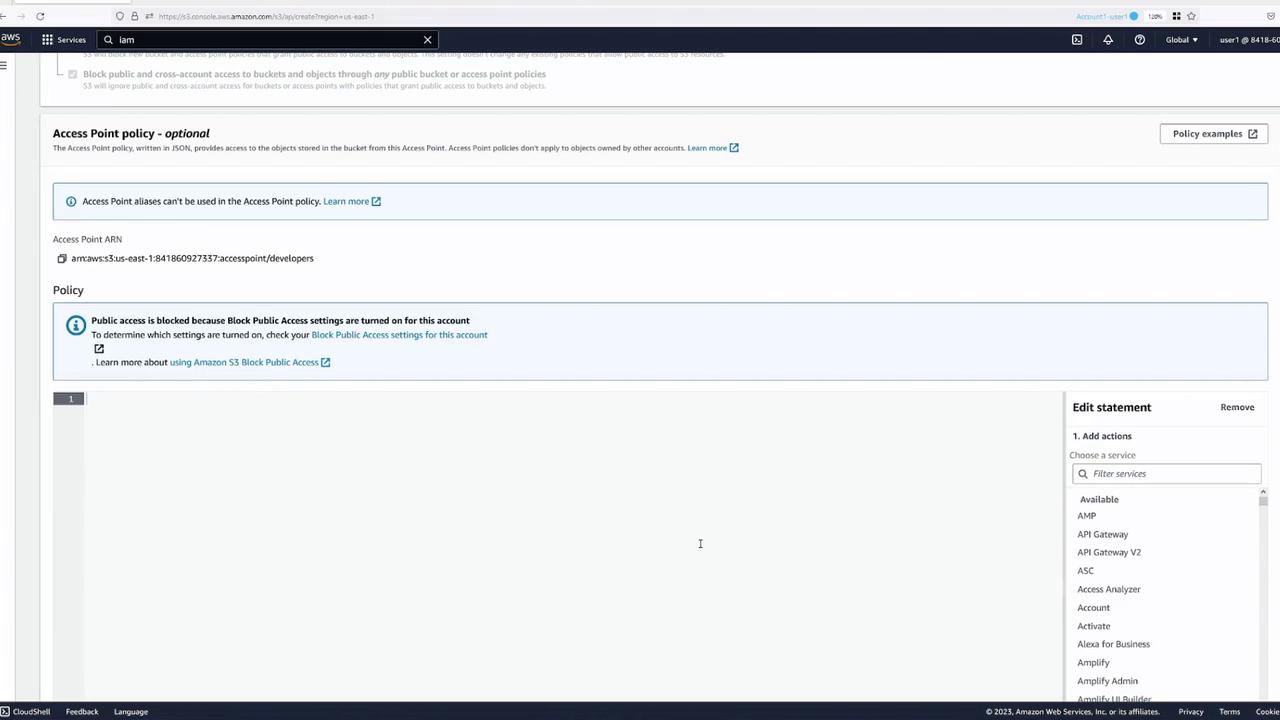
Access point policies are similar to bucket policies but reference the access point ARN rather than the bucket ARN. Below is a sample access point policy:
```json theme={null}
{
"Version": "2012-10-17",
"Statement": [
{
"Effect": "Allow",
"Principal": { "AWS": "arn:aws:iam::123456789012:user/Jane" },
"Action": [
"s3:GetObject",
"s3:PutObject"
],
"Resource": "arn:aws:s3:us-west-2:123456789012:accesspoint:my_access_point/object/Jane/*"
}
]
}
```
Note the following:
• The policy specifies a principal and allowed actions.\
• The resource section references the access point ARN, distinctly different from a typical bucket ARN.
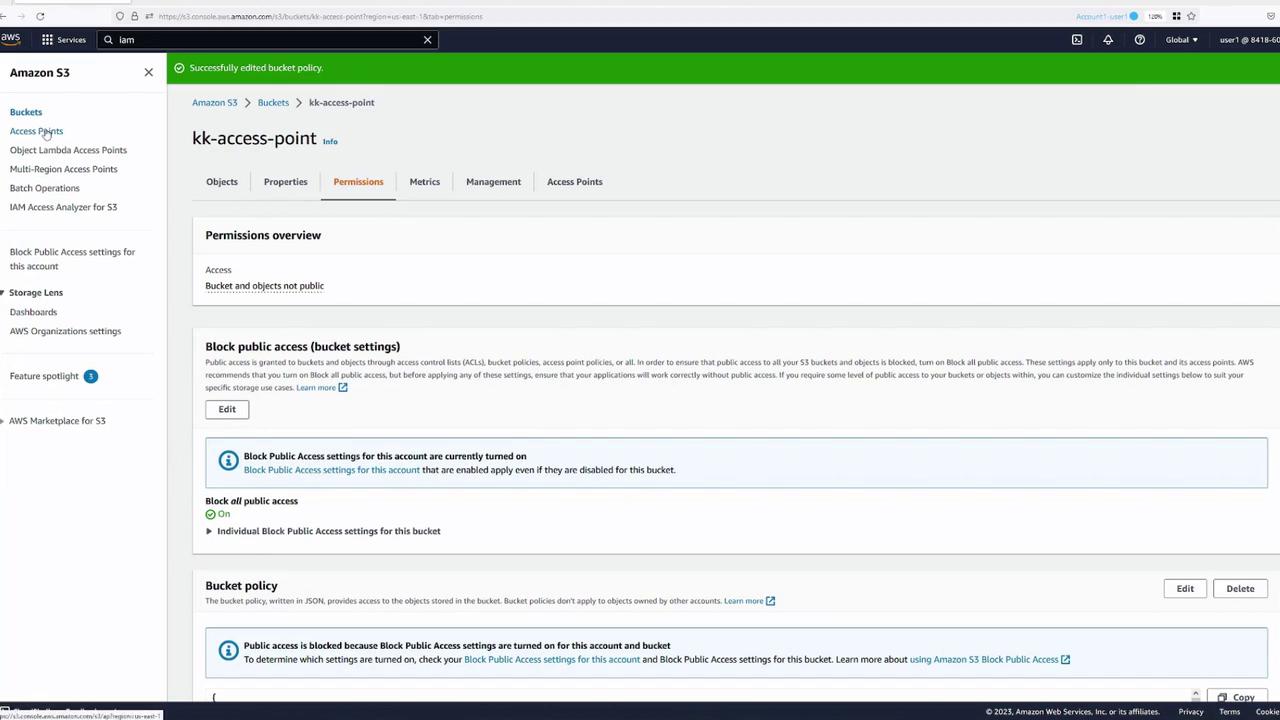
Ensure that permissions granted in an access point policy are also allowed by the underlying bucket. You can either delegate control from the bucket or include the access point policy in the bucket policy.
To delegate control from the bucket, modify your bucket policy as shown below:
```json theme={null}
{
"Version": "2012-10-17",
"Statement": [
{
"Effect": "Allow",
"Principal": "*",
"Action": "*",
"Resource": [
"arn:aws:s3:::kk-access-point",
"arn:aws:s3:::kk-access-point/*"
],
"Condition": {
"StringEquals": {
"s3:DataAccessPointAccount": "Bucket owner's account ID"
}
}
}
]
}
```
This delegation allows all access points attached to the bucket to manage their own policies independently.
***
## Configuring Access Point Policies
### For the Developers Access Point
To allow User Two (a developer) to perform S3 operations using the `developers` access point, update the access point policy as follows:
```json theme={null}
{
"Version": "2012-10-17",
"Statement": [
{
"Effect": "Allow",
"Principal": { "AWS": "arn:aws:iam::184186097733:user/user2" },
"Action": [
"s3:GetObject",
"s3:PutObject"
],
"Resource": "arn:aws:s3:us-west-2:184186097733:accesspoint/my-access-point/object/name/*"
}
]
}
```
If listing bucket contents is required, add the `s3:ListBucket` action. See the example below:
```json theme={null}
{
"Version": "2012-10-17",
"Statement": [
{
"Effect": "Allow",
"Principal": { "AWS": "arn:aws:iam::841860927337:user/user2" },
"Action": [
"s3:GetObject",
"s3:PutObject",
"s3:ListBucket"
],
"Resource": [
"arn:aws:s3:us-east-1:841860927337:accesspoint/developers/object/*",
"arn:aws:s3:us-east-1:841860927337:accesspoint/developers"
]
}
]
}
```
### For the Finance Access Point
Similarly, set up a policy for the `finance` access point to allow a designated finance user (or group) to execute S3 operations:
```json theme={null}
{
"Version": "2012-10-17",
"Statement": [
{
"Effect": "Allow",
"Principal": { "AWS": "arn:aws:iam::184186092713:user/user" },
"Action": [
"s3:GetObject",
"s3:PutObject",
"s3:DeleteObject"
],
"Resource": [
"arn:aws:s3:us-east-1:184186092713:accesspoint/finance/object/*",
"arn:aws:s3:us-east-1:184186092713:accesspoint/finance"
]
}
]
}
```
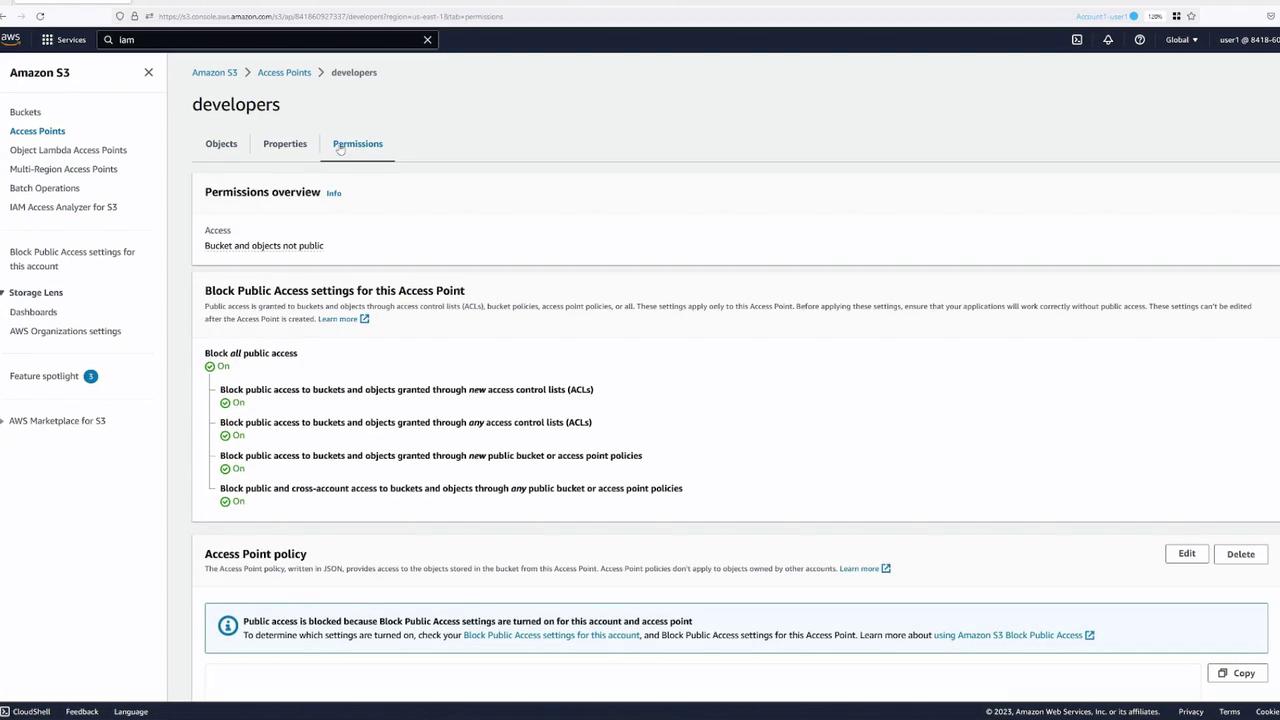
(Be sure to update the ARNs and access point names to reflect your specific configuration.) After making these changes, save the policies and verify the updated configuration on the access point’s Permissions tab.
***
## Testing Access Through the Access Points
With the proper policies in place, test the new access points using the AWS CLI. Instead of addressing the bucket directly, use the ARN of the access point.
For example, to list objects through the `developers` access point:
```bash theme={null}
aws s3 ls s3://arn:aws:s3:us-east-1:841860927337:accesspoint/developers
```
Assuming the policy is configured correctly, you will see the objects (e.g., *beach.jpg*). To download the file using the access point:
```bash theme={null}
aws s3 cp s3://arn:aws:s3:us-east-1:841860927337:accesspoint/developers/beach.jpg ./beach.jpg
```
Similarly, test the `finance` access point by executing:
1. Listing objects:
```bash theme={null}
aws s3 ls s3://arn:aws:s3:us-east-1:841860927337:accesspoint/finance
```
2. Copying the file:
```bash theme={null}
aws s3 cp s3://arn:aws:s3:us-east-1:841860927337:accesspoint/finance/beach.jpg ./beach.jpg
```
You can also test uploads by copying a new file (e.g., *test1*) into the bucket via the designated access point. This customized approach provides greater control over how different user groups interact with your S3 bucket.
***
## Conclusion
By leveraging S3 access points, you can delegate access control to distinct user groups—such as developers and finance—simplifying permissions management and enhancing security. Each access point features its own ARN and policy, enabling granular control over data access within a shared S3 bucket. For further details on S3 best practices and advanced configurations, refer to the [AWS S3 Documentation](https://docs.aws.amazon.com/AmazonS3/latest/userguide/using-access-points.html).
Happy cloud computing!