> ## Documentation Index
> Fetch the complete documentation index at: https://notes.kodekloud.com/llms.txt
> Use this file to discover all available pages before exploring further.
# Demo Creating and Managing Features in SageMaker Feature Store
> Guide to creating and managing Amazon SageMaker Feature Store feature groups, covering configuration, storage options, identifiers, ingestion, and best practices for online and offline feature usage.
This lesson explains how to create and manage a feature store using Amazon SageMaker Feature Store. You'll learn where to find Feature Store in SageMaker Studio, why a feature store is useful, and the essential configuration steps to create a feature group (the core unit that stores features).
To get started, open the AWS console, navigate to Amazon SageMaker AI, and then open SageMaker Studio under Applications and IDEs.
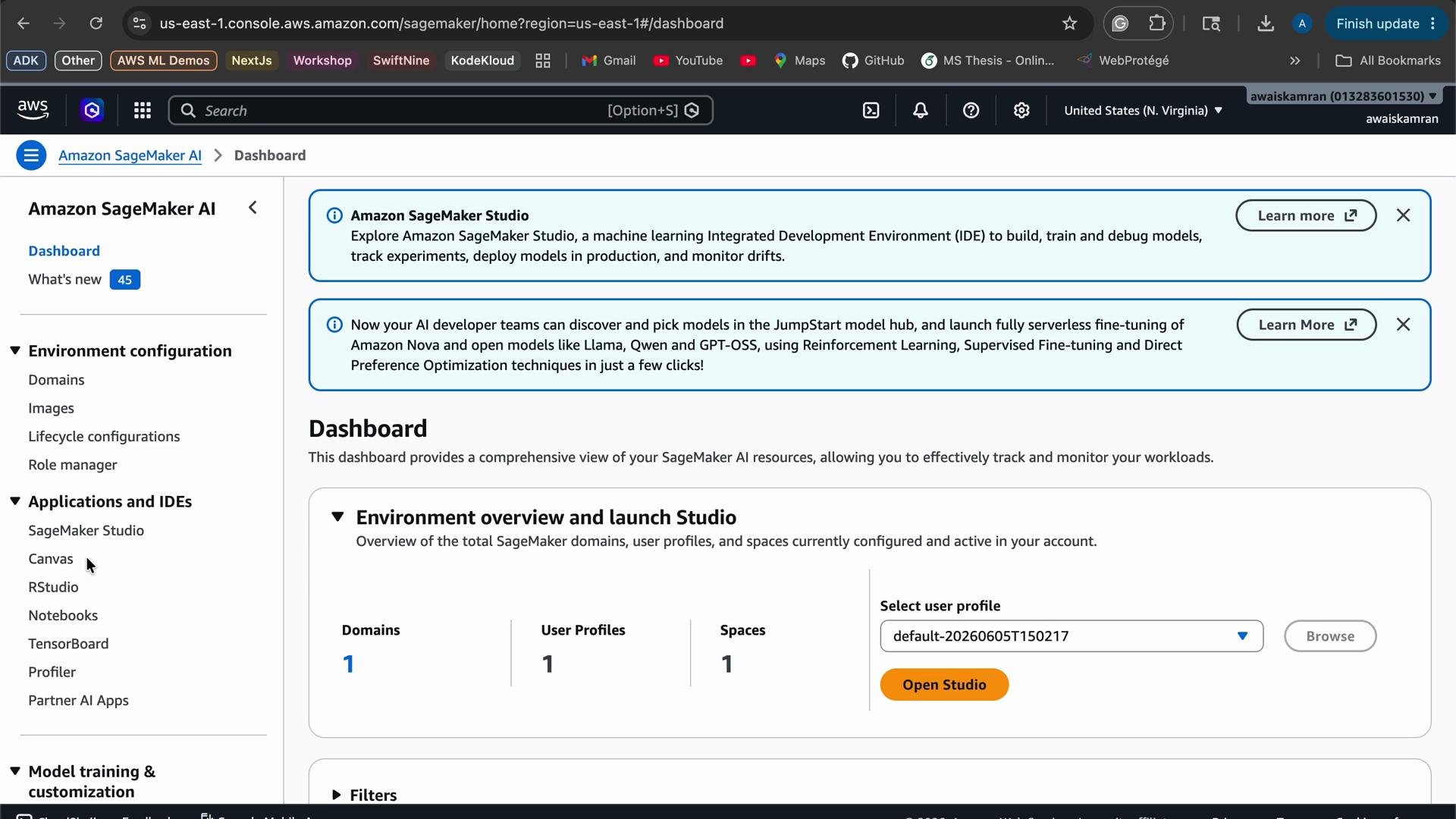 Running SageMaker Studio (and Canvas) can incur charges while active. Sign out or shut down running resources when not in use to avoid unexpected costs.
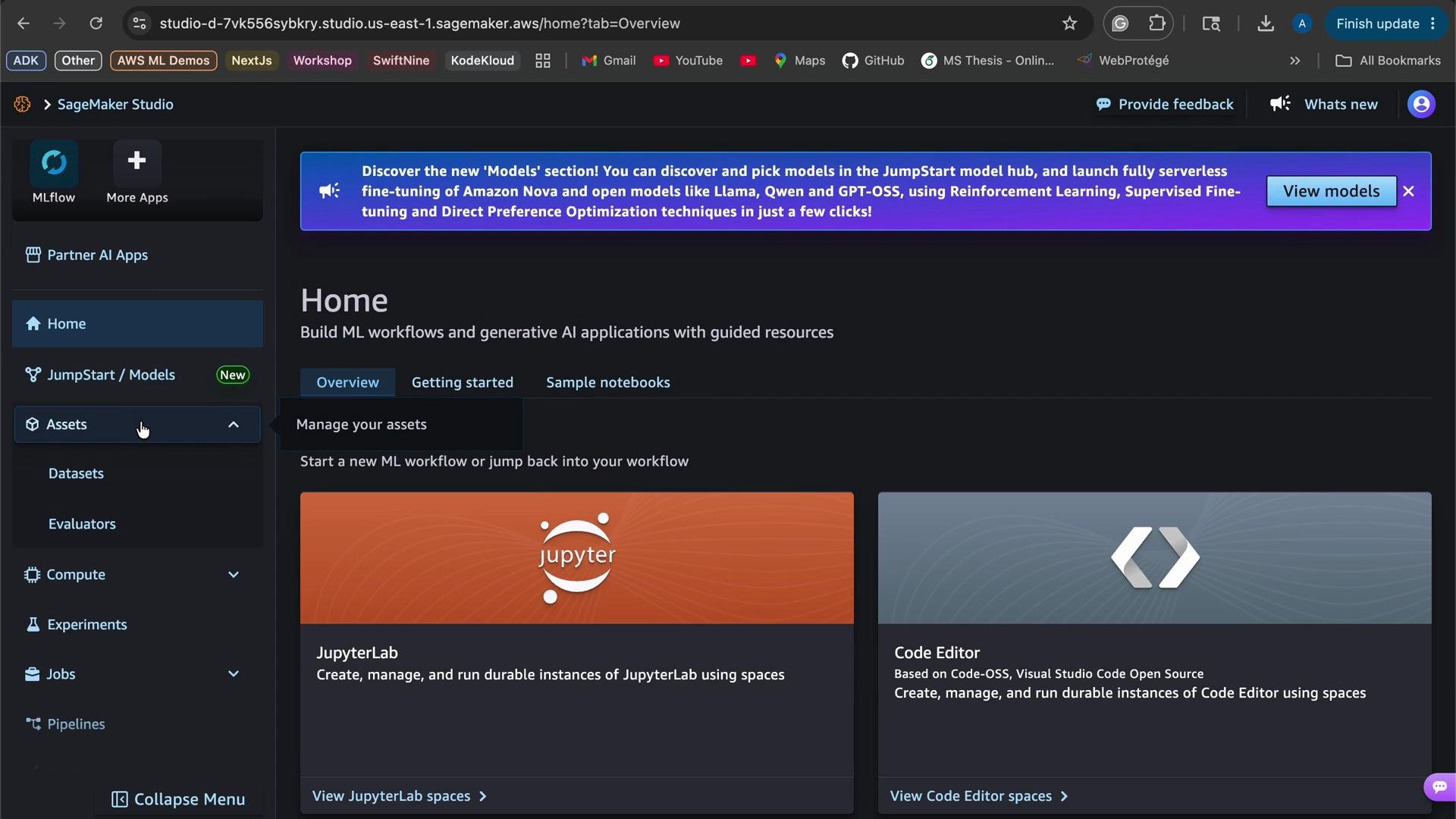
After opening Studio, you'll land on the Studio home page, which provides access to JupyterLab, the Code Editor, assets, compute instances, experiments, jobs, pipelines, and more. Feature Store is available from the More menu at the top.
Running SageMaker Studio (and Canvas) can incur charges while active. Sign out or shut down running resources when not in use to avoid unexpected costs.
After opening Studio, you'll land on the Studio home page, which provides access to JupyterLab, the Code Editor, assets, compute instances, experiments, jobs, pipelines, and more. Feature Store is available from the More menu at the top.
 Why use a feature store?
* Ensure consistency: Use the same engineered features for training (offline) and serving (online).
* Reduce duplication: Avoid recomputing features across ad-hoc jobs, Lambdas, or scripts.
* Low-latency access: Provide fast, single-key lookups for online inference.
* Versioning and governance: Maintain feature lineage, metadata, and access controls across teams.
Feature store architecture — online vs offline
| Store Type | Use Case | Typical Configuration |
| ------------- | -------------------------------------------: | ------------------------------------------------------------------- |
| Online store | Real-time, low-latency lookups for inference | `Standard` store type, on-demand throughput, KMS encryption |
| Offline store | Batch training and analytics | S3-backed offline store, used for joins and time-travel experiments |
Feature group (overview)
In SageMaker Feature Store you define a feature group. A feature group includes feature definitions, record identifiers, storage configuration, encryption, and throughput options.
Why use a feature store?
* Ensure consistency: Use the same engineered features for training (offline) and serving (online).
* Reduce duplication: Avoid recomputing features across ad-hoc jobs, Lambdas, or scripts.
* Low-latency access: Provide fast, single-key lookups for online inference.
* Versioning and governance: Maintain feature lineage, metadata, and access controls across teams.
Feature store architecture — online vs offline
| Store Type | Use Case | Typical Configuration |
| ------------- | -------------------------------------------: | ------------------------------------------------------------------- |
| Online store | Real-time, low-latency lookups for inference | `Standard` store type, on-demand throughput, KMS encryption |
| Offline store | Batch training and analytics | S3-backed offline store, used for joins and time-travel experiments |
Feature group (overview)
In SageMaker Feature Store you define a feature group. A feature group includes feature definitions, record identifiers, storage configuration, encryption, and throughput options.
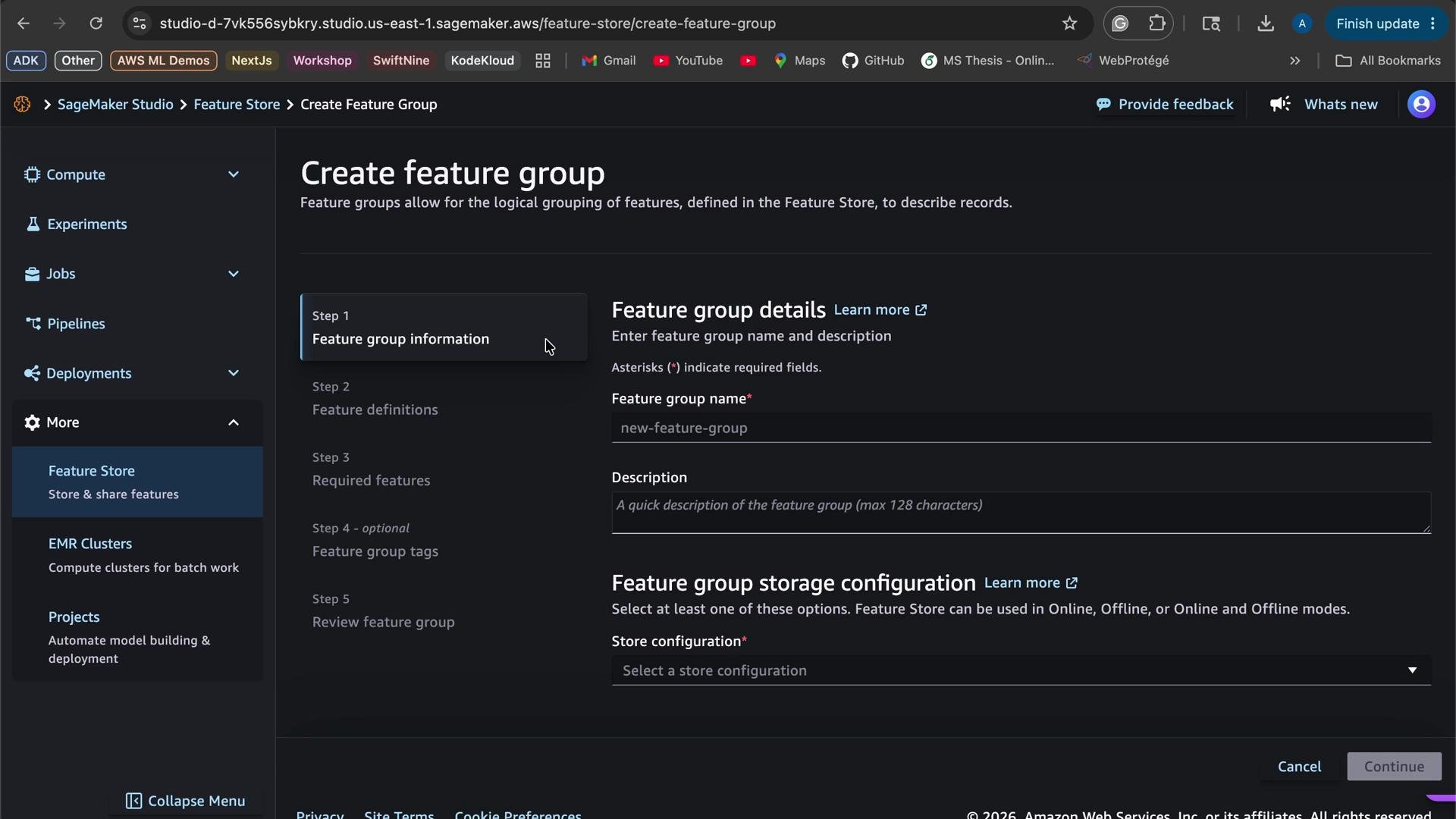 Key steps to create a feature group
1. Choose a feature group name and provide a description.
2. Select store configuration:
* Online store: low-latency lookups (optional if you only need offline storage).
* Offline store: S3-based store used for batch training and analytics.
3. Define feature schema (feature names and data types).
4. Specify identifiers:
* Record identifier (primary key, e.g., `PassengerId`).
* Event time feature (for time-travel and point-in-time joins).
5. Provide IAM role permissions that allow SageMaker to write to the offline store and access KMS keys.
6. Configure encryption (KMS), throughput (standard / on-demand), and optional tags.
7. Review and create the feature group.
Identifiers, permissions, and storage settings (summary)
| Setting | Purpose / Example |
| ------------------ | ------------------------------------------------------- |
| Feature group name | `titanic-features-2` |
| Record identifier | `PassengerId` (primary key) |
| Event time feature | `EventTime` (ISO 8601 recommended) |
| IAM role | Grants SageMaker access to S3 and KMS |
| Offline store | S3 bucket location for historical data |
| Encryption | Use AWS-managed KMS or customer-managed key |
| Throughput | `On-demand` recommended for variable traffic |
| Tags | Optional — helpful for cost allocation and organization |
Example: Titanic feature group
The Titanic dataset is a common example for demonstrating feature definitions. When defining features in a feature group, specify each feature's data type. SageMaker Feature Store supports types such as Integral, Fractional, and String.
Key steps to create a feature group
1. Choose a feature group name and provide a description.
2. Select store configuration:
* Online store: low-latency lookups (optional if you only need offline storage).
* Offline store: S3-based store used for batch training and analytics.
3. Define feature schema (feature names and data types).
4. Specify identifiers:
* Record identifier (primary key, e.g., `PassengerId`).
* Event time feature (for time-travel and point-in-time joins).
5. Provide IAM role permissions that allow SageMaker to write to the offline store and access KMS keys.
6. Configure encryption (KMS), throughput (standard / on-demand), and optional tags.
7. Review and create the feature group.
Identifiers, permissions, and storage settings (summary)
| Setting | Purpose / Example |
| ------------------ | ------------------------------------------------------- |
| Feature group name | `titanic-features-2` |
| Record identifier | `PassengerId` (primary key) |
| Event time feature | `EventTime` (ISO 8601 recommended) |
| IAM role | Grants SageMaker access to S3 and KMS |
| Offline store | S3 bucket location for historical data |
| Encryption | Use AWS-managed KMS or customer-managed key |
| Throughput | `On-demand` recommended for variable traffic |
| Tags | Optional — helpful for cost allocation and organization |
Example: Titanic feature group
The Titanic dataset is a common example for demonstrating feature definitions. When defining features in a feature group, specify each feature's data type. SageMaker Feature Store supports types such as Integral, Fractional, and String.
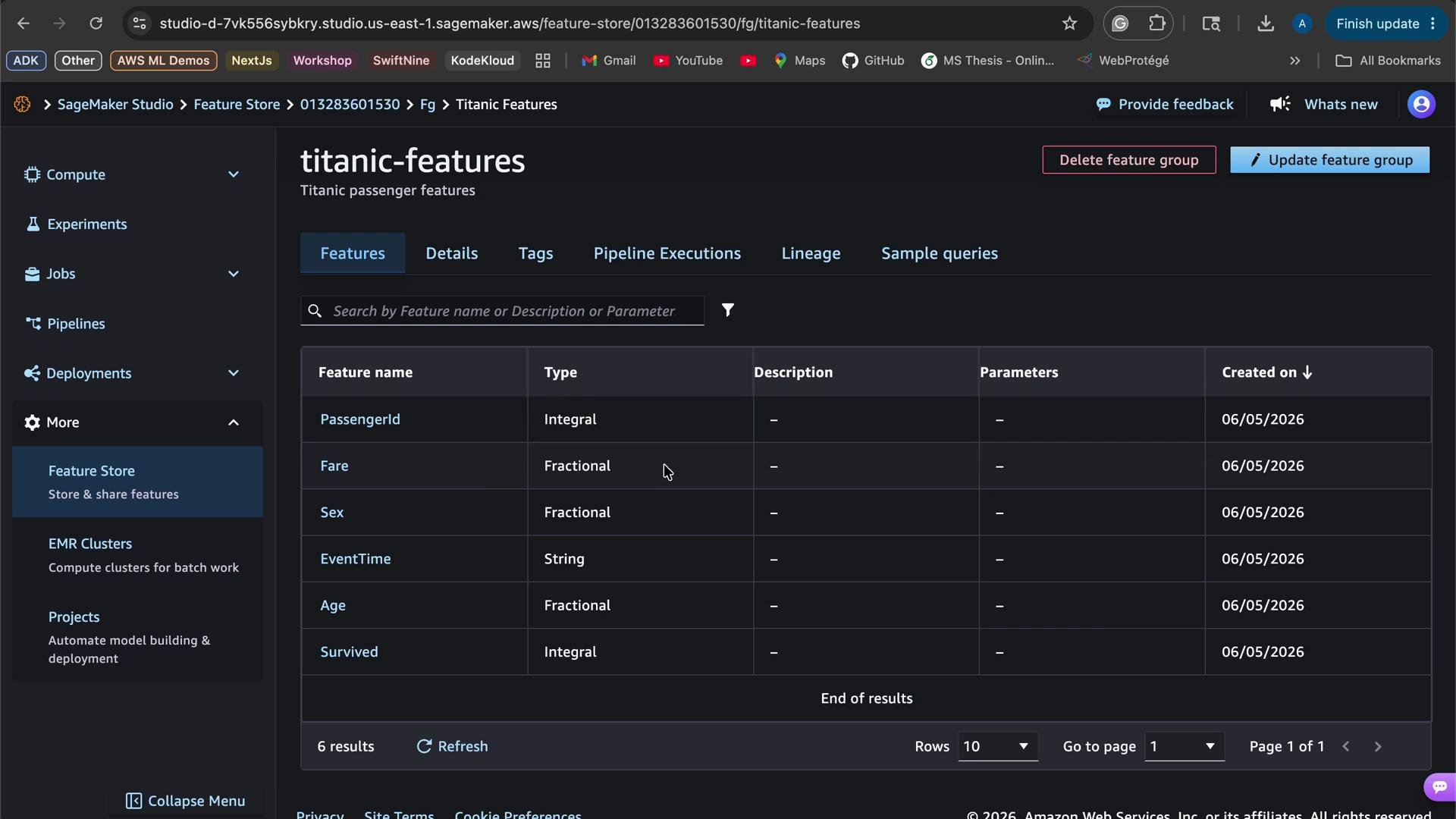 Feature data types and examples
| Feature | Data type | Example / Notes |
| ------------- | ------------------ | -------------------------------------------------- |
| `PassengerId` | Integral | Unique record identifier |
| `Fare` | Fractional | Decimal fare values (float/double) |
| `Sex` | String | Use string or categorical encoding |
| `EventTime` | Timestamp / String | ISO 8601 recommended, e.g., `2021-08-01T12:34:56Z` |
| `Age` | Fractional | Allows decimals, e.g., `24.6` |
| `Survived` | Integral | Binary label: `0` or `1` |
Example Python snippet — feature definitions
```python theme={null}
# python
feature_definitions = [
{"FeatureName": "PassengerId", "FeatureType": "Integral"},
{"FeatureName": "Fare", "FeatureType": "Fractional"},
{"FeatureName": "Sex", "FeatureType": "String"},
{"FeatureName": "EventTime", "FeatureType": "String"}, # ISO 8601 timestamps recommended
{"FeatureName": "Age", "FeatureType": "Fractional"},
{"FeatureName": "Survived", "FeatureType": "Integral"},
]
```
Record event times consistently (preferably in ISO 8601 format). Consistent timestamps ensure time-travel queries and offline joins return the expected historical state.
Ingesting records and reusing features
After creating a feature group, ingest records into the online and/or offline stores using the SageMaker Feature Store APIs or the SageMaker Python SDK. Once populated, these features become reusable across training pipelines and real-time inference endpoints, eliminating duplication of feature engineering logic and improving reliability.
Next steps and recommended actions
* Populate the feature group with ingested records (real-time or batch ingest).
* Use the offline store S3 dataset for batch training and backtesting.
* Use the online store for low-latency inference lookups.
* Implement IAM-based access control, monitoring, and alerts for feature group usage and costs.
* Review AWS documentation for advanced topics such as feature transformations, point-in-time joins, and cross-account access:
* [Amazon SageMaker Feature Store — Documentation](https://docs.aws.amazon.com/sagemaker/latest/dg/feature-store.html)
* [SageMaker Python SDK — Feature Store examples](https://sagemaker.readthedocs.io/en/stable/feature_store.html)
Feature data types and examples
| Feature | Data type | Example / Notes |
| ------------- | ------------------ | -------------------------------------------------- |
| `PassengerId` | Integral | Unique record identifier |
| `Fare` | Fractional | Decimal fare values (float/double) |
| `Sex` | String | Use string or categorical encoding |
| `EventTime` | Timestamp / String | ISO 8601 recommended, e.g., `2021-08-01T12:34:56Z` |
| `Age` | Fractional | Allows decimals, e.g., `24.6` |
| `Survived` | Integral | Binary label: `0` or `1` |
Example Python snippet — feature definitions
```python theme={null}
# python
feature_definitions = [
{"FeatureName": "PassengerId", "FeatureType": "Integral"},
{"FeatureName": "Fare", "FeatureType": "Fractional"},
{"FeatureName": "Sex", "FeatureType": "String"},
{"FeatureName": "EventTime", "FeatureType": "String"}, # ISO 8601 timestamps recommended
{"FeatureName": "Age", "FeatureType": "Fractional"},
{"FeatureName": "Survived", "FeatureType": "Integral"},
]
```
Record event times consistently (preferably in ISO 8601 format). Consistent timestamps ensure time-travel queries and offline joins return the expected historical state.
Ingesting records and reusing features
After creating a feature group, ingest records into the online and/or offline stores using the SageMaker Feature Store APIs or the SageMaker Python SDK. Once populated, these features become reusable across training pipelines and real-time inference endpoints, eliminating duplication of feature engineering logic and improving reliability.
Next steps and recommended actions
* Populate the feature group with ingested records (real-time or batch ingest).
* Use the offline store S3 dataset for batch training and backtesting.
* Use the online store for low-latency inference lookups.
* Implement IAM-based access control, monitoring, and alerts for feature group usage and costs.
* Review AWS documentation for advanced topics such as feature transformations, point-in-time joins, and cross-account access:
* [Amazon SageMaker Feature Store — Documentation](https://docs.aws.amazon.com/sagemaker/latest/dg/feature-store.html)
* [SageMaker Python SDK — Feature Store examples](https://sagemaker.readthedocs.io/en/stable/feature_store.html)