> ## Documentation Index
> Fetch the complete documentation index at: https://notes.kodekloud.com/llms.txt
> Use this file to discover all available pages before exploring further.
# Demo Setting up S3 Buckets for ML Data Lakes
> Guide to create and configure Amazon S3 buckets and prefix structure for machine learning data lakes, including naming, access, encryption, uploading sample data, and enabling versioning.
This guide shows how to create an Amazon S3 bucket and organize a simple folder (prefix) structure for a machine learning data lake. The walkthrough covers naming, region selection, public access considerations, folder organization, uploading a sample dataset, and enabling versioning for safe change management.
I'm using the Amazon S3 landing page and my region is US East (N. Virginia). From the console click Create bucket and follow the prompts.
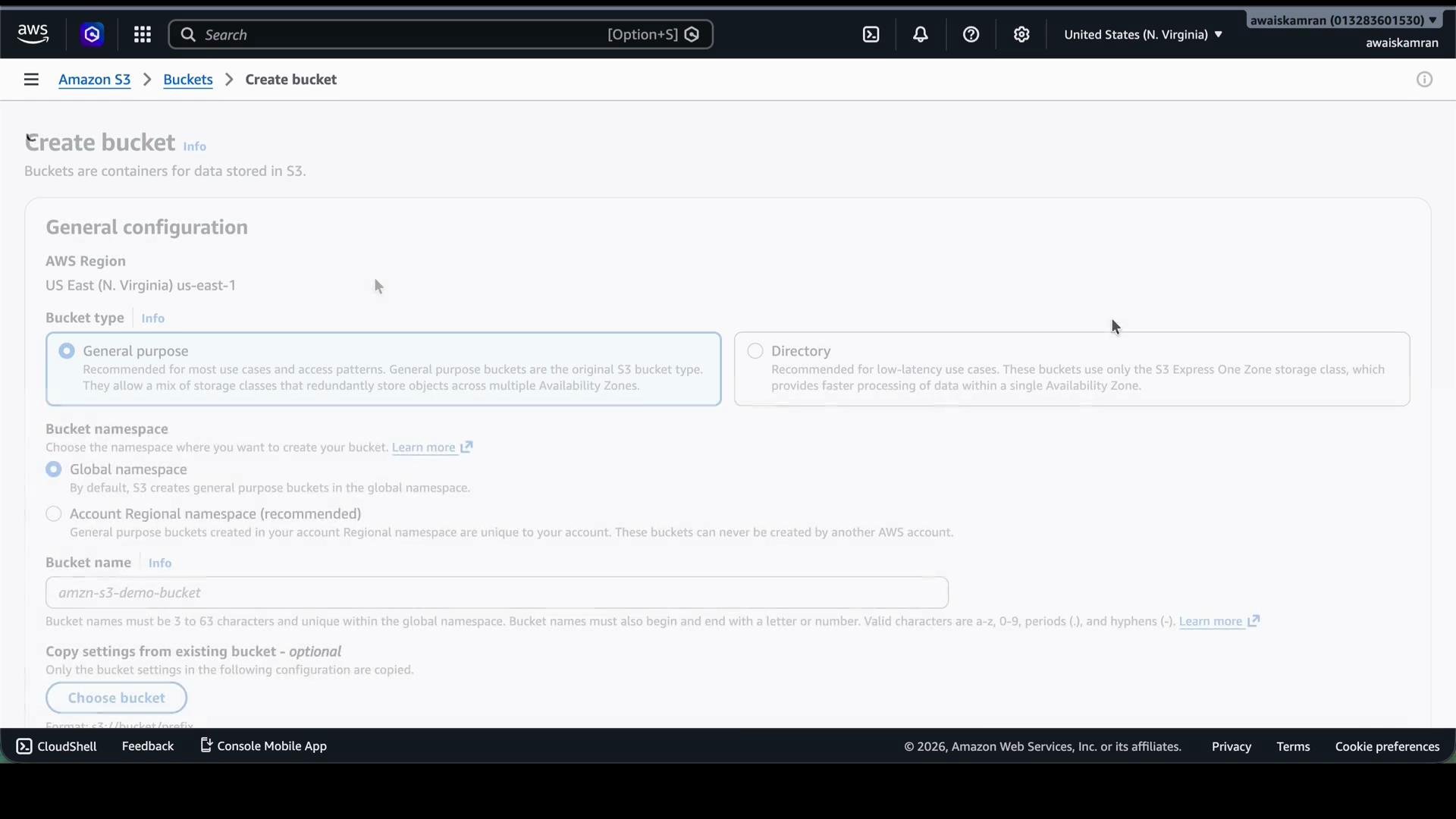 Key choices when creating a bucket:
* Bucket type: keep **General-purpose** for standard ML workloads.
* Region: choose the region where you run compute (data transfer costs and latency matter).
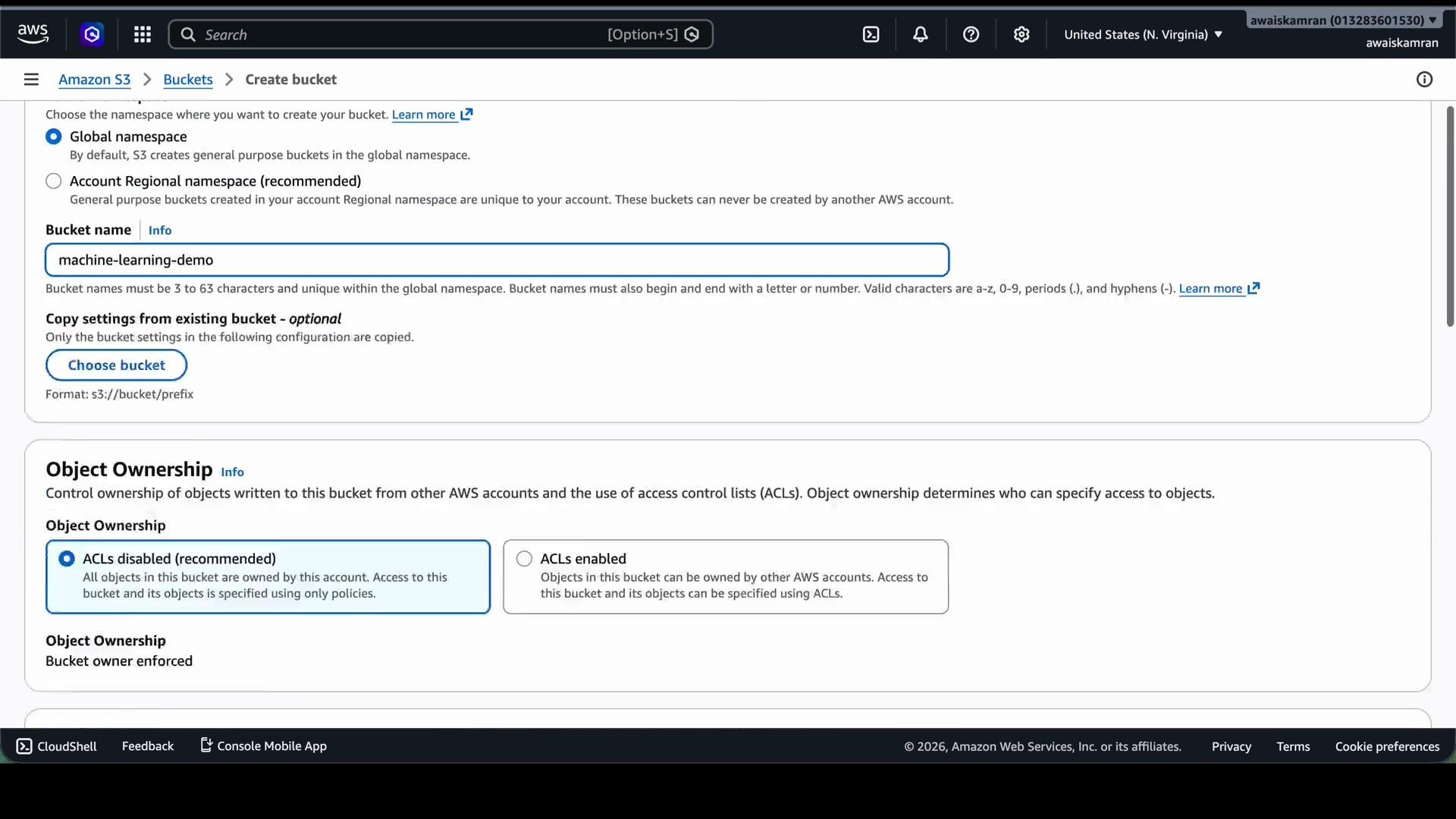
* Bucket name: must be globally unique across AWS (namespace is global).
* Object ownership: recommended to disable ACLs and use bucket policies/IAM.
Choose a bucket name that reflects the project and region, for example `machine-learning-demo-`. Use tags like `Project: ML-Demo` for cost tracking and easy discovery.
Next, enter a unique bucket name. In this demo I used `machine-learning-demo`. I left Object ownership at the recommended setting (disable ACLs).
Key choices when creating a bucket:
* Bucket type: keep **General-purpose** for standard ML workloads.
* Region: choose the region where you run compute (data transfer costs and latency matter).
* Bucket name: must be globally unique across AWS (namespace is global).
* Object ownership: recommended to disable ACLs and use bucket policies/IAM.
Choose a bucket name that reflects the project and region, for example `machine-learning-demo-`. Use tags like `Project: ML-Demo` for cost tracking and easy discovery.
Next, enter a unique bucket name. In this demo I used `machine-learning-demo`. I left Object ownership at the recommended setting (disable ACLs).
 Block Public Access and encryption
* Block Public Access: decide whether the bucket should allow public reads. For demos you might allow public reads, but never do this for sensitive or production data.
* Encryption: enable server-side encryption (SSE-S3 or AWS KMS). SSE-S3 is fine for many cases; use KMS for stricter key control.
Disabling Block Public Access can make the bucket and its objects publicly readable. Only disable this for short-lived demos or non-sensitive data. For real projects, keep Block Public Access enabled and grant access via IAM, bucket policies, or pre-signed URLs.
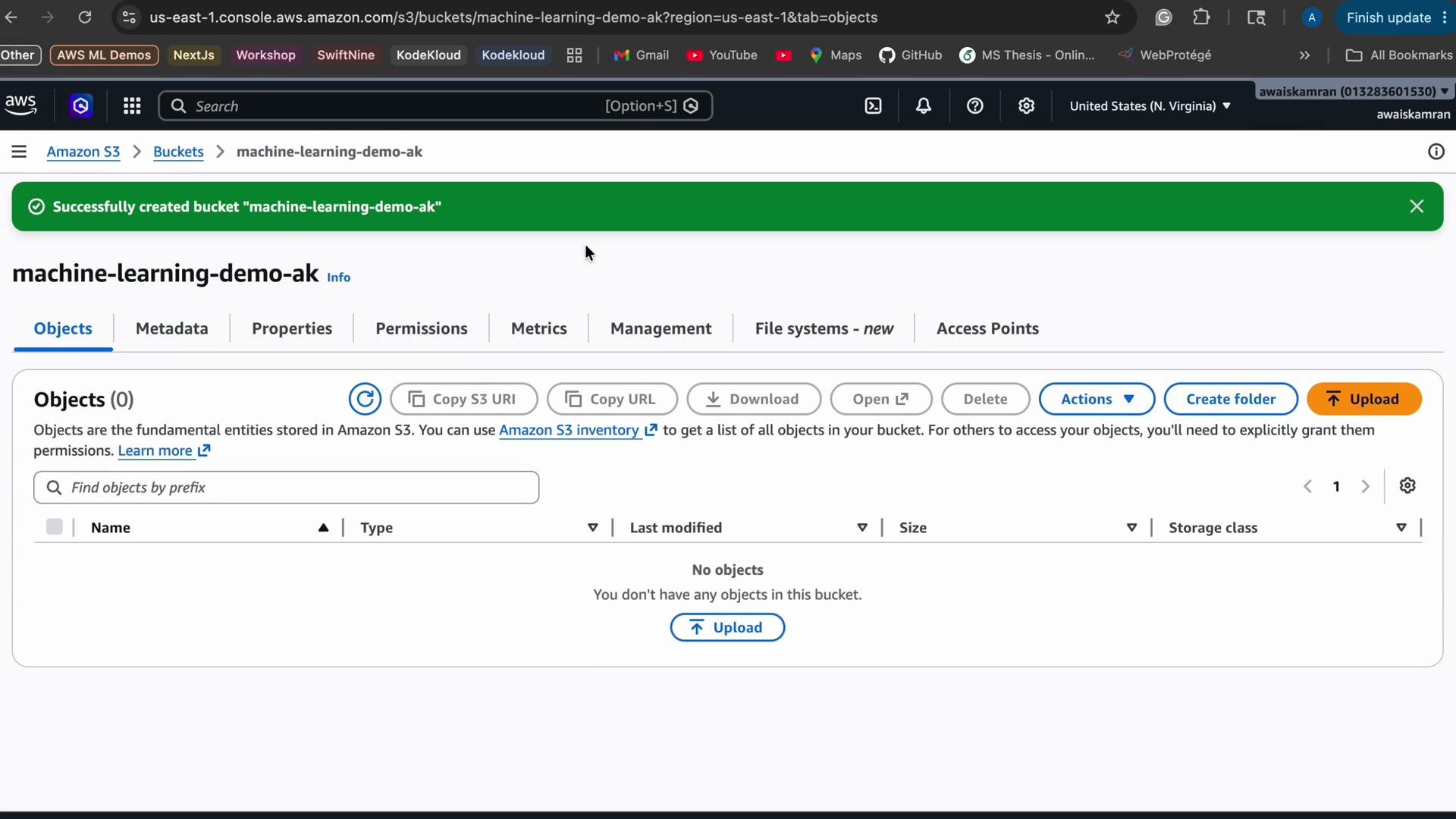
After choosing settings, create the bucket. If the name already exists, pick a different one (for example, I appended my initials and created `machine-learning-demo-ak`). Once created, the bucket appears in the console and shows it contains no objects yet.
Block Public Access and encryption
* Block Public Access: decide whether the bucket should allow public reads. For demos you might allow public reads, but never do this for sensitive or production data.
* Encryption: enable server-side encryption (SSE-S3 or AWS KMS). SSE-S3 is fine for many cases; use KMS for stricter key control.
Disabling Block Public Access can make the bucket and its objects publicly readable. Only disable this for short-lived demos or non-sensitive data. For real projects, keep Block Public Access enabled and grant access via IAM, bucket policies, or pre-signed URLs.
After choosing settings, create the bucket. If the name already exists, pick a different one (for example, I appended my initials and created `machine-learning-demo-ak`). Once created, the bucket appears in the console and shows it contains no objects yet.
 Understanding S3 folders (prefixes)
S3 uses object keys; “folders” are a UI convenience implemented as prefixes. Creating a folder simply creates a prefix for keys. For an ML pipeline, create prefixes to separate lifecycle stages and access patterns.
Recommended prefix structure:
| Prefix | Purpose |
| ----------------- | --------------------------------------- |
| `raw-data/` | Ingested, unmodified input files |
| `processed-data/` | Cleaned and feature-engineered datasets |
| `training-data/` | Final datasets used for model training |
| `predictions/` | Model inference outputs |
| `models/` | Saved model artifacts and checkpoints |
Create `raw-data/` and `processed-data/` first and leave encryption as the bucket default. The console will show the newly-created folders.
Understanding S3 folders (prefixes)
S3 uses object keys; “folders” are a UI convenience implemented as prefixes. Creating a folder simply creates a prefix for keys. For an ML pipeline, create prefixes to separate lifecycle stages and access patterns.
Recommended prefix structure:
| Prefix | Purpose |
| ----------------- | --------------------------------------- |
| `raw-data/` | Ingested, unmodified input files |
| `processed-data/` | Cleaned and feature-engineered datasets |
| `training-data/` | Final datasets used for model training |
| `predictions/` | Model inference outputs |
| `models/` | Saved model artifacts and checkpoints |
Create `raw-data/` and `processed-data/` first and leave encryption as the bucket default. The console will show the newly-created folders.
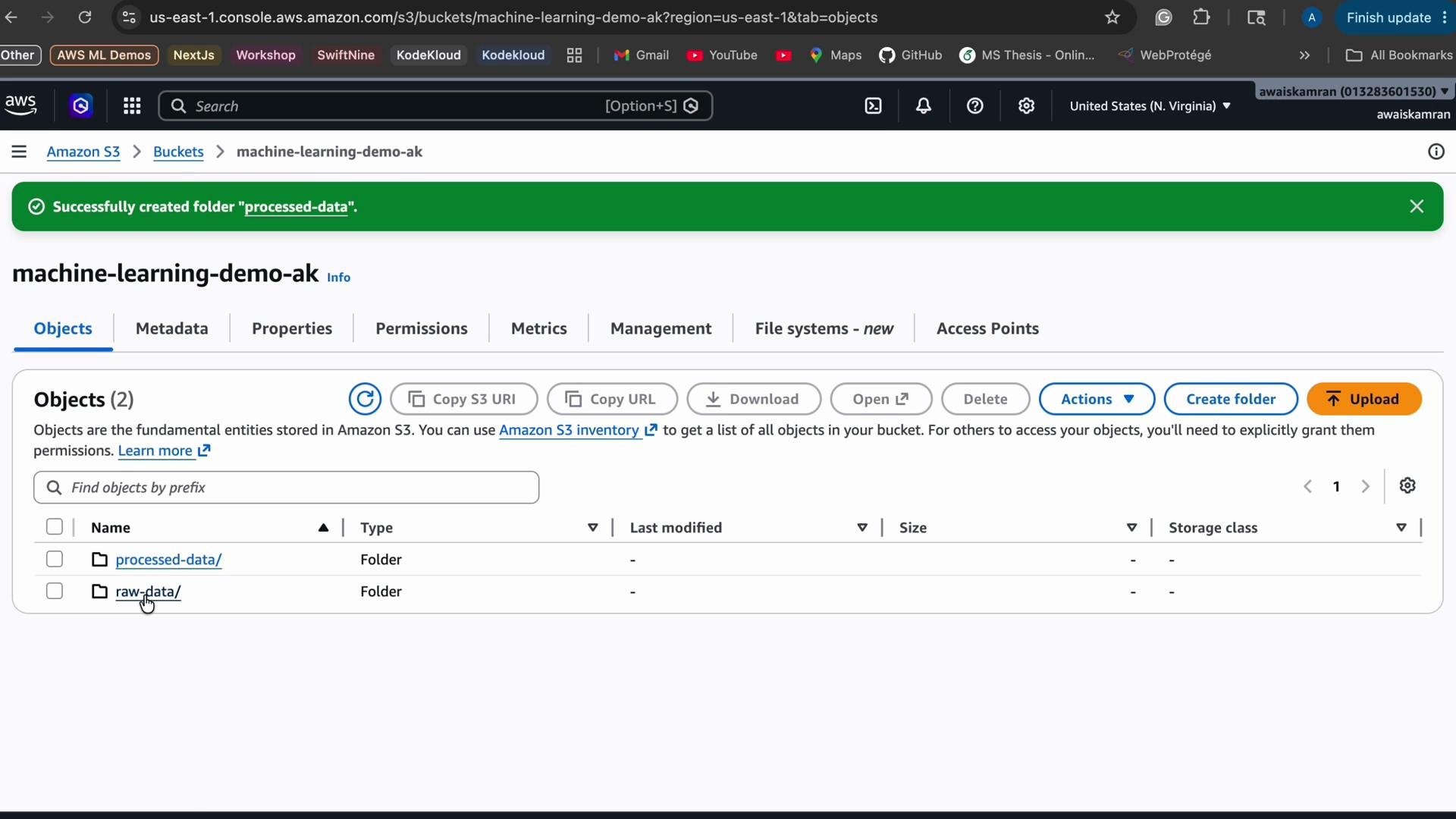 Add the remaining prefixes: `training-data/`, `predictions/`, and `models/`. This simple layout maps directly to an ETL/ML lifecycle: ingest -> process -> prepare training features -> train and save models -> serve predictions.
Upload a sample dataset
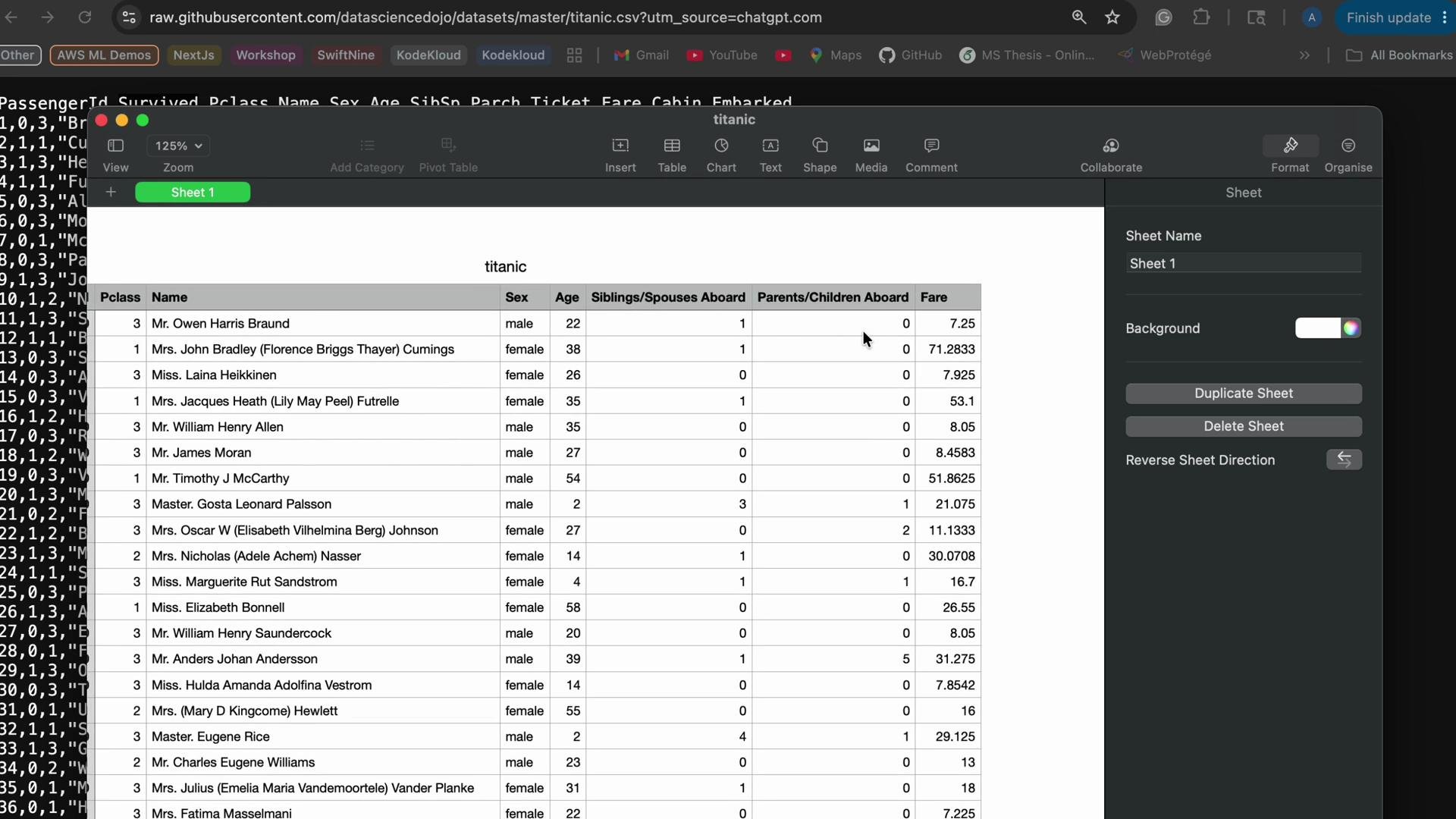
For this demo I uploaded the Titanic dataset (commonly used for ML tutorials). Open the CSV locally to verify columns (Survived is 0/1, Pclass is passenger class, etc.). Here’s the CSV snippet I uploaded to `raw-data/titanic.csv`:
```csv theme={null}
PassengerId,Survived,Pclass,Name,Sex,Age,SibSp,Parch,Ticket,Fare,Cabin,Embarked
1,0,3,"Braund, Mr. Owen Harris",male,22,0,0,A/5 21171,7.25,,S
2,1,1,"Cumings, Mrs. John Bradley (Florence Briggs Thayer)",female,38,1,0,PC 17599,71.2833,C85,C
3,1,1,"Heikkinen, Miss. Laina",female,26,0,0,STON/O2. 3101282,7.925,,S
4,1,1,"Futrelle, Mrs. Jacques Heath (Lily May Peel)",female,35,1,0,113803,53.1,C123,S
5,0,3,"Allen, Mr. William Henry",male,35,0,0,373450,8.05,,S
6,0,3,"Moran, Mr. James",male,,0,0,330677,8.05,,S
7,0,1,"McCarthy, Mr. Timothy J",male,54,0,0,349909,21.075,,S
8,0,3,"Palsson, Master. Gosta Leonard",male,2,3,1,349909,21.075,,S
9,1,1,"Johnson, Mrs. Oscar W (Elisabeth Vilhelmina Berg)",female,27,0,2,347742,11.1333,,S
10,1,1,"Nasser, Mrs. Nicholas (Adele Achem)",female,14,1,0,237736,30.0708,,C
11,1,3,"Sandstrom, Miss. Marguerite Rut",female,58,0,0,PP 9549,16.7,G6,S
12,0,2,"Bonnett, Miss. Elizabeth",female,29,0,0,113783,26.55,C103,
13,0,1,"Saundercock, Mr. William Henry",male,20,0,0,A/5 2151,8.05,,S
14,0,3,"Andersson, Miss. Anna",female,39,1,0,347082,7.85,,S
15,0,3,"Vestrom, Miss. Hulda Amanda Adolfina",female,14,0,0,350406,7.8542,,S
16,1,2,"Hewlett, Mrs. (Mary D Kingcome)",female,55,0,0,248706,16,,S
17,0,1,"Rice, Master. Eugene",male,2,1,2,382652,29.125,,Q
18,1,2,"Williams, Mr. Charles Eugene",male,24,0,0,244373,13,,S
19,0,3,"Vander Planke, Mrs. Julius (Emelia Vandemoortele)",female,31,1,0,345763,18,,S
20,0,3,"Masselmani, Mrs. Fatima",female,26,0,0,2649,7.225,,C
21,0,1,"Beesley, Mr. Lawrence",male,34,0,0,248698,13,,S
22,1,2,"McGowan, Miss. Anna ""Annie""",female,15,0,0,330923,8.0292,,Q
23,1,1,"Stoecker, Miss. Torborg Danira",female,22,0,0,3101284,16,,S
24,0,3,"Palsson, Miss. Torborg Danira",female,38,1,5,347077,31.3875,,S
25,1,2,"Asplund, Mrs. Carl Oscar (Selma Augusta Emili...)",female,38,1,5,347077,31.3875,,S
26,0,3,"Emir, Mr. Farred Chehab",male,,0,0,2631,7.225,,C
27,0,3,"O'Dwyer, Miss. Ellen",female,19,0,0,330919,7.8792,,Q
28,0,3,"Todoroff, Mr. Lalio",male,26,0,0,349602,7.8958,,S
29,0,3,"Duran, Don. Manuel",male,26,0,0,3460,7.20,,S
30,0,1,"Spencer, Mr. William Augustus",male,31,1,0,337954,29.7,,S
31,0,3,"Wheadon, Mr. Edward H",male,66,0,0,335677,7.75,,C
32,0,3,"Glynn, Mr. Edward Joseph",male,33,0,0,240929,7.775,,Q
33,1,1,"Holverson, Mr. Alexander Oskar",male,49,0,0,312993,39.6,,S
```
Verify the file locally (spreadsheet view or text editor) to confirm column names and types before uploading.
Add the remaining prefixes: `training-data/`, `predictions/`, and `models/`. This simple layout maps directly to an ETL/ML lifecycle: ingest -> process -> prepare training features -> train and save models -> serve predictions.
Upload a sample dataset
For this demo I uploaded the Titanic dataset (commonly used for ML tutorials). Open the CSV locally to verify columns (Survived is 0/1, Pclass is passenger class, etc.). Here’s the CSV snippet I uploaded to `raw-data/titanic.csv`:
```csv theme={null}
PassengerId,Survived,Pclass,Name,Sex,Age,SibSp,Parch,Ticket,Fare,Cabin,Embarked
1,0,3,"Braund, Mr. Owen Harris",male,22,0,0,A/5 21171,7.25,,S
2,1,1,"Cumings, Mrs. John Bradley (Florence Briggs Thayer)",female,38,1,0,PC 17599,71.2833,C85,C
3,1,1,"Heikkinen, Miss. Laina",female,26,0,0,STON/O2. 3101282,7.925,,S
4,1,1,"Futrelle, Mrs. Jacques Heath (Lily May Peel)",female,35,1,0,113803,53.1,C123,S
5,0,3,"Allen, Mr. William Henry",male,35,0,0,373450,8.05,,S
6,0,3,"Moran, Mr. James",male,,0,0,330677,8.05,,S
7,0,1,"McCarthy, Mr. Timothy J",male,54,0,0,349909,21.075,,S
8,0,3,"Palsson, Master. Gosta Leonard",male,2,3,1,349909,21.075,,S
9,1,1,"Johnson, Mrs. Oscar W (Elisabeth Vilhelmina Berg)",female,27,0,2,347742,11.1333,,S
10,1,1,"Nasser, Mrs. Nicholas (Adele Achem)",female,14,1,0,237736,30.0708,,C
11,1,3,"Sandstrom, Miss. Marguerite Rut",female,58,0,0,PP 9549,16.7,G6,S
12,0,2,"Bonnett, Miss. Elizabeth",female,29,0,0,113783,26.55,C103,
13,0,1,"Saundercock, Mr. William Henry",male,20,0,0,A/5 2151,8.05,,S
14,0,3,"Andersson, Miss. Anna",female,39,1,0,347082,7.85,,S
15,0,3,"Vestrom, Miss. Hulda Amanda Adolfina",female,14,0,0,350406,7.8542,,S
16,1,2,"Hewlett, Mrs. (Mary D Kingcome)",female,55,0,0,248706,16,,S
17,0,1,"Rice, Master. Eugene",male,2,1,2,382652,29.125,,Q
18,1,2,"Williams, Mr. Charles Eugene",male,24,0,0,244373,13,,S
19,0,3,"Vander Planke, Mrs. Julius (Emelia Vandemoortele)",female,31,1,0,345763,18,,S
20,0,3,"Masselmani, Mrs. Fatima",female,26,0,0,2649,7.225,,C
21,0,1,"Beesley, Mr. Lawrence",male,34,0,0,248698,13,,S
22,1,2,"McGowan, Miss. Anna ""Annie""",female,15,0,0,330923,8.0292,,Q
23,1,1,"Stoecker, Miss. Torborg Danira",female,22,0,0,3101284,16,,S
24,0,3,"Palsson, Miss. Torborg Danira",female,38,1,5,347077,31.3875,,S
25,1,2,"Asplund, Mrs. Carl Oscar (Selma Augusta Emili...)",female,38,1,5,347077,31.3875,,S
26,0,3,"Emir, Mr. Farred Chehab",male,,0,0,2631,7.225,,C
27,0,3,"O'Dwyer, Miss. Ellen",female,19,0,0,330919,7.8792,,Q
28,0,3,"Todoroff, Mr. Lalio",male,26,0,0,349602,7.8958,,S
29,0,3,"Duran, Don. Manuel",male,26,0,0,3460,7.20,,S
30,0,1,"Spencer, Mr. William Augustus",male,31,1,0,337954,29.7,,S
31,0,3,"Wheadon, Mr. Edward H",male,66,0,0,335677,7.75,,C
32,0,3,"Glynn, Mr. Edward Joseph",male,33,0,0,240929,7.775,,Q
33,1,1,"Holverson, Mr. Alexander Oskar",male,49,0,0,312993,39.6,,S
```
Verify the file locally (spreadsheet view or text editor) to confirm column names and types before uploading.
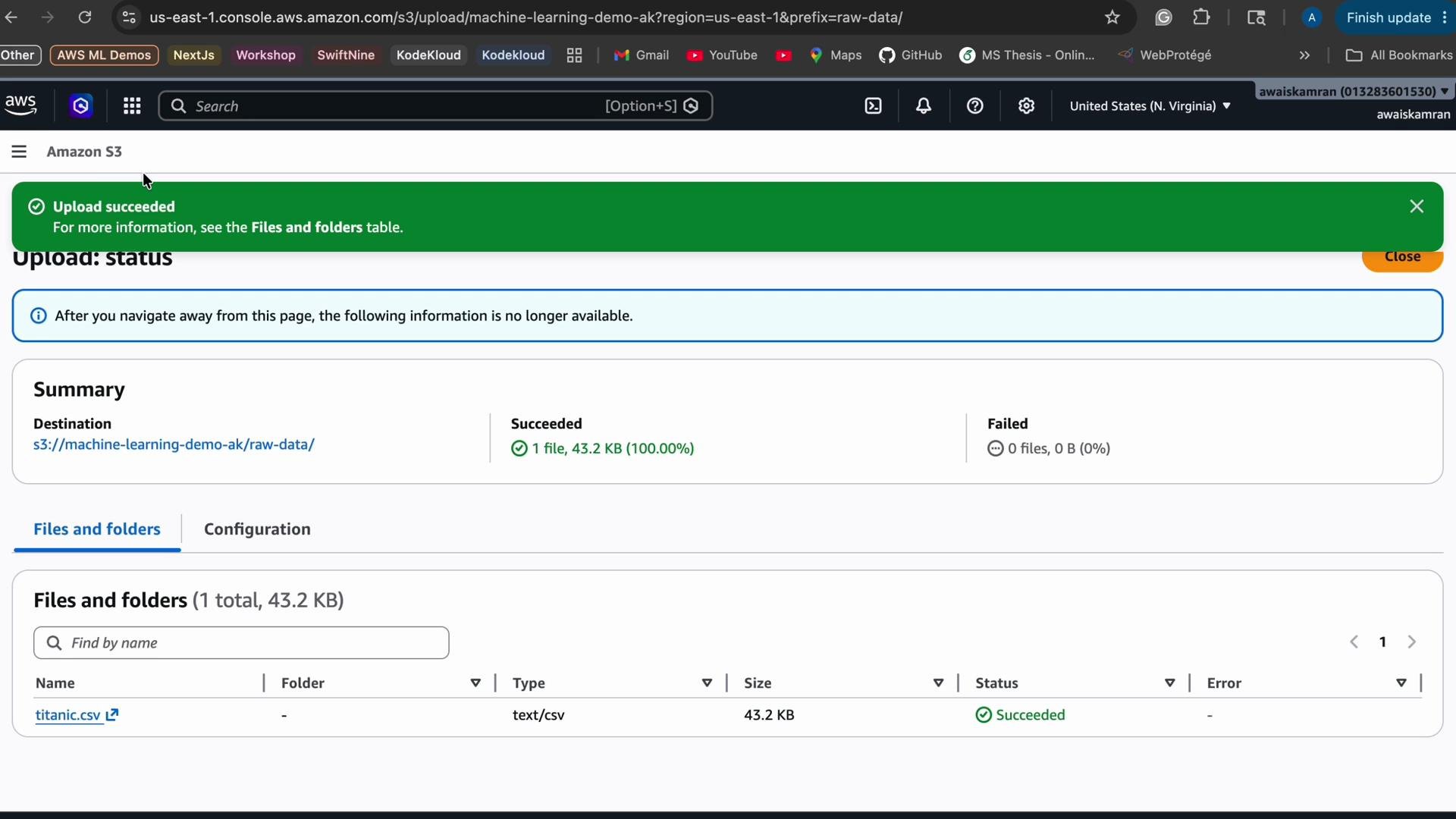
 Drag-and-drop the CSV into the `raw-data/` prefix in the console. The upload completes and S3 displays upload metadata.
 Referencing and ARNs
* S3 URI for the uploaded object: `s3://machine-learning-demo-ak/raw-data/titanic.csv`
* Bucket ARN: `arn:aws:s3:::machine-learning-demo-ak`
* Object ARN: `arn:aws:s3:::machine-learning-demo-ak/raw-data/titanic.csv`
Enable Versioning for safe edits
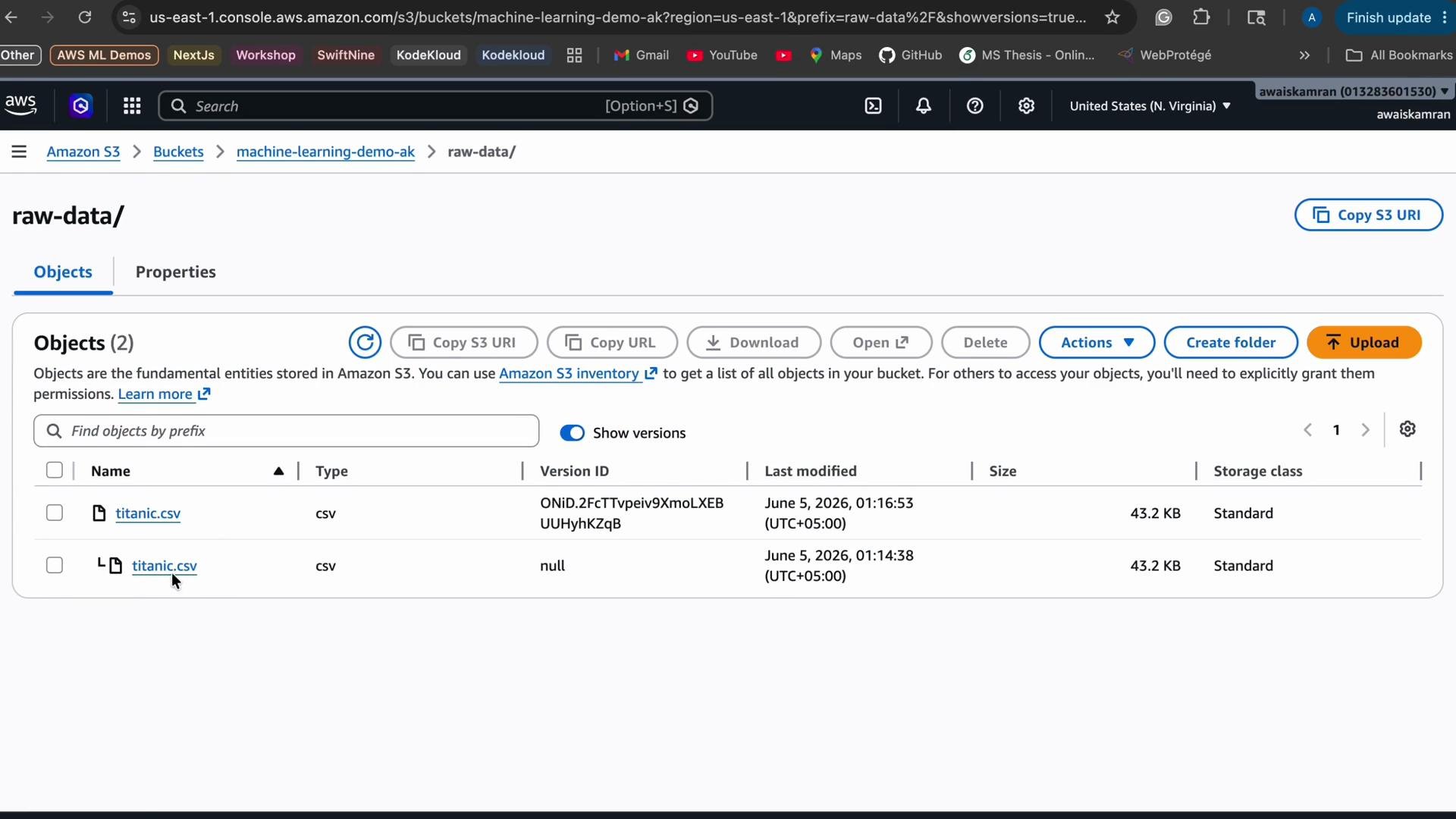
In the bucket Properties, you can enable Versioning. When enabled prior to overwrites, S3 preserves earlier object versions, allowing recovery of prior content. In this demo I edited the local CSV (modified a Fare value) and uploaded it to the same key; with versioning enabled the console shows multiple versions for `titanic.csv`. Note: if versioning is turned on after an initial upload, the pre-existing upload is the null (unversioned) version.
Referencing and ARNs
* S3 URI for the uploaded object: `s3://machine-learning-demo-ak/raw-data/titanic.csv`
* Bucket ARN: `arn:aws:s3:::machine-learning-demo-ak`
* Object ARN: `arn:aws:s3:::machine-learning-demo-ak/raw-data/titanic.csv`
Enable Versioning for safe edits
In the bucket Properties, you can enable Versioning. When enabled prior to overwrites, S3 preserves earlier object versions, allowing recovery of prior content. In this demo I edited the local CSV (modified a Fare value) and uploaded it to the same key; with versioning enabled the console shows multiple versions for `titanic.csv`. Note: if versioning is turned on after an initial upload, the pre-existing upload is the null (unversioned) version.
 Other properties to consider for ML data lakes:
* Default encryption: SSE-S3 or AWS KMS for higher control.
* Lifecycle rules / Intelligent-Tiering: automatically move infrequently accessed objects to cheaper storage tiers (e.g., Glacier) after a retention period.
* Access control: use IAM roles, bucket policies, and pre-signed URLs for secure cross-service access.
This completes the basic S3 setup and organization for an ML data lake. With this foundation you can build preprocessing pipelines that read from `raw-data/`, write intermediate outputs to `processed-data/`, emit training sets into `training-data/`, save models to `models/`, and store predictions in `predictions/`. Future guides will show how to integrate these prefixes with AWS Glue, Amazon SageMaker, and CI/CD pipelines.
Links and references
* [Amazon S3 — Overview](https://aws.amazon.com/s3/)
* [S3 Object Ownership and ACLs](https://docs.aws.amazon.com/AmazonS3/latest/userguide/about-object-ownership.html)
* [S3 Versioning](https://docs.aws.amazon.com/AmazonS3/latest/userguide/Versioning.html)
* [Titanic dataset on Kaggle](https://www.kaggle.com/competitions/titanic/data)
Other properties to consider for ML data lakes:
* Default encryption: SSE-S3 or AWS KMS for higher control.
* Lifecycle rules / Intelligent-Tiering: automatically move infrequently accessed objects to cheaper storage tiers (e.g., Glacier) after a retention period.
* Access control: use IAM roles, bucket policies, and pre-signed URLs for secure cross-service access.
This completes the basic S3 setup and organization for an ML data lake. With this foundation you can build preprocessing pipelines that read from `raw-data/`, write intermediate outputs to `processed-data/`, emit training sets into `training-data/`, save models to `models/`, and store predictions in `predictions/`. Future guides will show how to integrate these prefixes with AWS Glue, Amazon SageMaker, and CI/CD pipelines.
Links and references
* [Amazon S3 — Overview](https://aws.amazon.com/s3/)
* [S3 Object Ownership and ACLs](https://docs.aws.amazon.com/AmazonS3/latest/userguide/about-object-ownership.html)
* [S3 Versioning](https://docs.aws.amazon.com/AmazonS3/latest/userguide/Versioning.html)
* [Titanic dataset on Kaggle](https://www.kaggle.com/competitions/titanic/data)