> ## Documentation Index
> Fetch the complete documentation index at: https://notes.kodekloud.com/llms.txt
> Use this file to discover all available pages before exploring further.
# Demo Creating Custom Containers for SageMaker
> Guide to registering and creating Amazon SageMaker models from existing ECR container images and S3 model artifacts via the console, including required fields, VPC and IAM permissions.
If you already have a model container image pushed to Amazon ECR and your model artifacts packaged in Amazon S3, you can register that image and artifact location with Amazon SageMaker and create a SageMaker model directly from the console. This guide walks through the console workflow and highlights the key fields you must complete to register a model that uses an existing ECR image.
Useful references:
* [Amazon SageMaker Models](https://docs.aws.amazon.com/sagemaker/latest/dg/models.html)
* [Amazon ECR documentation](https://docs.aws.amazon.com/AmazonECR/latest/userguide/what-is-ecr.html)
* [IAM permissions for Amazon SageMaker](https://docs.aws.amazon.com/sagemaker/latest/dg/sagemaker-roles.html)
Prerequisites
* An ECR image containing your inference code (public or private).
* A model artifact archive (for example, `model.tar.gz`) uploaded to S3.
* A SageMaker execution role with permissions to pull from ECR and read the S3 artifact.
* If the image or S3 bucket is in another AWS account, verify cross-account access and roles.
Console workflow (step-by-step)
1. Open the Amazon SageMaker console and navigate to Inference → Models.
2. Click **Create model**.
3. In the Create model form choose the container input option that lets you "Provide model artifacts and inference image location." This option points SageMaker to:
* an ECR image for inference, and
* an S3 URI for your model artifacts.
4. Fill in the container details:
* Inference image location: the full ECR image URI (for example, `123456789012.dkr.ecr.us-west-2.amazonaws.com/my-inference-image:latest`).
* Model artifacts: the S3 URI where your model archive is stored (for example, `s3://my-bucket/models/my-model.tar.gz`).
* (Optional) Environment variables to pass to your container at runtime.
* (Optional) Container entrypoint or command overrides if your image expects them.
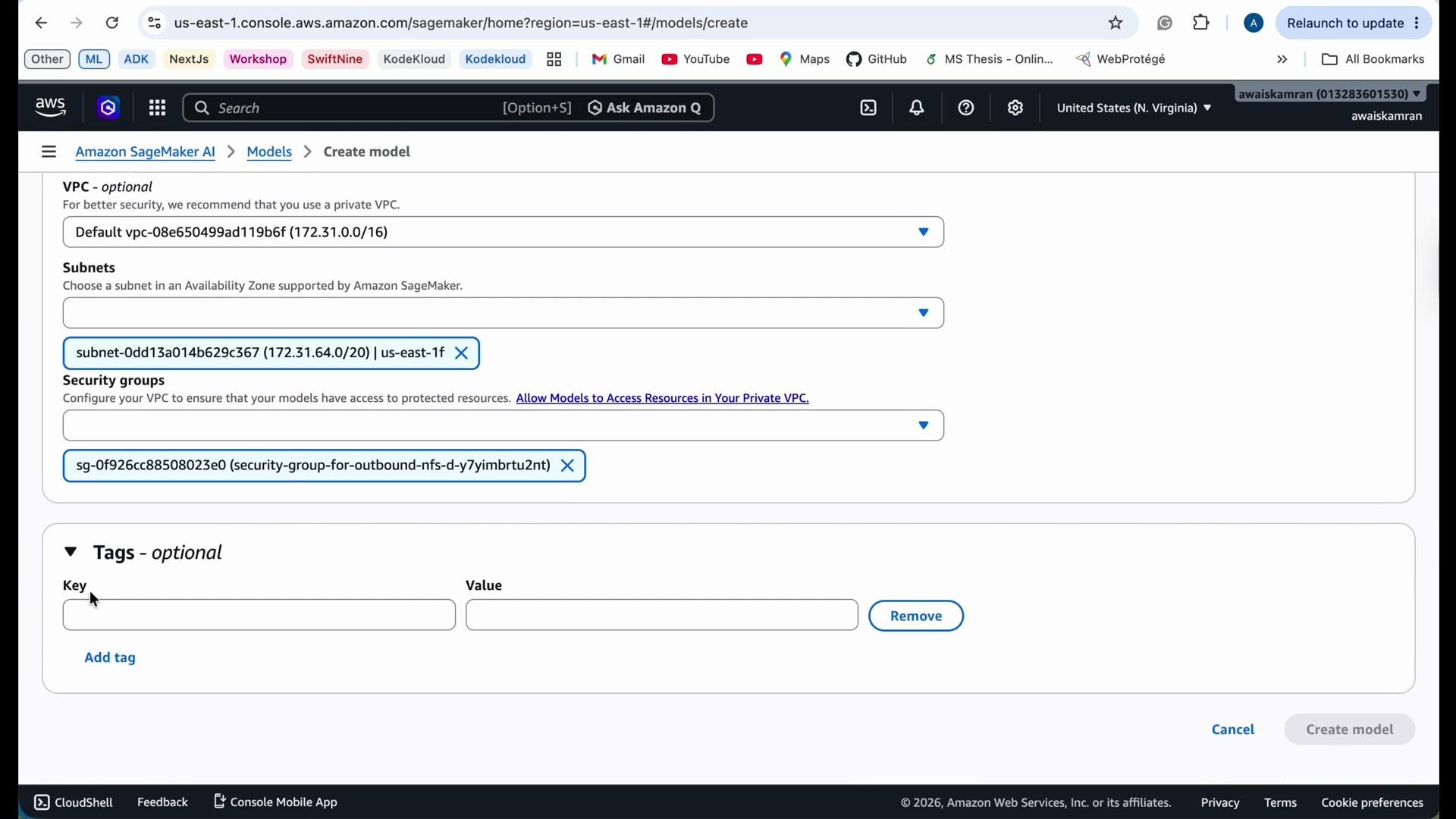
5. (Optional) Configure network isolation and VPC settings:
* If the model needs access to resources inside a VPC, select the VPC and specify subnets and security groups. When you create an endpoint using this model, SageMaker will create ENIs in the selected subnets.
6. (Optional) Add tags for cost allocation or organizational metadata.
7. Click **Create model**. The new model will appear in the Models list and can be used to create real-time endpoints or batch transform jobs.
Container details — what to provide
* Inference image location: full ECR URI including account, region, repository, and tag.
* Model artifacts: S3 URI to the `.tar.gz` or tarred model directory.
* Environment variables: key/value pairs your inference container reads at startup.
* VPC settings: subnets and security groups if your model requires access to VPC resources.
* Tags: optional metadata to help manage and track costs.
Example values
| Resource | Example |
| -------------------- | ------------------------------------------------------------------------ |
| ECR image URI | `123456789012.dkr.ecr.us-west-2.amazonaws.com/my-inference-image:latest` |
| Model artifacts (S3) | `s3://my-bucket/models/my-model.tar.gz` |
Ensure the SageMaker execution role you select has permissions to read the S3 model artifact and to pull the image from ECR. For private ECR repositories, the role typically needs `ecr:GetAuthorizationToken`, `ecr:BatchGetImage`, `ecr:GetDownloadUrlForLayer`, and commonly `ecr:BatchCheckLayerAvailability`, plus S3 `s3:GetObject` for your model artifact. See the [IAM documentation for SageMaker](https://docs.aws.amazon.com/sagemaker/latest/dg/sagemaker-roles.html) for more details.
If the image or artifacts are in a different AWS account or behind VPC networking rules, verify cross-account permissions, VPC endpoints, route tables, and security groups. Incorrect permissions or networking will prevent SageMaker from pulling the image or accessing the model artifacts.
 After creation
* The model will be listed in the SageMaker Models page.
* You can use the model to create a real-time endpoint (for low-latency inference) or a Batch Transform job (for offline inference).
* When you create an endpoint, SageMaker uses the model configuration (including VPC settings) to provision resources and attach ENIs into the selected subnets.
Additional resources
* [Create a model using a custom container (SageMaker Developer Guide)](https://docs.aws.amazon.com/sagemaker/latest/dg/your-algorithms.html)
* [Amazon ECR: authentication and authorization](https://docs.aws.amazon.com/AmazonECR/latest/userguide/repository-policy-examples.html)
* [Amazon S3 access control](https://docs.aws.amazon.com/AmazonS3/latest/userguide/using-with-s3-actions.html)
That’s it — after the model is created you can proceed to deploy it as an endpoint for real-time inference or run a batch transform job for offline scoring.
After creation
* The model will be listed in the SageMaker Models page.
* You can use the model to create a real-time endpoint (for low-latency inference) or a Batch Transform job (for offline inference).
* When you create an endpoint, SageMaker uses the model configuration (including VPC settings) to provision resources and attach ENIs into the selected subnets.
Additional resources
* [Create a model using a custom container (SageMaker Developer Guide)](https://docs.aws.amazon.com/sagemaker/latest/dg/your-algorithms.html)
* [Amazon ECR: authentication and authorization](https://docs.aws.amazon.com/AmazonECR/latest/userguide/repository-policy-examples.html)
* [Amazon S3 access control](https://docs.aws.amazon.com/AmazonS3/latest/userguide/using-with-s3-actions.html)
That’s it — after the model is created you can proceed to deploy it as an endpoint for real-time inference or run a batch transform job for offline scoring.