> ## Documentation Index
> Fetch the complete documentation index at: https://notes.kodekloud.com/llms.txt
> Use this file to discover all available pages before exploring further.
# Demo Setting up Batch Transform Jobs
> Tutorial for configuring and launching Amazon SageMaker Batch Transform jobs to run offline inference on S3 datasets, covering instance choices, input and output setup, monitoring, and cost optimization.
In this lesson we’ll walk through creating a Batch Transform job in Amazon SageMaker to run offline inference on a dataset stored in Amazon S3. Batch Transform is ideal when you already have a trained model and need to score many records at once (for example, a CSV with thousands of rows). Follow the numbered steps below to create, configure, and monitor a Batch Transform job.
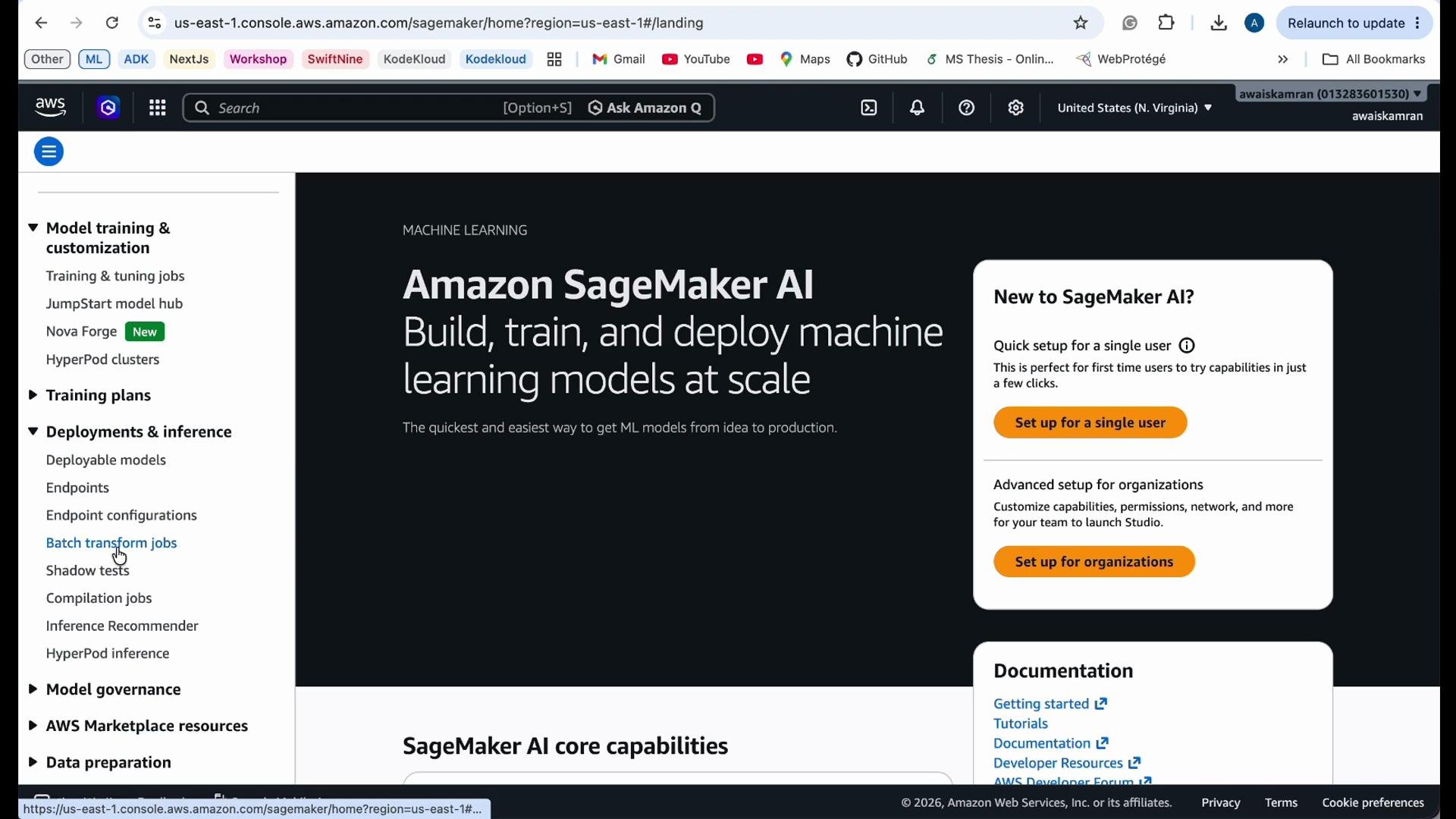 1. Choose the model and instance type
* Select the model you previously created in SageMaker. This model will be hosted by the transform job for batch inference.
* Choose an instance type that balances throughput and cost. Instance selection has a direct impact on job runtime and hourly cost.
* If your model needs GPU acceleration, select a GPU instance family (for example, `ml.g4dn.*` or `ml.p3.*`). For CPU inference, pick an `ml.m5.*` or similar instance.
Recommended instance choices and typical use cases:
| Instance family | Use case |
| ----------------------------- | ---------------------------------------------------------------- |
| `ml.m5.large`, `ml.m5.xlarge` | CPU-based models, low to medium throughput |
| `ml.c5.*` | Compute-optimized CPU workloads |
| `ml.g4dn.*` | GPU inference for computer vision or large deep learning models |
| `ml.p3.*` | High-performance GPU for heavy-weight models or high concurrency |
1. Choose the model and instance type
* Select the model you previously created in SageMaker. This model will be hosted by the transform job for batch inference.
* Choose an instance type that balances throughput and cost. Instance selection has a direct impact on job runtime and hourly cost.
* If your model needs GPU acceleration, select a GPU instance family (for example, `ml.g4dn.*` or `ml.p3.*`). For CPU inference, pick an `ml.m5.*` or similar instance.
Recommended instance choices and typical use cases:
| Instance family | Use case |
| ----------------------------- | ---------------------------------------------------------------- |
| `ml.m5.large`, `ml.m5.xlarge` | CPU-based models, low to medium throughput |
| `ml.c5.*` | Compute-optimized CPU workloads |
| `ml.g4dn.*` | GPU inference for computer vision or large deep learning models |
| `ml.p3.*` | High-performance GPU for heavy-weight models or high concurrency |
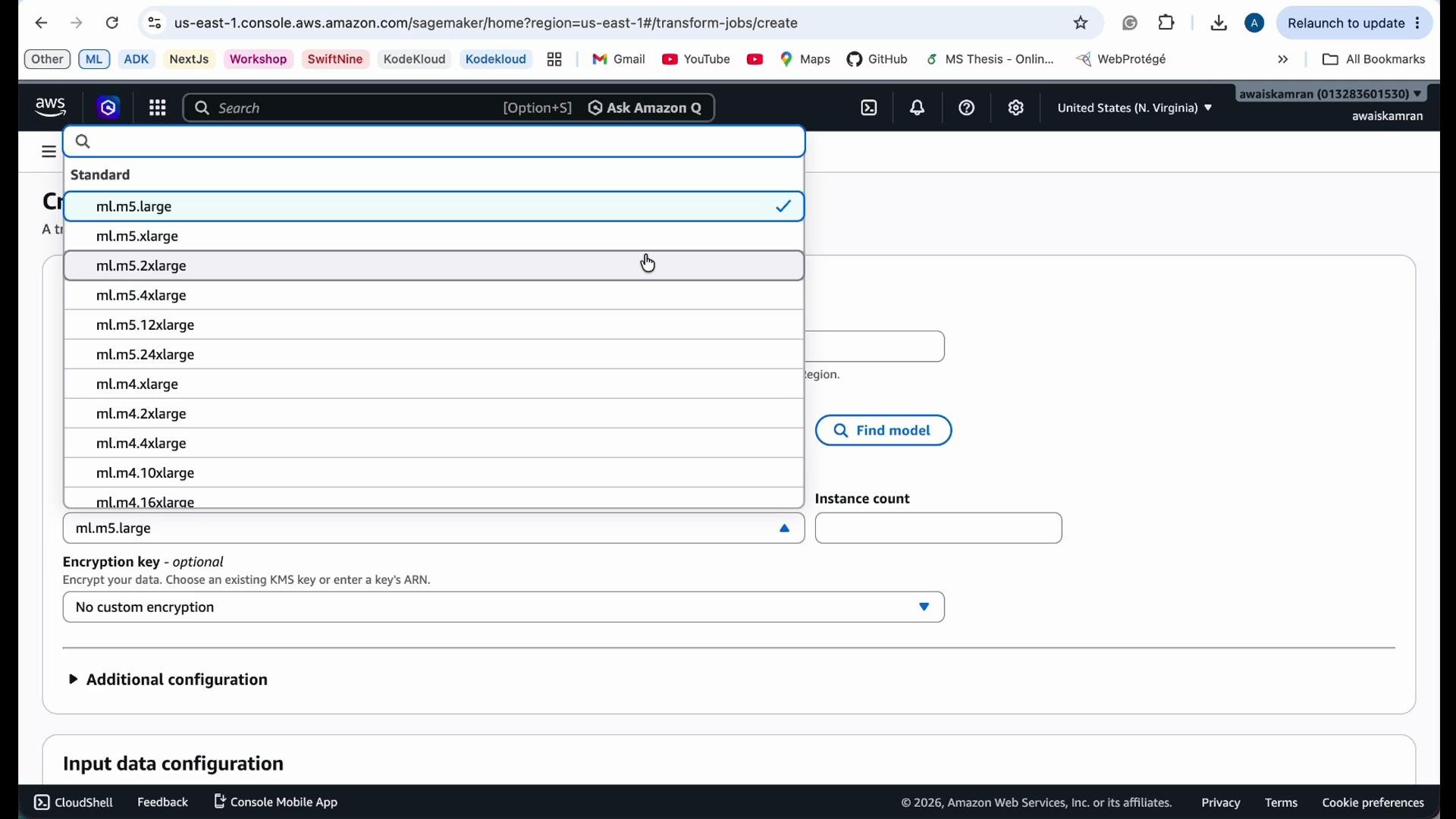 Instance sizing example: `ml.m5.xlarge` provides 4 vCPUs and 16 GiB memory, while `ml.m5.large` provides 2 vCPUs and 8 GiB memory. Pricing varies by region; always confirm current costs on the [SageMaker pricing page](https://aws.amazon.com/sagemaker/pricing/) before launching jobs.
2. Review instance specifications and pricing
* Verify vCPU, memory, and estimated hourly price for the instance class you selected.
* Choose the smallest instance or smallest cluster of instances that meets your performance goals to reduce costs.
* Consider parallelism: using multiple instances or larger instances may finish jobs faster but can increase total cost if not optimized.
Instance sizing example: `ml.m5.xlarge` provides 4 vCPUs and 16 GiB memory, while `ml.m5.large` provides 2 vCPUs and 8 GiB memory. Pricing varies by region; always confirm current costs on the [SageMaker pricing page](https://aws.amazon.com/sagemaker/pricing/) before launching jobs.
2. Review instance specifications and pricing
* Verify vCPU, memory, and estimated hourly price for the instance class you selected.
* Choose the smallest instance or smallest cluster of instances that meets your performance goals to reduce costs.
* Consider parallelism: using multiple instances or larger instances may finish jobs faster but can increase total cost if not optimized.
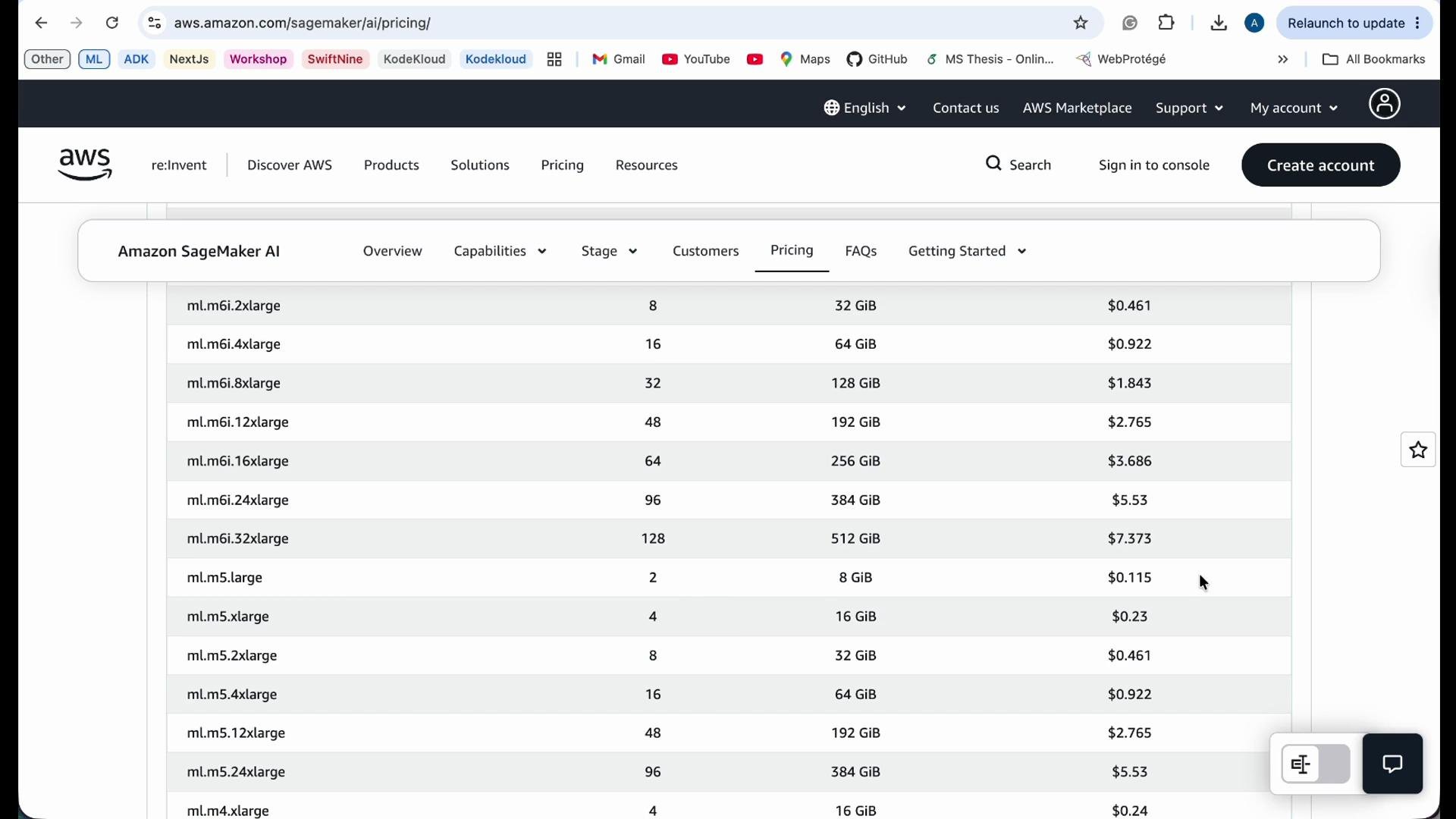 3. Configure input data (S3)
* Batch Transform reads input objects from S3. Configure the following fields:
* S3 input URI: the S3 path or prefix containing your input files (for example, `s3://your-bucket/raw-data/titanic.csv`).
* Split type: determines how SageMaker splits input files into invocation payloads. Use `Line` for typical CSVs where each line is one record; use `None` if the model expects the entire file as a single payload.
* Compression: set to `None` unless your files are compressed.
* Content type: set to `text/csv`, `application/jsonlines`, etc., to match your model input formatter.
* Example: if your Titanic dataset is in S3, copy the input URI such as `s3://.../raw-data/titanic.csv` and paste it into the input location field.
Best practices:
* Use one record per line (`Line`) for large CSVs so records are processed independently.
* Partition large datasets into multiple objects to allow parallel processing by multiple instances.
3. Configure input data (S3)
* Batch Transform reads input objects from S3. Configure the following fields:
* S3 input URI: the S3 path or prefix containing your input files (for example, `s3://your-bucket/raw-data/titanic.csv`).
* Split type: determines how SageMaker splits input files into invocation payloads. Use `Line` for typical CSVs where each line is one record; use `None` if the model expects the entire file as a single payload.
* Compression: set to `None` unless your files are compressed.
* Content type: set to `text/csv`, `application/jsonlines`, etc., to match your model input formatter.
* Example: if your Titanic dataset is in S3, copy the input URI such as `s3://.../raw-data/titanic.csv` and paste it into the input location field.
Best practices:
* Use one record per line (`Line`) for large CSVs so records are processed independently.
* Partition large datasets into multiple objects to allow parallel processing by multiple instances.
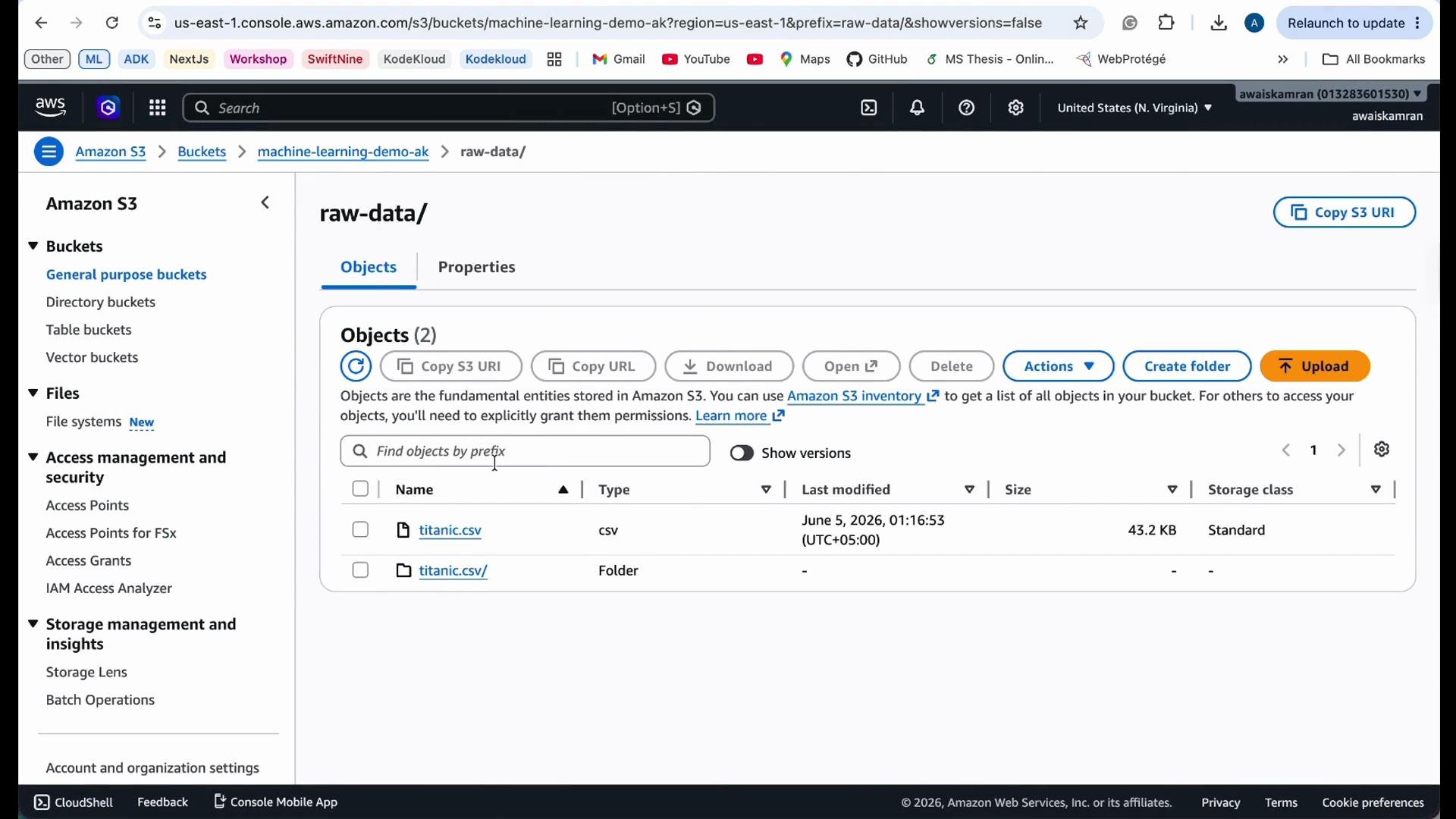 4. Configure output location
* Set an S3 output prefix where Batch Transform writes predictions (for example, `s3://your-bucket/predictions/` or `s3://your-bucket/processed/`).
* Use separate prefixes for intermediate/processed output and final predictions to keep raw and derived data organized.
5. Additional configuration options
* Accept header: request a particular response content type for output (for example, `application/jsonlines`).
* Logging & buckets: optionally specify alternate buckets or prefixes for logs and job outputs.
* Input/Output filters and JoinSource:
* Use input/output filters when you need to transform or filter record fields before sending to the model or after receiving predictions.
* Use `JoinSource` to include input record fields alongside the model’s prediction in the final output if you want joined results.
* If your data is already clean and self-contained, these optional settings can usually be left unset.
4. Configure output location
* Set an S3 output prefix where Batch Transform writes predictions (for example, `s3://your-bucket/predictions/` or `s3://your-bucket/processed/`).
* Use separate prefixes for intermediate/processed output and final predictions to keep raw and derived data organized.
5. Additional configuration options
* Accept header: request a particular response content type for output (for example, `application/jsonlines`).
* Logging & buckets: optionally specify alternate buckets or prefixes for logs and job outputs.
* Input/Output filters and JoinSource:
* Use input/output filters when you need to transform or filter record fields before sending to the model or after receiving predictions.
* Use `JoinSource` to include input record fields alongside the model’s prediction in the final output if you want joined results.
* If your data is already clean and self-contained, these optional settings can usually be left unset.
 6. Launch and monitor
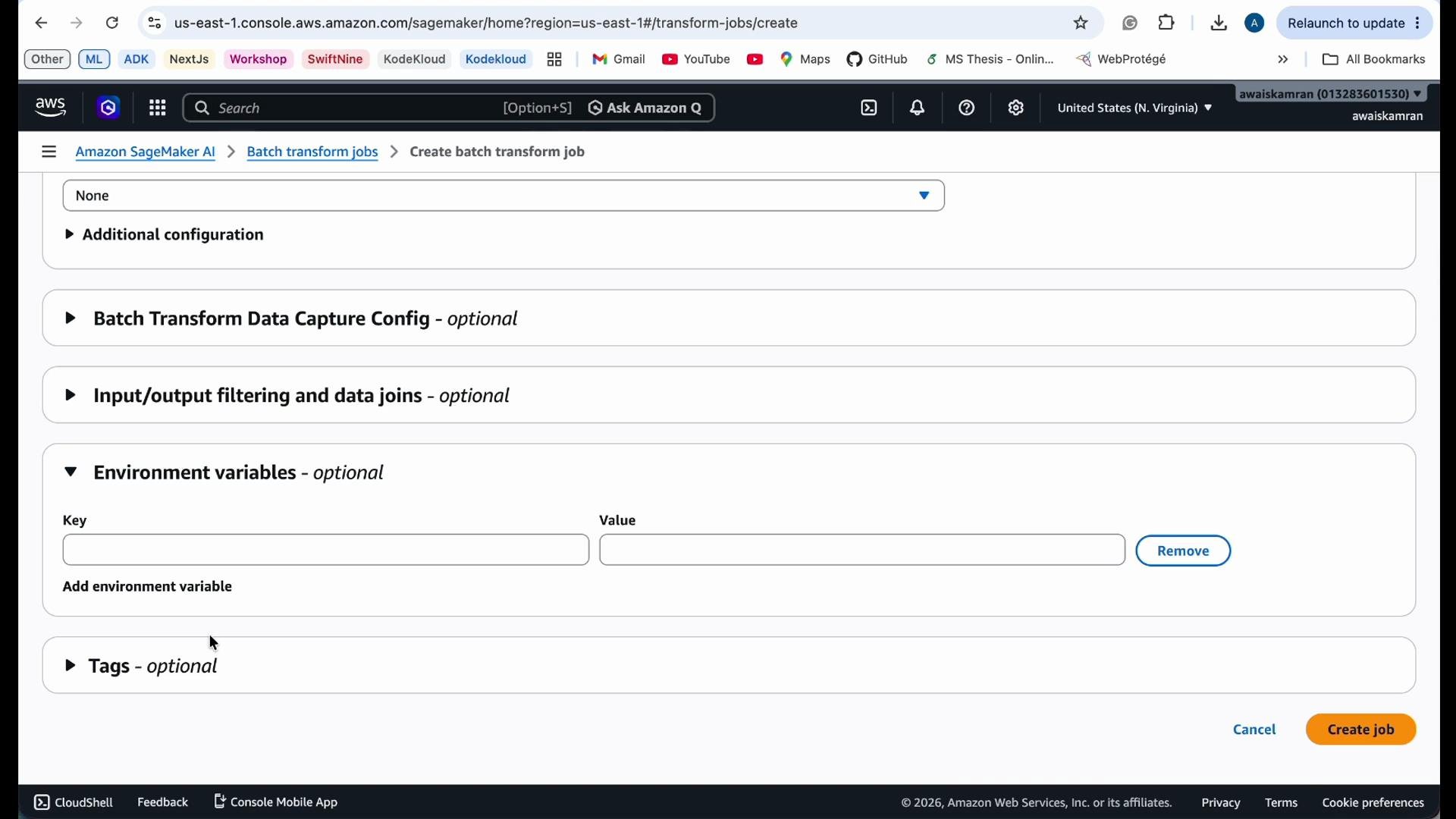
* After selecting the model, instance type, and input/output paths and configuring optional settings, create the Batch Transform job.
* Monitor job status from the SageMaker console under Inference → Batch transform jobs.
* When the job completes, download and inspect the output files in the S3 output prefix you provided.
Monitoring tips:
* Check the job status and logs in the SageMaker console.
* Use Amazon CloudWatch for detailed logs and metrics (invocations, errors, instance utilization).
* If results look incorrect, inspect the content-type, split type, and any input filters to ensure inputs match model expectations.
Be mindful of cost: long-running or large Batch Transform jobs can incur significant charges. Terminate or delete any resources (models, endpoints, or unused S3 objects) you no longer need to avoid ongoing costs.
Checklist before launching
| Step | Verify |
| --------------- | ---------------------------------------------------------------------------- |
| Model readiness | Model artifact and container image are registered in SageMaker |
| Input format | S3 files, `Content-Type`, and `SplitType` match the model's expected payload |
| Instance sizing | Selected instance type provides required CPU/GPU and memory |
| Output path | S3 output prefix exists and has correct permissions |
| Logging | CloudWatch or S3 logging configured if you need audit/troubleshooting info |
Further reading and references
* [Amazon SageMaker Batch Transform](https://docs.aws.amazon.com/sagemaker/latest/dg/batch-transform.html)
* [Amazon SageMaker Pricing](https://aws.amazon.com/sagemaker/pricing/)
* [Amazon S3 Documentation](https://docs.aws.amazon.com/s3/index.html)
That’s it — you’ve configured and launched a Batch Transform job in SageMaker. Monitor the job, inspect the outputs in S3, and optimize instance sizing or input partitioning as needed to balance cost and throughput.
6. Launch and monitor
* After selecting the model, instance type, and input/output paths and configuring optional settings, create the Batch Transform job.
* Monitor job status from the SageMaker console under Inference → Batch transform jobs.
* When the job completes, download and inspect the output files in the S3 output prefix you provided.
Monitoring tips:
* Check the job status and logs in the SageMaker console.
* Use Amazon CloudWatch for detailed logs and metrics (invocations, errors, instance utilization).
* If results look incorrect, inspect the content-type, split type, and any input filters to ensure inputs match model expectations.
Be mindful of cost: long-running or large Batch Transform jobs can incur significant charges. Terminate or delete any resources (models, endpoints, or unused S3 objects) you no longer need to avoid ongoing costs.
Checklist before launching
| Step | Verify |
| --------------- | ---------------------------------------------------------------------------- |
| Model readiness | Model artifact and container image are registered in SageMaker |
| Input format | S3 files, `Content-Type`, and `SplitType` match the model's expected payload |
| Instance sizing | Selected instance type provides required CPU/GPU and memory |
| Output path | S3 output prefix exists and has correct permissions |
| Logging | CloudWatch or S3 logging configured if you need audit/troubleshooting info |
Further reading and references
* [Amazon SageMaker Batch Transform](https://docs.aws.amazon.com/sagemaker/latest/dg/batch-transform.html)
* [Amazon SageMaker Pricing](https://aws.amazon.com/sagemaker/pricing/)
* [Amazon S3 Documentation](https://docs.aws.amazon.com/s3/index.html)
That’s it — you’ve configured and launched a Batch Transform job in SageMaker. Monitor the job, inspect the outputs in S3, and optimize instance sizing or input partitioning as needed to balance cost and throughput.