> ## Documentation Index
> Fetch the complete documentation index at: https://notes.kodekloud.com/llms.txt
> Use this file to discover all available pages before exploring further.
# Demo Setting up SageMaker Pipelines
> Guide to building, configuring, and managing end-to-end, cost-aware SageMaker Pipelines using Studio's visual editor for processing, training, model registry, checkpointing, and deployment.
In this lesson we'll walk through creating SageMaker Pipelines using the [SageMaker Studio](https://aws.amazon.com/sagemaker/studio/) visual editor. The visual editor provides a drag-and-drop canvas to design, run, and monitor end-to-end ML workflows that include data processing, training, evaluation, model registration, and deployment.
Open SageMaker Studio and select the "Pipelines" section to get started.
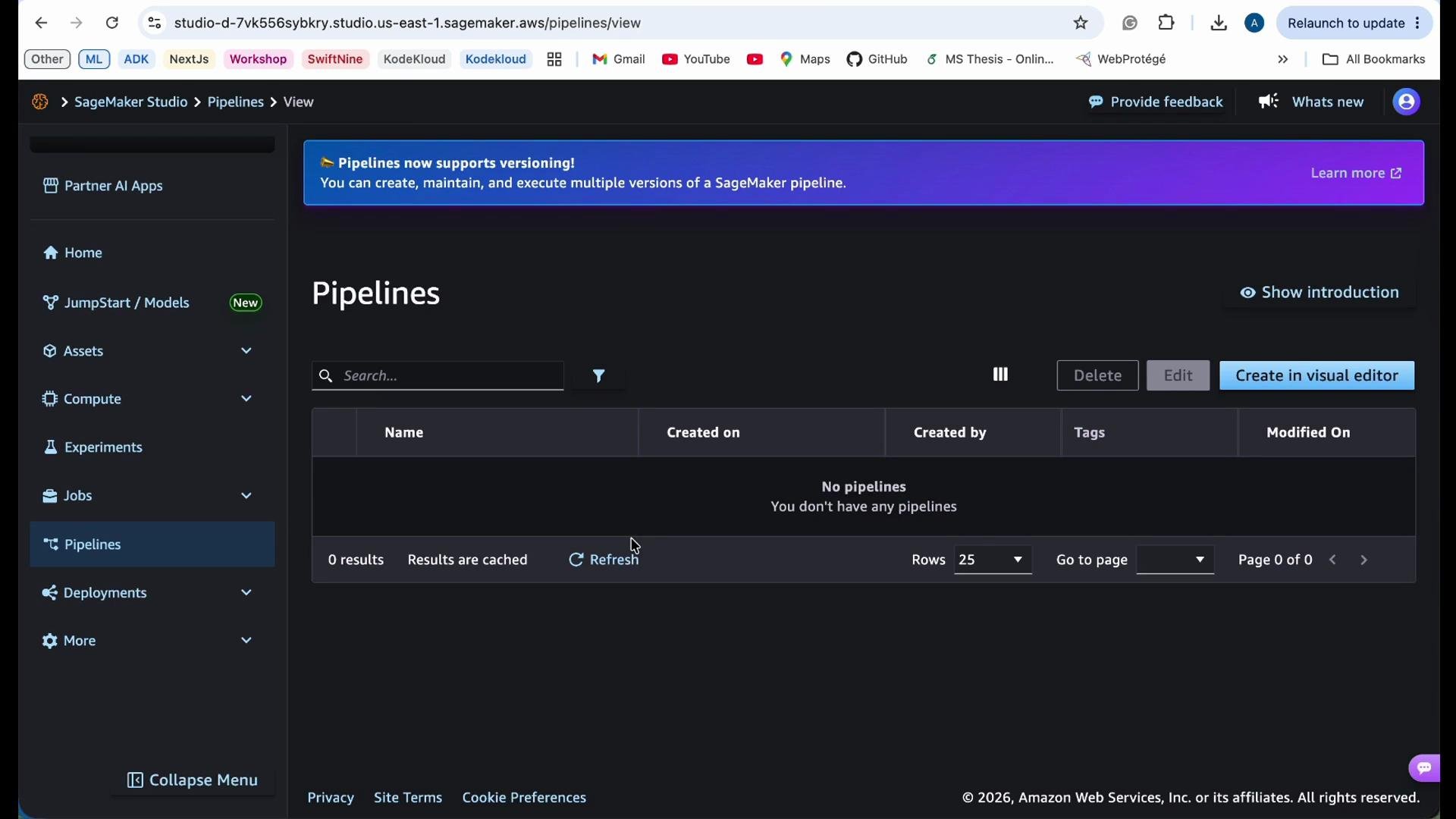 How to start: click **Create in Visual Editor** to open the pipeline canvas. The editor exposes step types you can drag into your workflow, including:
* Data processing (batch transforms, custom containers)
* Custom code (your own containerized logic)
* Lambda integrations
* Training jobs
* Model registration (Model Registry)
* Deployment (real-time endpoints or batch inferencing)
* Conditional branching (if/else flows based on evaluation metrics)
The visual editor also supports wiring outputs from one step into the inputs of another so you can build reproducible, end-to-end pipelines.
Processing steps: compute, storage, and cost
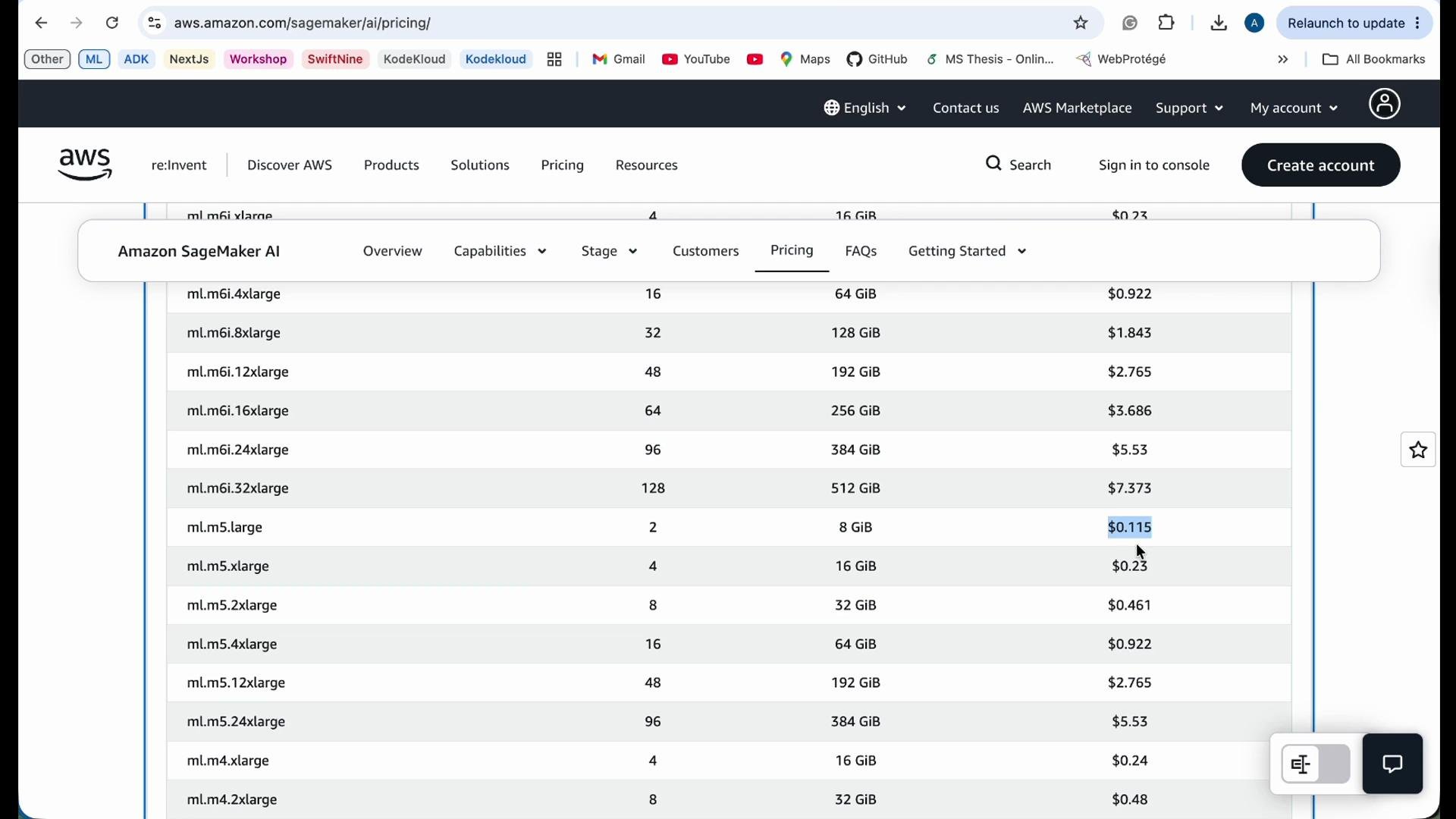
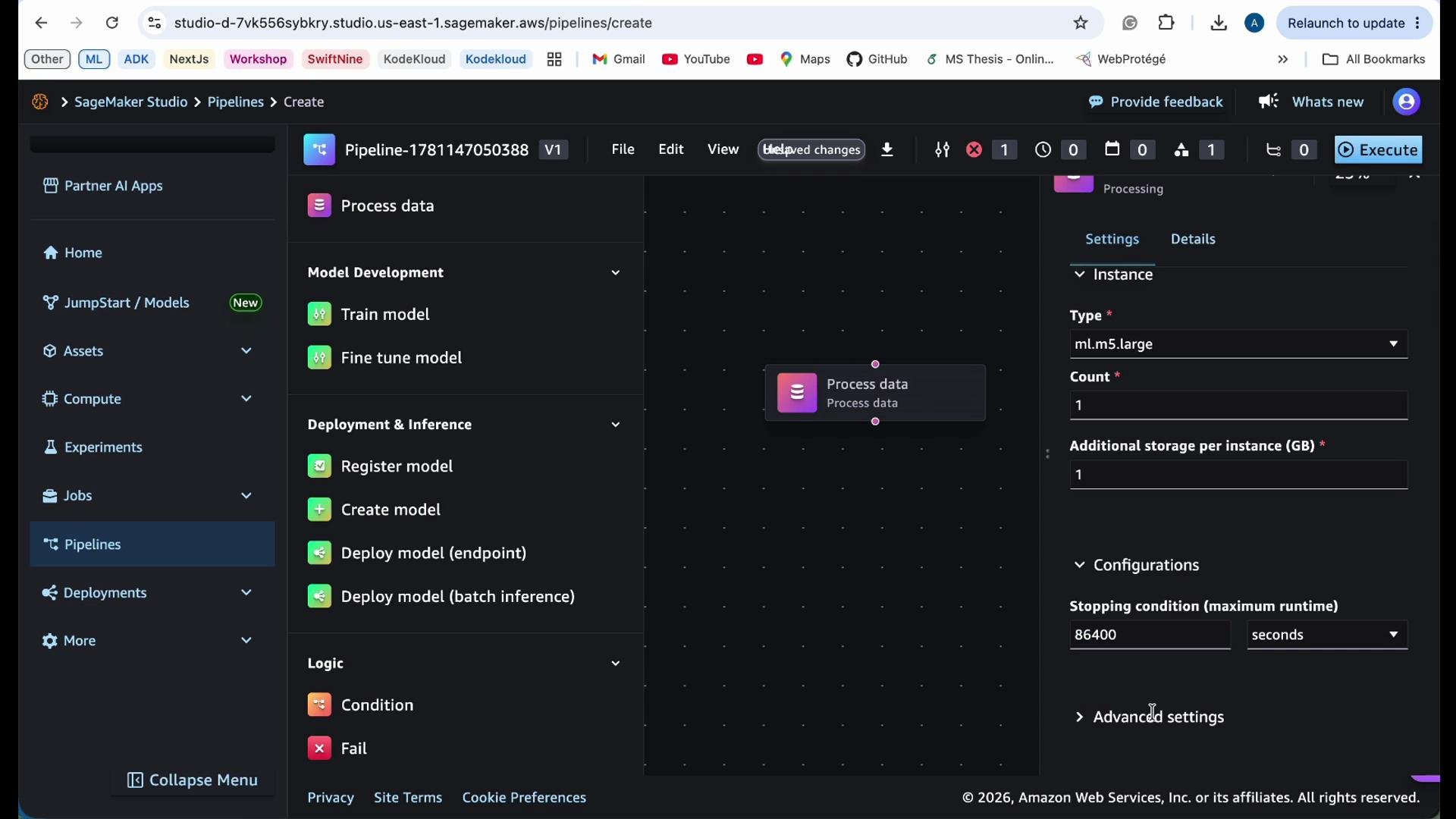
* When you add a processing step, configure the instance type, instance count, local storage size, and stopping conditions (maximum runtime).
* Select the smallest instance that fulfills resource needs to control costs.
* Always review pricing for instance families you choose.
How to start: click **Create in Visual Editor** to open the pipeline canvas. The editor exposes step types you can drag into your workflow, including:
* Data processing (batch transforms, custom containers)
* Custom code (your own containerized logic)
* Lambda integrations
* Training jobs
* Model registration (Model Registry)
* Deployment (real-time endpoints or batch inferencing)
* Conditional branching (if/else flows based on evaluation metrics)
The visual editor also supports wiring outputs from one step into the inputs of another so you can build reproducible, end-to-end pipelines.
Processing steps: compute, storage, and cost
* When you add a processing step, configure the instance type, instance count, local storage size, and stopping conditions (maximum runtime).
* Select the smallest instance that fulfills resource needs to control costs.
* Always review pricing for instance families you choose.
 Set runtime limits (stopping conditions) to prevent runaway jobs and unanticipated charges. These limits abort a job if it exceeds a defined duration and provide a predictable upper bound for step execution.
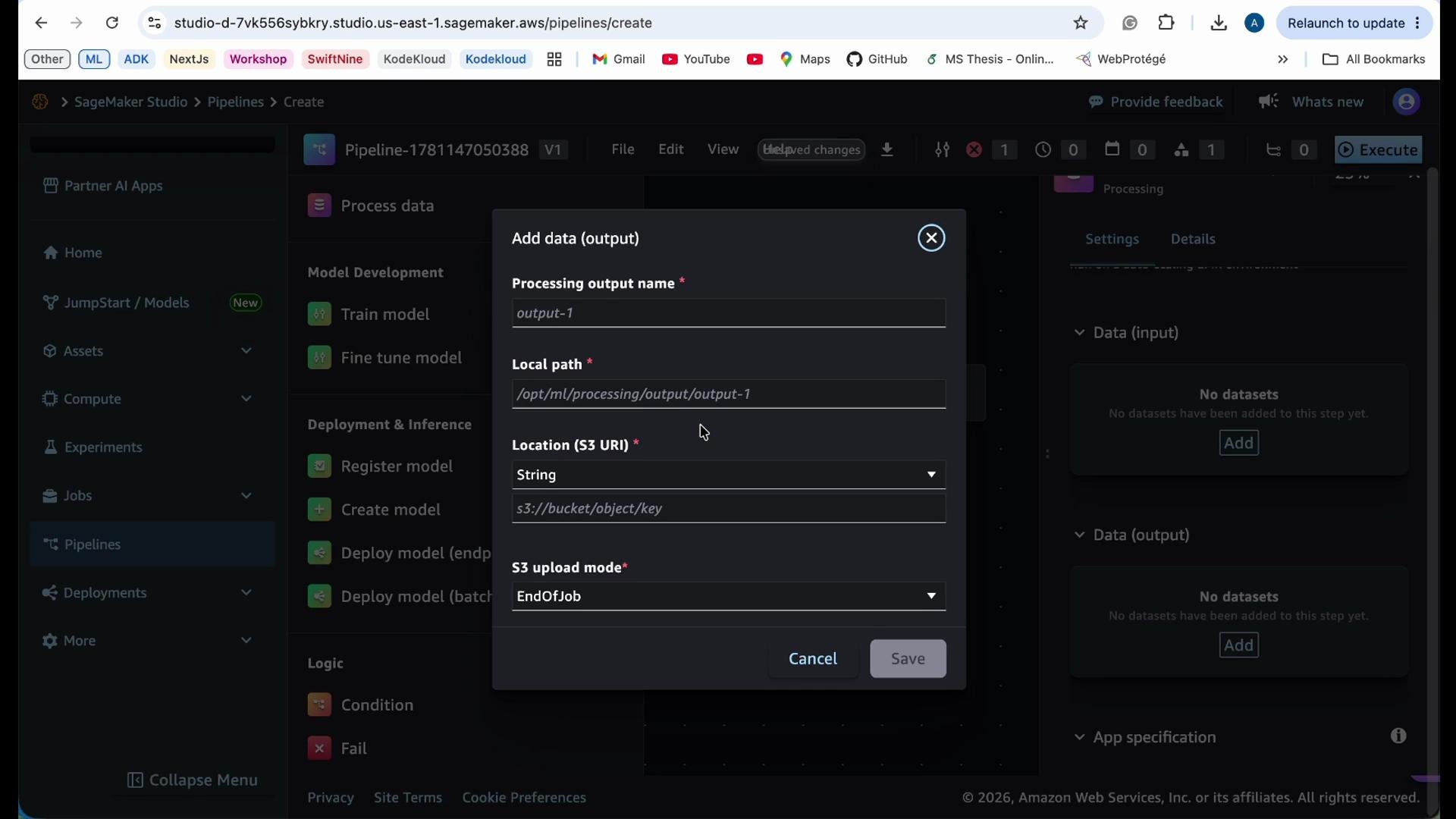
 App specification and data movement
* Under the app specification for a step, provide a container image (for example, from [Amazon ECR](https://aws.amazon.com/ecr/)) that packages your code and dependencies.
* For inputs and outputs, specify S3 locations (buckets and prefixes). Common examples:
* `s3://your-bucket/processed-data/`
* `s3://your-bucket/model-artifacts/`
* Use consistent prefixes to make outputs discoverable and to simplify downstream steps.
App specification and data movement
* Under the app specification for a step, provide a container image (for example, from [Amazon ECR](https://aws.amazon.com/ecr/)) that packages your code and dependencies.
* For inputs and outputs, specify S3 locations (buckets and prefixes). Common examples:
* `s3://your-bucket/processed-data/`
* `s3://your-bucket/model-artifacts/`
* Use consistent prefixes to make outputs discoverable and to simplify downstream steps.
 Execution platform choices
* Choose between SageMaker-managed execution or integrating external compute (for example, [EMR](https://aws.amazon.com/emr/)). Each option has different runtime characteristics and cost profiles.
* SageMaker-managed jobs simplify orchestration and monitoring; external platforms may be better for specialized distributed workloads or existing EMR pipelines.
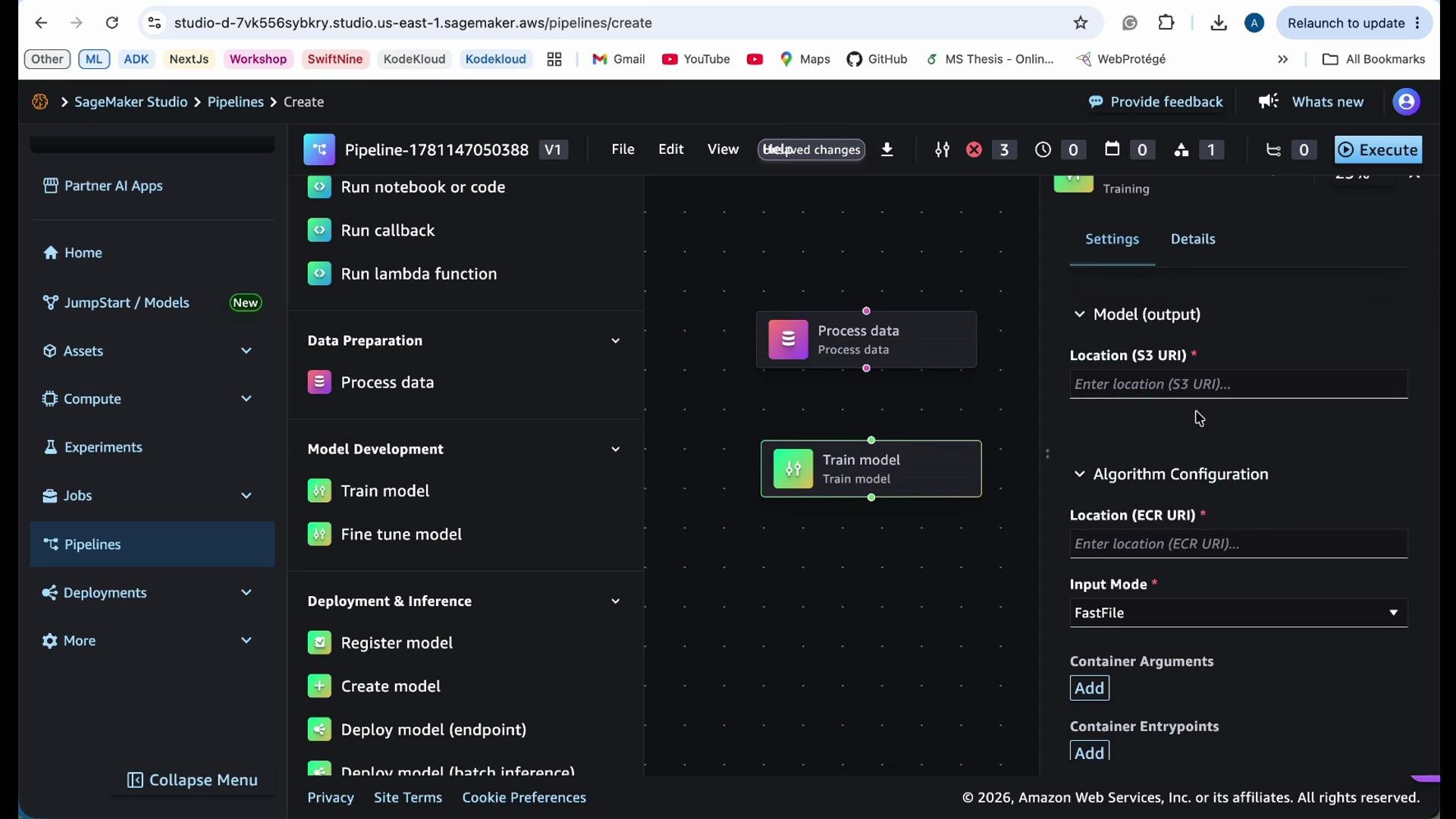
Training step configuration
When adding a training step, configure:
* Training image or algorithm container
* Input data location (S3 path for transformed/processed data)
* Output S3 location for model artifacts
* Hyperparameters for the training job
* Checkpointing location in S3 to resume interrupted training
* Stopping conditions and instance configuration (type and count)
Checkpointing is critical for long-running or expensive training jobs: it allows resuming from the last saved state instead of restarting from the beginning.
Execution platform choices
* Choose between SageMaker-managed execution or integrating external compute (for example, [EMR](https://aws.amazon.com/emr/)). Each option has different runtime characteristics and cost profiles.
* SageMaker-managed jobs simplify orchestration and monitoring; external platforms may be better for specialized distributed workloads or existing EMR pipelines.
Training step configuration
When adding a training step, configure:
* Training image or algorithm container
* Input data location (S3 path for transformed/processed data)
* Output S3 location for model artifacts
* Hyperparameters for the training job
* Checkpointing location in S3 to resume interrupted training
* Stopping conditions and instance configuration (type and count)
Checkpointing is critical for long-running or expensive training jobs: it allows resuming from the last saved state instead of restarting from the beginning.
 Model registration and deployment
After successful training you can:
* Register the trained model in the SageMaker Model Registry for versioning and governance.
* Deploy the model as an endpoint (real-time) or create batch transform jobs for offline inference.
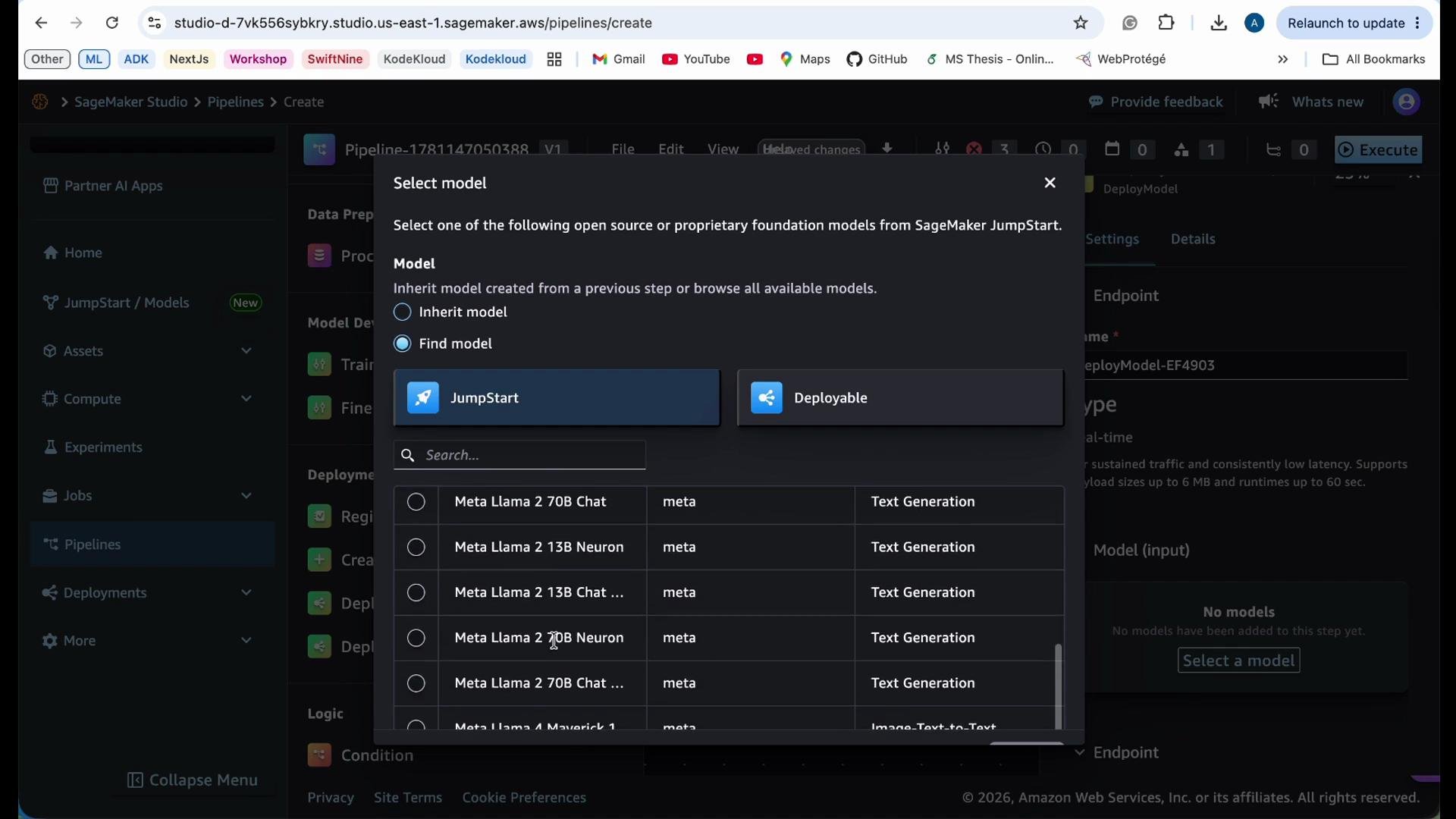
The deployment step in the visual editor prompts for a model name and lets you select either a model produced earlier in the pipeline or an existing model (for example, from [SageMaker JumpStart](https://aws.amazon.com/sagemaker/features/jumpstart/)).
Model registration and deployment
After successful training you can:
* Register the trained model in the SageMaker Model Registry for versioning and governance.
* Deploy the model as an endpoint (real-time) or create batch transform jobs for offline inference.
The deployment step in the visual editor prompts for a model name and lets you select either a model produced earlier in the pipeline or an existing model (for example, from [SageMaker JumpStart](https://aws.amazon.com/sagemaker/features/jumpstart/)).
 Checklist: common fields for each pipeline step
| Step Type | Typical Required Fields | Notes |
| ------------------ | ------------------------------------------------------------------------------------------------------------------------------ | -------------------------------------------------- |
| Processing | Instance type, instance count, local storage, input S3 prefix, output S3 prefix, stopping conditions | Choose smallest instance that meets resource needs |
| Training | Training image, input S3 prefix, output S3 prefix, hyperparameters, checkpoint S3 prefix, instance config, stopping conditions | Use checkpointing for long jobs |
| Model Registration | Model name, model artifacts (S3), metadata, approval status | Register for reproducibility and governance |
| Deployment | Model selection, instance type, scaling options, endpoint config | Consider cost and latency trade-offs |
| Conditional/Eval | Metric thresholds, branching logic, downstream steps | Automate model promotion or rollback |
Best practices summary
* Use S3 prefixes consistently for processed data, checkpoints, and model artifacts.
* Set stopping conditions to cap runtime costs.
* Use checkpointing to resume interrupted training jobs.
* Start with smaller instance types during development and scale up for production.
* Use the Model Registry to manage model versions and approvals.
Tip: Always configure sensible stopping conditions and use S3 checkpointing for long-running or costly jobs. Start with smaller instance types like `m5.large` for development and monitor costs as you scale.
Warning: Instance pricing varies by region and changes over time. Review current pricing before launching large or long-running jobs and include budgeting/alerting in your monitoring strategy.
Links and references
* [SageMaker Pipelines documentation](https://docs.aws.amazon.com/sagemaker/latest/dg/pipelines.html)
* [SageMaker Studio](https://aws.amazon.com/sagemaker/studio/)
* [Amazon ECR](https://aws.amazon.com/ecr/)
* [Amazon S3](https://aws.amazon.com/s3/)
* [Amazon EMR](https://aws.amazon.com/emr/)
* [SageMaker JumpStart](https://aws.amazon.com/sagemaker/features/jumpstart/)
This walkthrough shows how to compose, configure, and operationalize pipelines in SageMaker Studio's visual editor—allowing reproducible, monitored, and cost-aware ML workflows.
Checklist: common fields for each pipeline step
| Step Type | Typical Required Fields | Notes |
| ------------------ | ------------------------------------------------------------------------------------------------------------------------------ | -------------------------------------------------- |
| Processing | Instance type, instance count, local storage, input S3 prefix, output S3 prefix, stopping conditions | Choose smallest instance that meets resource needs |
| Training | Training image, input S3 prefix, output S3 prefix, hyperparameters, checkpoint S3 prefix, instance config, stopping conditions | Use checkpointing for long jobs |
| Model Registration | Model name, model artifacts (S3), metadata, approval status | Register for reproducibility and governance |
| Deployment | Model selection, instance type, scaling options, endpoint config | Consider cost and latency trade-offs |
| Conditional/Eval | Metric thresholds, branching logic, downstream steps | Automate model promotion or rollback |
Best practices summary
* Use S3 prefixes consistently for processed data, checkpoints, and model artifacts.
* Set stopping conditions to cap runtime costs.
* Use checkpointing to resume interrupted training jobs.
* Start with smaller instance types during development and scale up for production.
* Use the Model Registry to manage model versions and approvals.
Tip: Always configure sensible stopping conditions and use S3 checkpointing for long-running or costly jobs. Start with smaller instance types like `m5.large` for development and monitor costs as you scale.
Warning: Instance pricing varies by region and changes over time. Review current pricing before launching large or long-running jobs and include budgeting/alerting in your monitoring strategy.
Links and references
* [SageMaker Pipelines documentation](https://docs.aws.amazon.com/sagemaker/latest/dg/pipelines.html)
* [SageMaker Studio](https://aws.amazon.com/sagemaker/studio/)
* [Amazon ECR](https://aws.amazon.com/ecr/)
* [Amazon S3](https://aws.amazon.com/s3/)
* [Amazon EMR](https://aws.amazon.com/emr/)
* [SageMaker JumpStart](https://aws.amazon.com/sagemaker/features/jumpstart/)
This walkthrough shows how to compose, configure, and operationalize pipelines in SageMaker Studio's visual editor—allowing reproducible, monitored, and cost-aware ML workflows.