> ## Documentation Index
> Fetch the complete documentation index at: https://notes.kodekloud.com/llms.txt
> Use this file to discover all available pages before exploring further.
# AWS CLI Demo
> This article explores how to interact with AWS and manage resources using the AWS Command Line Interface.
In this article, we explore how to interact with AWS and efficiently manage resources using the AWS Command Line Interface (CLI). While the AWS Management Console provides a graphical interface, the CLI offers speed and simplicity, making it a preferred choice for engineers and power users.
For installation instructions, visit the [AWS CLI Installation Guide](https://aws.amazon.com/cli/). Once installed, you can begin using it with just a few terminal commands.
## Introduction to AWS CLI
The AWS CLI comes with built-in help functionality. By appending the word `help` to any command, you can access detailed documentation, including descriptions, synopses, and available global options. For example, to access the CLI help documentation, run:
```bash theme={null}
aws help
```
You can also specify the working region directly in your commands using the `--region ` flag, eliminating the need to manually configure it through the console.
Below is an image that demonstrates a terminal window displaying the AWS CLI documentation:

## Command Structure and Service Exploration
AWS CLI commands follow a simple structure:
1. Start with the keyword `aws`
2. Include any global options (e.g., `--region`)
3. Specify the primary service (such as `s3`)
4. Provide subcommands or additional parameters/flags
For instance, to explore the S3 service—a cloud storage service comparable to Dropbox or Google Drive—type:
```bash theme={null}
aws s3
```
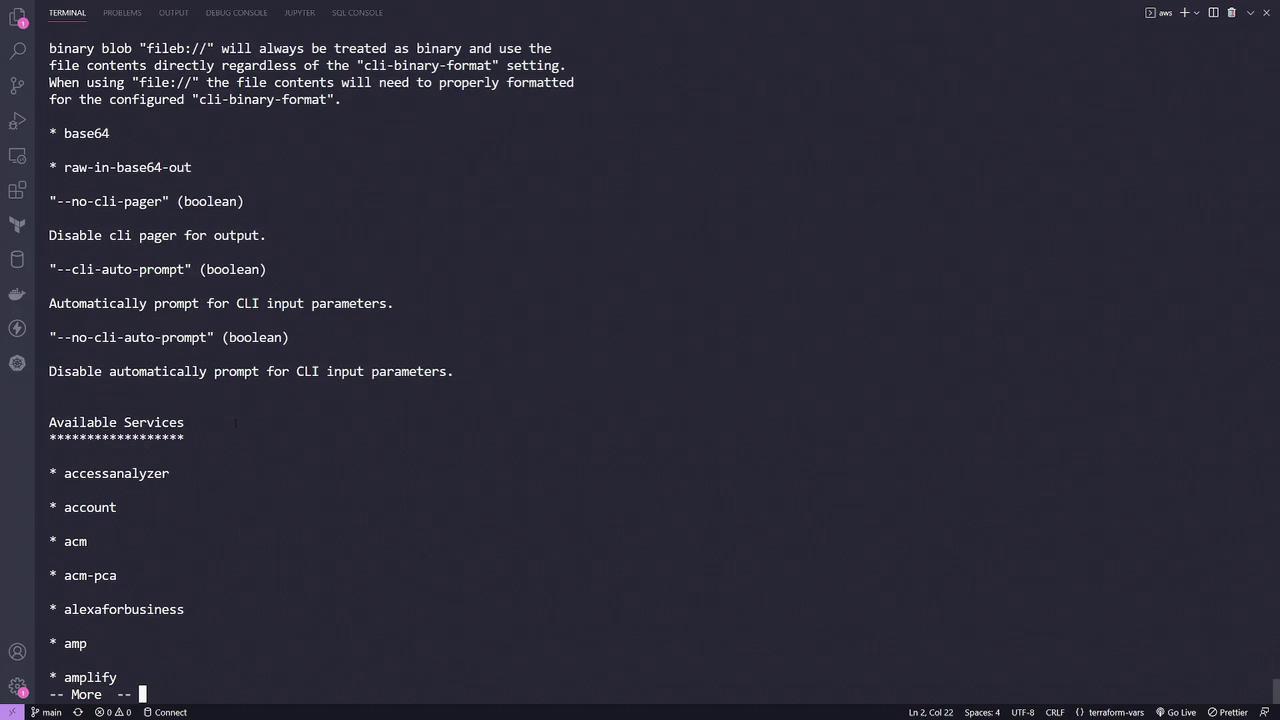
This command displays a list of available S3-related commands along with other services, as shown in the image below:
To view detailed information about S3 commands (or any command), append `help` to your command. For example, to learn more about the `mb` (make bucket) command, execute:
```bash theme={null}
aws s3 mb help
```
## Creating and Managing S3 Buckets
The `mb` command allows you to create a new S3 bucket. Running the following command creates a bucket named `mybucket`:
```bash theme={null}
aws s3 mb s3://mybucket
```
Example output:
```bash theme={null}
make_bucket: s3://mybucket
```
You can also specify a region when creating a bucket:
```bash theme={null}
aws s3 mb s3://mybucket --region us-west-1
```
Example output:
```bash theme={null}
make_bucket: s3://mybucket
```
Now, let's create a bucket named `kodekloud-cli-demo` by running:
```bash theme={null}
aws s3 mb s3://kodekloud-cli-demo
```
If successful, you will see the following confirmation:
```bash theme={null}
make_bucket: kodekloud-cli-demo
```
To verify that your bucket was created, list all available buckets with:
```bash theme={null}
aws s3 ls
```
Expected output:
```bash theme={null}
2023-04-07 03:39:04 kk-access-point
2023-05-01 21:00:20 kodekloud-cli-demo
```
## Additional S3 Commands
Here are a few more AWS S3 commands useful for various tasks:
| Command | Description | Example |
| ------- | -------------------------------------------------------------------------------- | ---------------------------------------------------------------- |
| Sync | Synchronize local files with an S3 bucket | `aws s3 sync /tmp/foo s3://bucket/` |
| Copy | Recursively copy files, excluding specific patterns | `aws s3 cp /tmp/foo s3://bucket/ --recursive --exclude ".git/*"` |
| Copy | Recursively copy files while excluding files that start with specific characters | `aws s3 cp /tmp/foo s3://bucket/ --recursive --exclude "ba*"` |
Listing your buckets again confirms their existence:
```bash theme={null}
aws s3 ls
2023-04-07 03:39:04 kk-access-point
2023-05-01 21:00:20 kodekloud-cli-demo
```
## Summary
The AWS CLI is a powerful tool that allows you to manage AWS services directly from the terminal. Its command-line syntax, built-in help, and scriptable options provide efficiency and flexibility that can significantly boost productivity compared to the graphical AWS Console.
Whether you prefer the visual interface of the AWS Console or the rapid, scriptable commands of the CLI, AWS ensures you have the tools necessary to manage your cloud resources with ease.
For more detailed information, consider exploring:
* [AWS CLI Documentation](https://aws.amazon.com/cli/)
* [AWS S3 Documentation](https://docs.aws.amazon.com/AmazonS3/latest/userguide/Welcome.html)
Harness the power of the AWS CLI and streamline your cloud operations today!