> ## Documentation Index
> Fetch the complete documentation index at: https://notes.kodekloud.com/llms.txt
> Use this file to discover all available pages before exploring further.
# Demo Creating an S3 bucket and EC2 Instance with AWS CLI
> Step by step guide to author a minimal CloudFormation YAML and use AWS CLI to create an S3 bucket and EC2 instance, verify resources, and clean up.
In this step-by-step guide you'll author a minimal CloudFormation YAML template and use the AWS CLI to provision an S3 bucket and an EC2 instance. The workflow is intentionally simple so you can quickly learn the end-to-end process: write the template, create the stack with the CLI, verify the resources in the console, and then clean up.
Before you begin, ensure the AWS CLI is installed and configured with credentials that have permissions to create CloudFormation stacks, EC2 instances, and S3 buckets. Configure the CLI with `aws configure` or set the credentials via environment variables.
## What you'll create
* CloudFormation stack named `simple-s3-ec2-stack`
* An Amazon S3 bucket (name generated by CloudFormation)
* An Amazon EC2 instance (AMI selected via a region map)
## CloudFormation template (cli.yaml)
Create a file named `cli.yaml` in a project folder (for example, `cf-project`). This minimal template includes:
* A Mappings section with AMI IDs for a few regions
* A Parameter to control instance type (default: `t3.micro`)
* An S3 bucket resource
* An EC2 instance that selects the AMI using the Region map and intrinsic functions
Save the following YAML as `cli.yaml`:
```yaml theme={null}
AWSTemplateFormatVersion: '2010-09-09'
Description: Basic EC2 instance with S3 bucket
Mappings:
RegionMap:
us-east-2:
AMI: ami-0eb9d6fc9fab44d24
eu-west-1:
AMI: ami-0b3e7dd7b2a99b08d
us-east-1:
AMI: ami-0150ccaf51ab55a51
Parameters:
MyInstanceType:
Type: String
Default: t3.micro
Description: EC2 instance type
Resources:
MyBucket:
Type: AWS::S3::Bucket
MyInstance:
Type: AWS::EC2::Instance
Properties:
InstanceType: !Ref MyInstanceType
ImageId: !FindInMap [RegionMap, !Ref "AWS::Region", AMI]
```
This template uses intrinsic functions (`!Ref`, `!FindInMap`) so the AMI is chosen automatically based on the region where the stack is created.
## Change to your project directory
Open a terminal and change into the folder containing `cli.yaml`.
Windows (Command Prompt or PowerShell):
```powershell theme={null}
C:\Users\Arno> cd Desktop\cf-project
```
macOS / Linux:
```bash theme={null}
$ cd ~/Desktop/cf-project
```
(Optional) Clear the terminal with `cls` (Windows) or `clear` (macOS/Linux).
## Create the CloudFormation stack using the AWS CLI
Run the create-stack command and set the target region (example uses `us-east-2`):
```bash theme={null}
aws cloudformation create-stack \
--stack-name simple-s3-ec2-stack \
--template-body file://cli.yaml \
--region us-east-2
```
If successful, the CLI returns a StackId similar to:
```text theme={null}
StackId: arn:aws:cloudformation:us-east-2:635573991785:stack/simple-s3-ec2-stack/a00c6a70-5f86-11f0-918b-062d83e2b7d9
```
CloudFormation will take a minute or two to provision resources. Monitor progress either in the CloudFormation console or via the CLI:
```bash theme={null}
aws cloudformation describe-stacks --stack-name simple-s3-ec2-stack --region us-east-2
```
You can also list in-progress events in the console to see creation steps and any errors.
## Verify resources in the AWS Console
* CloudFormation console — view stack events and the resources created by the stack.
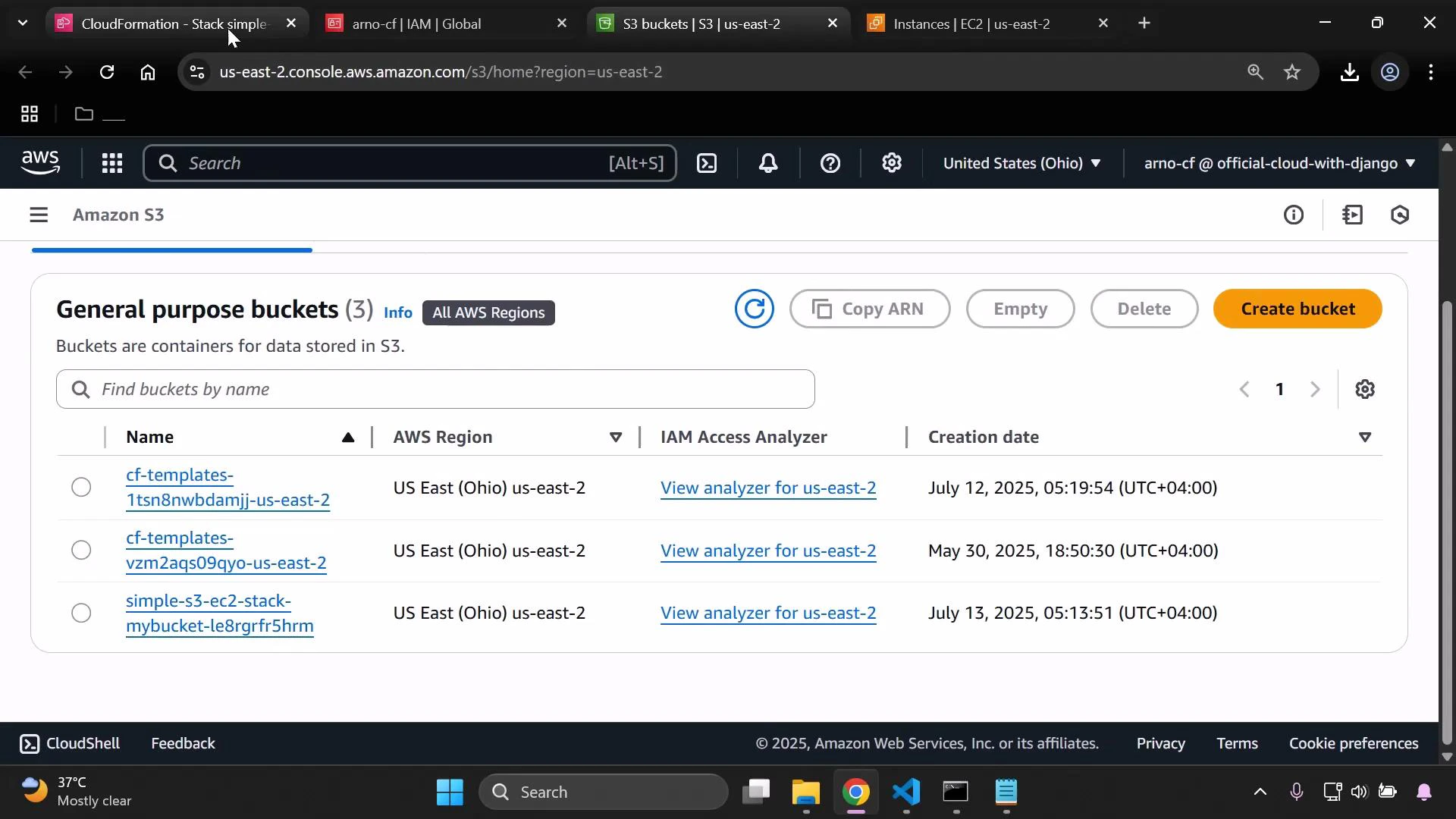
* S3 console (region `us-east-2`) — find the bucket created by the stack (CloudFormation generates a name when none is provided).
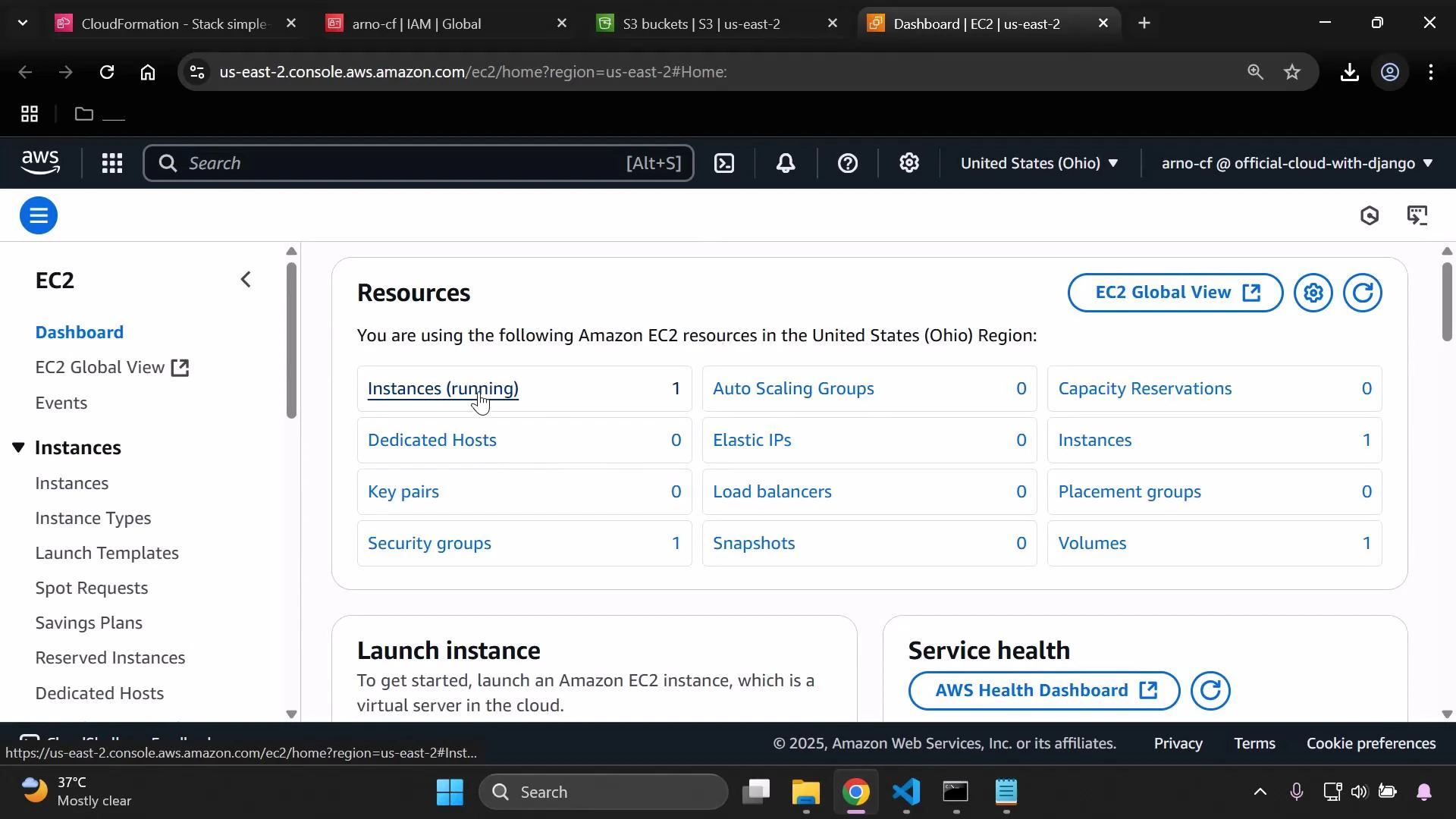
* EC2 console (region `us-east-2`) — confirm the instance is running and was launched from the AMI defined in the region mapping.
There is one running instance created by this stack, as shown in the EC2 console:
 And here is the S3 console showing the bucket created in the US East (Ohio) region:
 To inspect stack resources from the CLI:
```bash theme={null}
aws cloudformation list-stack-resources --stack-name simple-s3-ec2-stack --region us-east-2
```
## Cleanup — delete the stack and resources
When you’re done, delete the CloudFormation stack to remove all resources it created:
```bash theme={null}
aws cloudformation delete-stack --stack-name simple-s3-ec2-stack --region us-east-2
```
Check deletion status with:
```bash theme={null}
aws cloudformation describe-stacks --stack-name simple-s3-ec2-stack --region us-east-2
# or monitor the CloudFormation console until the stack is removed
```
Notes about deletion:
* CloudFormation deletes the S3 bucket and EC2 instance it created unless the bucket contains objects you uploaded manually. Objects in an S3 bucket prevent its automatic deletion.
* If you created temporary access keys for this demo, deactivate and delete them to reduce security risk.
Example CLI commands to deactivate and delete an access key (replace placeholders):
```bash theme={null}
aws iam update-access-key --user-name --access-key-id --status Inactive
aws iam delete-access-key --user-name --access-key-id
```
Be careful when deleting stacks—confirm you are deleting the correct stack and verify there are no important objects in S3 buckets. Deletion can cause irreversible data loss and objects may block the stack from being removed.
## Quick reference
| Action | CLI command | Notes |
| -------------------- | -------------------------------------------------------------------------------------------------------------------- | ----------------------------------------------------- |
| Create stack | `aws cloudformation create-stack --stack-name simple-s3-ec2-stack --template-body file://cli.yaml --region ` | Use `--region` to control where resources are created |
| Describe stack | `aws cloudformation describe-stacks --stack-name simple-s3-ec2-stack --region ` | Check status and outputs |
| List stack resources | `aws cloudformation list-stack-resources --stack-name simple-s3-ec2-stack --region ` | Lists logical/physical IDs |
| Delete stack | `aws cloudformation delete-stack --stack-name simple-s3-ec2-stack --region ` | Removes resources created by the stack |
## Links and further reading
* [AWS CLI documentation](https://docs.aws.amazon.com/cli/latest/userguide/cli-chap-welcome.html)
* [CloudFormation concepts](https://learn.kodekloud.com/user/courses/aws-cloud-formation)
* [Amazon S3 documentation](https://learn.kodekloud.com/user/courses/amazon-simple-storage-service-amazon-s3)
* [Amazon EC2 documentation](https://learn.kodekloud.com/user/courses/amazon-elastic-compute-cloud-ec2)
* [IAM best practices](https://docs.aws.amazon.com/IAM/latest/UserGuide/best-practices.html)
## Summary
* Author a minimal CloudFormation YAML template (`cli.yaml`) defining an S3 bucket and EC2 instance.
* Use the AWS CLI to create the stack: `aws cloudformation create-stack --stack-name ... --template-body file://cli.yaml --region `.
* Verify the resources in the CloudFormation, S3, and EC2 consoles.
* Delete the stack to clean up resources and remove any temporary access keys.
That completes this demo on using CloudFormation with the AWS CLI to provision an S3 bucket and an EC2 instance.
To inspect stack resources from the CLI:
```bash theme={null}
aws cloudformation list-stack-resources --stack-name simple-s3-ec2-stack --region us-east-2
```
## Cleanup — delete the stack and resources
When you’re done, delete the CloudFormation stack to remove all resources it created:
```bash theme={null}
aws cloudformation delete-stack --stack-name simple-s3-ec2-stack --region us-east-2
```
Check deletion status with:
```bash theme={null}
aws cloudformation describe-stacks --stack-name simple-s3-ec2-stack --region us-east-2
# or monitor the CloudFormation console until the stack is removed
```
Notes about deletion:
* CloudFormation deletes the S3 bucket and EC2 instance it created unless the bucket contains objects you uploaded manually. Objects in an S3 bucket prevent its automatic deletion.
* If you created temporary access keys for this demo, deactivate and delete them to reduce security risk.
Example CLI commands to deactivate and delete an access key (replace placeholders):
```bash theme={null}
aws iam update-access-key --user-name --access-key-id --status Inactive
aws iam delete-access-key --user-name --access-key-id
```
Be careful when deleting stacks—confirm you are deleting the correct stack and verify there are no important objects in S3 buckets. Deletion can cause irreversible data loss and objects may block the stack from being removed.
## Quick reference
| Action | CLI command | Notes |
| -------------------- | -------------------------------------------------------------------------------------------------------------------- | ----------------------------------------------------- |
| Create stack | `aws cloudformation create-stack --stack-name simple-s3-ec2-stack --template-body file://cli.yaml --region ` | Use `--region` to control where resources are created |
| Describe stack | `aws cloudformation describe-stacks --stack-name simple-s3-ec2-stack --region ` | Check status and outputs |
| List stack resources | `aws cloudformation list-stack-resources --stack-name simple-s3-ec2-stack --region ` | Lists logical/physical IDs |
| Delete stack | `aws cloudformation delete-stack --stack-name simple-s3-ec2-stack --region ` | Removes resources created by the stack |
## Links and further reading
* [AWS CLI documentation](https://docs.aws.amazon.com/cli/latest/userguide/cli-chap-welcome.html)
* [CloudFormation concepts](https://learn.kodekloud.com/user/courses/aws-cloud-formation)
* [Amazon S3 documentation](https://learn.kodekloud.com/user/courses/amazon-simple-storage-service-amazon-s3)
* [Amazon EC2 documentation](https://learn.kodekloud.com/user/courses/amazon-elastic-compute-cloud-ec2)
* [IAM best practices](https://docs.aws.amazon.com/IAM/latest/UserGuide/best-practices.html)
## Summary
* Author a minimal CloudFormation YAML template (`cli.yaml`) defining an S3 bucket and EC2 instance.
* Use the AWS CLI to create the stack: `aws cloudformation create-stack --stack-name ... --template-body file://cli.yaml --region `.
* Verify the resources in the CloudFormation, S3, and EC2 consoles.
* Delete the stack to clean up resources and remove any temporary access keys.
That completes this demo on using CloudFormation with the AWS CLI to provision an S3 bucket and an EC2 instance.