> ## Documentation Index
> Fetch the complete documentation index at: https://notes.kodekloud.com/llms.txt
> Use this file to discover all available pages before exploring further.
# Demo Using AWS CloudFormation for the first time
> Step-by-step beginner demo showing how to upload a local CloudFormation template, create and verify AWS resources like S3 and EC2, then delete the stack to clean up
Welcome — this step-by-step demo shows how to create and delete an AWS CloudFormation stack using a local template file. It’s ideal for beginners who want a quick, practical walkthrough.
Prerequisites
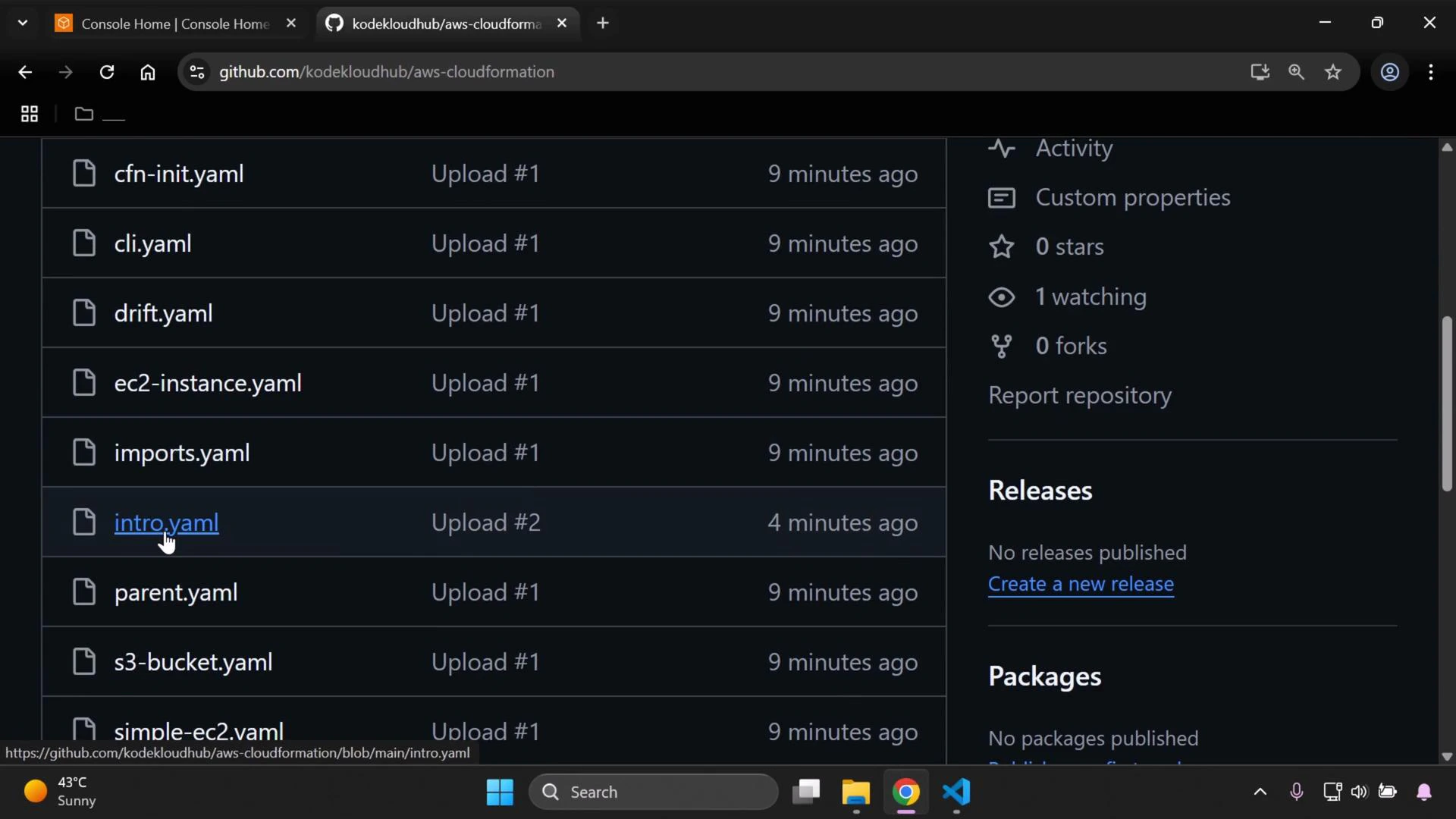
* Download the repository and make sure the file `intro.yaml` is available locally (this demo uses an `intro.yaml` file stored on the desktop).
* An AWS account with permissions to create CloudFormation stacks, EC2 instances, and S3 buckets.
* The AWS Management Console access for the region you plan to use.
 Overview
* You will: upload a CloudFormation template, create a stack, verify resources (S3 and EC2), then delete the stack to clean up.
* CloudFormation automates resource provisioning and lifecycle management using templates written in YAML or JSON.
Step 1 — Open CloudFormation in the Console
1. Sign in to the AWS Management Console and search for “CloudFormation”.
2. Open CloudFormation in a new tab to keep your repository tab available.
Step 2 — Start creating a stack from your template
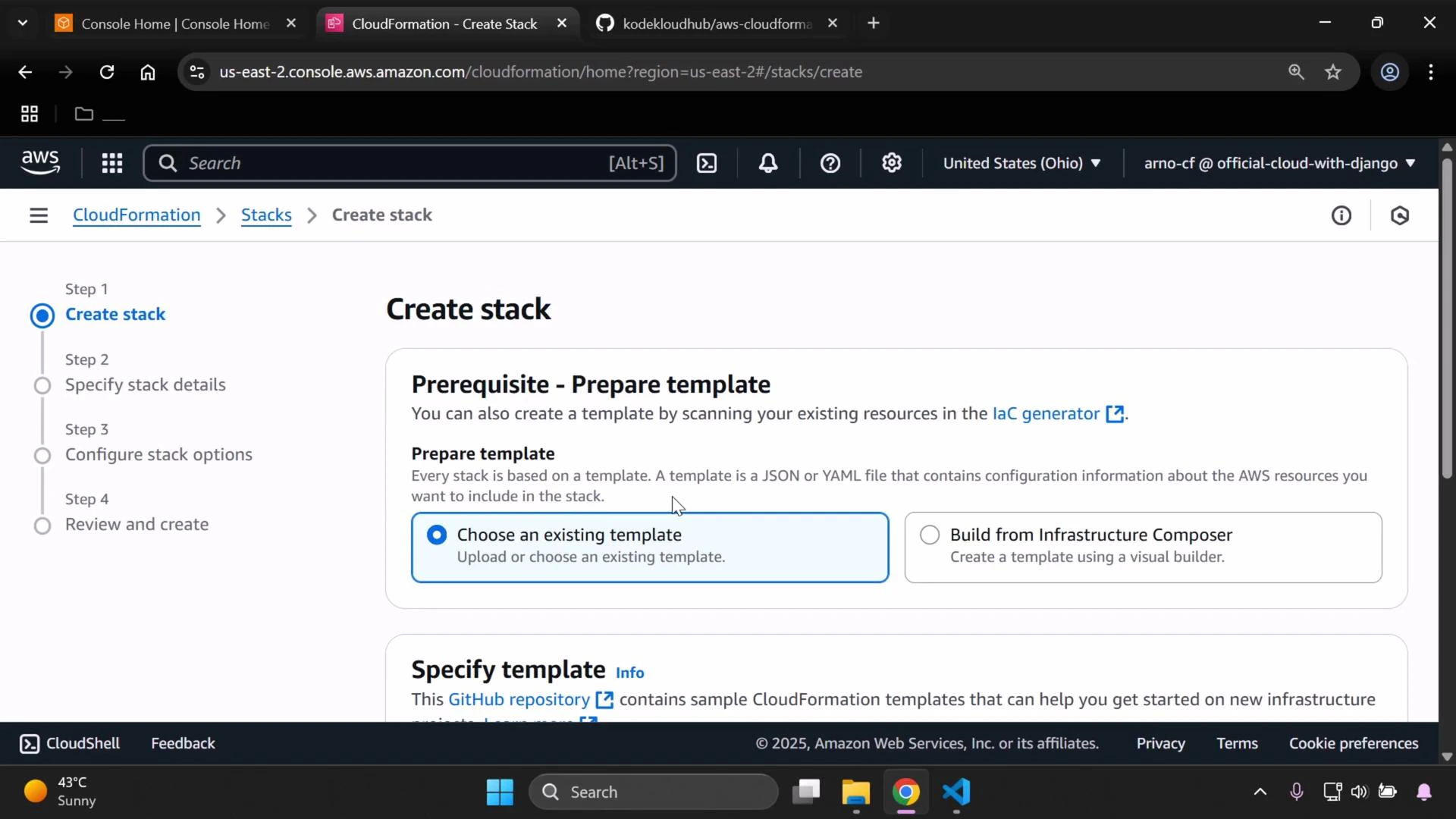
* On the CloudFormation console, choose to create a stack from an existing template. A stack represents the set of AWS resources defined in your template (for example, EC2 instances, S3 buckets, IAM roles).
Overview
* You will: upload a CloudFormation template, create a stack, verify resources (S3 and EC2), then delete the stack to clean up.
* CloudFormation automates resource provisioning and lifecycle management using templates written in YAML or JSON.
Step 1 — Open CloudFormation in the Console
1. Sign in to the AWS Management Console and search for “CloudFormation”.
2. Open CloudFormation in a new tab to keep your repository tab available.
Step 2 — Start creating a stack from your template
* On the CloudFormation console, choose to create a stack from an existing template. A stack represents the set of AWS resources defined in your template (for example, EC2 instances, S3 buckets, IAM roles).
 Step 3 — Upload your template file
1. Select “Upload a template file”.
2. Click Choose file and select your local `intro.yaml`.
3. When you upload the template, CloudFormation stores it in a temporary, CloudFormation-managed S3 bucket for templates.
Example of the uploaded template information:
```text theme={null}
intro.yaml
S3 URL: https://s3.us-east-2.amazonaws.com/cf-templates-vzm2aqs09qyo-us-east-2/2025-07-14T111410.871Zxha-intro.yaml
```
Step 4 — Configure stack options and create
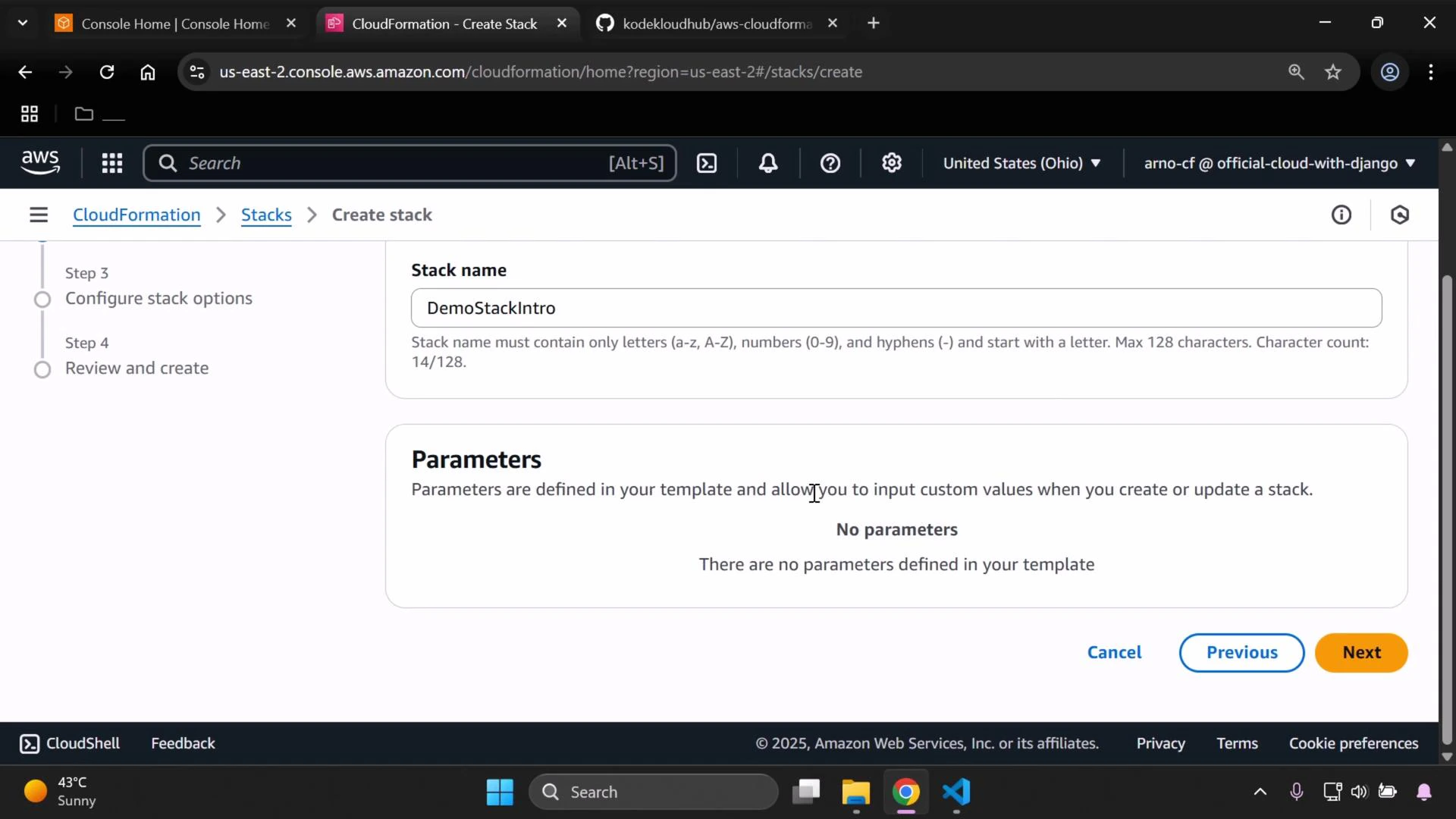
1. Click Next, and enter a stack name (this demo uses `DemoStackIntro`).
2. Continue through Parameters, Tags, Permissions, and Advanced options. For this quick demo there are no parameters to change.
3. Submit to create the stack.
Step 3 — Upload your template file
1. Select “Upload a template file”.
2. Click Choose file and select your local `intro.yaml`.
3. When you upload the template, CloudFormation stores it in a temporary, CloudFormation-managed S3 bucket for templates.
Example of the uploaded template information:
```text theme={null}
intro.yaml
S3 URL: https://s3.us-east-2.amazonaws.com/cf-templates-vzm2aqs09qyo-us-east-2/2025-07-14T111410.871Zxha-intro.yaml
```
Step 4 — Configure stack options and create
1. Click Next, and enter a stack name (this demo uses `DemoStackIntro`).
2. Continue through Parameters, Tags, Permissions, and Advanced options. For this quick demo there are no parameters to change.
3. Submit to create the stack.
 Step 5 — Monitor stack creation
* After submission CloudFormation will begin provisioning resources defined in the template.
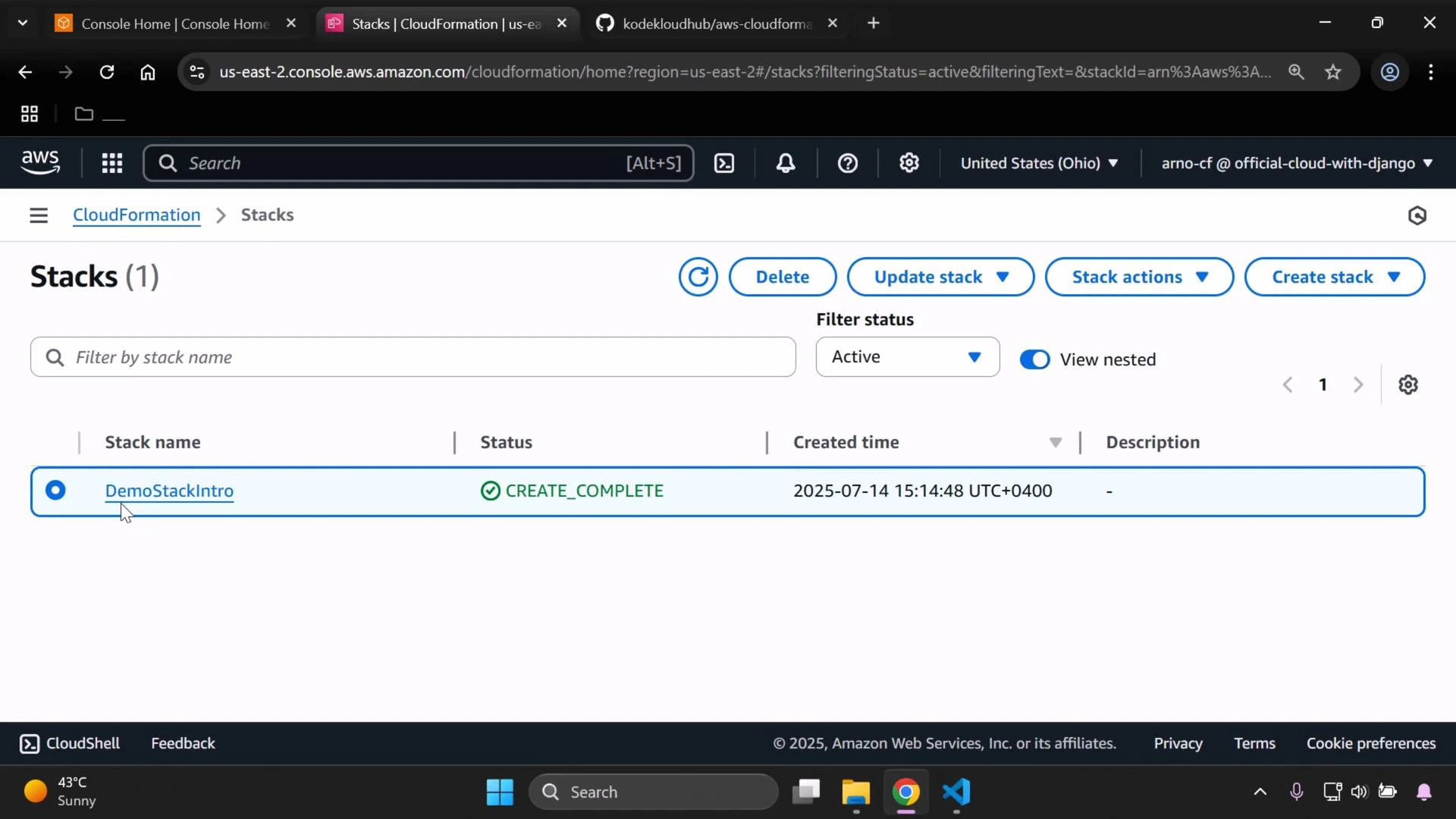
* Monitor the stack status from the Stacks page. Wait until the stack reaches CREATE\_COMPLETE — that indicates resources were created successfully.
Step 5 — Monitor stack creation
* After submission CloudFormation will begin provisioning resources defined in the template.
* Monitor the stack status from the Stacks page. Wait until the stack reaches CREATE\_COMPLETE — that indicates resources were created successfully.
 Step 6 — Verify created resources
* Open the S3 and EC2 consoles in the same AWS Region you used to create the stack (region mismatch is a common cause of “missing” resources).
S3
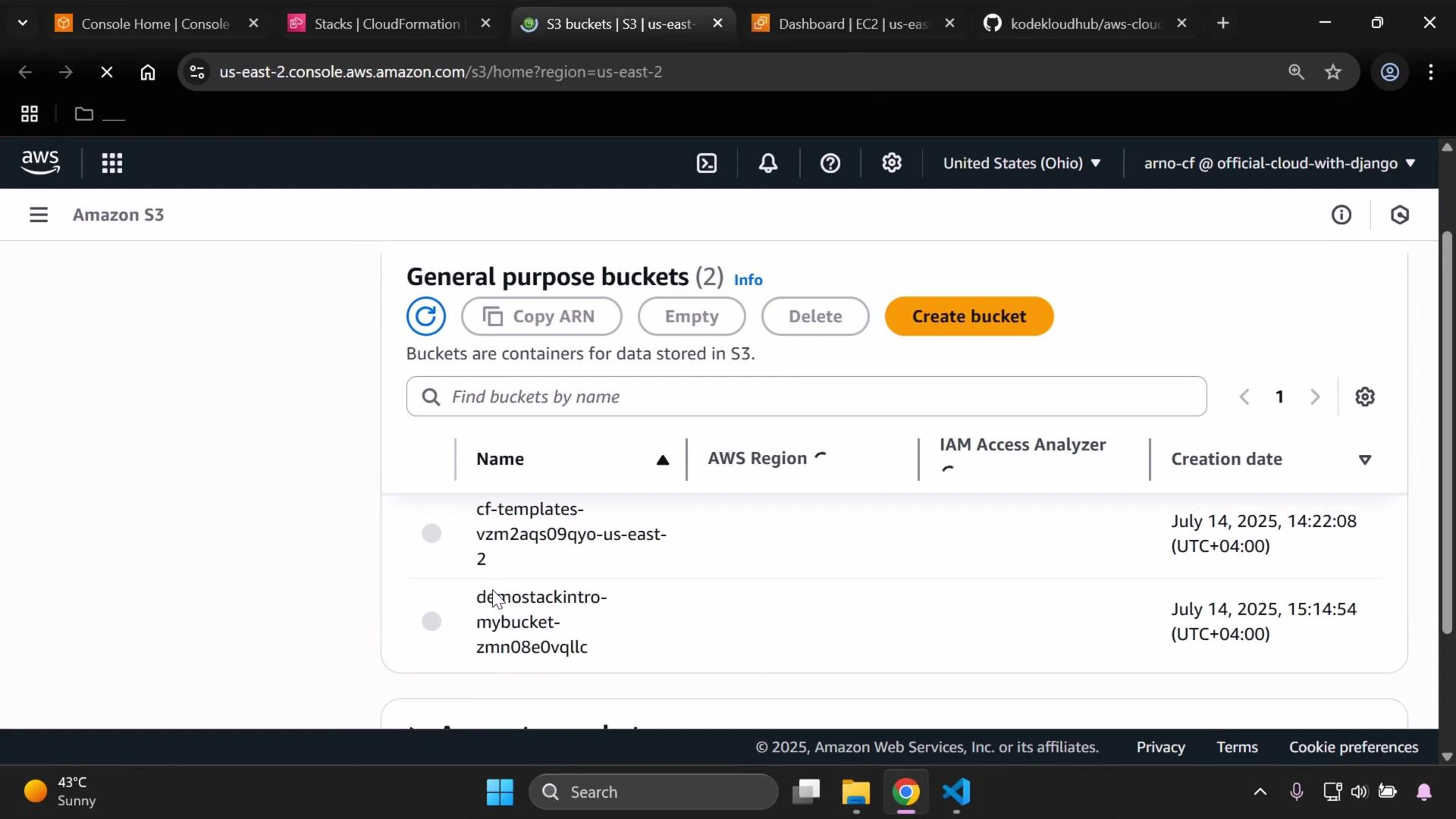
* You should see two buckets: the CloudFormation-managed template storage bucket (used internally) and the bucket created by your template (for example, `demo-stack-intro-bucket`).
Step 6 — Verify created resources
* Open the S3 and EC2 consoles in the same AWS Region you used to create the stack (region mismatch is a common cause of “missing” resources).
S3
* You should see two buckets: the CloudFormation-managed template storage bucket (used internally) and the bucket created by your template (for example, `demo-stack-intro-bucket`).
 EC2
* You should see the EC2 instance launched by the template. Confirm the instance status (running) and the region (US East 2 in this demo).
If you don’t see the resources, confirm the Console’s region matches the region where you created the stack.
Helpful reference — CloudFormation resource types
| Resource Type | Use Case | Example |
| -------------------- | ------------------------------------------------ | ---------------------------- |
| S3 Bucket | Object storage for application data or templates | `AWS::S3::Bucket` |
| EC2 Instance | Virtual servers for compute workloads | `AWS::EC2::Instance` |
| IAM Role | Permissions for instances or services | `AWS::IAM::Role` |
| CloudFormation Stack | Group of resources managed together | `AWS::CloudFormation::Stack` |
Step 7 — Clean up: delete the stack
* To remove the resources, select your stack in the CloudFormation console and choose Delete stack.
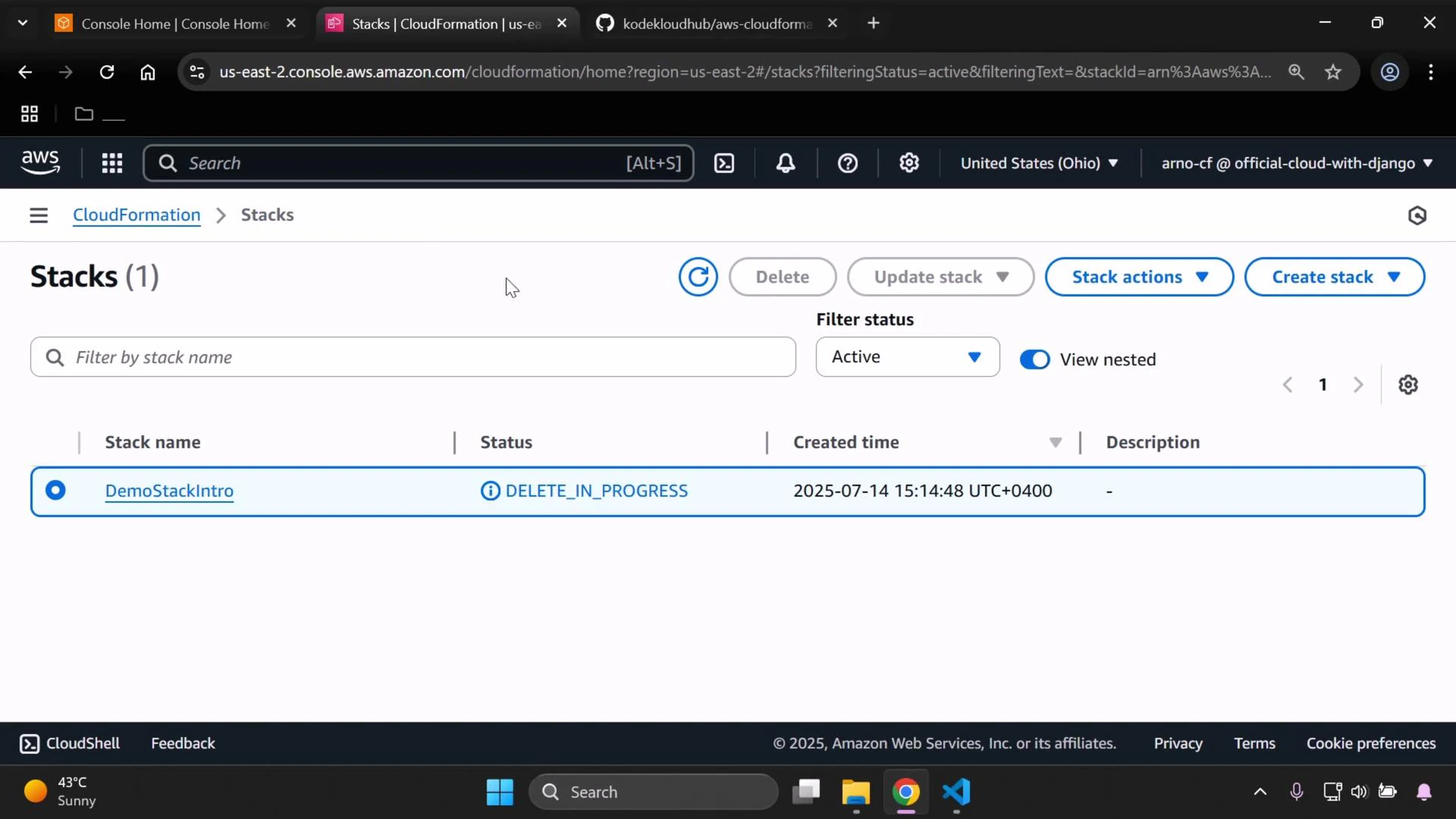
* CloudFormation will transition the stack to DELETE\_IN\_PROGRESS and attempt to remove all resources created by that stack. The process is visible on the Stacks page.
EC2
* You should see the EC2 instance launched by the template. Confirm the instance status (running) and the region (US East 2 in this demo).
If you don’t see the resources, confirm the Console’s region matches the region where you created the stack.
Helpful reference — CloudFormation resource types
| Resource Type | Use Case | Example |
| -------------------- | ------------------------------------------------ | ---------------------------- |
| S3 Bucket | Object storage for application data or templates | `AWS::S3::Bucket` |
| EC2 Instance | Virtual servers for compute workloads | `AWS::EC2::Instance` |
| IAM Role | Permissions for instances or services | `AWS::IAM::Role` |
| CloudFormation Stack | Group of resources managed together | `AWS::CloudFormation::Stack` |
Step 7 — Clean up: delete the stack
* To remove the resources, select your stack in the CloudFormation console and choose Delete stack.
* CloudFormation will transition the stack to DELETE\_IN\_PROGRESS and attempt to remove all resources created by that stack. The process is visible on the Stacks page.
 Important: CloudFormation attempts to delete resources it created, but certain resources may remain if they were modified after creation or have deletion prevention settings. Also, the CloudFormation-managed template storage bucket is retained by AWS and is not deleted with the stack.
When deletion completes:
* The stack will no longer appear in the Stacks list.
* The resources created by your template (for example, the template-defined S3 bucket and EC2 instance) should be removed.
Next steps
* This article provides a high-level, practical demo. To go further:
* Inspect the `intro.yaml` template to learn how Resources, Parameters, Outputs, and Metadata are defined.
* Modify the template to add or change resources (for example, add tags or change instance types).
* Explore CloudFormation best practices like modular templates, nested stacks, and use of Change Sets.
Links and references
* AWS CloudFormation docs: [https://docs.aws.amazon.com/cloudformation/](https://docs.aws.amazon.com/cloudformation/)
* AWS Console: [https://console.aws.amazon.com/](https://console.aws.amazon.com/)
* S3 documentation: [https://docs.aws.amazon.com/s3/](https://docs.aws.amazon.com/s3/)
* EC2 documentation: [https://docs.aws.amazon.com/ec2/](https://docs.aws.amazon.com/ec2/)
That’s the high-level workflow for creating and deleting a CloudFormation stack using a local template file. The next lesson will walk through the `intro.yaml` contents and explain each template section in detail.
Important: CloudFormation attempts to delete resources it created, but certain resources may remain if they were modified after creation or have deletion prevention settings. Also, the CloudFormation-managed template storage bucket is retained by AWS and is not deleted with the stack.
When deletion completes:
* The stack will no longer appear in the Stacks list.
* The resources created by your template (for example, the template-defined S3 bucket and EC2 instance) should be removed.
Next steps
* This article provides a high-level, practical demo. To go further:
* Inspect the `intro.yaml` template to learn how Resources, Parameters, Outputs, and Metadata are defined.
* Modify the template to add or change resources (for example, add tags or change instance types).
* Explore CloudFormation best practices like modular templates, nested stacks, and use of Change Sets.
Links and references
* AWS CloudFormation docs: [https://docs.aws.amazon.com/cloudformation/](https://docs.aws.amazon.com/cloudformation/)
* AWS Console: [https://console.aws.amazon.com/](https://console.aws.amazon.com/)
* S3 documentation: [https://docs.aws.amazon.com/s3/](https://docs.aws.amazon.com/s3/)
* EC2 documentation: [https://docs.aws.amazon.com/ec2/](https://docs.aws.amazon.com/ec2/)
That’s the high-level workflow for creating and deleting a CloudFormation stack using a local template file. The next lesson will walk through the `intro.yaml` contents and explain each template section in detail.