> ## Documentation Index
> Fetch the complete documentation index at: https://notes.kodekloud.com/llms.txt
> Use this file to discover all available pages before exploring further.
# Demo Updating our templates and resource cleanup
> Demo showing updating a CloudFormation template, redeploying via CodePipeline, verifying EC2 instance changes, and safely cleaning up pipeline related resources
Welcome to this demo lesson. We'll update an AWS CloudFormation template, re-deploy it via an existing CI/CD pipeline, verify the change on the EC2 instance, and then safely clean up pipeline-related resources.
This walkthrough assumes you already have:
* A CloudFormation template stored as a zipped object in an S3 bucket (used as the CodePipeline Source).
* A CodePipeline pipeline configured to use that S3 object as its Source action.
* Appropriate IAM roles and an artifact bucket created for the pipeline.
## 1. Update the CloudFormation template
Re-open the template you want to change, edit it, and re-zip the file using the exact same filename so the S3 object key remains the same (or a new version will be created if the bucket has versioning enabled).
Original snippet (t3.small):
```yaml theme={null}
Resources:
MyInstance:
Type: AWS::EC2::Instance
Properties:
InstanceType: t3.small
ImageId: ami-0eb9d6fc9fab44d24
```
Updated snippet (t3.micro):
```yaml theme={null}
Resources:
MyInstance:
Type: AWS::EC2::Instance
Properties:
InstanceType: t3.micro
ImageId: ami-0eb9d6fc9fab44d24
```
Save and re-zip using the same filename so your upload replaces (or creates a new version of) the existing S3 object.
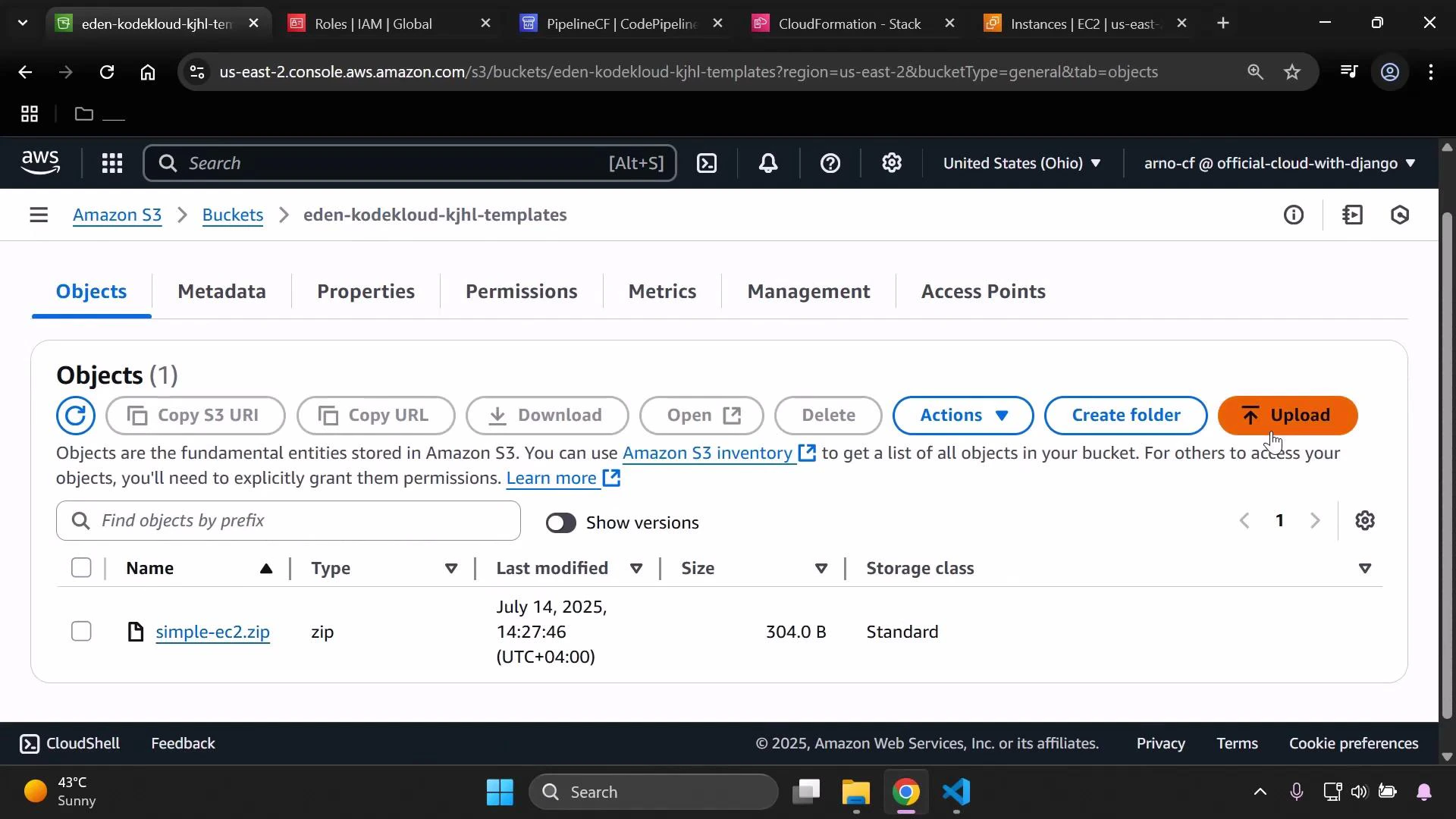 ## 2. Upload the revised template to S3
From the S3 upload dialog, add the updated zip (same filename) and upload it to replace the existing object in the templates bucket.
## 2. Upload the revised template to S3
From the S3 upload dialog, add the updated zip (same filename) and upload it to replace the existing object in the templates bucket.
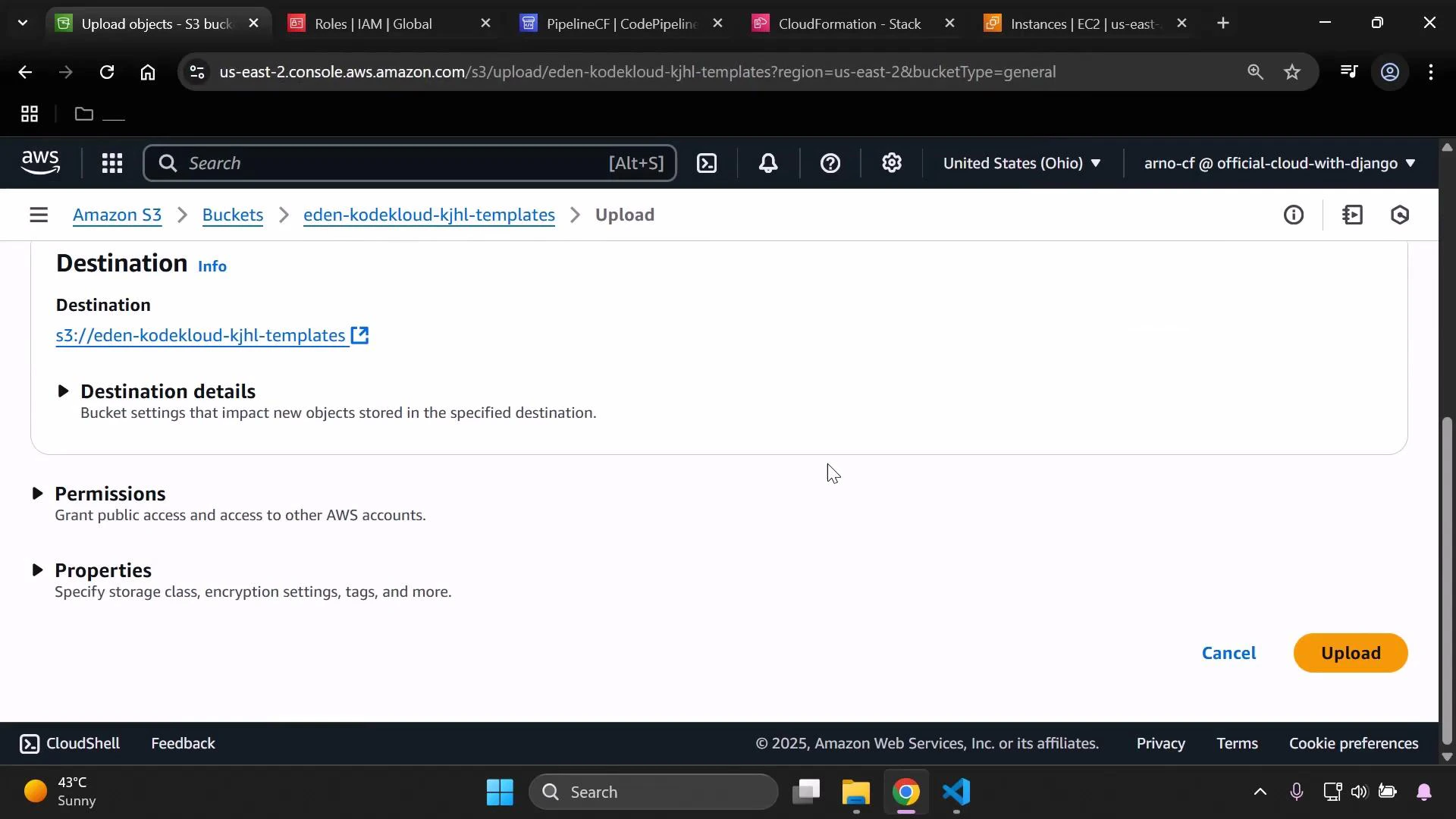 If your CodePipeline Source uses this S3 object (and you have S3 versioning enabled), uploading a new object with the same filename will create a new version and can automatically trigger the pipeline to start a new deployment.
## 3. Monitor CodePipeline for the deployment
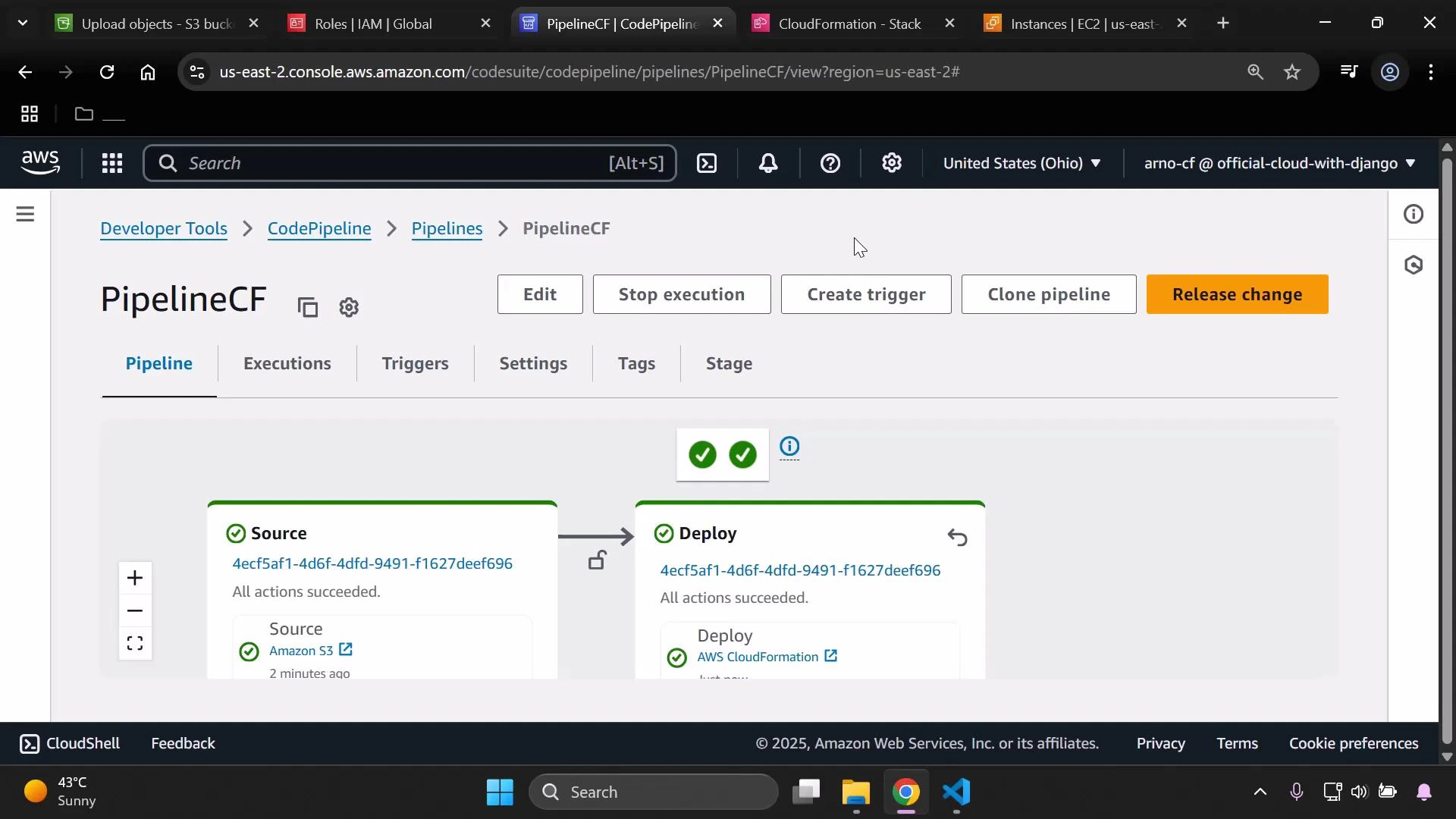
If the pipeline's Source action points to the S3 object (via object versioning or change notifications), CodePipeline should detect the new template and start a run. Refresh the pipeline console to monitor progress and view logs for each stage.
If your CodePipeline Source uses this S3 object (and you have S3 versioning enabled), uploading a new object with the same filename will create a new version and can automatically trigger the pipeline to start a new deployment.
## 3. Monitor CodePipeline for the deployment
If the pipeline's Source action points to the S3 object (via object versioning or change notifications), CodePipeline should detect the new template and start a run. Refresh the pipeline console to monitor progress and view logs for each stage.
 ## 4. Verify the EC2 instance change
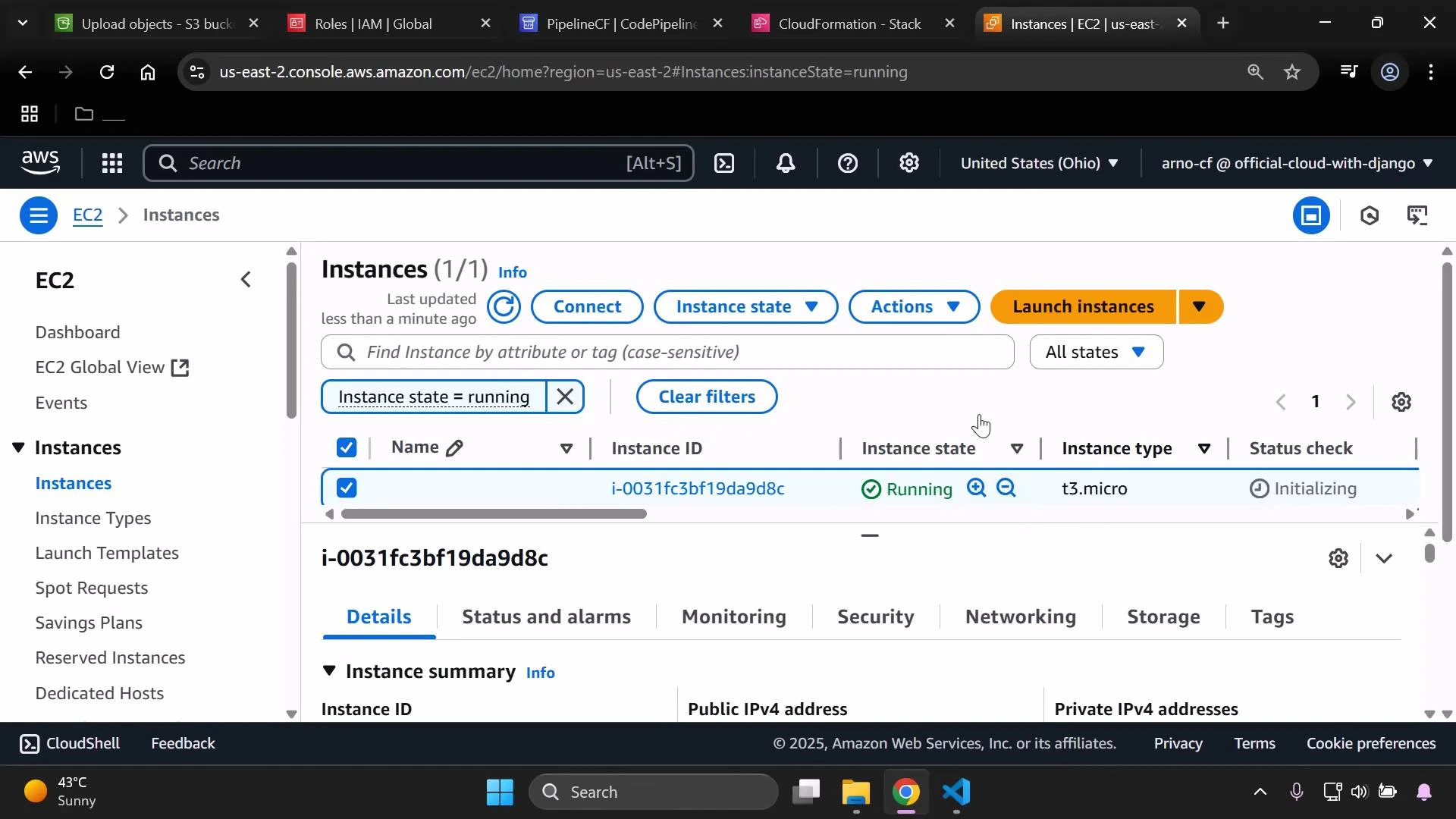
After the pipeline completes, verify the instance properties in the EC2 console. Confirm the `InstanceType` reflects the change from the template (t3.micro in this demo).
## 4. Verify the EC2 instance change
After the pipeline completes, verify the instance properties in the EC2 console. Confirm the `InstanceType` reflects the change from the template (t3.micro in this demo).
 ## 5. Resource cleanup — recommended safe order
If you no longer need the pipeline and related resources, remove them in a safe order to avoid orphaned resources or failures:
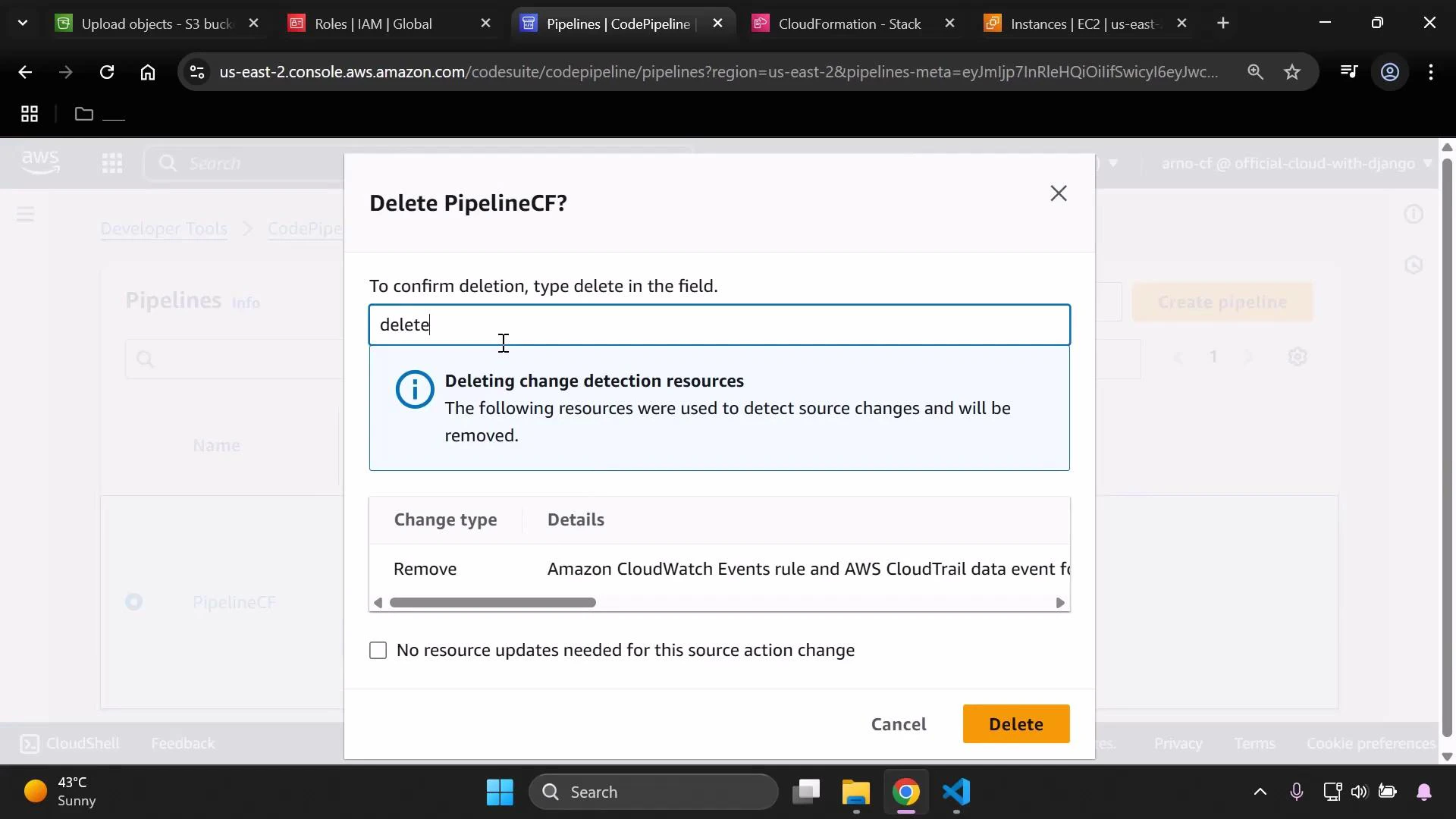
1. Delete the CodePipeline pipeline.
* Open the Pipelines page, select your pipeline, and choose Delete.
* Confirm by typing "delete" when prompted.
## 5. Resource cleanup — recommended safe order
If you no longer need the pipeline and related resources, remove them in a safe order to avoid orphaned resources or failures:
1. Delete the CodePipeline pipeline.
* Open the Pipelines page, select your pipeline, and choose Delete.
* Confirm by typing "delete" when prompted.
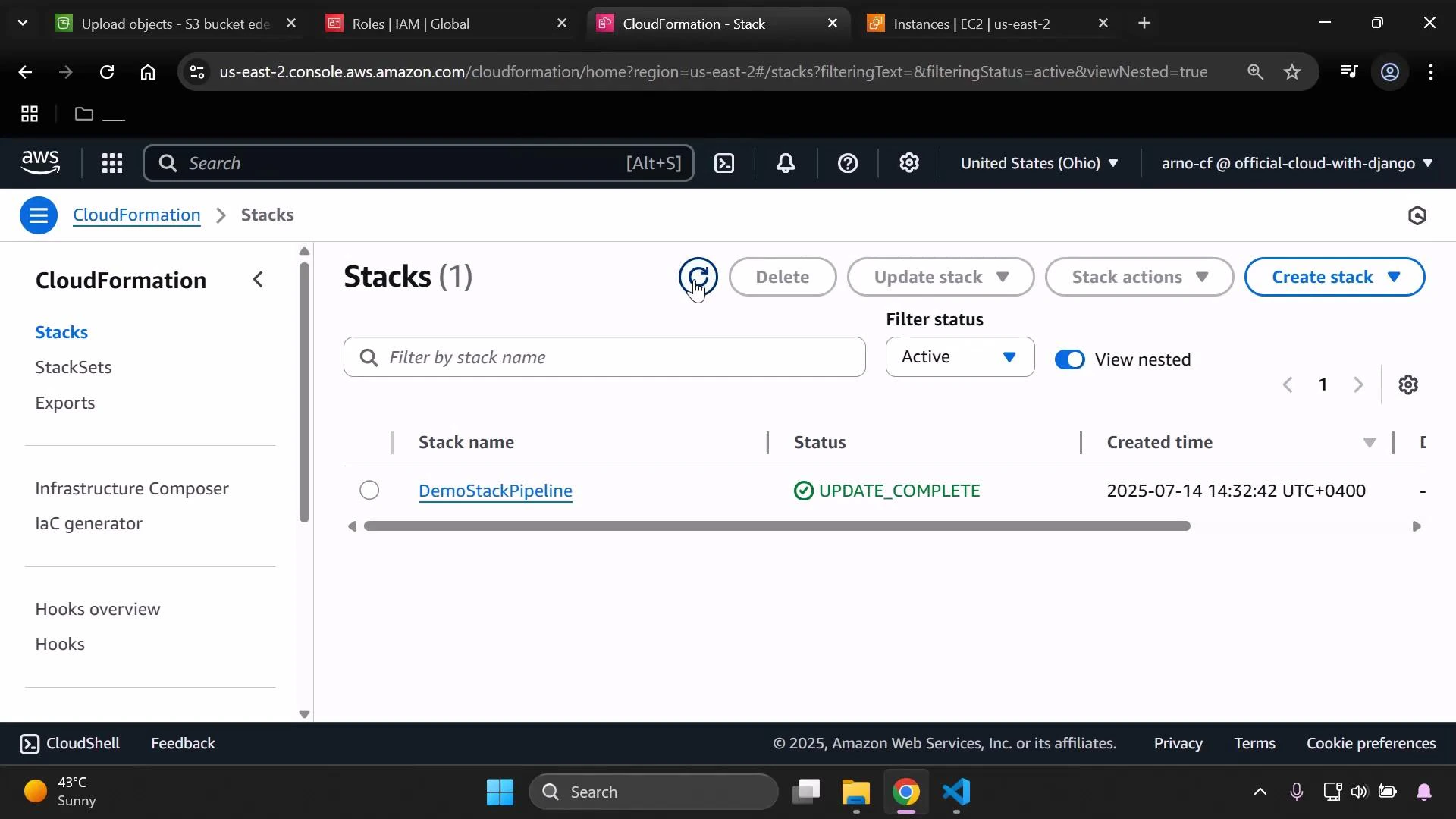
 2. Delete the CloudFormation stack created by the pipeline.
* In the CloudFormation console, select the stack and choose Delete Stack. CloudFormation will remove resources it created (including EC2 instances provisioned by the stack).
2. Delete the CloudFormation stack created by the pipeline.
* In the CloudFormation console, select the stack and choose Delete Stack. CloudFormation will remove resources it created (including EC2 instances provisioned by the stack).
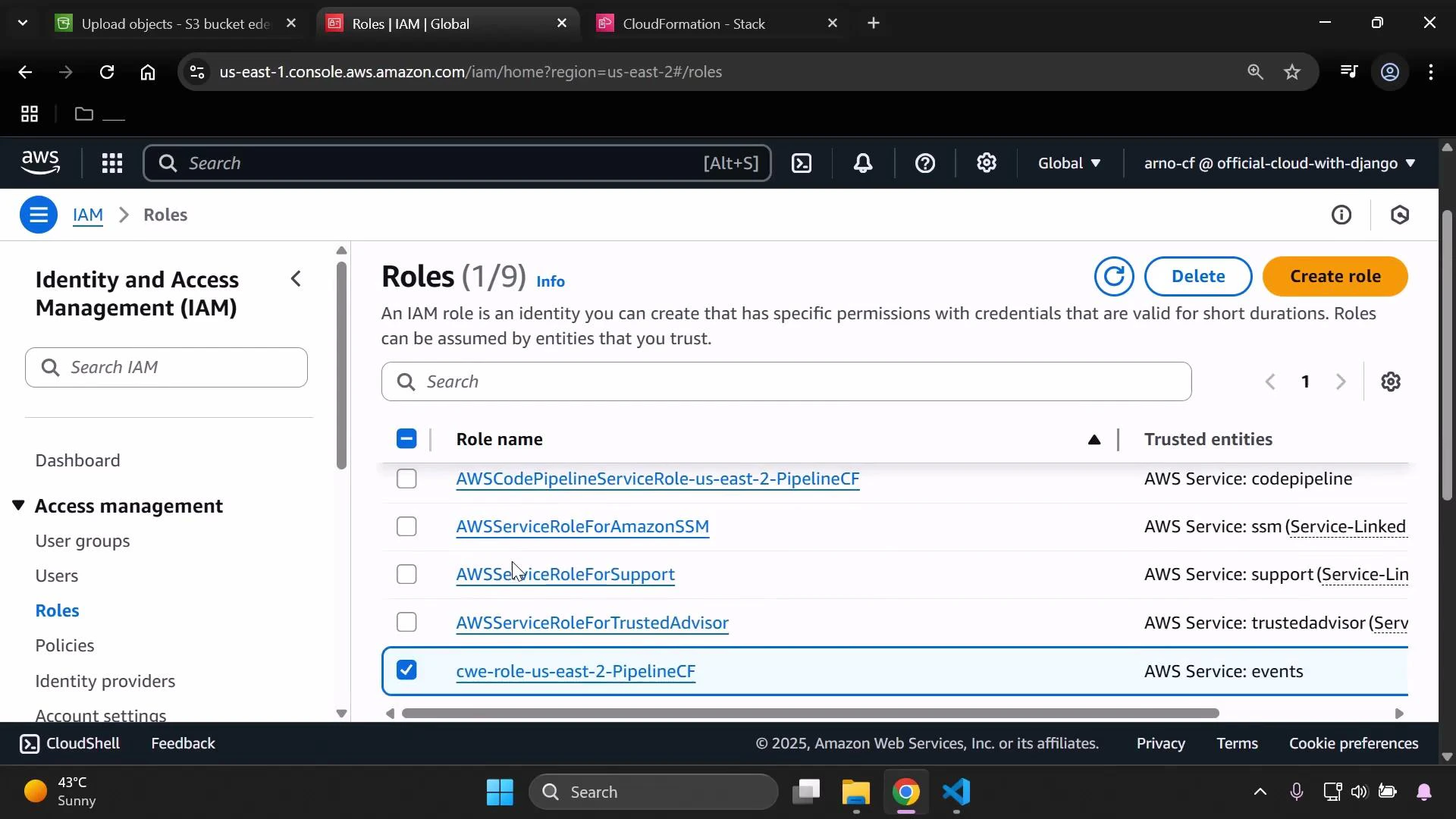
 3. Remove IAM roles and customer-managed policies that were created for the pipeline.
* Use the IAM console to locate roles and policies related to the pipeline and delete them if they are no longer referenced.
* Note: If the CloudFormation stack created IAM roles/policies, they may be removed automatically with the stack. Only delete manually-created or orphaned items after confirming they are unused.
3. Remove IAM roles and customer-managed policies that were created for the pipeline.
* Use the IAM console to locate roles and policies related to the pipeline and delete them if they are no longer referenced.
* Note: If the CloudFormation stack created IAM roles/policies, they may be removed automatically with the stack. Only delete manually-created or orphaned items after confirming they are unused.
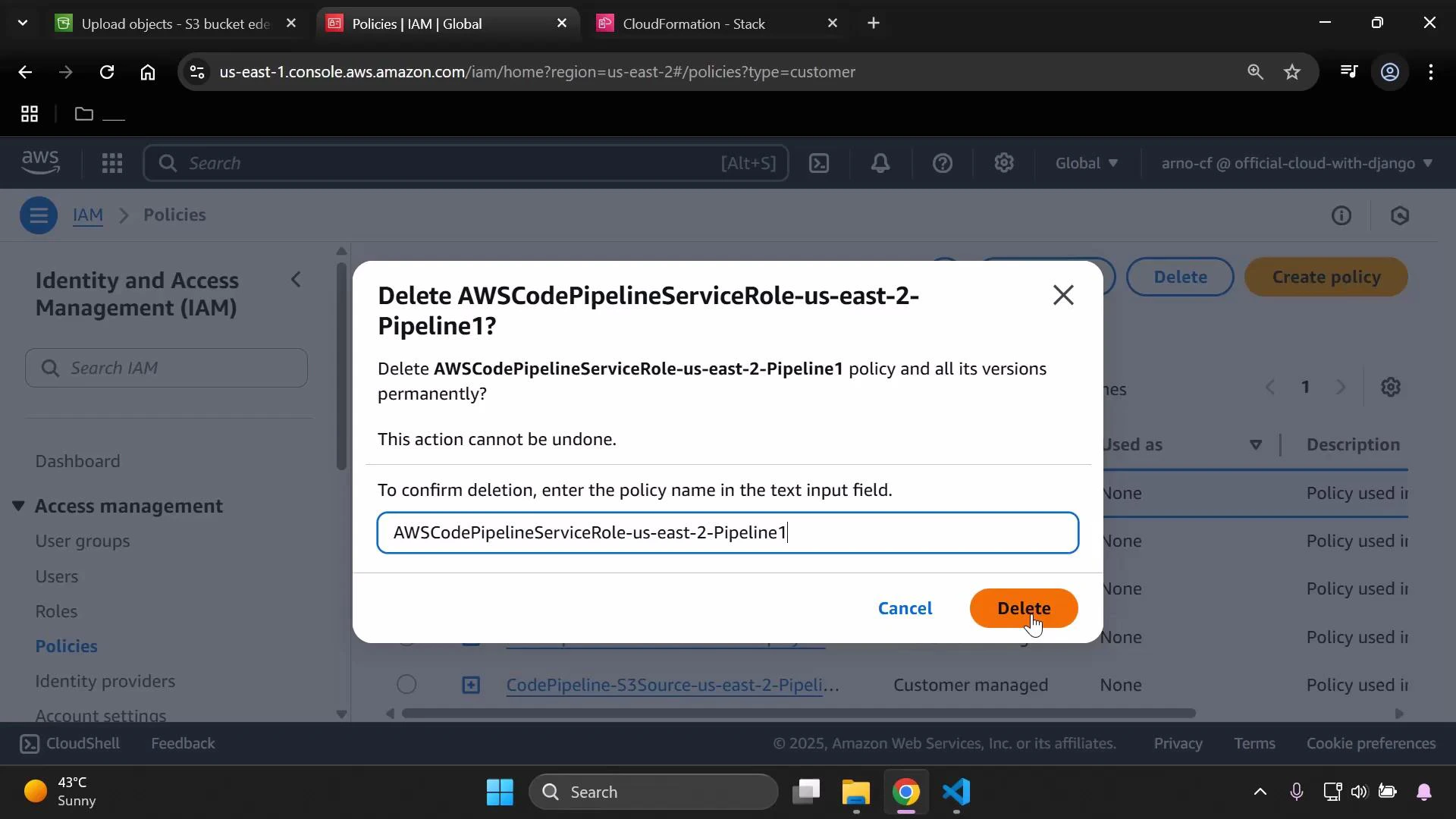
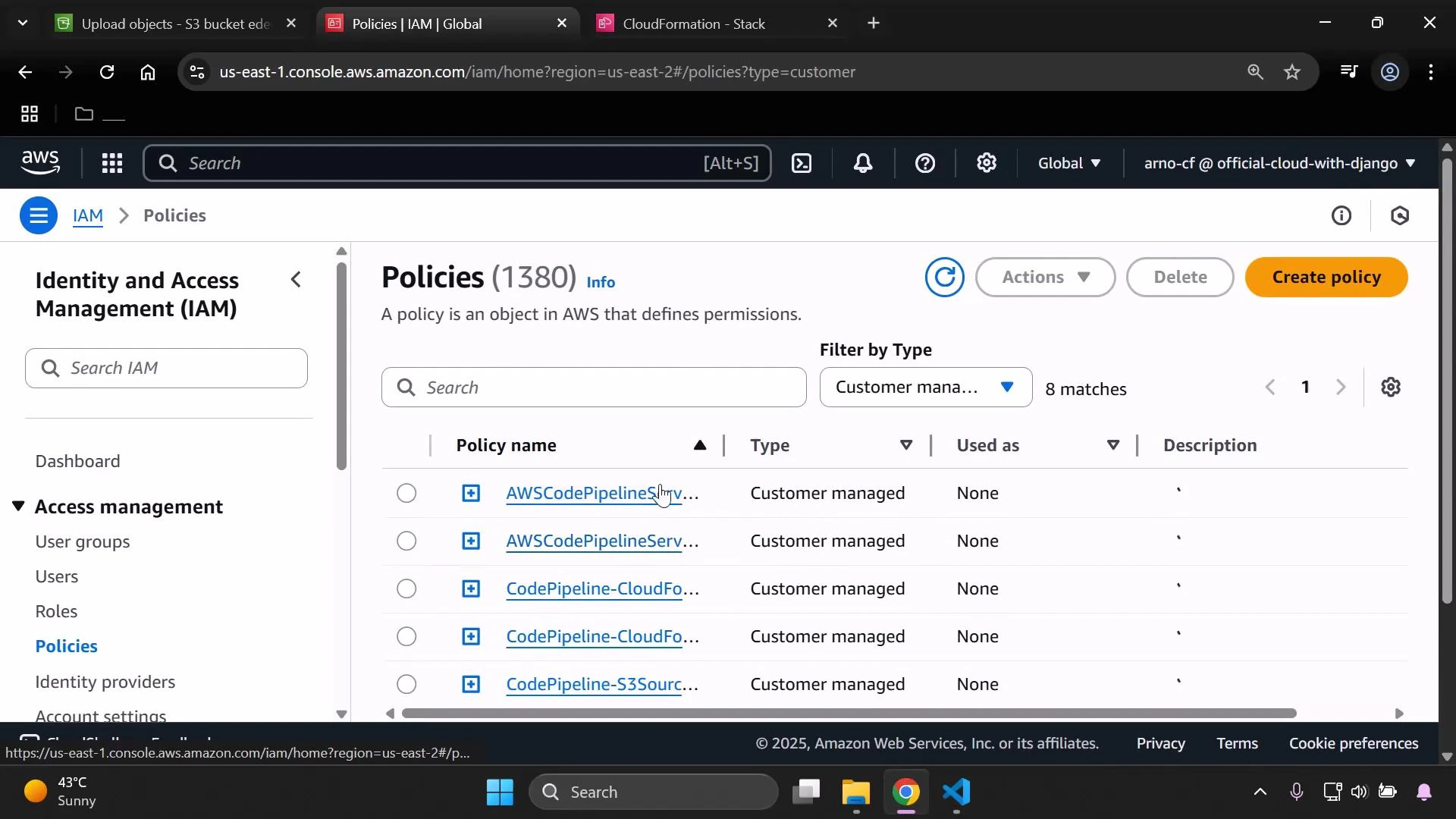 When deleting a policy, confirm by entering the policy name if prompted.
 4. Empty and delete S3 buckets used for templates and pipeline artifacts.
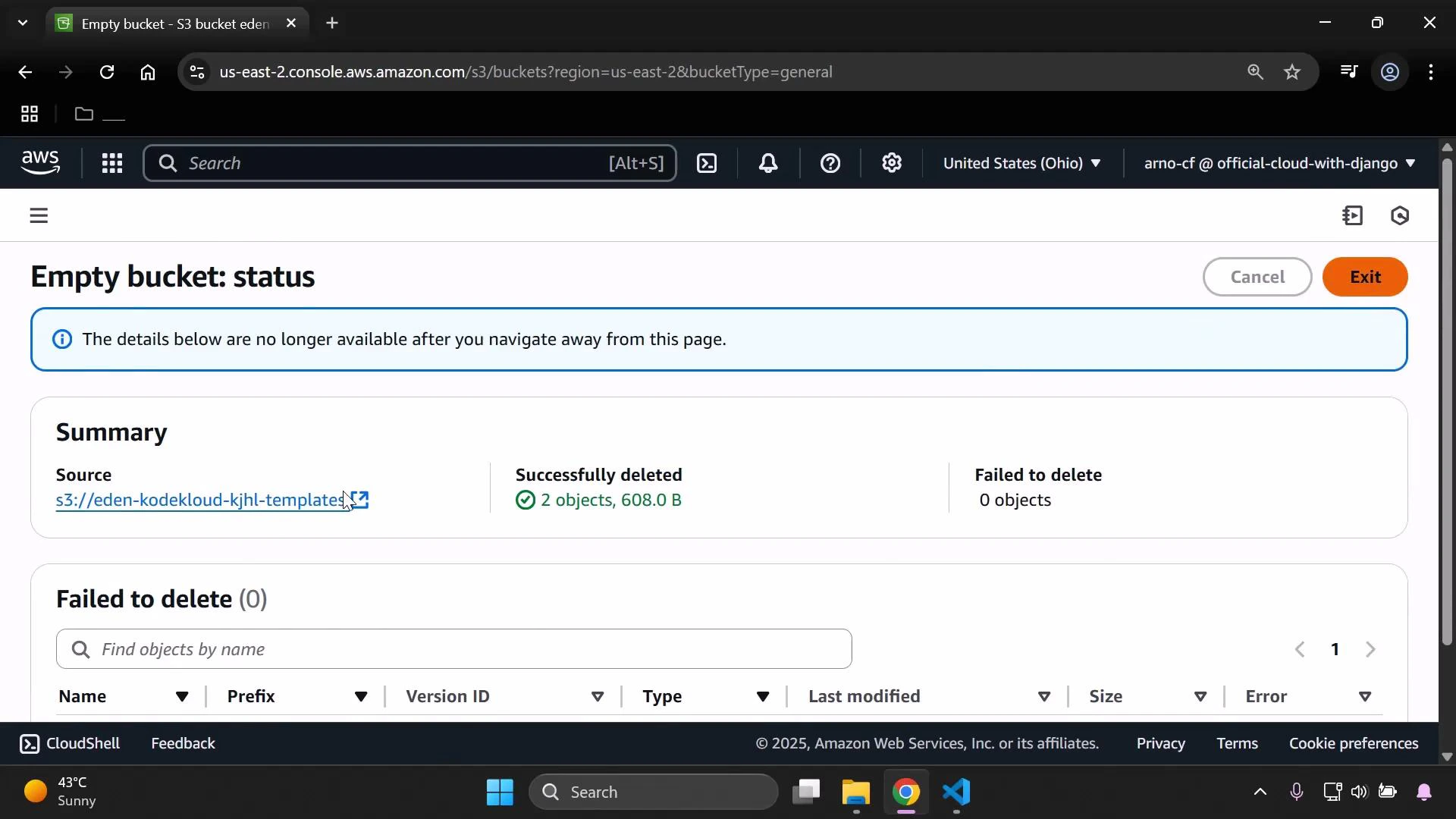
* For each bucket (templates bucket, pipeline artifact bucket), empty its contents first and then delete the bucket.
* If the bucket has versioning enabled, remove all object versions and delete markers before deleting the bucket.
4. Empty and delete S3 buckets used for templates and pipeline artifacts.
* For each bucket (templates bucket, pipeline artifact bucket), empty its contents first and then delete the bucket.
* If the bucket has versioning enabled, remove all object versions and delete markers before deleting the bucket.
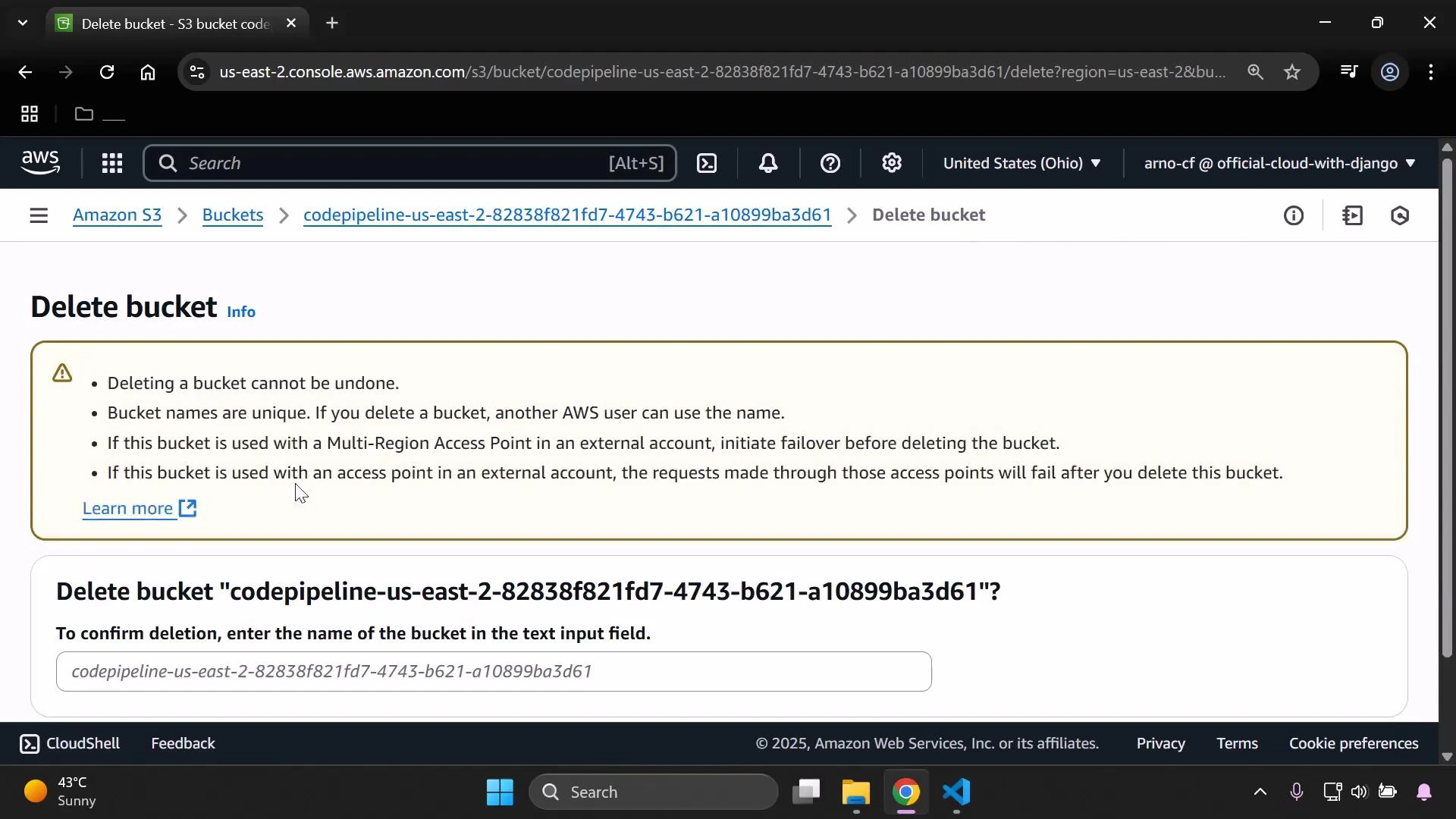
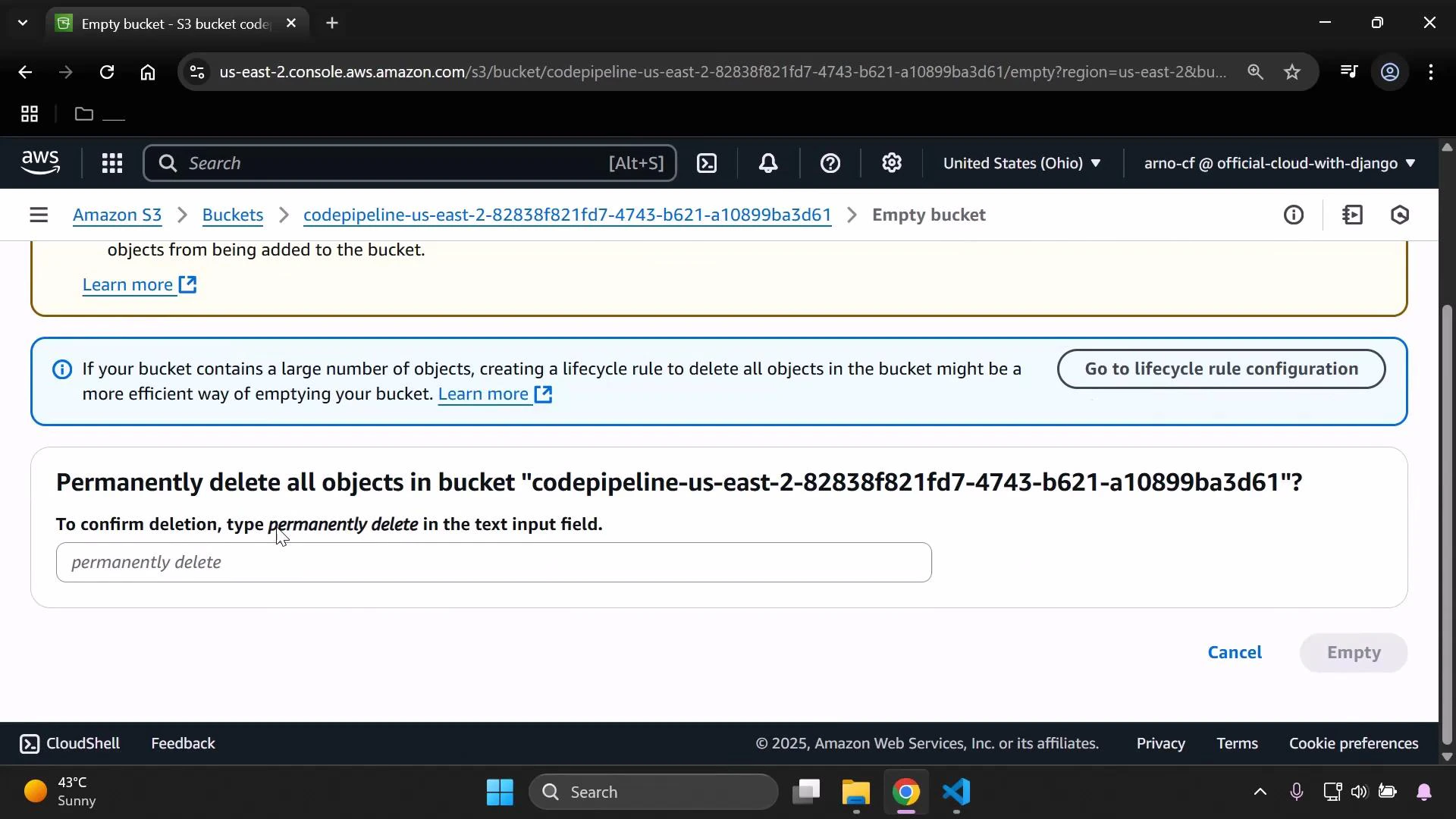 After emptying, delete the bucket and confirm any prompts (you may be asked to enter the bucket name).
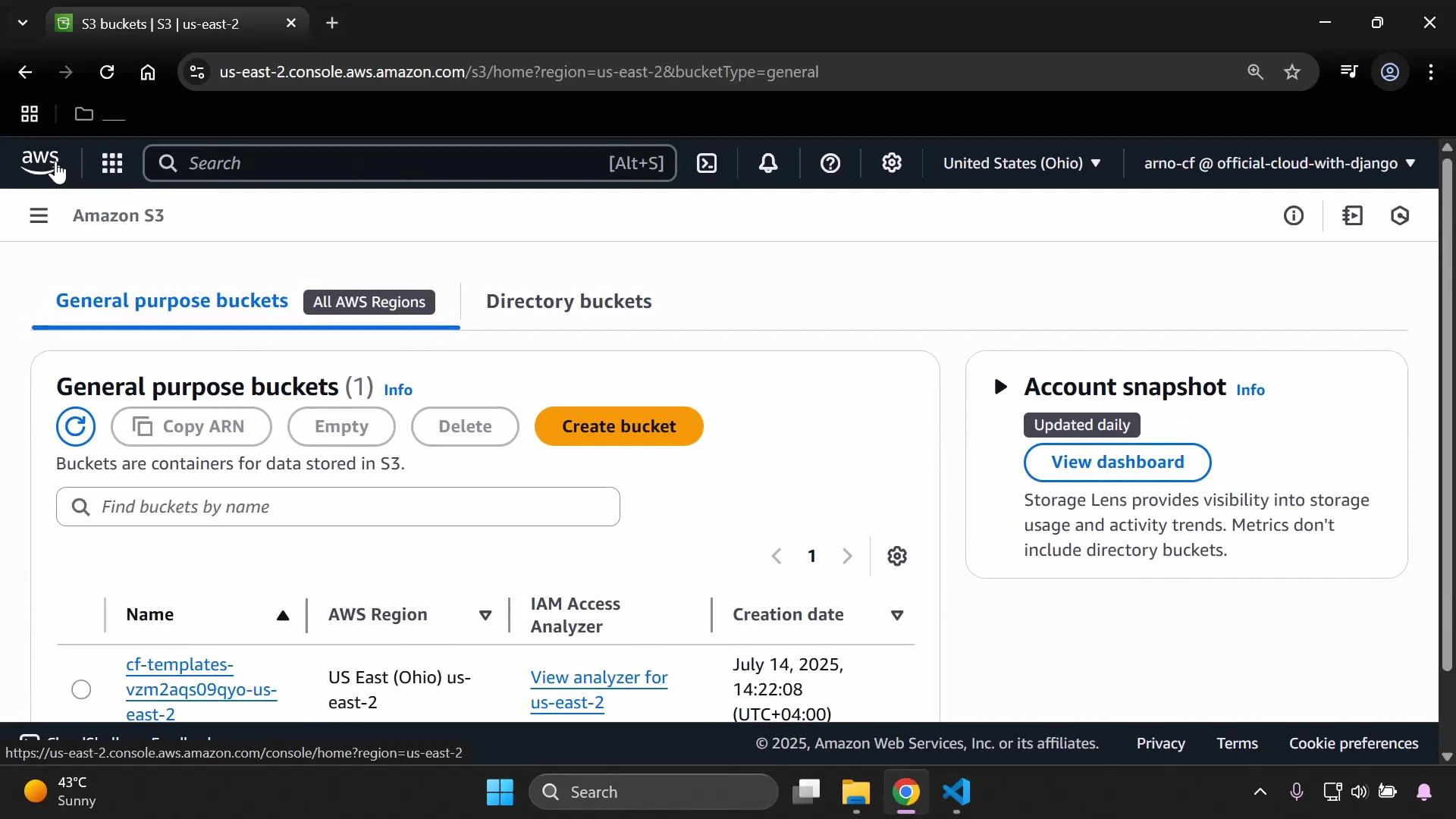
 When finished, the S3 console should only show buckets you intentionally kept.
 Be careful when deleting resources. Confirm dependencies before removing IAM roles, policies, S3 buckets, or CloudFormation stacks. Deleting a bucket with active object versions or lifecycle rules can fail unless versions and delete markers are removed first.
## Cleanup checklist (quick reference)
| Resource | Console location | Why delete |
| -----------------------------: | ---------------------- | -------------------------------------------------------------------------------------------- |
| CodePipeline pipeline | CodePipeline console | Stop automated deployments and remove CI/CD configuration |
| CloudFormation stack | CloudFormation console | Remove resources created by the stack (EC2, IAM if created by stack, etc.) |
| IAM roles & policies | IAM console | Remove orphaned or manually-created roles/policies used by the pipeline |
| S3 template & artifact buckets | S3 console | Remove stored templates and artifacts; ensure all versions are removed if versioning enabled |
## Summary
In this lesson we:
* Updated a CloudFormation template (changed EC2 InstanceType).
* Uploaded the revised template to S3 (same filename to replace/create a version).
* Observed CodePipeline detect the change and deploy automatically.
* Verified the EC2 instance type updated to t3.micro.
* Walked through a safe cleanup process: delete pipeline → delete stack → remove IAM roles/policies → empty & delete S3 buckets.
References:
* [AWS CloudFormation](https://learn.kodekloud.com/user/courses/aws-cloud-formation)
* [Amazon S3](https://learn.kodekloud.com/user/courses/amazon-simple-storage-service-amazon-s3)
* [AWS CodePipeline](https://learn.kodekloud.com/user/courses/aws-codepipeline-ci-cd-pipeline)
* [Amazon EC2](https://learn.kodekloud.com/user/courses/amazon-elastic-compute-cloud-ec2)
* [AWS IAM](https://learn.kodekloud.com/user/courses/aws-iam)
Be careful when deleting resources. Confirm dependencies before removing IAM roles, policies, S3 buckets, or CloudFormation stacks. Deleting a bucket with active object versions or lifecycle rules can fail unless versions and delete markers are removed first.
## Cleanup checklist (quick reference)
| Resource | Console location | Why delete |
| -----------------------------: | ---------------------- | -------------------------------------------------------------------------------------------- |
| CodePipeline pipeline | CodePipeline console | Stop automated deployments and remove CI/CD configuration |
| CloudFormation stack | CloudFormation console | Remove resources created by the stack (EC2, IAM if created by stack, etc.) |
| IAM roles & policies | IAM console | Remove orphaned or manually-created roles/policies used by the pipeline |
| S3 template & artifact buckets | S3 console | Remove stored templates and artifacts; ensure all versions are removed if versioning enabled |
## Summary
In this lesson we:
* Updated a CloudFormation template (changed EC2 InstanceType).
* Uploaded the revised template to S3 (same filename to replace/create a version).
* Observed CodePipeline detect the change and deploy automatically.
* Verified the EC2 instance type updated to t3.micro.
* Walked through a safe cleanup process: delete pipeline → delete stack → remove IAM roles/policies → empty & delete S3 buckets.
References:
* [AWS CloudFormation](https://learn.kodekloud.com/user/courses/aws-cloud-formation)
* [Amazon S3](https://learn.kodekloud.com/user/courses/amazon-simple-storage-service-amazon-s3)
* [AWS CodePipeline](https://learn.kodekloud.com/user/courses/aws-codepipeline-ci-cd-pipeline)
* [Amazon EC2](https://learn.kodekloud.com/user/courses/amazon-elastic-compute-cloud-ec2)
* [AWS IAM](https://learn.kodekloud.com/user/courses/aws-iam)