> ## Documentation Index
> Fetch the complete documentation index at: https://notes.kodekloud.com/llms.txt
> Use this file to discover all available pages before exploring further.
# Demo Working with CFN init scripting Part 2
> Demonstrating how to use cfn-init with AWS CloudFormation Init metadata to configure EC2 instances, install packages, manage services, and pass stack parameters through UserData.
This lesson shows how to use CloudFormation's `cfn-init` helper to apply the configuration defined in a template's `Metadata` to an EC2 instance. Key concepts covered:
* How to pass stack and region pseudo-parameters into instance `UserData` using `Fn::Base64` + `Fn::Sub`.
* Ensuring the `--resource` you pass to `cfn-init` matches the logical resource name that contains `AWS::CloudFormation::Init` (for example, `MyInstance`).
* Placing package, service, file, and other configuration under `Metadata: AWS::CloudFormation::Init` so `cfn-init` can read and apply it.
Quick example: minimal `Resources` snippet that calls `cfn-init` from `UserData` and installs + starts Apache (`httpd`):
```yaml theme={null}
Resources:
MyInstance:
Type: AWS::EC2::Instance
Metadata:
AWS::CloudFormation::Init:
config:
packages:
yum:
httpd: []
services:
sysvinit:
httpd:
enabled: true
ensureRunning: true
Properties:
ImageId: ami-0eb9d6fc9fab44d24
IamInstanceProfile: MyCfnInstanceRole
SecurityGroupIds:
- !Ref MySecurityGroup
UserData:
Fn::Base64: !Sub |
#!/bin/bash
/opt/aws/bin/cfn-init -v --stack ${AWS::StackName} --resource MyInstance --region ${AWS::Region}
```
How this works
* `UserData` is base64-encoded via `Fn::Base64`. `Fn::Sub` (or `!Sub`) injects pseudo-parameters such as `${AWS::StackName}` and `${AWS::Region}` into the script.
* `cfn-init` reads the `AWS::CloudFormation::Init` metadata for the resource named by `--resource` (here, `MyInstance`) and applies that config: installing packages and managing services.
* `IamInstanceProfile` must grant the instance permission to call CloudFormation and S3 (if cfn-init needs to fetch files). `SecurityGroupIds` provides network access (for example, to serve HTTP).
Table of common `AWS::CloudFormation::Init` sections
| Section | Purpose | Example |
| ---------- | ------------------------------------------ | ------------------------------------------------------------- |
| `packages` | Install OS packages | `yum: { httpd: [] }` |
| `files` | Create files with content and permissions | `"/var/www/html/index.html": { "content": "Hello
" }` |
| `commands` | Run arbitrary commands during init | `01_restart: { command: "systemctl restart httpd" }` |
| `services` | Manage services (sysvinit/systemd/upstart) | `sysvinit: { httpd: { enabled: true } }` |
Parameters example (if you include template parameters):
```yaml theme={null}
Parameters:
MyVPC:
Type: AWS::EC2::VPC::Id
Description: Select the VPC to launch the EC2 instance in
```
Best practices and troubleshooting
* Make sure the `--resource` passed to `cfn-init` exactly matches the logical resource name that contains `AWS::CloudFormation::Init`. If they differ, `cfn-init` will not find or apply the configuration.
* Use `-v` (verbose) with `cfn-init` to capture logs in `/var/log/cfn-init.log` and `/var/log/cloud-init.log` for troubleshooting.
* Ensure the instance role (`IamInstanceProfile`) includes permissions for `cloudformation:DescribeStackResource`, `s3:GetObject` (if using S3 artifacts), and other actions required by your init tasks.
Ensure the `--resource` argument passed to `cfn-init` matches the logical
resource name that has `AWS::CloudFormation::Init` in the template. If they
differ, `cfn-init` will not find the configuration.
Deployment and verification
1. Upload the template and create the stack.
2. CloudFormation will create the security group and the EC2 instance. Wait for the EC2 instance status checks to pass before accessing the instance.
3. Once status checks are complete, select the instance and copy the Public IPv4 address. Paste that address into a browser to confirm Apache is serving the expected page.
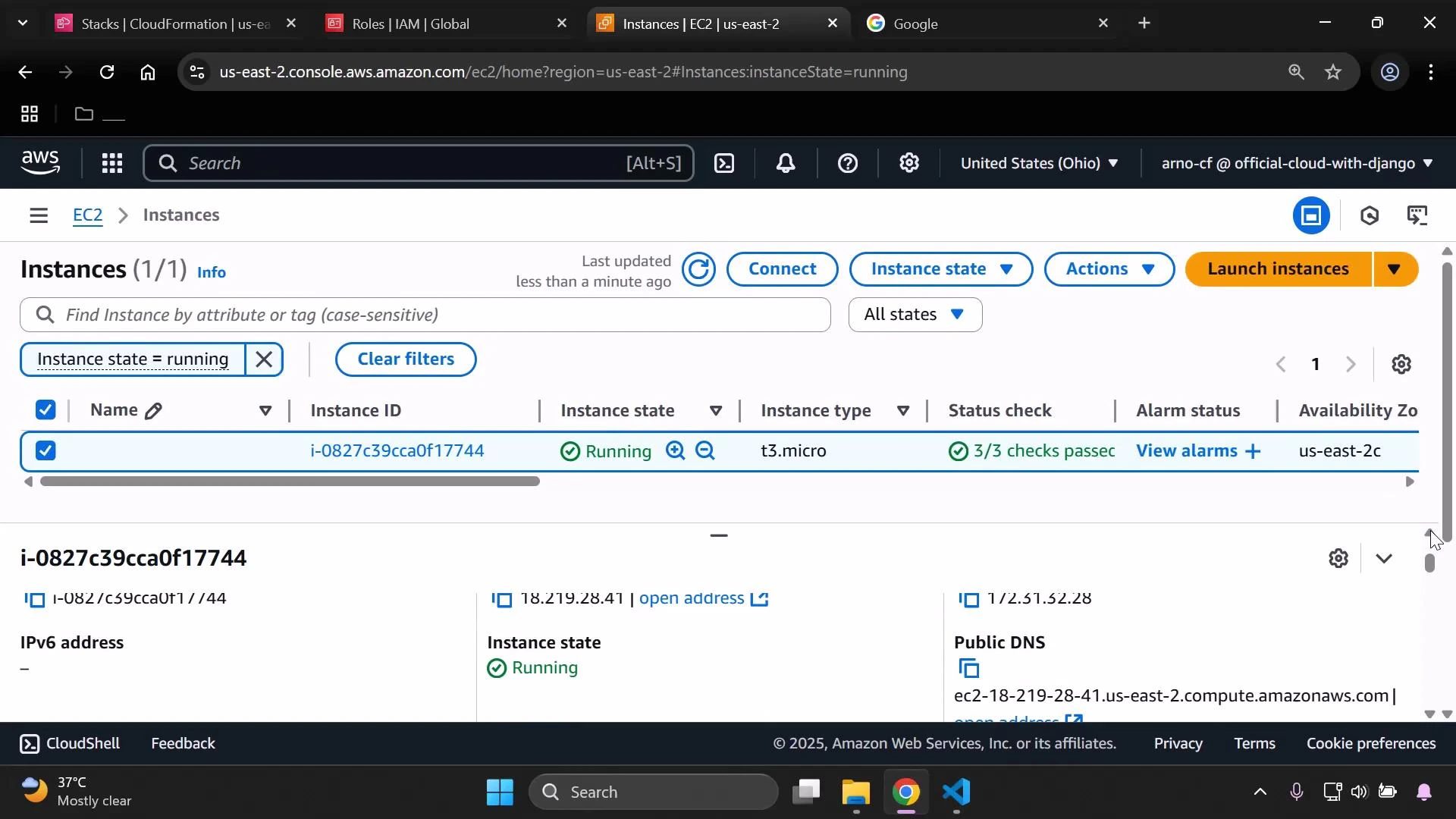 You should see the Apache landing page, confirming the packages were installed and the service was started by `cfn-init`.
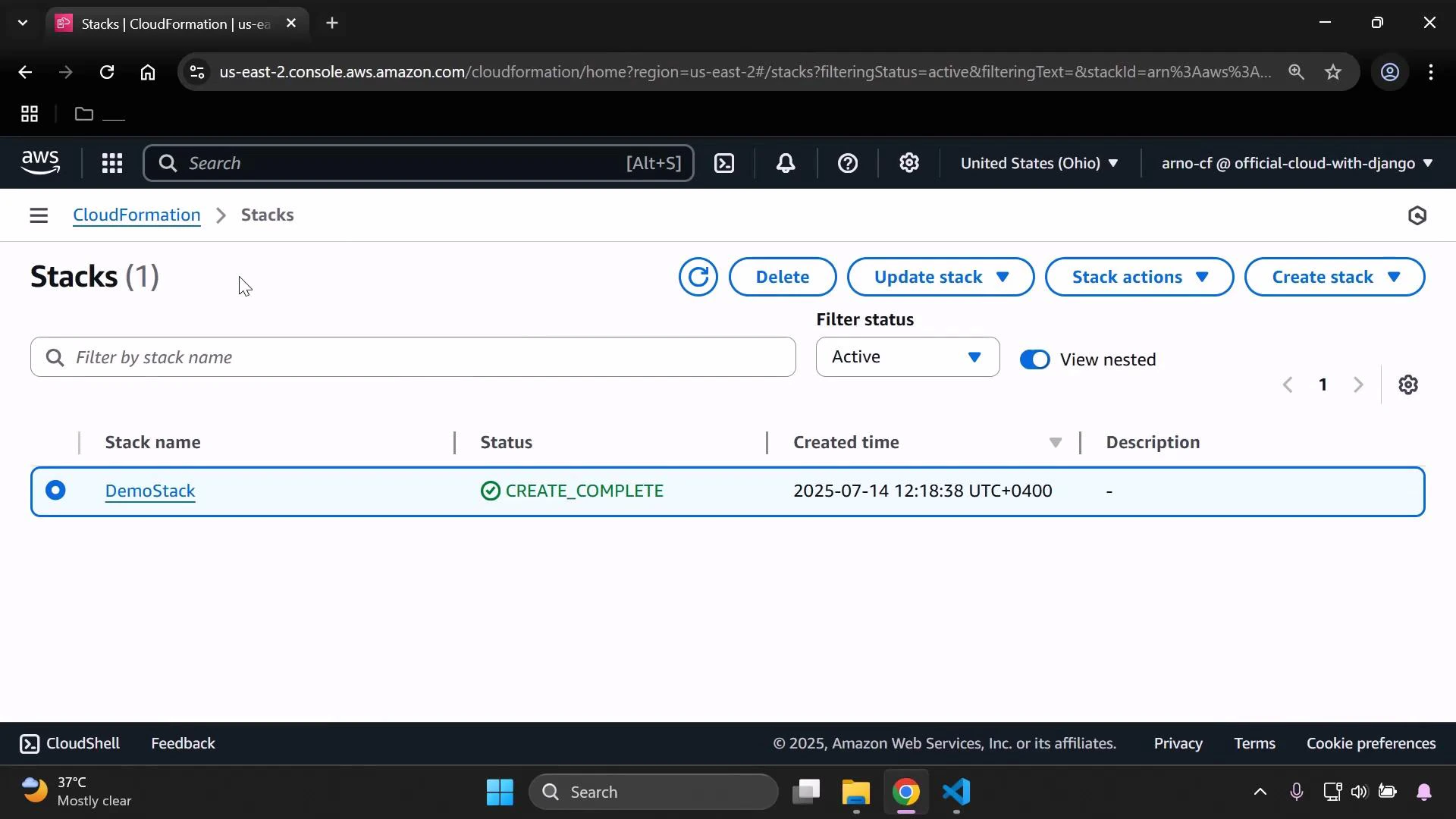
When CloudFormation finishes creating the stack, the CloudFormation console will display the stack with a `CREATE_COMPLETE` status.
You should see the Apache landing page, confirming the packages were installed and the service was started by `cfn-init`.
When CloudFormation finishes creating the stack, the CloudFormation console will display the stack with a `CREATE_COMPLETE` status.
 Cleanup
When the demo is complete, delete the stack using CloudFormation's "Delete stack" action to remove resources and avoid ongoing charges.
Always delete demo stacks (or confirm resources are torn down) to avoid
unexpected AWS charges. Verify the EC2 instance and associated EBS volumes are
terminated.
Further reading
* [AWS CloudFormation User Guide](https://docs.aws.amazon.com/AWSCloudFormation/latest/UserGuide/Welcome.html)
* [cfn-init documentation and examples](https://docs.aws.amazon.com/AWSCloudFormation/latest/UserGuide/cfn-helper-scripts-reference.html)
Cleanup
When the demo is complete, delete the stack using CloudFormation's "Delete stack" action to remove resources and avoid ongoing charges.
Always delete demo stacks (or confirm resources are torn down) to avoid
unexpected AWS charges. Verify the EC2 instance and associated EBS volumes are
terminated.
Further reading
* [AWS CloudFormation User Guide](https://docs.aws.amazon.com/AWSCloudFormation/latest/UserGuide/Welcome.html)
* [cfn-init documentation and examples](https://docs.aws.amazon.com/AWSCloudFormation/latest/UserGuide/cfn-helper-scripts-reference.html)