> ## Documentation Index
> Fetch the complete documentation index at: https://notes.kodekloud.com/llms.txt
> Use this file to discover all available pages before exploring further.
# Demo Handling stack creation failures
> Guide on diagnosing and recovering from AWS CloudFormation stack creation failures, preserving resources for debugging, disabling rollback, and fixing S3 bucket naming issues.
Hi everyone — in this demo we cover how to diagnose and recover from AWS CloudFormation stack creation failures. You'll learn why CloudFormation rolls back failed stacks by default, how to preserve failed resources for debugging, and the typical recovery options.
We start with a minimal S3 bucket template used in the demo.
Original template (used earlier, included Tags):
```yaml theme={null}
Resources:
MyBucket:
Type: AWS::S3::Bucket
Properties:
Tags:
- Key: Developer
Value: John
```
To force a creation failure for demonstration, the demo template removes the Tags and sets a fixed bucket name. Because S3 bucket names must be globally unique, this commonly triggers an error if the name is already taken:
Modified template used in the demo:
```yaml theme={null}
Resources:
MyBucket:
Type: AWS::S3::Bucket
Properties:
BucketName: test
```
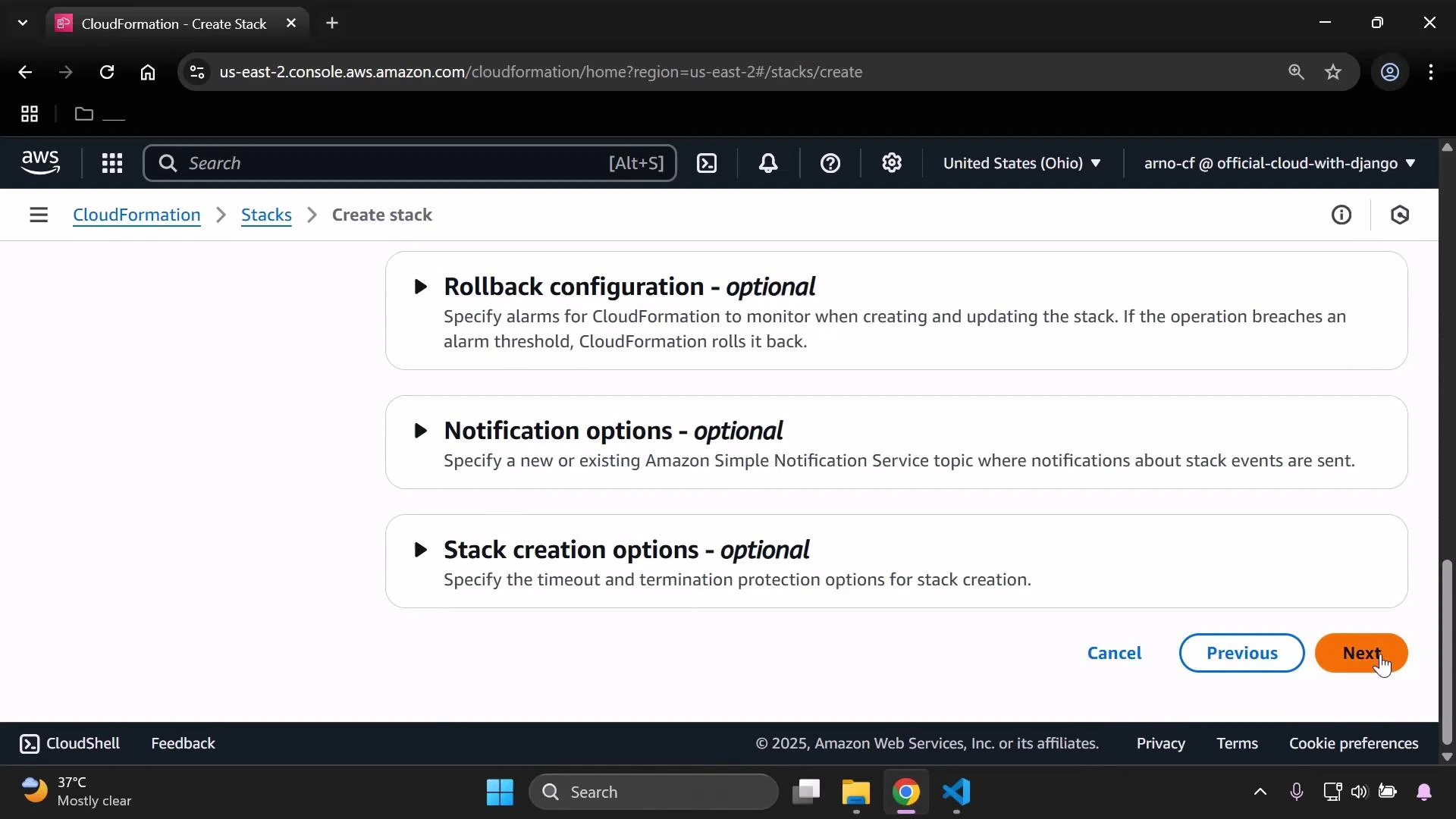
Create the stack in the CloudFormation console:
* Choose Create stack → With new resources (standard).
* Select Upload a template file and upload the file (for example `simple-s3.yaml`).
* Give the stack a name such as `DemoStack`.
* Submit creation and wait while CloudFormation processes the stack.
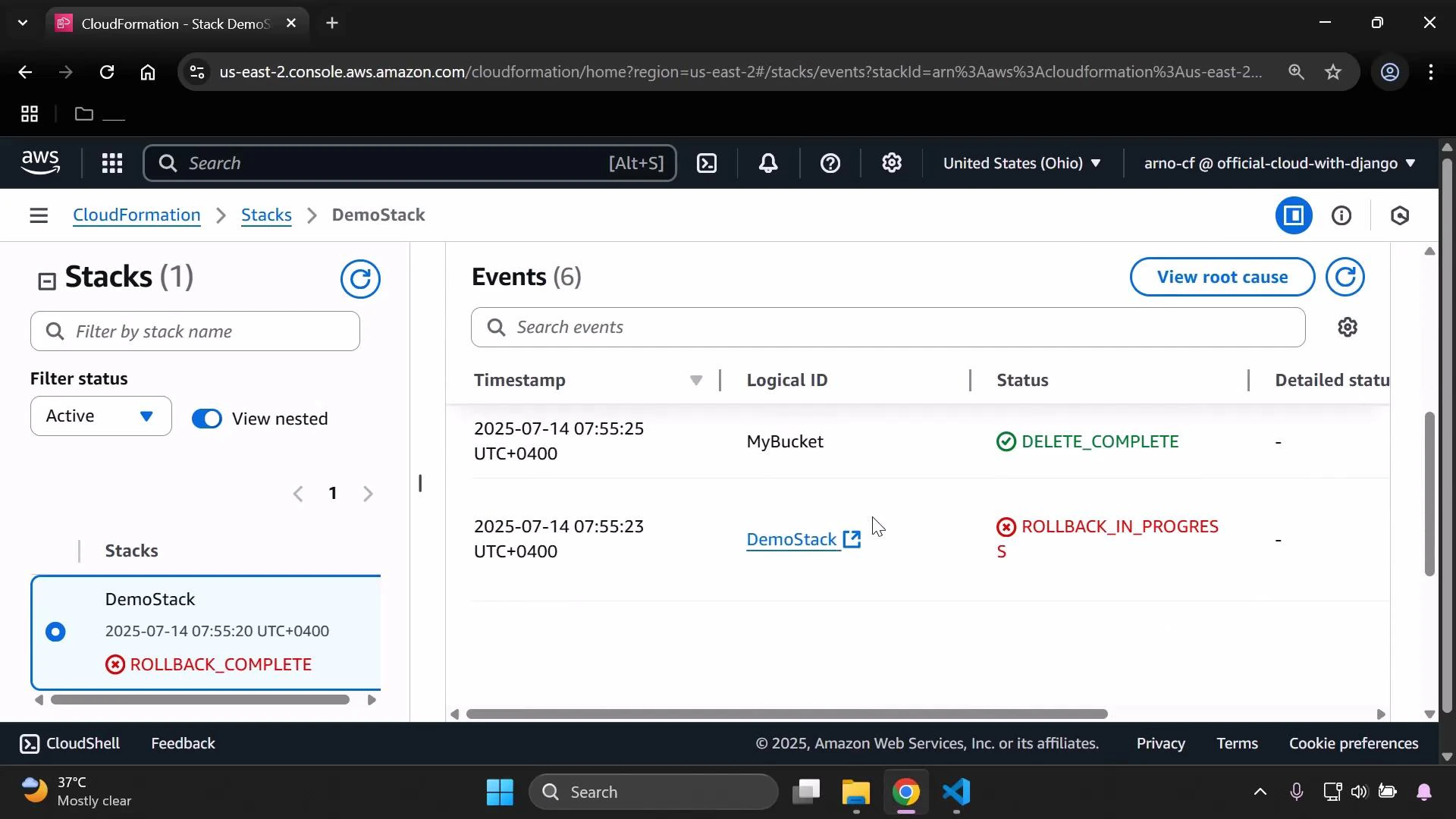
 Because the bucket name "test" is likely already owned, CloudFormation fails to create the S3 bucket with a BucketAlreadyExists (or BucketAlreadyOwnedByYou) error. By default CloudFormation rolls back any partial changes when stack creation fails; after rollback completes the stack status will be ROLLBACK\_COMPLETE.
Refresh the stack’s Events pane to inspect the failure and the rollback sequence. The screenshot below shows ROLLBACK\_COMPLETE with events for the failed create and the subsequent delete/rollback operations.
Because the bucket name "test" is likely already owned, CloudFormation fails to create the S3 bucket with a BucketAlreadyExists (or BucketAlreadyOwnedByYou) error. By default CloudFormation rolls back any partial changes when stack creation fails; after rollback completes the stack status will be ROLLBACK\_COMPLETE.
Refresh the stack’s Events pane to inspect the failure and the rollback sequence. The screenshot below shows ROLLBACK\_COMPLETE with events for the failed create and the subsequent delete/rollback operations.
 Because the stack is in ROLLBACK\_COMPLETE you cannot update it — CloudFormation disallows updates to a stack that has already rolled back from a failed creation. Typical recovery or debugging options are:
| Recovery option | When to use it | Notes / example |
| ---------------------------------- | ---------------- | --------------------------------------------------------------------------------------------------------------------------------------------- |
| Delete and fix | Normal recovery | Remove the failed stack, fix the template (e.g., remove `BucketName` or supply a unique name), then recreate the stack. |
| Disable rollback at create time | Debugging only | Preserve created resources to inspect why the failure happened. Must clean up resources manually afterwards. |
| Use unique names / generated names | Prevent failures | Avoid fixed global names for S3 buckets — either omit `BucketName` so CloudFormation generates one, or supply a name that is globally unique. |
S3 bucket names are globally unique across all AWS accounts and regions. If you specify a bucket name that already exists, CloudFormation will fail with "BucketAlreadyExists" or "BucketAlreadyOwnedByYou". Best practice: omit the `BucketName` property to let CloudFormation generate a unique name, or use a sufficiently unique naming scheme.
If you disable rollback to inspect failed resources, remember to clean them up manually afterwards. Partially-created resources can incur charges or block future deploys.
If you want to preserve resources for debugging, disable rollback when creating the stack. In the console, expand Rollback configuration while creating the stack and uncheck the option to enable rollback. From the AWS CLI you can do this:
```bash theme={null}
aws cloudformation create-stack \
--stack-name DemoStack \
--template-body file://simple-s3.yaml \
--disable-rollback
```
When rollback is disabled and creation fails, CloudFormation leaves the created resources in place so you can inspect their state, logs, and permissions. After debugging, either delete those resources manually or delete the stack from the console/CLI.
Quick checklist when you encounter ROLLBACK\_COMPLETE:
* Check the Events pane for the error message (e.g., BucketAlreadyExists).
* Decide whether to delete and retry (fix the template) or recreate with rollback disabled to inspect resources.
* If disabling rollback, plan and perform manual cleanup after debugging.
Useful references:
* [AWS CloudFormation User Guide](https://docs.aws.amazon.com/cloudformation/index.html)
* [Amazon S3 Bucket Naming Rules](https://docs.aws.amazon.com/AmazonS3/latest/userguide/bucketnamingrules.html)
That covers the standard workflow for handling CloudFormation stack creation failures: diagnose via Events, choose between delete-and-retry or disable-rollback for debugging, and always clean up any leftover resources.
Because the stack is in ROLLBACK\_COMPLETE you cannot update it — CloudFormation disallows updates to a stack that has already rolled back from a failed creation. Typical recovery or debugging options are:
| Recovery option | When to use it | Notes / example |
| ---------------------------------- | ---------------- | --------------------------------------------------------------------------------------------------------------------------------------------- |
| Delete and fix | Normal recovery | Remove the failed stack, fix the template (e.g., remove `BucketName` or supply a unique name), then recreate the stack. |
| Disable rollback at create time | Debugging only | Preserve created resources to inspect why the failure happened. Must clean up resources manually afterwards. |
| Use unique names / generated names | Prevent failures | Avoid fixed global names for S3 buckets — either omit `BucketName` so CloudFormation generates one, or supply a name that is globally unique. |
S3 bucket names are globally unique across all AWS accounts and regions. If you specify a bucket name that already exists, CloudFormation will fail with "BucketAlreadyExists" or "BucketAlreadyOwnedByYou". Best practice: omit the `BucketName` property to let CloudFormation generate a unique name, or use a sufficiently unique naming scheme.
If you disable rollback to inspect failed resources, remember to clean them up manually afterwards. Partially-created resources can incur charges or block future deploys.
If you want to preserve resources for debugging, disable rollback when creating the stack. In the console, expand Rollback configuration while creating the stack and uncheck the option to enable rollback. From the AWS CLI you can do this:
```bash theme={null}
aws cloudformation create-stack \
--stack-name DemoStack \
--template-body file://simple-s3.yaml \
--disable-rollback
```
When rollback is disabled and creation fails, CloudFormation leaves the created resources in place so you can inspect their state, logs, and permissions. After debugging, either delete those resources manually or delete the stack from the console/CLI.
Quick checklist when you encounter ROLLBACK\_COMPLETE:
* Check the Events pane for the error message (e.g., BucketAlreadyExists).
* Decide whether to delete and retry (fix the template) or recreate with rollback disabled to inspect resources.
* If disabling rollback, plan and perform manual cleanup after debugging.
Useful references:
* [AWS CloudFormation User Guide](https://docs.aws.amazon.com/cloudformation/index.html)
* [Amazon S3 Bucket Naming Rules](https://docs.aws.amazon.com/AmazonS3/latest/userguide/bucketnamingrules.html)
That covers the standard workflow for handling CloudFormation stack creation failures: diagnose via Events, choose between delete-and-retry or disable-rollback for debugging, and always clean up any leftover resources.