> ## Documentation Index
> Fetch the complete documentation index at: https://notes.kodekloud.com/llms.txt
> Use this file to discover all available pages before exploring further.
# Demo Utilizing CloudFormation Drift
> Demonstrates using AWS CloudFormation drift detection to identify and reconcile out-of-band changes to AWS resources, using an EC2 instance example.
In this lesson you'll learn how to use AWS CloudFormation drift detection to determine whether the actual state of stack resources has diverged from the CloudFormation template (out-of-band changes). This helps keep infrastructure aligned with declared templates and speeds troubleshooting when unexpected configuration changes occur.
## Create the template
Create a file named `drift.yaml` in your project and paste the following CloudFormation template. It defines a single EC2 instance and a small region-to-AMI mapping. Save the file before creating the stack.
```yaml theme={null}
AWSTemplateFormatVersion: '2010-09-09'
Description: Basic EC2 instance used to demonstrate CloudFormation drift detection.
Mappings:
RegionMap:
us-east-2:
AMI: ami-0eb9d6f1c9fab44d24
eu-west-1:
AMI: ami-0b3e7dd7b2a99b08d
us-east-1:
AMI: ami-0150ccaf51ab55a51
Resources:
MyInstance:
Type: AWS::EC2::Instance
Properties:
InstanceType: t3.micro
ImageId: !FindInMap [RegionMap, !Ref 'AWS::Region', AMI]
```
## Create the CloudFormation stack (Console)
1. Open the AWS CloudFormation console and choose **Create stack**.
2. Select **Upload a template file** and pick your `drift.yaml`.
3. Continue through the wizard, give the stack a name (for example `DemoStack`), and create the stack.
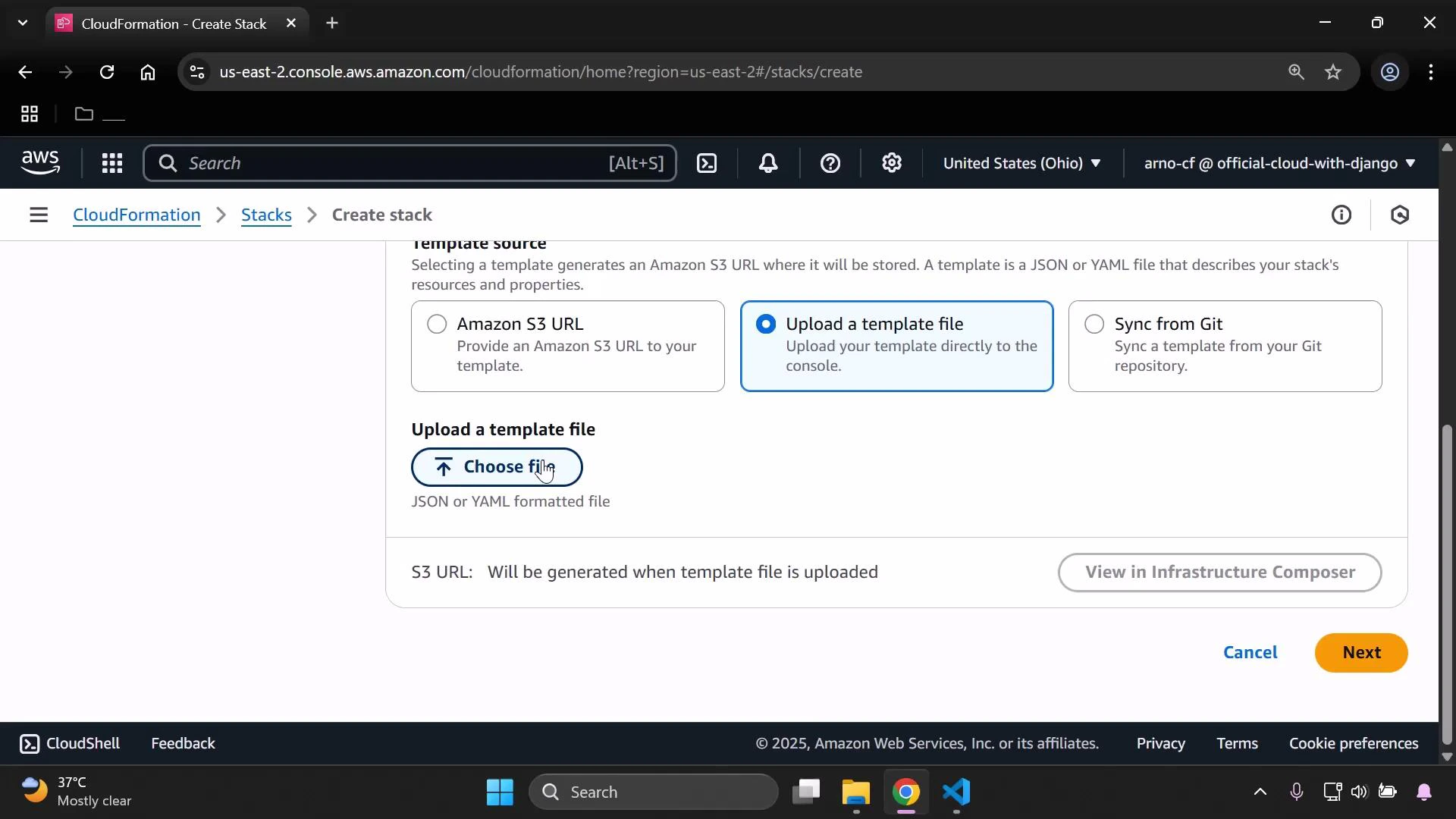 Complete the wizard and wait for CloudFormation to provision the EC2 instance in your chosen region (the example uses us-east-2 / Ohio).
## View and detect drift
After the stack reaches CREATE\_COMPLETE:
* Select the stack (for example `DemoStack`) in the CloudFormation console.
* From **Stack actions** (or **Stack options**), choose **View drift results** and then click **Detect stack drift** to start the comparison.
Complete the wizard and wait for CloudFormation to provision the EC2 instance in your chosen region (the example uses us-east-2 / Ohio).
## View and detect drift
After the stack reaches CREATE\_COMPLETE:
* Select the stack (for example `DemoStack`) in the CloudFormation console.
* From **Stack actions** (or **Stack options**), choose **View drift results** and then click **Detect stack drift** to start the comparison.
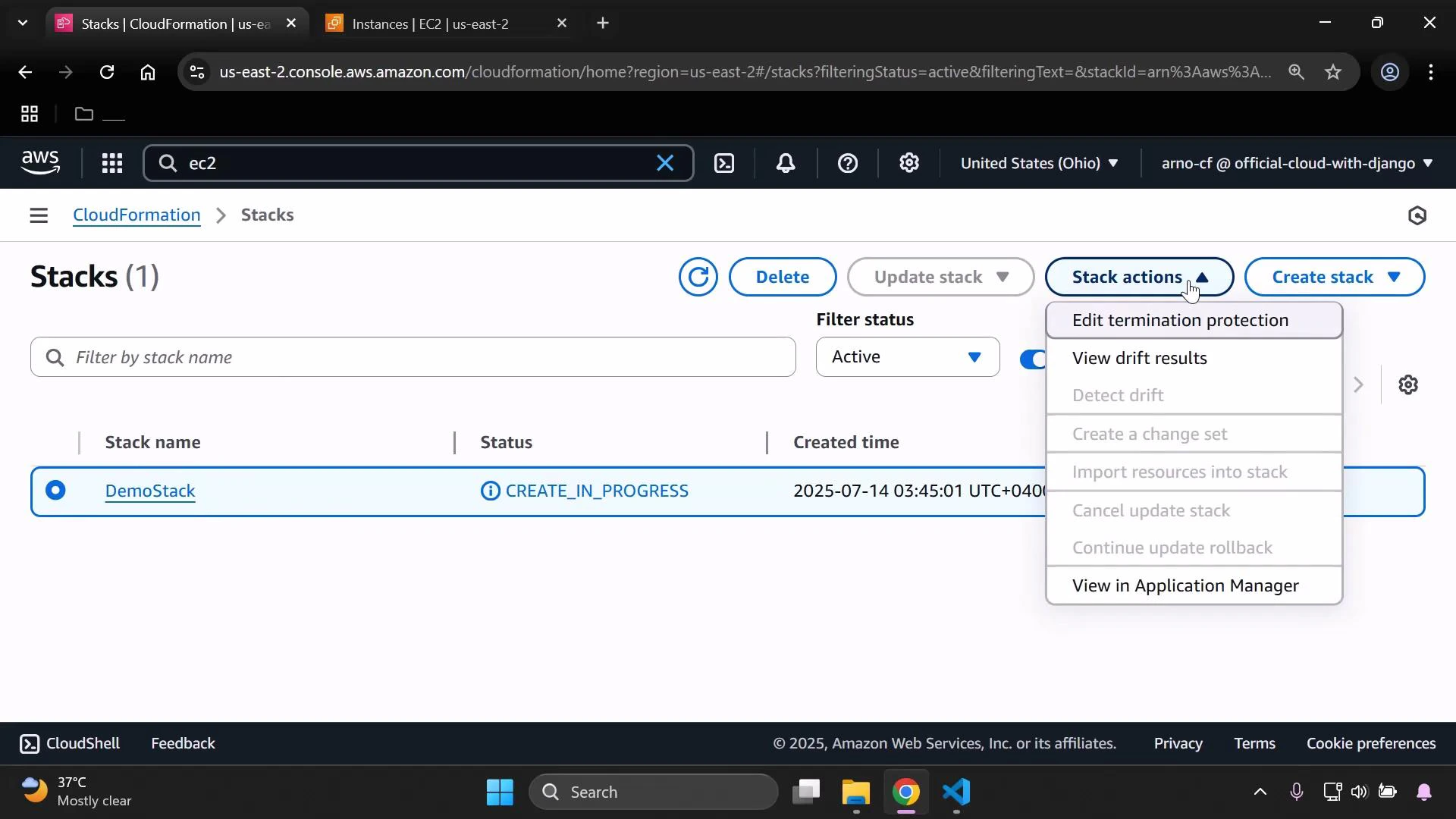 CloudFormation compares the resource properties defined in the template with the live resource configuration. For the template above, the expected InstanceType is `t3.micro`, and the AMI is chosen from the mapping for the selected region.
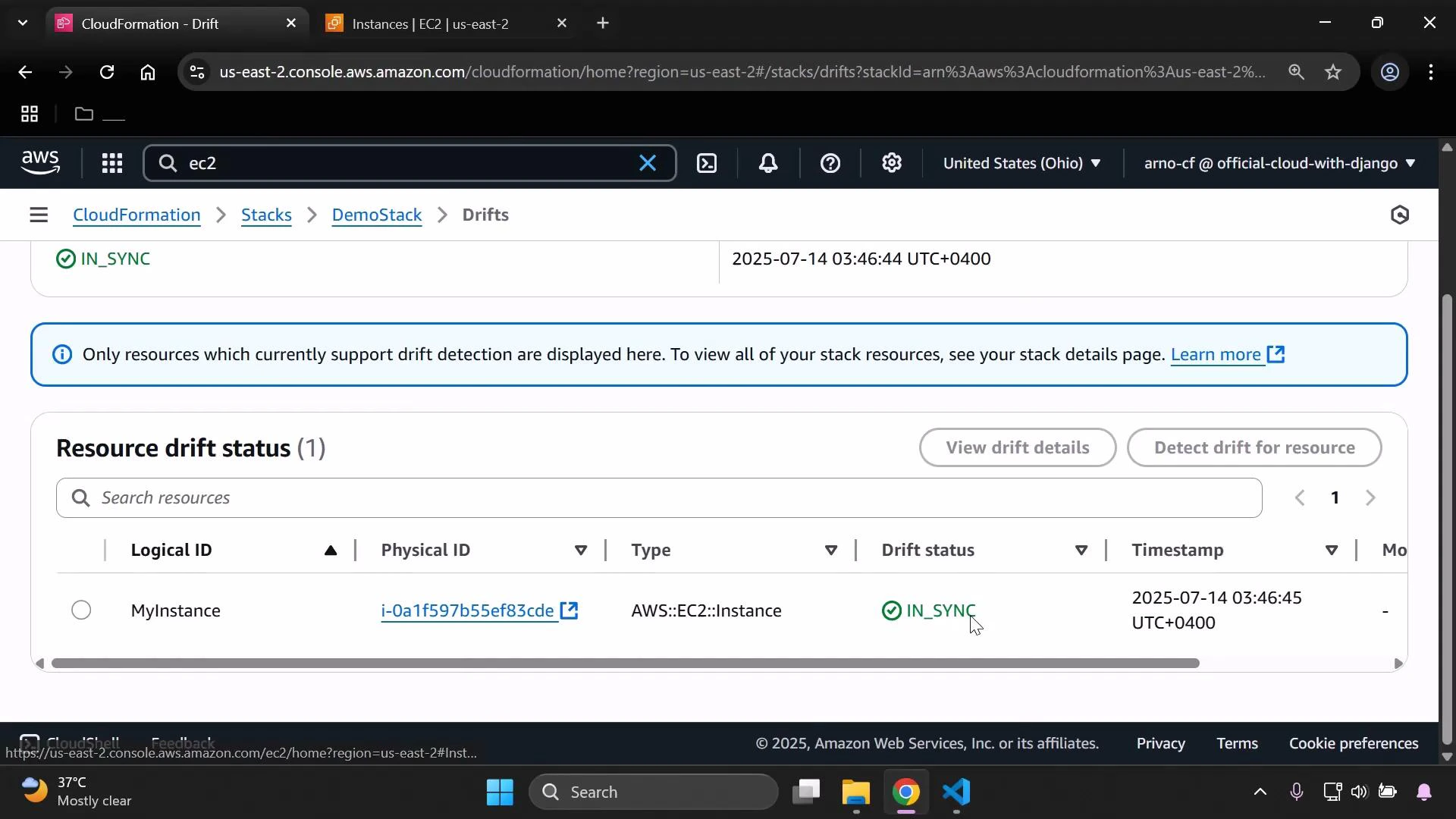
When detection completes you should see each resource's drift status. If you haven't changed the instance outside CloudFormation, the EC2 resource will show IN\_SYNC.
CloudFormation compares the resource properties defined in the template with the live resource configuration. For the template above, the expected InstanceType is `t3.micro`, and the AMI is chosen from the mapping for the selected region.
When detection completes you should see each resource's drift status. If you haven't changed the instance outside CloudFormation, the EC2 resource will show IN\_SYNC.
 ## Make an out-of-band change (EC2 console)
To demonstrate drift, modify the EC2 instance directly in the EC2 console (outside CloudFormation). For example, change the instance type:
1. Open the EC2 **Instances** page and select the instance created by the stack.
2. Choose **Instance state → Stop** and wait for the instance to stop.
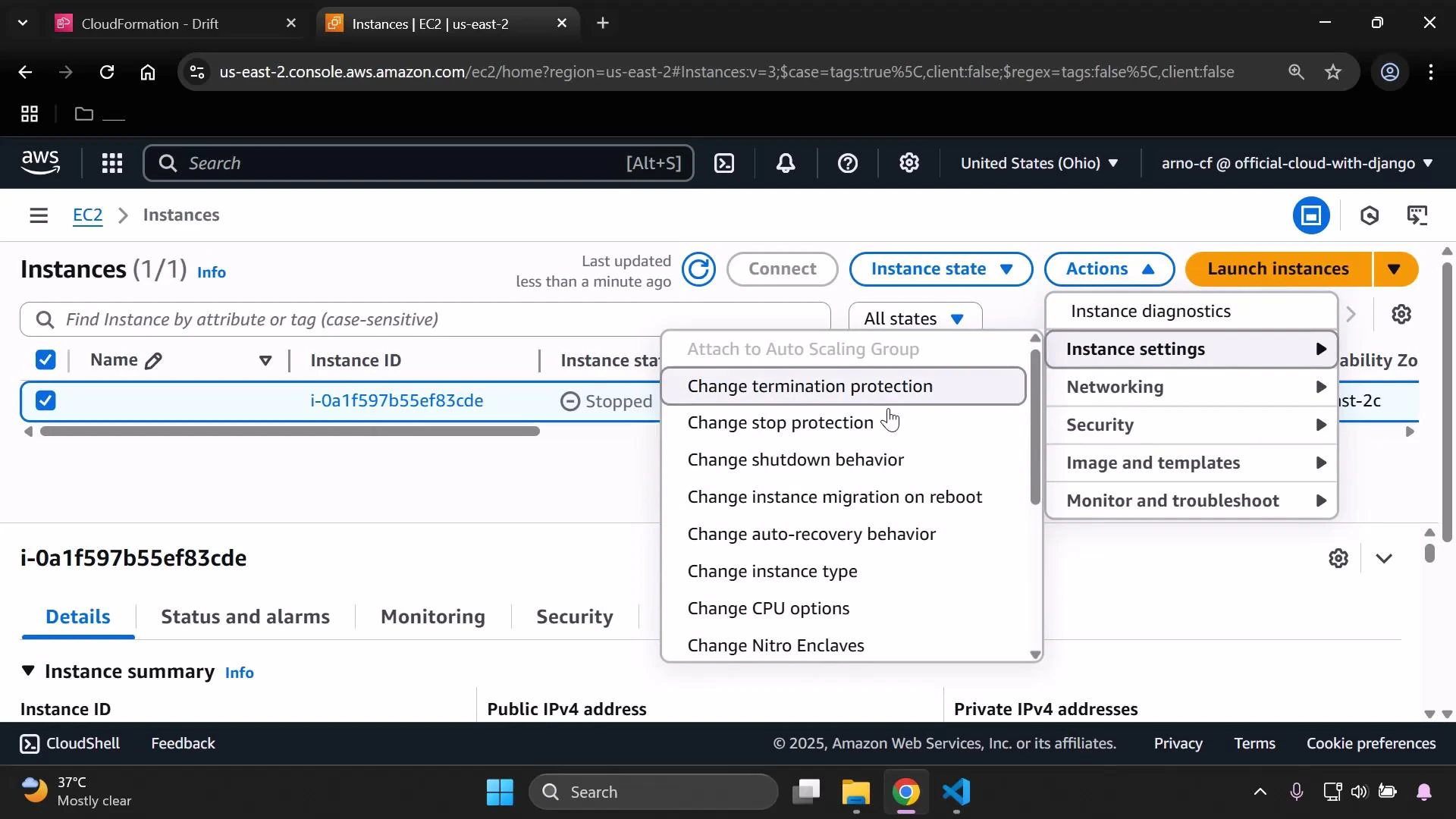
3. With the instance selected, go to **Actions → Instance settings → Change instance type** and select a new type (e.g., `t3.small`).
4. Apply the change and start the instance again if needed.
## Make an out-of-band change (EC2 console)
To demonstrate drift, modify the EC2 instance directly in the EC2 console (outside CloudFormation). For example, change the instance type:
1. Open the EC2 **Instances** page and select the instance created by the stack.
2. Choose **Instance state → Stop** and wait for the instance to stop.
3. With the instance selected, go to **Actions → Instance settings → Change instance type** and select a new type (e.g., `t3.small`).
4. Apply the change and start the instance again if needed.
 After making this out-of-band change, run **Detect stack drift** again. CloudFormation will report the EC2 resource as DRIFTED because its InstanceType no longer matches the template (`t3.micro` vs. `t3.small`). If you revert the instance type back to `t3.micro` and detect drift again, the resource will return to IN\_SYNC.
## Drift detection workflow (summary)
| Step | Action | Console / Example |
| ---- | ----------------------------------- | ----------------------------------------------------------------------------- |
| 1 | Create resource with CloudFormation | Upload template and create stack (e.g., `DemoStack`) |
| 2 | Modify resource out-of-band | Change instance type from EC2 console to `t3.small` |
| 3 | Detect stack drift | CloudFormation → View drift results → Detect stack drift |
| 4 | Reconcile | Update resource to match template or update template and perform stack update |
Drift detection helps identify configuration differences but not every resource property is supported for drift detection. Always consult the CloudFormation documentation on Resources that support drift detection for details on which properties are checked: [https://docs.aws.amazon.com/AWSCloudFormation/latest/UserGuide/using-cfn-stack-drift.html](https://docs.aws.amazon.com/AWSCloudFormation/latest/UserGuide/using-cfn-stack-drift.html)
## Clean up
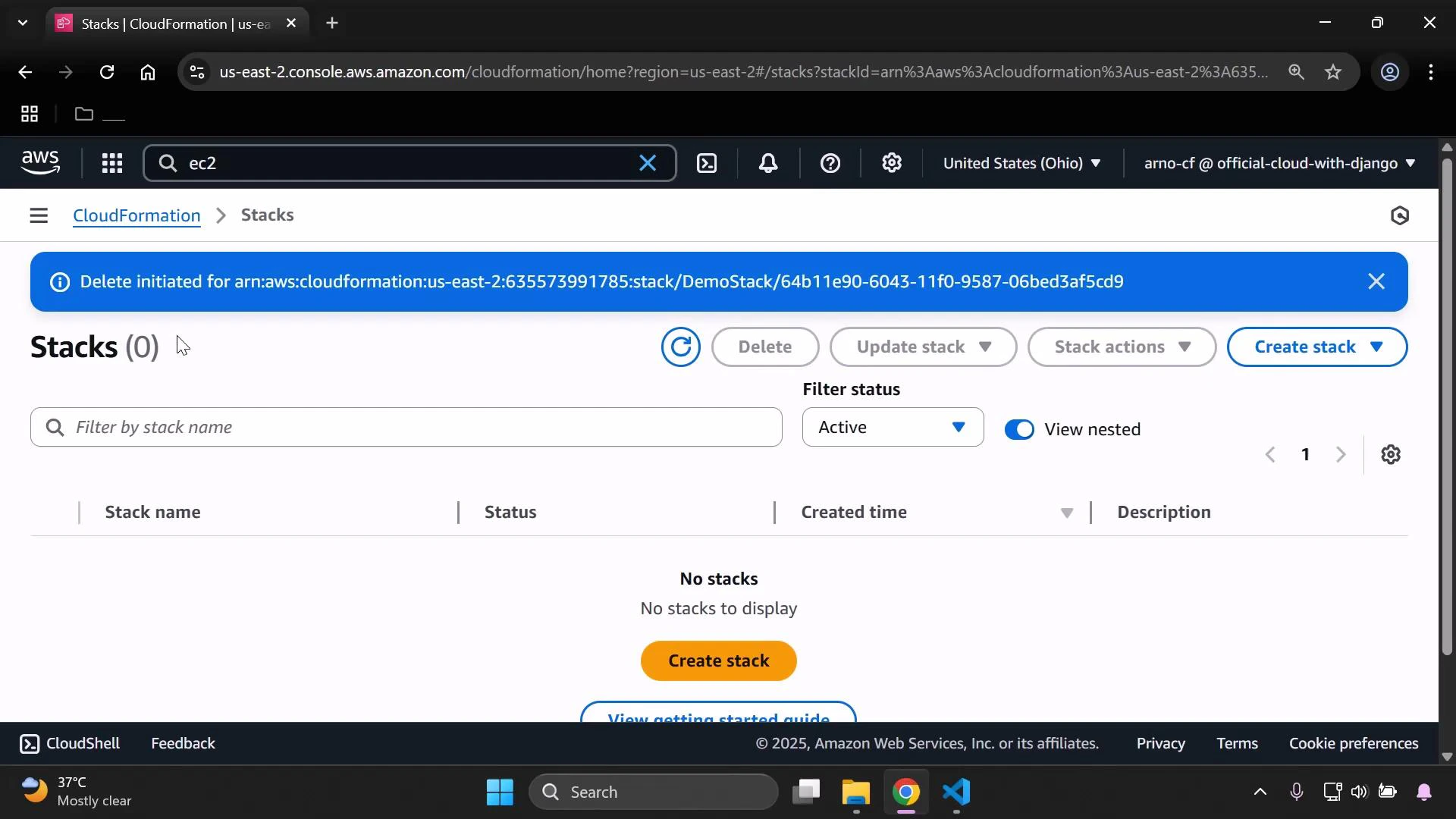
When you finish the demo, delete the stack from the CloudFormation console. Deleting the stack will remove the EC2 instance and any other resources created by the template.
After making this out-of-band change, run **Detect stack drift** again. CloudFormation will report the EC2 resource as DRIFTED because its InstanceType no longer matches the template (`t3.micro` vs. `t3.small`). If you revert the instance type back to `t3.micro` and detect drift again, the resource will return to IN\_SYNC.
## Drift detection workflow (summary)
| Step | Action | Console / Example |
| ---- | ----------------------------------- | ----------------------------------------------------------------------------- |
| 1 | Create resource with CloudFormation | Upload template and create stack (e.g., `DemoStack`) |
| 2 | Modify resource out-of-band | Change instance type from EC2 console to `t3.small` |
| 3 | Detect stack drift | CloudFormation → View drift results → Detect stack drift |
| 4 | Reconcile | Update resource to match template or update template and perform stack update |
Drift detection helps identify configuration differences but not every resource property is supported for drift detection. Always consult the CloudFormation documentation on Resources that support drift detection for details on which properties are checked: [https://docs.aws.amazon.com/AWSCloudFormation/latest/UserGuide/using-cfn-stack-drift.html](https://docs.aws.amazon.com/AWSCloudFormation/latest/UserGuide/using-cfn-stack-drift.html)
## Clean up
When you finish the demo, delete the stack from the CloudFormation console. Deleting the stack will remove the EC2 instance and any other resources created by the template.
 ## References
* AWS CloudFormation — Drift detection: [https://docs.aws.amazon.com/AWSCloudFormation/latest/UserGuide/using-cfn-stack-drift.html](https://docs.aws.amazon.com/AWSCloudFormation/latest/UserGuide/using-cfn-stack-drift.html)
* Amazon EC2 — Instances documentation: [https://docs.aws.amazon.com/ec2/index.html](https://docs.aws.amazon.com/ec2/index.html)
That concludes the demo on using CloudFormation drift detection to find and reconcile out-of-band changes so your infrastructure remains aligned with your templates.
## References
* AWS CloudFormation — Drift detection: [https://docs.aws.amazon.com/AWSCloudFormation/latest/UserGuide/using-cfn-stack-drift.html](https://docs.aws.amazon.com/AWSCloudFormation/latest/UserGuide/using-cfn-stack-drift.html)
* Amazon EC2 — Instances documentation: [https://docs.aws.amazon.com/ec2/index.html](https://docs.aws.amazon.com/ec2/index.html)
That concludes the demo on using CloudFormation drift detection to find and reconcile out-of-band changes so your infrastructure remains aligned with your templates.