> ## Documentation Index
> Fetch the complete documentation index at: https://notes.kodekloud.com/llms.txt
> Use this file to discover all available pages before exploring further.
# Demo Replacing hardcoded values with a pseudo parameter
> Guide to replace a hardcoded VPC ID with an AWS EC2 VPC Id parameter in a CloudFormation template, enabling region-aware VPC selection via console dropdown
In this guide you'll replace a hardcoded VPC ID in a CloudFormation template with a parameter typed as AWS::EC2::VPC::Id. Using this parameter type makes the template region-aware: when you create or update a stack, the CloudFormation console presents a dropdown of VPCs that exist in the selected region instead of requiring you to edit the template for each region.
Understanding the two related CloudFormation concepts:
* Pseudo-parameters (for example, AWS::Region, AWS::AccountId) are automatic, built-in values you can reference without declaring them.
* Typed parameters (for example, AWS::EC2::VPC::Id) tell the console to present a list of existing resource identifiers from the region where the stack runs. This demo uses a typed parameter so you don’t need to hardcode a VPC ID.
Use the parameter type AWS::EC2::VPC::Id to let the CloudFormation console show available VPCs for the region where the stack runs. This is different from pseudo-parameters like AWS::Region.
Quick reference: parameter type behavior
| Parameter Type | What it does | When to use it |
| ------------------------------------ | ----------------------------------------------------------- | --------------------------------------------------------- |
| AWS::EC2::VPC::Id | Console shows a dropdown of VPC IDs for the selected region | When you want the user to pick an existing VPC |
| AWS::EC2::Subnet::Id | Console shows available subnet IDs for the selected region | When the stack needs a subnet ID input |
| Pseudo-parameters (e.g. AWS::Region) | Built-in values, no user input required | When a value is always derived from the stack environment |
References:
* [AWS CloudFormation documentation](https://docs.aws.amazon.com/cloudformation/index.html)
* [AWS::EC2::VPC::Id parameter type details](https://docs.aws.amazon.com/AWSCloudFormation/latest/UserGuide/parameters-section-structure.html#aws-specific-parameter-types)
* [EC2 Security Group properties](https://docs.aws.amazon.com/AWSCloudFormation/latest/UserGuide/aws-properties-ec2-security-group.html)
Initial template excerpt — instance type parameter and a resource placeholder:
```yaml theme={null}
Parameters:
MyInstanceType:
Type: String
Description: Select your EC2 instance type
AllowedValues:
- t3.micro
- t3.small
Resources:
MyInstance:
Type: AWS::EC2::Instance
```
Example of the resource that originally used a hardcoded VPC ID:
```yaml theme={null}
Resources:
MySecurityGroup:
Type: AWS::EC2::SecurityGroup
Properties:
GroupDescription: Allow HTTP and SSH access
VpcId: vpc-0f5d3d6445abf20b5
SecurityGroupIngress:
- IpProtocol: tcp
FromPort: 80
ToPort: 80
```
Add a typed parameter for VPC selection
* Define a new parameter named MyVPC with Type: AWS::EC2::VPC::Id.
* Reference the parameter using !Ref where the VpcId is required.
Parameter addition:
```yaml theme={null}
Parameters:
MyInstanceType:
AllowedValues:
- t3.micro
- t3.small
MyVPC:
Type: AWS::EC2::VPC::Id
Description: Select the VPC to launch the EC2 instance in
```
Update the security group to reference the new parameter (note the explicit CIDR entries for ingress rules):
```yaml theme={null}
Resources:
MySecurityGroup:
Type: AWS::EC2::SecurityGroup
Properties:
GroupDescription: Allow HTTP and SSH access
VpcId: !Ref MyVPC
SecurityGroupIngress:
- IpProtocol: tcp
FromPort: 80
ToPort: 80
CidrIp: 0.0.0.0/0
- IpProtocol: tcp
FromPort: 22
ToPort: 22
CidrIp: 0.0.0.0/0
```
Consolidated parameters section with descriptions (save this change before updating the stack):
```yaml theme={null}
Parameters:
MyInstanceType:
Type: String
Description: Select your EC2 instance type
AllowedValues:
- t3.micro
- t3.small
MyVPC:
Type: AWS::EC2::VPC::Id
Description: Select the VPC to launch the EC2 instance in
```
Update the stack in the CloudFormation console
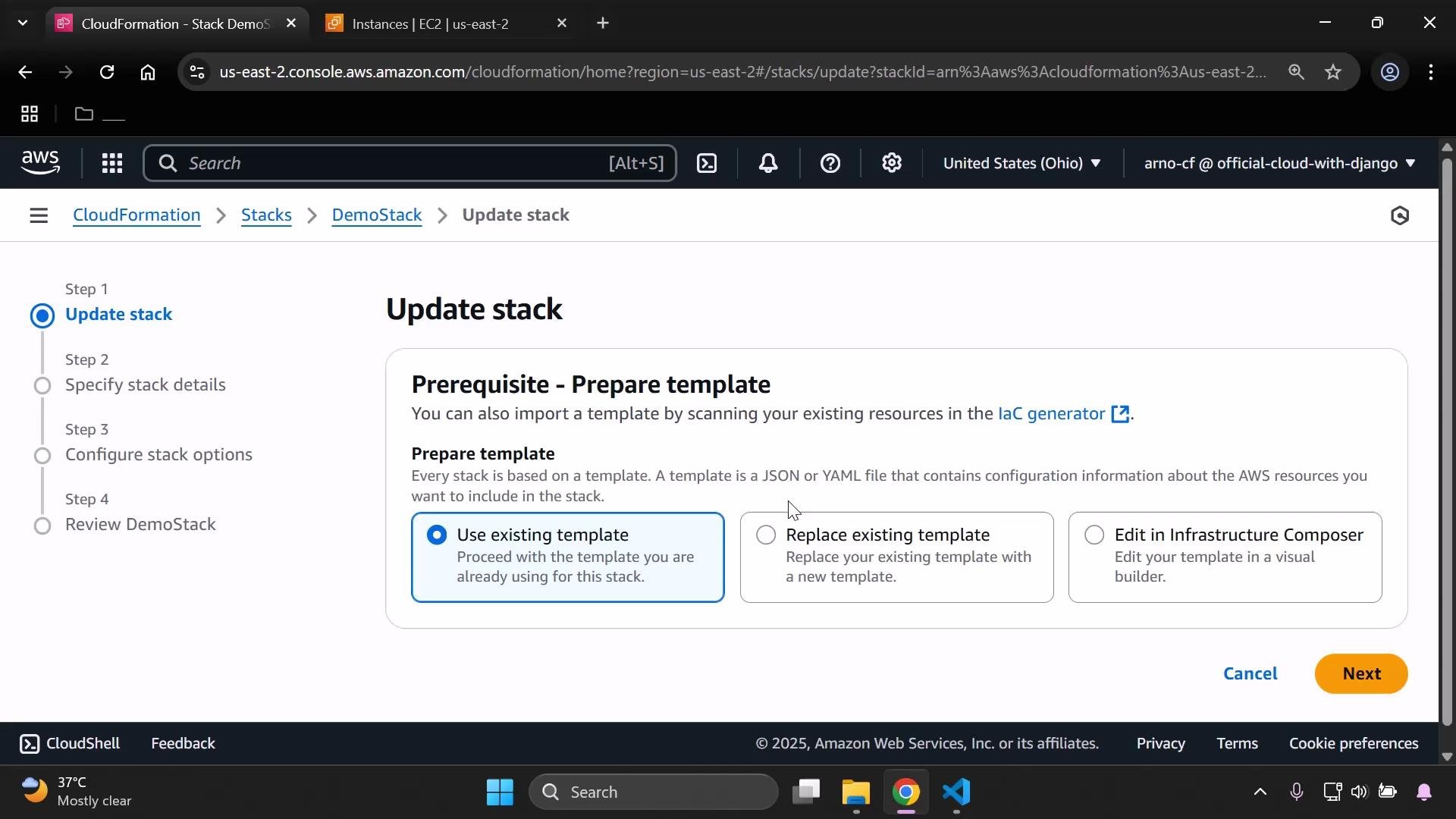
* Choose “Replace current template” → Upload the updated template or paste it into the console.
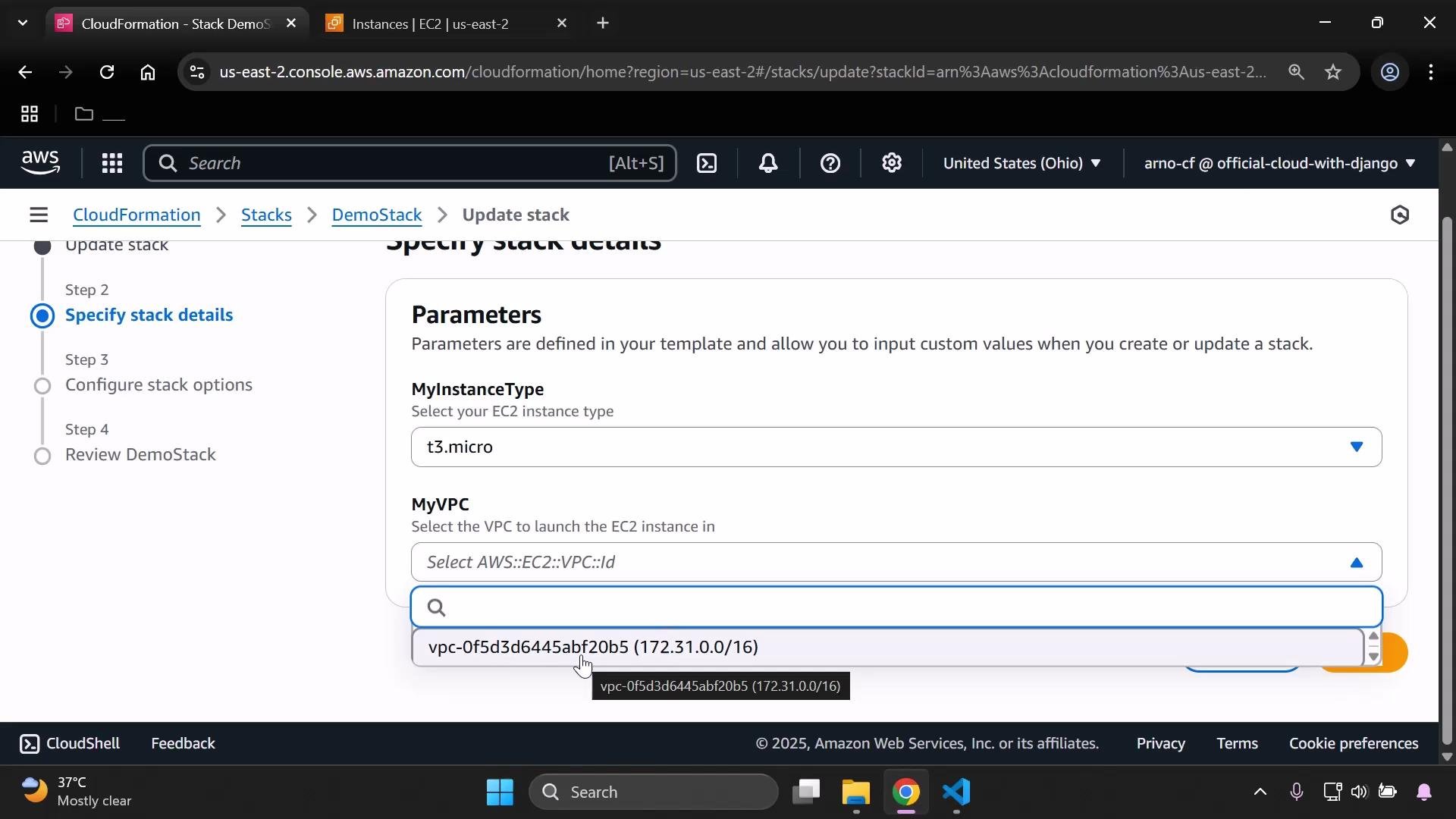
* On the stack details page, the MyVPC parameter will appear as a dropdown populated with VPCs from the selected region.
 On the “Specify stack details” step you can choose the VPC from the dropdown; the console shows both the VPC ID and its CIDR block to help selection:
 Proceed through the update workflow (Next → Next → Submit). The console prepares a change set and then applies the update.
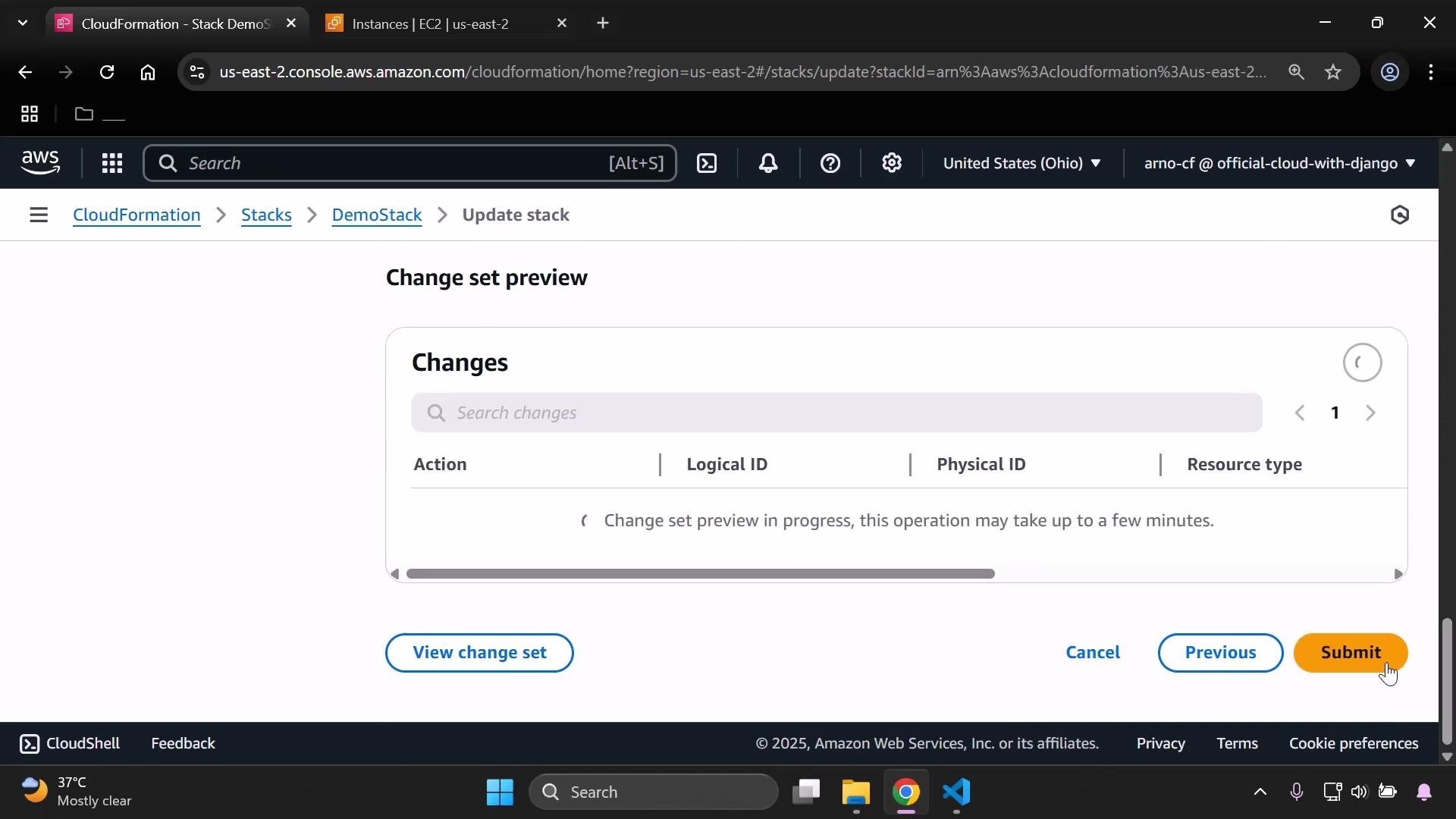 If you select a different VPC than the one currently used by the stack, CloudFormation may need to replace resources that cannot move between VPCs (for example, security groups). Resource replacements can take longer than a quick update—review the change set carefully before submitting.
Behavior notes
* If you choose the same VPC that was already in use, the update may complete quickly because no effective resource changes are required.
* If you choose a different VPC, CloudFormation might recreate resources that are VPC-specific (security groups, network interfaces, etc.), which can increase update time.
Final consolidated example (contextual template excerpt):
```yaml theme={null}
Metadata:
Purpose: Basic EC2 instance with HTTP and SSH access
Parameters:
MyInstanceType:
Type: String
Description: Select your EC2 instance type
AllowedValues:
- t3.micro
- t3.small
MyVPC:
Type: AWS::EC2::VPC::Id
Description: Select the VPC to launch the EC2 instance in
Resources:
MySecurityGroup:
Type: AWS::EC2::SecurityGroup
Properties:
GroupDescription: Allow HTTP and SSH access
VpcId: !Ref MyVPC
SecurityGroupIngress:
- IpProtocol: tcp
FromPort: 80
ToPort: 80
CidrIp: 0.0.0.0/0
- IpProtocol: tcp
FromPort: 22
ToPort: 22
CidrIp: 0.0.0.0/0
MyInstance:
Type: AWS::EC2::Instance
Properties:
InstanceType: !Ref MyInstanceType
SecurityGroupIds:
- !Ref MySecurityGroup
# Note: For a complete, deployable template you must also specify ImageId (AMI) and any other required properties.
```
That's it — using the AWS::EC2::VPC::Id parameter type makes your CloudFormation template region-aware for VPC selection and removes the need to embed region-specific VPC IDs in your template.
If you select a different VPC than the one currently used by the stack, CloudFormation may need to replace resources that cannot move between VPCs (for example, security groups). Resource replacements can take longer than a quick update—review the change set carefully before submitting.
Behavior notes
* If you choose the same VPC that was already in use, the update may complete quickly because no effective resource changes are required.
* If you choose a different VPC, CloudFormation might recreate resources that are VPC-specific (security groups, network interfaces, etc.), which can increase update time.
Final consolidated example (contextual template excerpt):
```yaml theme={null}
Metadata:
Purpose: Basic EC2 instance with HTTP and SSH access
Parameters:
MyInstanceType:
Type: String
Description: Select your EC2 instance type
AllowedValues:
- t3.micro
- t3.small
MyVPC:
Type: AWS::EC2::VPC::Id
Description: Select the VPC to launch the EC2 instance in
Resources:
MySecurityGroup:
Type: AWS::EC2::SecurityGroup
Properties:
GroupDescription: Allow HTTP and SSH access
VpcId: !Ref MyVPC
SecurityGroupIngress:
- IpProtocol: tcp
FromPort: 80
ToPort: 80
CidrIp: 0.0.0.0/0
- IpProtocol: tcp
FromPort: 22
ToPort: 22
CidrIp: 0.0.0.0/0
MyInstance:
Type: AWS::EC2::Instance
Properties:
InstanceType: !Ref MyInstanceType
SecurityGroupIds:
- !Ref MySecurityGroup
# Note: For a complete, deployable template you must also specify ImageId (AMI) and any other required properties.
```
That's it — using the AWS::EC2::VPC::Id parameter type makes your CloudFormation template region-aware for VPC selection and removes the need to embed region-specific VPC IDs in your template.