> ## Documentation Index
> Fetch the complete documentation index at: https://notes.kodekloud.com/llms.txt
> Use this file to discover all available pages before exploring further.
# Demo Defining and setting up CFN Lint for our templates Part 1
> Guide to install and configure cfn-lint and VS Code extension to lint AWS CloudFormation templates, verify CLI integration, and troubleshoot setup
Welcome — in this lesson we'll install and configure cfn-lint so Visual Studio Code can validate your AWS CloudFormation templates (YAML or JSON). cfn-lint detects syntax errors, invalid resource/property names, deprecated properties, and many best-practice suggestions so you catch problems before deploying stacks.
What you'll accomplish
1. Install the VS Code extension for CloudFormation linting.
2. Install the cfn-lint CLI (required by the extension).
3. Verify linting works from both VS Code and the command line.
Prerequisites
* Visual Studio Code
* Python 3.8+ (for the pip install method) or Homebrew / Docker (optional)
* Basic familiarity with CloudFormation templates
1. Install the CloudFormation Linter extension in VS Code
* Open Visual Studio Code and go to the Extensions view (use the sidebar icon or the three-dot/grid icon if your sidebar is narrow).
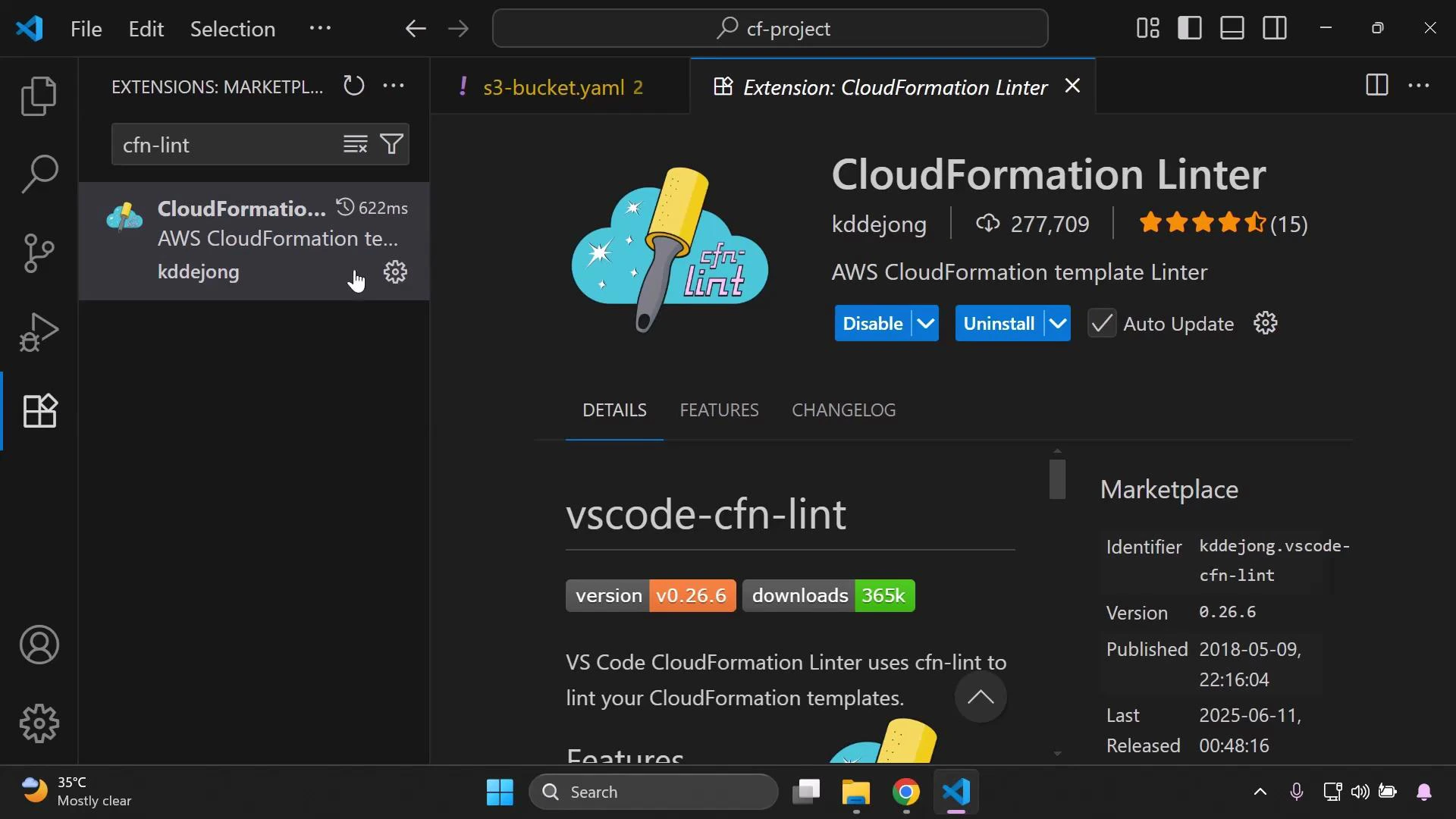
* Search for "CFN-Lint" or "CloudFormation Linter".
* Install the extension titled "CloudFormation Linter" (vscode-cfn-lint). When prompted, trust and install the publisher.
After installing the extension you should see it listed in the sidebar.
 2. Open a template to test the extension
Open any CloudFormation template (YAML or JSON) in VS Code. Example minimal YAML:
```yaml theme={null}
Resources:
MyS3Bucket:
Type: AWS::S3::Bucket
```
If the extension shows a warning or indicates `cfn-lint` is not found, that’s expected until you install the cfn-lint CLI. The VS Code extension uses the cfn-lint executable under the hood to perform checks.
3. Install the cfn-lint CLI
The extension requires the Python-based cfn-lint executable. Below are common installation methods. Use the method that fits your platform and environment.
Recommended: pip (Python)
```bash theme={null}
# Ensure pip is up-to-date
python3 -m pip install --upgrade pip
# Install the core linter
python3 -m pip install cfn-lint
# Optional extras for additional features
python3 -m pip install "cfn-lint[full]"
python3 -m pip install "cfn-lint[graph]"
python3 -m pip install "cfn-lint[junit]"
python3 -m pip install "cfn-lint[sarif]"
```
Alternative: macOS Homebrew
```bash theme={null}
brew install cfn-lint
```
Alternative: Build or run from source with Docker
```bash theme={null}
git clone https://github.com/aws-cloudformation/cfn-lint.git
cd cfn-lint
docker build --tag cfn-lint:latest .
# or use the repository's instructions to run the container directly
```
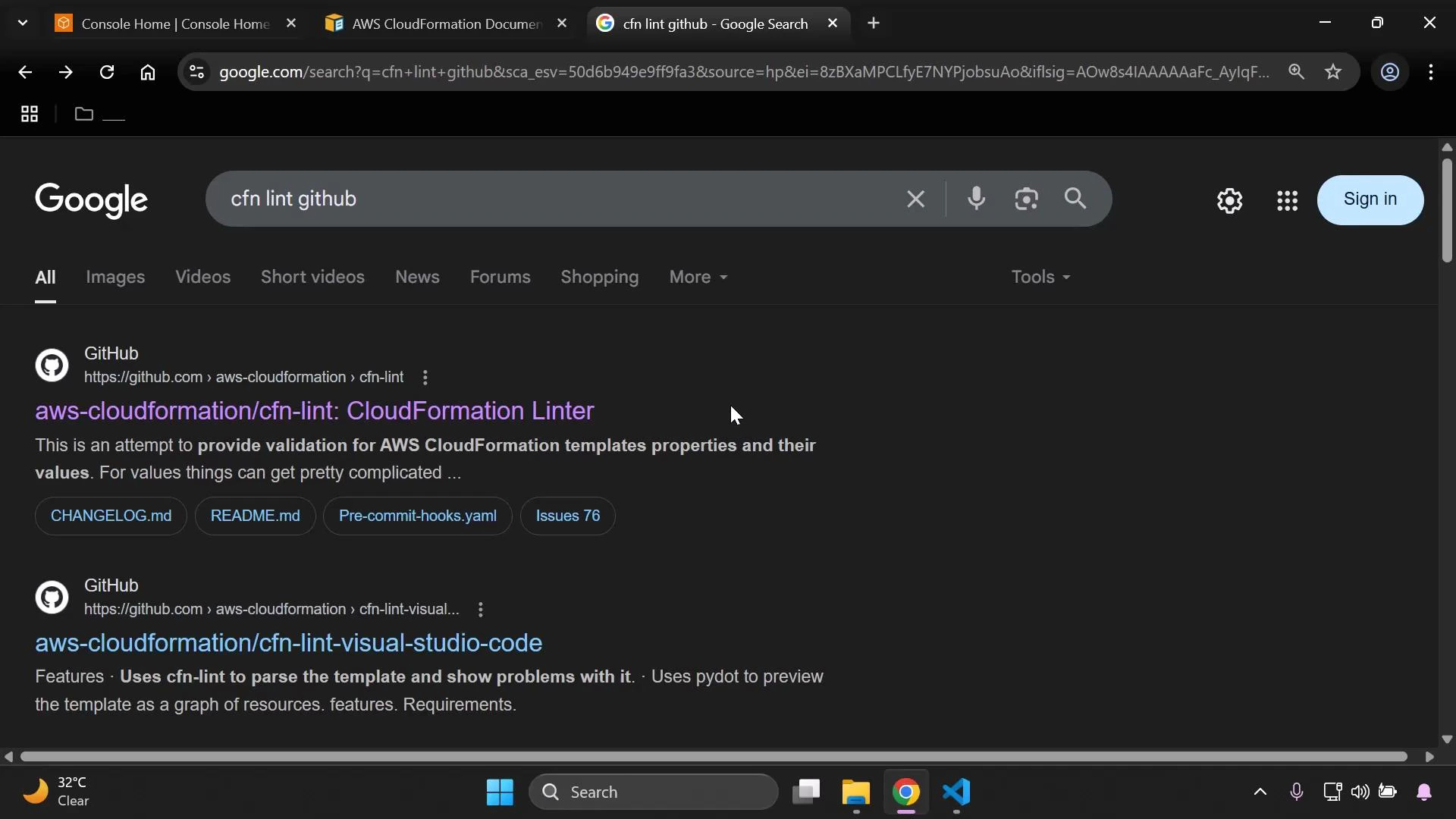
For detailed platform-specific instructions and the latest release, see the cfn-lint repository on GitHub.
2. Open a template to test the extension
Open any CloudFormation template (YAML or JSON) in VS Code. Example minimal YAML:
```yaml theme={null}
Resources:
MyS3Bucket:
Type: AWS::S3::Bucket
```
If the extension shows a warning or indicates `cfn-lint` is not found, that’s expected until you install the cfn-lint CLI. The VS Code extension uses the cfn-lint executable under the hood to perform checks.
3. Install the cfn-lint CLI
The extension requires the Python-based cfn-lint executable. Below are common installation methods. Use the method that fits your platform and environment.
Recommended: pip (Python)
```bash theme={null}
# Ensure pip is up-to-date
python3 -m pip install --upgrade pip
# Install the core linter
python3 -m pip install cfn-lint
# Optional extras for additional features
python3 -m pip install "cfn-lint[full]"
python3 -m pip install "cfn-lint[graph]"
python3 -m pip install "cfn-lint[junit]"
python3 -m pip install "cfn-lint[sarif]"
```
Alternative: macOS Homebrew
```bash theme={null}
brew install cfn-lint
```
Alternative: Build or run from source with Docker
```bash theme={null}
git clone https://github.com/aws-cloudformation/cfn-lint.git
cd cfn-lint
docker build --tag cfn-lint:latest .
# or use the repository's instructions to run the container directly
```
For detailed platform-specific instructions and the latest release, see the cfn-lint repository on GitHub.
 Quick reference: installation options
| Method | Platform | Install command | Notes |
| --------------- | -------------------------------- | ------------------------------- | ---------------------------------------------------------------------- |
| pip | Linux / macOS / Windows (Python) | python3 -m pip install cfn-lint | Use extras for full feature set (graph, junit, sarif). |
| Homebrew | macOS | brew install cfn-lint | Simple macOS install; kept up-to-date via brew. |
| Docker / Source | Any (with Docker) | docker build . (from repo) | Useful in environments where installing Python packages is restricted. |
After installing Python and cfn-lint, restart VS Code so the extension can detect the installed cfn-lint executable. If VS Code still cannot find the executable, set the path to the cfn-lint binary in the extension settings or ensure the binary is on your system PATH.
4. Run cfn-lint from the command line
Once installed, verify the linter from your terminal:
```bash theme={null}
# Lint a single template
cfn-lint template.yaml
```
You will see any warnings or errors with file/line references. Use this output to update your template and re-run the linter.
Troubleshooting tips
* If the extension does not detect the cfn-lint executable:
* Confirm the CLI runs from your terminal (run `cfn-lint --version`).
* Ensure the terminal shell used by VS Code has the same PATH as your interactive shell.
* Configure the extension setting for the cfn-lint executable path if necessary.
* If you need dependency isolation, install cfn-lint in a virtual environment (venv) and point VS Code to that venv’s binary.
Links and references
* cfn-lint GitHub repository: [https://github.com/aws-cloudformation/cfn-lint](https://github.com/aws-cloudformation/cfn-lint)
* VS Code CloudFormation linter extension: search "vscode-cfn-lint" in the Extensions Marketplace
* AWS CloudFormation docs: [https://docs.aws.amazon.com/cloudformation/](https://docs.aws.amazon.com/cloudformation/)
Next steps
In the next demo we'll run cfn-lint against several real templates, interpret common rule violations, and apply fixes to meet best-practice guidance. Follow along and you’ll have a reproducible linting workflow for every CloudFormation template you create.
Quick reference: installation options
| Method | Platform | Install command | Notes |
| --------------- | -------------------------------- | ------------------------------- | ---------------------------------------------------------------------- |
| pip | Linux / macOS / Windows (Python) | python3 -m pip install cfn-lint | Use extras for full feature set (graph, junit, sarif). |
| Homebrew | macOS | brew install cfn-lint | Simple macOS install; kept up-to-date via brew. |
| Docker / Source | Any (with Docker) | docker build . (from repo) | Useful in environments where installing Python packages is restricted. |
After installing Python and cfn-lint, restart VS Code so the extension can detect the installed cfn-lint executable. If VS Code still cannot find the executable, set the path to the cfn-lint binary in the extension settings or ensure the binary is on your system PATH.
4. Run cfn-lint from the command line
Once installed, verify the linter from your terminal:
```bash theme={null}
# Lint a single template
cfn-lint template.yaml
```
You will see any warnings or errors with file/line references. Use this output to update your template and re-run the linter.
Troubleshooting tips
* If the extension does not detect the cfn-lint executable:
* Confirm the CLI runs from your terminal (run `cfn-lint --version`).
* Ensure the terminal shell used by VS Code has the same PATH as your interactive shell.
* Configure the extension setting for the cfn-lint executable path if necessary.
* If you need dependency isolation, install cfn-lint in a virtual environment (venv) and point VS Code to that venv’s binary.
Links and references
* cfn-lint GitHub repository: [https://github.com/aws-cloudformation/cfn-lint](https://github.com/aws-cloudformation/cfn-lint)
* VS Code CloudFormation linter extension: search "vscode-cfn-lint" in the Extensions Marketplace
* AWS CloudFormation docs: [https://docs.aws.amazon.com/cloudformation/](https://docs.aws.amazon.com/cloudformation/)
Next steps
In the next demo we'll run cfn-lint against several real templates, interpret common rule violations, and apply fixes to meet best-practice guidance. Follow along and you’ll have a reproducible linting workflow for every CloudFormation template you create.