> ## Documentation Index
> Fetch the complete documentation index at: https://notes.kodekloud.com/llms.txt
> Use this file to discover all available pages before exploring further.
# Demo Defining and setting up CFN Lint for our templates Part 2
> Guide to installing and using cfn-lint to validate AWS CloudFormation YAML templates, detect common errors like indentation and misspelled keys, and integrate linting into development workflows
This lesson continues the walkthrough for applying cfn-lint to AWS CloudFormation templates. By now you should have Python installed on your machine. We’ll install cfn-lint, run it against a minimal template, and review common errors it detects so you can fix templates before deployment.
## Example minimal CloudFormation template (s3-bucket.yaml)
```yaml theme={null}
Resources:
MyS3Bucket:
Type: AWS::S3::Bucket
```
## Install cfn-lint
* Open Visual Studio Code and open the integrated terminal (View → Terminal or the toggle panel icon).
* Install cfn-lint using pip:
```bash theme={null}
pip install cfn-lint
```
The installer will fetch cfn-lint and its dependencies; this may take a minute. After installation, restart Visual Studio Code to ensure the editor picks up newly installed tools and any language extensions.
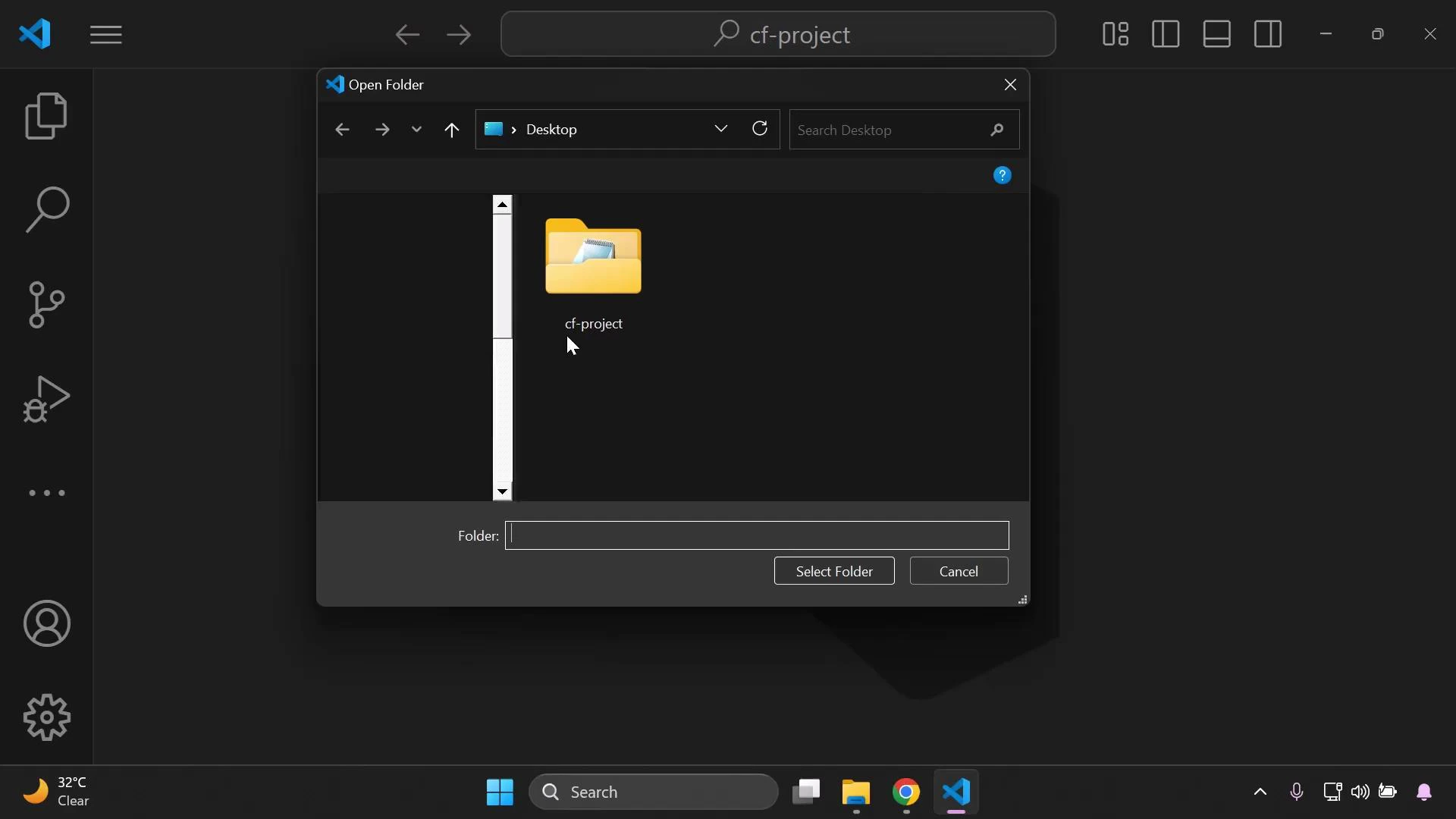
If you need to re-open your project folder in VS Code:
 ## Validate a template with cfn-lint
With your S3 template file open (s3-bucket.yaml), run cfn-lint from the terminal:
```powershell theme={null}
cfn-lint s3-bucket.yaml
```
* A successful run produces no error output — cfn-lint returns without printing errors or warnings.
* If it finds issues, cfn-lint prints descriptive error codes and locations so you can quickly correct the template.
## Common errors cfn-lint catches (examples and fixes)
Below are several typical mistakes and how cfn-lint helps identify them.
1. Indentation / YAML structure errors\
Incorrect YAML indentation can cause the parser to miss required top-level keys such as `Resources`. Example malformed YAML (no indentation):
```yaml theme={null}
Resources:
MyS3Bucket:
Type: AWS::S3::Bucket
```
Running cfn-lint reports schema errors like:
```text theme={null}
E1001 'Resources' is a required property
s3-bucket.yaml:1:1
E3001 None is not of type 'object'
s3-bucket.yaml:1:1
E1001 Additional properties are not allowed ('MyS3Bucket' was unexpected)
s3-bucket.yaml:2:1
E1001 Additional properties are not allowed ('Type' was unexpected)
s3-bucket.yaml:3:1
```
Explanation: Because the nested resource names and Type values are not correctly indented under the `Resources` mapping, the linter interprets them as unexpected top-level properties. Correcting indentation to:
```yaml theme={null}
Resources:
MyS3Bucket:
Type: AWS::S3::Bucket
```
resolves these errors.
2. Simple spelling / key name mistakes\
Using an incorrect key such as `Resource` (singular) instead of `Resources` (plural) triggers clear messages:
Example incorrect key:
```yaml theme={null}
Resource:
MyS3Bucket:
Type: AWS::S3::Bucket
```
cfn-lint output may include:
```text theme={null}
E1001 Additional properties are not allowed ('Resource' was unexpected. Did you mean 'Resources'?)
s3-bucket.yaml:1:1
E1001 'Resources' is a required property
s3-bucket.yaml:1:1
```
Fixing the key to `Resources` and re-running cfn-lint returns no errors:
```yaml theme={null}
Resources:
MyS3Bucket:
Type: AWS::S3::Bucket
```
Use cfn-lint on every CloudFormation template you author. It catches YAML formatting issues, schema problems, misspelled keys, and provides actionable error messages so templates are ready for deployment.
## Quick reference — Common lint error types
| Error type | Symptom | Typical fix |
| ------------------------------------------------ | ------------------------------------------------------ | --------------------------------------------------------------- |
| Schema / required property errors (E1001, E3001) | Missing top-level keys or wrong YAML structure | Fix YAML indentation and required key names (e.g., `Resources`) |
| Unknown resource property | Property name misspelled or not valid for the resource | Correct the property name or consult the resource schema |
| Type mismatch | Value type not expected (string vs object) | Provide the correct data type in the template |
| Property validation | Property value out of allowed set or format | Adjust value to match the CloudFormation resource specification |
## Best practices
* Run cfn-lint as part of your local development workflow and CI pipelines to catch issues early.
* Combine cfn-lint with template formatting tools (like `prettier` for YAML or an editor extension) to keep templates consistent.
* Refer to the CloudFormation resource specification when a property is unclear.
## Summary
* Install cfn-lint via pip in your development environment.
* Restart VS Code after installation if needed.
* Run cfn-lint against each template (example: `cfn-lint s3-bucket.yaml`).
* Fix indentation, spelling, and schema issues the linter reports.
* Repeat linting until the command completes without errors, indicating the template is valid and ready for CloudFormation.
## Links and References
* [AWS CloudFormation Concepts](https://docs.aws.amazon.com/AWSCloudFormation/latest/UserGuide/Welcome.html)
* [cfn-lint GitHub Repository](https://github.com/aws-cloudformation/cfn-lint)
* [cfn-lint PyPI Package](https://pypi.org/project/cfn-lint/)
## Validate a template with cfn-lint
With your S3 template file open (s3-bucket.yaml), run cfn-lint from the terminal:
```powershell theme={null}
cfn-lint s3-bucket.yaml
```
* A successful run produces no error output — cfn-lint returns without printing errors or warnings.
* If it finds issues, cfn-lint prints descriptive error codes and locations so you can quickly correct the template.
## Common errors cfn-lint catches (examples and fixes)
Below are several typical mistakes and how cfn-lint helps identify them.
1. Indentation / YAML structure errors\
Incorrect YAML indentation can cause the parser to miss required top-level keys such as `Resources`. Example malformed YAML (no indentation):
```yaml theme={null}
Resources:
MyS3Bucket:
Type: AWS::S3::Bucket
```
Running cfn-lint reports schema errors like:
```text theme={null}
E1001 'Resources' is a required property
s3-bucket.yaml:1:1
E3001 None is not of type 'object'
s3-bucket.yaml:1:1
E1001 Additional properties are not allowed ('MyS3Bucket' was unexpected)
s3-bucket.yaml:2:1
E1001 Additional properties are not allowed ('Type' was unexpected)
s3-bucket.yaml:3:1
```
Explanation: Because the nested resource names and Type values are not correctly indented under the `Resources` mapping, the linter interprets them as unexpected top-level properties. Correcting indentation to:
```yaml theme={null}
Resources:
MyS3Bucket:
Type: AWS::S3::Bucket
```
resolves these errors.
2. Simple spelling / key name mistakes\
Using an incorrect key such as `Resource` (singular) instead of `Resources` (plural) triggers clear messages:
Example incorrect key:
```yaml theme={null}
Resource:
MyS3Bucket:
Type: AWS::S3::Bucket
```
cfn-lint output may include:
```text theme={null}
E1001 Additional properties are not allowed ('Resource' was unexpected. Did you mean 'Resources'?)
s3-bucket.yaml:1:1
E1001 'Resources' is a required property
s3-bucket.yaml:1:1
```
Fixing the key to `Resources` and re-running cfn-lint returns no errors:
```yaml theme={null}
Resources:
MyS3Bucket:
Type: AWS::S3::Bucket
```
Use cfn-lint on every CloudFormation template you author. It catches YAML formatting issues, schema problems, misspelled keys, and provides actionable error messages so templates are ready for deployment.
## Quick reference — Common lint error types
| Error type | Symptom | Typical fix |
| ------------------------------------------------ | ------------------------------------------------------ | --------------------------------------------------------------- |
| Schema / required property errors (E1001, E3001) | Missing top-level keys or wrong YAML structure | Fix YAML indentation and required key names (e.g., `Resources`) |
| Unknown resource property | Property name misspelled or not valid for the resource | Correct the property name or consult the resource schema |
| Type mismatch | Value type not expected (string vs object) | Provide the correct data type in the template |
| Property validation | Property value out of allowed set or format | Adjust value to match the CloudFormation resource specification |
## Best practices
* Run cfn-lint as part of your local development workflow and CI pipelines to catch issues early.
* Combine cfn-lint with template formatting tools (like `prettier` for YAML or an editor extension) to keep templates consistent.
* Refer to the CloudFormation resource specification when a property is unclear.
## Summary
* Install cfn-lint via pip in your development environment.
* Restart VS Code after installation if needed.
* Run cfn-lint against each template (example: `cfn-lint s3-bucket.yaml`).
* Fix indentation, spelling, and schema issues the linter reports.
* Repeat linting until the command completes without errors, indicating the template is valid and ready for CloudFormation.
## Links and References
* [AWS CloudFormation Concepts](https://docs.aws.amazon.com/AWSCloudFormation/latest/UserGuide/Welcome.html)
* [cfn-lint GitHub Repository](https://github.com/aws-cloudformation/cfn-lint)
* [cfn-lint PyPI Package](https://pypi.org/project/cfn-lint/)