> ## Documentation Index
> Fetch the complete documentation index at: https://notes.kodekloud.com/llms.txt
> Use this file to discover all available pages before exploring further.
# Demo Python Installation and setup MacOS
> Guide to installing Python 3 on macOS, running the official installer, verifying installation via Terminal, setting PATH and basic troubleshooting
Welcome — this short lesson shows how to install Python 3 on macOS, verify the installation, and confirm the command-line setup. This guide uses the official macOS installer from python.org and includes verification steps you can run in Terminal.
Overview
* Download the macOS installer from the official Python website.
* Run the installer and follow the prompts.
* Restart macOS (recommended) or open a new Terminal window.
* Verify the installed Python version from Terminal.
1. Download the installer
* Open your web browser and go to: [https://python.org/downloads/](https://python.org/downloads/)
* Click the download button for the latest Python 3 release for macOS. This downloads the macOS installer package (.pkg).
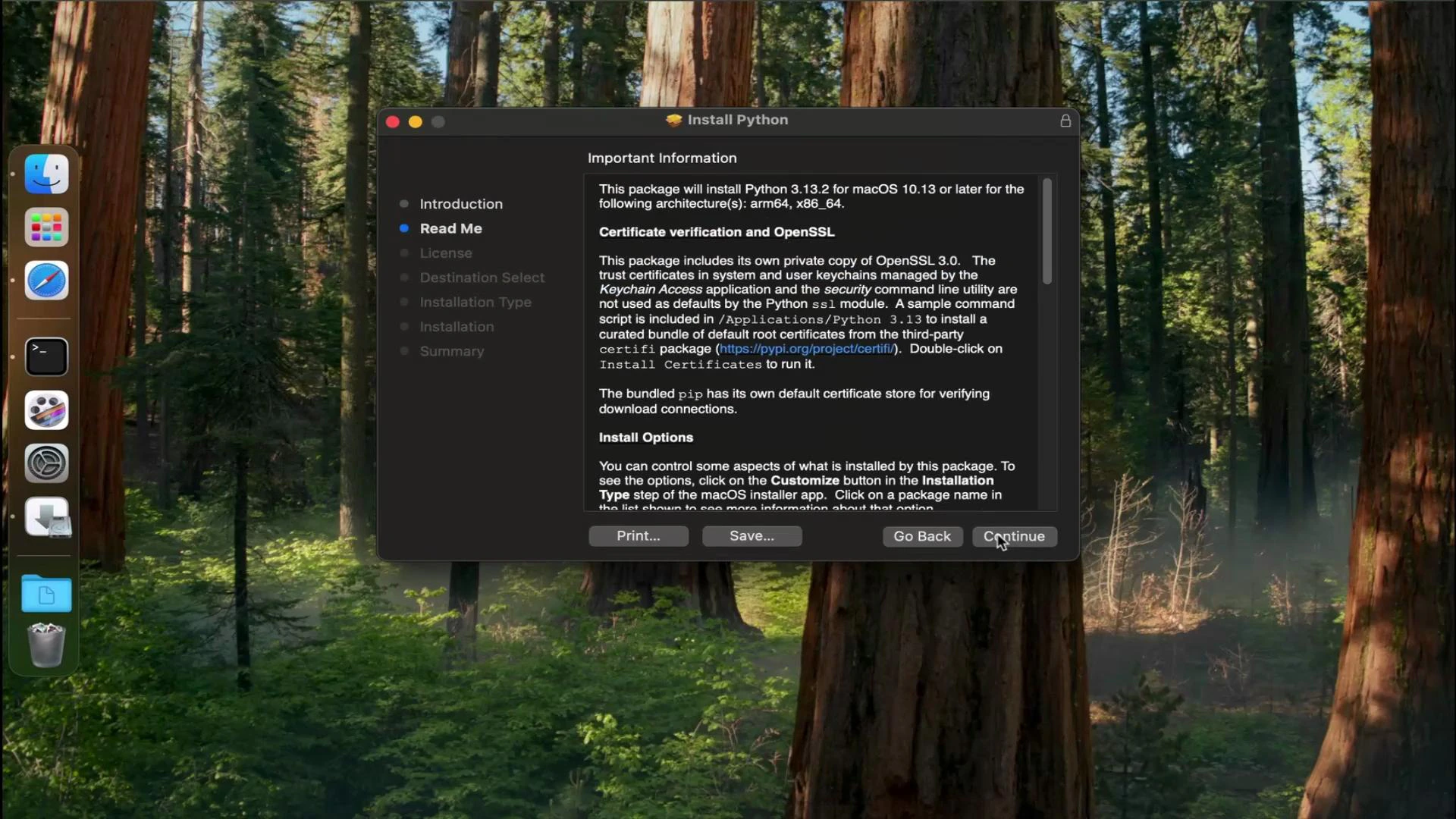
2. Run the installer
* Open the downloaded .pkg file.
* Continue through the installer prompts and accept the license/agreement.
* When prompted, authenticate with your macOS password so the installer can place files in the system locations.
* Click Install and enter your password if requested.
* When the installer finishes, click Close. You can choose Keep or Move to Trash for the installer package as you prefer.
 A restart is recommended after installation to ensure the PATH and any environment changes from the installer are fully applied. If you prefer not to restart immediately, open a new Terminal window after installation to pick up changes.
3. Open Terminal and confirm the installation
* Open Launchpad and search for Terminal, or open Terminal from Applications → Utilities.
* Run the following command to confirm the installed Python 3 version:
```bash theme={null}
python3 --version
```
Example terminal output:
```bash theme={null}
Last login: Thu Feb 20 04:17:00 on ttys000
arnopretorius@Arnos-MacBook-Air ~ % python3 --version
Python 3.13.2
arnopretorius@Arnos-MacBook-Air ~ %
```
This shows Python 3.13.2 is available as python3 (your version may differ).
Quick reference — common verification commands
| Command | Purpose |
| -------------------------- | ---------------------------------------- |
| `python3 --version` | Show the installed Python 3 version. |
| `python3 -m pip --version` | Confirm pip for Python 3 is available. |
| `which python3` | Show the path to the python3 executable. |
Use `python3` when running Python 3 on macOS to avoid confusion with any system-provided `python` command. On some macOS versions, `python` may point to an older system Python or be undefined.
Troubleshooting tips
* If `python3` is not found after installation, try opening a new Terminal window or restarting macOS.
* If the installer didn’t update your PATH as expected, check `/usr/local/bin` or the installer log for where the binaries were placed.
* To manage multiple Python versions, consider using pyenv ([https://github.com/pyenv/pyenv](https://github.com/pyenv/pyenv)) or virtual environments (`python3 -m venv `).
Links and references
* Official Python downloads: [https://python.org/downloads/](https://python.org/downloads/)
* Python documentation: [https://docs.python.org/](https://docs.python.org/)
* pyenv (version management): [https://github.com/pyenv/pyenv](https://github.com/pyenv/pyenv)
That’s it — Python should now be installed and ready to use on your macOS device.
A restart is recommended after installation to ensure the PATH and any environment changes from the installer are fully applied. If you prefer not to restart immediately, open a new Terminal window after installation to pick up changes.
3. Open Terminal and confirm the installation
* Open Launchpad and search for Terminal, or open Terminal from Applications → Utilities.
* Run the following command to confirm the installed Python 3 version:
```bash theme={null}
python3 --version
```
Example terminal output:
```bash theme={null}
Last login: Thu Feb 20 04:17:00 on ttys000
arnopretorius@Arnos-MacBook-Air ~ % python3 --version
Python 3.13.2
arnopretorius@Arnos-MacBook-Air ~ %
```
This shows Python 3.13.2 is available as python3 (your version may differ).
Quick reference — common verification commands
| Command | Purpose |
| -------------------------- | ---------------------------------------- |
| `python3 --version` | Show the installed Python 3 version. |
| `python3 -m pip --version` | Confirm pip for Python 3 is available. |
| `which python3` | Show the path to the python3 executable. |
Use `python3` when running Python 3 on macOS to avoid confusion with any system-provided `python` command. On some macOS versions, `python` may point to an older system Python or be undefined.
Troubleshooting tips
* If `python3` is not found after installation, try opening a new Terminal window or restarting macOS.
* If the installer didn’t update your PATH as expected, check `/usr/local/bin` or the installer log for where the binaries were placed.
* To manage multiple Python versions, consider using pyenv ([https://github.com/pyenv/pyenv](https://github.com/pyenv/pyenv)) or virtual environments (`python3 -m venv `).
Links and references
* Official Python downloads: [https://python.org/downloads/](https://python.org/downloads/)
* Python documentation: [https://docs.python.org/](https://docs.python.org/)
* pyenv (version management): [https://github.com/pyenv/pyenv](https://github.com/pyenv/pyenv)
That’s it — Python should now be installed and ready to use on your macOS device.