> ## Documentation Index
> Fetch the complete documentation index at: https://notes.kodekloud.com/llms.txt
> Use this file to discover all available pages before exploring further.
# Demo Python Installation and setup Windows
> Guide to downloading, installing, and verifying Python 3 on Windows, including installer options, PATH setup, pip, and basic troubleshooting.
This lesson shows how to download, install, and verify Python on a Windows PC. Follow the steps below to install a recent Python 3 release, enable the recommended options in the installer, and confirm the installation using the Command Prompt.
## 1) Download the Windows installer
Open your browser and go to the official downloads page:
[https://python.org/downloads/](https://python.org/downloads/)
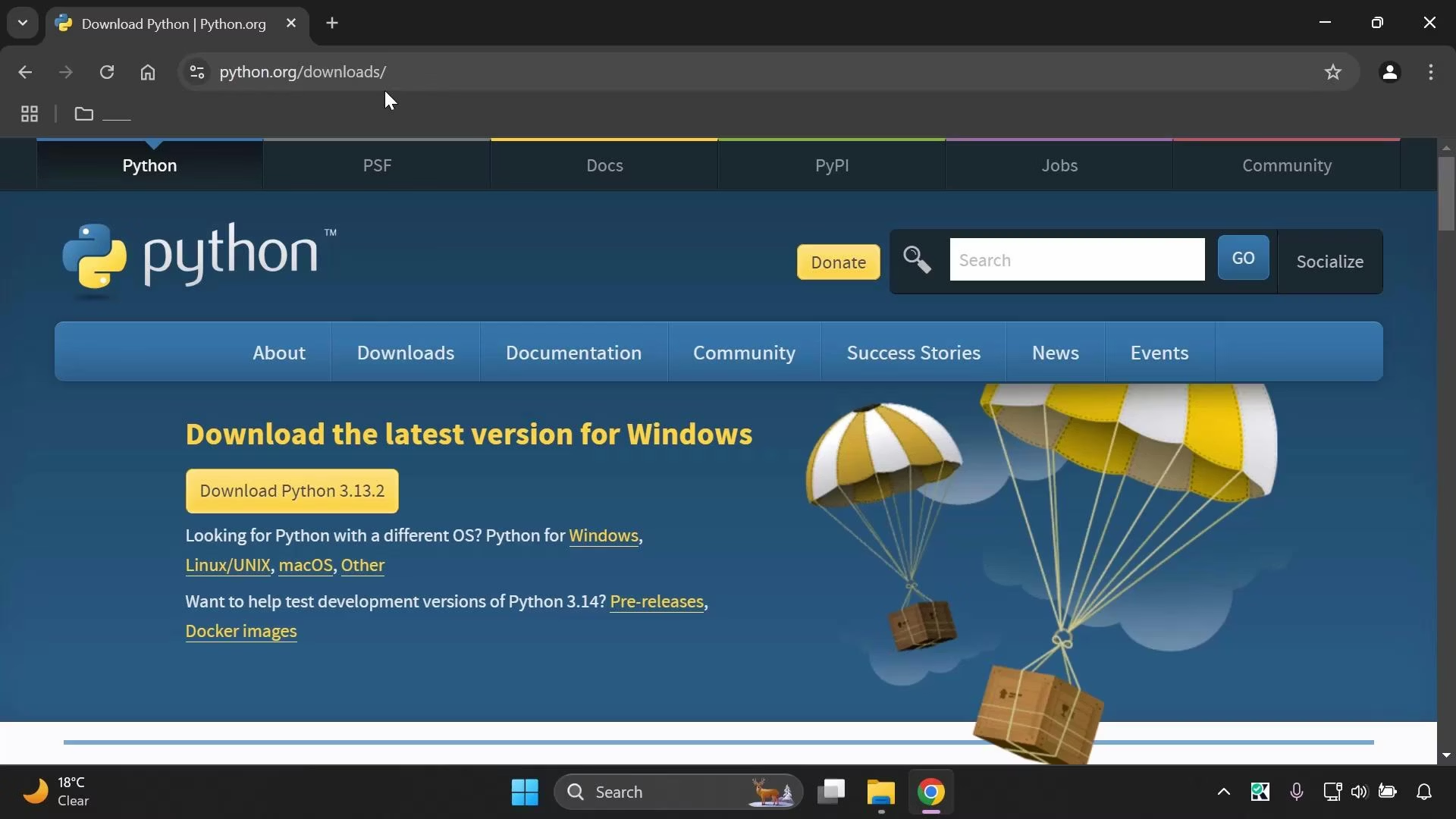
You should see the Windows downloads page with a prominent installer button similar to the example below:
 Notes:
* The exact minor/patch version on the downloads page may differ (e.g., Python 3.13.x). Installing any recent Python 3 release is fine.
* Download the Windows installer (an executable .exe).
## 2) Run the installer (recommended options)
Launch the downloaded installer to start the setup wizard and follow these recommended choices:
* On the initial screen:
* Enable Add Python to PATH (checkbox at the bottom of the window).
* Optionally enable Install launcher for all users (recommended).
* If you want Python available to every account on the PC:
* Choose “Customize installation” → then select “Install for all users”. This will typically require administrator privileges and installs Python into Program Files.
* Ensure pip is selected (it is selected by default).
* Click Install and approve any Windows security prompt (UAC) by clicking Yes.
Installer options at a glance:
| Option | What it does | Recommended |
| ------------------------------ | ---------------------------------------------------------------------------------------------- | -------------------------------------- |
| Add Python to PATH | Adds python.exe and scripts folder to the system PATH so `python` is available in the terminal | Yes |
| Install launcher for all users | Installs the py launcher for all accounts on the machine | Recommended if you share the PC |
| Install for all users | Installs Python under Program Files (requires admin) | Optional — use for shared systems |
| pip | Package installer for Python | Yes — required for installing packages |
The installer will show progress while configuring Python. When it finishes, click Close.
## 3) Verify the installation
You can either restart your PC to refresh system environment variables or open a new Command Prompt window (a new process picks up the updated PATH). Then verify with the following command:
```text theme={null}
C:\Users\You>python --version
Python 3.13.2
```
A restart is not strictly necessary in most cases—opening a new Command Prompt is usually sufficient for the updated PATH to be available. Restarting is a safe step if you encounter PATH-related issues.
Example: search for Command Prompt on Windows:
Notes:
* The exact minor/patch version on the downloads page may differ (e.g., Python 3.13.x). Installing any recent Python 3 release is fine.
* Download the Windows installer (an executable .exe).
## 2) Run the installer (recommended options)
Launch the downloaded installer to start the setup wizard and follow these recommended choices:
* On the initial screen:
* Enable Add Python to PATH (checkbox at the bottom of the window).
* Optionally enable Install launcher for all users (recommended).
* If you want Python available to every account on the PC:
* Choose “Customize installation” → then select “Install for all users”. This will typically require administrator privileges and installs Python into Program Files.
* Ensure pip is selected (it is selected by default).
* Click Install and approve any Windows security prompt (UAC) by clicking Yes.
Installer options at a glance:
| Option | What it does | Recommended |
| ------------------------------ | ---------------------------------------------------------------------------------------------- | -------------------------------------- |
| Add Python to PATH | Adds python.exe and scripts folder to the system PATH so `python` is available in the terminal | Yes |
| Install launcher for all users | Installs the py launcher for all accounts on the machine | Recommended if you share the PC |
| Install for all users | Installs Python under Program Files (requires admin) | Optional — use for shared systems |
| pip | Package installer for Python | Yes — required for installing packages |
The installer will show progress while configuring Python. When it finishes, click Close.
## 3) Verify the installation
You can either restart your PC to refresh system environment variables or open a new Command Prompt window (a new process picks up the updated PATH). Then verify with the following command:
```text theme={null}
C:\Users\You>python --version
Python 3.13.2
```
A restart is not strictly necessary in most cases—opening a new Command Prompt is usually sufficient for the updated PATH to be available. Restarting is a safe step if you encounter PATH-related issues.
Example: search for Command Prompt on Windows:
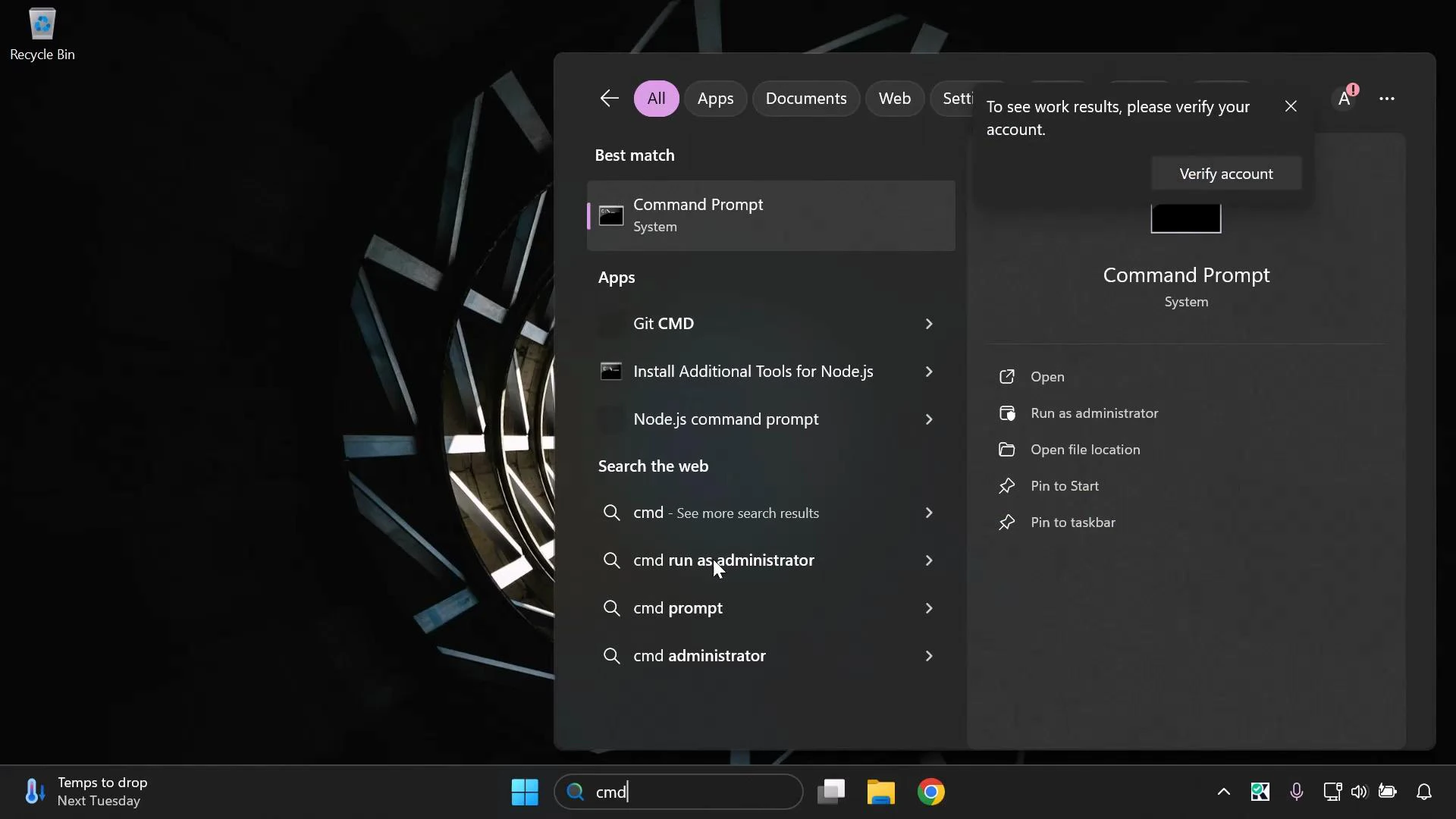 If the command prints the Python version (for example, Python 3.13.2), Python and the PATH configuration are correct.
## Quick troubleshooting tips
* If `python --version` shows an error or a different Python version:
* Close and reopen the Command Prompt, or log out/in.
* Confirm you selected Add Python to PATH during installation.
* Use the full path (e.g., "C:\Program Files\Python313\python.exe") to confirm installation location.
* If pip is missing, rerun the installer and ensure the pip option is selected.
## Links and references
* [Python Downloads](https://python.org/downloads/)
* [Python Documentation](https://docs.python.org/3/)
* [pip — The Python package installer](https://pip.pypa.io/)
If the command prints the Python version (for example, Python 3.13.2), Python and the PATH configuration are correct.
## Quick troubleshooting tips
* If `python --version` shows an error or a different Python version:
* Close and reopen the Command Prompt, or log out/in.
* Confirm you selected Add Python to PATH during installation.
* Use the full path (e.g., "C:\Program Files\Python313\python.exe") to confirm installation location.
* If pip is missing, rerun the installer and ensure the pip option is selected.
## Links and references
* [Python Downloads](https://python.org/downloads/)
* [Python Documentation](https://docs.python.org/3/)
* [pip — The Python package installer](https://pip.pypa.io/)