> ## Documentation Index
> Fetch the complete documentation index at: https://notes.kodekloud.com/llms.txt
> Use this file to discover all available pages before exploring further.
# Demo Creating your stack and template with Infrastructure Composer
> Guide showing how to use AWS CloudFormation Infrastructure Composer to visually create an S3 bucket, export the generated template, and deploy a CloudFormation stack
In this walkthrough you'll use AWS CloudFormation's Infrastructure Composer to visually design a resource, export the generated template, and create a CloudFormation stack. This is useful when you prefer a drag-and-drop experience to build CloudFormation templates (YAML or JSON), inspect the output, and then deploy it.
Key concepts covered:
* Use Infrastructure Composer to add an S3 bucket visually
* Inspect and edit the generated CloudFormation template
* Export the template to CloudFormation and deploy the stack
* Understand deletion behavior for S3 buckets created by CloudFormation
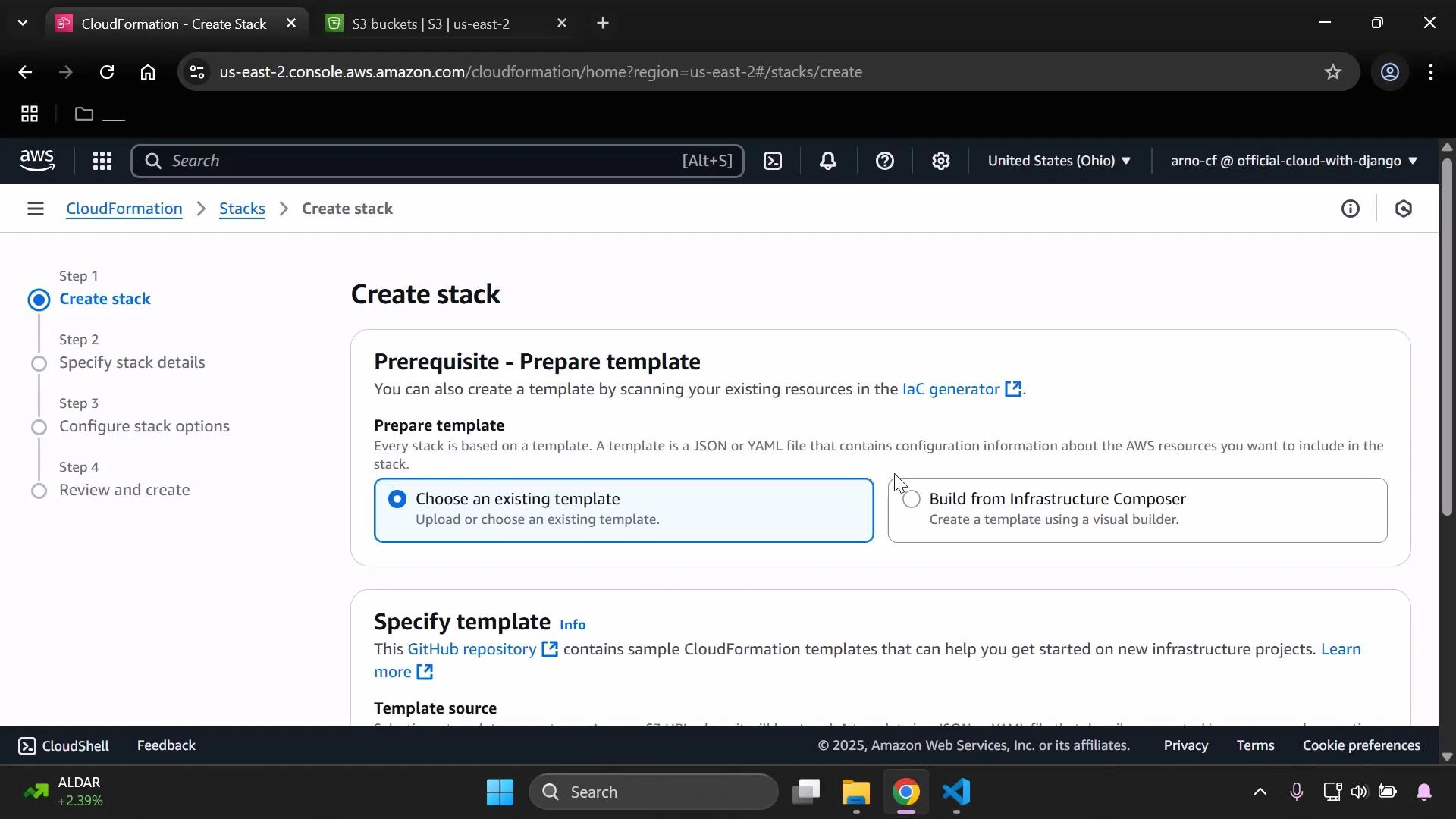
First, start creating a stack in the CloudFormation console and choose the "Build from Infrastructure Composer" option.
 ## 1. Add resources in Infrastructure Composer
When Infrastructure Composer launches, you’ll see the visual canvas. Use the search box to find the resource you want to add (for example, type “S3”), then drag an S3 bucket onto the canvas.
Select the resource to open the resource properties in the right-hand sidebar. There you can:
* Change the logical ID (for example, from the default “bucket” to `MyS3BucketSpecial`)
* Enable features like static website hosting
* Override the bucket name to supply a specific globally unique name
S3 bucket names must be unique across the entire AWS global namespace and must follow [S3 bucket naming rules](https://docs.aws.amazon.com/AmazonS3/latest/userguide/bucketnamingrules.html). If you supply a custom bucket name, ensure it’s globally unique.
In this demonstration a custom bucket name was used: `eden-kodekloud-vbnc-bkt`. Infrastructure Composer fills in reasonable defaults for security and encryption, such as blocking public access and enabling server-side encryption. You can preview and edit the generated template before exporting.
## 2. Example generated template (YAML)
Below is the CloudFormation YAML that Infrastructure Composer created for the S3 bucket and an attached bucket policy that denies non-HTTPS requests:
```yaml theme={null}
Resources:
MyS3BucketSpecial:
Type: AWS::S3::Bucket
Properties:
BucketName: eden-kodekloud-vbnc-bkt
BucketEncryption:
ServerSideEncryptionConfiguration:
- ServerSideEncryptionByDefault:
SSEAlgorithm: aws:kms
KMSMasterKeyId: alias/aws/s3
PublicAccessBlockConfiguration:
IgnorePublicAcls: true
RestrictPublicBuckets: true
MyS3BucketSpecialBucketPolicy:
Type: AWS::S3::BucketPolicy
Properties:
Bucket: !Ref MyS3BucketSpecial
PolicyDocument:
Version: "2012-10-17"
Id: RequireEncryptionInTransit
Statement:
- Sid: DenyUnencryptedTransport
Effect: Deny
Principal: "*"
Action: "s3:*"
Resource:
- !Sub "arn:aws:s3:::${MyS3BucketSpecial}"
- !Sub "arn:aws:s3:::${MyS3BucketSpecial}/*"
Condition:
Bool:
aws:SecureTransport: "false"
```
You can switch the template view to JSON if you prefer, run template validation, or make direct edits in the template editor. When satisfied, click **Create template** to export it to CloudFormation.
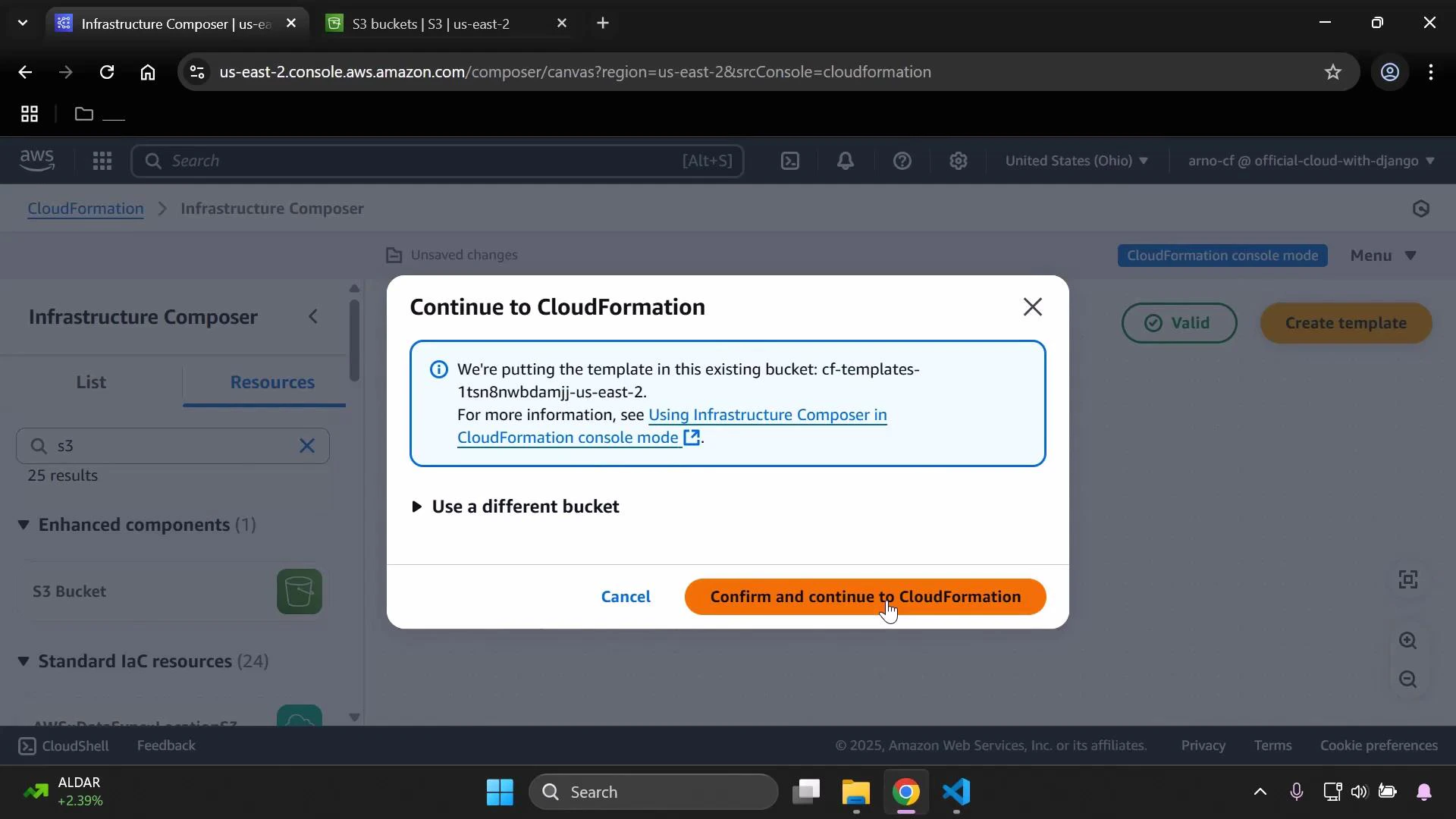
When you confirm the export, Infrastructure Composer stores the template in an S3 bucket. You can select an existing bucket or let Composer use the suggested bucket.
## 1. Add resources in Infrastructure Composer
When Infrastructure Composer launches, you’ll see the visual canvas. Use the search box to find the resource you want to add (for example, type “S3”), then drag an S3 bucket onto the canvas.
Select the resource to open the resource properties in the right-hand sidebar. There you can:
* Change the logical ID (for example, from the default “bucket” to `MyS3BucketSpecial`)
* Enable features like static website hosting
* Override the bucket name to supply a specific globally unique name
S3 bucket names must be unique across the entire AWS global namespace and must follow [S3 bucket naming rules](https://docs.aws.amazon.com/AmazonS3/latest/userguide/bucketnamingrules.html). If you supply a custom bucket name, ensure it’s globally unique.
In this demonstration a custom bucket name was used: `eden-kodekloud-vbnc-bkt`. Infrastructure Composer fills in reasonable defaults for security and encryption, such as blocking public access and enabling server-side encryption. You can preview and edit the generated template before exporting.
## 2. Example generated template (YAML)
Below is the CloudFormation YAML that Infrastructure Composer created for the S3 bucket and an attached bucket policy that denies non-HTTPS requests:
```yaml theme={null}
Resources:
MyS3BucketSpecial:
Type: AWS::S3::Bucket
Properties:
BucketName: eden-kodekloud-vbnc-bkt
BucketEncryption:
ServerSideEncryptionConfiguration:
- ServerSideEncryptionByDefault:
SSEAlgorithm: aws:kms
KMSMasterKeyId: alias/aws/s3
PublicAccessBlockConfiguration:
IgnorePublicAcls: true
RestrictPublicBuckets: true
MyS3BucketSpecialBucketPolicy:
Type: AWS::S3::BucketPolicy
Properties:
Bucket: !Ref MyS3BucketSpecial
PolicyDocument:
Version: "2012-10-17"
Id: RequireEncryptionInTransit
Statement:
- Sid: DenyUnencryptedTransport
Effect: Deny
Principal: "*"
Action: "s3:*"
Resource:
- !Sub "arn:aws:s3:::${MyS3BucketSpecial}"
- !Sub "arn:aws:s3:::${MyS3BucketSpecial}/*"
Condition:
Bool:
aws:SecureTransport: "false"
```
You can switch the template view to JSON if you prefer, run template validation, or make direct edits in the template editor. When satisfied, click **Create template** to export it to CloudFormation.
When you confirm the export, Infrastructure Composer stores the template in an S3 bucket. You can select an existing bucket or let Composer use the suggested bucket.
 ## 3. Create the CloudFormation stack
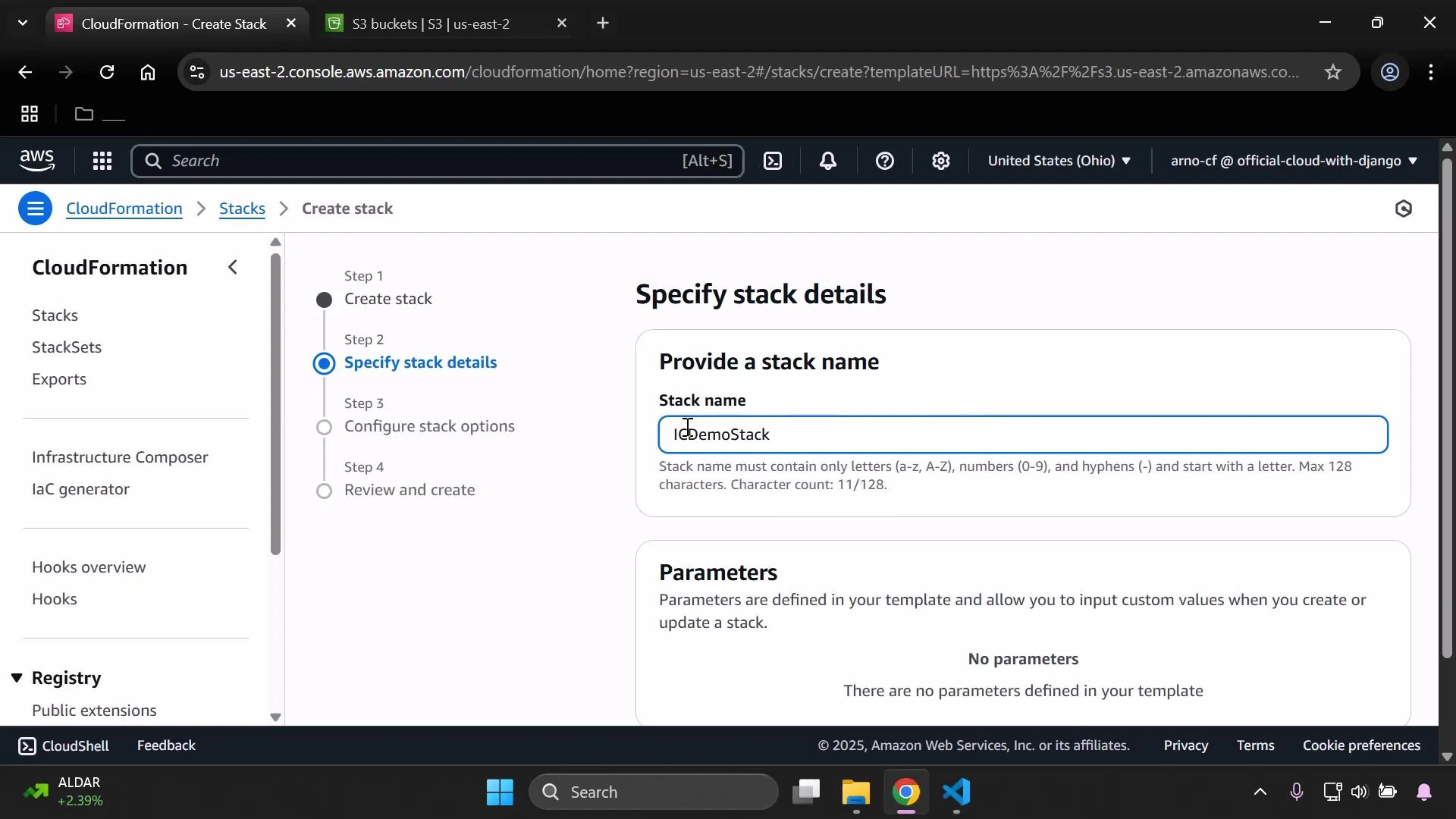
Provide a stack name (for example, `ICDemoStack`) and proceed through the CloudFormation create-stack workflow. Review parameters, options, tags, and IAM capabilities as you normally would.
## 3. Create the CloudFormation stack
Provide a stack name (for example, `ICDemoStack`) and proceed through the CloudFormation create-stack workflow. Review parameters, options, tags, and IAM capabilities as you normally would.
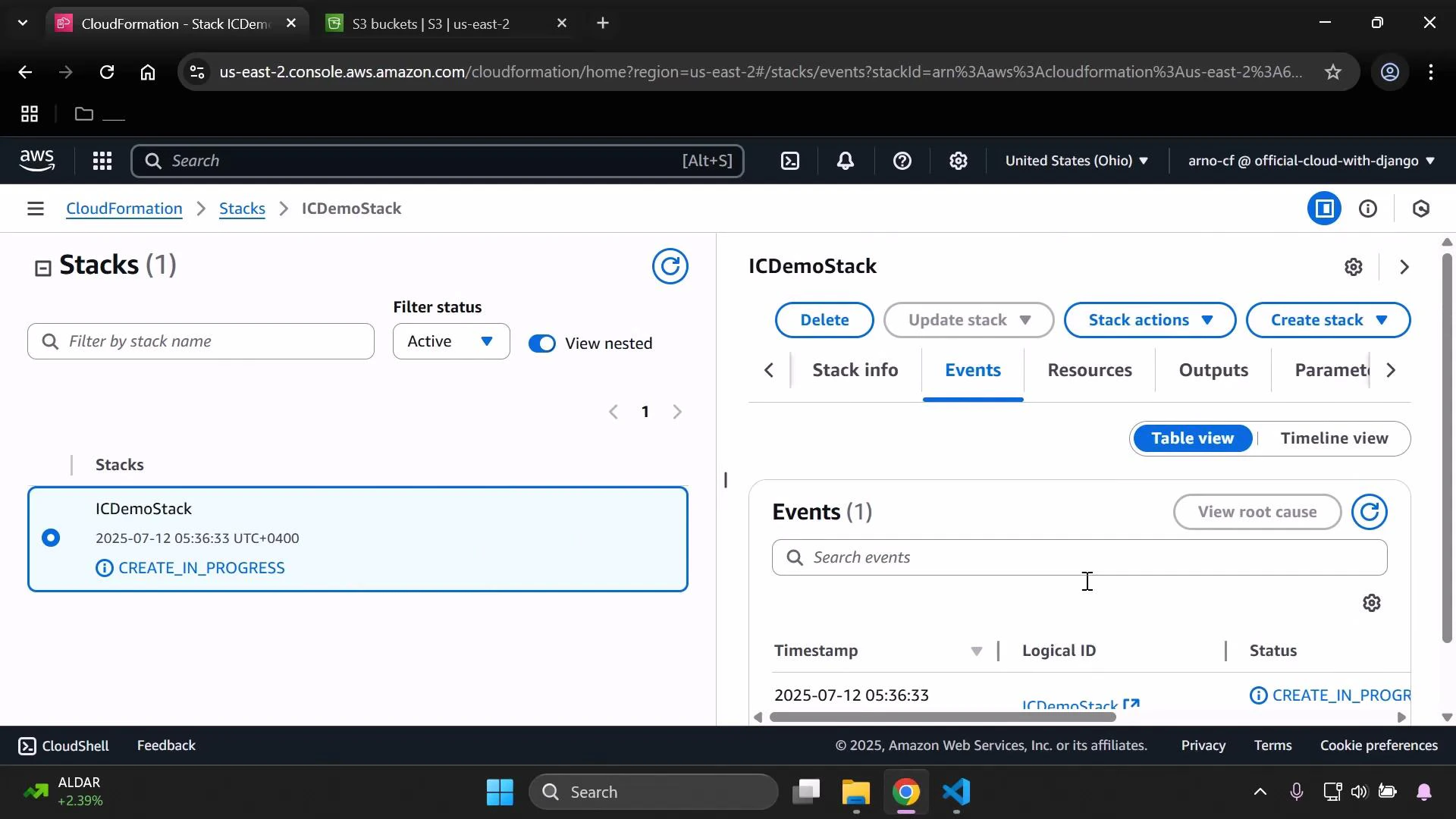
 Submit the stack and monitor progress on the CloudFormation console’s Events tab.
 ## 4. Confirm resource creation
After the stack completes, the S3 bucket is available in the S3 console. In the example shown, the bucket `eden-kodekloud-vbnc-bkt` is present and initially empty.
## 4. Confirm resource creation
After the stack completes, the S3 bucket is available in the S3 console. In the example shown, the bucket `eden-kodekloud-vbnc-bkt` is present and initially empty.
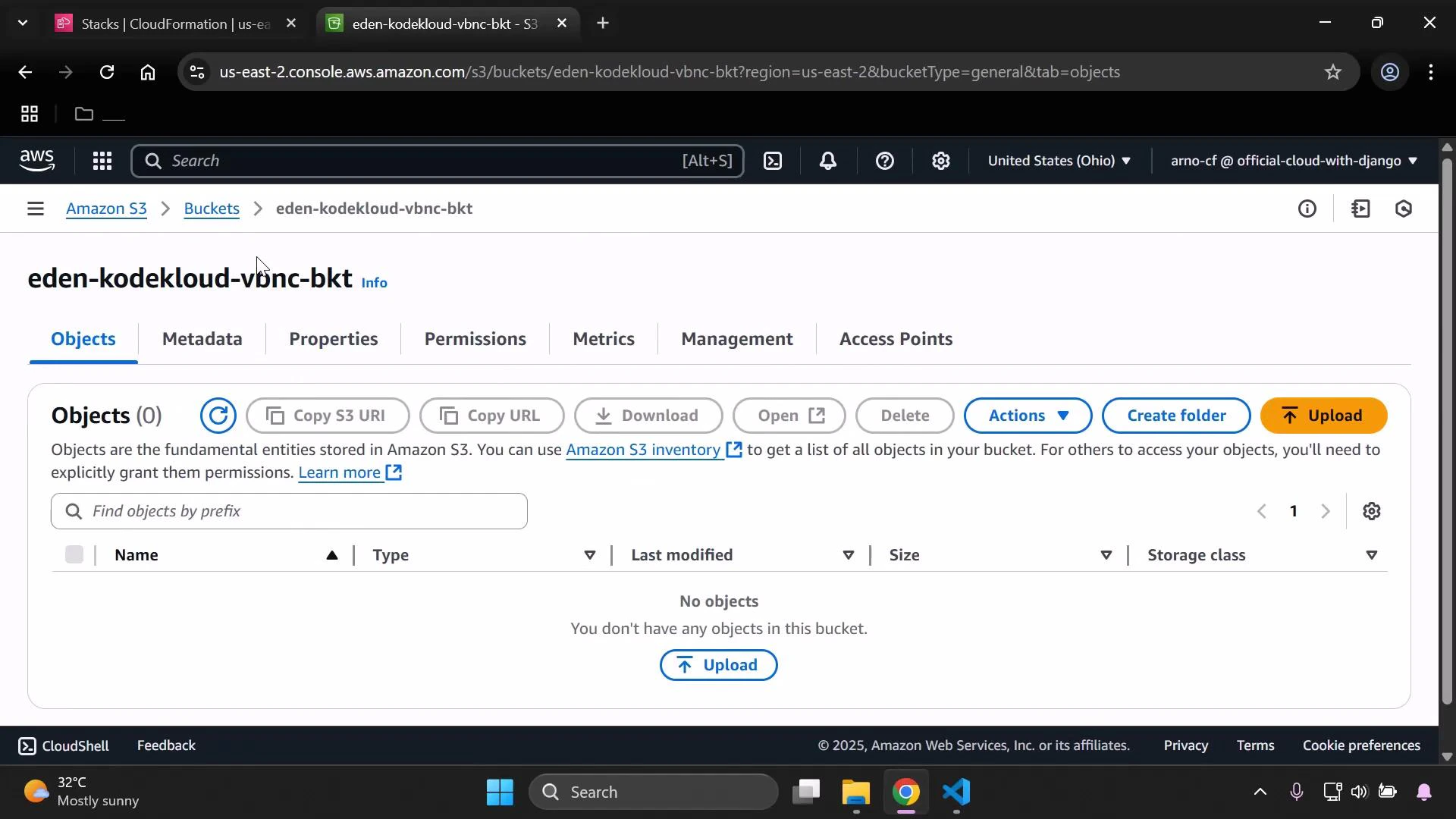 Because this bucket contains no objects, deleting the CloudFormation stack will remove the bucket cleanly. If the bucket contains objects, stack deletion can fail unless you handle object removal (see the warning below).
If an S3 bucket contains objects, CloudFormation stack deletion will fail for the bucket resource unless you explicitly handle object removal (for example with a Lambda-backed custom resource or an S3 lifecycle/configuration that empties the bucket). Always ensure you understand retention and deletion behavior before removing stacks that include S3 buckets.
## Resources created by this example
| Resource Type | Logical ID | Purpose |
| --------------------- | ----------------------------- | -------------------------------------------------------------------- |
| AWS::S3::Bucket | MyS3BucketSpecial | Stores objects; has server-side encryption and public access blocked |
| AWS::S3::BucketPolicy | MyS3BucketSpecialBucketPolicy | Denies unencrypted (non-HTTPS) requests to the bucket |
## Summary
Using Infrastructure Composer you can:
* Visually design resources and relationships
* Preview and edit the generated CloudFormation YAML/JSON
* Export the template to CloudFormation for deployment
* Monitor stack creation and validate resulting AWS resources
Links and references:
* [Infrastructure Composer — CloudFormation User Guide](https://docs.aws.amazon.com/AWSCloudFormation/latest/UserGuide/infrastructure-composer.html)
* [S3 bucket naming rules](https://docs.aws.amazon.com/AmazonS3/latest/userguide/bucketnamingrules.html)
* [AWS CloudFormation documentation](https://docs.aws.amazon.com/cloudformation/)
Because this bucket contains no objects, deleting the CloudFormation stack will remove the bucket cleanly. If the bucket contains objects, stack deletion can fail unless you handle object removal (see the warning below).
If an S3 bucket contains objects, CloudFormation stack deletion will fail for the bucket resource unless you explicitly handle object removal (for example with a Lambda-backed custom resource or an S3 lifecycle/configuration that empties the bucket). Always ensure you understand retention and deletion behavior before removing stacks that include S3 buckets.
## Resources created by this example
| Resource Type | Logical ID | Purpose |
| --------------------- | ----------------------------- | -------------------------------------------------------------------- |
| AWS::S3::Bucket | MyS3BucketSpecial | Stores objects; has server-side encryption and public access blocked |
| AWS::S3::BucketPolicy | MyS3BucketSpecialBucketPolicy | Denies unencrypted (non-HTTPS) requests to the bucket |
## Summary
Using Infrastructure Composer you can:
* Visually design resources and relationships
* Preview and edit the generated CloudFormation YAML/JSON
* Export the template to CloudFormation for deployment
* Monitor stack creation and validate resulting AWS resources
Links and references:
* [Infrastructure Composer — CloudFormation User Guide](https://docs.aws.amazon.com/AWSCloudFormation/latest/UserGuide/infrastructure-composer.html)
* [S3 bucket naming rules](https://docs.aws.amazon.com/AmazonS3/latest/userguide/bucketnamingrules.html)
* [AWS CloudFormation documentation](https://docs.aws.amazon.com/cloudformation/)