> ## Documentation Index
> Fetch the complete documentation index at: https://notes.kodekloud.com/llms.txt
> Use this file to discover all available pages before exploring further.
# Demo Accessing our mapped values
> Shows how to use CloudFormation Mappings and !FindInMap to retrieve values and apply them to resource tags using an S3 bucket example with deployment and verification steps
In this lesson we'll learn how to retrieve values from a CloudFormation Mappings block using the !FindInMap intrinsic function. Mappings are useful for storing static lookup data (for example, environment-specific settings or role-to-profession mappings) and then referencing those values elsewhere in your template.
Mappings example
```yaml theme={null}
Mappings:
DevMap:
Arno:
Field: Quality assurance
Alice:
Field: Backend developer
```
!FindInMap — the three parts
| Argument | Purpose | Example |
| ---------------- | -------------------------------------- | ------------- |
| Mapping name | The Mappings block name to search | DevMap |
| Top-level key | The first-level key inside the mapping | Arno or Alice |
| Second-level key | The nested key whose value you want | Field |
Using the mapping in a resource tag
Below is a simplified Resources snippet that adds tags to an S3 bucket. The Profession tag pulls its value from the mapping using !FindInMap.
```yaml theme={null}
Resources:
MyS3Bucket:
Type: AWS::S3::Bucket
Properties:
BucketName: !Ref InputBucketName
Tags:
- Key: Developer
Value: !Ref InputDeveloperName
- Key: Environment
Value: "Development"
- Key: Profession
Value: !FindInMap [DevMap, "Arno", "Field"]
Metadata:
Purpose: "Creating an s3 bucket"
Reviewed: "02-07-2025"
```
Notes on the example
* The !FindInMap invocation returns the value at Mappings → DevMap → Arno → Field, which is "Quality assurance".
* The Developer tag is populated from the InputDeveloperName parameter so the developer name appears in the S3 console; Profession is taken from the mapping instead of being hard-coded in the Tags list.
* You can make the top-level key dynamic (for example, by referencing a parameter instead of hard-coding "Arno") to select different mapped values at stack creation or update time.
Putting the top-level key in quotes (for example, "Arno") is optional in YAML, but quoting can prevent parsing ambiguity and improve readability.
Full compact template
The compact template below combines Mappings, Parameters, and the S3 resource shown above—use this as a minimal working example.
```yaml theme={null}
Mappings:
DevMap:
Arno:
Field: Quality assurance
Alice:
Field: Backend developer
Parameters:
InputBucketName:
Type: String
Description: Please enter your desired S3 bucket name
InputDeveloperName:
Type: String
Description: Please enter the developer name
Resources:
MyS3Bucket:
Type: AWS::S3::Bucket
Properties:
BucketName: !Ref InputBucketName
Tags:
- Key: Developer
Value: !Ref InputDeveloperName
- Key: Environment
Value: "Development"
- Key: Profession
Value: !FindInMap [DevMap, "Arno", "Field"]
Metadata:
Purpose: "Creating an s3 bucket"
Reviewed: "02-07-2025"
Owner: "John Doe"
```
Redeploying the template
To update a stack with this template:
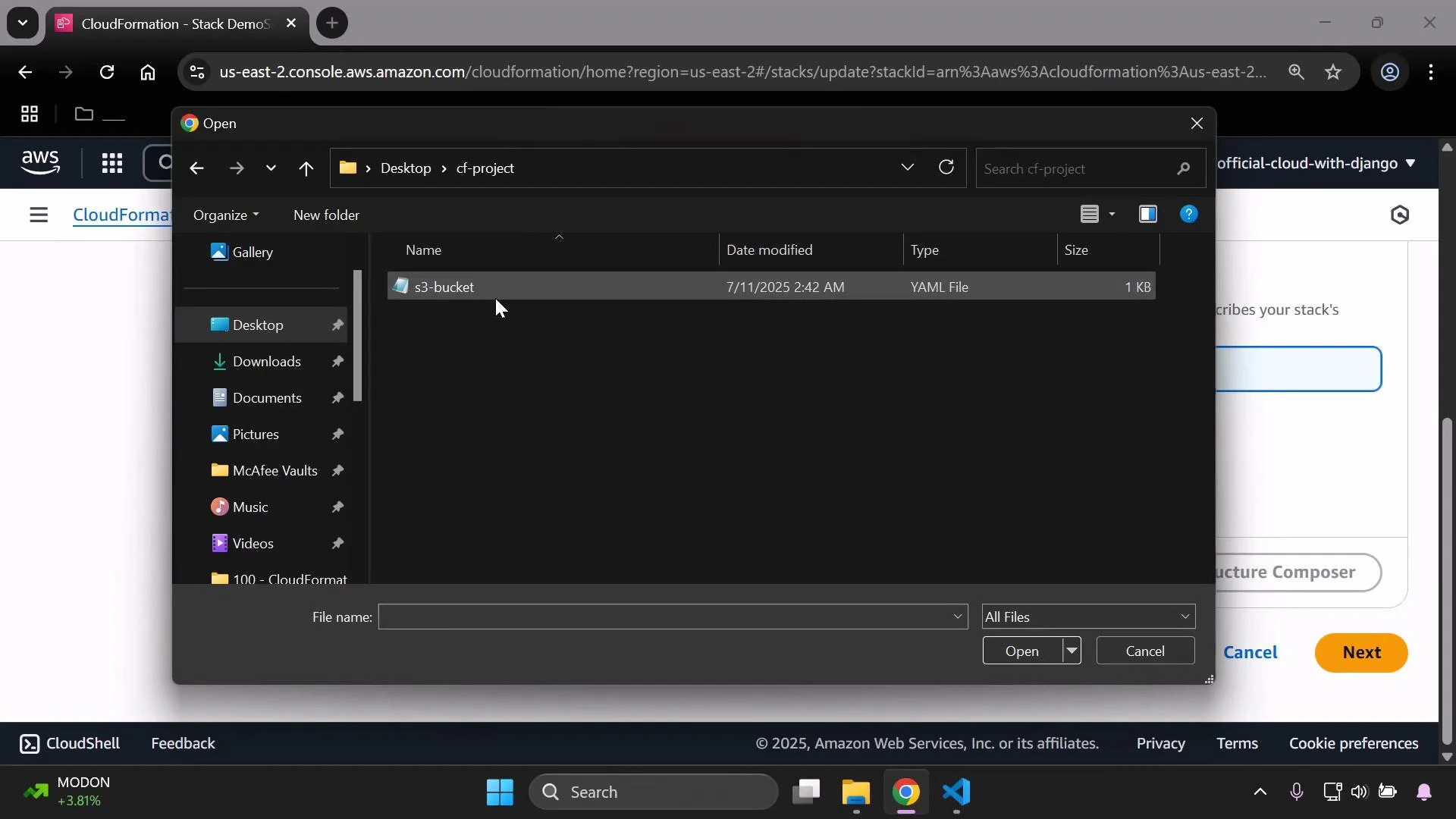
1. In the CloudFormation console choose Update stack → Replace current template → Upload a template file → Choose file.
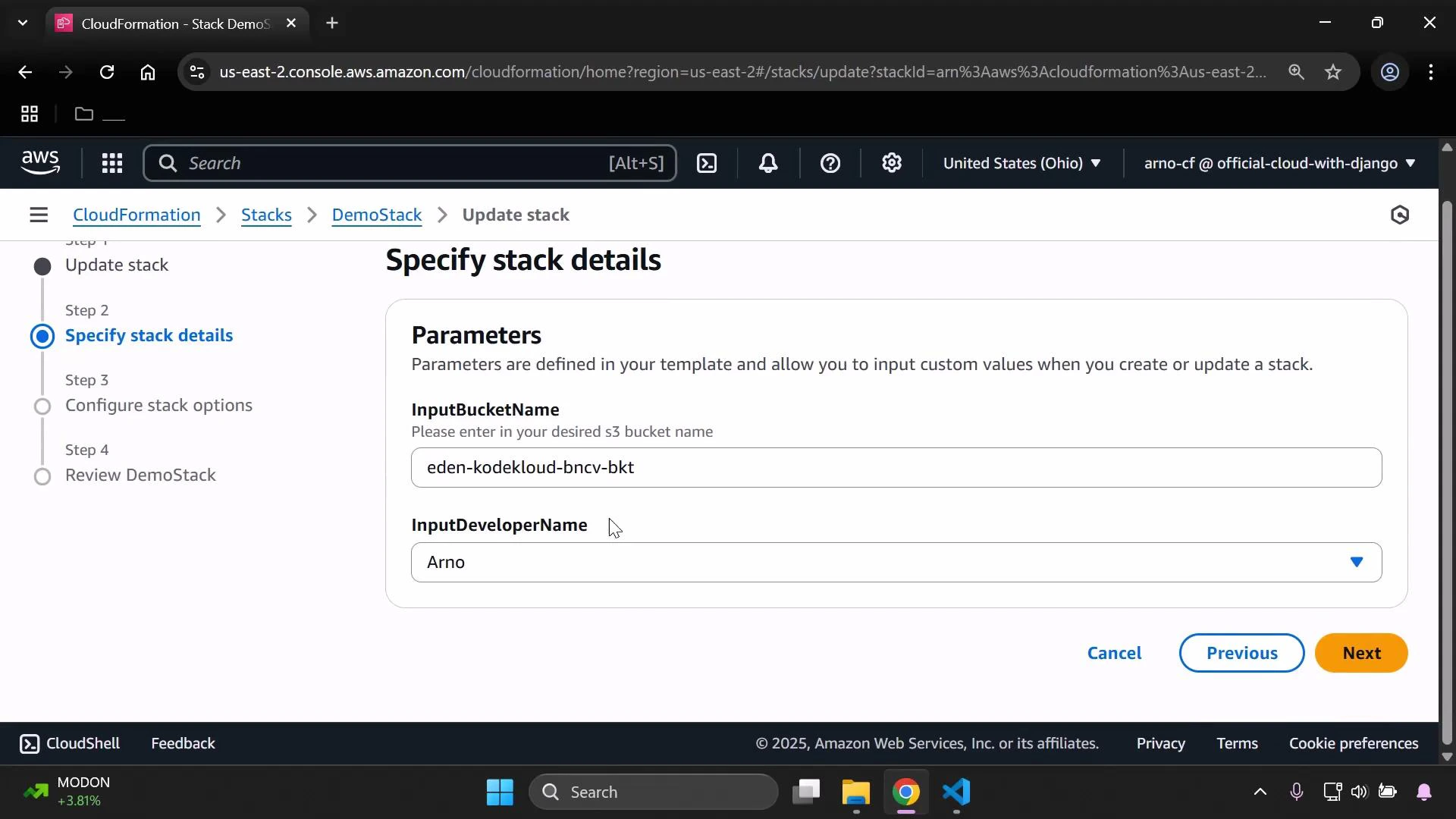
2. Proceed to the Specify stack details page and fill parameters such as InputBucketName and InputDeveloperName.
3. Complete the update and wait for the stack update to finish.
 On the Specify stack details page, set parameters such as InputBucketName and InputDeveloperName (for this demo we selected "Arno" for the developer).
 Verifying the mapped value
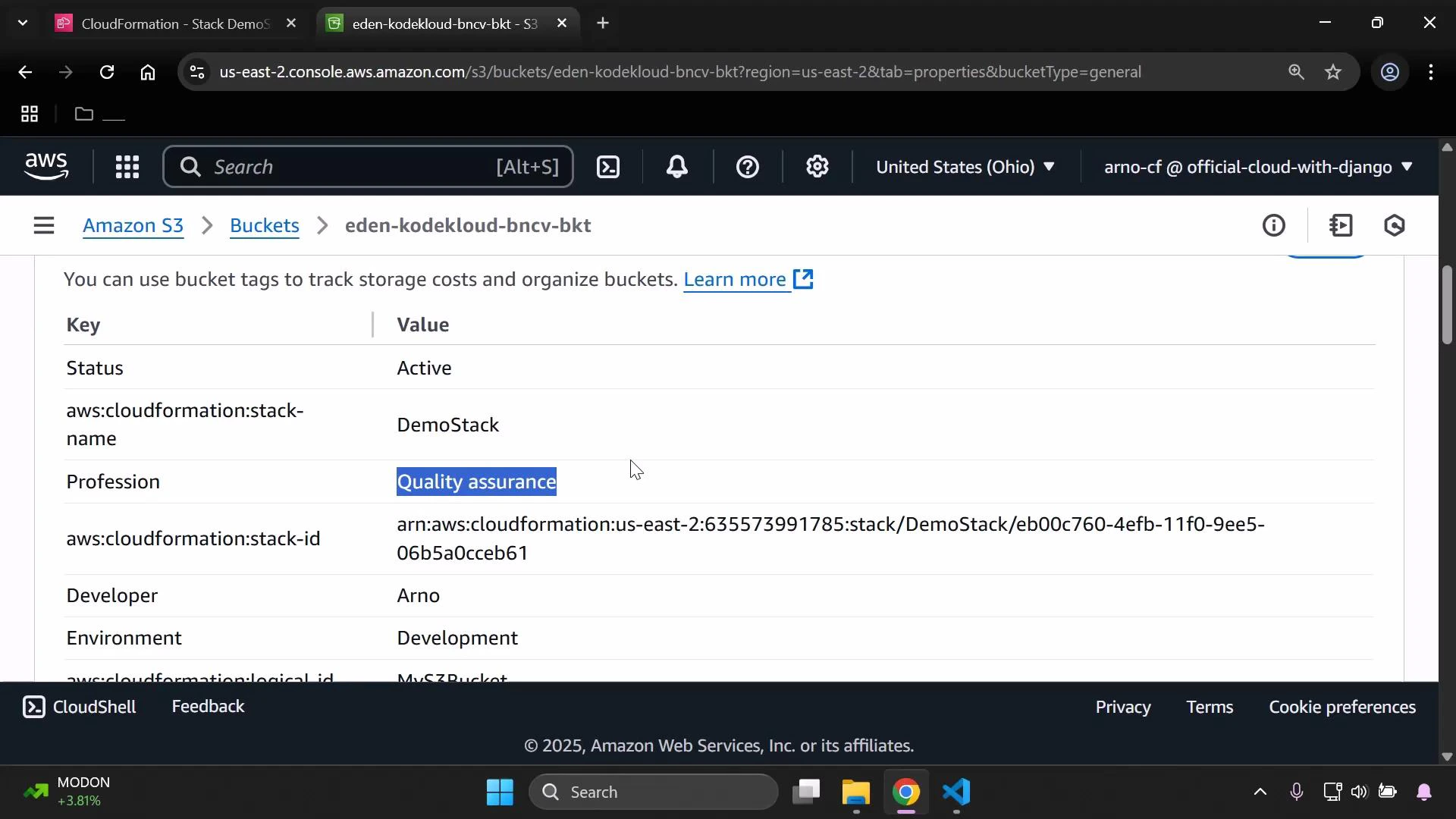
After the stack update completes, open the S3 bucket in the S3 console and navigate to Properties → Tags to confirm the mapping was applied. In this example:
* Developer tag shows the parameter value "Arno".
* Profession tag shows "Quality assurance" (the value resolved from DevMap → Arno → Field).
Verifying the mapped value
After the stack update completes, open the S3 bucket in the S3 console and navigate to Properties → Tags to confirm the mapping was applied. In this example:
* Developer tag shows the parameter value "Arno".
* Profession tag shows "Quality assurance" (the value resolved from DevMap → Arno → Field).
 Summary
* !FindInMap requires three arguments: mapping name, top-level key, and second-level key.
* Use Mappings to centralize static lookup data and avoid duplication across your template.
* Combine Parameters and Mappings to let users control keys (top-level lookup) while still resolving other values from a central mapping.
Links and references
* [CloudFormation Overview](https://docs.aws.amazon.com/AWSCloudFormation/latest/UserGuide/Welcome.html)
* [Intrinsic function: !FindInMap](https://docs.aws.amazon.com/AWSCloudFormation/latest/UserGuide/intrinsic-function-reference-findinmap.html)
* [Mappings section structure](https://docs.aws.amazon.com/AWSCloudFormation/latest/UserGuide/mappings-section-structure.html)
* [Update a stack (CloudFormation)](https://docs.aws.amazon.com/AWSCloudFormation/latest/UserGuide/using-cfn-updating-stacks.html)
* [Amazon S3 Documentation](https://docs.aws.amazon.com/AmazonS3/latest/userguide/Welcome.html)
Summary
* !FindInMap requires three arguments: mapping name, top-level key, and second-level key.
* Use Mappings to centralize static lookup data and avoid duplication across your template.
* Combine Parameters and Mappings to let users control keys (top-level lookup) while still resolving other values from a central mapping.
Links and references
* [CloudFormation Overview](https://docs.aws.amazon.com/AWSCloudFormation/latest/UserGuide/Welcome.html)
* [Intrinsic function: !FindInMap](https://docs.aws.amazon.com/AWSCloudFormation/latest/UserGuide/intrinsic-function-reference-findinmap.html)
* [Mappings section structure](https://docs.aws.amazon.com/AWSCloudFormation/latest/UserGuide/mappings-section-structure.html)
* [Update a stack (CloudFormation)](https://docs.aws.amazon.com/AWSCloudFormation/latest/UserGuide/using-cfn-updating-stacks.html)
* [Amazon S3 Documentation](https://docs.aws.amazon.com/AmazonS3/latest/userguide/Welcome.html)