> ## Documentation Index
> Fetch the complete documentation index at: https://notes.kodekloud.com/llms.txt
> Use this file to discover all available pages before exploring further.
# Demo Adding Tags in the template resource
> Describes using Metadata and Tags in AWS CloudFormation templates, showing examples, placement, updates, and verification.
Metadata and tags serve different purposes in AWS CloudFormation templates:
* Metadata is free-form, machine-readable information you can attach to a template or a resource for documentation, tooling, or processing.
* Tags are key/value labels attached to supported resources at provisioning time to help with organization, automation, cost allocation, and policy enforcement.
This page shows concise examples of both approaches, explains where to place each in a YAML template, and walks through updating a stack so tags appear on the created resources.
## Resource-level Metadata example
Place `Metadata` under a specific resource to annotate that resource only:
```yaml theme={null}
Resources:
MyS3Bucket:
Type: AWS::S3::Bucket
Properties:
BucketName: eden-kodekloud-xcvt-bkt
Metadata:
Purpose: "Creating an s3 bucket"
Reviewed: "02-07-2025"
```
## Template-level Metadata example
For template-wide annotations, use the top-level `Metadata` section (not nested under `Resources`):
```yaml theme={null}
Resources:
MyS3Bucket:
Type: AWS::S3::Bucket
Properties:
BucketName: eden-kodekloud-xcvt-bkt
Metadata:
Purpose: "Creating an s3 bucket"
Reviewed: "02-07-2025"
Owner: "John Doe"
Contact: "johndoe@mail.com"
```
## Adding Tags to a resource
Tags must be declared under a resource's `Properties` as a YAML list of `Key`/`Value` pairs. Make sure `Tags` aligns with other properties.
Example — S3 bucket with tags:
```yaml theme={null}
Resources:
MyS3Bucket:
Type: AWS::S3::Bucket
Properties:
BucketName: eden-kodekloud-xcvt-bkt
Tags:
- Key: Developer
Value: "Arno Pretorius"
- Key: Environment
Value: "Development"
```
Best practices and notes:
* Use `Key` and `Value` with the exact casing (`Key:` and `Value:`) as shown.
* You can include intrinsic functions (e.g., `!Ref`, `!Sub`) inside tag values for dynamic content.
* Save your template file before uploading it in the CloudFormation console or using the CLI.
## Quick comparison: Metadata vs Tags
| Feature | Metadata | Tags |
| ----------------------------------- | ---------------------------------------------------- | -------------------------------------------------------------------------- |
| Purpose | Documentation, tooling, machine-readable annotations | Resource classification, cost allocation, policy enforcement |
| Placement | Resource-level or top-level `Metadata` | Under `Properties` as `Tags` list |
| Visible in service consoles | No (template-only unless used by tooling) | Yes — visible in resource consoles (S3, EC2, etc.) |
| Supports CloudFormation propagation | No | Yes — CloudFormation adds tags during provisioning for supported resources |
## Update a stack to apply template changes (CloudFormation console)
1. In the AWS CloudFormation console, choose the stack you want to update and select **Update**.
2. Choose **Replace current template** → **Upload a template file**, then select your saved YAML file and continue through the wizard.
3. In the **Configure stack options** step you can add or edit tags directly in the console before submitting the update.
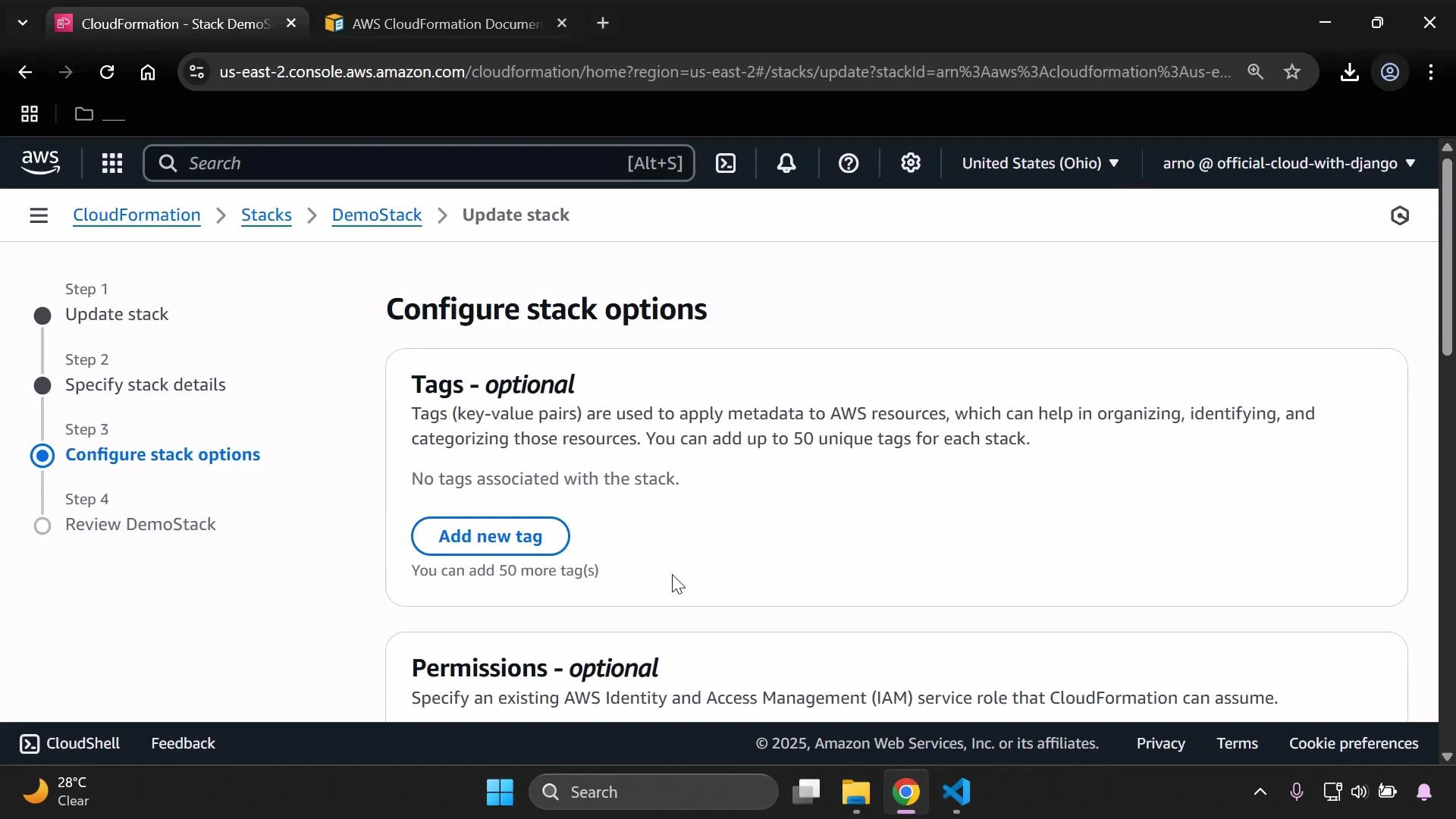 After submitting the update, CloudFormation will apply the changes. Monitor stack events and status in the console until the update completes.
## Verify tags on the S3 bucket
1. Open the Amazon S3 console and locate the bucket created by the stack (example: `eden-kodekloud-xcvt-bkt`).
2. Open the bucket and view the **Tags** section in the Properties tab to confirm tags defined in the template are present.
After submitting the update, CloudFormation will apply the changes. Monitor stack events and status in the console until the update completes.
## Verify tags on the S3 bucket
1. Open the Amazon S3 console and locate the bucket created by the stack (example: `eden-kodekloud-xcvt-bkt`).
2. Open the bucket and view the **Tags** section in the Properties tab to confirm tags defined in the template are present.
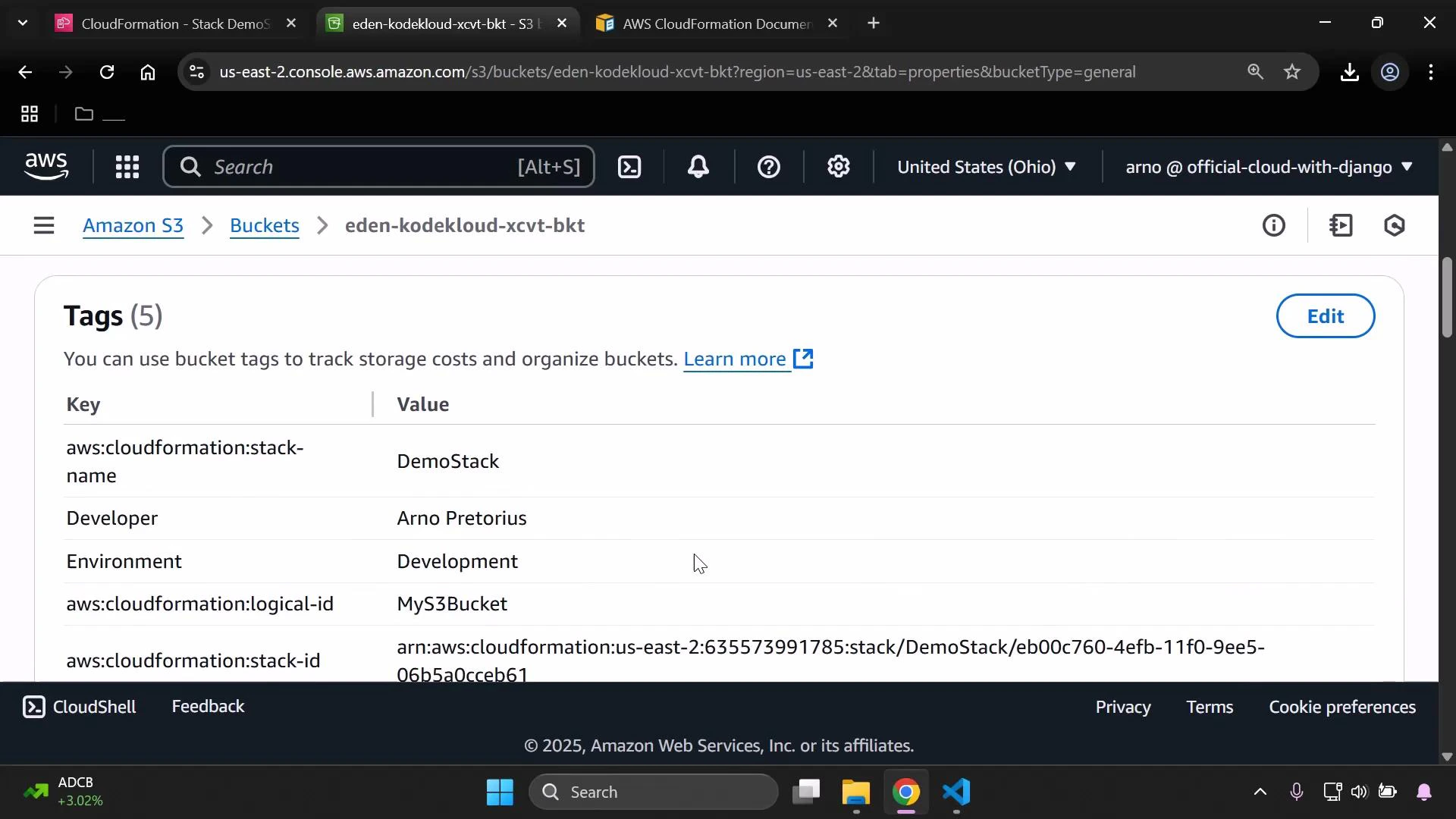 You might also see additional CloudFormation-generated tags such as:
* `aws:cloudformation:stack-name`
* `aws:cloudformation:logical-id`
* `aws:cloudformation:stack-id`
CloudFormation automatically attaches stack-identifying tags (such as aws:cloudformation:stack-name, aws:cloudformation:logical-id, and aws:cloudformation:stack-id) to supported resources when the stack is created or updated. This is expected behavior and helps with resource tracking and cost allocation.
## Practical tips
* If you want consistent tags across all resources in a stack, consider adding tags in the CloudFormation console during stack creation/update or use a stack-level tagging strategy supported by some resource types.
* To programmatically validate tags after deployment, use the AWS CLI or SDKs (for example, `aws s3api get-bucket-tagging` for S3).
* Remember that some services may not support tag propagation from CloudFormation; check the resource documentation.
## Summary
* Use `Metadata` for descriptive, template- or resource-level machine-readable notes.
* Use `Tags` under `Properties` to label resources for organization, automation, and cost allocation.
* Save and upload your template when updating a stack and verify tags in the target service console after the update completes.
## Links and references
* [AWS CloudFormation documentation — Template anatomy](https://docs.aws.amazon.com/AWSCloudFormation/latest/UserGuide/template-anatomy.html)
* [AWS CloudFormation documentation — Resource metadata](https://docs.aws.amazon.com/AWSCloudFormation/latest/UserGuide/aws-attribute-metadata.html)
* [Tagging best practices (AWS)](https://docs.aws.amazon.com/whitepapers/latest/tagging-best-practices/tagging-best-practices.html)
You might also see additional CloudFormation-generated tags such as:
* `aws:cloudformation:stack-name`
* `aws:cloudformation:logical-id`
* `aws:cloudformation:stack-id`
CloudFormation automatically attaches stack-identifying tags (such as aws:cloudformation:stack-name, aws:cloudformation:logical-id, and aws:cloudformation:stack-id) to supported resources when the stack is created or updated. This is expected behavior and helps with resource tracking and cost allocation.
## Practical tips
* If you want consistent tags across all resources in a stack, consider adding tags in the CloudFormation console during stack creation/update or use a stack-level tagging strategy supported by some resource types.
* To programmatically validate tags after deployment, use the AWS CLI or SDKs (for example, `aws s3api get-bucket-tagging` for S3).
* Remember that some services may not support tag propagation from CloudFormation; check the resource documentation.
## Summary
* Use `Metadata` for descriptive, template- or resource-level machine-readable notes.
* Use `Tags` under `Properties` to label resources for organization, automation, and cost allocation.
* Save and upload your template when updating a stack and verify tags in the target service console after the update completes.
## Links and references
* [AWS CloudFormation documentation — Template anatomy](https://docs.aws.amazon.com/AWSCloudFormation/latest/UserGuide/template-anatomy.html)
* [AWS CloudFormation documentation — Resource metadata](https://docs.aws.amazon.com/AWSCloudFormation/latest/UserGuide/aws-attribute-metadata.html)
* [Tagging best practices (AWS)](https://docs.aws.amazon.com/whitepapers/latest/tagging-best-practices/tagging-best-practices.html)