> ## Documentation Index
> Fetch the complete documentation index at: https://notes.kodekloud.com/llms.txt
> Use this file to discover all available pages before exploring further.
# Demo Tagging resources in the AWS Management Console
> Demonstrates adding tags to an AWS CloudFormation stack in the Management Console and verifying tag propagation to supported resources like S3 for cost allocation and environment identification
In this lesson we'll demonstrate how to add tags to an AWS CloudFormation stack using the AWS Management Console, and how those stack-level tags are propagated to supported underlying resources (for example, an S3 bucket created by the stack). Tagging stacks centrally is useful for cost allocation, environment identification, and lifecycle management.
## Quick step-by-step summary
1. Open the CloudFormation console and choose the stack you want to update.
2. Choose Update stack → Use current template → Next.
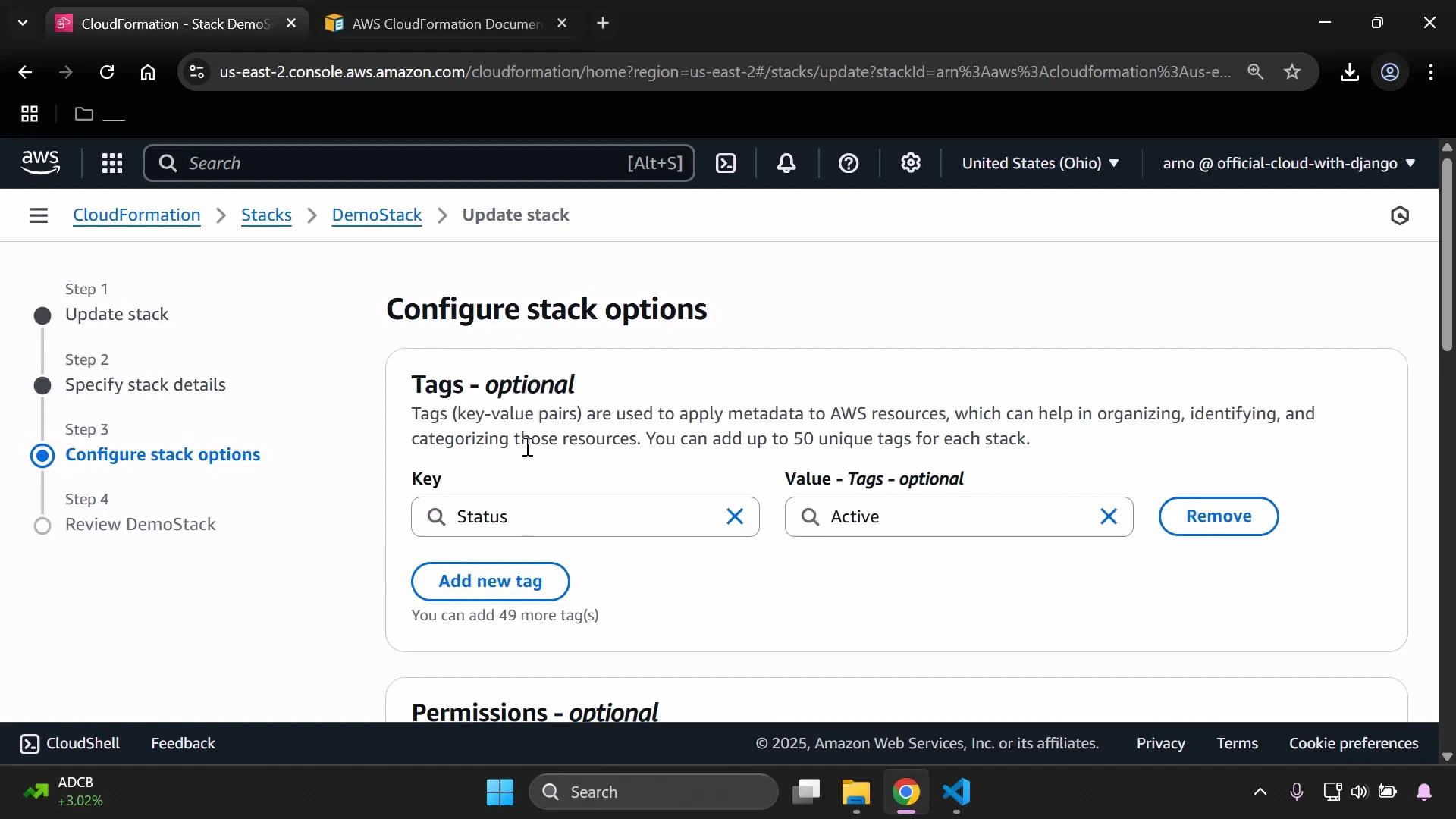
3. On the Configure stack options page, add the tag you want (for example: Key = Status, Value = Active).
4. Continue through the wizard and submit the update.
5. Wait for the update to complete, then verify the tag on the stack and on any supported resources.
| Step | Console location | Action |
| ---- | --------------------------------- | ------------------------------------------------- |
| 1 | CloudFormation → Stacks | Select the stack to update |
| 2 | Update stack | Choose "Use current template" and proceed |
| 3 | Configure stack options | Add tag(s) under Tags (e.g., Status = Active) |
| 4 | Review & update | Submit the change |
| 5 | Stack details & resource consoles | Confirm tags on stack and on resources (S3, etc.) |
How it works: when you add a tag at the stack level through the console, CloudFormation attaches that tag to the stack and attempts to propagate it to the resources created by that stack — but only for resource types that natively support tags (S3, EC2, RDS, etc.).
Below is the Configure stack options page showing the Status: Active tag being added.
 After you submit the update, wait for the CloudFormation update to finish. Then open the stack's details page and inspect the Tags section to confirm the new tag appears at the stack level.
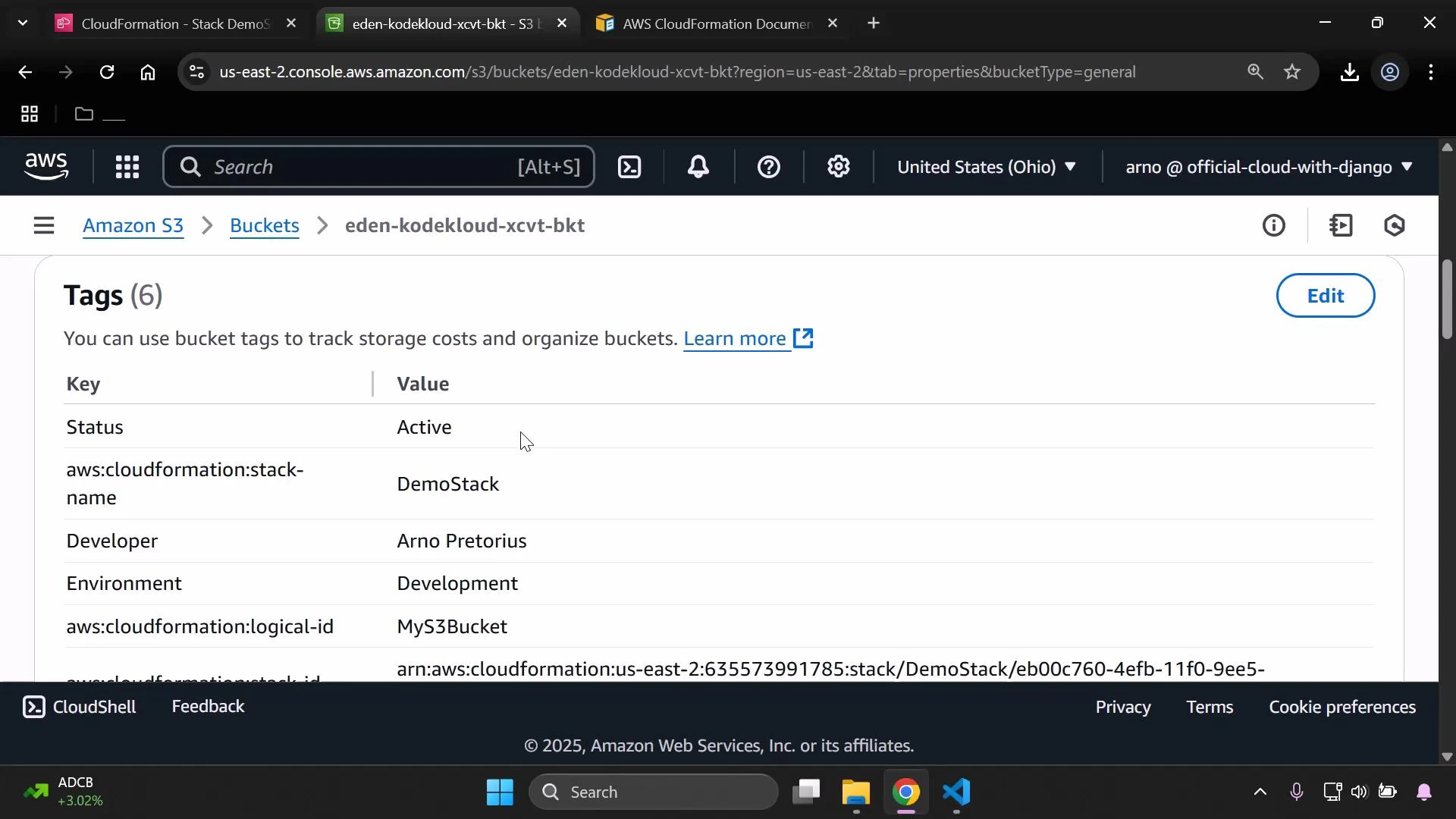
Next, navigate to the resource created by the stack (S3 in this example) and verify that the tag was propagated. In the S3 console, open the bucket created by the stack and check the Properties or Tags tab. You should see the Status: Active tag alongside CloudFormation-generated tags such as aws:cloudformation:stack-name and aws:cloudformation:logical-id.
After you submit the update, wait for the CloudFormation update to finish. Then open the stack's details page and inspect the Tags section to confirm the new tag appears at the stack level.
Next, navigate to the resource created by the stack (S3 in this example) and verify that the tag was propagated. In the S3 console, open the bucket created by the stack and check the Properties or Tags tab. You should see the Status: Active tag alongside CloudFormation-generated tags such as aws:cloudformation:stack-name and aws:cloudformation:logical-id.
 Common tag values you might use include:
* Active, Deprecated (lifecycle status)
* Development, Staging, Production (environment)
* CostCenter or Owner (billing and ownership)
When you add tags through the CloudFormation console, those tags are associated with the stack. CloudFormation will propagate them to resources created by the stack only if the resource type supports tagging (S3 and many other AWS services do). Resources that do not support tags will not receive the stack tags. For authoritative details on supported resources, see the AWS CloudFormation documentation.
## Verification checklist
* [ ] Stack Updates: Confirm the stack update completed successfully in CloudFormation.
* [ ] Stack Tags: Open the stack's Tags section and verify the new tag(s).
* [ ] Resource Tags: Open each resource created by the stack (S3 bucket, EC2 instances, RDS, etc.) and confirm tags were propagated where supported.
* [ ] Billing & Reporting: Ensure your cost allocation/reporting tools can read the tag keys you added (keys are case-sensitive).
## Links and references
* [AWS CloudFormation — Working with stacks and stack updates](https://docs.aws.amazon.com/AWSCloudFormation/latest/UserGuide/using-cfn-updating-stacks.html)
* [AWS Tagging Best Practices](https://aws.amazon.com/answers/account-management/aws-tagging-strategies/)
* [Amazon S3 — Using tags to manage access and billing](https://docs.aws.amazon.com/AmazonS3/latest/userguide/object-tagging.html)
That covers how to add and verify CloudFormation stack tags using the AWS Management Console, and how stack-level tags can appear on resources created by that stack.
Common tag values you might use include:
* Active, Deprecated (lifecycle status)
* Development, Staging, Production (environment)
* CostCenter or Owner (billing and ownership)
When you add tags through the CloudFormation console, those tags are associated with the stack. CloudFormation will propagate them to resources created by the stack only if the resource type supports tagging (S3 and many other AWS services do). Resources that do not support tags will not receive the stack tags. For authoritative details on supported resources, see the AWS CloudFormation documentation.
## Verification checklist
* [ ] Stack Updates: Confirm the stack update completed successfully in CloudFormation.
* [ ] Stack Tags: Open the stack's Tags section and verify the new tag(s).
* [ ] Resource Tags: Open each resource created by the stack (S3 bucket, EC2 instances, RDS, etc.) and confirm tags were propagated where supported.
* [ ] Billing & Reporting: Ensure your cost allocation/reporting tools can read the tag keys you added (keys are case-sensitive).
## Links and references
* [AWS CloudFormation — Working with stacks and stack updates](https://docs.aws.amazon.com/AWSCloudFormation/latest/UserGuide/using-cfn-updating-stacks.html)
* [AWS Tagging Best Practices](https://aws.amazon.com/answers/account-management/aws-tagging-strategies/)
* [Amazon S3 — Using tags to manage access and billing](https://docs.aws.amazon.com/AmazonS3/latest/userguide/object-tagging.html)
That covers how to add and verify CloudFormation stack tags using the AWS Management Console, and how stack-level tags can appear on resources created by that stack.