> ## Documentation Index
> Fetch the complete documentation index at: https://notes.kodekloud.com/llms.txt
> Use this file to discover all available pages before exploring further.
# Demo Updating nested stacks
> How to update nested AWS CloudFormation stacks by modifying nested EC2 and S3 templates, uploading them to the same S3 keys, and updating the parent stack to apply changes
This lesson shows how to update a nested AWS CloudFormation stack by modifying the nested templates (EC2 and S3), uploading them to the same S3 location the parent stack references, and then updating the parent stack so CloudFormation re-evaluates the nested TemplateURLs and applies the changes.
Goal
* Change EC2 instance type from `t3.micro` to `t3.small`.
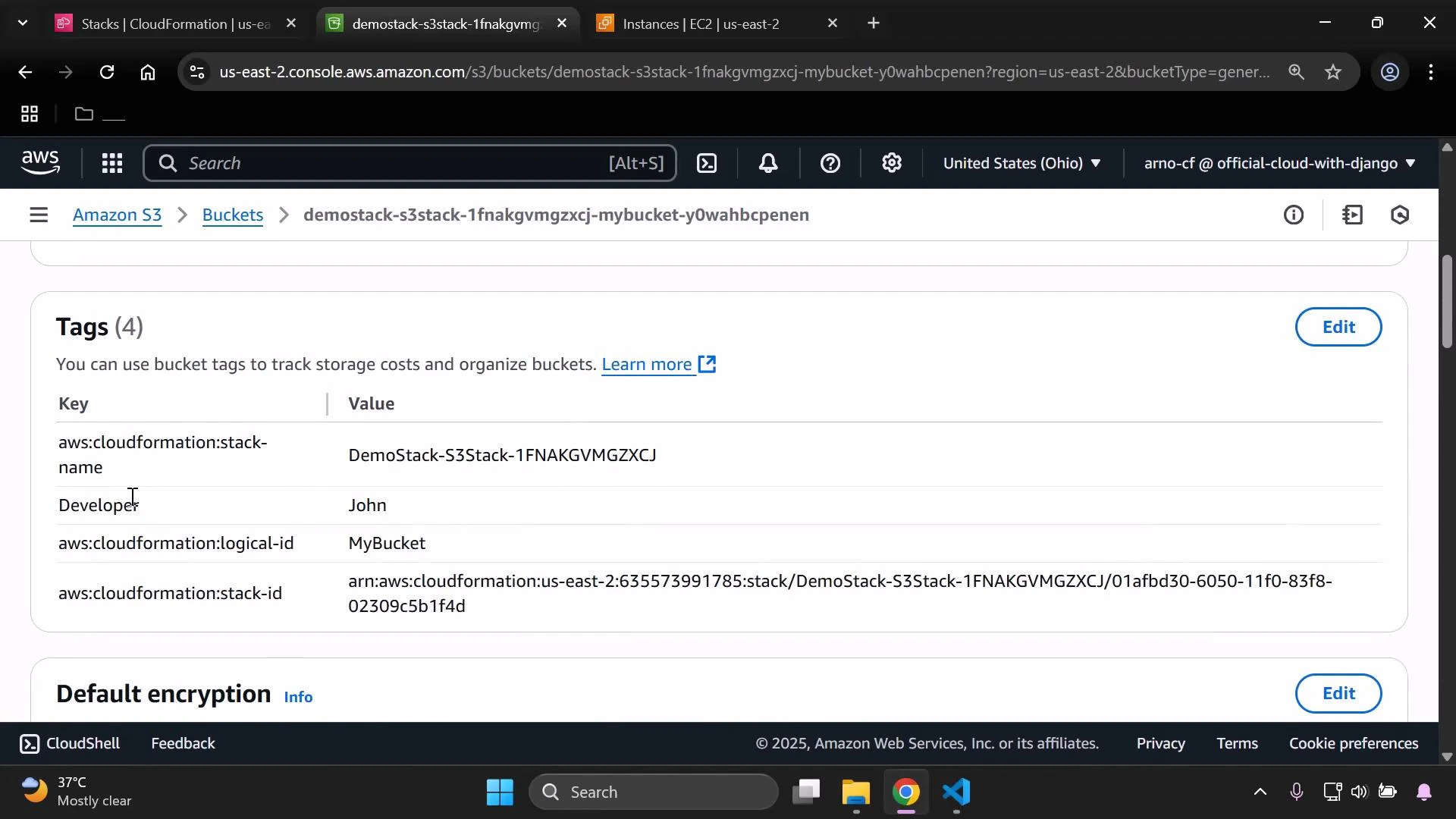
* Add a `Developer: John` tag to the S3 bucket created by the nested S3 stack.
Why this matters
* Updating an instance type may stop or replace the instance (possible downtime).
* Updating nested templates requires the parent stack to reference the same S3 object keys (TemplateURL) so CloudFormation picks up the changes.
Resources changed (summary)
| Resource Type | Change | Template file |
| ------------- | ------------------------------------------------ | ---------------------------------------------------------------- |
| EC2 Instance | `InstanceType: t3.micro` → `t3.small` | `simple-ec2.yaml` |
| S3 Bucket | Add tag `Developer: John` | `simple-s3.yaml` |
| Parent stack | Re-run update so nested TemplateURLs are re-read | Parent template (no change required unless you change filenames) |
Files to edit
* simple-ec2.yaml (nested EC2 stack)
* simple-s3.yaml (nested S3 stack)
Edit the nested templates locally, then upload them to the templates bucket the parent stack expects. Do not change the object key (filename) unless you also update the TemplateURL in the parent template.
EC2 nested template — initial (before change)
```yaml theme={null}
Resources:
MyInstance:
Type: AWS::EC2::Instance
Properties:
InstanceType: t3.micro
ImageId: ami-0eb9d6fc9fab44d24
```
EC2 nested template — updated (after change)
```yaml theme={null}
Resources:
MyInstance:
Type: AWS::EC2::Instance
Properties:
InstanceType: t3.small
ImageId: ami-0eb9d6fc9fab44d24
```
Updating the InstanceType of an AWS::EC2::Instance can cause the instance to be stopped or replaced, which may result in downtime or a new instance ID. Plan for possible interruption when applying this change via CloudFormation.
S3 nested template — initial (before change)
```yaml theme={null}
Resources:
MyBucket:
Type: AWS::S3::Bucket
```
S3 nested template — updated (after change)
```yaml theme={null}
Resources:
MyBucket:
Type: AWS::S3::Bucket
Properties:
Tags:
- Key: Developer
Value: John
```
Upload updated templates
1. Save the modified templates locally.
2. Upload `simple-ec2.yaml` and `simple-s3.yaml` to the S3 bucket your parent stack expects (same object keys).
* If you change the filename/object key, you must update the parent template's `TemplateURL` to the new S3 URL.
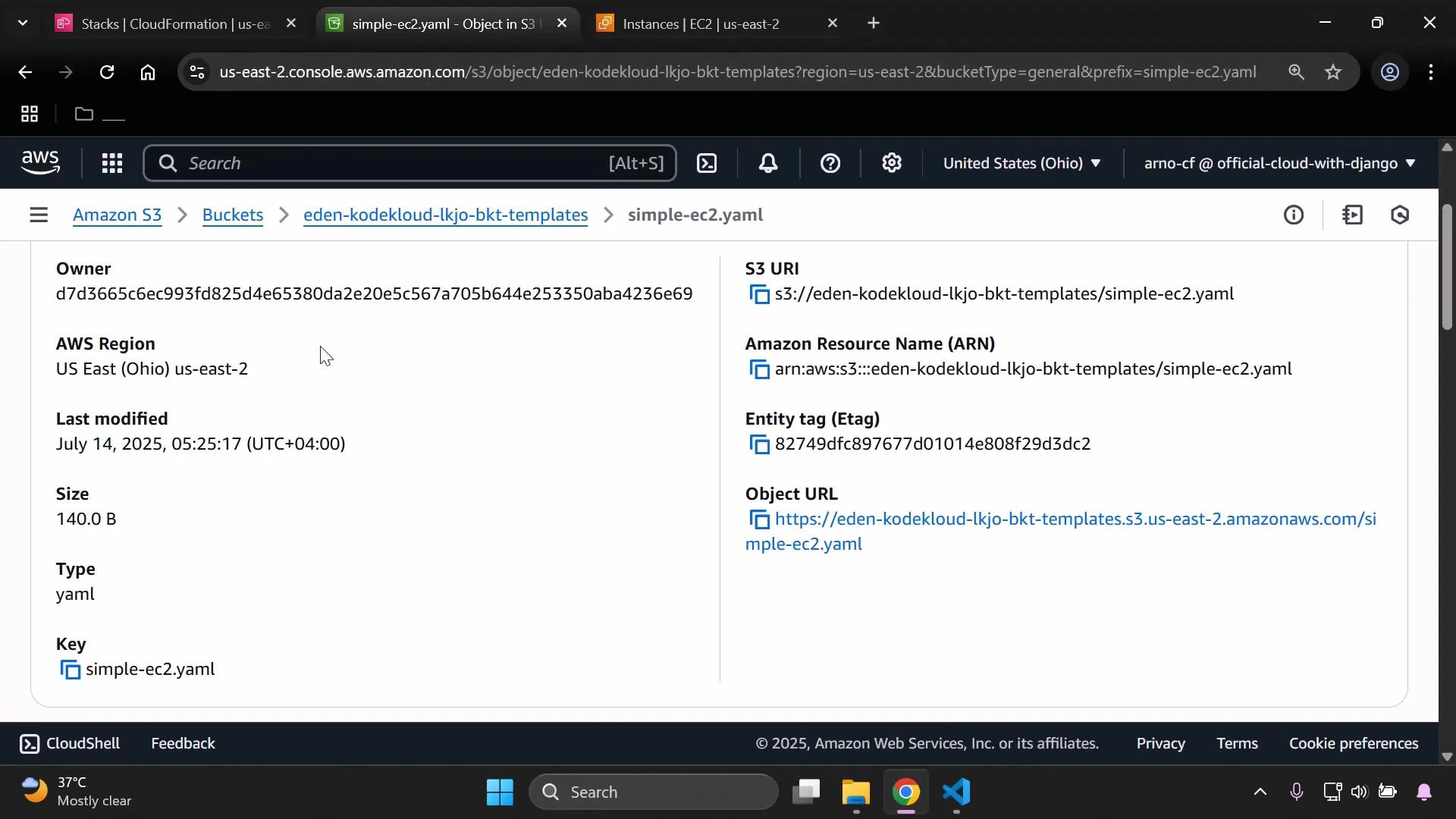
3. Confirm the object details after upload (ETag, size, last modified, S3 URI) to ensure the correct files were replaced.
 Update the parent CloudFormation stack
* In the CloudFormation console select the parent (Demo) stack.
* Choose Update stack → Use current template (unless you intentionally changed the parent template).
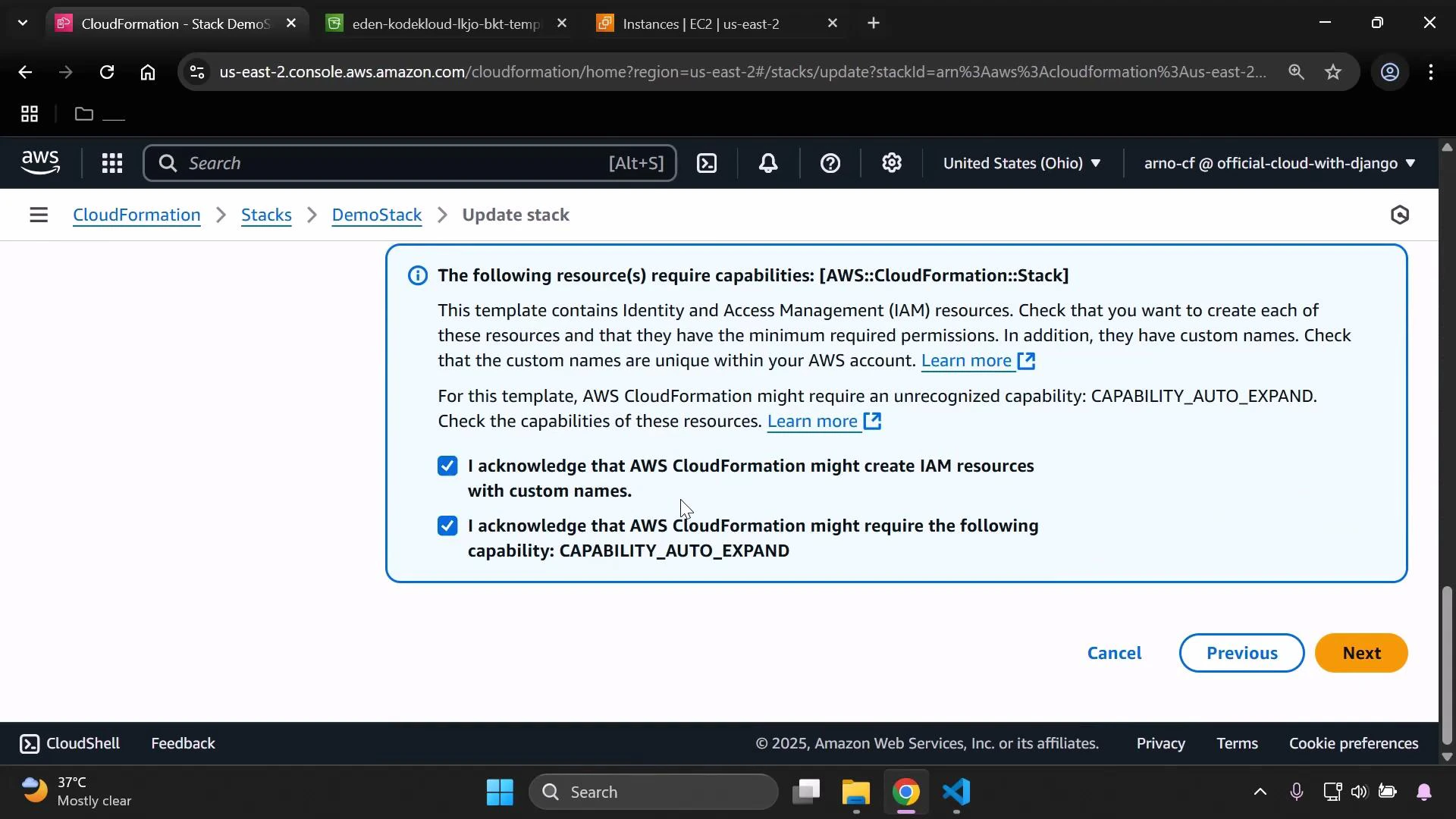
* Follow the wizard and acknowledge any required capabilities (for example, IAM or CAPABILITY\_AUTO\_EXPAND) before you submit the update.
Update the parent CloudFormation stack
* In the CloudFormation console select the parent (Demo) stack.
* Choose Update stack → Use current template (unless you intentionally changed the parent template).
* Follow the wizard and acknowledge any required capabilities (for example, IAM or CAPABILITY\_AUTO\_EXPAND) before you submit the update.
 Parent template — nested stack references (ensure TemplateURL points to uploaded objects)
```yaml theme={null}
Resources:
S3Stack:
Type: AWS::CloudFormation::Stack
Properties:
TemplateURL: https://eden-kodekloud-lkjo-bkt-templates.s3.us-east-2.amazonaws.com/simple-s3.yaml
EC2Stack:
Type: AWS::CloudFormation::Stack
Properties:
TemplateURL: https://eden-kodekloud-lkjo-bkt-templates.s3.us-east-2.amazonaws.com/simple-ec2.yaml
```
Submit the update
* When you submit the parent stack update, CloudFormation creates a change set and identifies which nested stacks have changes.
* Execute the change set. CloudFormation updates the parent stack and then updates each nested stack according to its TemplateURL contents.
Confirm update completion
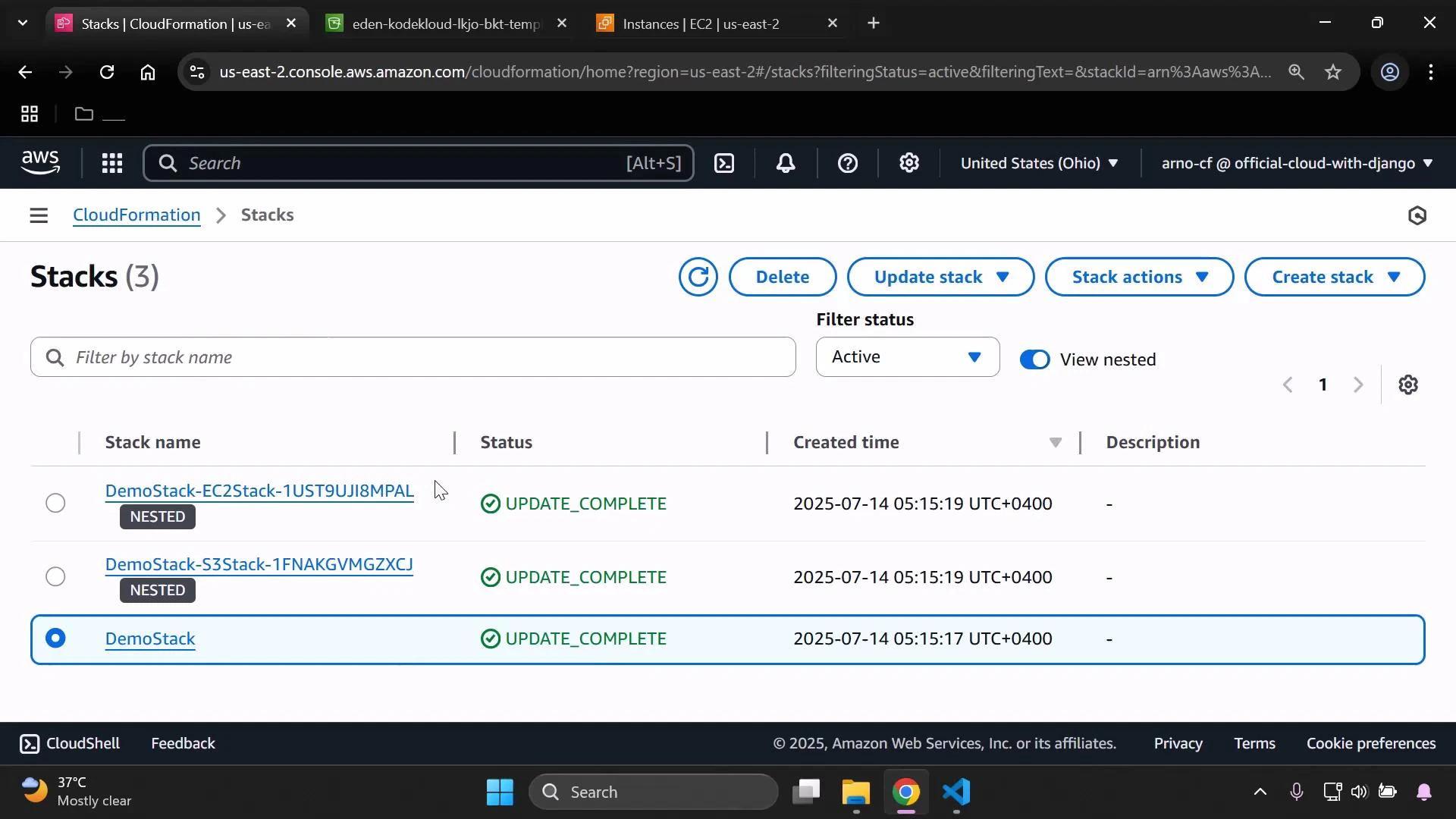
* After execution, the parent and nested stacks should reach `UPDATE_COMPLETE` status in the Stacks list.
Parent template — nested stack references (ensure TemplateURL points to uploaded objects)
```yaml theme={null}
Resources:
S3Stack:
Type: AWS::CloudFormation::Stack
Properties:
TemplateURL: https://eden-kodekloud-lkjo-bkt-templates.s3.us-east-2.amazonaws.com/simple-s3.yaml
EC2Stack:
Type: AWS::CloudFormation::Stack
Properties:
TemplateURL: https://eden-kodekloud-lkjo-bkt-templates.s3.us-east-2.amazonaws.com/simple-ec2.yaml
```
Submit the update
* When you submit the parent stack update, CloudFormation creates a change set and identifies which nested stacks have changes.
* Execute the change set. CloudFormation updates the parent stack and then updates each nested stack according to its TemplateURL contents.
Confirm update completion
* After execution, the parent and nested stacks should reach `UPDATE_COMPLETE` status in the Stacks list.
 Verify the changes
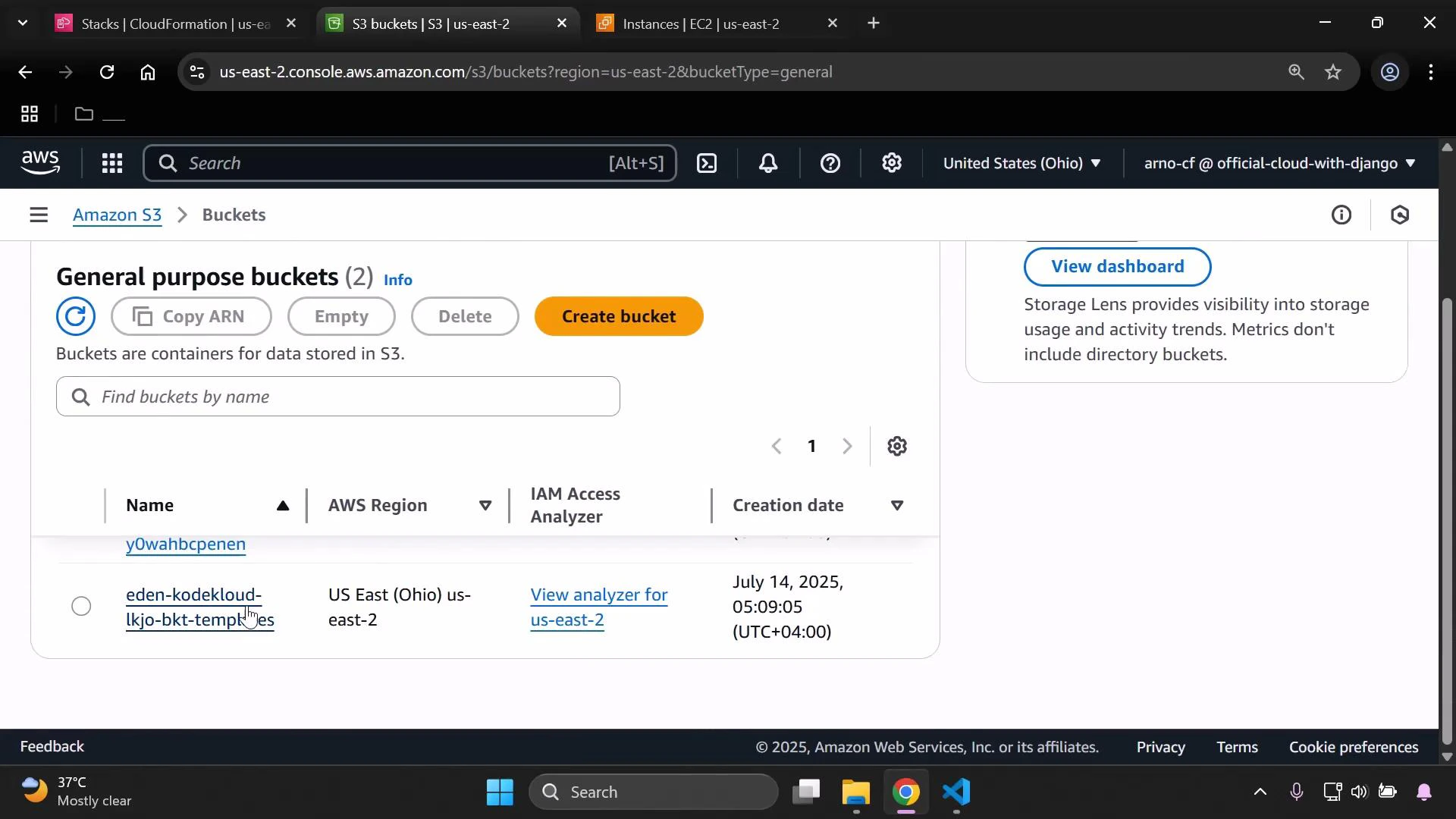
1. Verify S3 bucket tags (the bucket you created via the nested stack, not the templates bucket)
* Open the S3 console, refresh and open your deployed bucket.
* Go to Properties → Tags and confirm there is a `Developer` tag with value `John`.
Verify the changes
1. Verify S3 bucket tags (the bucket you created via the nested stack, not the templates bucket)
* Open the S3 console, refresh and open your deployed bucket.
* Go to Properties → Tags and confirm there is a `Developer` tag with value `John`.
 2. Verify EC2 instance type
* Open the EC2 console, refresh Instances, and locate the instance created/managed by the nested EC2 stack.
* Confirm the Instance Type column shows `t3.small`.
Completion
* If both verifications pass (S3 tag and EC2 instance type), the nested stack update succeeded and the desired resource changes are in effect.
Always keep the parent template's TemplateURL values aligned with the S3 object keys used for nested stacks. If you rename or move nested templates in S3, update the parent template to point to the new TemplateURL before applying the update.
Links and references
* AWS CloudFormation nested stacks overview: [https://docs.aws.amazon.com/AWSCloudFormation/latest/UserGuide/using-cfn-nested-stacks.html](https://docs.aws.amazon.com/AWSCloudFormation/latest/UserGuide/using-cfn-nested-stacks.html)
* AWS CloudFormation Update Stack: [https://docs.aws.amazon.com/AWSCloudFormation/latest/UserGuide/using-cfn-updating-stacks.html](https://docs.aws.amazon.com/AWSCloudFormation/latest/UserGuide/using-cfn-updating-stacks.html)
* AWS EC2 Instance Types: [https://aws.amazon.com/ec2/instance-types/](https://aws.amazon.com/ec2/instance-types/)
* AWS S3 Bucket Tagging: [https://docs.aws.amazon.com/AmazonS3/latest/userguide/object-tagging.html](https://docs.aws.amazon.com/AmazonS3/latest/userguide/object-tagging.html)
2. Verify EC2 instance type
* Open the EC2 console, refresh Instances, and locate the instance created/managed by the nested EC2 stack.
* Confirm the Instance Type column shows `t3.small`.
Completion
* If both verifications pass (S3 tag and EC2 instance type), the nested stack update succeeded and the desired resource changes are in effect.
Always keep the parent template's TemplateURL values aligned with the S3 object keys used for nested stacks. If you rename or move nested templates in S3, update the parent template to point to the new TemplateURL before applying the update.
Links and references
* AWS CloudFormation nested stacks overview: [https://docs.aws.amazon.com/AWSCloudFormation/latest/UserGuide/using-cfn-nested-stacks.html](https://docs.aws.amazon.com/AWSCloudFormation/latest/UserGuide/using-cfn-nested-stacks.html)
* AWS CloudFormation Update Stack: [https://docs.aws.amazon.com/AWSCloudFormation/latest/UserGuide/using-cfn-updating-stacks.html](https://docs.aws.amazon.com/AWSCloudFormation/latest/UserGuide/using-cfn-updating-stacks.html)
* AWS EC2 Instance Types: [https://aws.amazon.com/ec2/instance-types/](https://aws.amazon.com/ec2/instance-types/)
* AWS S3 Bucket Tagging: [https://docs.aws.amazon.com/AmazonS3/latest/userguide/object-tagging.html](https://docs.aws.amazon.com/AmazonS3/latest/userguide/object-tagging.html)