> ## Documentation Index
> Fetch the complete documentation index at: https://notes.kodekloud.com/llms.txt
> Use this file to discover all available pages before exploring further.
# Demo Working with Outputs in CloudFormation
> Explains how to declare and use Outputs in AWS CloudFormation templates, demonstrating S3 bucket ARNs, labels, best practices, and viewing outputs via console and CLI
In this lesson you'll learn how to declare and use Outputs in an AWS CloudFormation template. Outputs let you expose important values—such as ARNs, URLs, or computed labels—after a stack is created or updated. For clarity and maintainability, place the Outputs section at the end of your template (alongside Mappings, Parameters, Conditions, and Resources).
Place Outputs at the bottom of the template (after Resources). Always provide a Description for each output and use intrinsic functions (for example `!GetAtt`, `!Join`, and `!Ref`) to compute values that consumers can rely on.
Below is a concise CloudFormation template demonstrating:
* Mappings
* Parameters
* Conditions
* Two resources (an S3 bucket and its bucket policy)
* Two Outputs: the S3 bucket ARN and a combined developer/bucket label
```yaml theme={null}
Mappings:
DevMap:
Arno:
Field: Quality assurance
Env: Testing/development
Alice:
Field: Backend developer
Env: Production
Parameters:
InputBucketName:
Type: String
Description: Please enter your desired S3 bucket name
InputDeveloperName:
Type: String
AllowedValues:
- Arno
- Alice
Conditions:
IsProd: !Equals
- !FindInMap [DevMap, !Ref InputDeveloperName, Env]
- "Production"
Resources:
MyS3Bucket:
Type: AWS::S3::Bucket
Properties:
BucketName: !Ref InputBucketName
Tags:
- Key: Developer
Value: !Ref InputDeveloperName
- Key: Environment
Value: !FindInMap [DevMap, !Ref InputDeveloperName, Env]
MyPublicReadPolicy:
Type: AWS::S3::BucketPolicy
Properties:
Bucket: !Ref MyS3Bucket
PolicyDocument:
Version: "2012-10-17"
Statement:
- Sid: PublicReadGetObject
Effect: Allow
Principal: "*"
Action: "s3:GetObject"
Resource: !Sub "arn:aws:s3:::${InputBucketName}/*"
Outputs:
BucketArn:
Description: "ARN of the S3 bucket"
Value: !GetAtt MyS3Bucket.Arn
DeveloperBucketLabel:
Description: "Label combining developer name and bucket name"
Value: !Join [ " - ", [ !Ref InputDeveloperName, !Ref InputBucketName ] ]
```
Why Outputs matter
* Expose computed or derived values for use by other stacks, tools, or people.
* Make stack artifacts discoverable without inspecting resource definitions.
* Support cross-stack references when used together with Export/Import (not shown in this example).
Quick reference — Outputs in this template
| Output Name | Purpose | Example value |
| -------------------- | ----------------------------------------------------------------- | ----------------------------- |
| BucketArn | ARN of the created S3 bucket for programmatic access | `arn:aws:s3:::example-bucket` |
| DeveloperBucketLabel | Human-friendly label that combines developer name and bucket name | `Alice - example-bucket` |
Detailed explanation of the Outputs
* BucketArn
* Description: A concise, human-readable description.
* Value: Uses `!GetAtt MyS3Bucket.Arn` to retrieve the bucket's ARN from the logical resource MyS3Bucket.
* DeveloperBucketLabel
* Description: A combined label for easier identification.
* Value: Uses `!Join` to concatenate `InputDeveloperName` and `InputBucketName` with `" - "` as the separator:
`!Join [ " - ", [ !Ref InputDeveloperName, !Ref InputBucketName ] ]`.
How to view Outputs in the AWS Console
1. Save your template file.
2. In the CloudFormation console choose your stack and select Update stack.
3. Choose Replace current template → Upload a template file (or paste the template).
4. Continue through the update steps and submit.
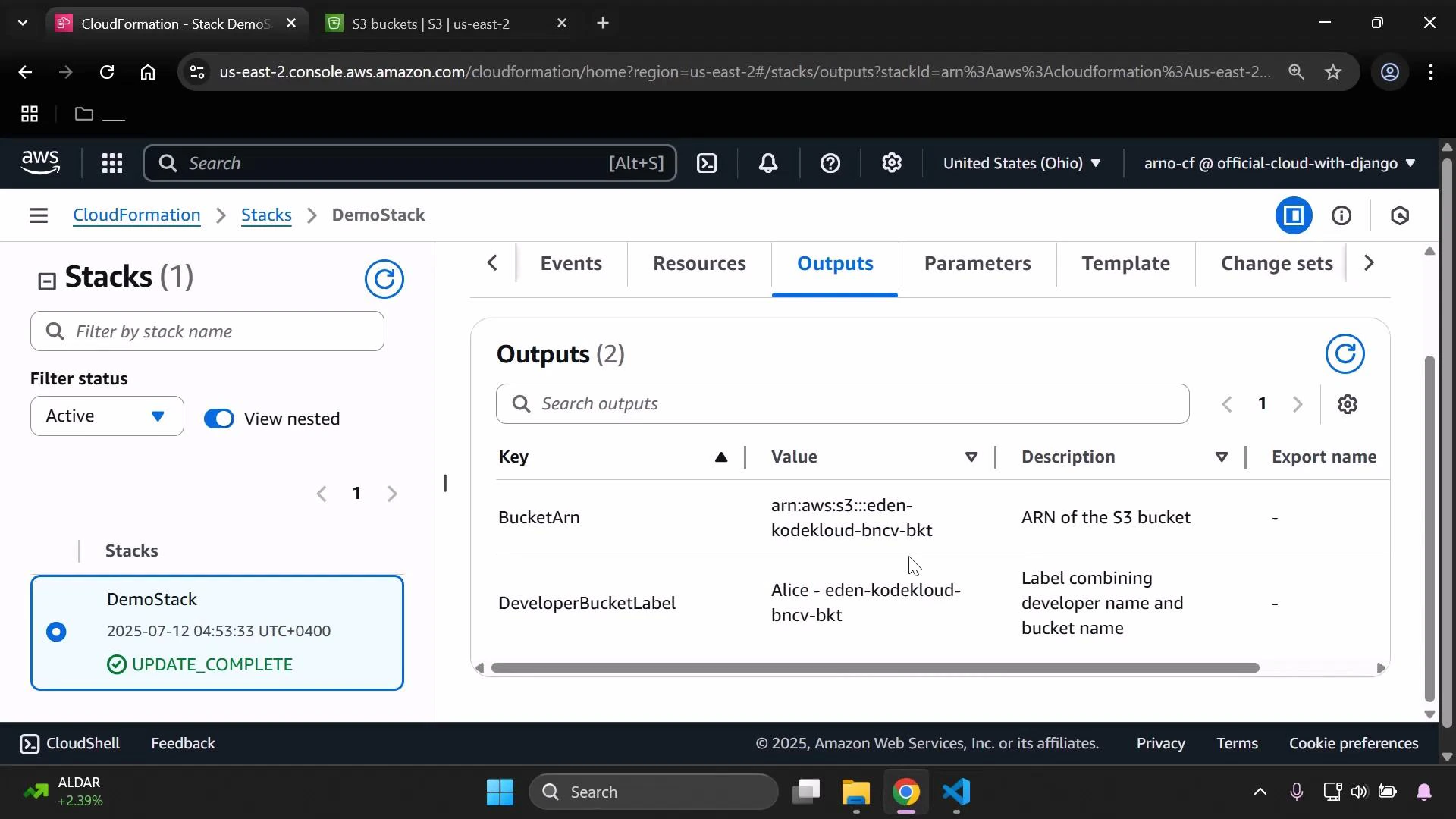
5. After the update finishes, open the stack and select the Outputs tab to view output keys, their descriptions, and values.
Once the stack update finishes you should see entries similar to the following in the Outputs tab:
 View Outputs via the AWS CLI
Example CLI command to list outputs for a stack:
* JSON/table output using the CLI:
* aws cloudformation describe-stacks --stack-name DemoStack --query "Stacks\[0].Outputs" --output table
Best practices and security tips
* Use clear, descriptive output names and descriptions so teammates and automation can understand what each output represents.
* Avoid exposing secrets, credentials, or sensitive data in Outputs—Outputs are visible at the stack level.
* If you need to share values between stacks, use Outputs with the Export property to enable cross-stack references.
Do not place sensitive secrets or credentials in Outputs. Outputs are viewable by anyone with access to the CloudFormation stack and can be logged or exposed by tools that read stack outputs.
Links and references
* [CloudFormation Outputs documentation](https://docs.aws.amazon.com/AWSCloudFormation/latest/UserGuide/outputs-section-structure.html)
* [AWS CloudFormation User Guide](https://docs.aws.amazon.com/AWSCloudFormation/latest/UserGuide/Welcome.html)
* [Amazon S3 documentation](https://docs.aws.amazon.com/AmazonS3/latest/userguide/Welcome.html)
* [AWS CLI documentation](https://docs.aws.amazon.com/cli/latest/userguide/)
That covers how to declare and use Outputs to surface key values from your CloudFormation stacks.
View Outputs via the AWS CLI
Example CLI command to list outputs for a stack:
* JSON/table output using the CLI:
* aws cloudformation describe-stacks --stack-name DemoStack --query "Stacks\[0].Outputs" --output table
Best practices and security tips
* Use clear, descriptive output names and descriptions so teammates and automation can understand what each output represents.
* Avoid exposing secrets, credentials, or sensitive data in Outputs—Outputs are visible at the stack level.
* If you need to share values between stacks, use Outputs with the Export property to enable cross-stack references.
Do not place sensitive secrets or credentials in Outputs. Outputs are viewable by anyone with access to the CloudFormation stack and can be logged or exposed by tools that read stack outputs.
Links and references
* [CloudFormation Outputs documentation](https://docs.aws.amazon.com/AWSCloudFormation/latest/UserGuide/outputs-section-structure.html)
* [AWS CloudFormation User Guide](https://docs.aws.amazon.com/AWSCloudFormation/latest/UserGuide/Welcome.html)
* [Amazon S3 documentation](https://docs.aws.amazon.com/AmazonS3/latest/userguide/Welcome.html)
* [AWS CLI documentation](https://docs.aws.amazon.com/cli/latest/userguide/)
That covers how to declare and use Outputs to surface key values from your CloudFormation stacks.