> ## Documentation Index
> Fetch the complete documentation index at: https://notes.kodekloud.com/llms.txt
> Use this file to discover all available pages before exploring further.
# Parameters Introduction
> Explains AWS CloudFormation parameters, their types, usage, and examples to make templates configurable, reusable, and safe across environments.
Welcome to the lesson on CloudFormation parameters. This guide explains what parameters are, why they’re important, and how to declare and reference them in a CloudFormation template. By the end you'll understand how to make templates configurable and reusable across environments.
## What are parameters?
Parameters are input values you declare in the Parameters section of a CloudFormation template. They act like template variables that let users or automation customize a stack at creation or update time.
Common parameter uses:
* Environment selectors (production, staging, development)
* Resource names (S3 bucket names, database identifiers)
* Instance sizes and counts (t3.micro, t3.small)
* Region- or account-specific options
Examples: an instance type (`t3.micro`), an environment label (`production`), or an S3 bucket name.
## Why use parameters
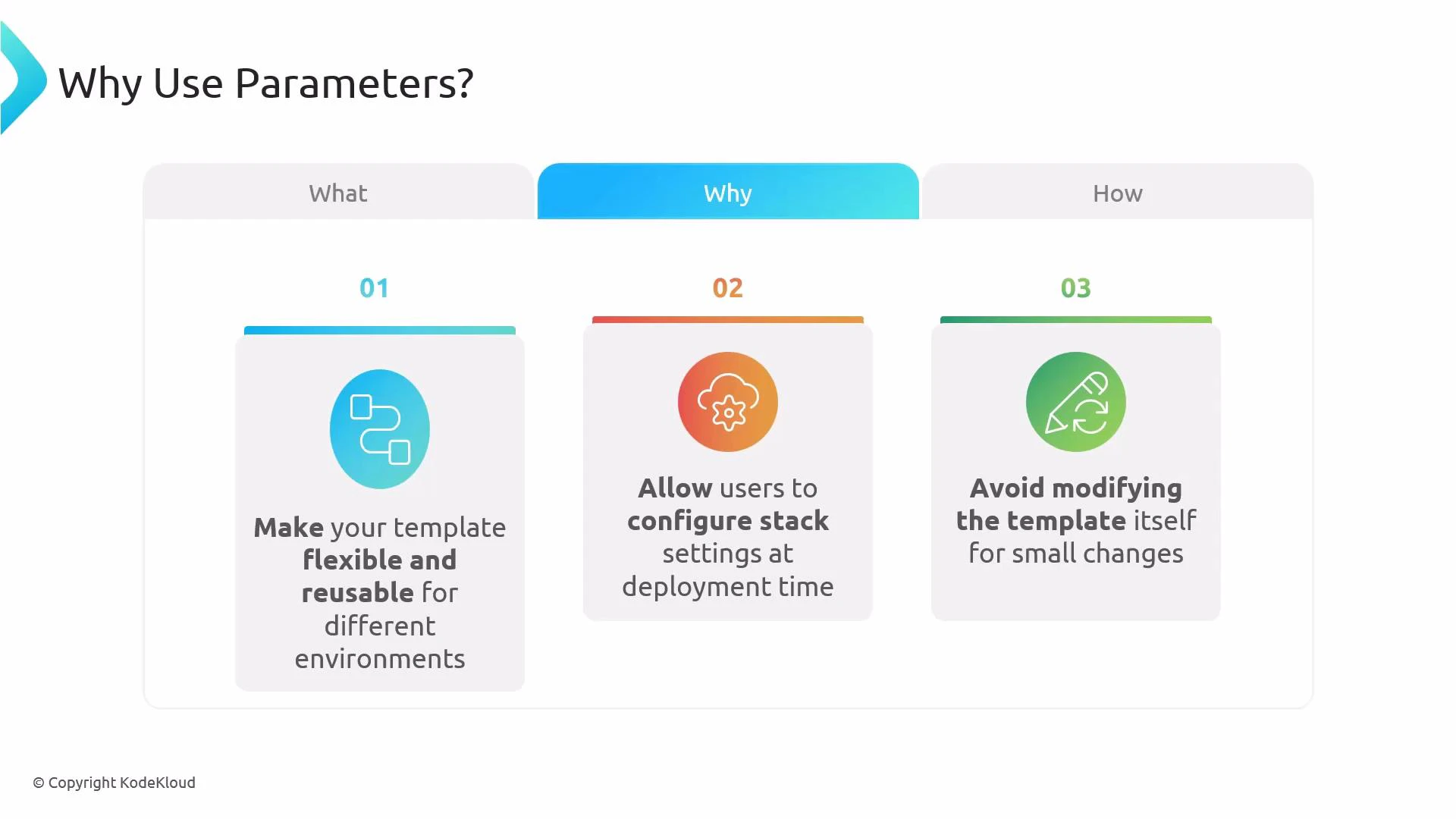
Parameters make templates flexible and reusable. They let you:
* Configure stacks at deployment time without editing the template
* Reuse the same template across multiple environments
* Enforce allowed values or defaults to reduce errors
| Benefit | What it enables | Example |
| ----------- | ---------------------------------------------- | ------------------------------------------------------------------------- |
| Flexibility | Same template for multiple environments | Use a parameter to switch between `production` and `development` settings |
| Ease of use | Operators specify values during stack creation | Provide an instance type or bucket name at launch time |
| Safety | Restrict or default inputs to reduce mistakes | Use `AllowedValues` and `Default` to limit choices |
 ## How parameters work
Workflow summary:
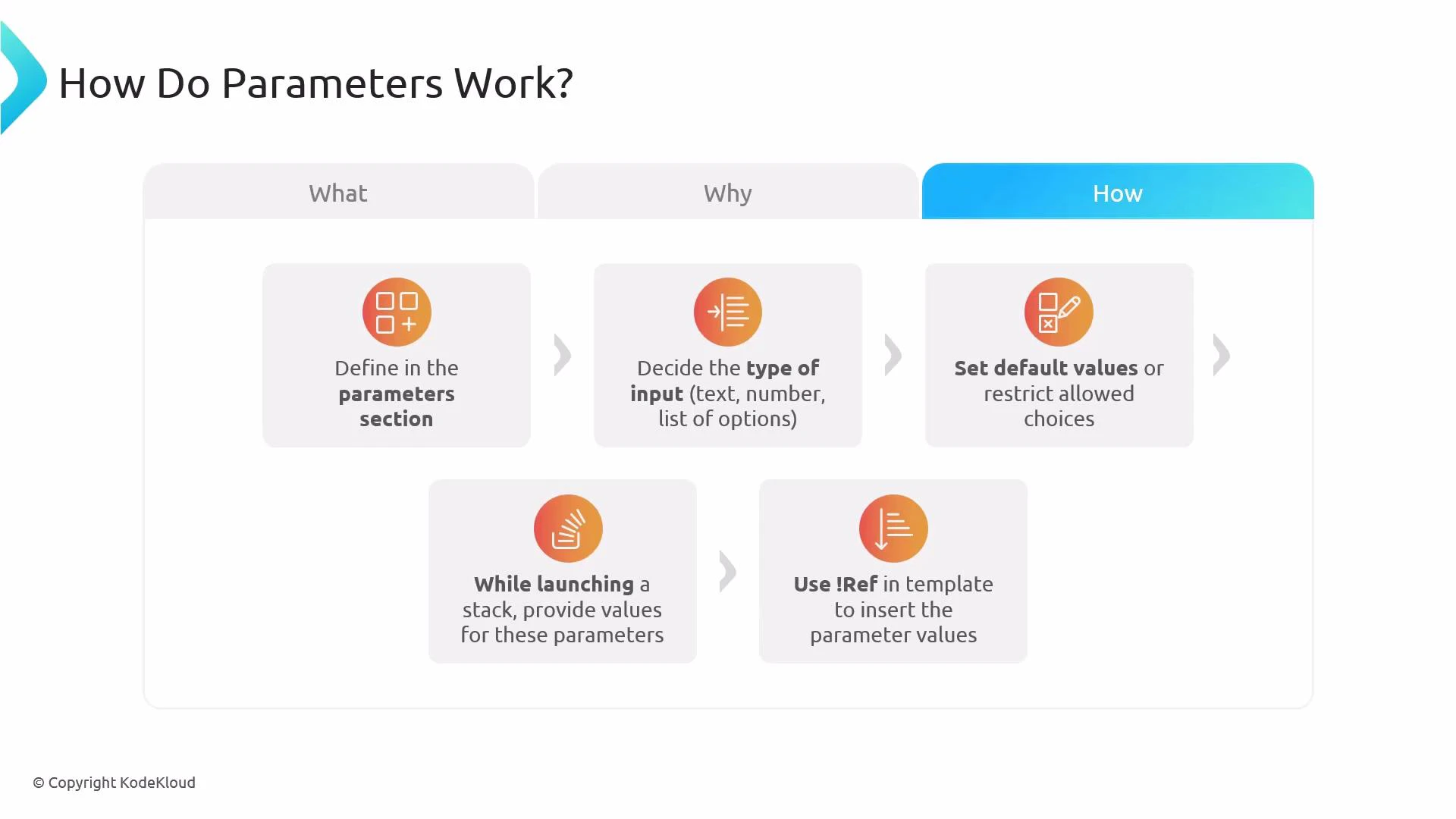
1. Declare parameter entries in the template's `Parameters` section.
2. Choose a `Type` for each parameter (e.g., `String`, `Number`, `CommaDelimitedList`, or AWS-specific types).
3. Optionally set `Default`, `AllowedValues`, or other constraints.
4. Provide parameter values when launching or updating the stack.
5. Reference parameter values elsewhere using the intrinsic function `Ref` (YAML shorthand: `!Ref`).
Common parameter types and purpose:
| Parameter Type | Use case |
| ------------------------------------------------------- | --------------------------------------- |
| String | Freeform text (names, ARNs, paths) |
| Number | Numeric inputs (counts, sizes) |
| CommaDelimitedList | Lists of simple values (subnets, CIDRs) |
| AWS-specific types (e.g., `AWS::EC2::KeyPair::KeyName`) | Validate against existing AWS resources |
For full details on supported types and AWS-specific parameter types, see the official AWS CloudFormation documentation.
## How parameters work
Workflow summary:
1. Declare parameter entries in the template's `Parameters` section.
2. Choose a `Type` for each parameter (e.g., `String`, `Number`, `CommaDelimitedList`, or AWS-specific types).
3. Optionally set `Default`, `AllowedValues`, or other constraints.
4. Provide parameter values when launching or updating the stack.
5. Reference parameter values elsewhere using the intrinsic function `Ref` (YAML shorthand: `!Ref`).
Common parameter types and purpose:
| Parameter Type | Use case |
| ------------------------------------------------------- | --------------------------------------- |
| String | Freeform text (names, ARNs, paths) |
| Number | Numeric inputs (counts, sizes) |
| CommaDelimitedList | Lists of simple values (subnets, CIDRs) |
| AWS-specific types (e.g., `AWS::EC2::KeyPair::KeyName`) | Validate against existing AWS resources |
For full details on supported types and AWS-specific parameter types, see the official AWS CloudFormation documentation.
 ## Example: S3 bucket name parameter
Below is a minimal CloudFormation YAML example that declares a parameter named `InputBucketName` and uses `!Ref` to set the `BucketName` property of an S3 bucket resource.
```yaml theme={null}
Parameters:
InputBucketName:
Type: String
Description: Please enter your desired S3 bucket name
Resources:
MyS3Bucket:
Type: AWS::S3::Bucket
Properties:
BucketName: !Ref InputBucketName
```
How this works (step-by-step)
1. When you launch the stack, provide a value for the `InputBucketName` parameter (for example, `my-app-bucket-prod`).
2. CloudFormation creates the `MyS3Bucket` resource.
3. The template uses `!Ref InputBucketName` to insert the parameter value as the `BucketName` property. The resulting bucket will have the name you provided.
Remember: S3 bucket names must be globally unique and comply with AWS naming rules (lowercase letters, numbers, hyphens, no uppercase or underscores, etc.). If the provided name is invalid or already taken, stack creation will fail.
## Quick reference: common parameter attributes
| Attribute | Purpose | Example |
| --------------------- | ---------------------------------------------------------- | ---------------------------------------------------------- |
| Type | Defines input type (String, Number, List, or AWS-specific) | `Type: String` |
| Description | Human-friendly explanation shown in consoles and tools | `Description: Enter the bucket name` |
| Default | Value used when no input is supplied | `Default: dev-bucket` |
| AllowedValues | Restricts inputs to a set of valid options | `AllowedValues: [production, staging, development]` |
| NoEcho | Hides sensitive values from logs and console | `NoEcho: true` |
| ConstraintDescription | Custom message shown if validation fails | `ConstraintDescription: Must be a valid EC2 instance type` |
## Links and references
* [AWS CloudFormation Parameters — Documentation](https://docs.aws.amazon.com/AWSCloudFormation/latest/UserGuide/parameters-section-structure.html)
* [AWS S3 Bucket Naming Rules](https://docs.aws.amazon.com/AmazonS3/latest/userguide/bucketnamingrules.html)
* [Intrinsic function Ref — AWS CloudFormation](https://docs.aws.amazon.com/AWSCloudFormation/latest/UserGuide/intrinsic-function-reference-ref.html)
## Example: S3 bucket name parameter
Below is a minimal CloudFormation YAML example that declares a parameter named `InputBucketName` and uses `!Ref` to set the `BucketName` property of an S3 bucket resource.
```yaml theme={null}
Parameters:
InputBucketName:
Type: String
Description: Please enter your desired S3 bucket name
Resources:
MyS3Bucket:
Type: AWS::S3::Bucket
Properties:
BucketName: !Ref InputBucketName
```
How this works (step-by-step)
1. When you launch the stack, provide a value for the `InputBucketName` parameter (for example, `my-app-bucket-prod`).
2. CloudFormation creates the `MyS3Bucket` resource.
3. The template uses `!Ref InputBucketName` to insert the parameter value as the `BucketName` property. The resulting bucket will have the name you provided.
Remember: S3 bucket names must be globally unique and comply with AWS naming rules (lowercase letters, numbers, hyphens, no uppercase or underscores, etc.). If the provided name is invalid or already taken, stack creation will fail.
## Quick reference: common parameter attributes
| Attribute | Purpose | Example |
| --------------------- | ---------------------------------------------------------- | ---------------------------------------------------------- |
| Type | Defines input type (String, Number, List, or AWS-specific) | `Type: String` |
| Description | Human-friendly explanation shown in consoles and tools | `Description: Enter the bucket name` |
| Default | Value used when no input is supplied | `Default: dev-bucket` |
| AllowedValues | Restricts inputs to a set of valid options | `AllowedValues: [production, staging, development]` |
| NoEcho | Hides sensitive values from logs and console | `NoEcho: true` |
| ConstraintDescription | Custom message shown if validation fails | `ConstraintDescription: Must be a valid EC2 instance type` |
## Links and references
* [AWS CloudFormation Parameters — Documentation](https://docs.aws.amazon.com/AWSCloudFormation/latest/UserGuide/parameters-section-structure.html)
* [AWS S3 Bucket Naming Rules](https://docs.aws.amazon.com/AmazonS3/latest/userguide/bucketnamingrules.html)
* [Intrinsic function Ref — AWS CloudFormation](https://docs.aws.amazon.com/AWSCloudFormation/latest/UserGuide/intrinsic-function-reference-ref.html)