> ## Documentation Index
> Fetch the complete documentation index at: https://notes.kodekloud.com/llms.txt
> Use this file to discover all available pages before exploring further.
# Demo Working with SSM parameter store
> Demonstrates storing an AMI ID in AWS SSM Parameter Store and referencing it from a CloudFormation template to launch an EC2 instance.
This demo shows how to store an AMI ID in AWS Systems Manager (SSM) Parameter Store and reference it from an AWS CloudFormation template so an EC2 instance uses the value at stack creation. You will:
* Create an SSM parameter to hold an AMI ID.
* Use the special CloudFormation parameter type to fetch and validate the AMI ID from Parameter Store.
* Launch a CloudFormation stack that provisions an EC2 instance using the SSM-stored AMI.
Useful references:
* [AWS Systems Manager Parameter Store](https://docs.aws.amazon.com/systems-manager/latest/userguide/systems-manager-parameter-store.html)
* [AWS CloudFormation Parameters](https://docs.aws.amazon.com/AWSCloudFormation/latest/UserGuide/parameters-section-structure.html)
## 1) Create an SSM parameter
Open the AWS Console and go to Systems Manager → Parameter Store (search “SSM” to find Systems Manager). Create a new parameter and choose a descriptive path name such as `/myapp/dev/ami-id`. Optionally provide a description.
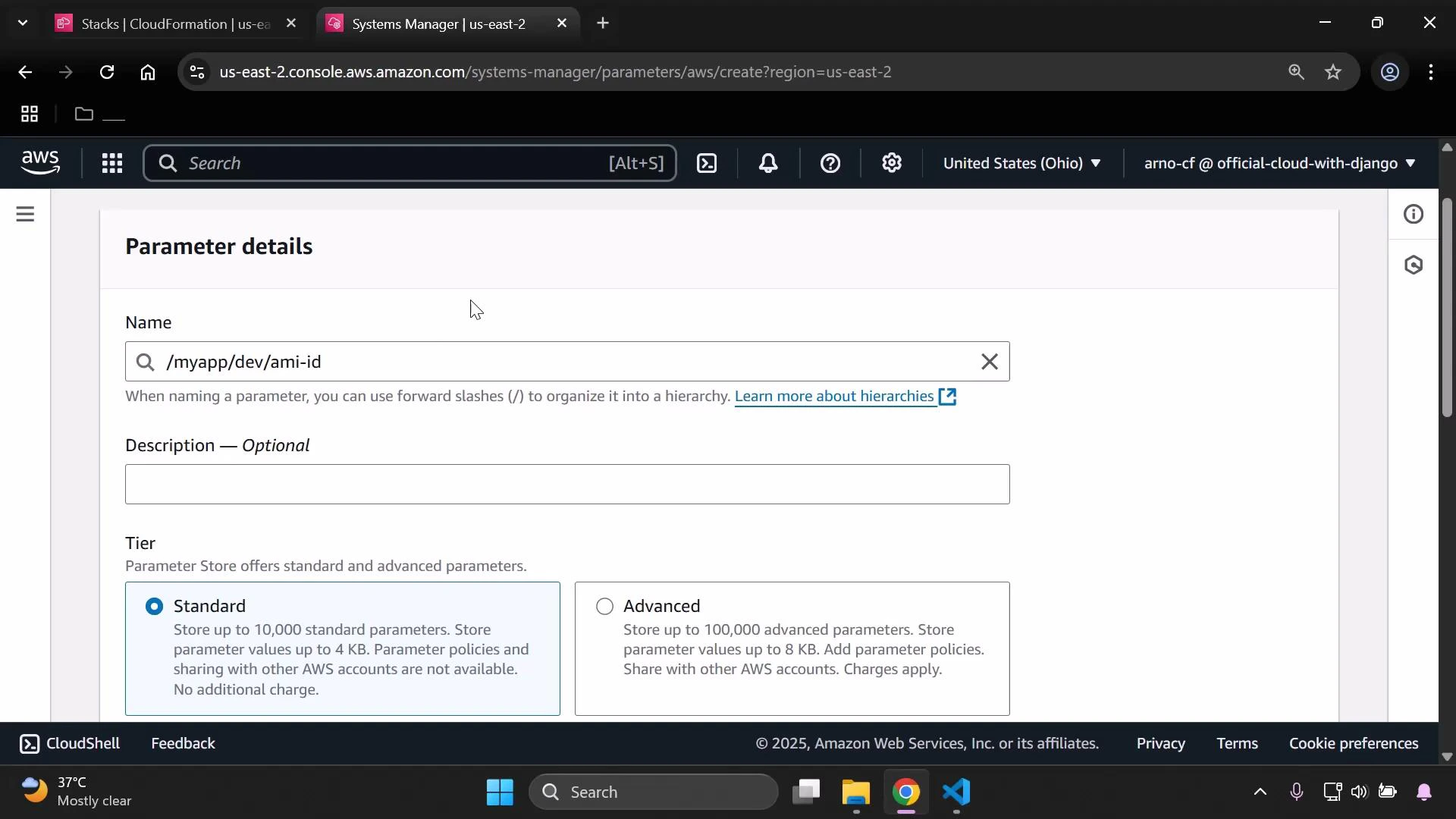 Choose Tier: Standard (use Advanced only when you need larger size, policies, or higher throughput). For Type choose one of the following:
| Type | Use Case | Notes |
| ------------ | -------------------------- | ------------------------------------------- |
| String | Single configuration value | Simple, unencrypted text |
| StringList | Comma-separated list | Useful for storing lists such as subnets |
| SecureString | Secrets or credentials | Encrypted with KMS; recommended for secrets |
If you choose SecureString, a KMS key is required. Select either an AWS-managed key or a customer-managed key. SecureString ensures values are encrypted at rest and access is controlled through KMS policies.
Choose Tier: Standard (use Advanced only when you need larger size, policies, or higher throughput). For Type choose one of the following:
| Type | Use Case | Notes |
| ------------ | -------------------------- | ------------------------------------------- |
| String | Single configuration value | Simple, unencrypted text |
| StringList | Comma-separated list | Useful for storing lists such as subnets |
| SecureString | Secrets or credentials | Encrypted with KMS; recommended for secrets |
If you choose SecureString, a KMS key is required. Select either an AWS-managed key or a customer-managed key. SecureString ensures values are encrypted at rest and access is controlled through KMS policies.
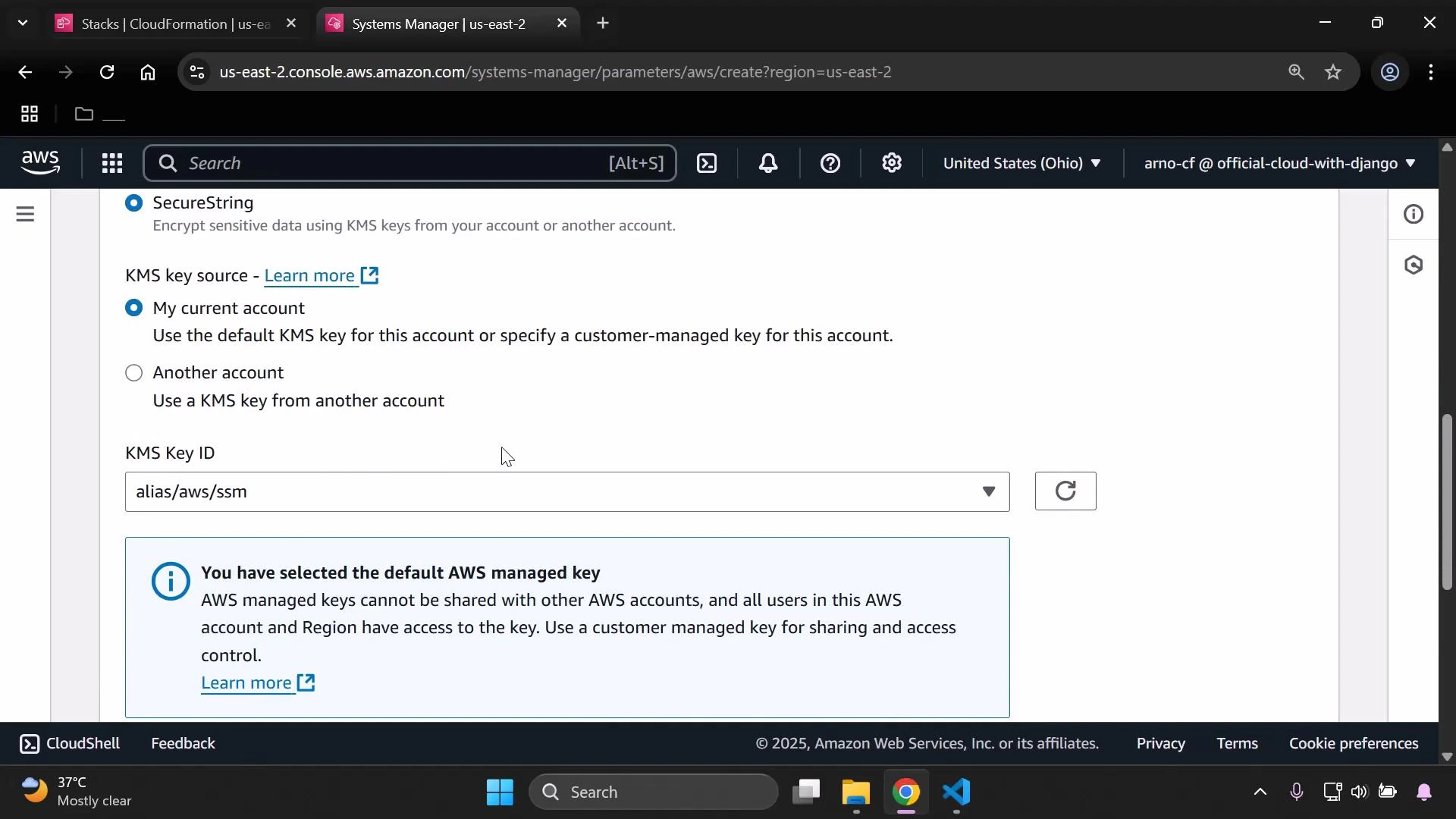 SecureString is recommended for secrets. If you use SecureString, make sure the principal that creates or deploys the stack (for example, CloudFormation's service role or the IAM user) has `kms:Decrypt` permissions on the KMS key used to encrypt the parameter.
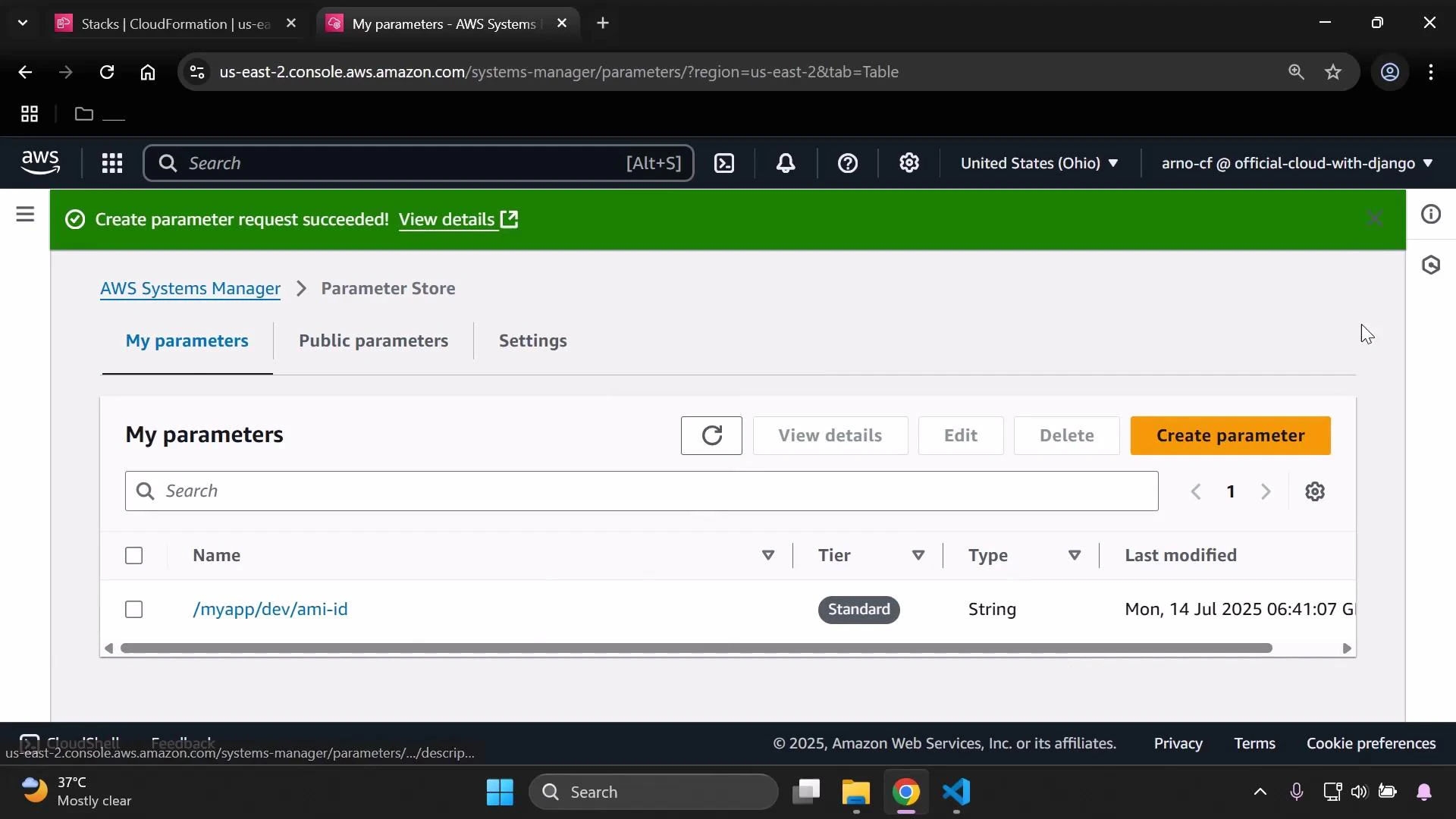
Set the parameter value to the desired AMI ID (this demo used an AMI from the us-east-2 region) and click Create parameter. You should see a success banner and the new parameter listed.
SecureString is recommended for secrets. If you use SecureString, make sure the principal that creates or deploys the stack (for example, CloudFormation's service role or the IAM user) has `kms:Decrypt` permissions on the KMS key used to encrypt the parameter.
Set the parameter value to the desired AMI ID (this demo used an AMI from the us-east-2 region) and click Create parameter. You should see a success banner and the new parameter listed.
 ## 2) Reference the SSM parameter from CloudFormation
CloudFormation supports SSM-backed parameters using a special parameter Type that both retrieves the SSM value and validates its format. For AMI IDs use:
Type: AWS::SSM::Parameter::Value\
Save the example template below as `ssm.yaml` and upload it when creating the stack. The template demonstrates a simple EC2 instance that uses the SSM parameter for ImageId.
```yaml theme={null}
Metadata:
Purpose: Basic EC2 instance with HTTP and SSH access
Mappings:
RegionMap:
us-east-2:
AMI: ami-0eb9d6fc9fab44d24
eu-west-1:
AMI: ami-0b3e7dd7b2a99b08d
us-east-1:
AMI: ami-0150ccaf51ab55a51
Parameters:
AmiId:
Type: AWS::SSM::Parameter::Value
Default: /myapp/dev/ami-id
Resources:
MyInstance:
Type: AWS::EC2::Instance
Properties:
InstanceType: t3.micro
ImageId: !Ref AmiId
```
How it works:
* The parameter `AmiId` is declared with CloudFormation type `AWS::SSM::Parameter::Value`, so CloudFormation will fetch the value from SSM Parameter Store and validate it as an EC2 AMI ID.
* `Default` points to the Parameter Store path `/myapp/dev/ami-id`. If the stack creator does not override this parameter, CloudFormation uses that SSM parameter.
* The EC2 instance property `ImageId` references the parameter with `!Ref AmiId`, applying the fetched AMI to the instance.
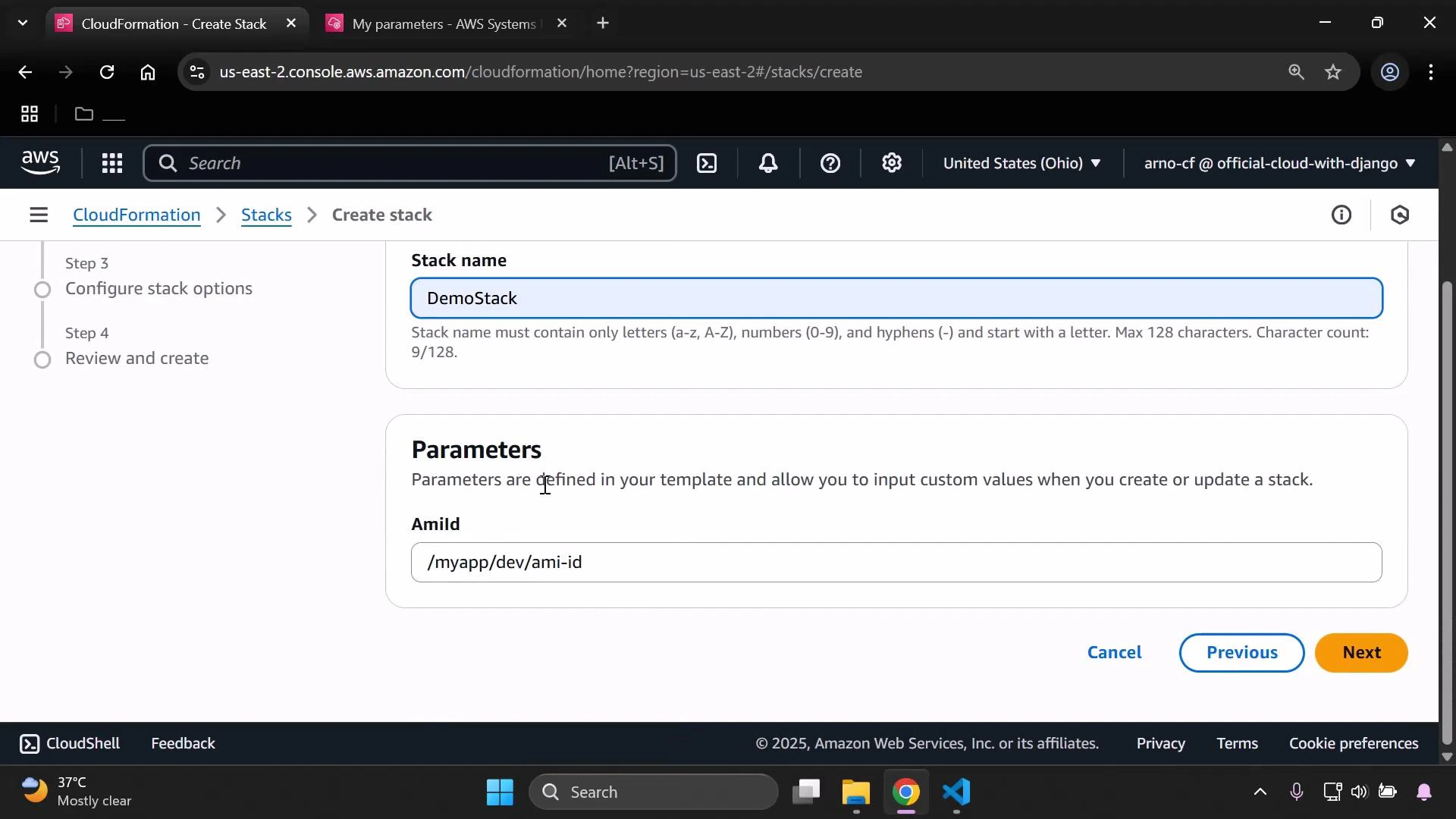
When uploading the template in the CloudFormation console, you will see the parameter value reference populated (the console shows the parameter name rather than the raw AMI value).
## 2) Reference the SSM parameter from CloudFormation
CloudFormation supports SSM-backed parameters using a special parameter Type that both retrieves the SSM value and validates its format. For AMI IDs use:
Type: AWS::SSM::Parameter::Value\
Save the example template below as `ssm.yaml` and upload it when creating the stack. The template demonstrates a simple EC2 instance that uses the SSM parameter for ImageId.
```yaml theme={null}
Metadata:
Purpose: Basic EC2 instance with HTTP and SSH access
Mappings:
RegionMap:
us-east-2:
AMI: ami-0eb9d6fc9fab44d24
eu-west-1:
AMI: ami-0b3e7dd7b2a99b08d
us-east-1:
AMI: ami-0150ccaf51ab55a51
Parameters:
AmiId:
Type: AWS::SSM::Parameter::Value
Default: /myapp/dev/ami-id
Resources:
MyInstance:
Type: AWS::EC2::Instance
Properties:
InstanceType: t3.micro
ImageId: !Ref AmiId
```
How it works:
* The parameter `AmiId` is declared with CloudFormation type `AWS::SSM::Parameter::Value`, so CloudFormation will fetch the value from SSM Parameter Store and validate it as an EC2 AMI ID.
* `Default` points to the Parameter Store path `/myapp/dev/ami-id`. If the stack creator does not override this parameter, CloudFormation uses that SSM parameter.
* The EC2 instance property `ImageId` references the parameter with `!Ref AmiId`, applying the fetched AMI to the instance.
When uploading the template in the CloudFormation console, you will see the parameter value reference populated (the console shows the parameter name rather than the raw AMI value).
 ## 3) Verify resources
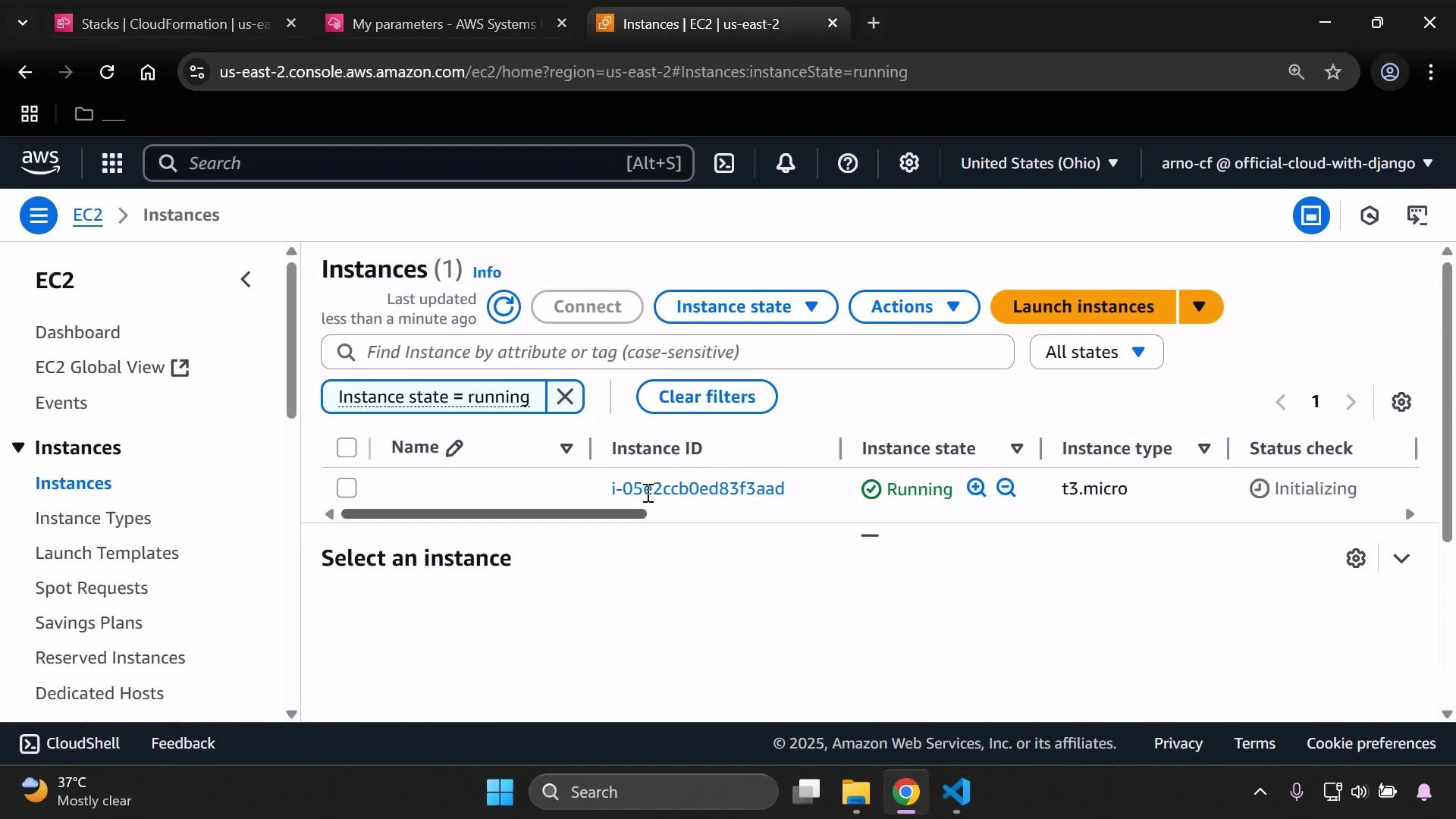
After stack creation starts, verify the EC2 instance is launched in the expected region and that it enters the Running state.
## 3) Verify resources
After stack creation starts, verify the EC2 instance is launched in the expected region and that it enters the Running state.
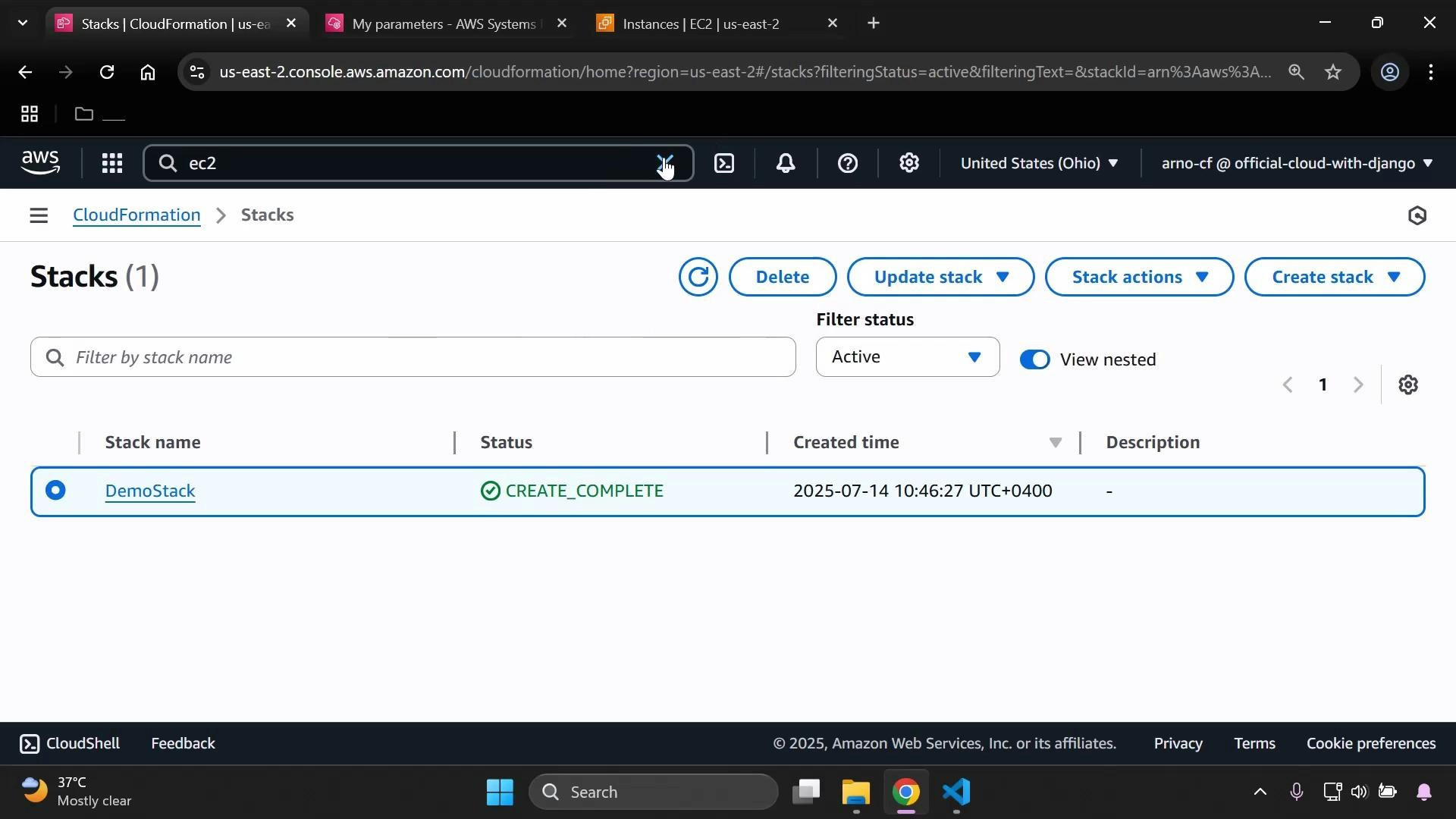
 When provisioning completes, the CloudFormation stack status should change to CREATE\_COMPLETE.
 ## Cleanup
* Delete the CloudFormation stack to remove provisioned resources (this terminates the EC2 instance).
* If the SSM parameter is no longer needed, delete it from Parameter Store.
Parameter Store path example:
```text theme={null}
/myapp/dev/ami-id
```
If you used SecureString, ensure the principals performing read, update, or deletion operations have the necessary KMS permissions (`kms:Decrypt` and `kms:DescribeKey`). Deleting or rotating keys without proper permissions can make SecureString values unrecoverable.
That completes the demo on using SSM Parameter Store with CloudFormation to supply an AMI ID for an EC2 instance.
## Cleanup
* Delete the CloudFormation stack to remove provisioned resources (this terminates the EC2 instance).
* If the SSM parameter is no longer needed, delete it from Parameter Store.
Parameter Store path example:
```text theme={null}
/myapp/dev/ami-id
```
If you used SecureString, ensure the principals performing read, update, or deletion operations have the necessary KMS permissions (`kms:Decrypt` and `kms:DescribeKey`). Deleting or rotating keys without proper permissions can make SecureString values unrecoverable.
That completes the demo on using SSM Parameter Store with CloudFormation to supply an AMI ID for an EC2 instance.