> ## Documentation Index
> Fetch the complete documentation index at: https://notes.kodekloud.com/llms.txt
> Use this file to discover all available pages before exploring further.
# Demo Synthetics Canaries
> This guide explains how to create and manage Synthetic Canaries in AWS CloudWatch for monitoring website availability and performance.
In this guide, you’ll learn how to create, configure, and manage Synthetic Canaries in AWS CloudWatch Synthetics to continuously monitor your website’s availability and performance.
## 1. Accessing Synthetic Canaries
1. Sign in to the AWS Management Console.
2. Navigate to **CloudWatch** under Services.
3. In the left pane, select **Synthetics** > **Canaries**.
4. Click **Create Canary**.
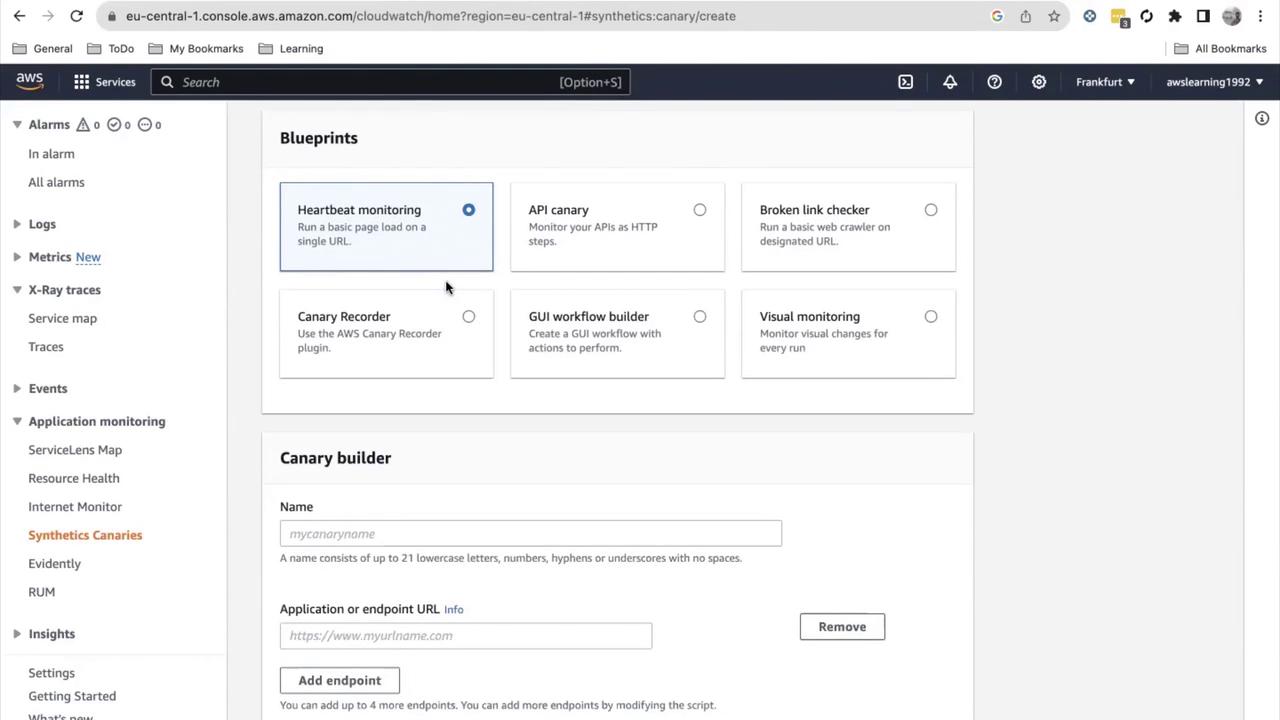
CloudWatch provides several built-in blueprints:
| Blueprint Type | Purpose | Example Use Case |
| -------------------- | ------------------------------ | ------------------------------------- |
| Heartbeat monitoring | Simple URL availability check | Verifying your landing page uptime |
| API canary | REST API endpoint validation | Monitoring backend API performance |
| Visual monitoring | Browser-based UI element tests | Checking login page elements |
| Custom script | Upload your own Node.js script | Complex workflows or multi-step flows |
For this demo, we’ll select the **Heartbeat monitoring** blueprint.
## 2. Configuring the Canary
1. Under **Select blueprint**, choose **Heartbeat monitoring**.
2. Enter **Name**: `KodeKloud-monitoring`.
3. Provide the **Endpoint URL**, e.g., `https://www.kodekloud.com`.
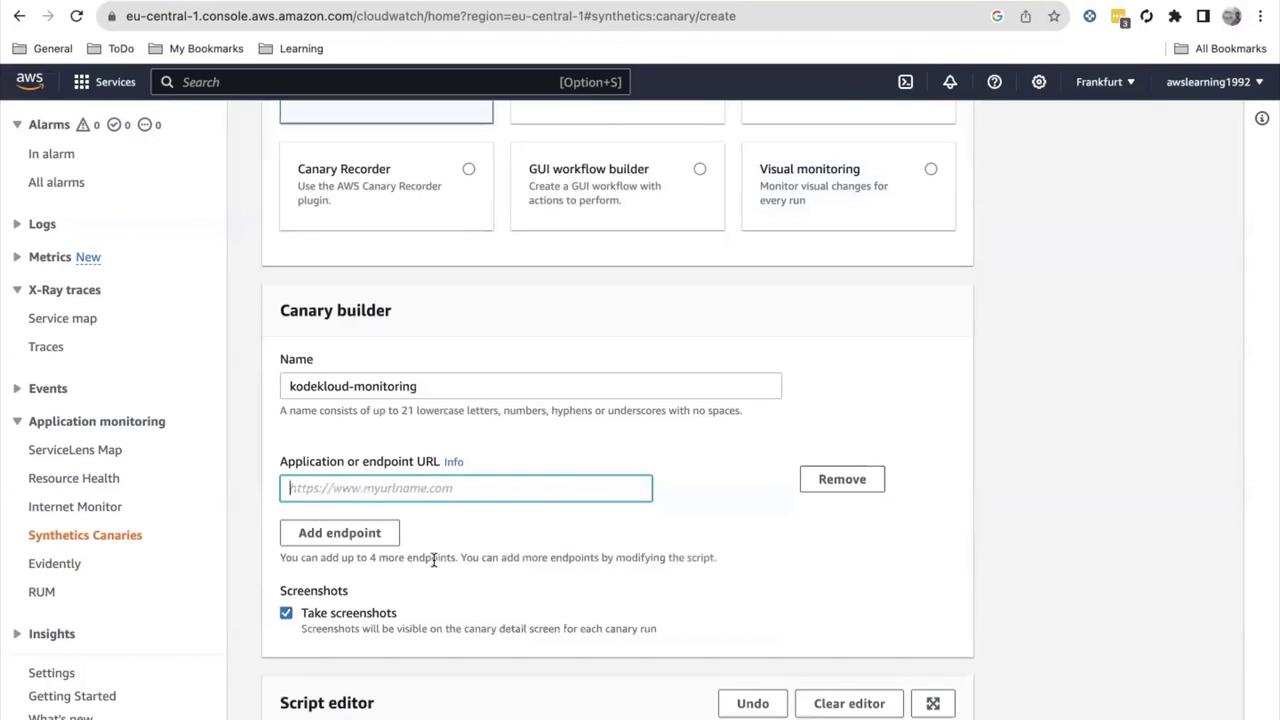
Below the setup, you can review and customize the default script, configure VPC settings, tags, and tracing options.
## 3. Scheduling Executions
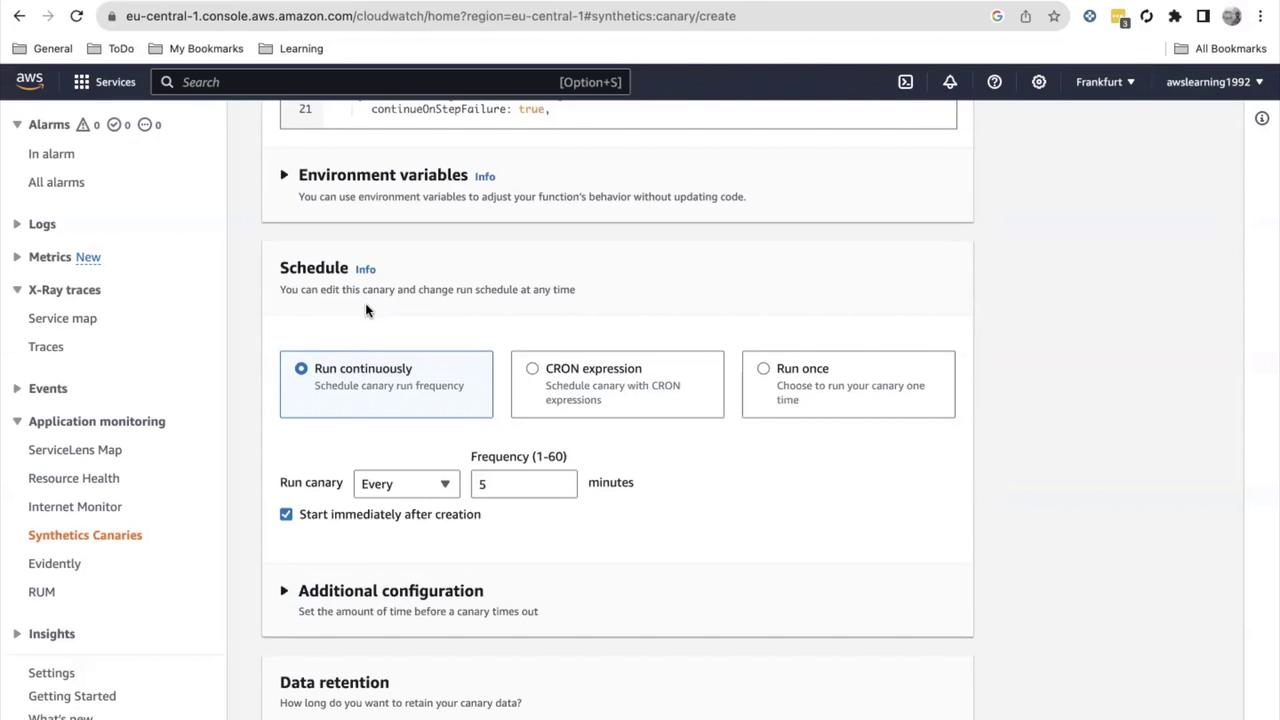
Select a run schedule:
* **Run continuously** (minimum 1-minute interval)
* **Run on schedule** (CRON expression)
* **Run once**
For this tutorial, choose **Run continuously** and set the frequency to **1 minute**.
Running a canary every minute can increase AWS charges. Adjust the interval to balance cost and monitoring needs.
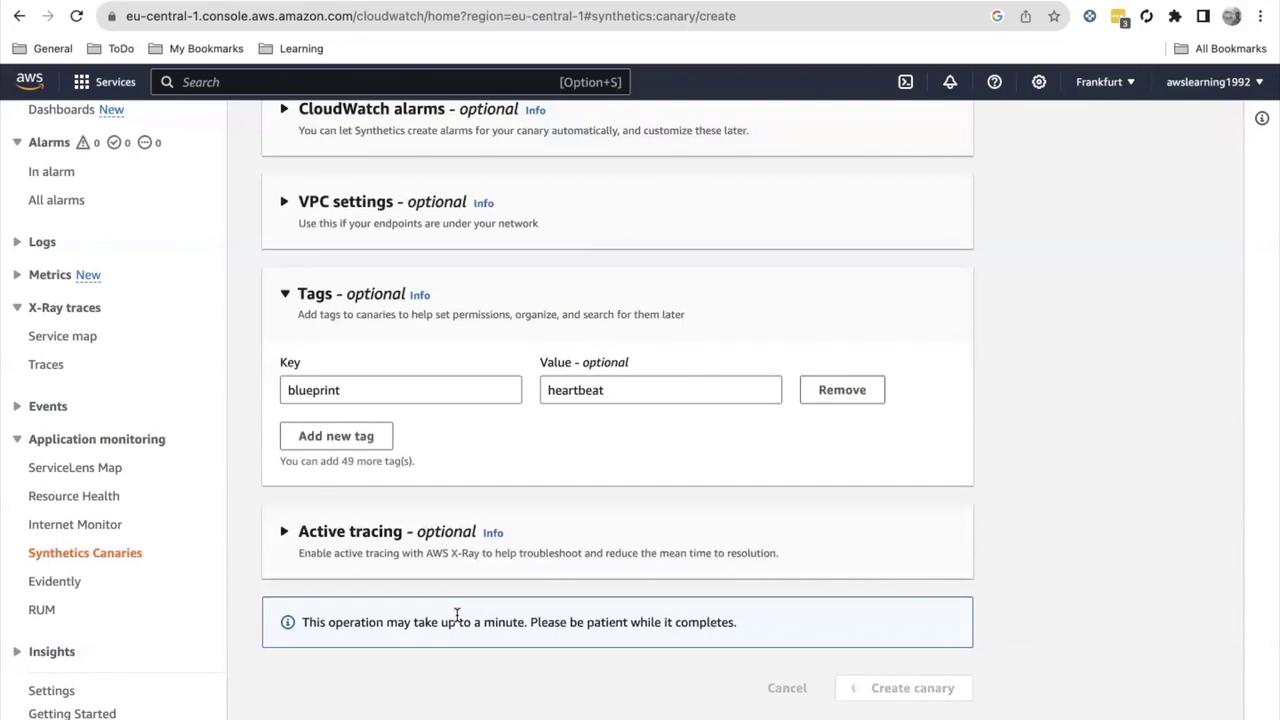
Scroll down and click **Create Canary**. Deployment takes about **5–10 minutes**.
## 4. Monitoring Canary Metrics
After the canary is active, return to the **Synthetics** dashboard to view:
* A pie chart of passed vs. failed runs
* Average runtime, status, and success rate
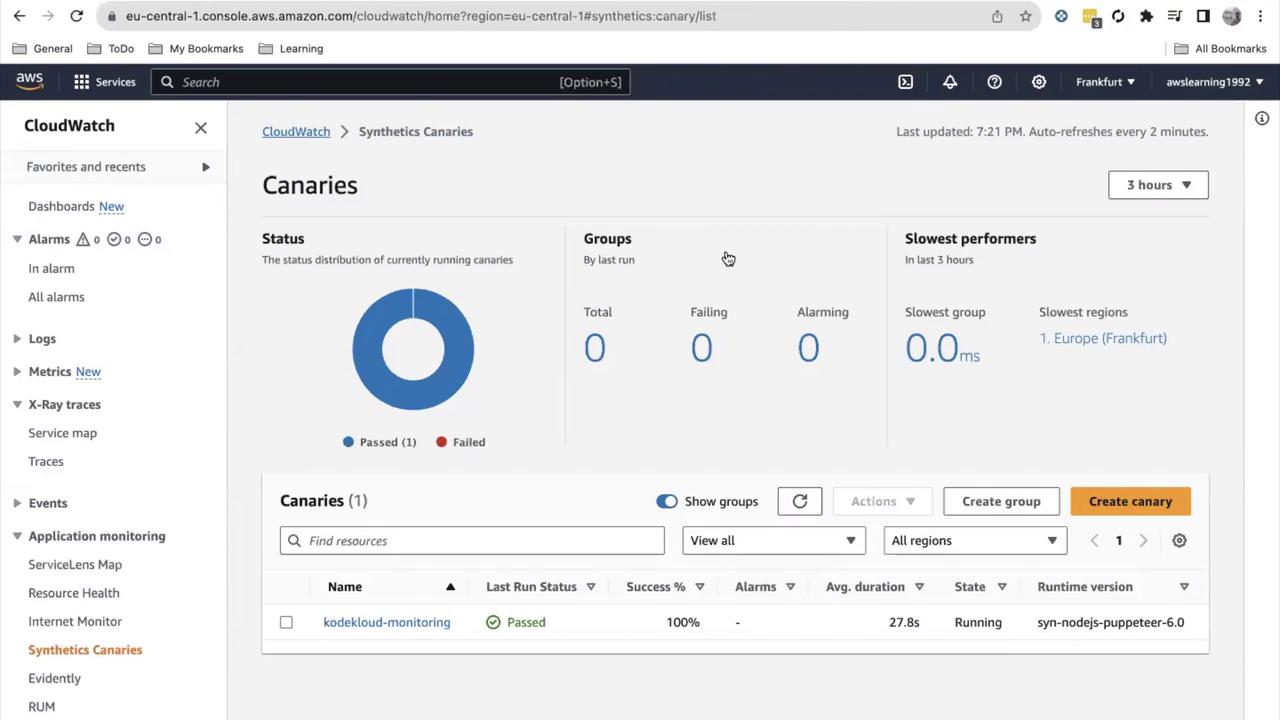
Click your canary’s name to access the **Runs** view:
* **Steps Executed**: Each scripted step (e.g., open URL)
* **Screenshots**: Page captures at each step
* **Logs**: Console output from the script
* **HAR file**: HTTP archive for detailed analysis
* **Execution info**: Timestamps, duration, runtime environment
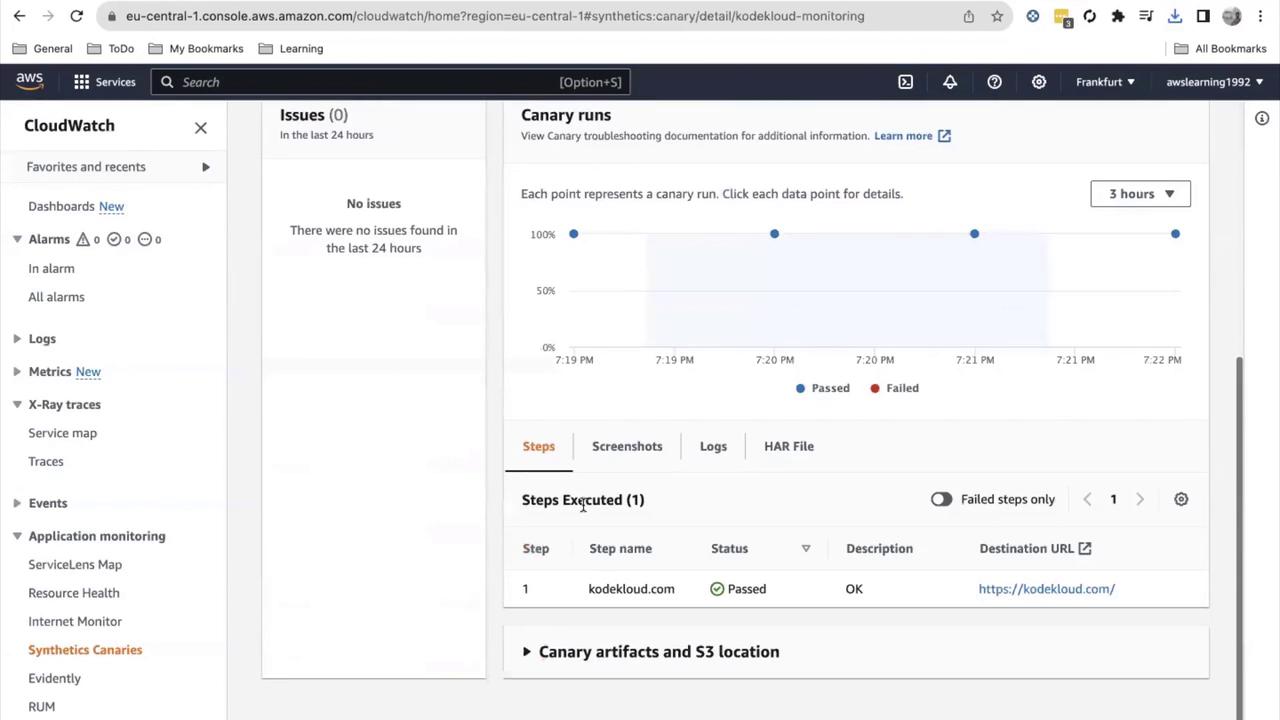
This insight ensures uptime, measures performance, and validates essential user paths.
## 5. Pausing and Stopping a Canary
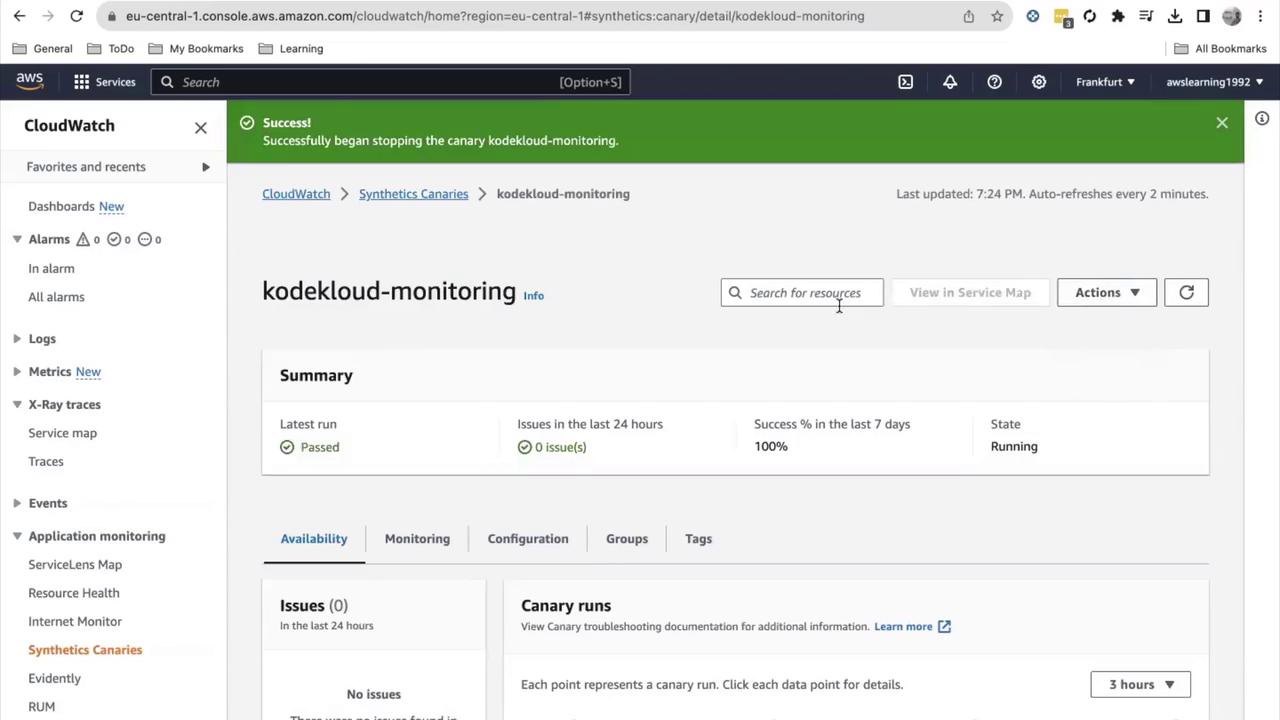
To stop a running canary:
1. In the **Synthetics** console, select your canary.
2. Click **Actions** > **Stop**.
3. Confirm the stop operation.
## 6. Organizing Canaries into Groups
Group related canaries (up to 10 per group) for streamlined management:
1. Navigate to **Synthetics** > **Canary groups**.
2. Click **Create group**, specify a name, and add existing canaries.
## 7. Building a GUI Workflow Canary
For advanced end-to-end testing:
1. Click **Create Canary**.
2. Choose a **Visual monitoring** or **Browser-based** blueprint.
3. Use the **Inline editor** or **Import from S3** for custom Node.js scripts.
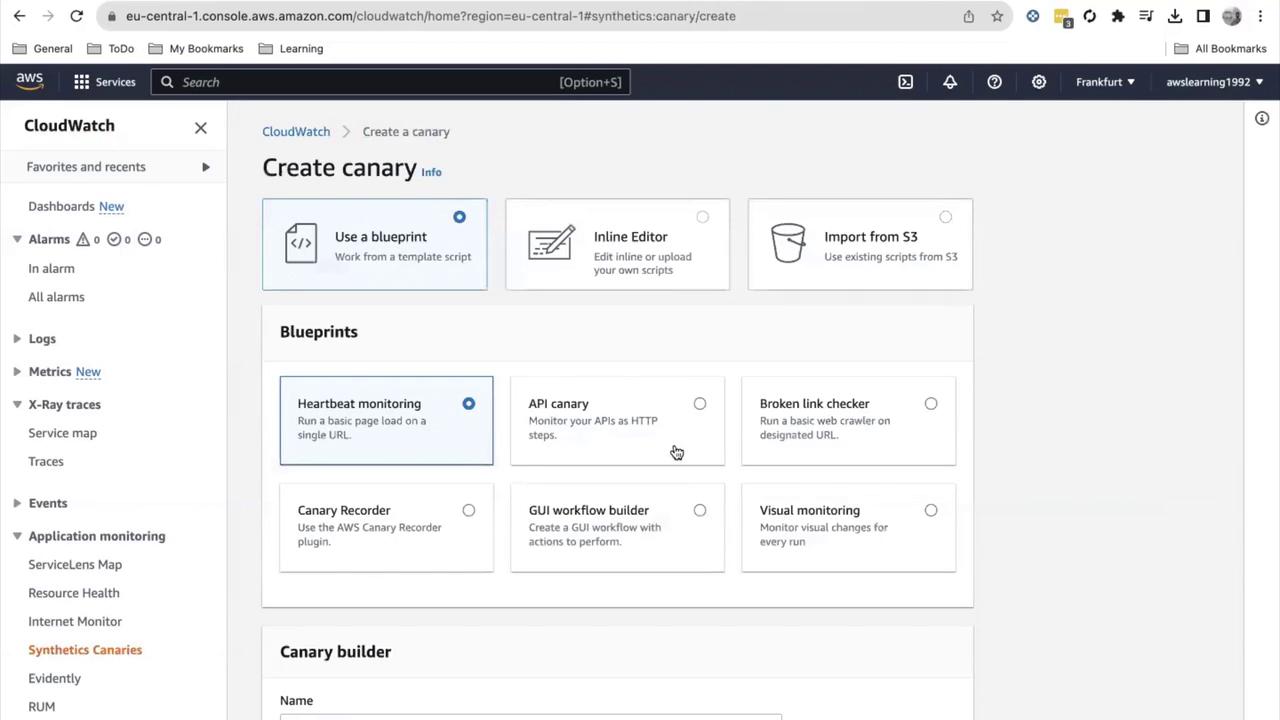
A GUI workflow canary can:
* Validate login flows
* Measure form submission times
* Navigate menus and verify element visibility
Automate these tests at regular intervals to detect performance regressions and trigger alerts.
## 8. Deleting a Canary
When a canary is no longer needed:
1. Select it in the **Synthetics** console.
2. Choose **Actions** > **Delete**.
3. Optionally remove its IAM role.
If deletion fails, ensure the canary is stopped before retrying.
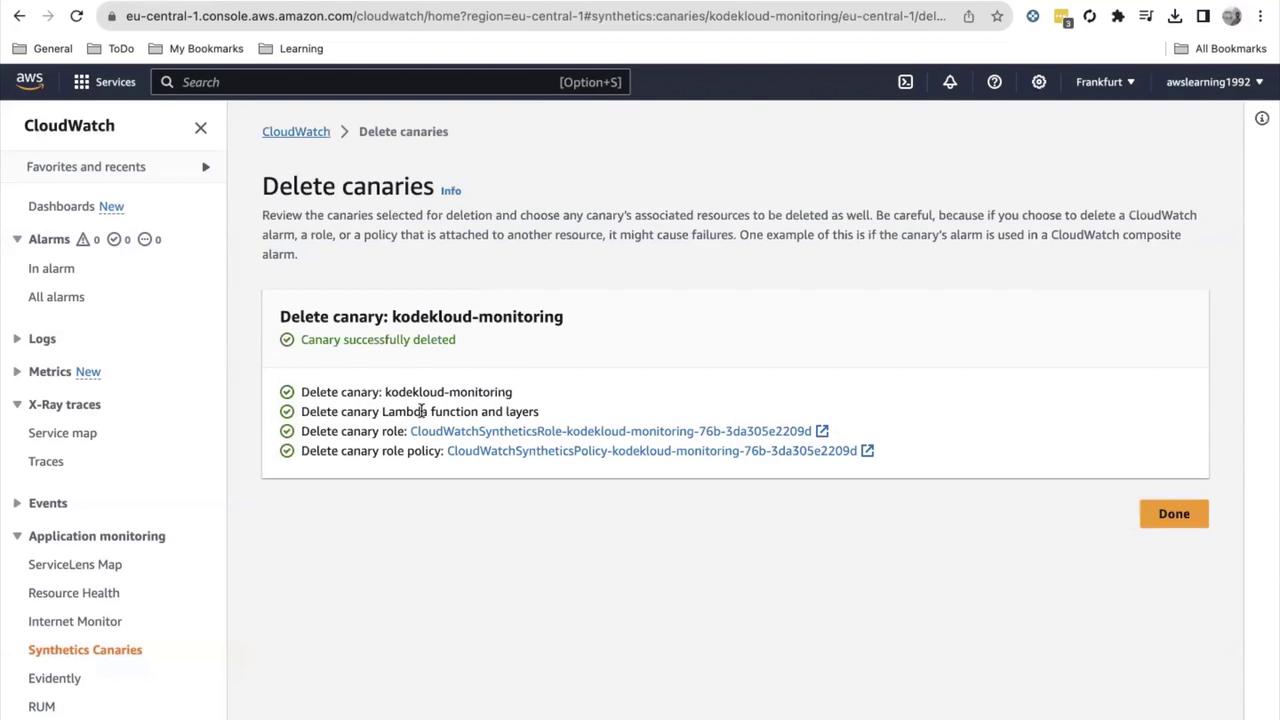
Deleting a canary cleans up its CloudWatch alarms, logs, metrics, and IAM resources.
***
## Links and References
* [AWS CloudWatch Synthetics Documentation](https://docs.aws.amazon.com/AmazonCloudWatch/latest/monitoring/CloudWatch_Synthetics.html)
* [AWS CloudWatch Pricing](https://aws.amazon.com/cloudwatch/pricing/)
* [AWS IAM Roles Guide](https://docs.aws.amazon.com/IAM/latest/UserGuide/id_roles.html)