> ## Documentation Index
> Fetch the complete documentation index at: https://notes.kodekloud.com/llms.txt
> Use this file to discover all available pages before exploring further.

# Demo Creating a composite alarm

> This article provides a step-by-step guide to creating a composite alarm in AWS using CloudFormation, including resource provisioning and alarm configuration.

## Prerequisites

<Callout icon="lightbulb" color="#1CB2FE">
  Ensure you define the `LatestAmiId` parameter before deploying the stack. For example:

  ```yaml theme={null}
  Parameters:
    LatestAmiId:
      Type: AWS::SSM::Parameter::Value<AWS::EC2::Image::Id>
      Default: /aws/service/ami-amazon-linux-latest/amzn2-ami-hvm-x86_64-gp2
  ```
</Callout>

## CloudFormation Template Overview

This CloudFormation template provisions the following AWS resources:

| Resource                      | Description                                         | CloudFormation Type                   |
| ----------------------------- | --------------------------------------------------- | ------------------------------------- |
| Security Group                | SSH access for EC2 instances                        | AWS::EC2::SecurityGroup               |
| Launch Configuration          | Launches `t2.micro` instances with latest AMI       | AWS::AutoScaling::LaunchConfiguration |
| Auto Scaling Group (ASG)      | Scales between 2 and 20 instances, 1-minute metrics | AWS::AutoScaling::AutoScalingGroup    |
| Scale-Up Policy               | Increases ASG capacity by 1 instance                | AWS::AutoScaling::ScalingPolicy       |
| CloudWatch Alarm: HighCPU     | Triggers when CPU > 80%                             | AWS::CloudWatch::Alarm                |
| CloudWatch Alarm: VeryHighCPU | Triggers when CPU > 90%                             | AWS::CloudWatch::Alarm                |
| CloudWatch Alarm: HighASGSize | Triggers when ASG size > 10                         | AWS::CloudWatch::Alarm                |

### Core Resources

```yaml theme={null}
Resources:
  MyEC2SecurityGroup:
    Type: 'AWS::EC2::SecurityGroup'
    Properties:
      GroupDescription: EC2 Security Group for the Auto Scaling Group instances
      SecurityGroupIngress:
        - IpProtocol: tcp
          FromPort: '22'
          ToPort: '22'
          CidrIp: 0.0.0.0/0

  LaunchConfiguration:
    Type: 'AWS::AutoScaling::LaunchConfiguration'
    Properties:
      ImageId: !Ref LatestAmiId
      InstanceType: t2.micro
      SecurityGroups:
        - Ref: MyEC2SecurityGroup

  AutoScalingGroup:
    Type: 'AWS::AutoScaling::AutoScalingGroup'
    Properties:
      AvailabilityZones: Fn::GetAZs: ''
      LaunchConfigurationName: Ref: LaunchConfiguration
      MinSize: '2'
      MaxSize: '20'
      DesiredCapacity: '2'
      MetricsCollection:
        - Granularity: 1Minute

  ScaleUpPolicy:
    Type: 'AWS::AutoScaling::ScalingPolicy'
    Properties:
      AutoScalingGroupName: Ref: AutoScalingGroup
      AdjustmentType: ChangeInCapacity
      ScalingAdjustment: '1'
      Cooldown: '300'
```

### CloudWatch Alarms Definition

| Alarm Name       | Metric              | Threshold | Period | Namespace       |
| ---------------- | ------------------- | --------- | ------ | --------------- |
| HighCPUUsage     | CPUUtilization      | 80%       | 300s   | AWS/EC2         |
| VeryHighCPUUsage | CPUUtilization      | 90%       | 300s   | AWS/EC2         |
| HighASGSize      | GroupTotalInstances | 10        | 300s   | AWS/AutoScaling |

```yaml theme={null}
  HighCPUAlarm:
    Type: 'AWS::CloudWatch::Alarm'
    Properties:
      AlarmName: HighCPUUsage
      AlarmDescription: Alarm when CPU exceeds 80 percent
      Namespace: AWS/EC2
      MetricName: CPUUtilization
      Statistic: Average
      Period: '300'
      EvaluationPeriods: '1'
      Threshold: '80'
      ComparisonOperator: GreaterThanThreshold
      Dimensions:
        - Name: AutoScalingGroupName
          Value: Ref: AutoScalingGroup

  VeryHighCPUAlarm:
    Type: 'AWS::CloudWatch::Alarm'
    Properties:
      AlarmName: VeryHighCPUUsage
      AlarmDescription: Alarm when CPU exceeds 90 percent
      Namespace: AWS/EC2
      MetricName: CPUUtilization
      Statistic: Average
      Period: '300'
      EvaluationPeriods: '1'
      Threshold: '90'
      ComparisonOperator: GreaterThanThreshold
      Dimensions:
        - Name: AutoScalingGroupName
          Value: Ref: AutoScalingGroup

  HighASGSizeAlarm:
    Type: 'AWS::CloudWatch::Alarm'
    Properties:
      AlarmName: HighASGSize
      AlarmDescription: Alarm when ASG size exceeds 10
      Namespace: AWS/AutoScaling
      MetricName: GroupTotalInstances
      Statistic: Average
      Period: '300'
      EvaluationPeriods: '1'
      Threshold: '10'
      ComparisonOperator: GreaterThanThreshold
      Dimensions:
        - Name: AutoScalingGroupName
          Value: Ref: AutoScalingGroup
```

### Outputs

```yaml theme={null}
Outputs:
  AutoScalingGroupName:
    Description: The name of the Auto Scaling Group
    Value: Ref: AutoScalingGroup
```

<Callout icon="lightbulb" color="#1CB2FE">
  Although the ASG can scale up to 20 instances, our threshold is set at >10 for demonstration.
</Callout>

## Deploy the CloudFormation Stack

1. Open the AWS [CloudFormation Console](https://docs.aws.amazon.com/AWSCloudFormation/latest/UserGuide/).
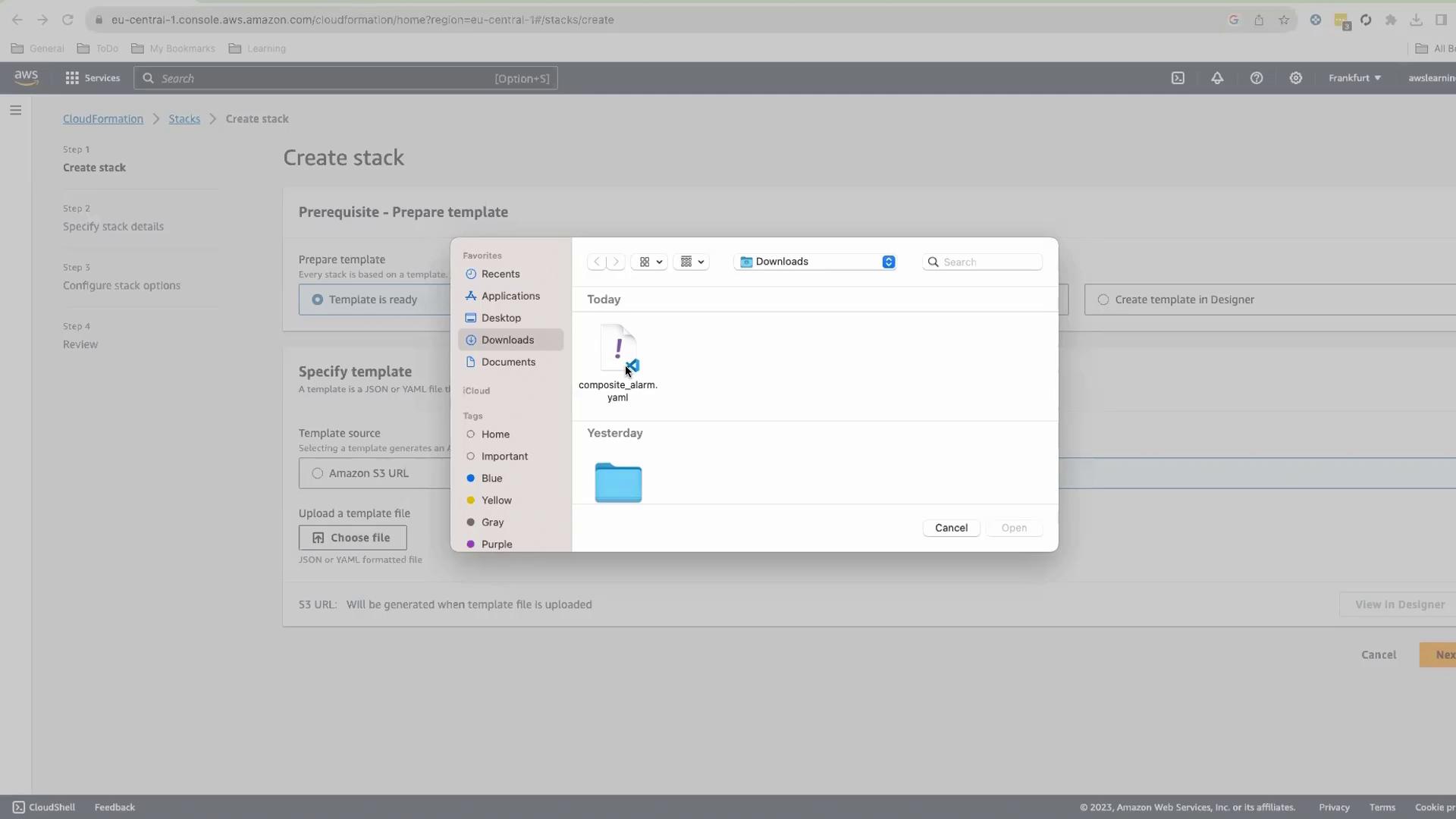
2. Choose **Create stack** > **Upload a template file**, and select your `composite_alarm.yaml`.
<Frame>
  ![The image shows an AWS CloudFormation interface for creating a stack, with a file selection window open to choose a YAML file named "composite\_alarm.yaml" from the Downloads folder.](https://kodekloud.com/kk-media/image/upload/v1752862375/notes-assets/images/AWS-CloudWatch-Demo-Creating-a-composite-alarm/aws-cloudformation-stack-yaml-file.jpg)
</Frame>

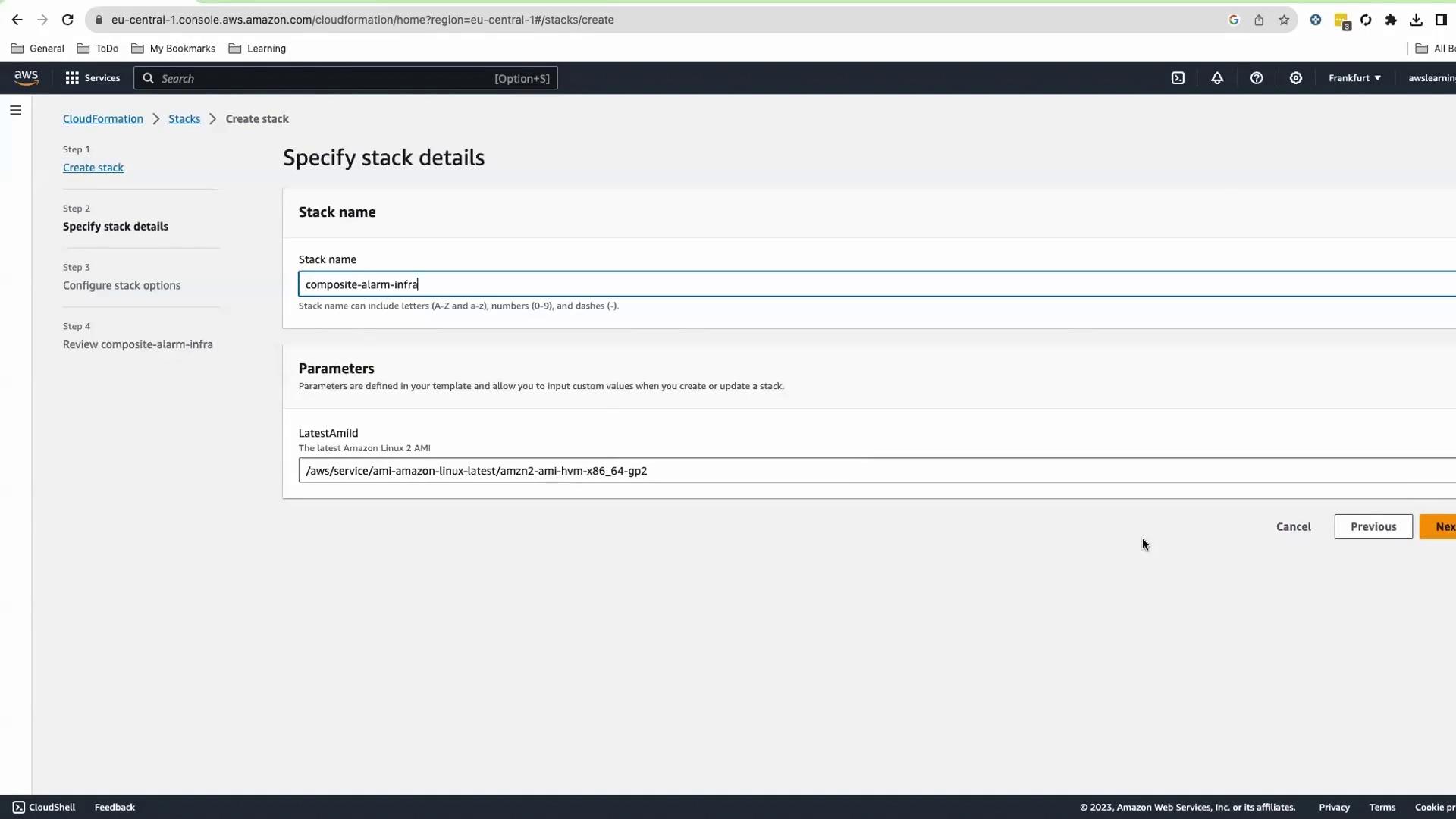
3. Click **Next**, set **Stack name** to `CompositeAlarmInfra`, and keep default parameters.
<Frame>
  ![The image shows an AWS CloudFormation interface where a user is specifying stack details, including a stack name and parameters for creating a stack.](https://kodekloud.com/kk-media/image/upload/v1752862376/notes-assets/images/AWS-CloudWatch-Demo-Creating-a-composite-alarm/aws-cloudformation-stack-creation-interface.jpg)
</Frame>

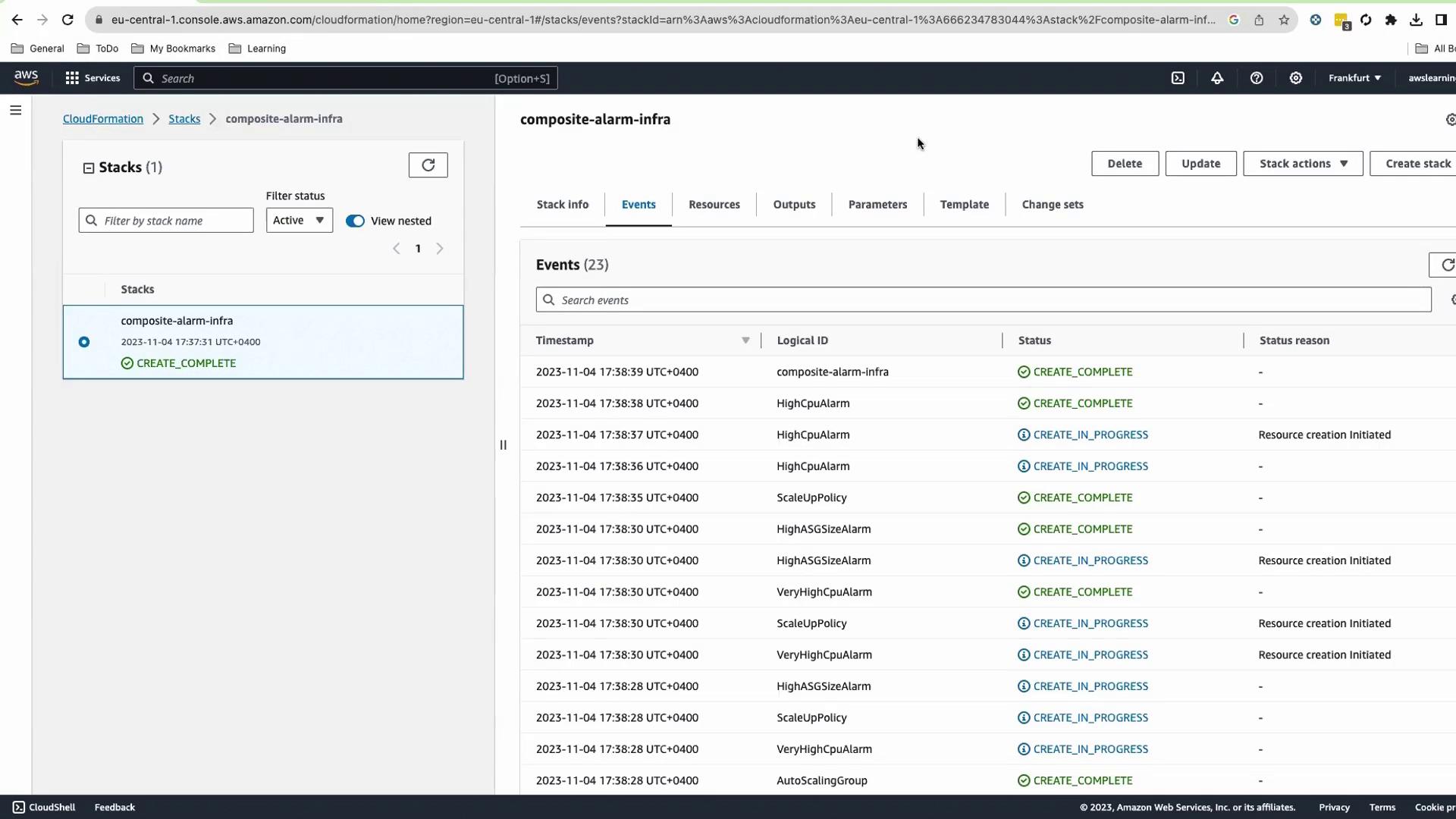
4. Submit and wait \~4–5 minutes until status is `CREATE_COMPLETE`.
<Frame>
  ![The image shows an AWS CloudFormation console with a stack named "composite-alarm-infra" and a list of events indicating the creation status of various resources.](https://kodekloud.com/kk-media/image/upload/v1752862378/notes-assets/images/AWS-CloudWatch-Demo-Creating-a-composite-alarm/aws-cloudformation-composite-alarm-infra.jpg)
</Frame>

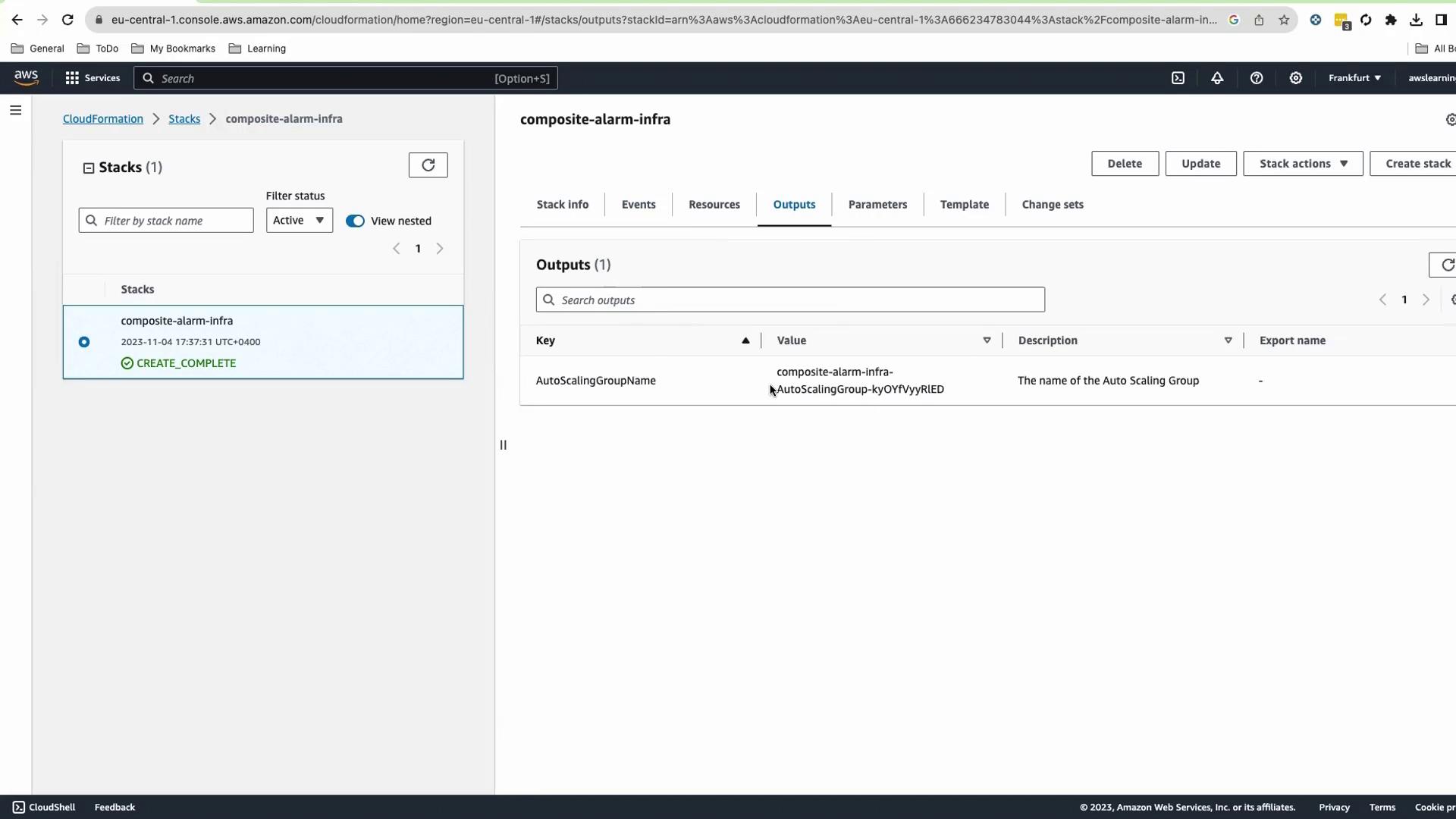
5. On **Outputs**, copy the **AutoScalingGroupName**.
<Frame>
  ![The image shows an AWS CloudFormation console with a stack named "composite-alarm-infra" that has a status of "CREATE\_COMPLETE." The Outputs tab displays an AutoScalingGroupName with its corresponding value.](https://kodekloud.com/kk-media/image/upload/v1752862380/notes-assets/images/AWS-CloudWatch-Demo-Creating-a-composite-alarm/aws-cloudformation-composite-alarm-infra-2.jpg)
</Frame>

## Verify CloudWatch Alarms

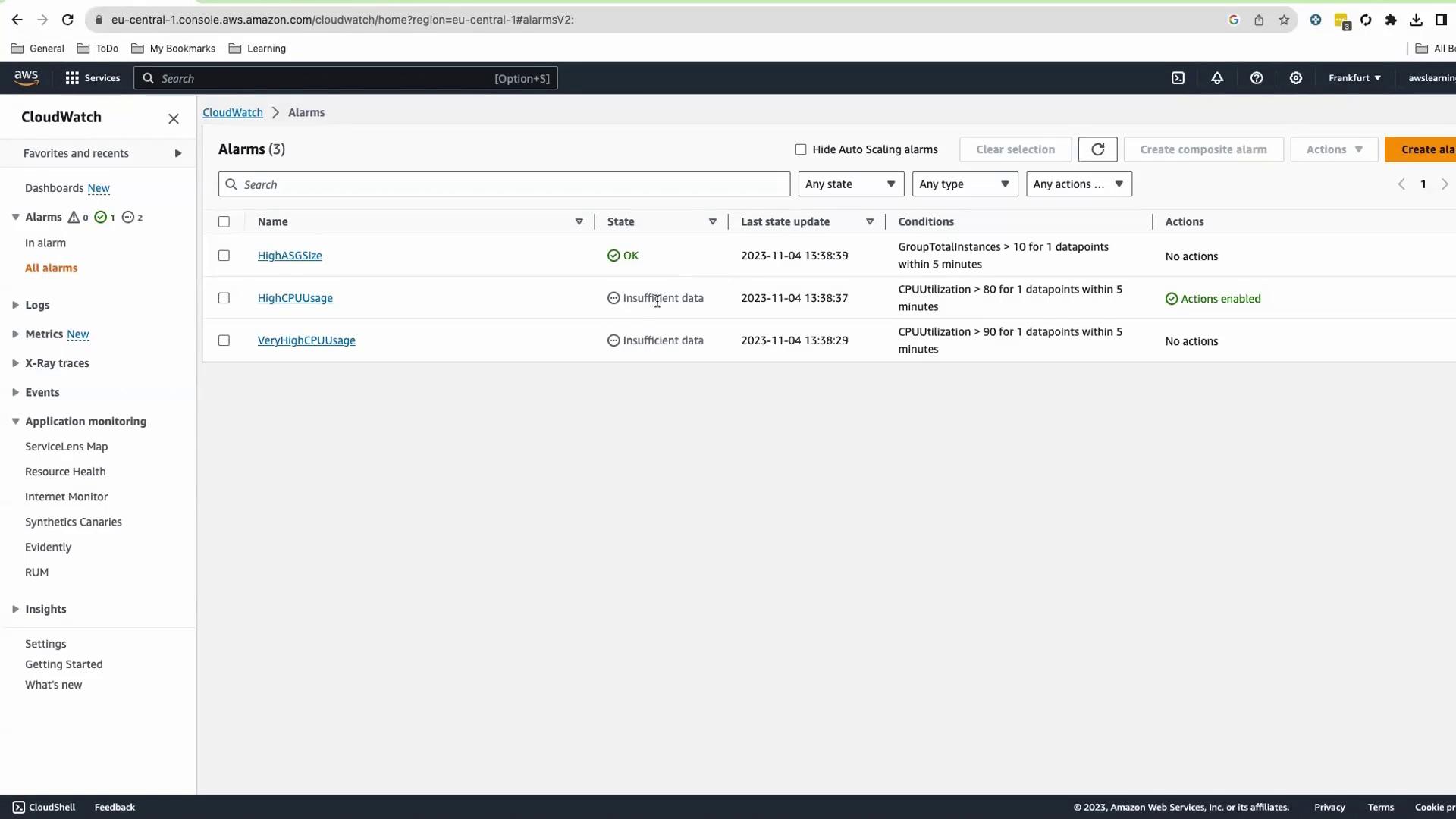
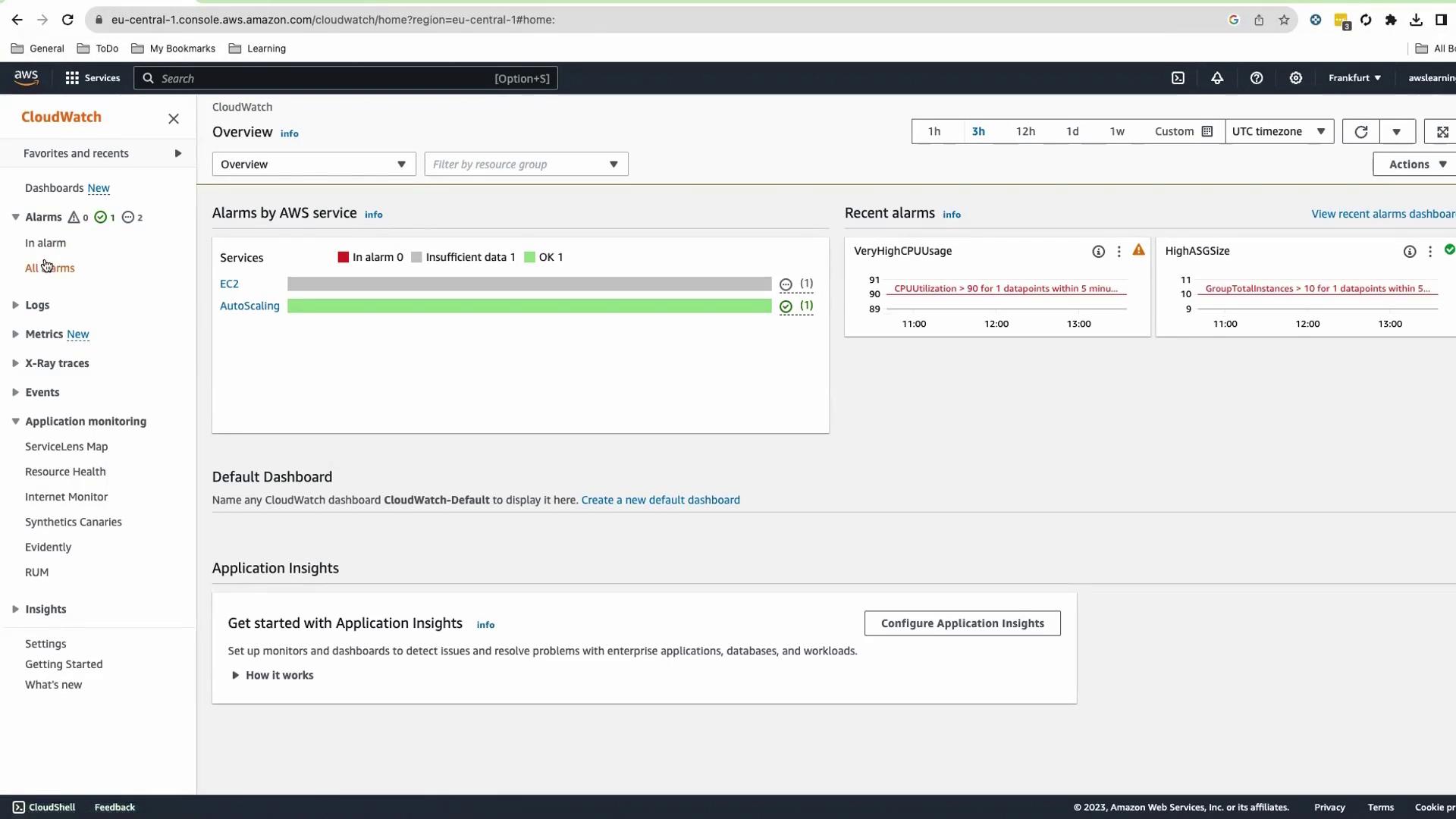
Navigate to **CloudWatch > Alarms**. You should see:

* **HighASGSize**
* **HighCPUUsage**
* **VeryHighCPUUsage**

Initial states will be `OK` or `Insufficient Data`.
<Frame>
  ![The image shows an AWS CloudWatch dashboard displaying alarms for EC2 and AutoScaling services, with recent alarms indicating high CPU usage and auto-scaling group size.](https://kodekloud.com/kk-media/image/upload/v1752862381/notes-assets/images/AWS-CloudWatch-Demo-Creating-a-composite-alarm/aws-cloudwatch-dashboard-ec2-alarms.jpg)
</Frame>

<Frame>
  ![The image shows an AWS CloudWatch Alarms dashboard with three alarms listed, indicating their status and conditions. The alarms are named "HighASGSize," "HighCPUUsage," and "VeryHighCPUUsage," with varying states and conditions.](https://kodekloud.com/kk-media/image/upload/v1752862383/notes-assets/images/AWS-CloudWatch-Demo-Creating-a-composite-alarm/aws-cloudwatch-alarms-dashboard-status.jpg)
</Frame>

## Create the Composite Alarm

1. Select the three child alarms.
2. Go to **Actions > Create composite alarm**.
3. Define the rule:
   ```text theme={null}
   ALARM(HighCPUUsage) OR ALARM(VeryHighCPUUsage) OR ALARM(HighASGSize)
   ```
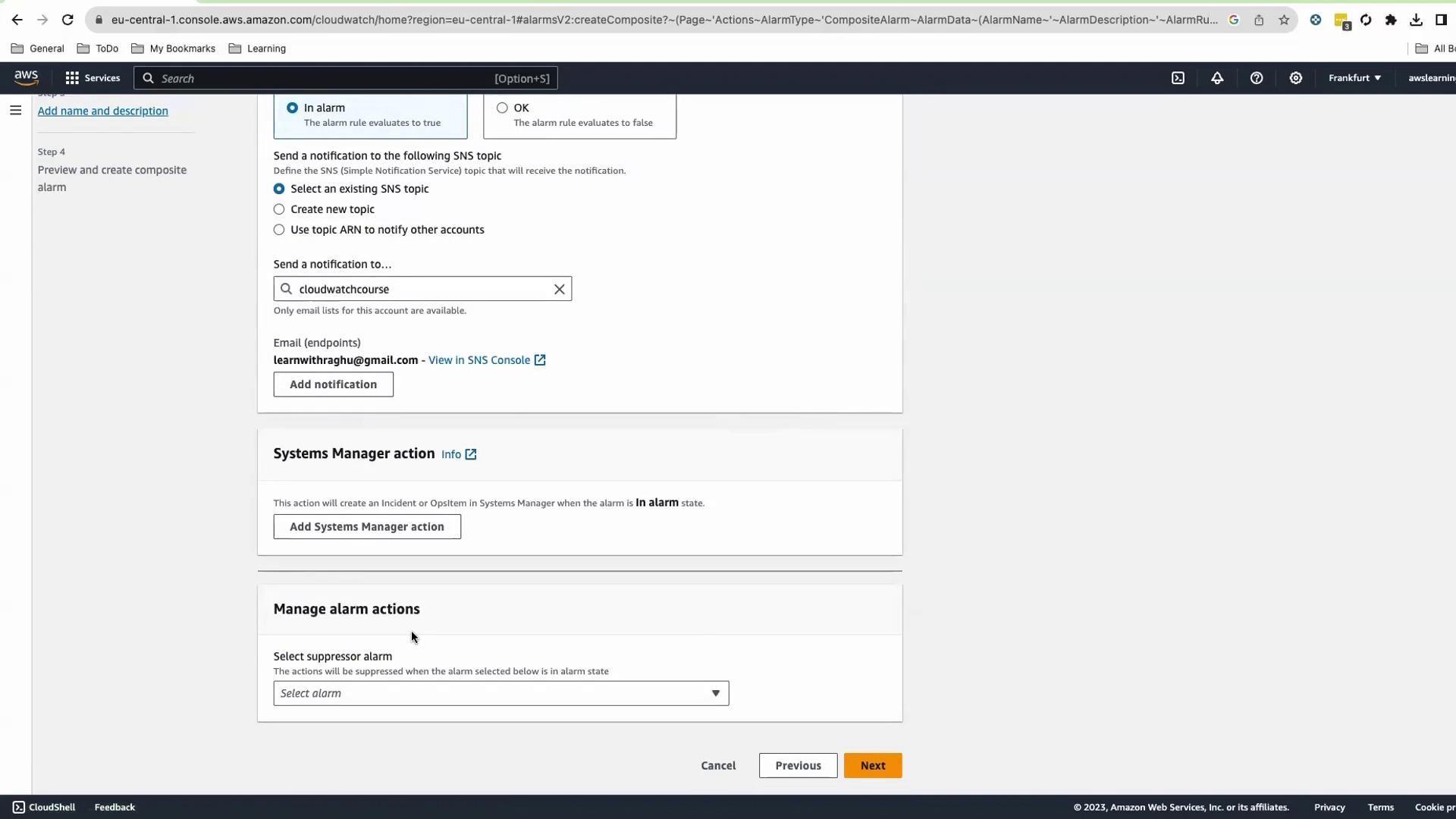
4. Configure notifications (e.g., an SNS topic) and an optional suppressor alarm.
<Frame>
  ![The image shows an AWS CloudWatch console screen where a user is configuring alarm notifications and actions, including selecting an SNS topic and managing alarm actions.](https://kodekloud.com/kk-media/image/upload/v1752862385/notes-assets/images/AWS-CloudWatch-Demo-Creating-a-composite-alarm/aws-cloudwatch-alarm-notifications-config.jpg)
</Frame>

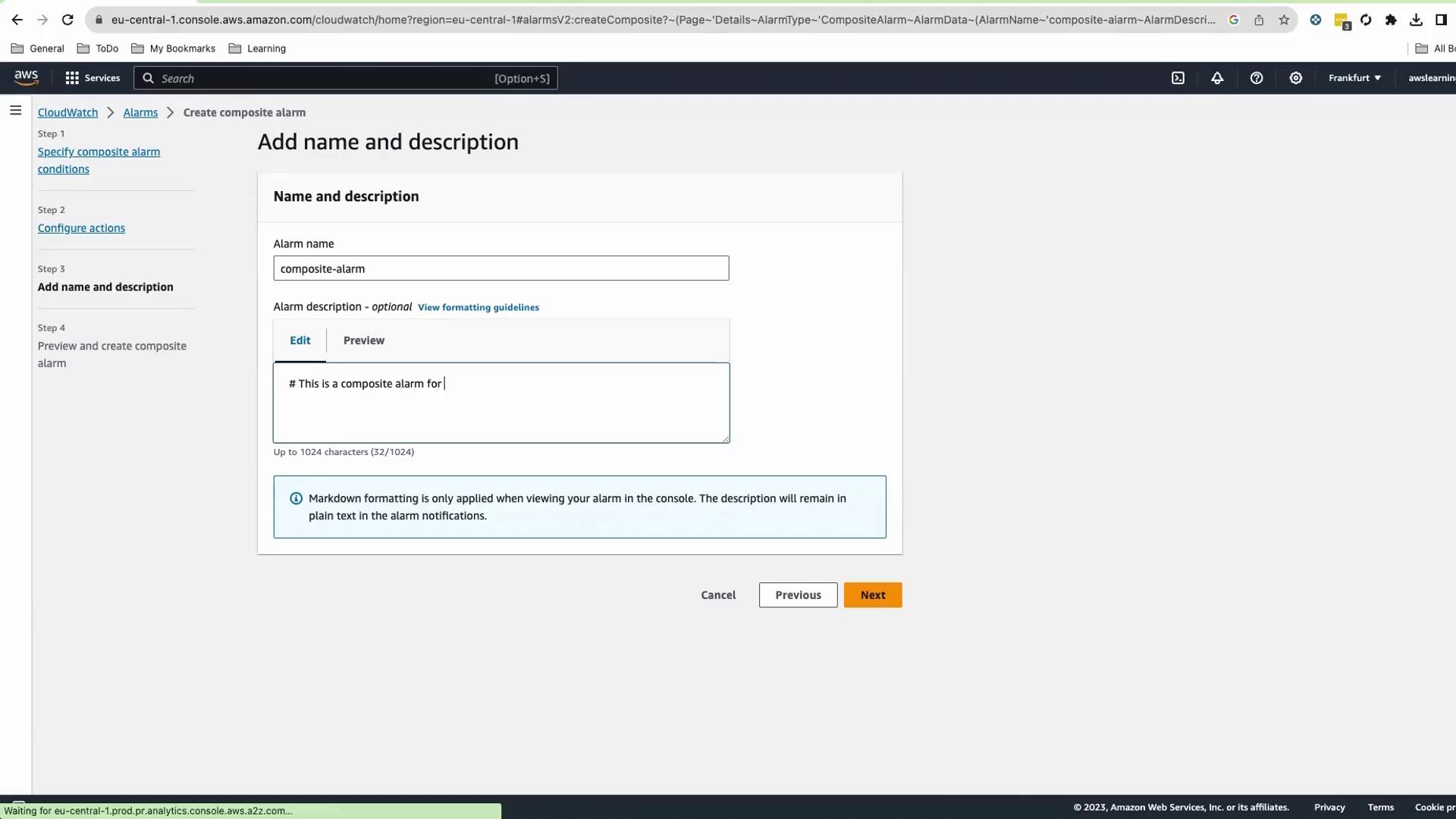
5. Enter **Name** and **Description** (Markdown supported).
<Frame>
  ![The image shows an AWS CloudWatch interface for creating a composite alarm, specifically the "Add name and description" step. It includes fields for entering the alarm name and an optional description with markdown formatting guidelines.](https://kodekloud.com/kk-media/image/upload/v1752862387/notes-assets/images/AWS-CloudWatch-Demo-Creating-a-composite-alarm/aws-cloudwatch-composite-alarm-step.jpg)
</Frame>

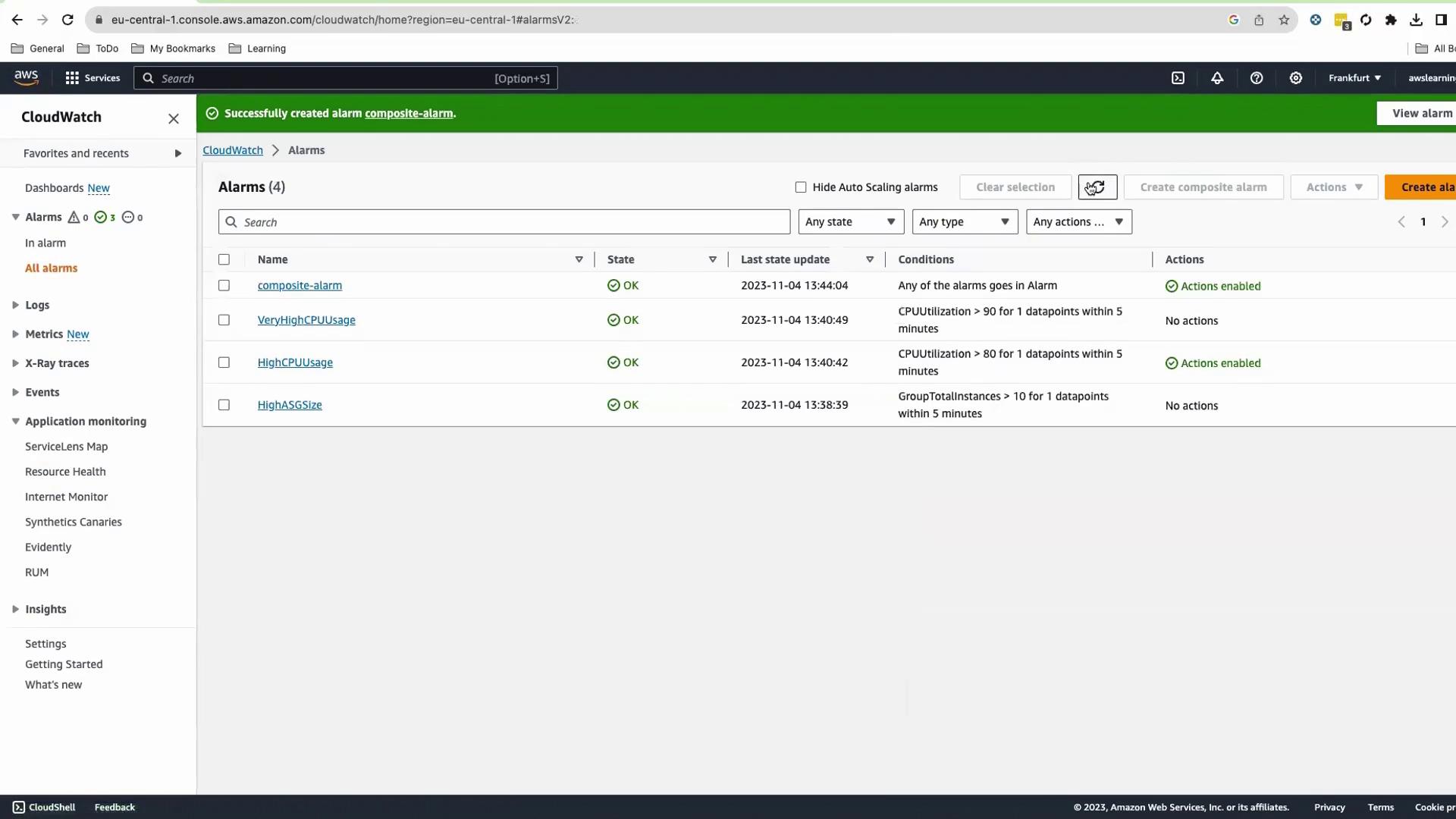
After creation, you’ll see four alarms, all in `OK` state.
<Frame>
  ![The image shows an AWS CloudWatch dashboard with a list of alarms, all in an "OK" state, detailing conditions like CPU utilization and actions enabled.](https://kodekloud.com/kk-media/image/upload/v1752862388/notes-assets/images/AWS-CloudWatch-Demo-Creating-a-composite-alarm/aws-cloudwatch-dashboard-alarms-ok.jpg)
</Frame>

## Test the Composite Alarm

To trigger the alarm:

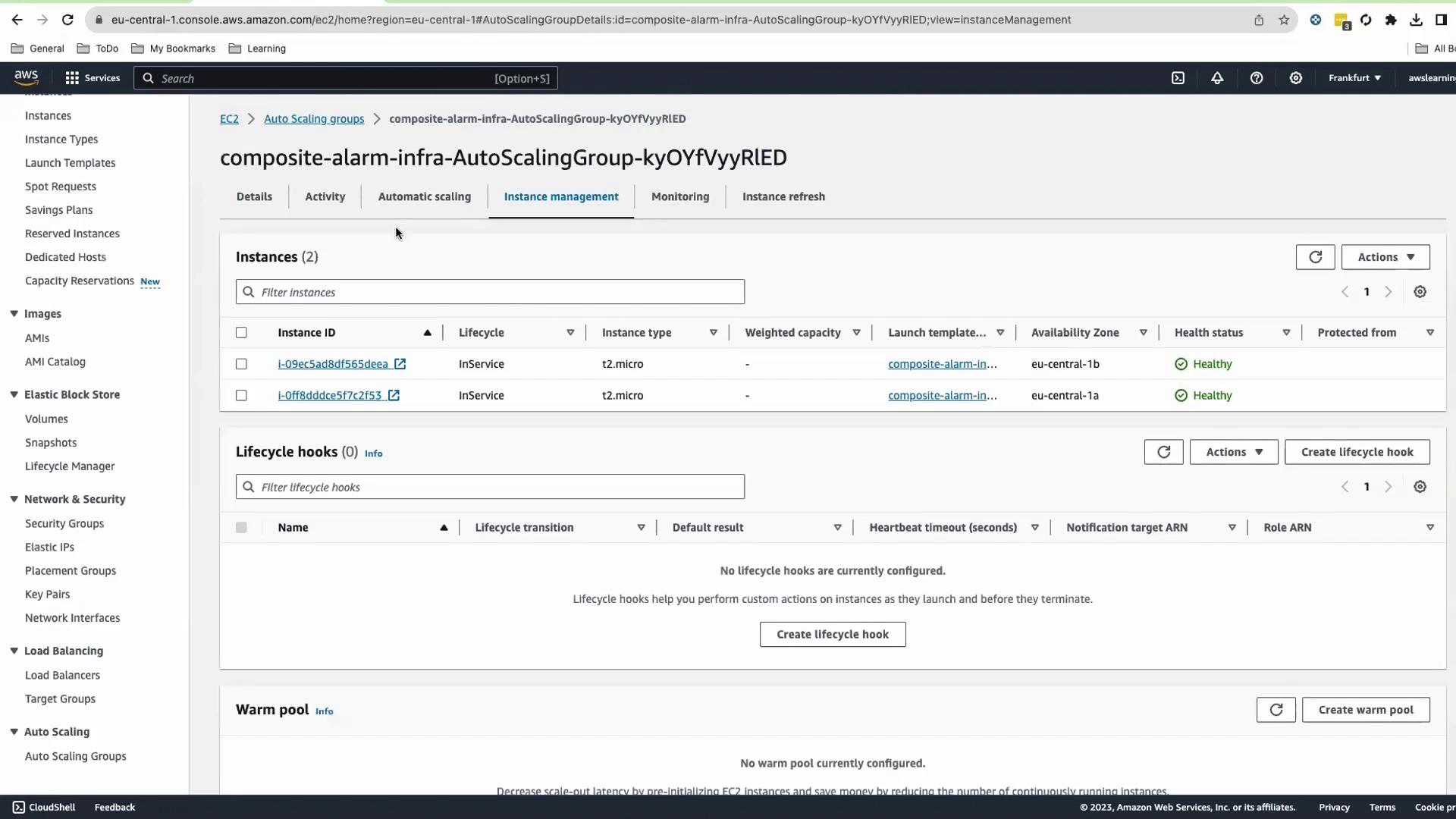
1. In the EC2 Console, open your ASG > **Details** > **Edit**.
2. Set **Min** and **Desired** capacity to `12`, then save.
<Frame>
  ![The image shows an AWS EC2 Auto Scaling group management console with two instances listed as "InService" and "Healthy." The interface includes options for managing lifecycle hooks and warm pools.](https://kodekloud.com/kk-media/image/upload/v1752862390/notes-assets/images/AWS-CloudWatch-Demo-Creating-a-composite-alarm/aws-ec2-auto-scaling-console-instances.jpg)
</Frame>

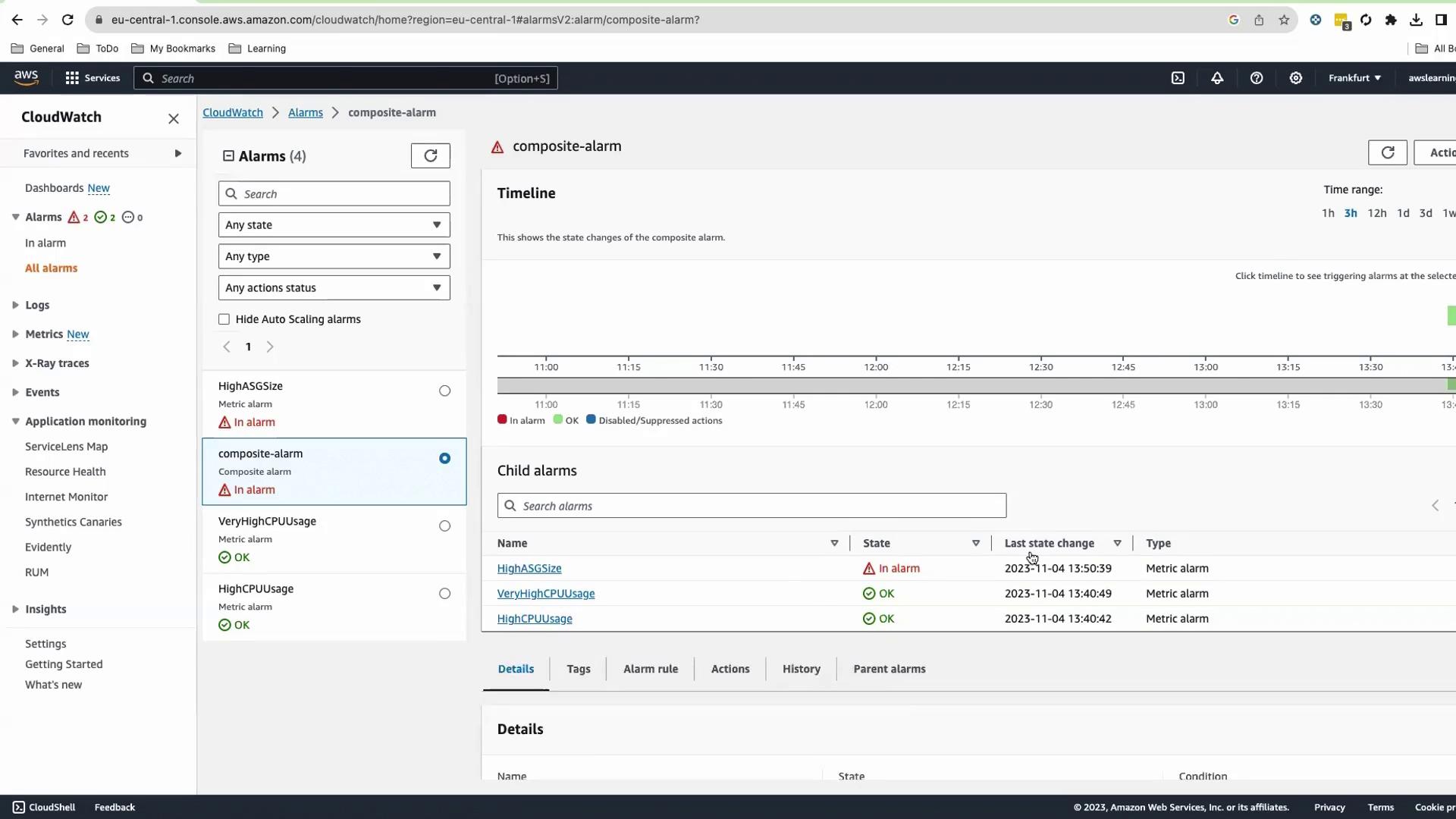
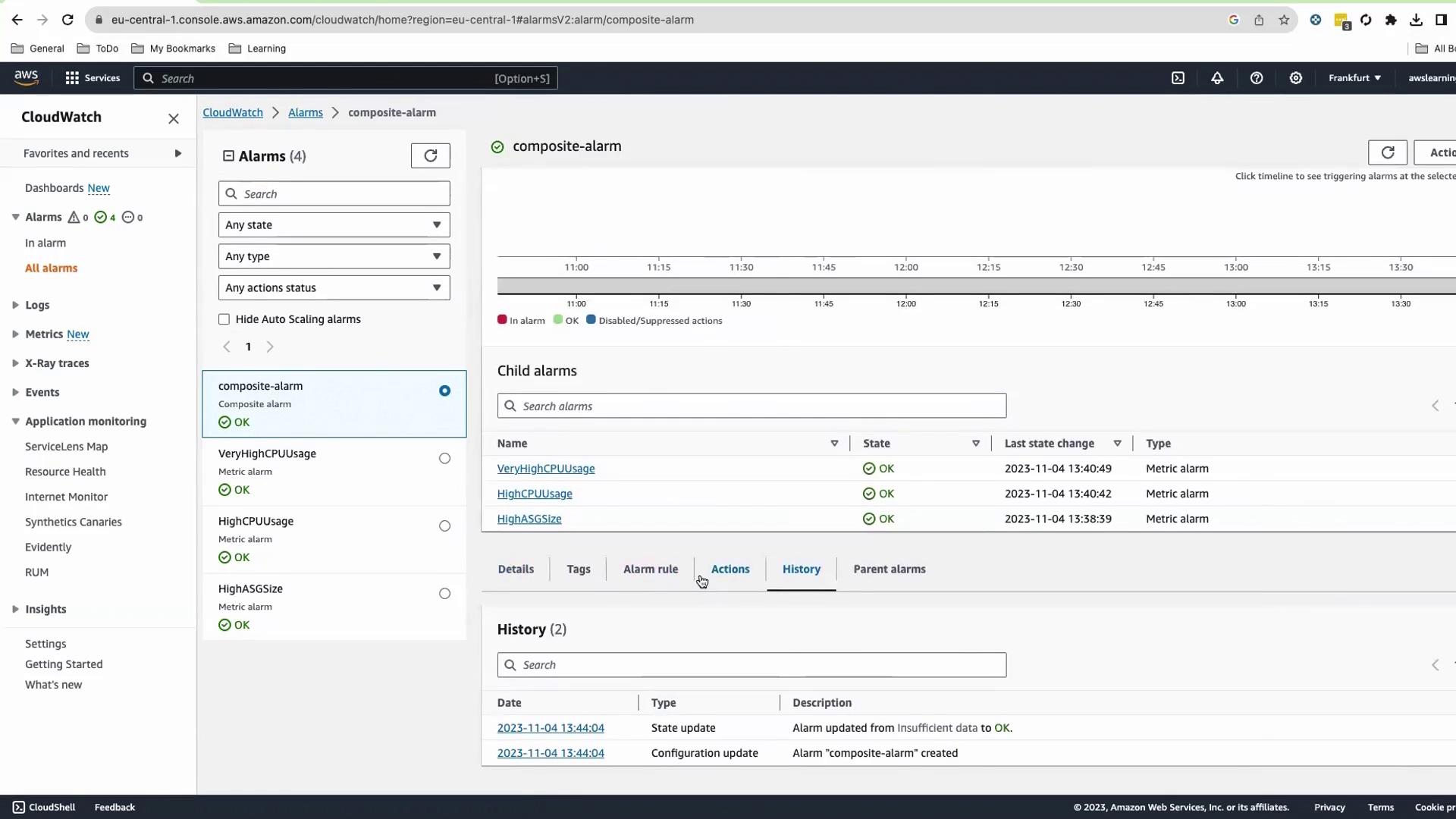
After one metric period, **HighASGSize** will fire and the composite alarm will trigger.
<Frame>
  ![The image shows an AWS CloudWatch dashboard displaying a composite alarm with its status as "OK" and a list of child alarms, all of which are also in the "OK" state. The interface includes options for viewing details, tags, alarm rules, actions, and history.](https://kodekloud.com/kk-media/image/upload/v1752862392/notes-assets/images/AWS-CloudWatch-Demo-Creating-a-composite-alarm/aws-cloudwatch-dashboard-composite-alarm.jpg)
</Frame>

<Frame>
  ![The image shows an AWS CloudWatch dashboard with alarms, including a composite alarm that is currently in an alarm state. The timeline and child alarms are displayed, indicating their status and last state changes.](https://kodekloud.com/kk-media/image/upload/v1752862394/notes-assets/images/AWS-CloudWatch-Demo-Creating-a-composite-alarm/aws-cloudwatch-dashboard-alarms-composite.jpg)
</Frame>

Check your email for the SNS notification.

## Cleanup

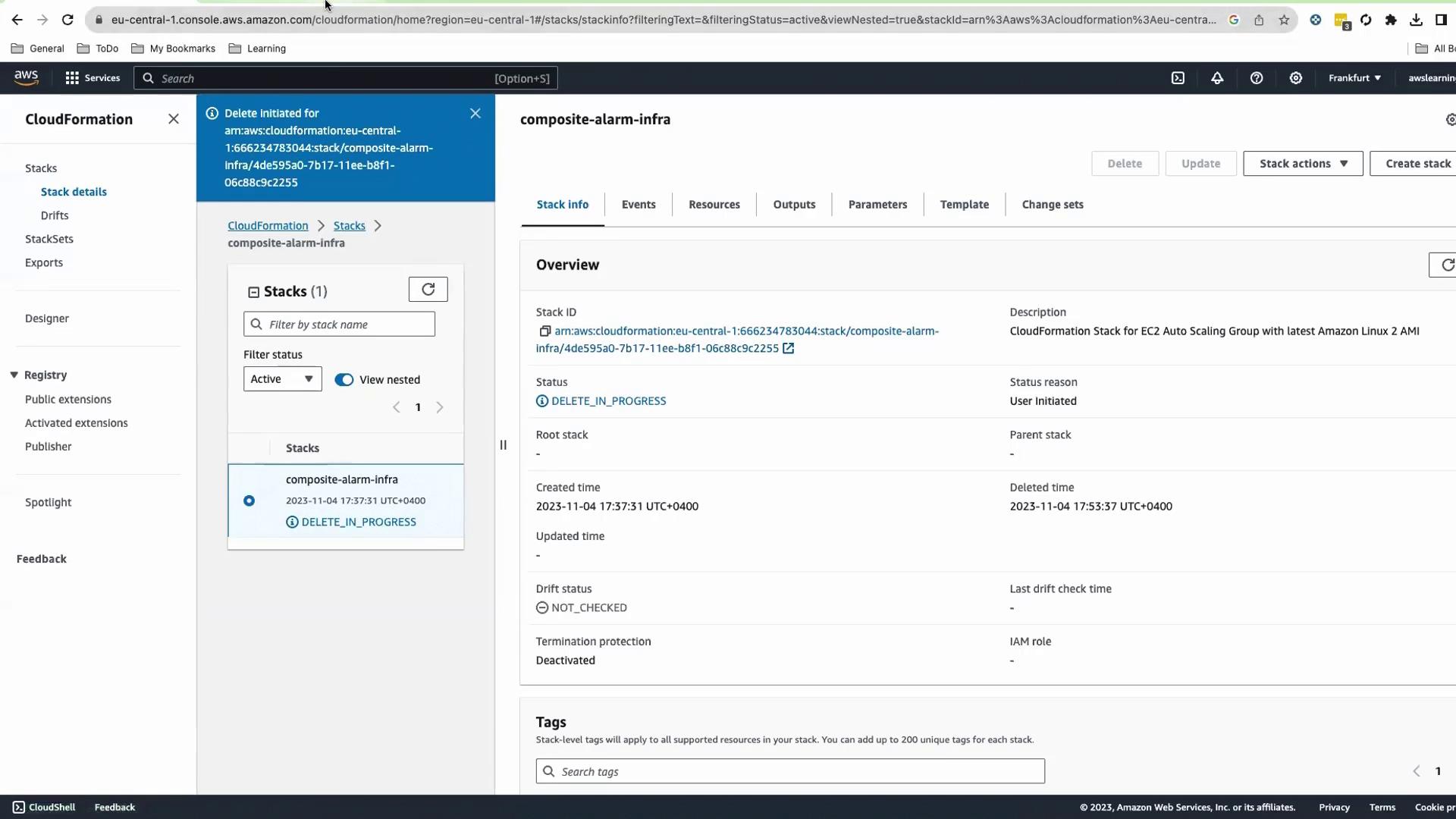
1. Delete the CloudFormation stack.
<Frame>
  ![The image shows an AWS CloudFormation console with details of a stack named "composite-alarm-infra" that is in the process of being deleted. The status is "DELETE\_IN\_PROGRESS" and it includes information like stack ID, description, and creation time.](https://kodekloud.com/kk-media/image/upload/v1752862395/notes-assets/images/AWS-CloudWatch-Demo-Creating-a-composite-alarm/aws-cloudformation-composite-alarm-delete.jpg)
</Frame>

2. In CloudWatch, select the composite alarm and choose **Actions > Delete**.

<Callout icon="triangle-alert" color="#FF6B6B">
  Deleting the composite alarm must be done manually—it is not removed by the CloudFormation stack.
</Callout>

This completes the guide to building and testing an AWS composite alarm using CloudFormation, Auto Scaling, and CloudWatch.

<CardGroup>
  <Card title="Watch Video" icon="video" cta="Learn more" href="https://learn.kodekloud.com/user/courses/aws-cloudwatch/module/41c3204a-bf91-4e6f-8175-02ef9b9f6b82/lesson/227a4a1a-58e8-4848-96e1-9c869c88affd" />

  <Card title="Practice Lab" icon="installation" cta="Learn more" href="https://learn.kodekloud.com/user/courses/aws-cloudwatch/module/41c3204a-bf91-4e6f-8175-02ef9b9f6b82/lesson/231fa078-88f6-46f7-b77e-2284c8aa3b0a" />
</CardGroup>